
 Anmelden
Create a Custom Pass in the Wallet App on iPhone
25. September 2026 um 12:44
In iOS 27, Apple's Wallet app lets you create custom passes for things like event tickets, gift cards, loyalty cards, and more. Here's how it works.
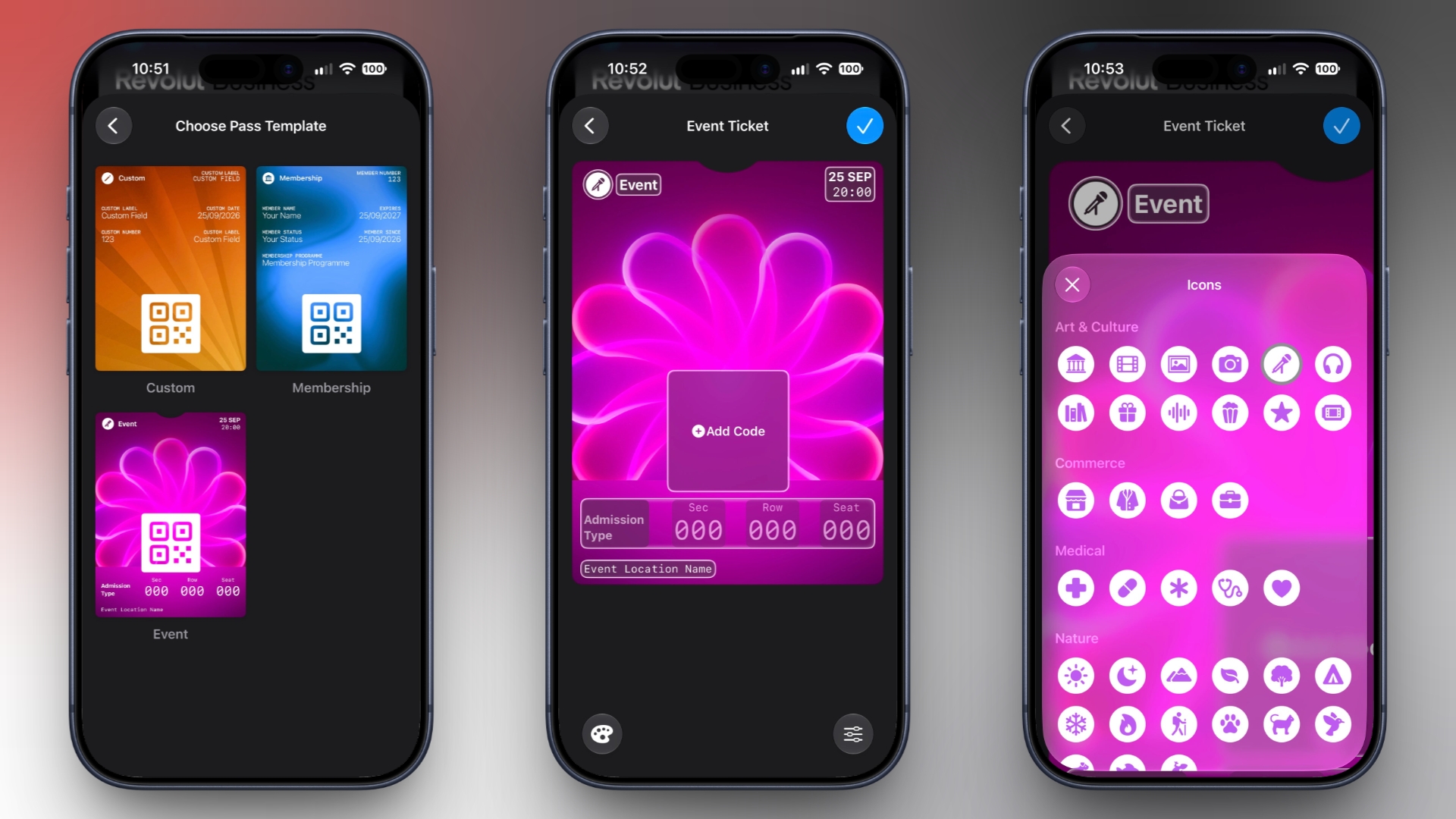
If you have a ticket for an event and there's not a digital version available for the Wallet app, you can create one using the physical pass you have. The same goes for other cards, like a membership card, for example.
The Wallet app can use Visual Intelligence to scan your card, and it will match it to a template with corresponding fields that you can tweak before adding it to your Wallet.
Alternatively, you can create the pass manually, choose a template ("Membership," "Event," or "Custom") and then adjust the color and other details. All you need to do then is scan the barcode or QR code from your physical pass.
Each template includes relevant information like name, location, or admission type. There are 12 background colors to choose from, or seven custom backgrounds for categories like theater, music, sports, and movies.
Fields can be added or removed when creating a custom pass, with options like label, date, membership, contact, coupon code, VIN, insurance, and more, so most physical cards should be able to be stored digitally.
Here's how you create a pass with Visual Intelligence:
This article, "Create a Custom Pass in the Wallet App on iPhone" first appeared on MacRumors.com
Discuss this article in our forums
If you have a ticket for an event and there's not a digital version available for the Wallet app, you can create one using the physical pass you have. The same goes for other cards, like a membership card, for example.
The Wallet app can use Visual Intelligence to scan your card, and it will match it to a template with corresponding fields that you can tweak before adding it to your Wallet.
Alternatively, you can create the pass manually, choose a template ("Membership," "Event," or "Custom") and then adjust the color and other details. All you need to do then is scan the barcode or QR code from your physical pass.
Each template includes relevant information like name, location, or admission type. There are 12 background colors to choose from, or seven custom backgrounds for categories like theater, music, sports, and movies.
Fields can be added or removed when creating a custom pass, with options like label, date, membership, contact, coupon code, VIN, insurance, and more, so most physical cards should be able to be stored digitally.
Here's how you create a pass with Visual Intelligence:
- Open the Wallet app on your iPhone and tap the + button at the top.
- Choose Create a Pass.
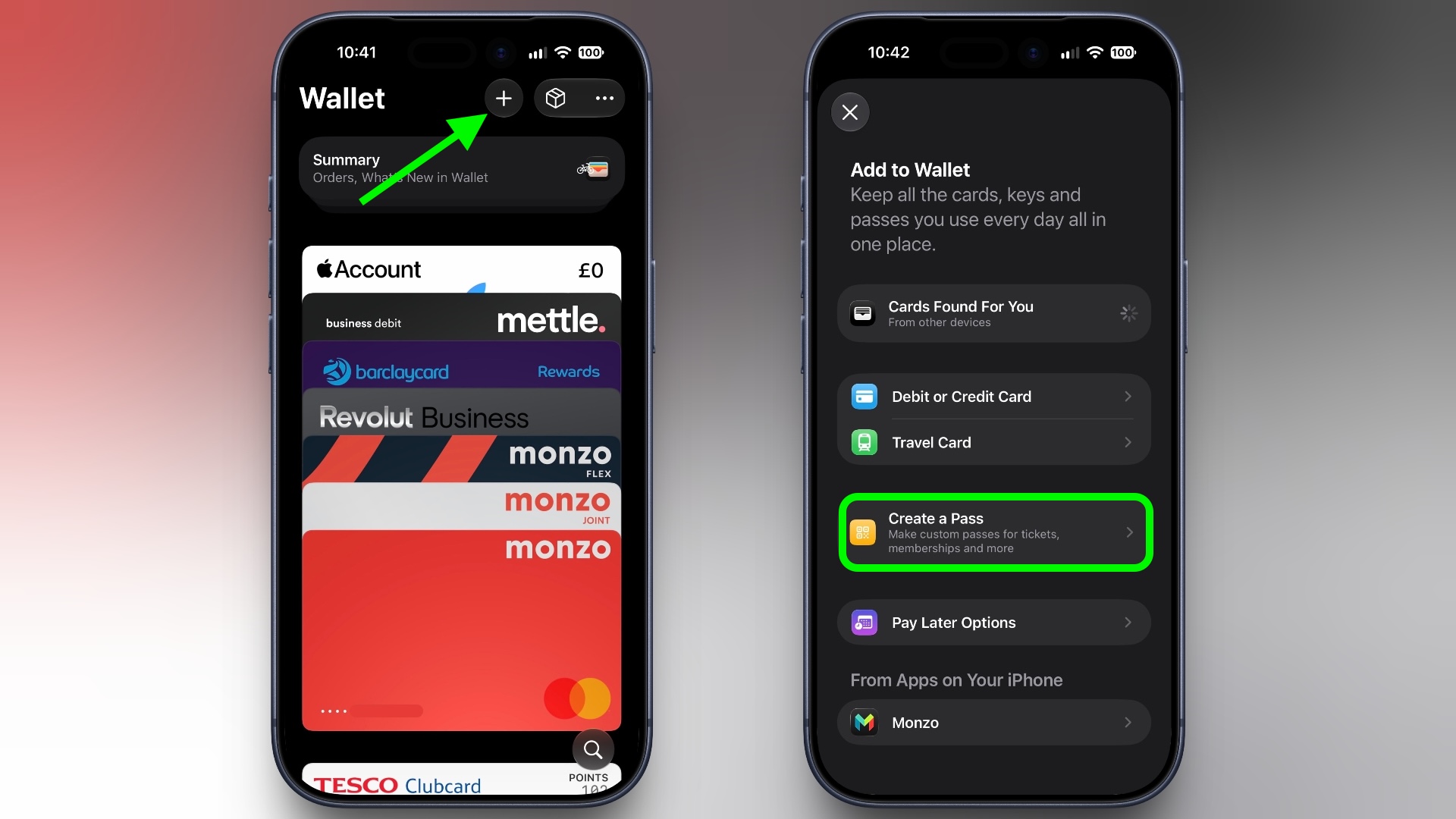
- To let Visual Intelligence scan the pass, tap Continue, then take a photo of it in the next screen.
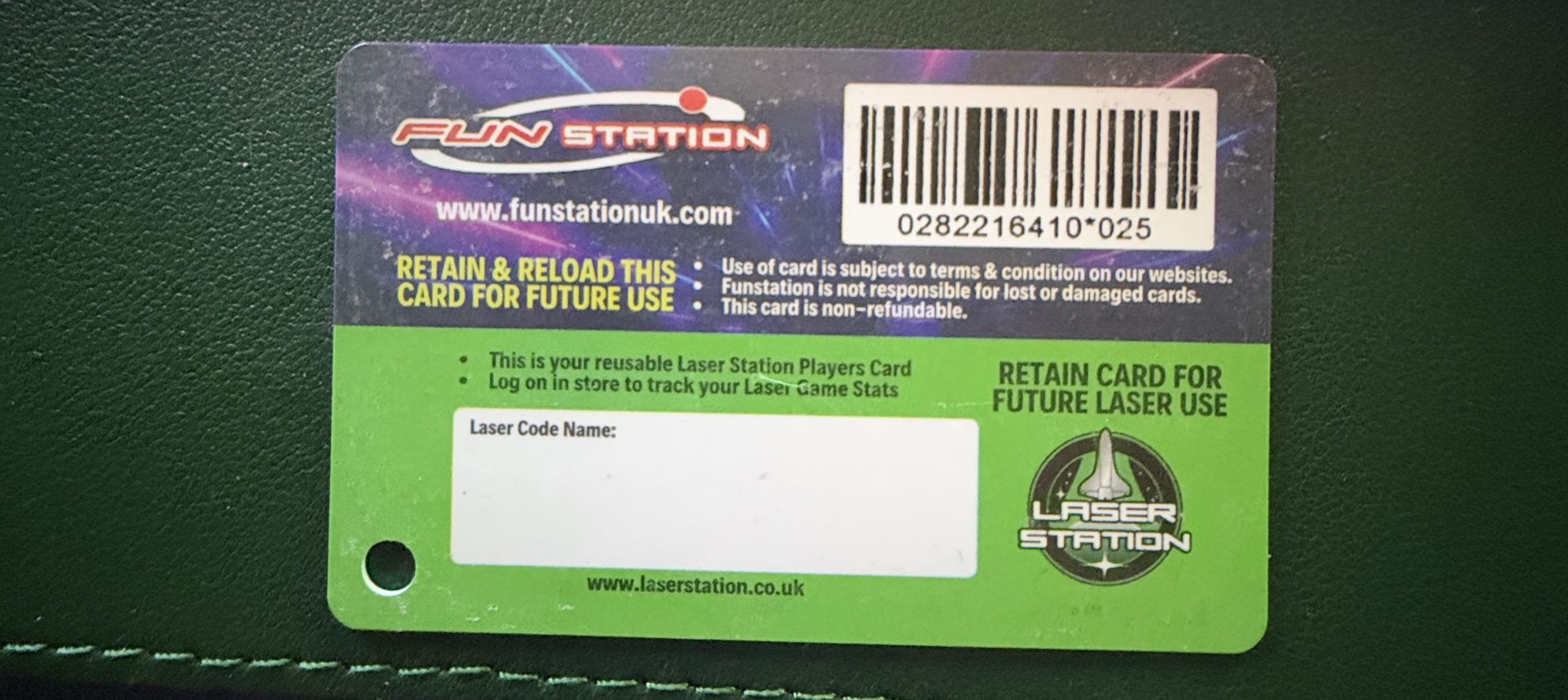
- After Visual Intelligence matches the pass to a template, tap Edit Pass.
- Use the palette icon in the bottom-left corner to change the look of the pass – you can the background colour, or use an image from your Photos library. Tap the icon in the bottom-right corner to add or remove fields.
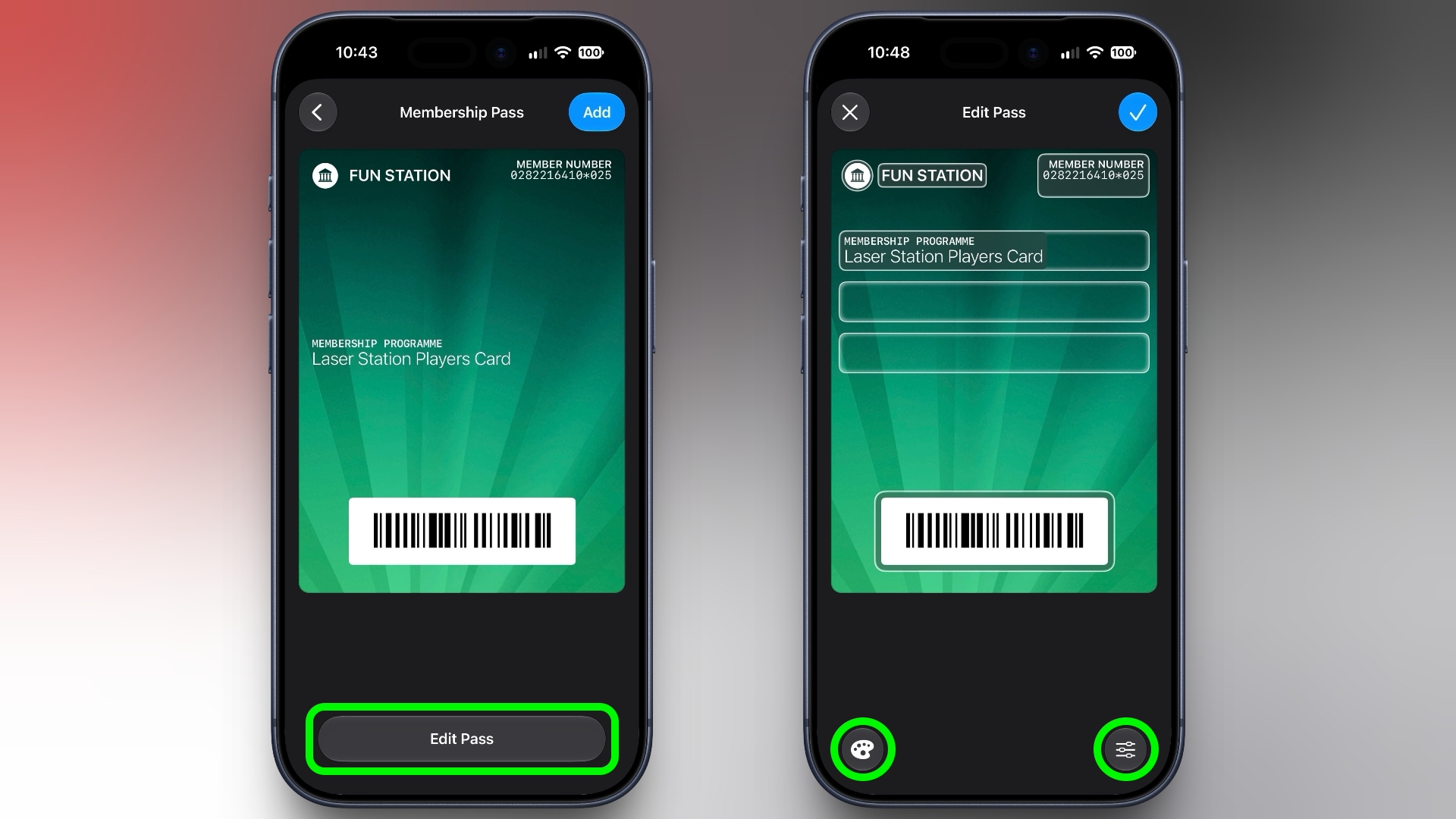
- Tap the blue checkmark at the top when you're done.
Tag: Apple Wallet
This article, "Create a Custom Pass in the Wallet App on iPhone" first appeared on MacRumors.com
Discuss this article in our forums
