Apple had promised a “big week” for the company as rumors swirled that it had a number of product announcements lined up. True enough, it unveiled a half-dozen new and refreshed devices over the last few days, along with more powerful chips for MacBook Pros.
In addition, ahead of the official announcement, Apple leaked news of a cheaper MacBook called the MacBook Neo. Whoops! The company confirmed the existence of that system on Wednesday. It starts at $599, making it Apple’s most affordable laptop to date.
Here’s our recap of everything Apple announced this week:
iPhone 17e
Apple
Apple has spruced up this year’s entry-level iPhone with some pretty solid upgrades, though it's keeping the starting price at $599. The iPhone 17e has double the base storage of the iPhone 16e at 256GB. It also has MagSafe support with Qi2 wireless charging speeds of up to 15W, double that of the iPhone 16e.
Design-wise, Apple hasn't exactly rocked the boat. The iPhone 17e looks pretty much identical to its predecessor. It appears that Apple is sticking with the same 48MP Fusion camera system as it used in the iPhone 16e too.
That said, the 6.1-inch Super Retina display has Ceramic Shield 2. According to Apple, this provides “3x better scratch resistance than the previous generation and reduced glare.” The company slotted its C1X cellular modem into the iPhone 17e as well. It says this is up to two times faster than the C1 that was in the iPhone 16e. The device has the same A19 chip as the iPhone 17, so it supports Apple Intelligence AI tools, and it runs iOS 26.
In addition, the iPhone 17e has an IP68 rating for water and dust resistance, as well as the promise of "all-day battery life." It also supports satellite-powered features including Emergency SOS, Roadside Assistance, Messages and Find My.
Pre-orders for the iPhone 17e are now open. It’s available in black, white and soft pink. The device will hit shelves in more than 70 countries and regions on March 11.
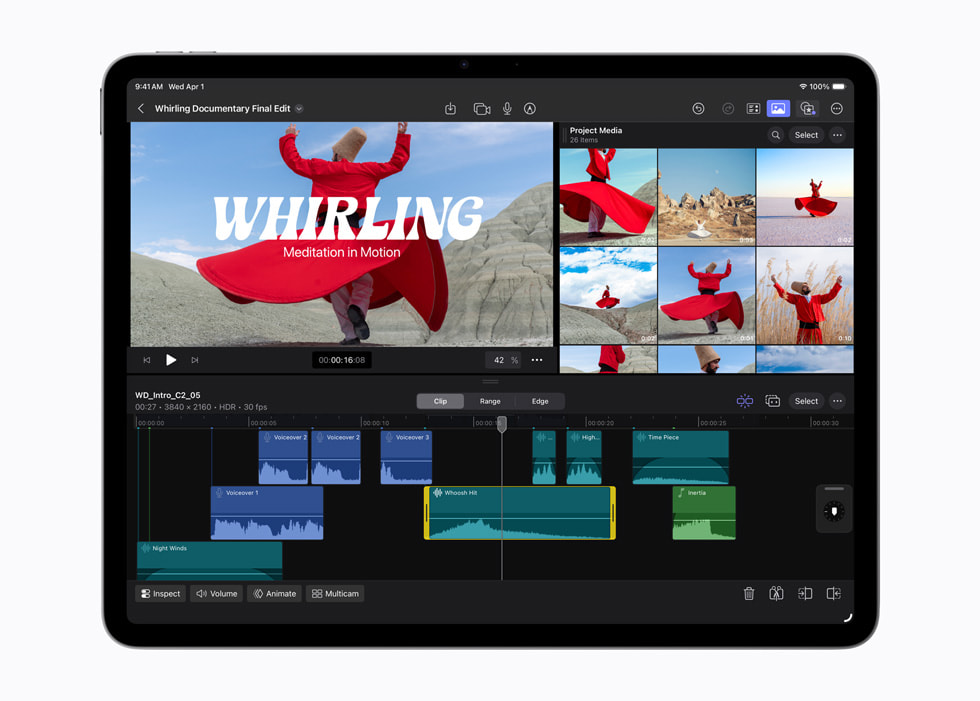
iPad Air M4
Apple
The latest iPad Air boasts Apple’s M4 chip. That means the mid-range iPad is effectively remaining a year behind the iPad Pro. The M4 is almost two years old at this point, while the top-end model has the newer M5 chip. Still, if you only use an iPad for casual tasks like watching shows, web browsing, email and so on, the M4 will be more than powerful enough. It will be more adept at handling resource-intensive tasks like video editing than previous iPad Air models too.
Apple has also bumped up the RAM from 8GB from the last-gen model to 12GB. Given the sharp increase in RAM prices in recent months, it’s slightly surprising that Apple is sticking to the same prices for the iPad Air. The 11-inch M4 iPad Air starts at $599 while the 13-inch version starts at $799, each with 128GB of storage. There's a $50 discount for those buying it for educational use.
Apple claims the M4 delivers up to 2.3 times faster performance compared with the M1 iPad Air and "over 4x faster 3D pro rendering with ray tracing performance." Of course, the new iPad Air runs iPadOS 26.
Apple gave the iPad Air other internal upgrades by including its N1 and C1X connectivity chips. As such, this is the first iPad Air with Wi-Fi 7 support. As you might expect, 5G cellular connectivity is available as well.
The design of the M4 iPad Air doesn't seem to have changed, as it appears to have the same LCD display Apple used in the last two iterations of the tablet. The company has stuck with the same rear-facing camera and dual-speaker setup as well.
Pre-orders for the M4 iPad Air are now open. The tablet will hit retailers in 35 countries and regions on March 11. It will be available in blue, purple, starlight and space gray.
Apple MacBook Pro with M5 Pro and Max
Apple
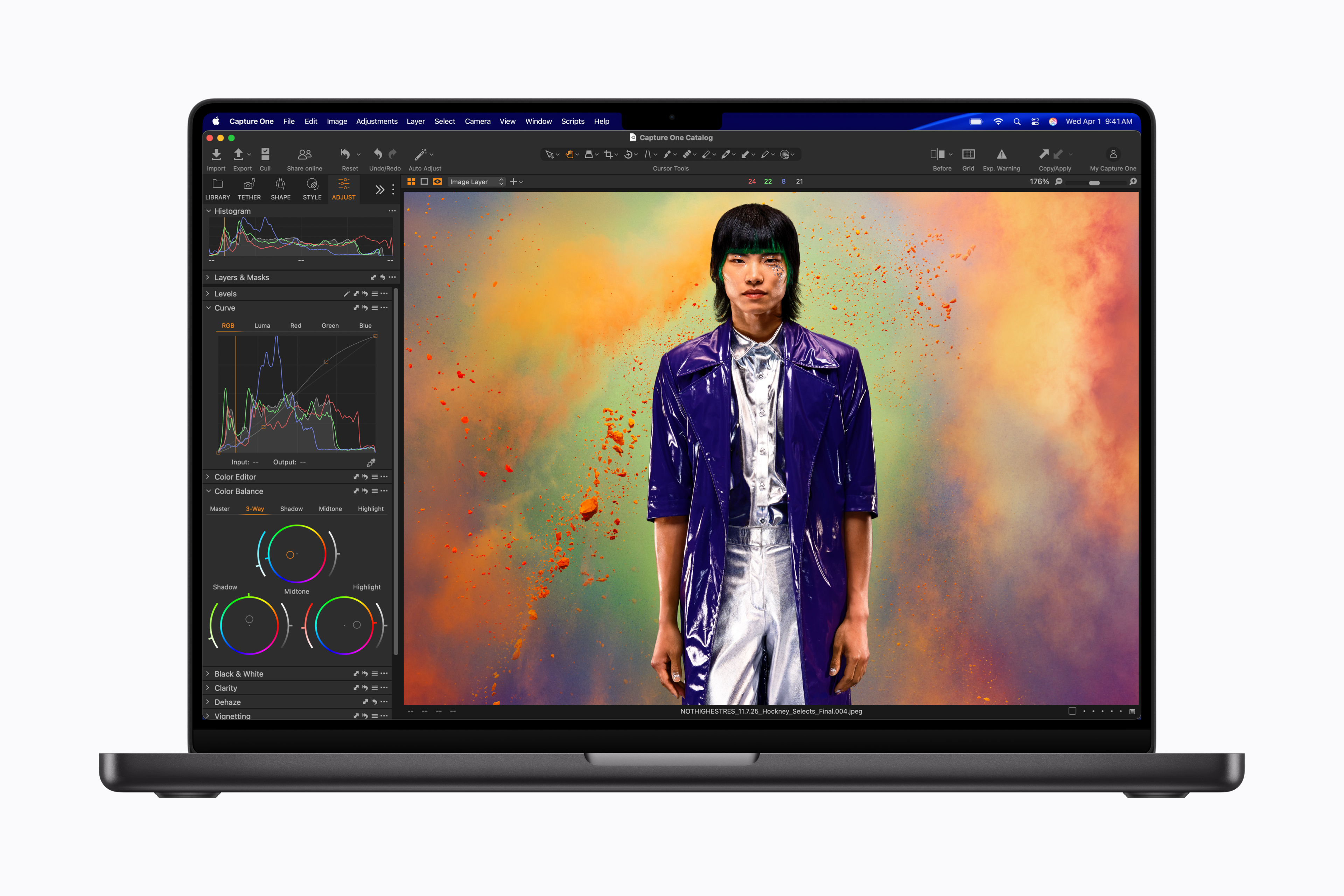
Apple’s most powerful laptop line finally got the chip upgrades that we’d long been expecting. Along with announcing the M5 Pro and M5 Max, the company is offering versions of the MacBook Pro with those chipsets. However, there are price increases to go along with the upgrades.
The new 14-inch MacBook Pro with an M5 Pro chipset (with 15 CPU cores and 16 GPU cores), 24GB of RAM and 1TB of storage starts at $2,199. That's a $200 increase compared with the base M4 Pro-powered system from late 2024, though Apple has doubled the base storage, which is a welcome touch. If you prefer, you can have a 14-inch MBP with a more powerful M5 Pro (with up to 18 CPU cores and 20 GPU cores) or M5 Max (with 18 CPU cores and 32 or 40 GPU cores). You can double the RAM to 48GB as well.
The 16-inch MacBook Pro has an M5 Pro chipset with 18 CPU cores and 20 GPU cores as standard. Of course, you can swap that out for an M5 Max if you'd rather. The 16-inch model starts at $2,699, a $200 increase from the base M4-powered system. It also starts with 24GB of RAM and 1TB of storage. For what it’s worth, Apple says both the memory and SSD are faster than in previous models.
Apple hasn’t changed the Liquid Retina XDR display and 12MP Center Stage front-facing camera for these models. However, the company has installed its N1 chip to power Wi-Fi 7 and Bluetooth 6 connectivity.
Pre-orders are now open, with general availability to follow on March 11.
Apple said the M5 Pro and M5 Max are built using new “Fusion Architecture” that “combines two dies into a single system on a chip (SoC).” As ever, the goal is to deliver more power and efficiency. We’ll find out for ourselves whether Apple’s performance claims hold up when we’re able to test the chips.
Meanwhile, the base 14-inch MacBook Pro with an M5 chipset also got a $100 price increase to $1,699. To take the sting out of that a bit, Apple doubled the base storage of that model to 1TB as well. Given that Apple usually charges a premium for storage increases, that’s not a terrible tradeoff.
M5 MacBook Air
Apple
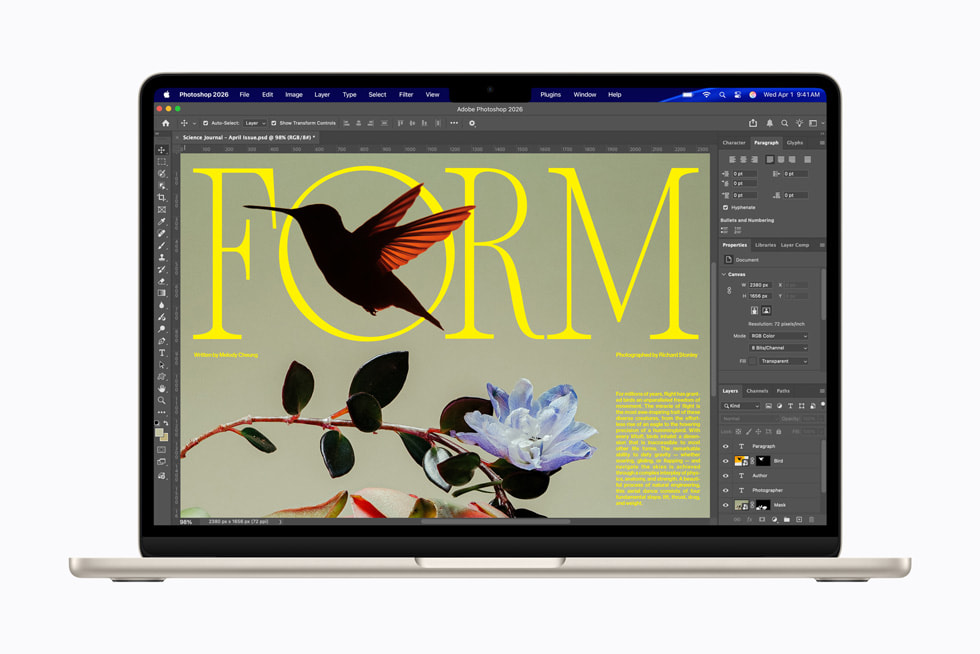
A year after Apple upgraded the MacBook Air with an M4 chipset, the company pulled the same trick by swapping in an M5 chip. The company also boosted the base storage from 256GB to 512GB, with an SSD that it claimed can provide “2x faster read/write performance compared to the previous generation.”
While the MBA still has 16GB or RAM as standard, Apple also upgraded the memory to have 153GB/s of bandwidth — the company said that’s a 28 percent improvement over what the M4 MBA offered. Meanwhile, Apple has slapped in the N1 chip to deliver Wi-Fi 7 and Bluetooth 6 connectivity.
Alas, with those upgrades comes a tradeoff. Apple has bumped the starting price of the latest MacBook Air back up to $1,099 after cutting it to $999 for the M4 model. That’s for the 13-inch variant. The 15-inch M5 MacBook Air starts at $1,299.
The latest MacBook Air is available in sky blue, midnight, starlight and silver. You can pre-order one now. It will hit stores in 33 countries and regions on March 11.
MacBook Neo
Apple expanded its laptop lineup even further on Wednesday with the announcement of the MacBook Neo. This is a new entry-level model that starts well below the latest $1,099 MacBook Air at a very reasonable $599 ($499 for educational use). It’s Apple’s least expensive laptop to date, and a clear attempt by the company to wade into a market that’s saturated with cheap Windows laptops and Chromebooks.
As expected, the laptop runs on an A18 Pro chip, which first appeared in the iPhone 16 Pro and iPhone 16 Pro Max. The chipset has a 6-core CPU, 5-core GPU and 16-core Neural Engine, along with 8GB of unified memory. That’s enough for the MacBook Neo to power Apple Intelligence features (of course, it’s a macOS Tahoe machine). Apple also said that the MacBook Neo will run for up to 16 hours on a single charge.
The MacBook Neo has a 13-inch Liquid Retina Display (with 500 nits of brightness and support for 1 billion colors), one USB-C 3 port, a USB-C 2 port and a headphone jack, but no MagSafe connector. There’s a 1080p front-facing FaceTime HD camera, dual mics and side-firing speakers that support Spatial Audio and Dolby Atmos.
The system has a Magic Keyboard with a multi-touch trackpad. However, if you want a TouchID sensor, you’ll need to pay $100 more for it. Ponying up the extra cash will also double the storage from 256GB to 512GB.
Apple claimed that the MacBook Neo is up to 50 percent faster at everyday tasks than “the bestselling PC with the latest shipping Intel Core Ultra 5” with 8GB or RAM and a 256GB SSD. The company also contended that its new laptop is up to three times faster than that Windows system “when running on-device AI workloads like applying advanced effects to photos.”
The MacBook Neo is available in four colors: silver, blush (a light pink), citrus (light yellow) and indigo. It was previously reported that Apple would offer the budget-friendly laptop in some lively iMac-esque colorways. Moreover, Apple says the laptop is “made with a durable recycled aluminum enclosure that helps it reach 60 percent recycled content by weight,” which is said to be the most of any Apple device.
As with the rest of the new devices, pre-orders are open now and the MacBook Neo will be available in stores in 30 countries and regions on March 11.
We’ve already had a chance to go hands-on with the MacBook Neo. Engadget senior editor Devindra Hardawar had generally positive first impressions of the laptop, but felt that the keyboard and touchpad didn’t feel quite as sturdy as those on Apple’s higher-end systems.
Studio Display and Studio Display XDR
I don’t think many people had Studio Displays on their Apple announcements bingo card for this week, but here they are. The Studio Display XDR is completely new.
This is a 27-inch monitor with a 5K Retina XDR screen. It has a mini-LED display with more than 2,000 dimming zones and peak HDR brightness of 2,000 nuts, along with a wider color gamut. The Studio Display XDR boasts a 120Hz refresh rate (an improvement over the 60Hz that previous models were limited to) and a tilt- and height-adjustable stand as standard.
The monitor also has a 12MP Center Stage camera with support for Desk View, a feature that — weirdly enough — lets you show both your face and what's on your desk. Thunderbolt 5 connectivity allows you to hook up more displays by daisy chaining them. The Studio Display XDR is also a Thunderbolt hub with support for up to 140W of charging power. As such, you'll be able to fast charge a 16-inch MacBook Pro using the included Thunderbolt 5 Pro cable.
The Studio Display XDR starts at $3,299. A version with nano-texture glass, which is said to further reduce reflectivity, costs $3,599.
Meanwhile, the refreshed Studio Display has an upgraded 12MP Center Stage camera with Desk View. There's also a "studio-quality" three-microphone array and six-speaker sound system with Spatial Audio. The latest model has Thunderbolt 5 support with the option to daisy-chain displays. The Studio Display can deliver 96W charging as well.
The base monitor is $1,599. It still has a 27-inch 5K Retina display with up to 600 nits of brightness and P3 wide color. It comes with standard glass or, for an extra $300, nano-texture glass. The Studio Display has a tilt-adjustable stand as standard. If you'd prefer to have one that's height adjustable as well, you'll need to shell out another $400.
Again, pre-orders for the displays are now open ahead of broader availability on March 11.
This article originally appeared on Engadget at https://www.engadget.com/computing/laptops/everything-apple-announced-this-week-macbook-neo-iphone-17e-and-more-155617129.html?src=rss
Lenovo has given the Yoga 9i 2-in-1 Aura Edition a refresh for 2026 and launched the new device at this year’s Mobile World Congress. The convertible laptop comes with a new Canvas Mode when the Yoga Pen Gen 2 case it’s bundled with is attached to the A-cover. When you lay the device down on a flat surface with the case attached, you’ll get a slight elevation on the display, which may make it easier to sketch or draw.
The Copilot+ laptop is powered by Intel Core Ultra Series 3 processors with integrated graphics, has up to 32GB in memory and runs Windows 11. Its 14-inch screen has a resolution of 2,880 x 1,800 pixels, has a variable refresh rate of 120 Hz and supports multi-touch. In addition to the new Canvas Mode, the device also supports Tablet, Tent, Stand and traditional Laptop Modes like its predecessors do. The Yoga 9i 2-in-1 Aura Edition Gen 11 will be available in May, with prices starting at $1,949.
Lenovo has also launched the new Yoga Pro 7a at MWC 2026. This Copilot+ laptop is powered by AMD Ryzen AI Max+ Series processors and comes with up to 128GB of RAM, so it can be used for heavy AI tasks. It has a 15.3-inch 2.5K PureSight Pro OLED display and is equipped with a big Force Pad trackpad that doubles as a drawing tablet. You can get the device starting in August this year for at least $2,099.
For a more affordable option, there’s the new IdeaPad Slim 5i Ultra laptop, which also has Copilot+ features. It’s powered by Intel Core Ultra processors and comes with either a WUXGA OLED or a WQXGA IPS LCD 14-inch display that has a VRR of 120 Hz. The device was designed for portability, with its thinnest part measuring just 11.9 mm in depth, and weighs 2.5 lbs. It will be available starting in October for at least $799.
Another affordable option is the new Idea Tab Pro Gen 2, which is specifically targeted towards students. It’s powered by theSnapdragon 8s Gen 4 Mobile Platform and has a 13-inch 3.5K display. The Tab Pro Gen 2 is Lenovo’s first tablet to ship with its Qira AI assistant and the company’s AI tools. It will be sold with a Lenovo Tab Pen Plus included for $419 starting in July.
This article originally appeared on Engadget at https://www.engadget.com/computing/laptops/lenovo-unveils-the-2026-refresh-of-its-yoga-9i-2-in-1-convertible-laptop-at-mwc-230100644.html?src=rss
The MacBook is coming back — or at least, that's what the rumors claim. Next week, Apple is expected to announce a colorful, low-cost, non-Air, non-Pro MacBook powered by one of its mobile processors. By avoiding its pricier M-series chips, Apple may reportedly be able to reach a low $699 or $799 price for the MacBook. The $999 MacBook Air is the cheapest laptop on the company's website right now, but Apple also sold the older M1 MacBook Air at Walmart for $700 in 2024, which later went down to $650 last year.
That Walmart deal was a smart way for Apple to test out the viability of cheaper MacBooks without building an entirely new product. But now the M1 Air’s design looks seriously dated, and the company also needs to move beyond the six-year-old M1 chip. It's time to get serious about delivering a true low-cost Apple laptop.
There's another compelling reason to bring back a cheaper MacBook: It's the perfect way to court disgruntled Windows users, something Apple hasn't really done since its "Get A Mac" ads from the mid-2000s. I figure the unbridled success of the iPhone and iPad made Apple focus less on directly competing with Windows. The sleek designs of the 2011-2015 era MacBook Air and Pros were their main selling points, but Apple's push towards USB-C-only machines and unreliable butterfly keyboards later made it clear it wasn't totally focused on Macs.
But now Microsoft is distracted by AI — it's been pushing Copilot and AI features for years, instead of improving the Windows experience with more useful upgrades. Recent talk of agentic AI capabilities, which would let Copilot handle tasks for you automatically, also sparked plenty of criticism from Windows users. And with all of the focus on AI, Microsoft has also released some disastrous Windows updates over the last year, which have bricked OS installations. So, Apple, why not make a direct play for Windows users?
Last year, I covered why it's a great time to jump ship from Windows to Mac, and I haven't been able to let go of that idea since. Apple's M-series chips are shockingly fast and efficient, and its hardware tends to be more durable than typical PC fare. Rumors point to Apple developing a new aluminum case for the low-cost MacBook, so it will likely feel more polished than a typical sub-$1,000 Windows laptop. macOS has also avoided the bloat that's plagued Windows for years — you can turn off Apple Intelligence with two clicks if you want to, and there aren't any annoying ads to deal with.
A MacBook Air M5 on a table.
Devindra Hardawar for Engadget
And while it used to be a pain to transition from Windows to Mac, it’s far easier these days, especially if you mainly rely on web apps. It also wouldn't be tough for Apple to make short tutorials to help Windows users get their bearings with the macOS basics, like installing apps and juggling app windows. Apple could also make a play for iPhone owners using Windows, who may not be aware of the many ways iOS and macOS are integrated. iPhone mirroring may be a huge draw on its own.
Rumors also suggest the upcoming MacBook might use the A18 Pro from the iPhone 16 Pro, a chip that benchmarks faster than the M1. Even if it only has six cores, making it slower for heavy workloads than the M2, an A18 Pro-powered MacBook would still be more than enough power for basic productivity work. Not everyone needs the surprising amount of GPU power in the MacBook Air — especially if downgrading means they can save $200 to $300.
I'm not saying any of this through any sort of Apple-loving bias. I typically use a MacBook Pro for work, but I'm a Windows user at heart. Windows was my gateway to computing in the '90s, back when Macs were far more expensive than PCs. These days, I spend more time on my Windows desktop making podcasts, playing PC games and bumming around the internet than I do working on Macs.
And yet, it’s hard to deny everything Apple is doing right today — the only thing it’s missing is an inexpensive laptop entry. A $699 or $799 MacBook simply makes sense. And for many Windows users, it’ll be just the escape from Microsoft they need.
This article originally appeared on Engadget at https://www.engadget.com/computing/laptops/a-cheap-macbook-is-the-perfect-way-for-apple-to-win-over-windows-users-130000045.html?src=rss
With its ProArt lineup, ASUS has commendably addressed a glaring hole in the PC market by targeting video editors and other creative pros. Its latest model even uses a popular camera marque in its name: the ProArt GoPro Edition PX13. It’s a true co-branding exercise, with GoPro-like styling, a dedicated GoPro hotkey, mil-spec durability for extreme outdoor users and 12 months of GoPro’s Cloud Plus Premium.
It has a lot going for it on the inside, too. The AMD Ryzen AI Max+ 395 processor offers 16 Zen 5 cores with integrated Radeon 8060S Graphics (40 cores) and AMD Ryzen AI with up to 50 NPU TOPS. It packs a relatively small but pixel-dense 13-inch 2,880 x 1,800 OLED convertible 360 touch display, 1TB of storage and an impressive 128GB of unified memory.
The rub, as you might expect with all that RAM, is the price. The ProArt GoPro Edition PX13 costs $3,000, while a version with the same processor but half the memory is $2,800. That’s high-end MacBook Pro money, and while the ProArt is a good PC creator machine, it falls short of its Apple counterpart in terms of performance and usability.
Design
In place of the ProArt P13’s smooth lines, the ProArt GoPro Edition comes with a ribbed metal back that’s designed to look like the front of a GoPro Hero 13. It also has GoPro-like ridges on the hinge and plastic above the keyboard, along with GoPro and ProArt branding. The rugged design may appeal to the extreme sports crowd, but I’d prefer something a bit sleeker.
The laptop is relatively light at 3.06 pounds, but the dedicated 200W power brick adds an extra pound of weight. Despite the small size, it offers MIL-STD 810H military-grade durability, so it can handle hot and humid conditions while surviving 500Hz vibrations and multiple four-inch drops while running. To help keep the laptop safe outside, ASUS includes a protective padded sleeve with a braided pouch to tuck a selfie stick or another accessory.
Steve Dent for Engadget
The 2,880 x 1,800 OLED touchscreen is nice but not super bright, with up to 400 nits of brightness or 500 nits in HDR mode. That’s the usual tradeoff for OLED compared to super bright MiniLED displays. However, it has deep blacks and very high color accuracy of Delta < 1 with 100 percent DCI-P3 coverage, along with Dolby Vision support, so it’s great for photo and video work or entertainment.
The ProArt is a 360-degree convertible model and ships with an ASUS Pen and Pen charger. That makes it a good option for graphic artists who want to tent the screen or fold it around to use in tablet mode for sketching or painting. The ASUS Pen works well, and though it’s not as accurate as Wacom or other dedicated pen devices, it has nice haptic feedback when you perform actions in the app.
The ProArt GoPro Edition’s keyboard is excellent, with a nice amount of travel for typing or gaming. The touchpad is also one of the better ones I’ve used on a PC thanks to the quality tactile feel. The top left of the touchpad contains ASUS’s control dial designed for jogging video footage or adjusting colors, but it’s a bit fussy and gimmicky.
For ports, you get HDMI, 3.5mm audio, USB-A 3.2 and two USB-C 4.0 with power delivery that allow up to 130 watts of charging. The laptop weirdly comes with a microSD slot to load GoPro footage straight from the camera, but it would be better to have a regular SD port and microSD adapter. As for wireless and audio, it offers Wi-Fi 7, Bluetooth 5.4 and Dolby Atmos support.
Performance
Steve Dent for Engadget
Built on TSMC’s 4nm line, the Ryzen AI Max+ 395 is AMD’s most powerful APU designed to blend performance and low power consumption. It’s married to a Radeon 8060S GPU with 40 compute units (equivalent to an NVIDIA RTX 4060, AMD says) that makes it ideal for creative chores, AI processing and gaming. This unit also comes with 128GB of unified LPDDR5X RAM that’s soldered directly to the motherboard, shared between the CPU and GPU. Given today’s RAM prices, that amount of memory no doubt contributes to the ProArt GoPro Edition’s high price.
AMD finally got its act together for video encoding and decoding. The Ryzen AI Max+’s GPU supports most 8- and 10-bit MP4 codecs, including H.264, H.265, VP9 and AV1. That means you can play back nearly all MP4 or Quicktime camera video files in real time, including the 8K H.265 files recorded by a GoPro Hero 13. At the same time, the large number of cores and threads (16 and 32) helps the ProArt GoPro Edition render certain VFX and do color adjustments quickly. The 1TB of NVMe SSD storage is limited to PCIe 4.0, but it’s relatively speedy with 6.55 GB/s read and 5.86 GB/s write speeds — easily fast enough for 8K video playback.
All of that made video work a breeze in DaVinci Resolve 20, Adobe Premiere Pro or GoPro’s Player that can be activated by a special hotkey on the ASUS laptop. Actions like color correction work in real time as well, and 4K H.264 exports can also be performed quickly.
That said, some functions like OpenFX and stabilization would work better with a more powerful discrete GPU. Also, unlike my MacBook Pro, the ProArt GoPro Edition’s fans need to engage frequently under intense workloads, creating a lot of noise and killing the battery quickly if the unit isn’t plugged in.
Steve Dent for Engadget
For other apps, including Photoshop, Illustrator and Lightroom Classic, the ASUS ProArt is ideal. It’s very responsive and the touch display and pen support fine masking or drawing work, something you can’t do on a MacBook Pro.
The ProArt also handles synthetic benchmarks well for a PC with an integrated GPU. The single/multi Geekbench 6 CPU score of 2,219/19,088 shows the benefit of 16 processor cores. The 93,108 Geekbench 6 GPU mark isn’t that far behind Acer’s NVIDIA RTX 5070-equipped Predator Titan 14 AI. Geekbench AI scores were also up there with the best laptops. However, Handbrake video encoding was slower than several MacBook M4 laptops I’ve tested.
For gaming, it had some of the higher laptop scores I’ve seen on several 3DMark tests (Wildlife Extreme and Port Royal Ray Tracing). It also did pretty darn well on Cyberpunk 2077, hitting 82 fps at 1080p and 60 fps at 1440p in Ultra mode. Considering the machine’s small size, those framerates are really good. However, the laptop is held back gaming-wise by the OLED display that tops out at 500 nits and just 60Hz.
A big benefit of the 128GB of fast unified memory is that you can run AI models locally for improved privacy. While the ProArt GoPro Edition normally allocates 64GB of memory to the CPU and splits the rest between the CPU and iGPU, you can dedicate up to 96GB of memory to the GPU for extra large AI applications via the MyASUS app.
Another plus of this APU is the battery life. The ProArt GoPro Edition lasted a solid 11:31 hours on the PCMark 10 Modern Office battery rundown test, besting all rivals with similar performance. That tells me that AMD is narrowing the performance-per-watt gap with Apple’s silicon to improve gaming and content creation for PCs on battery power alone.
Wrap-up
Steve Dent for Engadget
ASUS is one of the few PC manufacturers trying to compete with Apple in the creator market, and with the ProArt GoPro Edition laptop, it has largely succeeded. This model offers excellent performance and battery life, a huge amount of memory, a very nice OLED HDR display, a nice range of ports and an excellent keyboard and trackpad.
It easily handled my typical video and photo editing chores, even on battery power alone, and the included GoPro features like the Storyblocks cloud storage are a nice option for action cam users. The convertible configuration and touchscreen with pen option are also useful to artists and photo editors.
However, this laptop is not cheap at $3,000, which is the same price as a high-end 16-inch MacBook Pro M4 Pro. The latter offers superior battery life, better overall performance on apps like DaVinci Resolve and a far better macOS user experience than the hot mess that is currently Windows 11. However, if you want a Windows PC with a touchscreen, I think the ASUS ProArt GoPro Edition laptop is the best creator model you can get right now.
This article originally appeared on Engadget at https://www.engadget.com/computing/laptops/asus-proart-gopro-edition-px13-review-an-incredible-if-pricy-windows-creator-laptop-170016800.html?src=rss
Apple's plan to add touchscreens to its premium MacBook Pros is coming into focus. Bloomberg reports that when the new laptops launch this fall, they'll feature a Dynamic Island, not unlike Apple's iPhones, and an interface that changes depending on where you touch your Macbook's screen.
This "dynamic interface" is reportedly designed to make the transition between mouse input and touch input smoother on Apple's new laptops. Bloomberg says that if users touch an onscreen button, the version of macOS running on these new MacBook Pros will be able to pull up a contextual menu "that provides more relevant options for touch commands." Parts of the interface, like macOS' menu bar, will also be able to enlarge to make menu items easier to select with a finger. Those tweaks are on top of the expected features from touchscreen Apple products, like smooth scrolling and the ability to pinch and zoom into and out of images, files and web pages. The only thing missing from these increasingly iPad-like laptops, per Bloomberg, will be a touchscreen keyboard, because they'll already have a more comfortable physical keyboard attached.
To make these new laptops extra enticing, both the 14-inch and 16-inch touchscreen MacBook Pros will feature OLED screens for the first time, likely the reason Apple will be able to include a Dynamic Island-style webcam in the first place. Up until now, the company has offered OLED screens on its iPhones, Apple Watches and more recently the iPad Pro, but it hasn't brought the display technology to laptops. That could reportedly change with these new MacBook Pros.
Plenty of Windows laptops include touchscreens, and Microsoft and its partners have incorporated dynamic interface elements in the past to make these touchscreens more natural to use with Windows. Apple is late to the party in this respect, but it's also potentially set up to succeed. Much of modern macOS already looks touch-friendly, and Apple's has expended significant effort making it possible to port touch-based iPad apps to macOS and develop applications across platforms. That, paired with the right interface, could make the experience of using a touchscreen MacBook nicer out of the box, even if it doesn't get rid of the awkwardness of reaching over your keyboard to touch a screen.
This article originally appeared on Engadget at https://www.engadget.com/computing/laptops/apples-touchscreen-macbook-will-reportedly-have-a-dynamic-interface-231929456.html?src=rss
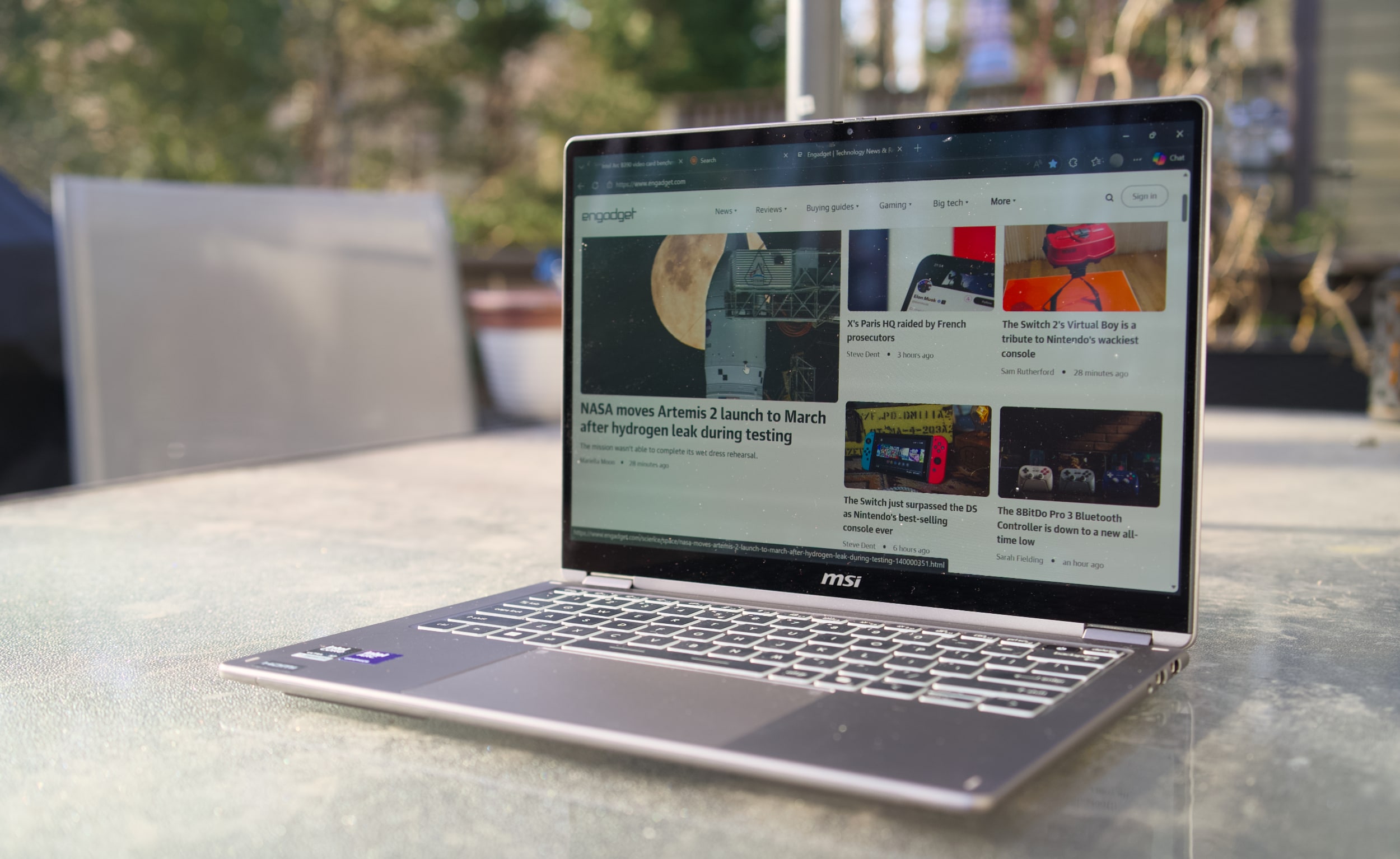
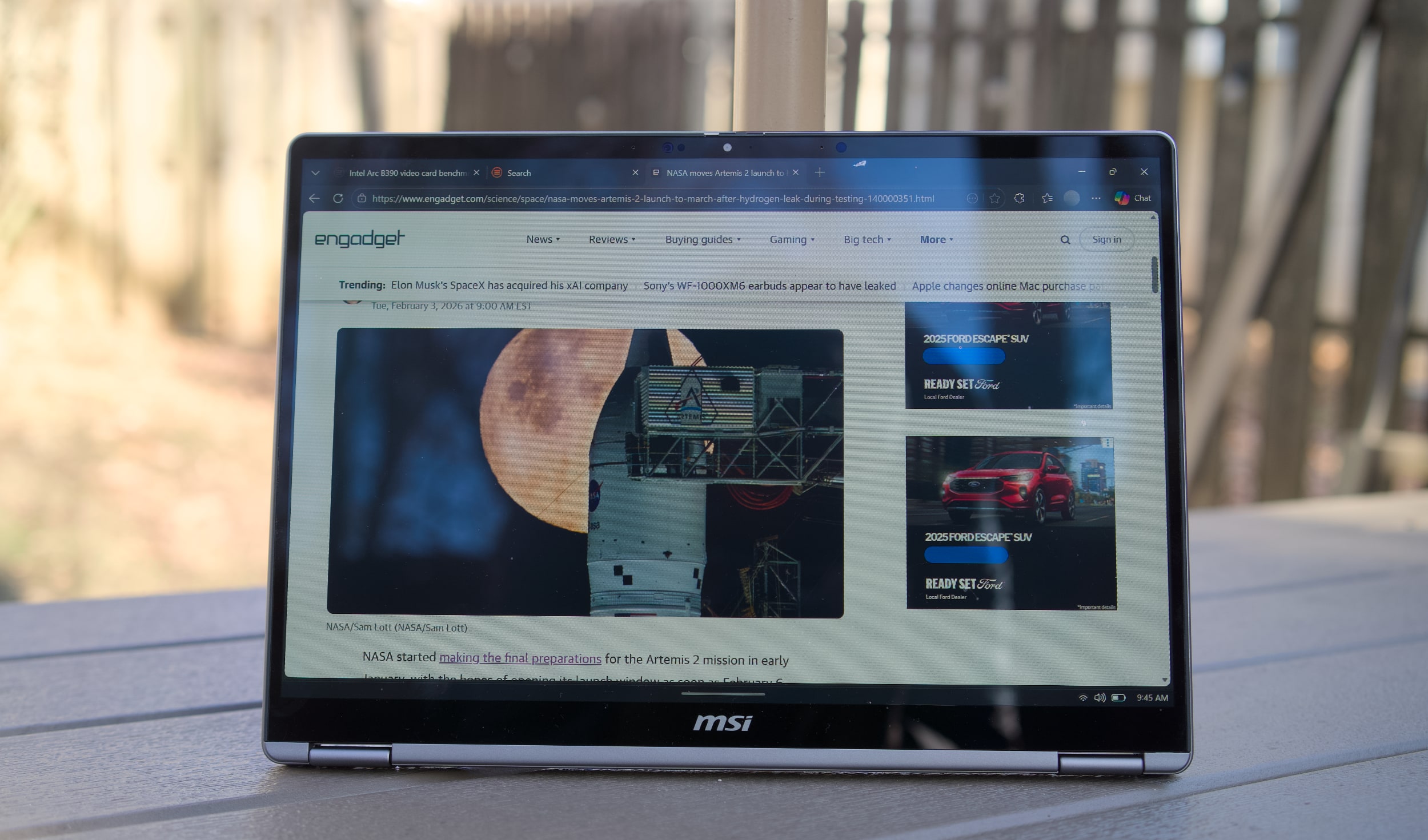
MSI Prestige 14 Flip AI+ is a surprisingly powerful ultraportable held back by a clunky trackpad. It's a shame, really, because it's very well-designed and thanks to Intel’s Panther Lake CPU, it can even run games like Arc Raiders without breaking a sweat. It also has more ports than most thin and light machines, its OLED screen is great for productivity work and at three pounds it's easy to carry around all day. But curse its mechanical trackpad — why does it even exist when Apple, Microsoft and others have been able to implement excellent haptic touchpads for years? Come on now.
Hardware
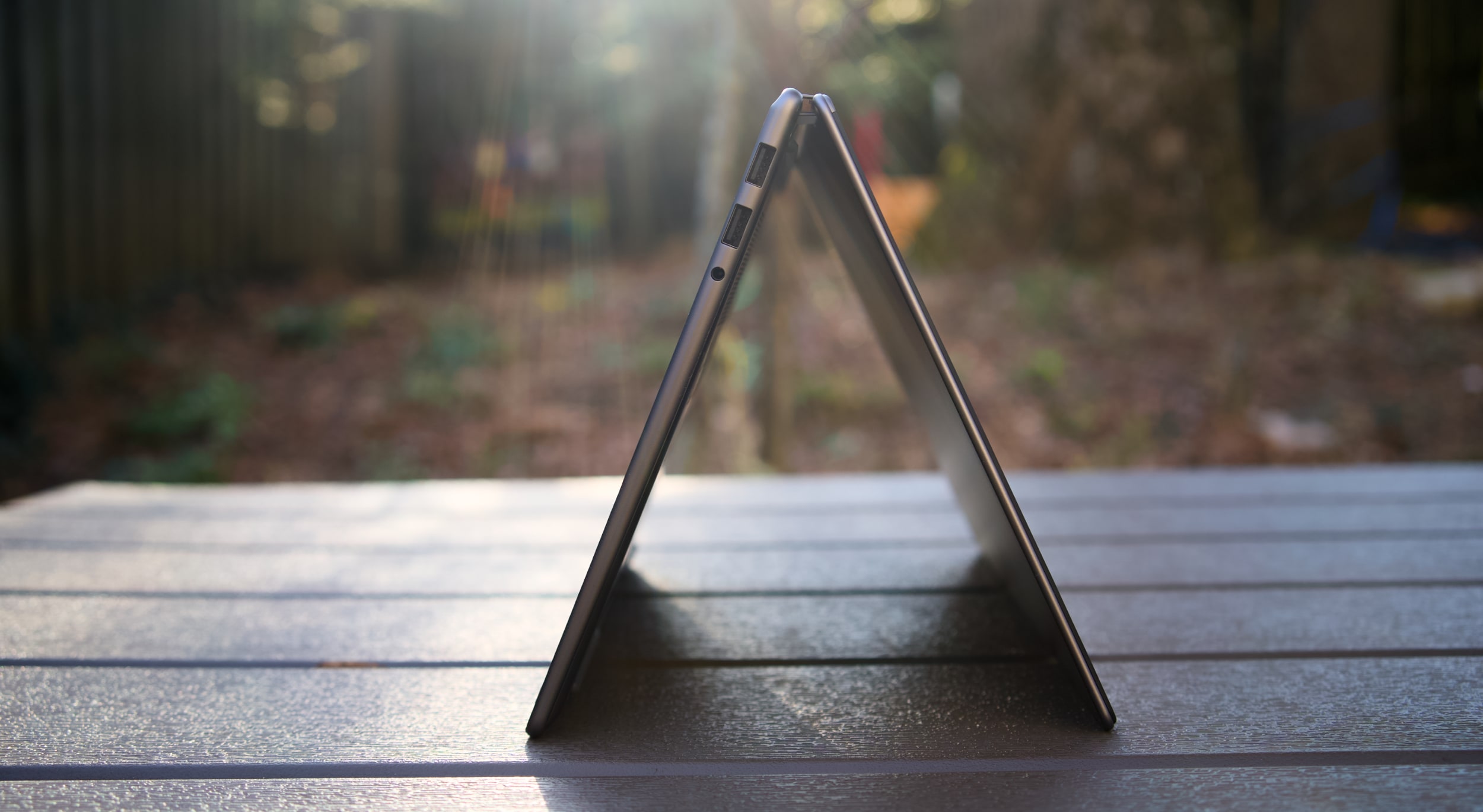
With its grey case, subdued design and somewhat chunky bezels, the MSI Prestige 14 Flip AI+ doesn't exactly make a striking impression. From afar, you can tell it's certainly thin, and it's also clear that MSI made the most of its slim case by shoving in two USB-A ports, two USB-C connections, a single HDMI port and a headphone jack. It would have been nice to have some sort of SD card slot too, but at least the Prestige 14 can connect to older accessories, monitors and TVs without a USB-C hub.
Once you pick it up, though, the Prestige 14's three-pound frame feels downright remarkable. It's just a tad heavier than the 2.7-pound MacBook Air, but its screen size directly competes with the 3.4- to 3.6-pound 14-inchMacBook Pro. The "Flip" in its name also means it’s versatile, with the ability to rotate its screen into a tablet mode, or a variety of tent configurations.
What makes the MSI Prestige 14 Flip AI+ truly interesting is its Intel Core Ultra X7 358H processor, which features 16 cores and a maximum speed of 4.8GHz. Specifically, it features four P-cores for speedy performance, eight efficient E-cores and four low-power E-cores. The Ultra X7 is also one of the new Panther Lake chips with gobs of graphics power in Intel's Arc B390 GPU, giving them far more gaming chops than previous ultraportable chips. The laptop also sports 32GB of RAM, which is the ideal amount for serious productivity work, and a roomy 1TB SSD.
MSI Prestige 14 Flip AI+
Devindra Hardawar for Engadget
The Prestige 14's stylus-friendly 14-inch OLED screen helps to distract from its mundane case design, with the typical deep black levels and excellent contrast I appreciate from OLED, together with bold 100 percent DCI-P3 color coverage. It makes just about everything look great, though I wish MSI offered more than a 60Hz refresh rate — a 90Hz or 120Hz screen would make scrolling through web pages look far smoother.
And speaking of the stylus, that’s tucked away at the bottom of the Prestige 14. I didn’t find it particularly useful for notetaking, but for those who do it’s easy to stow away. It’s just too thin for extended handwriting, and anyone doing serious notetaking or digital art would be better off with a larger stylus or dedicated drawing pad.
MSI Prestige 14 Flip AI+ in tent mode
Devindra Hardawar for Engadget
In-use: A stealth performer
After seeing a relatively slim Lenovo Panther Lake laptop reaching 190 fps in Battlefield 6, using only Intel's built-in Arc B390 GPU, I was eager to see how that new hardware would perform in the real world. Simply put, the MSI Prestige 14 Flip AI+ didn't disappoint. It scored 10,169 points in PCMark 10, the highest score we've seen yet on a Windows PC.
And yes, that includes plenty of powerful gaming systems like the Alienware 16 Area 51 (8,245 points) and the Razer Blade 18 (7,703), both of which were running Intel's last-gen Core Ultra 9 275HX chip. Of course, those systems have faster GPUs, like NVIDIA's RTX 5080, but PCMark 10 doesn't lean too heavily on graphics performance. The Prestige 14 edged close to the M5 MacBook Pro in Geekbench 6's multi-threaded CPU test, scoring 16,633 points compared to Apple's 18,003. But the MacBook Pro reigned supreme in the single-threaded test, scoring 4,310 points compared to the MSI's 2,864.
When it came to games, the Prestige 14 reached a surprisingly high 80-95 fps in Arc Raiders while playing in 1080p with medium graphics settings, as well as AMD's FSR3 upscaling and 2x frame generation. Without those AMD features, Arc Raiders ran at 45-50 fps, which is still respectable for an ultraportable. To my surprise, Intel's XeSS upscaling technology wasn't available in Arc Raiders during my testing, but there's a good chance that tool would eke out even more performance. (I've asked Intel about XeSS's omission, and will update when I hear back.)
In Cyberpunk 2077, The Prestige 14 hit 35 fpswhile playing in 1080p with default settings. Flipping on Intel's XeSS frame generation bumped that to 45 fps. If you're used to the 30 fps performance of consoles, those numbers are still vaguely playable, but they certainly fall short of the 60 fps PC players typically look for. It's best to think of the MSI Prestige 14 Flip AI+ as a laptop where you can play games sometimes, perhaps while you're away from your gaming desktop. It's certainly not a replacement for a dedicated gaming laptop.
For more prosaic productivity tasks, like juggling dozens of browser tabs and editing large images, the Prestige 14 didn't break a sweat. Its healthy 32GB of RAM gave it plenty of breathing room for multi-tasking, and unlike other ultraportables, I didn't notice any serious performance dips while running on battery. On that note, the Prestige 14 also lasted a whopping 22 hours and 15 minutes in PCMark 10's battery benchmark. That's the highest figure we've ever seen from a laptop, and it's a promising sign of what we can expect from other Panther Lake systems.
MSI Prestige 14 Flip AI+ keyboard and trackpad
Devindra Hardawar for Engadget
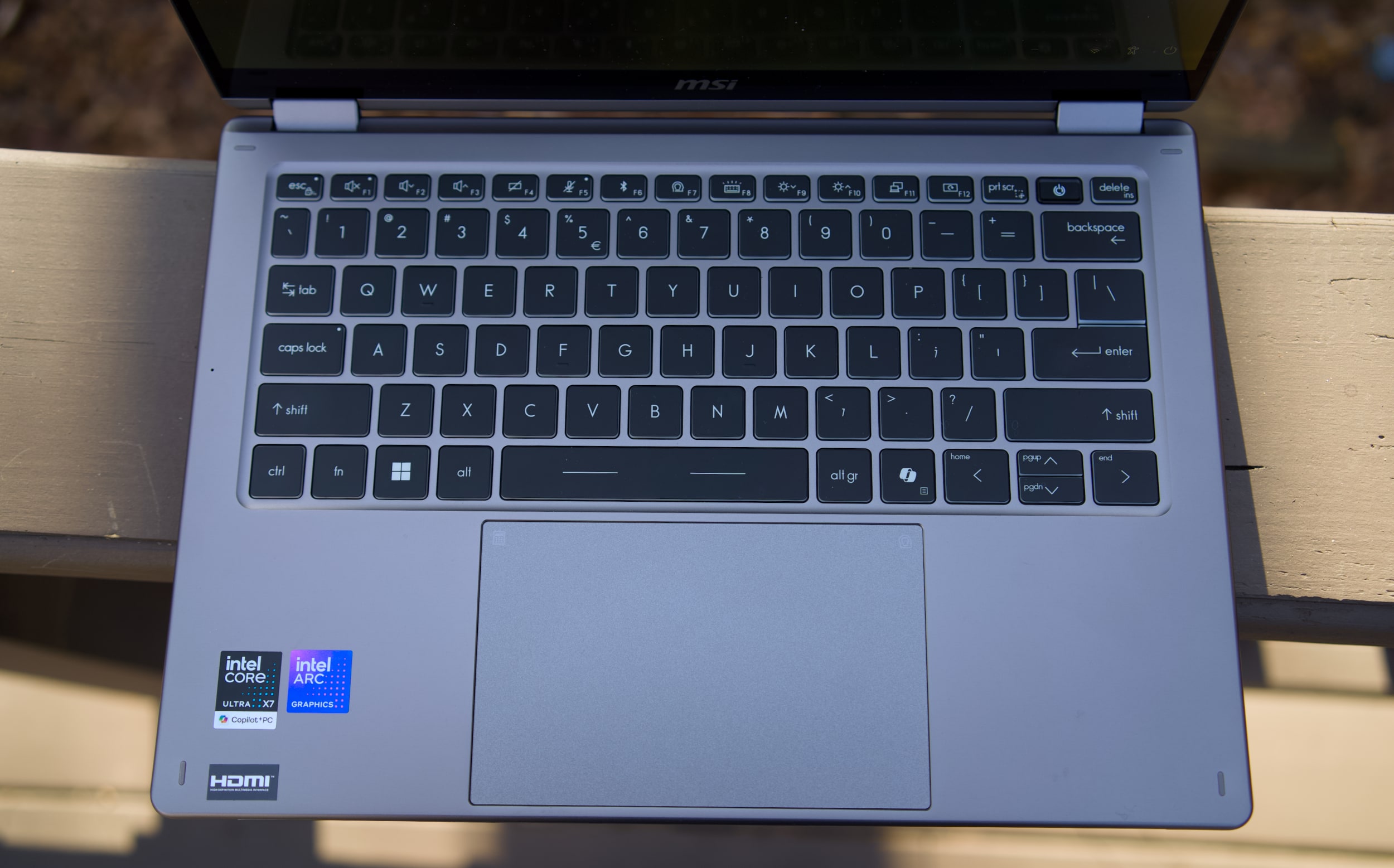
While there's clearly plenty to love about the MSI Prestige 14 Flip AI+, I was less impressed with its mechanical trackpad and keyboard. Perhaps I've been spoiled by the more responsive haptic trackpads from the competition, but the Prestige 14's old-school trackpad kept slowing me down with missed clicks and other annoyances. The laptop's keyboard felt similarly cheap, with a lack of depth and comfort that I've come to expect from other ultraportables in the $1,299 price range. Even after hours of testing, I had a hard time typing on the Prestige 14 at full speed without errors. It's a shame that MSI gets so much right, but is hindered by these weak components.
MSI Prestige 14 Flip AI+ in tablet mode
Devindra Hardawar for Engadget
Should you buy the MSI Prestige 14 Flip AI+?
As one of the earliest Panther Lake laptops on the market, the $1,299 Prestige 14 Flip AI+ is a solid machine, if you're willing to overlook its touchpad flaws. More than anything though, the Prestige 14 makes me excited to see what other PC makers offer with Intel's new chips. It's taken a while, but now Intel finally has some decent competition against Apple's M-series hardware. The era of gaming with ultralight machines is finally here.
This article originally appeared on Engadget at https://www.engadget.com/computing/laptops/msi-prestige-14-flip-ai-review-an-ultraportable-for-arc-raiders-thanks-to-intels-panther-lake-160000606.html?src=rss
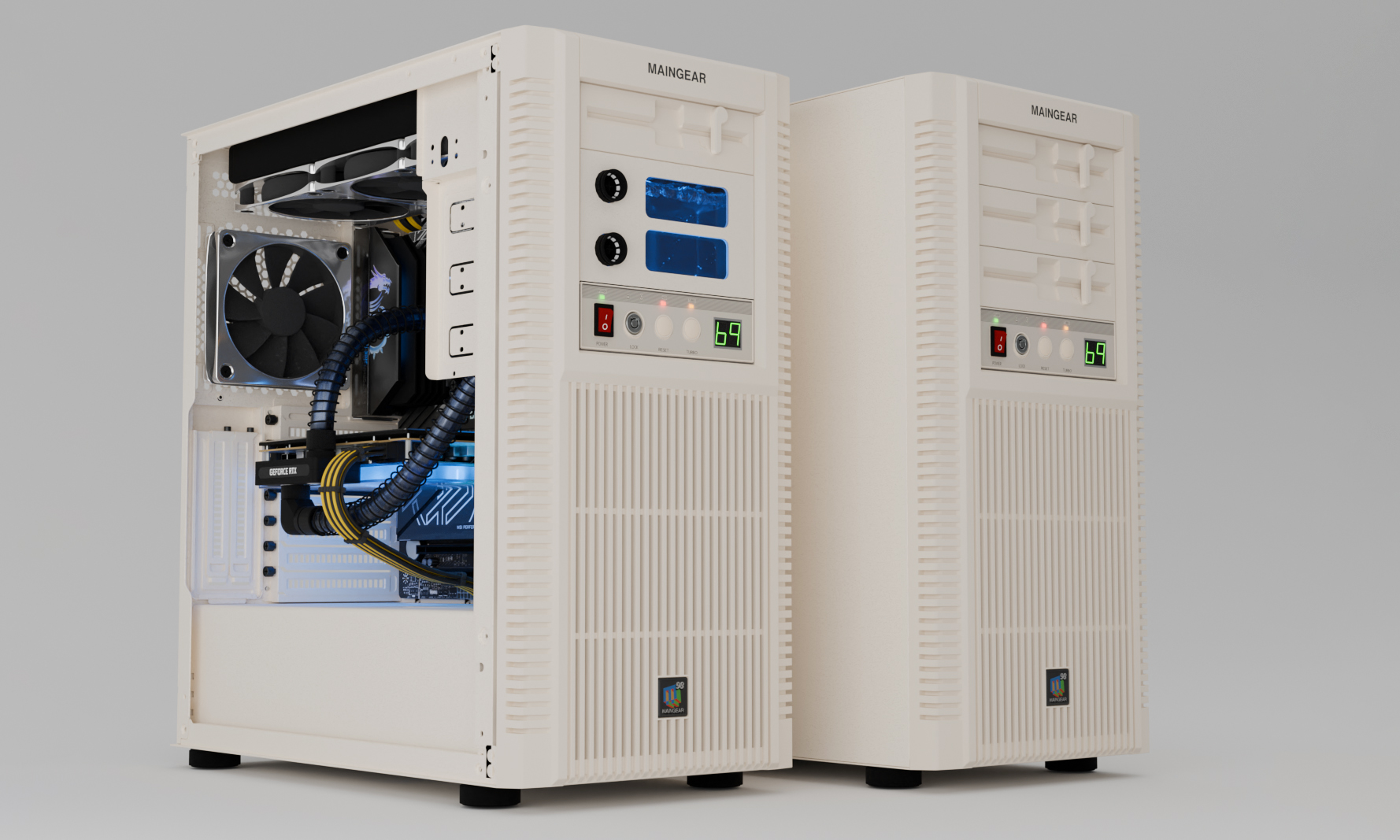
Maingear is back with another nostalgia-fueled gaming PC. The Retro98 may look like it's made for playing Quake while you wait for The Phantom Menace trailer to drop. But on the inside, the beige box is powerful enough to slay today's most demanding AAA games. "You're not going to find this PC at your local Radio Shack," Maingear promises.
If you're at least middle-aged, the Retro98's exterior is instantly familiar. The hand-built tower includes an LED fan-speed display, a working turbo button and a power-lockout key. Sticking with the nostalgic motif, its front I/O is hidden behind the Maingear logo. I can already hear The Beastie Boys' “Intergalactic” playing in the background.
Fortunately, you won't be limited to 1998 games. (Dope as they are.) It has up to a Ryzen 9 9950X3D processor, GeForce RTX 5090 graphics, 64GB Kingston Fury RAM and 4TB Kingston FURY Renegade NVMe Gen5 SSD. The maxed-out version (described by Maingear as "unapologetically overkill") even includes open-loop liquid cooling.
The Retro98 starts at $2,500 and goes all the way up to $9,799.
Maingear
Now for the bad news. As you might expect from a retro novelty PC like this, you'll have to pay a pretty penny. The base model (Intel Core Ultra 7 265K / NVIDIA GeForce RTX 5070) costs $2,499. There are two other standard tiers, priced at $3,499 and $4,999. Finally, the open-loop-cooled "Alpha" build is a whopping $9,799. Hey, those aren't 1998 prices!
The Retro98 also has an extremely limited run. Maingear is producing only 32 standard units and six alpha units. The company says it won't bring this build back once those sell out. However, there is a workaround for tinkerers: Since it's based on the SilverStone FLP02 tower PC case, you could grab one of those and build your own.
Those wealthy and nostalgic enough to take the plunge can order the Retro98 today from Maingear’s website.
This article originally appeared on Engadget at https://www.engadget.com/gaming/pc/maingears-latest-retro-gaming-desktop-takes-you-back-to-the-quake-era-174958445.html?src=rss
Choosing the best laptop can be a bit of a challenge, especially when “good enough” now covers everything from entry-level Chromebooks for college students to premium machines built for serious multitasking and heavier creative work. Specs can blur together fast, but a few basics still matter, like processing power, battery life and whether you’re getting enough storage for the long haul. For many people, that means looking for something that lands in the sweet spot with modern ports, a solid display and at least a 512GB SSD so you’re not juggling external drives a month after you bring your new laptop home.
Out of all of the notebooks we've tested and reviewed recently, we consider Apple's 13-inch MacBook Air M4 to be the best laptop for most people, and this is still the case for our top picks to start off the new year. It's powerful enough to handle most tasks (even light video editing); it has a great screen and built-in speakers; and its battery could last over 18hours (depending on what you're doing, of course). The MacBook Air M4 is also one of the lightest and thinnest systems we've reviewed, and it's dead silent, thanks to a fanless design.
Of course, not everyone wants a MacBook, and there are excellent Windows laptops and Chromebooks out there, too. Windows systems offer a range of configurations, from budget to high-end UHD screens with stunning IPS panels that boast high nits for vivid brightness. Chromebooks, on the other hand, tend to be more affordable and are great for users who mostly work online. Whether you need a powerhouse for creative work, a compact system for note-taking, or a laptop that can handle family movie night, there’s something for everyone in today’s laptop market.
Best laptops of 2026
Specs to look for in a new laptop
Depending on the type of laptop you’re looking to buy, there are some specs we think you should look for to get a machine that’s powerful enough for your needs and future-proof for the next couple of years (at least). Here's a cheat sheet for you to use when you're shopping.
MacBooks
At least M2 processor
At least 16GB of RAM
At least 256GB of SSD storage
Windows laptops
The most recent generation processor available from Intel or AMD
At least 16GB of RAM
At least 256GB of SSD storage (512GB SSD is a safer baseline if you plan to keep lots of files locally)
Chromebooks
Intel Core i processor
At least 8GB of RAM (4GB is the bare minimum for a basic Chromebook)
At least 128GB of storage, preferably a SSD
Gaming laptops
At least AMD Ryzen 9000 series or Intel 14th Gen Core CPU
At least 16GB of RAM (ideally 32GB if you can swing it)
At least 1TB of SSD storage
For GPU recommendations, check out our guide to buying the best GPU for your needs
Budget laptops
The most recent generation processor available from Intel or AMD
At least 8GB of RAM
At least 256GB of SSD storage (consider a 512GB SSD if you can swing it)
How we test laptops
Engadget has been reviewing laptops for two decades, and while the definition of what a portable PC is has changed considerably since, our obsession with testing their limits and serving up informative buying advice remains the same. Be it a hybrid tablet like Microsoft's Surface machines, a rotating 2-in-1 convertible like HP's Spectre x360s or a plain old clamshell notebook, our review process follows similar beats. How does it look and feel? How fast is it? Whether it’s a Windows device powered by an Intel Core i5 or higher, a MacBook or a Chromebook, we aim to answer the most important question: Is it actually worth your hard-earned cash? We also pay close attention to portability, webcam quality and display features, including IPS panels and nits of brightness, as they can make a big difference in daily use.
Factors to consider when choosing a laptop
Operating system: Apple, Windows or Chrome OS
There's a good chance you've already committed to an operating system, but my advice is to be as flexible as possible. These days, most major software is compatible with both Macs and PCs. (Of course, it's another story if you've become dependent on an Apple-only app like Final Cut Pro.) Web-based apps, naturally, will work on any platform with an internet browser.
If you're an Apple-loyalist, there aren't many reasons to consider Windows laptops (unless you want a secondary gaming machine). But for Windows users, macOS is becoming more tempting every year. Apple's MacBooks, powered by its M-series Silicon chips, are among the fastest and most efficient laptops we've ever seen. They're incredibly well-built and have outstanding battery life to boot. MacOS itself is also an easy platform to learn, especially if you're used to iOS and iPadOS.
That brings up another point: iPhone users may want to consider Macs because of the seamless integration with Apple's other platforms. You can't respond to iMessage conversations easily or hop into FaceTime chats on Windows PCs, but doing so is simple on Macs. (Microsoft's Phone Link app lets you send iOS users individual texts, but not media or group chats.) Android users, meanwhile, may be better off with Windows, as Phone Link can make calls, synchronize all your texts and also access your phone's photos.
If cloud gaming is your priority, Windows laptops with NVIDIA’s GeForce Now or Xbox Cloud Gaming compatibility may offer more flexibility and decent performance, especially when paired with fast internet speeds. Chromebooks also make a compelling case here as an affordable, lightweight solution for casual cloud gaming sessions.
As for whether you’ll want a PC with a dedicated Copilot AI button on the keyboard, that depends on how often you see yourself using Microsoft’s generative tools. Given we’re only just seeing the first slate of AI PCs, it would be wiser to wait out the hype and see what improvements might come over time.
And what about ChromeOS? Chromebooks are a smart and (typically) inexpensive way to do things like web browsing and hopping on a few video chats, but for most, they're not the best choice as a primary computer. There aren't many apps or games that work offline, and they also don't work with powerful software suites like Adobe's (you can use the stripped-down Adobe Express and Photoshop online tools, though).
Chromebooks are great secondary machines to use alongside a more powerful Mac or PC, and they're popular in schools because they're cheap and easy for IT workers to manage. And if all you need is web browsing access, or a notebook for a kid, a Chromebook might be enough.
If, for some reason, you’re looking for a powerful ChromeOS system, there are also Chromebook Plus models to consider. These machines sport faster processors and more RAM than typical Google notebooks, and they can also tap into a few of the company’s online AI features, like AI image generation and photo processing.
Price
You can expect to spend between $1,000 and $1,800 for a new laptop these days, depending on the configuration. If you're looking for more of a workhorse, that could cost you well over $2,000 for additional RAM, storage, as well as a beefier graphics card and CPU. But you can also find some good laptops under $1,000 if you're willing to overlook build quality (or buy a refurbished or previous generation machine, which we highly recommend). For entry-level systems, you’ll often have to decide whether you’d rather prioritize processing power or storage, especially if 512GB SSD upgrades bump the price. Systems with AMD chips tend to come in cheaper than their Intel counterparts, but the bulk of their cost will come down to other components like RAM and storage.
I’ve included our favorite affordable model in this best laptop buying guide, but we have a list of the best budget laptops that you can check out as well.
Laptop size and weight
So how portable do you want your laptop to be? That's the ultimate question you need to ask when choosing between various screen sizes. 13-inch machines have become a solid starting point for most shoppers — it's enough real estate for the majority of tasks like emailing and writing, and it also helps keep machines relatively light (typically between two to three pounds). Thanks to manufacturing advancements, these dainty machines sometimes even come with larger screens (the smaller MacBook Air actually has a 13.6-inch display).
If you have trouble seeing fine text, we’d recommend going for a display larger than 13 inches. ASUS’s Zephyrus G14 is a solid 14-inch option for gamers, and we’re also seeing more productivity-focused machines aim for that size, like the Dell 14 Premium and MacBook Pro. While 14-inch notebooks are a bit heavier than 13-inch models, coming in between three to four pounds, their screens are noticeably roomier.
For artists, or anyone else who needs a large canvas, a 15-inch laptop may make the most sense. They typically weigh between 3.5 and 4.5 pounds, but that extra heft may be worth it to fit wider video editing timelines or Photoshop windows. And, as you'd expect, you'll also pay a bit more for a 15-inch notebook compared to smaller ones (the 15-inch MacBook Air starts at $1,199, while the smaller model goes for $999). PC makers are also replacing 15-inch systems with 16-inch versions, which will give you even more space to work.
If you're in the market for a business laptop, size and portability might be key considerations. A lightweight yet powerful system with a long battery life can make a world of difference if you travel frequently for work.
You can still find laptops with 17-inch or 18-inch screens, but those are typically gaming systems or souped-up workstations. They're not meant for mere computing mortals.
Ports and connectivity
These days, most laptops ship with a few USB-C ports, which can handle both charging and speedy data transfers. Apple's MacBooks also include a separate connection for MagSafe power, and you'll find custom power connections on some PCs like Microsoft's Surface. Older USB Type-A connections are less common now, but they still pop up in systems like HP's Spectre x360 14, as well as many models from ASUS.
For gamers or creators who rely on discrete graphics, ensuring your laptop has the right ports for external monitors or GPUs is crucial. DisplayPort or HDMI connections can also ensure you’re ready for dual- or multi-screen setups for more immersive experiences. Similarly, if you want to save high-resolution files or install multiple games, you might need to consider additional hard drive space; external hard drives are pretty affordable, as long as you have a proper port to connect them.
If you're a fan of wired headphones, it's worth keeping a close eye on headphone jack availability. They usually include a USB-C to 3.5mm adapter, but that's a clunky solution, and it also takes up a USB port. Sure, most people use wireless earbuds and cans today, but it's still helpful to have a wired one around for when those devices run out of juice.
Most laptops today offer Wi-Fi 6 or 6E and Bluetooth 5.0 or later, which should mean faster and more stable connections if you have compatible routers and devices. While Wi-Fi 7 routers have started appearing, that spec hasn't made its way into laptops yet. As for cellular coverage, there are notebooks like the Surface Pro 9 and Samsung Galaxy Book models that offer integrated 5G. But from our testing, that feature may not be worth the cost of a separate data plan. Instead, you could tether to your smartphone or invest in a wireless hotspot that can keep multiple devices online.
Battery life
A laptop's battery life depends on several factors: The power draw from the screen and other hardware, the optimizations used to avoid unnecessary power drain, and, of course, the size of the actual battery. One of our previous favorite systems, the Dell XPS 13, lasted 13 hours and 15 minutes in the PCMark 10 battery benchmark. In real-world testing, I was able to use it for a day and a half without needing a recharge. The MacBook Air 13-inch, meanwhile, more than 18 hours in our benchmark and kept running for more than two work days of my typical workflow. In general, you should expect a modern laptop to last at least eight hours.
If battery life is your absolute priority, I'd strongly suggest looking at Macs over Windows PCs. Apple's M-series chips are essentially mobile hardware, with all of the power efficiency you'd expect from something originally designed for phones. Qualcomm’s upcoming Snapdragon chips could help Windows PCs compete with Apple’s astonishing battery life, but we’ve yet to see those in action. Chromebooks also typically get decent battery life (as long as you don’t overstuff them with power-draining tabs).
Refresh rate
A laptop's refresh rate refers to the amount of times its screen is cycled every second. Modern displays like IPS LCDs and OLEDs support 60Hz refresh rates at a minimum, but we're seeing more devices offering 120Hz, 240Hz and beyond. The higher the number, the faster the screen is refreshed, which ultimately leads to a smoother experience while mousing around or scrolling through web pages. (If you want to get a sense of what a slow refresh rate looks like, just grab an e-reader like the Kindle and try to flip between book pages.)
While high refresh rates used to be reserved for gaming laptops, nowadays we're seeing more mainstream machines like the Dell 14 Premium offer 120Hz (or variable rates that move between 60Hz and 120Hz).
CPU and GPU
If you’re buying a new laptop, you’ll want to make sure it’s powered by the latest CPUs so you’re not short on processing power a year from now. For Windows PCs, that includes Intel’s Core Ultra chips for thin-and-light machines or the 14th-gen HX chips for beefier systems. The Core Ultra series have NPUs for handling AI tasks, while the HX hardware does not – they’re based on Intel’s previous chip architecture, and they’re more focused on delivering raw horsepower. Intel's older 13th-gen and 12th-gen laptop chips also don't have NPUs, so keep that in mind if you're looking at used systems.
You'll also see AMD's Ryzen 8000 and 9000 chips in plenty of new systems like the ASUS Zephyrus G14 and Razer Blade 14. Those CPUs mainly target gaming laptops and high performance systems, while you'll still find AMD’s older Ryzen 7000 chips in ultraportables. AMD's main advantage is that its chips also include Radeon graphics, which are far more capable than Intel's Arc hardware (though those are getting better).
Qualcomm’s new Snapdragon X Elite and X Plus are also an option in Copilot+ PCs (more on those below). Since they’re based on mobile chip designs, they’re likely also more power efficient than AMD and Intel’s hardware. In the past, we’ve avoided recommending Snapdragon chips because they led to a slow and frustrating Windows experience. But Microsoft claims it’s rebuilt Windows 11 around Snapdragon’s Arm-based architecture, which should lead to far faster performance and better app compatibility.
As for Apple's laptops, you'll be choosing between the M4 Pro, M4 Max and M5, each of which is progressively more powerful.
On the graphics side of things, a GPU, or graphics processing unit, is the component that communicates directly with a laptop's display. Laptop CPUs all have some form of integrated GPU: Intel has either its standard graphics or beefier Arc hardware, while AMD's chips include fast Radeon mobile graphics. If you want to play demanding games at high speeds (measured in frames per second, or fps), or if you need some extra power for rendering video or 3D models, you can configure a laptop with a dedicated GPU like NVIDIA's RTX 40-series hardware or AMD's Radeon RX 7000. Just be sure to leave room in your budget if you want a powerful GPU, as they typically add $300 or more to the cost of a laptop.
Apple's M-series chips, meanwhile, have GPU cores that can perform as well as NVIDIA’s and AMD's lower-end dedicated GPUs. That's quite the accomplishment for systems like this (especially the MacBook Air and 14-inch MacBook Pro), and it's another reason we highly recommend Apple's notebooks.
AI PCs, NPUs and Copilot+
Simply put, an AI PC is a computer equipped with a neural processing unit (NPU), which is designed to handle AI-related tasks. Much like how GPUs tackle heavy-duty gaming and rendering workloads, NPUs are designed to handle the complex math necessary for AI workloads. They’re also far more power efficient than CPUs or GPUs, which could lead to better battery performance in laptops. While many factors go into NPU performance, for the most part we measure their potential speed by TOPS (tera operations per second).
We were primed for AI PCs based on the chips Intel and AMD announced in 2023. Intel unveiled its "Core Ultra" CPUs in December, its first to include an NPU for AI work. AMD also announced its Ryzen 8040 AI mobile chips that month (and it couldn't help but say they were faster than Intel's new hardware). But in May, Microsoft announced its Copilot+ initiative, which is pushing major PC makers to deliver premium AI PCs with specifications including 16GB of RAM, 256GB SSDs and NPUs with at least 40 TOPS of AI performance.
Copilot+ is more than just a marketing term: Microsoft is also launching AI-powered features in Windows 11 that take advantage of powerful NPUs. That includes Recall, which can help you locate anything you’ve done on your PC (whenever it finally launches), as well as Cocreator in Paint, which can generate AI images based on text prompts and doodles.
If you buy an AI PC that isn’t Copilot+ certified, you’ll still be able to use some features like Windows Studio Effects, which can blur your background in video calls or keep you in frame. Developers like Adobe and Audacity are also building features into their apps that can take advantage of NPUs.
At the time of this post, Chromebook Plus notebooks can also access a few of Google’s online AI features, like image generation and photo processing.
Other laptops we tested
Lenovo ThinkPad X9-14 Aura Edition
The ThinkPad X9-14 Aura Edition is a great spiritual successor to the ThinkPad X1 Carbon, offering the best that business laptops have to offer. That includes long battery life packed into a thin and light chassis. This is an optimal ultraportable business laptop.
While the price might give you some pause, we tested the lowest configuration, and found that the X9-14’s performance is excellent for casual business users. The only issue with quality is that the keyboard is lacking. It’s mushier than we’d like, which could get a bit tiresome throughout the day. You’ll still miss out on a USB Type-A port, so you may need to carry a Type-C hub with you.
Where the ThinkPad X9-14 will win you over is its bold OLED screen. Combo that with its well-rounded audio, and the ThinkPad X9-14 makes for an excellent multimedia device in and out of the workplace.
ASUS Zenbook 14 OLED
Aside from its lovely OLED screen, the ASUS Zenbook 14 OLED doesn't stand out from the crowded laptop field in any way. It just looks dull and boring, especially compared to the strikingly beautiful ASUS Zephyrus G14, which also came out this year. While you can probably find the Zenbook 14 for a decent price, I'd recommend holding out for something with a bit more personality (and with a less wobbly screen hinge).
Razer Blade 14
The Razer Blade has almost everything you'd want in a 14-inch gaming notebook, but it's far pricier than the Zephyrus G14 on this list, and it doesn’t even have an SD card reader. It would be a solid competitor once its price falls a bit, and it's certainly a great option if you just have to have a jet-black laptop.
Framework Laptop 16
Framework gave its modularity magic to the Laptop 16, delivering a gaming notebook where almost every single component is user replaceable. But you'll have to pay a pretty penny to snag it with upgraded hardware, and its optional Radeon 7700S GPU was surprisingly slow.
Alienware m16 R2
The Alienware m16 r2 has been revamped with a slimmer case, but it’s otherwise a fairly typical gaming laptop. It’s a solid option for Alienware fans, but you’ll find better hardware and deals elsewhere.
ASUS Zenbook Duo (2024)
The Zenbook Duo is a fascinating dual-screened notebook, and according to my colleague Sam Rutherford it’s the first of its kind that’s worth buying. But its unique hardware isn’t really meant for mainstream consumers, and Windows 11 still doesn’t support multi-screen setups well enough to make full use of the Zenbook Duo’s ample canvas.
Dell XPS 16
Dell’s XPS 16 is big and beautiful, but it’s far too expensive compared to the competition. Plus, it uses a capacitive row of function keys that you basically can’t see under bright light and has too few ports for a machine of this size.
What is the average battery life of a laptop per charge?
It’s hard to come up with an average battery life for laptops, since that will ultimately depend on what you’re doing with them. An ultraportable like the MacBook Air that sips power can last around 20 hours in our battery benchmark, and around two full work days of real-world usage. But a gaming laptop may last only a few hours if you’re actively playing something while on battery. At this point, Macs are delivering far better battery life than PCs, thanks to Apple’s Silicon chips, but Microsoft claims Copilot+ systems with Qualcomm chips will also get over 20 hours of batter life.
How much RAM do I really need?
The more RAM you have, the more things your computer can do simultaneously. For that reason, we recommend buying PCs and Macs with at least 16GB of RAM. That gives you enough memory to have several applications open at once, as well as web browsers filled with RAM-hogging tabs. Many PC games also require at least 16GB of RAM. While you could use a system with 8GB of RAM for basic tasks, you’ll quickly run into slowdowns and error messages as your apps stack up. Many laptops, especially ultraportables, don’t let you upgrade RAM, too – so you’ll have to buy an entirely new computer if you didn’t equip enough memory at the start.
If you’re a hardcore gamer, programmer or planning to render videos or 3D models, then you may want to go for 32GB of RAM or more. And if you just need a secondary laptop for lighter work – perhaps a no-frills system for writing – then you can probably get by with 8GB. Just be sure to keep those browser tabs in check.
What is the best storage capacity for a laptop?
There is no one-size-fits-all solution when it comes to laptop storage. You’ll typically find configurations between 256GB and 1TB SSDs (solid state drives) on most laptops, and I’d recommend most people get at least 512GB. That’ll be enough space for large apps, music and video files without stressing your system too much. If you’re a media hoarder, or want to play a ton of games, then it’s definitely worth getting a 1TB SSD.
If you’ll mainly be streaming your shows and music, and would rather invest in RAM or other hardware, then 256GB of storage would be serviceable. I’d recommend staying away from any machine with 128GB of storage though. Most of that will be taken up by the operating system, and you’ll likely run into issues cramming in large apps after a few months.
We recommend springing for extra built-in storage or investing in a portable SSD for backing up your most important files. It's also worth noting that Chromebooks tend to come with less built-in storage — 32GB, 64GB or 128GB — since ChromeOS encourages users to save their files in the cloud rather than on the device. In that case, 128GB is plenty.
What's a good price range for a decent laptop in 2026?
You can expect to spend between $1,000 and $1,800 for a typical 13-inch laptop today. As I explained above, you'll pay more if you want to stuff in more RAM or better GPU hardware. But you can also find deals below $1,000 if you look for refurbished or older-generation models.
What’s the difference between macOS and Windows? Which is better?
Simply put, macOS is the operating system in all of Apple's notebooks and desktops, while Windows powers the vast majority of PCs. You'll also find Chromebooks running Google's ChromeOS, but those are basically just web browsers running on top of Linux.
Debating the differences between Windows and Macs is something PC nerds have been doing since the '80s, so we won't be declaring a winner here. There are some small, negligible distinctions, like using a Command versus a Control key, how file explorers work and concerns about viruses and security. For the most part, those are minor issues or have become moot thanks to better built-in security.
But if you care more about playing the newest games, you'll want to have a Windows system. If you're more focused on creative apps, like Photoshop, Premiere and Final Cut Pro, then macOS may be a better fit (especially if you're running an iPhone).
What are the best laptop brands?
There is no single "best" laptop brand, but judging from this guide alone, we're generally impressed by notebooks from Apple, Dell and ASUS. They all offer fast, reliable and sturdy machines. HP also makes some eye-catching devices if you want an option that’s the most aesthetic. Those four brands, along with Lenovo and Acer, dominate laptop sales worldwide. We'd avoid systems from any retail store brands, or companies that don't have a major presence in the US.
Recent updates
October 2025: Updated to add the latest MacBook Pro.
September 2025: Added a new "specs to look for" section.
August 2025: Updated our top picks to include the Dell 14 Premium.
May 2025: Updated to ensure top picks and details are still accurate.
March 2025: Updated to include the M4-powered MacBook Air.
November 2024: Updated to include the M4-powered MacBook Pros.
August 2024: Updated to include the Lenovo ThinkPad X1 Carbon Gen 12.
This article originally appeared on Engadget at https://www.engadget.com/computing/laptops/best-laptops-120008636.html?src=rss
The latest lineup of MSI's Prestige laptops is now available to buy. The company unveiled its next-generation business laptop at CES earlier this month, all of them powered by the latest Intel Core Ultra Series 3 processors.
Available in configurations that include up to the Intel Core Ultra 9, the updated Prestige series are equipped with chunky 91Wh batteries and, depending on the model, offer over 30 hours of 1080p video playback. In more real-world terms, if you’re on a work trip and know you won’t always have a power supply to hand, you can trust one of these to get you through a day of heavy multi-tasking.
The new Prestige models are encased in full aluminum and are slimmer than their predecessors. They feature vapor chamber cooling and dual-fan architecture to ensure they stay cool and quiet while you work. If you pick up one of the convertible 2-in-1 Flip models, you can work with a stylus too.
There’s a 2.8K OLED display option for the Prestige 16 and 16 Flip, with support for VRR and DisplayHDR True Black 1000. The Flip 14 keeps the OLED, but the resolution drops to FHD+ and you lose the VRR.
The full lineup is now available in the US, with prices starting at $1,299.
This article originally appeared on Engadget at https://www.engadget.com/computing/laptops/msis-refreshed-prestige-series-laptops-are-now-available-to-buy-165234479.html?src=rss
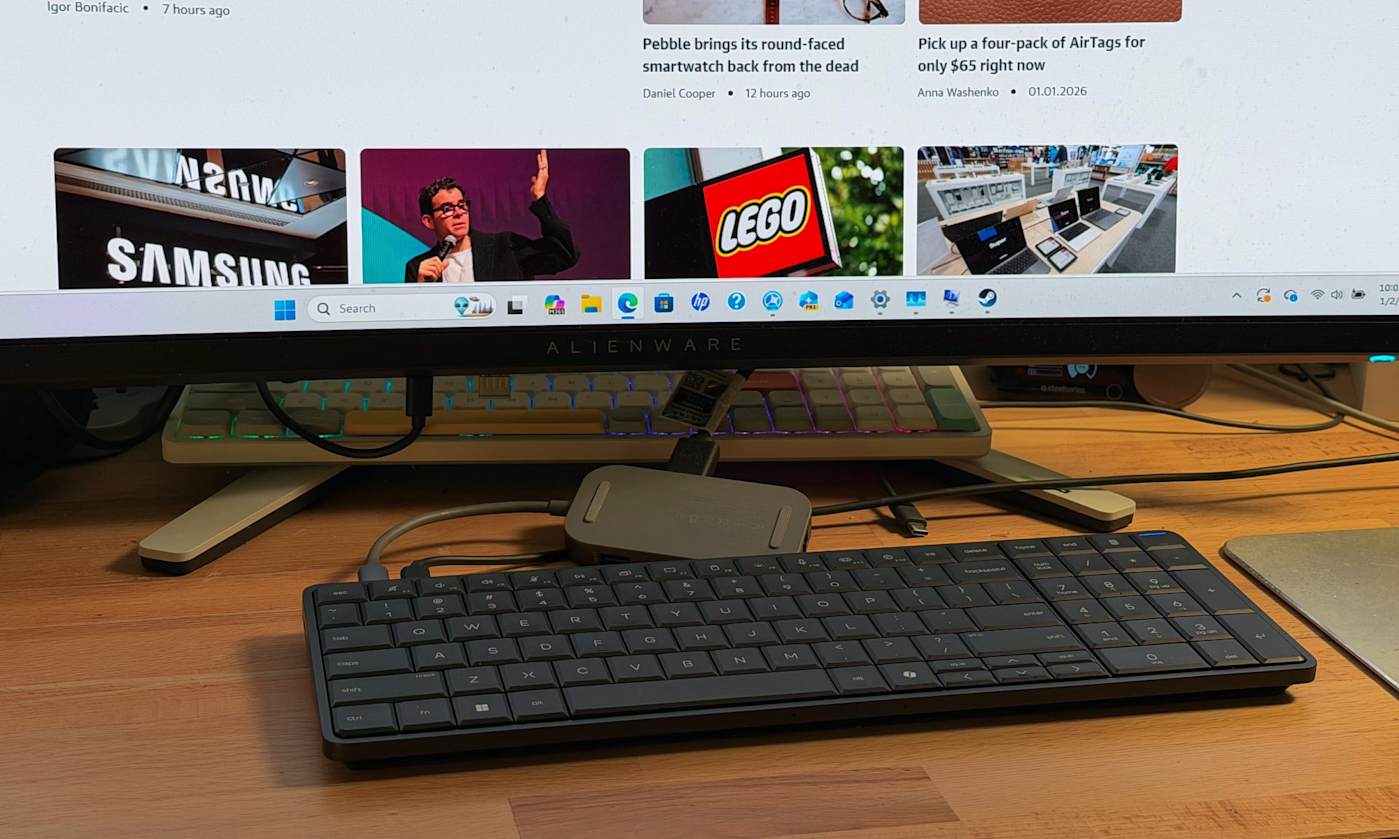
Having fewer ports makes laptops and tablets lighter and more affordable — but that also cuts down on your connectivity options. If you’ve got a MacBook Air, a slim Chromebook or a tablet you’d like to get more utility out of, a USB-C hub can help. Using just a single port on your device, these multiport adapters will let you hook up screens, tap into Ethernet cables, connect mice and keyboards, and transfer data to drives and memory cards. Most also give you a way to power your device through the hub to maximize port availability. We tested over a dozen models to come up with picks for every budget. Here are the best USB-C hubs, according to our tests.
The first thing to decide is whether you need a USB-C hub or a USB-C docking station. There’s no set standard for what differentiates the two, but docking stations tend to have more ports, offer a separate DC power adapter and cost more, with some reaching upwards of $400. We have a separate guide to the best docking stations to check out if you’re looking for something bigger than what we’re discussing here. USB-C hubs, in contrast, have between four and 10 ports, can support pass-through charging and typically cost between $30 and $150.
Hubs, sometimes also called dongles or even multiport adapters, make more sense for smaller setups with just a few peripherals, such as a monitor, a wired keyboard and mouse, and the occasional external drive. They’re also more portable, since they’re small and require no dedicated power. That could be useful if you change work locations but want to bring your accessories with you, or if you want to replace your laptop with a more powerful tablet. A docking station or Thunderbolt dock makes more sense for someone who needs a robust setup for their laptop, including multiple external monitors, webcams, stream decks, microphones and so on.
Both docks and hubs make it easy to grab your laptop off your desk for a meeting or other brief relocation and when you get back, you only need to plug in one cable to get all your accessories reconnected. Of course, if you just need to plug in one peripheral, you may not need a hub or a dock, a simple USB-C adapter, like HDMI to USB-C or USB-A to USB-C, may do the trick.
Ports
For a USB-C hub to work, it needs to connect to a port on your laptop or tablet that supports video, data and power — all of which is covered by anything listed as USB 3.0 or better, including USB4 and Thunderbolt 3 and Thunderbolt 4. The port, of course, needs to be Type-C as well. The sea of laptops out there is vast, so it’s hard to make generalizations, but modern laptops, including Windows and Apple models, should have at least one USB-C port that will suffice, and indeed, every one of our top picks for the best laptops do — including our top pick, the M4 MacBook Air.
Next, it’s a matter of finding a good USB-C hub that has the right connections for your needs. Most hubs offer some combo of HDMI, USB, SD card reader, Ethernet and 3.5 mm ports. If you have a 4K monitor and would like at least a 60Hz refresh rate, you’ll need a hub with an HDMI 2.0 port — HDMI 1.4 only goes up to 30Hz. HDMI 2.1 will handle 4K at up to 120Hz, but hubs that have adopted that standard aren’t as common just yet. Keep in mind that a low refresh rate can cause your screen to feel laggy, making your mouse appear glitchy and your webcam movements to look delayed.
Additional USB ports on these accessories are usually USB Type-A or USB Type-C. They can support data with different transfer rates, typically 5Gbps or 10Gbps. Some ports only handle passthrough power and no data, and some can do data, power and video, so it’s best to check the spec list to make sure you’re getting the support you need. Keep in mind that a hub may bill itself as a 7-in-1, but one of those ports may not be usable for anything other than charging.
Standard SD and microSD cards are useful for transferring data from cameras and the like or for offloading files from your hard drive, and many hubs have those slots. Ethernet ports may deliver faster internet speeds than your Wi-Fi and a hub with a 3.5mm jack can bring back the wired headphone connection that some laptops have ditched.
Power delivery
Nearly all of the USB-C hubs I tested support passthrough charging. That means if your laptop or tablet only charges via USB, you don’t have to take up another port on your laptop to keep everything topped up. Unlike a docking station, powering a hub is optional. The one exception is if you want to close the lid on your laptop while you work on an external monitor. Most computers will go into sleep mode if the lid is closed without power, so either the laptop or the hub will need to be plugged into the wall to prevent that from happening.
Many of the newer hubs include a 100W USB-C power delivery (PD) port, with a healthy 80 to 85 watts going to your Mac, PC, iPad or Android tablet (the hubs take a little of the juice for themselves, hence the 15-watt or so difference). In my tests, a powered USB hub ran hotter than when it wasn't passing the charge through, so I prefer to power the computer directly using its own charger. But for tablets or other devices with no extra ports, that PD option is important.
Some PD ports are also data ports — which is both good and bad. On one hand, it feels wasteful to use a perfectly good data port just for boring old electricity. But on the other hand, USB-C connections that only carry a charge are less versatile, and it makes it seem like it has more accessory hookups than it actually does.
Design
There’s surprisingly little design variation among hubs. Most look like a flat slab, a little smaller than a smartphone, and have an attached Type-C host cable. The hues range from a silvery black to a silvery gray. Some are thinner than others, some have all ports on one edge and some have ports on both sides. All of this is just to say that aesthetics probably won’t make or break your buying decision.
One variation that could tip the scales is the length of the cable. A longer one will give you more freedom as you arrange the hub on your desk, potentially even letting you hide it behind your laptop. Or you may prefer a shorter one to keep the hub neatly set beside your laptop.
How we test USB-C hubs
Before we test anything, we take a look at what’s available and how they’ve been received by shoppers, forum-goers and other publications. I became familiar with a few reputable brands when I was testing docking stations, so I looked into hubs from those companies as well. I focused on items that would help with an average day of productivity — not high-end setups or demanding gaming situations. Once I settled on a dozen or so that would make good candidates, I had them shipped to my humble office in the desert and started testing them out over the course of a few weeks.
I used an M1 MacBook Pro running MacOS Sonoma as the host computer and plugged in accessories that include a 4K Dell monitor, a ZSA USB-C ergo keyboard, a Logitech USB-A gaming mouse, an Elgato USB-C 4K webcam, a Logitech streaming light, a USB-A 3.0 Sandisk thumb drive, a USB-C Samsung T7 Shield external drive and a pair of wired headphones I got for free on an airplane (I should probably invest in some wired headphones, but the cord dangling on my chest drives me nutty so all my earbuds are wireless). I used high-end HDMI and USB-C cables to ensure that any data or connectivity issues weren’t related to my equipment.
Then I put each USB-C hub through a gamut of basic tests. I looked at what could be plugged in at once, the resolution on the monitor, data transfer speeds, the overall build quality of the hub and general usability factors, like the placement of the ports and the length of the cords. And, finally, the price-to-value ratio helped determine the best ones for a few different use cases.
Other hubs we tested
HyperDrive Next 10 Port USB-C Hub
There’s a lot to like about HyperDrive’s Next 10 Port USB-C Hub. The tethered cable is a lavish 13 inches long, the HDMI 2.0 port outputs clear and crisp 4K visuals at 60Hz and the high-speed data transfers are great. It has the coveted two USB-C data ports plus a PD port, and there’s even a headphone jack. The only thing that holds back a full-throated endorsement is the way our unit handled a streaming light. Having it on at full brightness made the webcam flicker every time. The issue went away at 75 percent brightness, but the same problem didn’t happen on any other hub I tested.
Anker 341 USB-C Hub (7-in-1)
There’s nothing wrong with the Anker 341 USB-C hub. In fact it’s a current recommendation in our iPad accessories guide and it comes at a great $35 price. It gives you two USB-A ports as well as SD slots. But at this point, a 1.4 HDMI connection, which only supports 4K resolution at 30Hz feels a little retro. There’s also just a single USB-C downstream port and the data transfer tests proved to be a touch slower than the other hubs. But if you’ve got a lower resolution monitor and don’t need more than one USB-C, you won’t be disappointed with it.
Anker 555 8-in-1
It was a tough call between the UGreen Revodoc Pro 109 and the Anker 555 8-in-1 for our top recommendation. Both have a similar port array with an HDMI, Ethernet, two USB Type A, a PD USB-C and a USB-C 3.2 on the 555. And the Anker USB-C hub is $15 cheaper. We went with the UGreen hub for its more premium build, extra USB-A port and longer cord that gives you two extra inches to work with. But if you want to save a few bucks this hub is a worthwhile pick.
Startech 4-Port USB-C Hub (data only)
I only became aware of Startech when I started researching for this guide. The quality is decent and the yellow accents are a welcome bit of color in the otherwise very gray world of hubs. The performance is solid, with no hiccups that I encountered. The brand’s 4-Port USB-C Hub has a long cord that wraps around the hub itself, which is unique. It doesn’t bother with power delivery, which isn’t an issue if you can power your computer directly. But the four USB ports (three Type-A and one Type-C) max out at 5Gbps and there’s no HDMI connector. It goes for $46, and unfortunately for it, there are cheaper ways to get a few more USB ports for your setup.
Recent updates
January 2026: Added an honorable mention from Satechi.
This article originally appeared on Engadget at https://www.engadget.com/computing/accessories/best-usb-c-hub-120051833.html?src=rss
Laptop power banks come in handy if you often travel or work away from your desk. These larger batteries have enough capacity to refill your computer to around 75 percent, giving you many more productive hours. Of course, they can also charge smaller devices like your phone, camera or tablet a few times over. Nearly all portable laptop chargers fall below the 100-watt-hour mark so you can bring them in your carry-on when you fly. Additional features, like built-in cables and digital displays make these battery banks easier to use, too. We tested over a dozen options and put our thoughts below, so you can find the best laptop power bank for your next trip away from an outlet.
Most portable batteries top out at around 27,000mAh so you can fly with them. The TSA currently limits the capacity carry-on batteries to 100Wh, which works out to around 27,500mAh for 3.6 volt lithium-ion batteries. Note that you’re not allowed to pack any batteries in your checked luggage, regardless of capacity. The TSA rules are intended to limit fire danger — and some airlines are implementing further restrictions due to recent on-board incidents.
In March 2025, a Hong Kong flight was grounded after a battery pack caught fire in an overhead bin. A similar situation happened that same year in July on a domestic Delta flight, and again in August on a transatlantic KLM flight. As a result, some airlines, including Emirates, Southwest and others have announced further restrictions on flying with battery packs.
Rules include limiting the number of allowed portable chargers and requiring flyers to keep power banks in clear view when using them to recharge a device. If the battery pack isn’t actively in use, however, most rules allow them to stay in your carry-on bag in the overhead bin. Before flying, it’s wise to check your airline’s policies.
Capacity
If you just need to keep a smartphone from dying before you can make it home, just about any of the best power banks will do. But if you need to revive multiple devices or the substantial battery of a laptop, you’ll want something with a high milliamp-hour (mAh) capacity. A power bank capable of delivering enough power to a laptop will have a capacity between 20,000 and 27,000 mAh.
If you want something even bigger than a laptop power bank, and don’t need to fly with it, you’ll likely want to look into portable power stations. These can be the size of a car battery or larger and can potentially fuel an entire weekend away.
Another thing to keep in mind is that the capacity listed in a power bank's specs is not what will be delivered to your devices. As I mentioned, the capacity of these banks is around 25,000mAh. Even the huge battery on a 16-inch MacBook Pro or a Dell XPS 16 has a mAh rating of around 5,000 - 6,000mAh, so you might think you’d get five full charges but in reality, you only get about a single 70-percent charge. The voltage is different (typically 3.7V for the power bank and 11.4V for a laptop) which makes the watt-hours, or the amount of energy each battery can hold, different (working out to 92Wh for the battery and 72Wh for the built-in laptop batteries). On top of that, in order to feed a charge from a power bank to a laptop, a voltage conversion takes place and that dissipates a decent amount of energy.
Without turning this into a physics lesson, this all means that a power bank with a 25,000mAh (or 92Wh) capacity will typically fill a 5,000mAh (or 72Wh) laptop battery to about 75 percent. In my tests, I averaged about a 60-percent efficiency rate between a power bank’s listed capacity and the actual charge delivered.
Ports
Every large power bank I’ve tested has at least three USB ports, with a mix of USB-C and USB-A, which should cover nearly any portable device you need to recharge — earbuds, phones, tablets, laptops, you name it. In addition to the different plug formats, some ports supply power at different wattages. For example, one built-in USB-C port might be rated for 60 watts, while the one next to it is rated for 100 watts. So if you’ve got a device that’s capable of 70W fast charging, such as the new MacBook Air, you’d want to opt for the 100W port to get the best charging speeds possible.
Note that devices with a smaller wattage draw won’t be negatively affected by connecting to ports with high ratings. For example, a Galaxy S24 Ultra, capable of 45W super fast charging, is perfectly compatible with the 100W port. A device will only draw what it can take, regardless of what a port can supply. Just remember that the port, device and charging cable need to be at or above the desired wattage rating to achieve maximum charging rates.
Some of these larger batteries also have AC ports. It might seem like a natural fit to plug in your laptop’s power adapter for a recharge. But really, the AC port should only be for devices that can’t use USB — such as a lamp or a printer. Plugging a power adapter into the AC port only wastes energy through conversion. First, the battery converts its DC power to supply the port with AC power, then the power adapter converts that AC power back to DC so your laptop can take it in. And as you’ll remember from physics class, each time energy is converted, some is lost to heat and other dissipations. Better to cut out the middleman and just send that DC power straight from the battery to the device.
Also, you can use more than one port at a time with these devices; just remember that the speed of whatever you’re charging will likely go down, and of course, the battery is going to drain proportionally to what you’re refilling.
Wireless charging
Since I first started testing portable power banks a few years ago, wireless charging capabilities have noticeably improved. The first few I tried were painfully slow and not worth recommending. Now the wireless pads built into power banks are impressively fast — particularly, in my experience, when charging Samsung Galaxy phones (though the lack of a stabilizing magnetic connection like Apple’s MagSafe means they only work when rested flat on a pad). Most wireless charging connections can be used while other ports are also being employed, making them convenient for some mobile battlestation setups.
Of course, wireless charging is always less efficient than wired, and recharging from an external battery is less efficient in general. If you want to waste as little energy as possible, you’re better off sticking to wired connections.
Design
All power banks are designed to be portable, but there’s a big difference between a pocket-friendly 5,000mAh battery and one of these laptop-compatible bruisers. Most of the latter weigh between a pound and a half to two pounds, which is a considerable addition to a backpack. Many of the options listed here have a display to tell you how much charge remains in the battery, which is helpful when you’re trying to judiciously meet out charges to your devices. If a bank has a wireless connection, the pad is usually on the flat top and any available AC connection is usually at one end. Both may require you to engage those charging methods. Don’t be like me and grumble loudly that you got a bum unit without pressing (and sometimes double pressing) all the buttons first.
How we test portable laptop chargers
For the past three years, I’ve been testing and using dozens of portable batteries for our other battery guide. Some of those batteries include the higher-capacity power banks you see here. I also got a hold of a few extra banks just for this guide to make sure we covered what’s available. I went for brands I’m already familiar with, as well as battery packs from well-received manufacturers I hadn’t tried before (like UGREEN and Lion Energy). I only considered banks with at least a 20,000mAh capacity and mostly stuck with those that rated 25,000mAh and higher.
I tested each power bank with an Apple phone (iPhone 15 or 16), an Android phone (Galaxy S23 Ultra), a tablet (M1 iPad Air) and a laptop (16-inch MacBook Pro with the M1 Pro chip). Even though these banks can charge multiple devices at once, I refilled one at a time, to make side-by-side comparisons more straightforward. I drained the batteries of the phones and tablets to between zero and five percent and then didn’t use any device as it refilled.
For the MacBook, I let it run down to 10 percent before plugging in the power bank. That's when most laptops give display a “connect to power” warning, as draining any battery to empty will compromise the battery life. I then used it as one might in a mobile office, with a Bluetooth keyboard and mouse, while connected to Wi-Fi and a VPN.
For each test, I noted how long a completely charged battery took to get a device back to full and how much of the battery’s capacity was used up in one charge. I also noted things like portability, apparent durability, helpful features and overall design.
For reference, here are the battery capacities of the devices I used:
iPhone 15: 3,349mAh
Galaxy S23 Ultra: 4,855mAh
iPad Air (5th gen): 7,729mAh
16-inch M1 Pro MacBook Pro: 27,027mAh
Other laptop power banks we tested
HyperJuice 245W
Hyper’s HyperJuice 245W brick looks great and has a hefty 27,000mAh capacity. The four USB-C ports can combine to output 245W of power and it got my MacBook Pro from nearly dead to 75 percent before depleting itself. When testing it with a Samsung Galaxy S23 Ultra, the handset got back up to a full charge in just over an hour. The screen tells you what each port is doing as well as displaying the amount of charge remaining in the pack itself.
But the lack of port variety makes it feel less versatile than other picks on this list — the price is higher than our other options, too.
Laptop power bank FAQs
How do laptop power banks differ from phone power banks?
The main difference is size. Phone power banks tend to have a capacity ranging from 5,000mAh to 20,000mAh and laptop powerbanks are typically rated between 20,000mAh and 27,000mAh. There’s no official definition, however. Laptop batteries are simply larger and need a bigger supply of power to give them a meaningful charge.
How do you fast charge a power bank?
You can charge a power bank exactly as fast as the power bank’s internal mechanisms will allow. Most batteries are limited in how quickly they can accept and deliver a charge to avoid dangerously overheating. But to make sure you’re charging a bank as quickly as possible, make sure the wall adapter and the USB-C cable you are using have a high wattage rating — using a 5W power brick and a 10W cable will take a lot longer to refill your bank than a 65W wall charger and a 100W cord.
What size power bank do I need for a laptop?
Look for a power bank with a rating of at least 20,000mAh. Slightly smaller batteries may work, but they won’t deliver a significant charge laptops.
How many mAh to charge a laptop?
A milliamp hour (mAh) is how much a battery can hold, and most portable batteries list their capacity using mAh. If you get a battery rated at 20,000mAh or above, it should be able to charge your laptop.
Using mAh to discuss laptop batteries can be confusing. Due to differing voltages, you can’t directly compare the mAh ratings of a power bank battery to a laptop battery. Using watt-hours is a better gauge, as that calculation takes voltage into account.
Recent updates
November 2025: Updated our overall top pick to the Anker Laptop Power bank. Added a premium power bank pick.
This article originally appeared on Engadget at https://www.engadget.com/computing/accessories/best-laptop-power-bank-120040388.html?src=rss
A keyboard computer has always been on my wishlist — that is, a computer where the entire machine was stuffed into a keyboard. Perhaps I caught a glimpse of the Commodore 64 at an impressionable age, but regardless, the idea has always been intriguing to me. At CES 2026, HP is bringing that concept back with the new EliteBoard G1a, which is dubbed a “Next Gen AI PC.”
It's an IT administrator's dream: It looks a typical desktop keyboard, but it has the full power of a Copilot+ AI PC inside. You can equip it with Ryzen 5 or 7 CPUs and their embedded Radeon 800 GPUs, up to 64GB of RAM and as much as 2TB of NVMe SSD storage. All you need to do is add a monitor and a mouse, and you've got a full-fledged desktop setup.
HP EliteBoard keyboard PC.
Devindra Hardawar for Engadget
The more I think about it, the more sad I am that the arc of the computing industry trended towards standardized desktops and laptops. There was a brief spark of interest with the UMPC (ultra mobile PC) trend in the 2000's, which Engadget covered extensively as a young blog, as well as ASUS's Eee keyboard. But they couldn't survive the rise of the smartphone and tablet. It turns out putting an entire computer behind a screen was more compelling than stuffing them into a keyboard.
I was able to test out an early EliteBoard prototype, and while the experience wasn't perfect, it's still an intriguing computing option. I had trouble setting it up initially because it only had two USB-C ports on its rear, which meant I had to find a way to power it through one port and pass a video signal through the other. Thankfully, my Anker USB-C charging hub was able to juice it up, and I also had a USB-C hub with an HDMI port, which allowed me to connect to my monitor.
Sadly, the overall setup was a jumble of wires, and not the clean layout I expected from a keyboard PC. Once I was able to start up Windows though, I was less annoyed and more amazed that the keyboard contained an entire computer. I suppose I shouldn't be too surprised, as Intel's Compute Stick placed a functional PC in a much smaller case, but unlike the failed product, the EliteBoard actually felt usable. I was able to load up several browser windows with tabs, edit a few photos and even play a few light games, like Vampire Survivors. And yes, typing on it felt pretty great too.
HP EliteBoard keyboard PC.
Devindra Hardawar for Engadget
Since I was testing out prototype hardware, I agreed not to benchmark the EliteBoard. But from the performance I saw, it felt about the same an entry-level laptop. Basically, it's perfectly suited to its main task: Being a boring office computer. Back in my IT days, I certainly would have preferred deploying a few light keyboards instead of the tank-like Dell desktops we typically ordered.
While the EliteBoard is targeted at commercial users, HP is considering it an experiment to see how people respond to a keyboard PC. There's a chance we could see one that's eventually meant for mainstream consumers. I'm not sure if that's exactly, necessary, though. The whole concept of a desktop PC mainly appeals to tinkerers and IT folks. And for anyone who wants to get their hands on an EliteBoard soon, there's really nothing stopping you.
This article originally appeared on Engadget at https://www.engadget.com/computing/hps-new-eliteboard-made-me-believe-in-keyboard-computers-again-033000022.html?src=rss

 Anmelden