❌

Lese-Ansicht

iPhone 18 Pro Aperture Control Goes Fully Manual in Halide 3.2

Award-winning camera app Halide Mark III has been updated to version 3.2, bringing dedicated support for iPhone 18 Pro by broadening user control over the device's new variable aperture camera system.
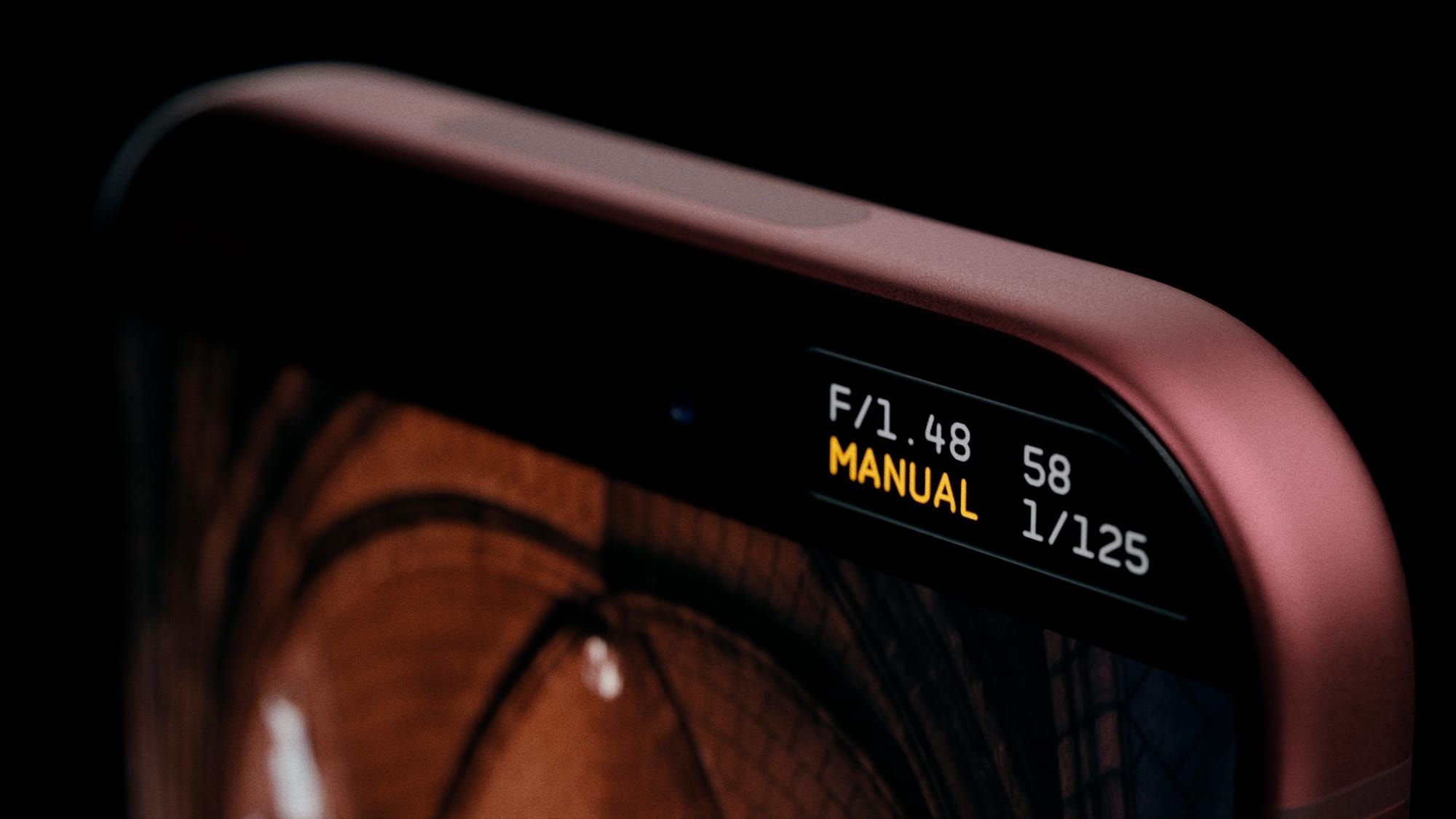

Apple's stock Camera app lets iPhone 18 Pro owners choose from a four-stop variable aperture ranging from ƒ/1.48 to ƒ/4.0, delivering around 50 percent better low-light performance and giving users more optical control over depth of field.

Halide 3.2 does away with that four-stop limitation and instead lets you select any ƒ-stop setting within the camera's full range.

There are two styles of aperture control in the app. The first is Aperture Priority mode, where you can set the ƒ-stop and the app handles the shutter speed and ISO to properly expose the shot.

The other style is Manual mode, which gives users full control over all three settings. This includes ISO settings – something that Apple's stock Camera app doesn't offer manual control over. Halide has said it is also considering adding f-stop presets in future updates, based on user feedback.

Elsewhere in this update though, Halide 3.2 adds two new film simulations, or photographic looks: Dawn and Quicksilver. Dawn features "filmic warmth in mid-tones and highlights, paired with rich yet gentle shadows and subtle complementary cool colors."

Quicksilver is described as a "high contrast and muted color" that simulates a "silver-retention alternative process." Halide's developers call it an "excellent midpoint between color and stark black-and-white."

Lastly, version 3.2 introduces a new 16:9 aspect ratio shooting mode for those who want to use a wider framing.

Halide 3.2 is available to download on the App Store, and costs $69.99 as a one-time purchase price, or $19.99 for an annual subscription.
Related Roundup: iPhone 18 Pro
Tag: Halide
Related Forum: iPhone

This article, "iPhone 18 Pro Aperture Control Goes Fully Manual in Halide 3.2" first appeared on MacRumors.com

Discuss this article in our forums
  •  

iPhone 18 Pro Sales Jump in China Ahead of iPhone Duo Launch

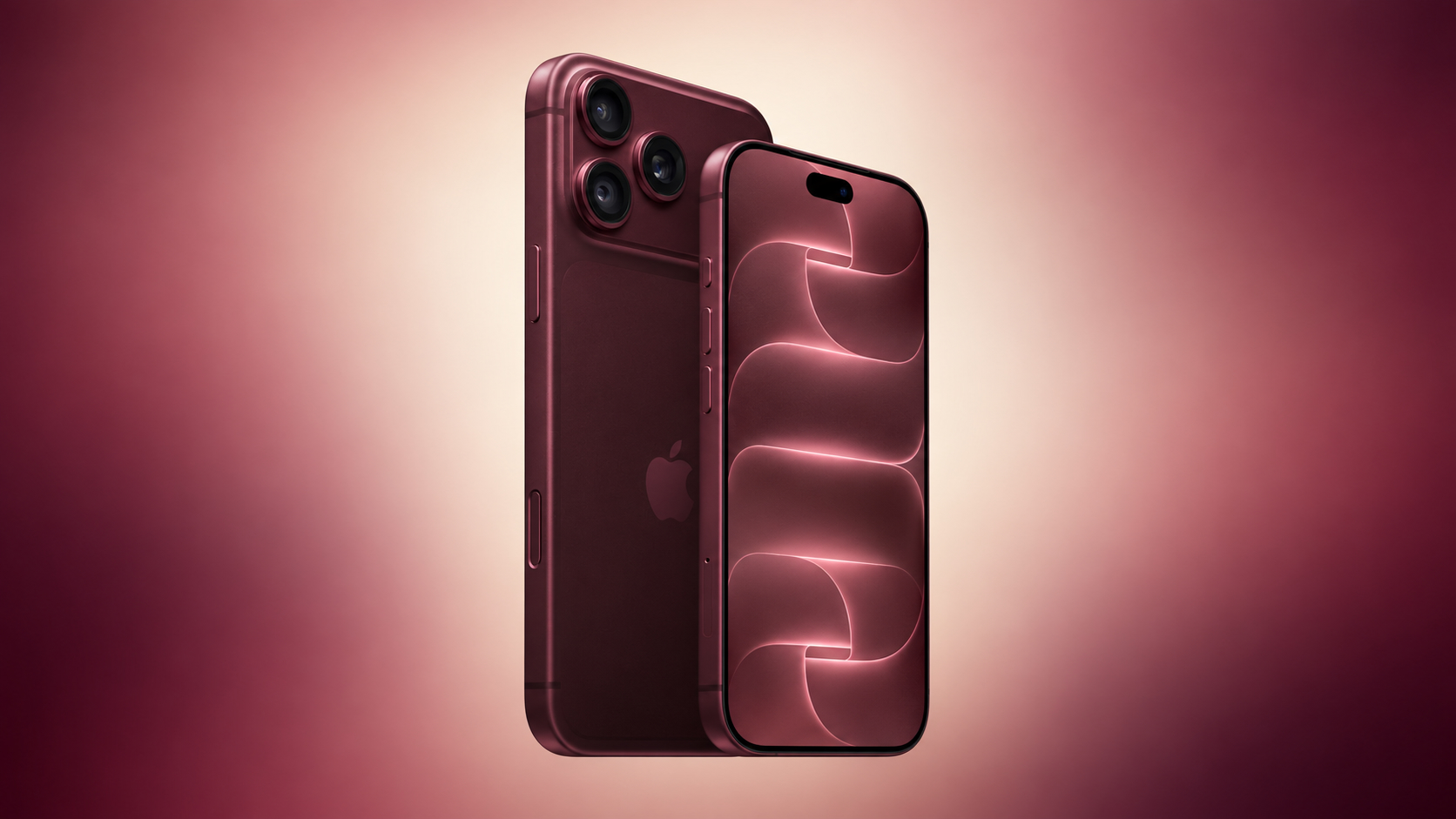
Sales of iPhone 18 Pro models in China were 12% higher in the three days after launching than sales of iPhone 17 Pro models were during their entire first week last year, according to Counterpoint Research.
The strong start helped Apple claim the top spot in the country's smartphone market for the week of September 14 to 20, handing it a 33% share. But the news could get even better for Apple's China market prospects this month: The iPhone Duo goes on sale October 23, and Chinese consumers have a much stronger appetite for foldable devices compared to the rest of the world.
Related Roundups: iPhone 18 Pro, iPhone Duo
Related Forum: iPhone

This article, "iPhone 18 Pro Sales Jump in China Ahead of iPhone Duo Launch" first appeared on MacRumors.com

Discuss this article in our forums

  •  

Apple TV Still Down for Some Users Following Apple Services Outage

Apple TV appears to be unavailable for some users, following a recent outage of Apple Services that began on September 30.


The original outage took down the App Store, Apple Fitness+, Apple Music, and several other services, but those are all now back online. Only Apple TV is still not working for an unknown number of users.

Apple's System Status page indicates an ongoing issue with Apple TV that started on September 30 at 4:43 p.m. Eastern Time. "Some users are affected," the page says, adding "Apple TV may be unavailable due to scheduled maintenance."

We'll update this article when the situation changes.
Related Roundup: Apple TV
Buyer's Guide: Apple TV (Don't Buy)

This article, "Apple TV Still Down for Some Users Following Apple Services Outage" first appeared on MacRumors.com

Discuss this article in our forums

  •  

PSA: Apple Mail on Mac May Stop Syncing Microsoft 365 Accounts Today

Microsoft today began disabling Exchange Web Services (EWS) by default in Exchange Online, which will cut off the protocol that Apple's Mail and Calendar apps on Mac still rely on to sync Microsoft 365 work accounts.


The cutoff has been on the cards for a fairly long time, as Microsoft stopped adding new features to EWS back in 2018, while in 2023 it announced that it would start disabling the protocol in Exchange Online from October 2026.

As Microsoft explains in the blog post linked above, organizations that have chosen to keep EWS running aren't affected for now. As for everyone else, the cutoff may not happen all at once. In a recently updated post from June, Microsoft described the change as a "phased rollout," so some Mac users could lose access sooner than others.

It's still possible for IT administrators to restore access. However, Microsoft plans to shut down EWS in Exchange Online permanently on April 1, 2027, and no extensions are currently planned.

As you'd expect, Apple is aware of the situation. In an Apple Platform Deployment support document, the company says it is "actively working with Microsoft" to move Mail, Calendar, Contacts, Notes, and Reminders apps on Mac to the newer Microsoft Graph API in a future macOS 27 update.

Except, that update hasn't arrived yet. Apple skipped macOS 27.1 betas entirely, while release notes for the macOS 27.2 betas have yet to make any mention of Graph support.

Meanwhile, affected organizations can just keep EWS running or move Mac users to a Graph-compatible client, such as Microsoft's Outlook app.

Note that the change will only affect Microsoft's cloud-hosted email server. In other words, companies that run their own Exchange servers aren't affected. Neither will iPhone and iPad be impacted, since they use Exchange ActiveSync rather than EWS.

(Thanks, Jonathan!)
This article, "PSA: Apple Mail on Mac May Stop Syncing Microsoft 365 Accounts Today" first appeared on MacRumors.com

Discuss this article in our forums

  •  

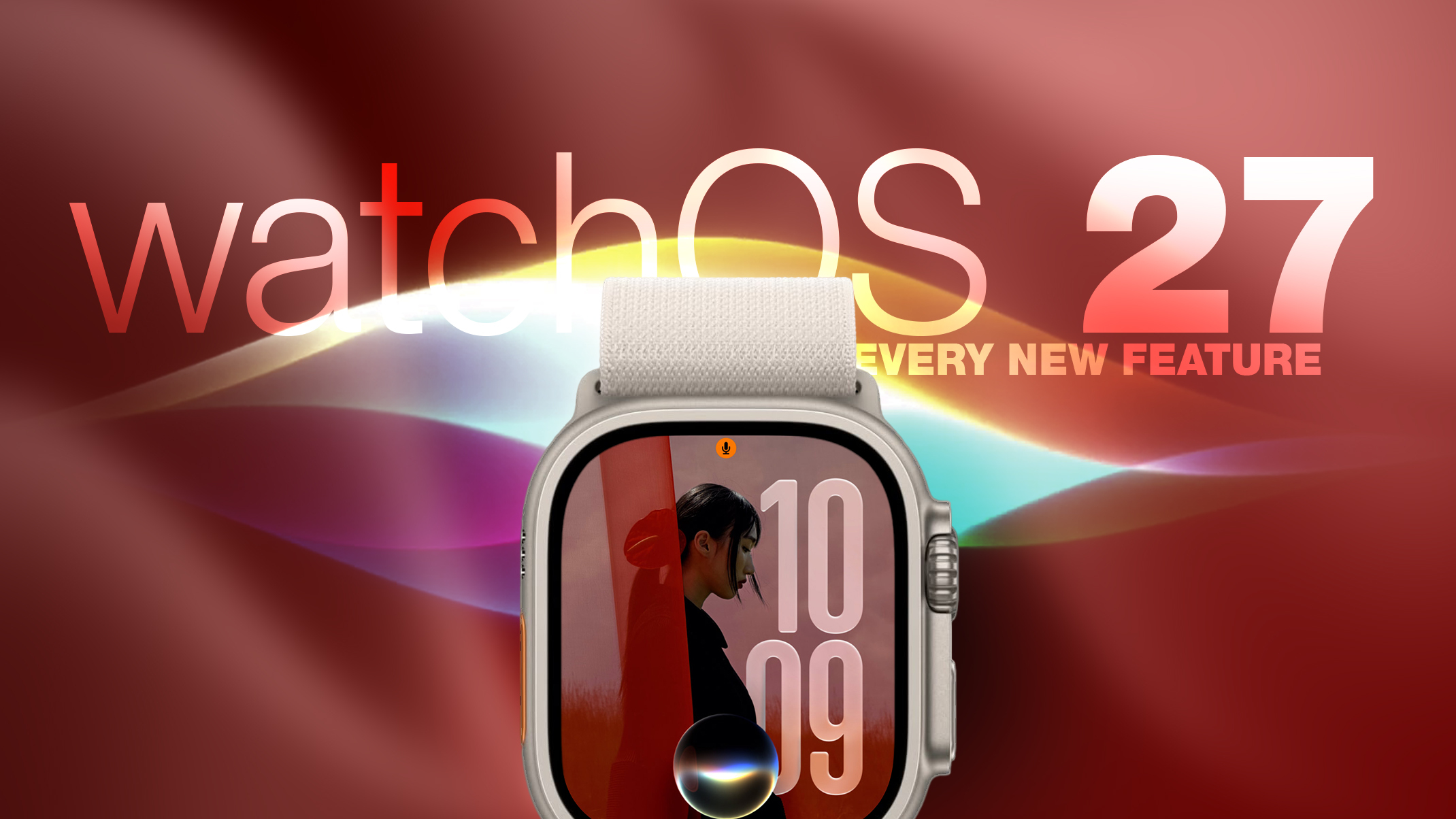
watchOS 27: 12 New Things To Check Out on Your Apple Watch

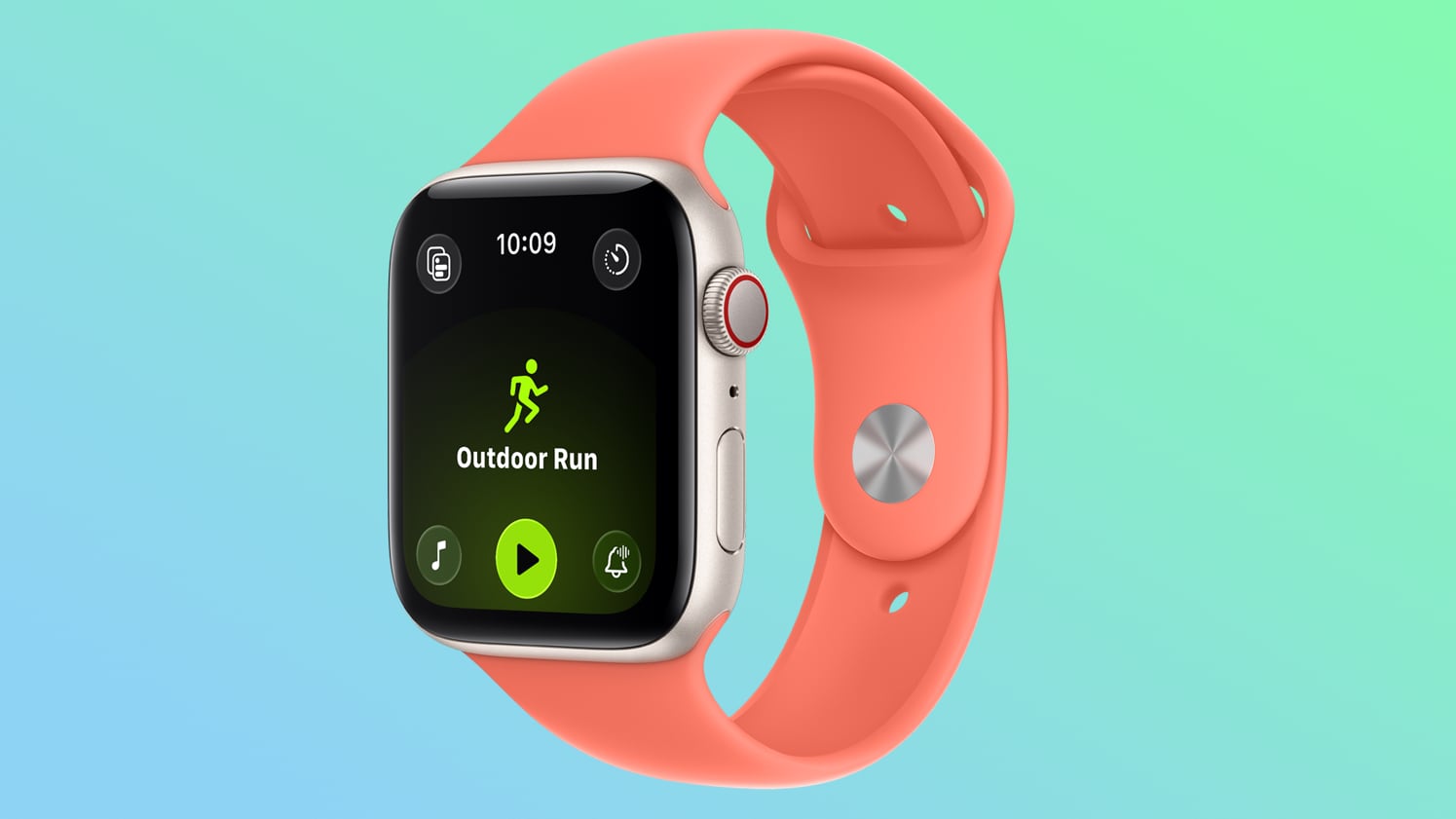
Apple released watchOS 27 on September 14. The features and changes aren't limited to owners of new Apple Watch Series 12 and Apple Watch Ultra 4 models. If you have an Apple Watch model that supports the latest update, here are 12 features and changes to check out after installation.


To do so, open the Watch app on your iPhone, then tap General ➝ Software Update, strap your watch into a charger, and follow the onscreen prompts.

Check Out the Dedicated Siri App


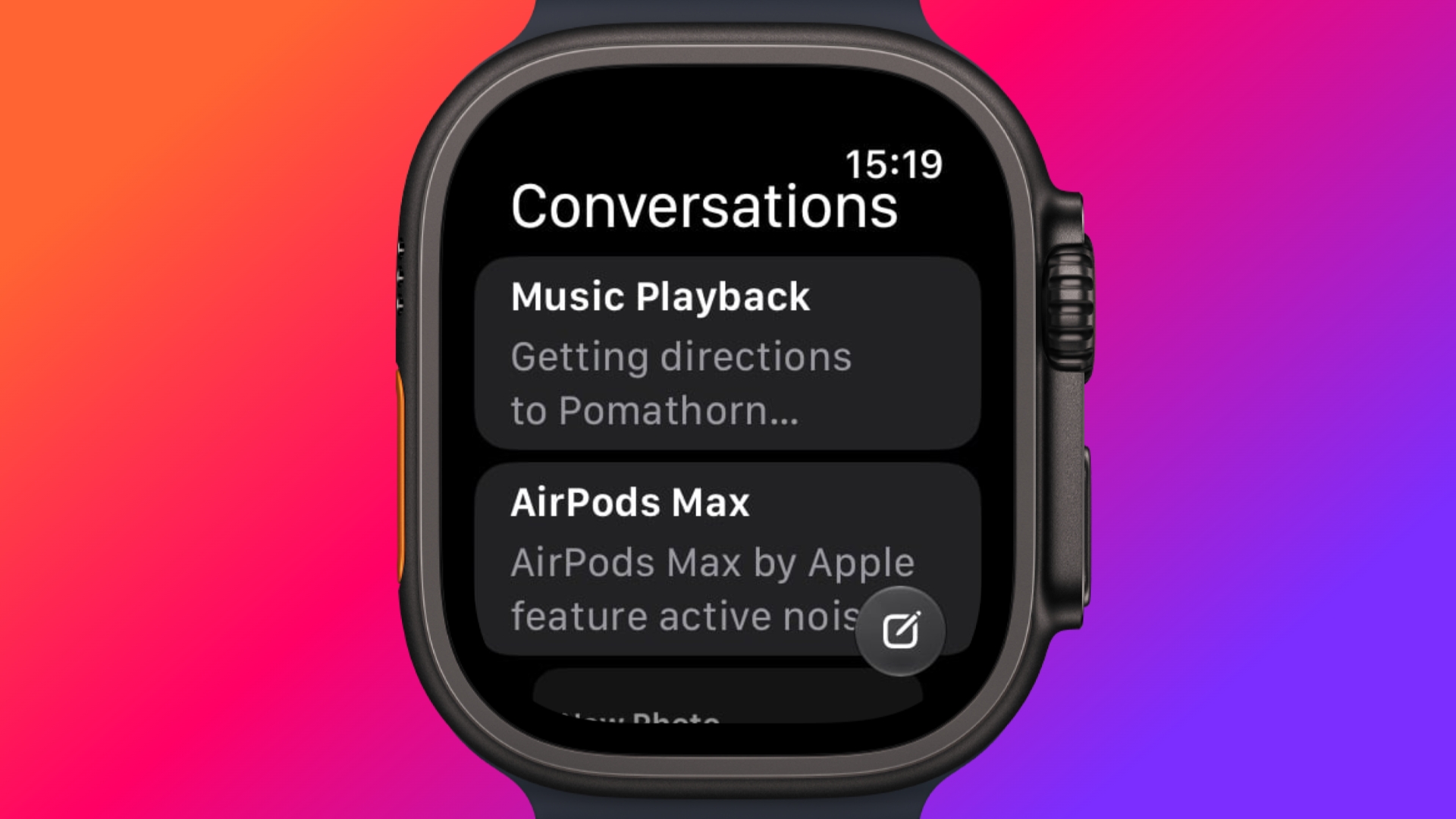
Siri has finally caught up with the AI revolution, and apart from having contextual awareness, it now has an app of its own that collects every conversation in a single view and syncs them privately across your devices over iCloud. Just ask something on your iPhone and you can pick the thread up again on your Apple Watch, as well as pin conversations worth keeping, or even start a new chat directly from your wrist.

Try Siri Modular Watch Face


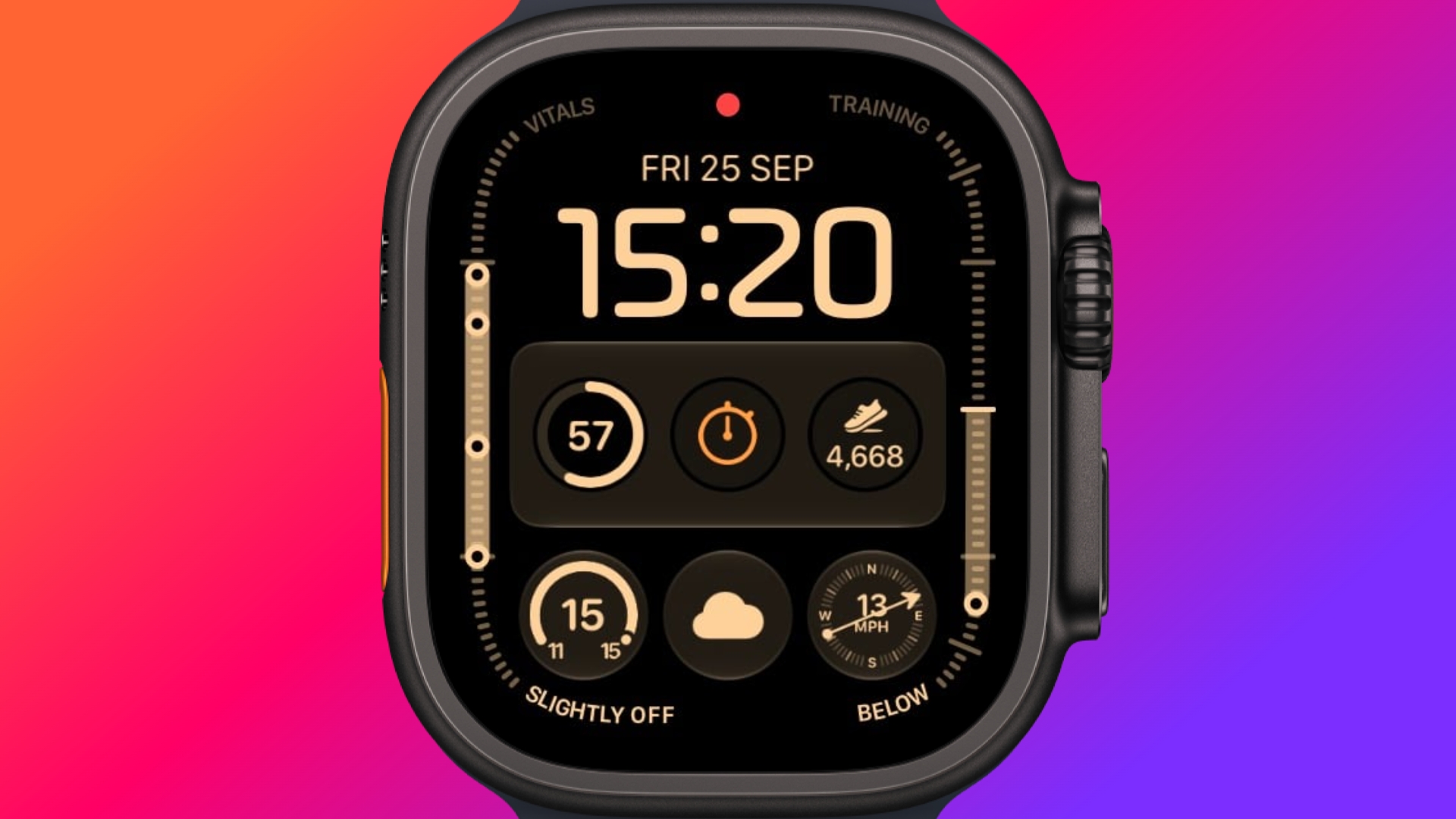
The new Siri watch face is a genuinely useful one. Its rectangular complication shows you whatever sits at the top of your Smart Stack, and it automatically updates through the day based on time, location, and other factors.

The Dynamic App Grid


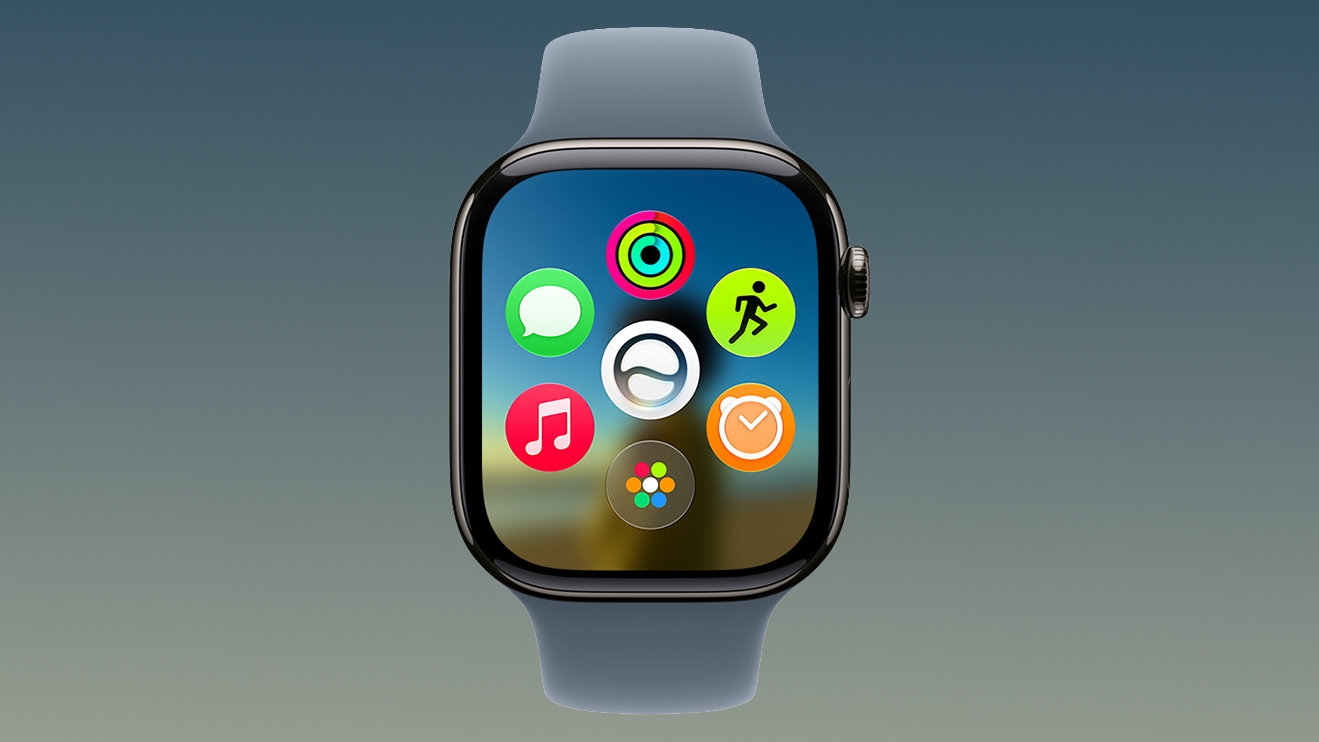
Pressing the Digital Crown no longer produces the honeycomb app view by default. Now, watchOS 27 shows a dynamic grid made up of suggested apps, your most-used apps, and your most recently used ones. The Siri app sits in the middle, but the alphabetical list remains available – simply turn the Digital Crown to navigate through all of your apps.

New Tap Gesture


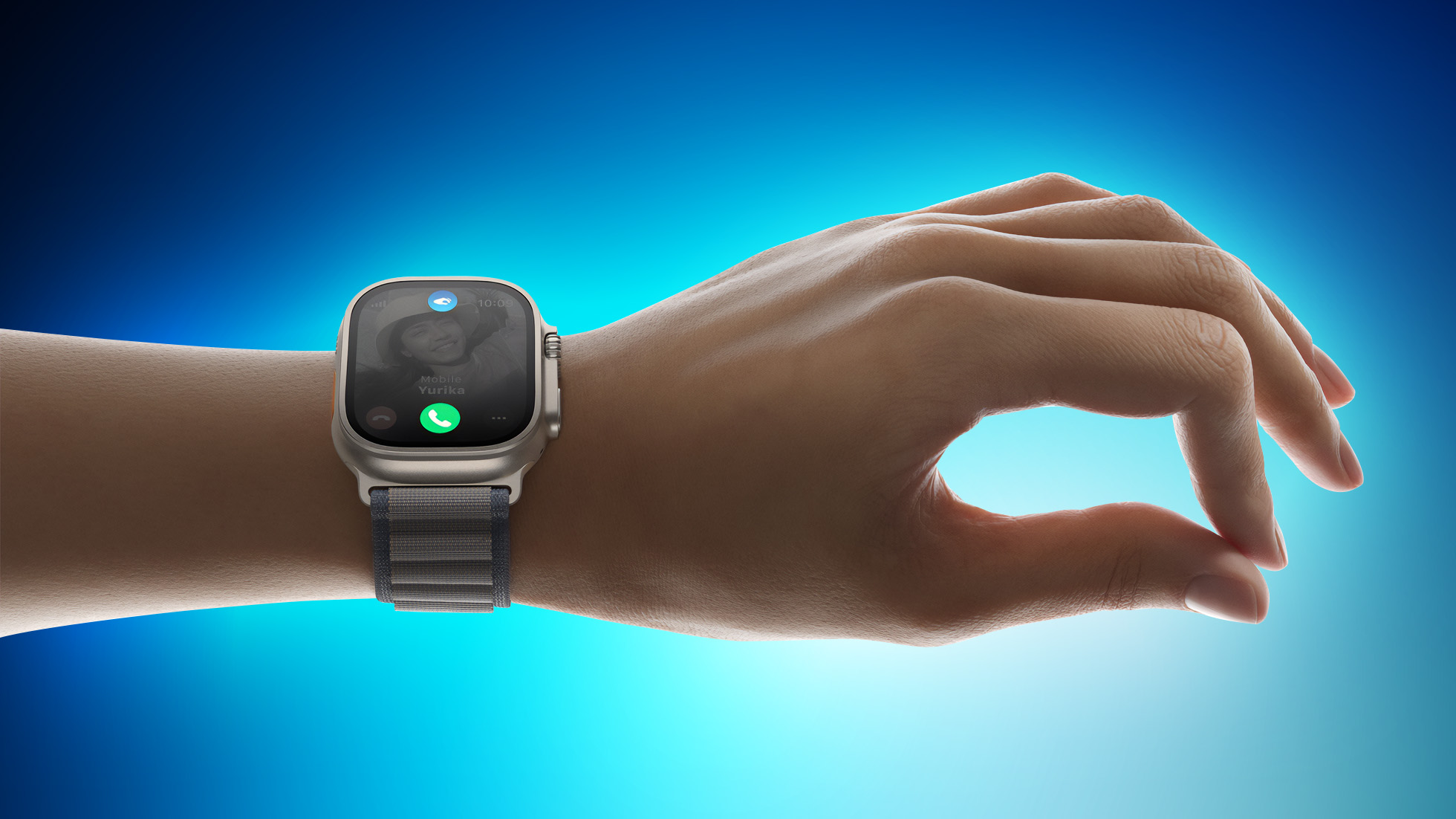
Apple has added a third gesture to Double Tap and Wrist Flick. The new one is simply called Tap. A single tap of your index finger and thumb opens the highlighted widget in the Smart Stack. You can still navigate the Smart Stack with Double Tap and dismiss notifications with Wrist Flick.

Walkie-Talkie Has Been Deleted


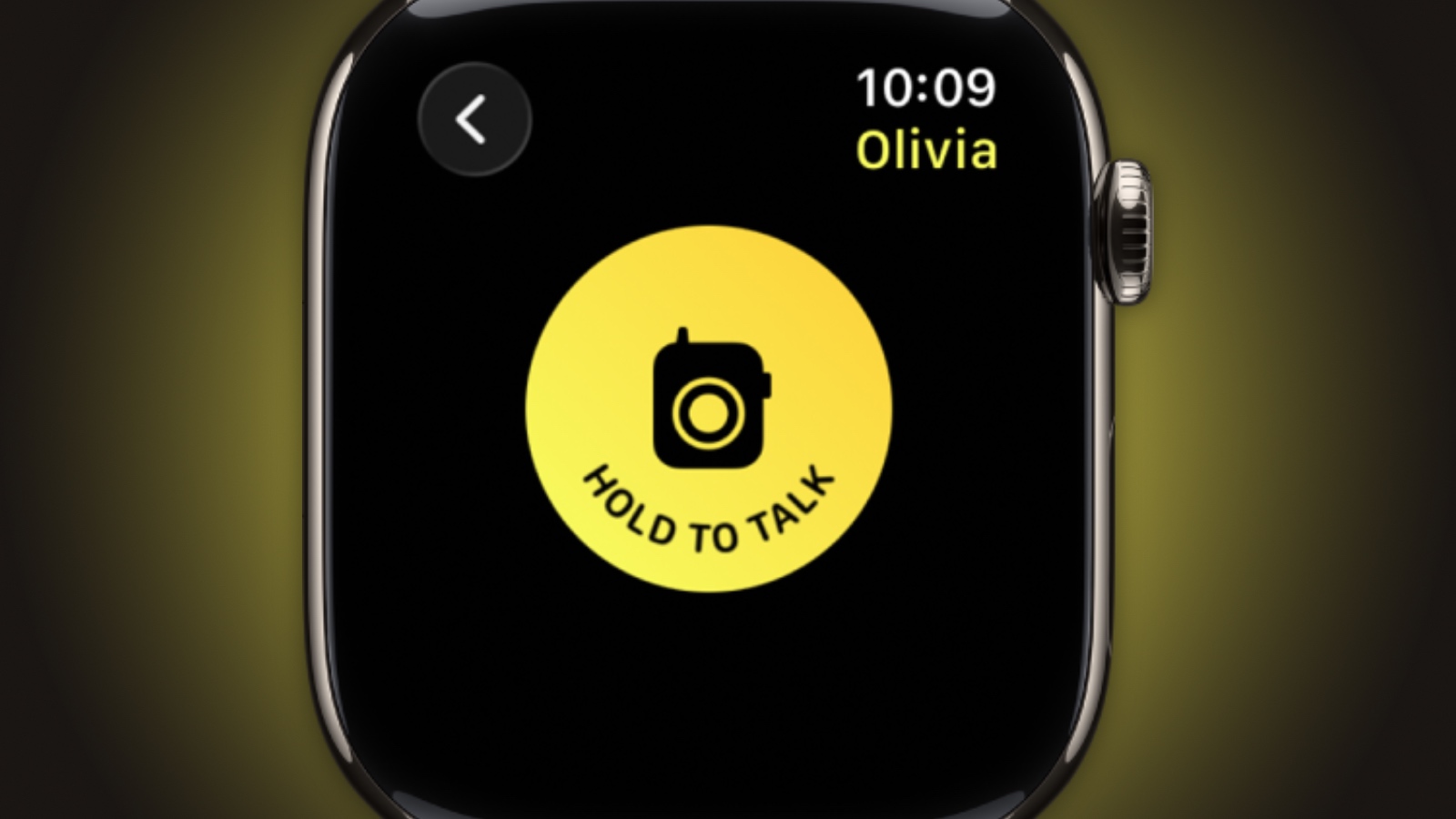
Walkie-Talkie is gone, and not merely hidden. The app is unavailable after updating to watchOS 27 and cannot be reinstalled from the App Store. You can keep the app by staying on watchOS 26, but you won't be able to start a conversation with a contact who has updated.

Live Rewind (Not Yet)


This is the change most likely to catch people out. In watchOS 26 and earlier, a double press of the Digital Crown opens the App Switcher, where you can jump back to the previous app, scroll through recent ones, and swipe to force-quit anything misbehaving.

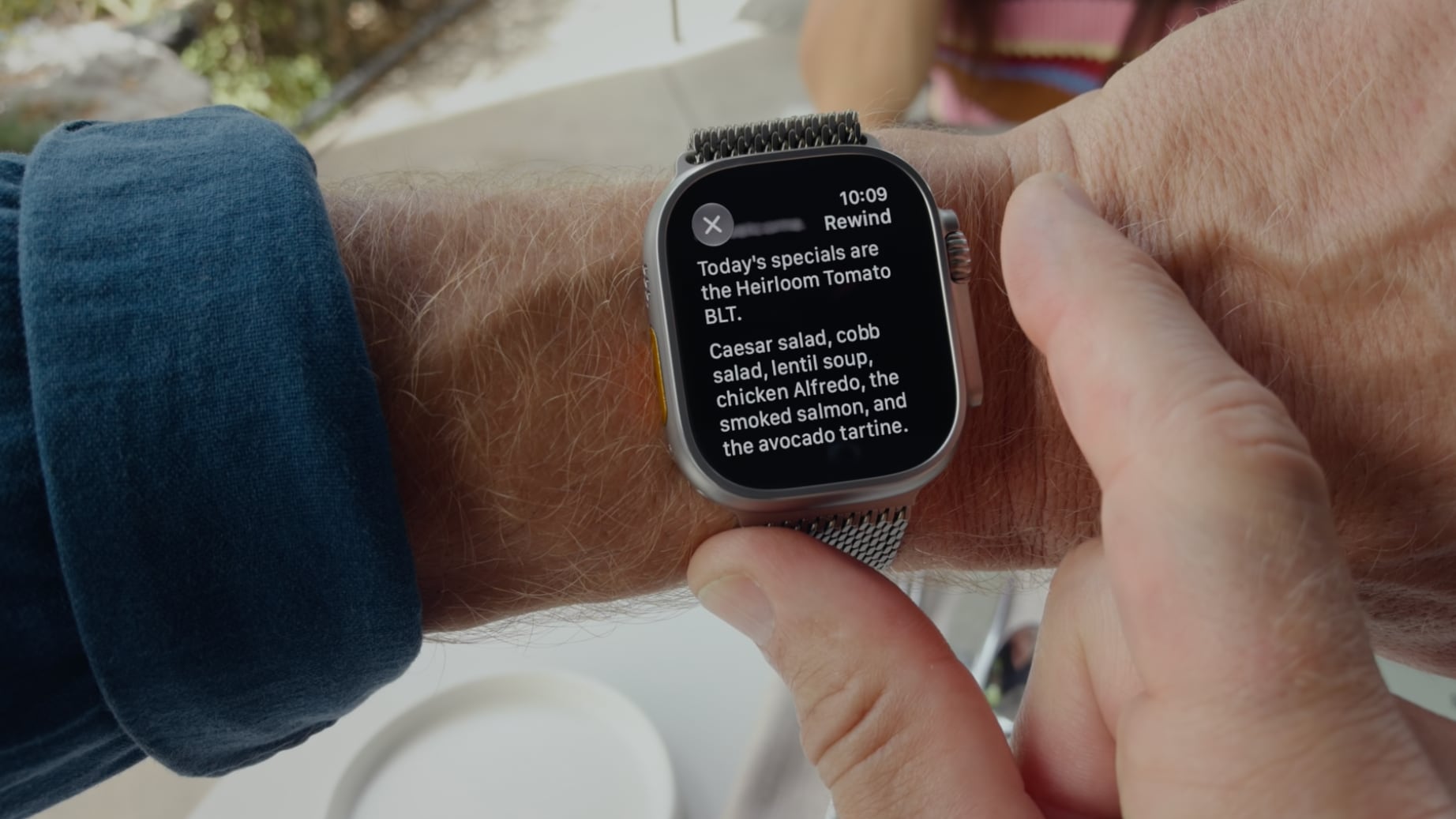
That's changed in watchOS 27, in which a double press shows the new dynamic app grid instead. The gesture has been reserved for Live Rewind, an upcoming feature (exclusive to Apple Watch Series 12 and Ultra 4) that produces a transcript of the last fifteen seconds of speech in your environment.

Fortunately, the App Switcher will still be available when watchOS 27.2 is released later this year, but it will open with a different gesture. If you're already on the latest beta, simply long press on the bottom of the app that you're in, and that should open the App Switcher.

Find My is Now One App


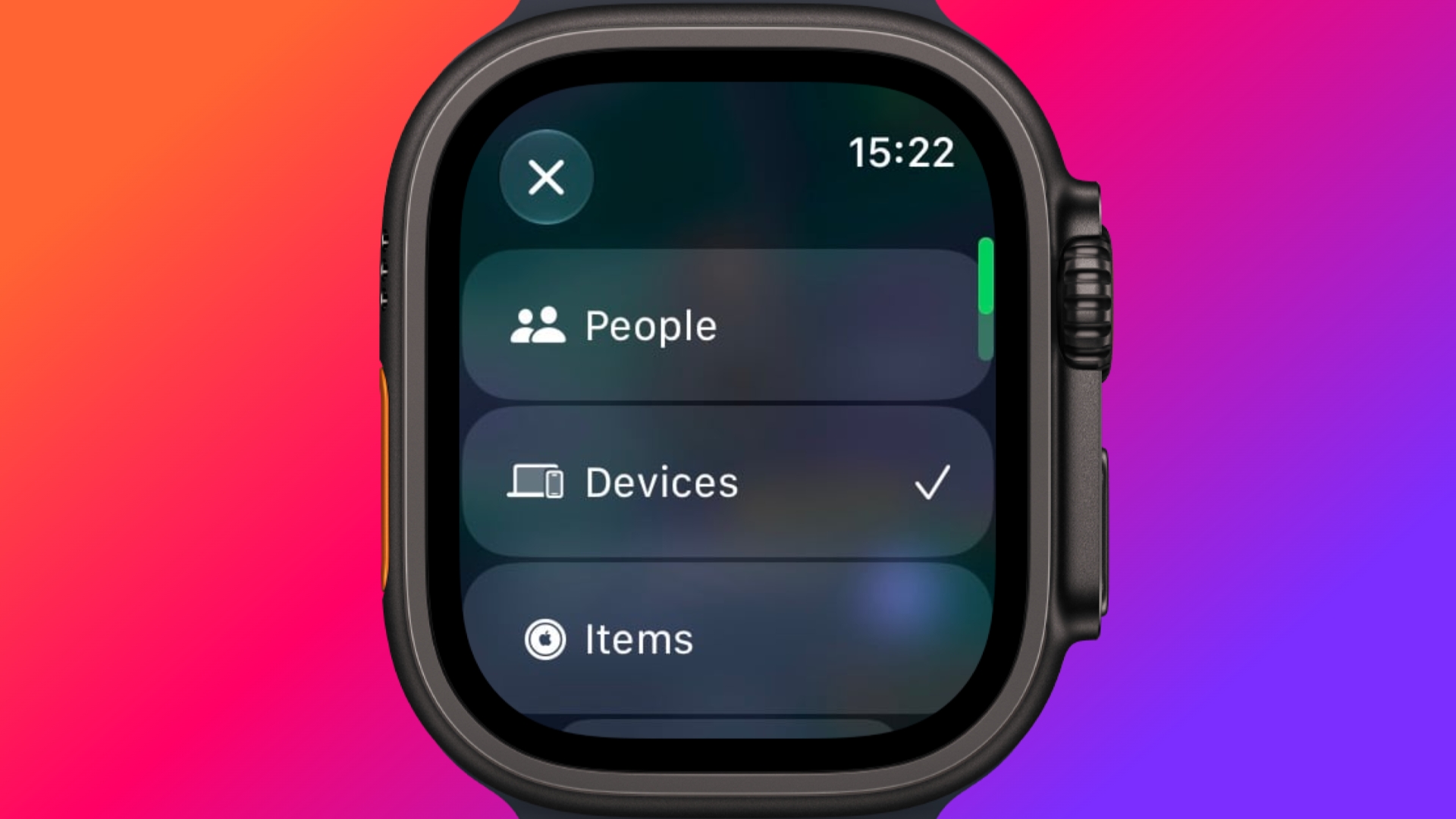
Find Devices, Find Items, and Find People have been folded into a single Find My app with a map-centric layout, which also includes shortcuts for directions and for items nearby.

Workout Buddy No Longer Needs Your iPhone


Introduced in watchOS 26, Workout Buddy previously required your iPhone within range. In watchOS 27, your Apple Watch can run it if Wi-Fi or cellular is available. It also draws new insights from your training history, tracking gradual gains in pace, distance and workout duration, and it now speaks Spanish as well as English.

New Cycle Tracking Features


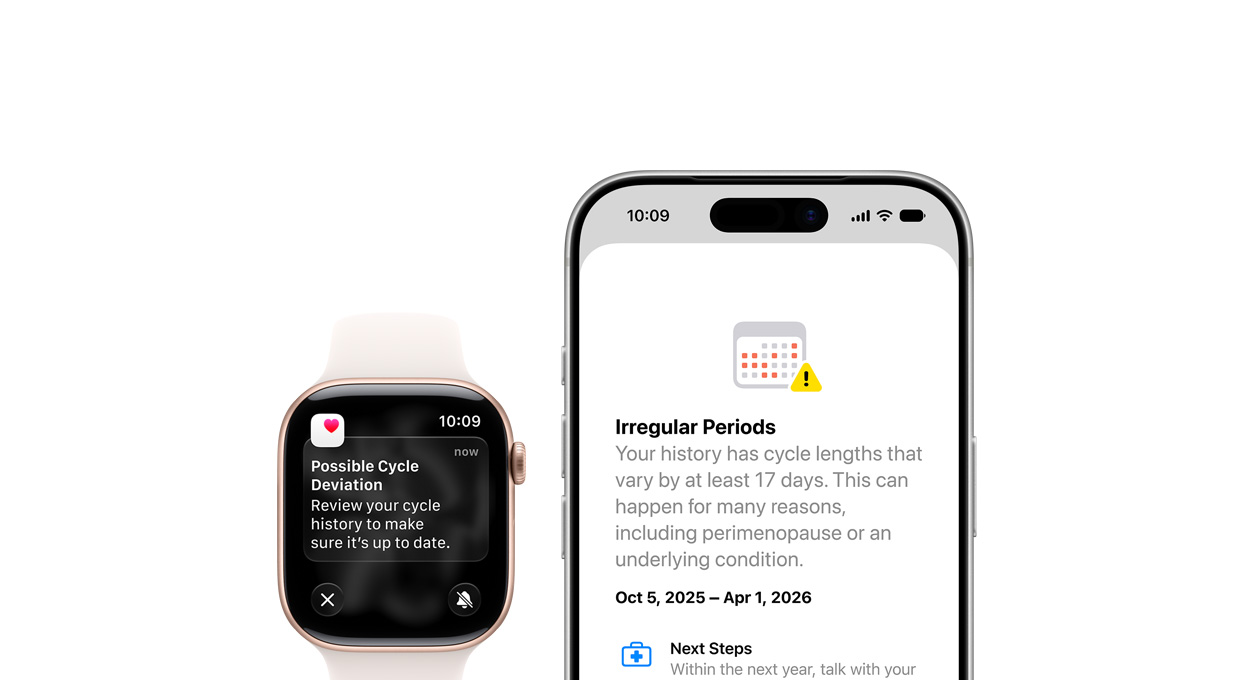
Cycle Tracking in the Health app can now notify you if your logged patterns are suggestive of perimenopause, alongside symptom tracking and educational material. The notifications only draw on your logged cycle history and apply to users aged 40 and over. Apple says the feature is not a method of birth control and is not a diagnosis.

Treadmill Distance Is More Accurate


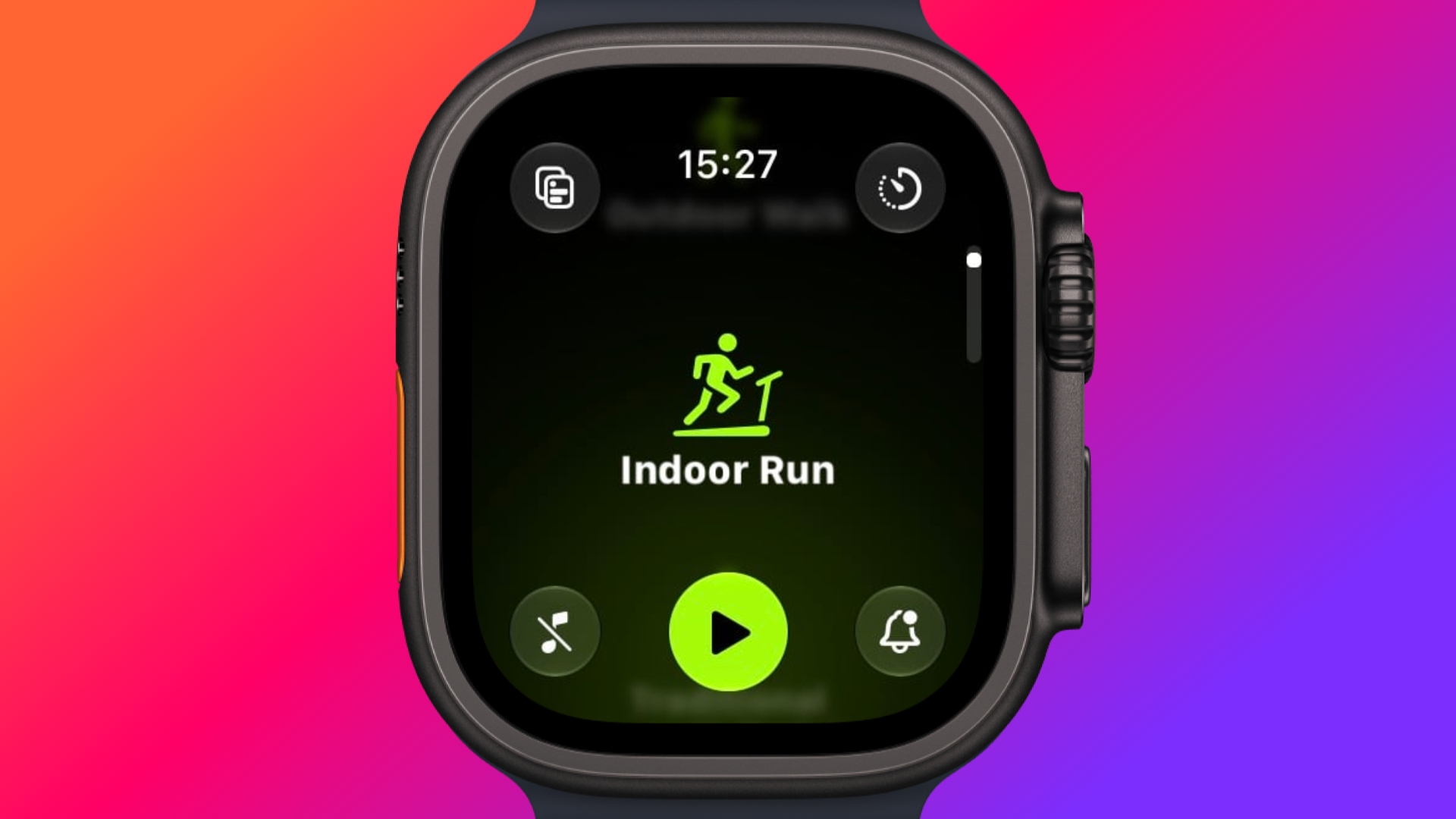
In watchOS 27, new machine learning motion algorithms measure distance more precisely for indoor runs and walks, and Apple says the improvement starts from the first step, as opposed to settling after a few minutes. Fitness route maps are more accurate too, and step counts finally stay in sync between the Fitness and Health apps.

The Smart Stack Gets More to Say


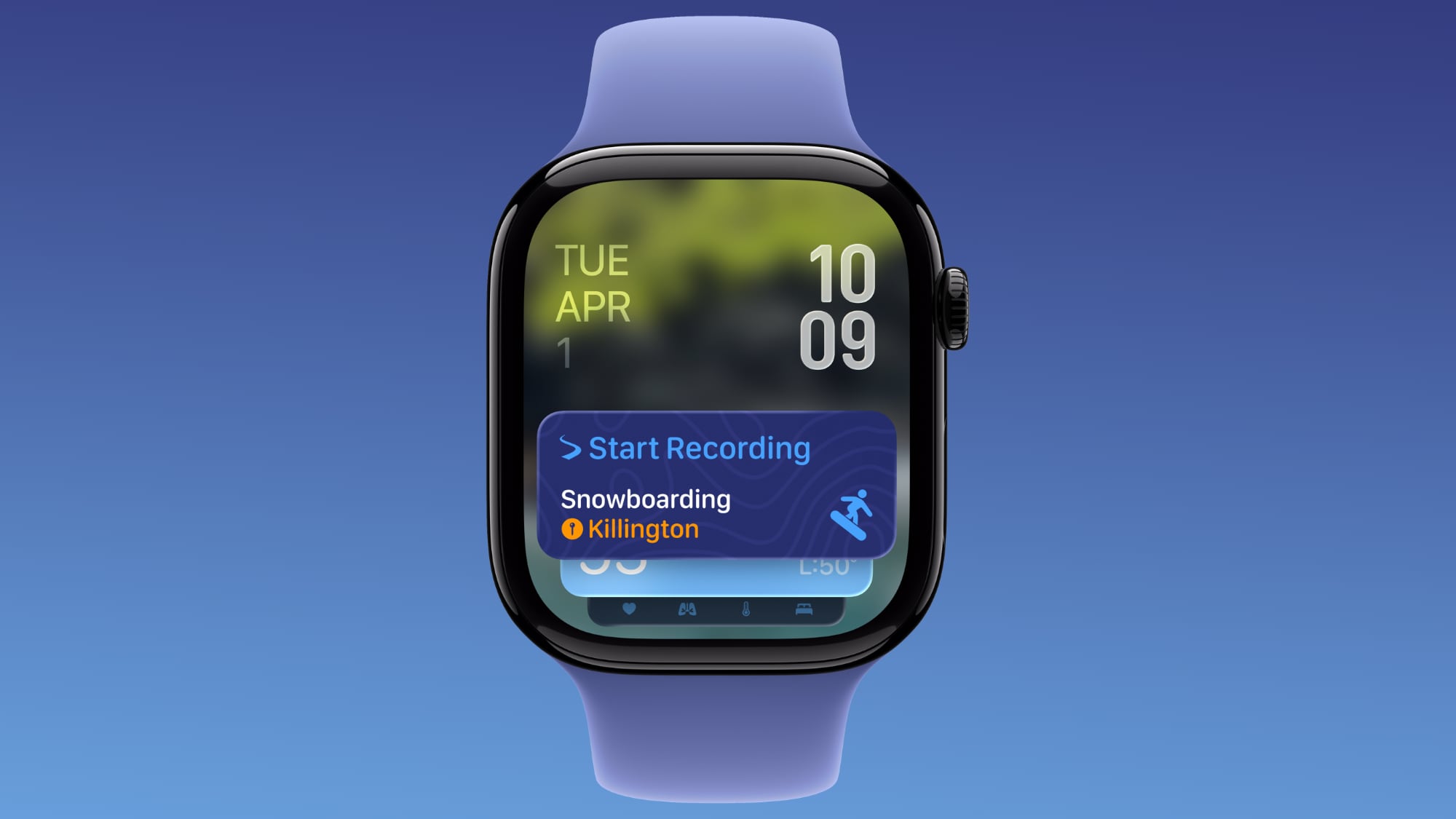
The Smart Stack's contextual suggestions are now a lot smarter. A few examples provided by Apple include new widgets surfacing your parked car's location, a close contact's birthday, a change in your transit card balance, the Noise app immediately after a loud-noise alert, a reminder that Theater Mode is still on, pinned messages, celebrations, and identity cards.

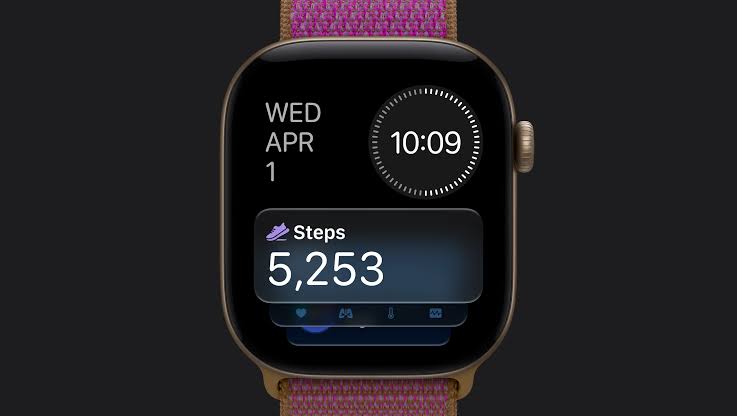
New Models Get a Steps Counter


On Apple Watch Series 12 and Apple Watch Ultra 4, the redesigned pedometer model and S11 chip allow watchOS 27 to provide more accurate step counts. There's also a new Steps complication on the latest models to track your steps in real time, right from your watch face. Will we see the feature come to older devices? Your guess is as good as ours.
Buyer's Guide: Apple Watch (Buy Now)
Related Forum: Apple Watch

This article, "watchOS 27: 12 New Things To Check Out on Your Apple Watch" first appeared on MacRumors.com

Discuss this article in our forums

  •  

Create a Custom Pass in the Wallet App on iPhone

In iOS 27, Apple's Wallet app lets you create custom passes for things like event tickets, gift cards, loyalty cards, and more. Here's how it works.


If you have a ticket for an event and there's not a digital version available for the Wallet app, you can create one using the physical pass you have. The same goes for other cards, like a membership card, for example.

The Wallet app can use ‌Visual Intelligence‌ to scan your card, and it will match it to a template with corresponding fields that you can tweak before adding it to your Wallet.

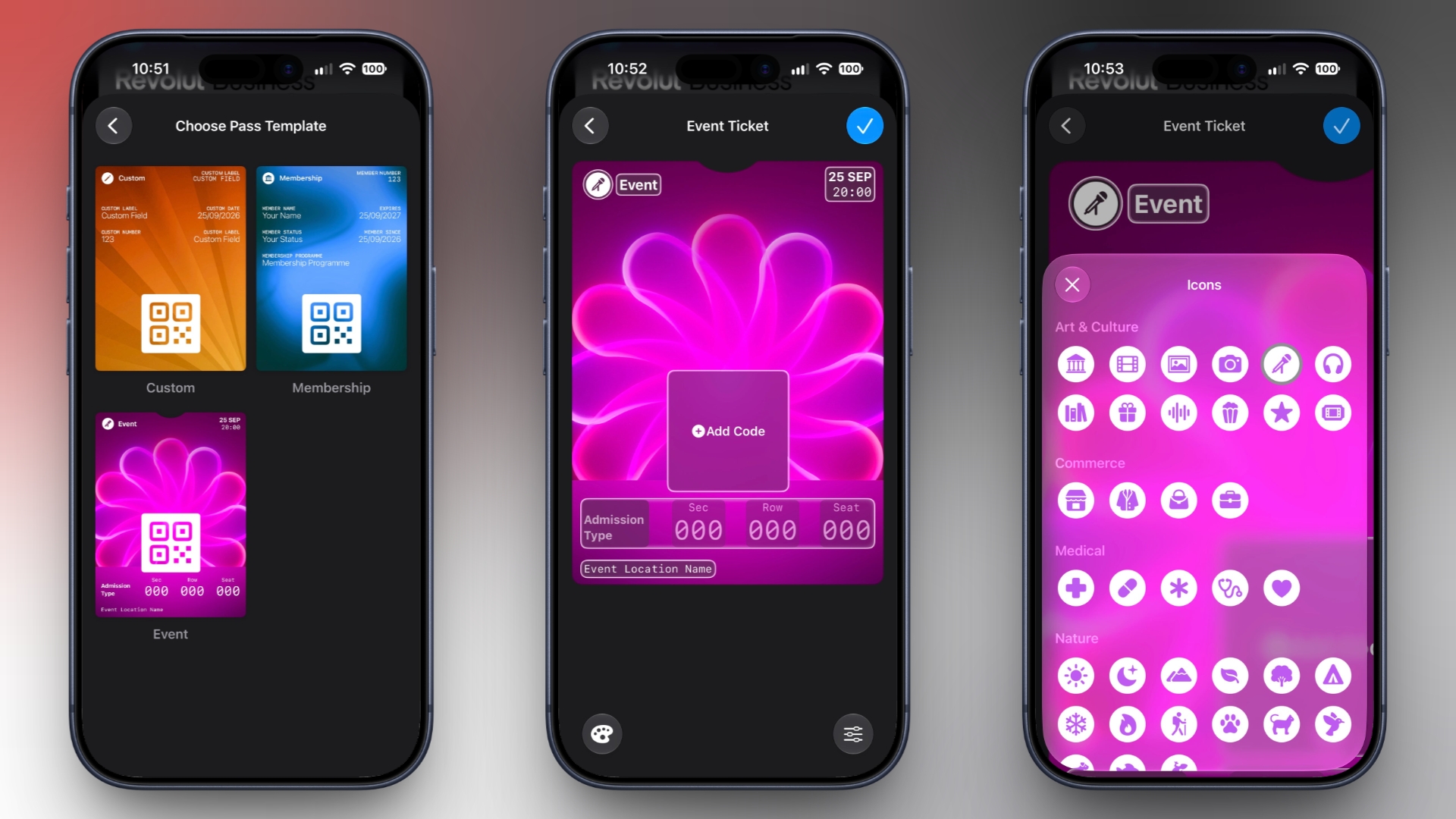
Alternatively, you can create the pass manually, choose a template ("Membership," "Event," or "Custom") and then adjust the color and other details. All you need to do then is scan the barcode or QR code from your physical pass.

Each template includes relevant information like name, location, or admission type. There are 12 background colors to choose from, or seven custom backgrounds for categories like theater, music, sports, and movies.

Fields can be added or removed when creating a custom pass, with options like label, date, membership, contact, coupon code, VIN, insurance, and more, so most physical cards should be able to be stored digitally.

Here's how you create a pass with ‌Visual Intelligence‌:
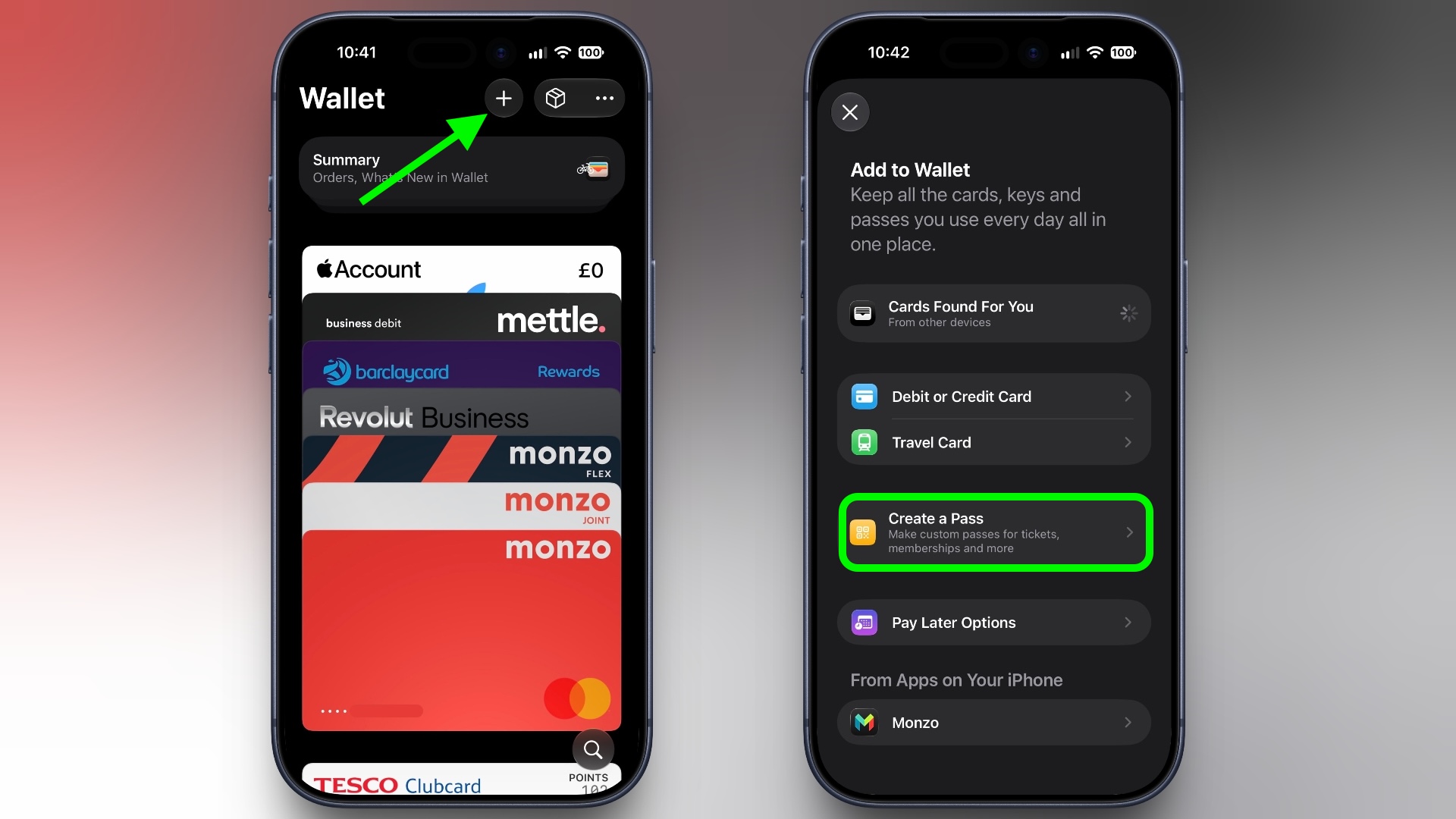
  1. Open the Wallet app on your iPhone and tap the + button at the top.

  2. Choose Create a Pass.
    wallet
  3. To let Visual Intelligence scan the pass, tap Continue, then take a photo of it in the next screen.

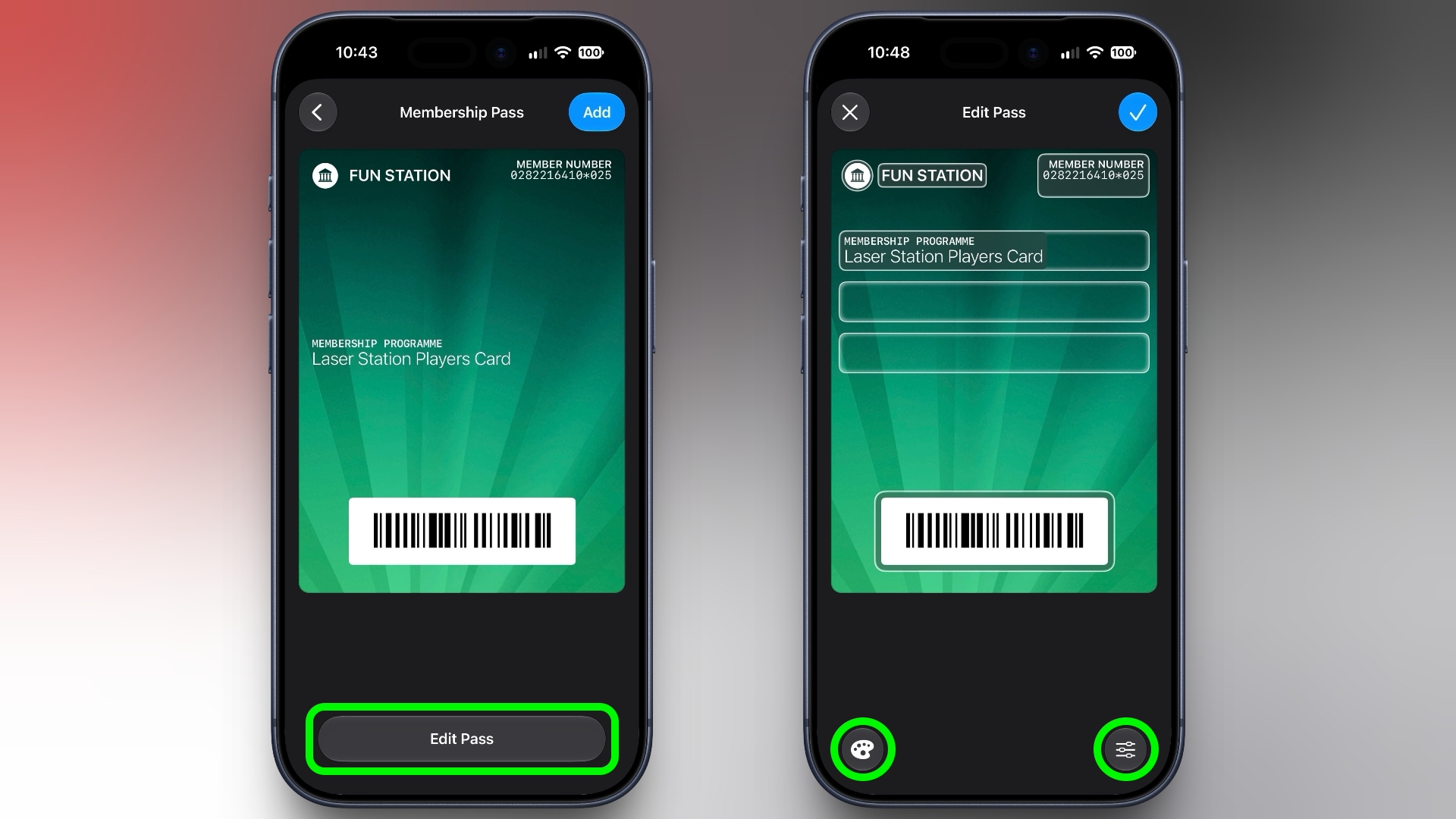
  4. After Visual Intelligence matches the pass to a template, tap Edit Pass.

  5. Use the palette icon in the bottom-left corner to change the look of the pass – you can the background colour, or use an image from your Photos library. Tap the icon in the bottom-right corner to add or remove fields.
    wallet
  6. Tap the blue checkmark at the top when you're done.
Your custom pass will now be added to your Wallet, ready for use. To edit it at any time, simply select it in Wallet, tap the three dots in the top-right corner of the screen, then tap Edit Pass.
This article, "Create a Custom Pass in the Wallet App on iPhone" first appeared on MacRumors.com

Discuss this article in our forums

  •  

How to Check Your Mac's Manufacture Date in macOS 27

If you installed macOS 27 Golden Gate, here's a way to find out when your Mac was manufactured. Apple has restored access to information that effectively disappeared when it randomized its serial numbers a few years ago.


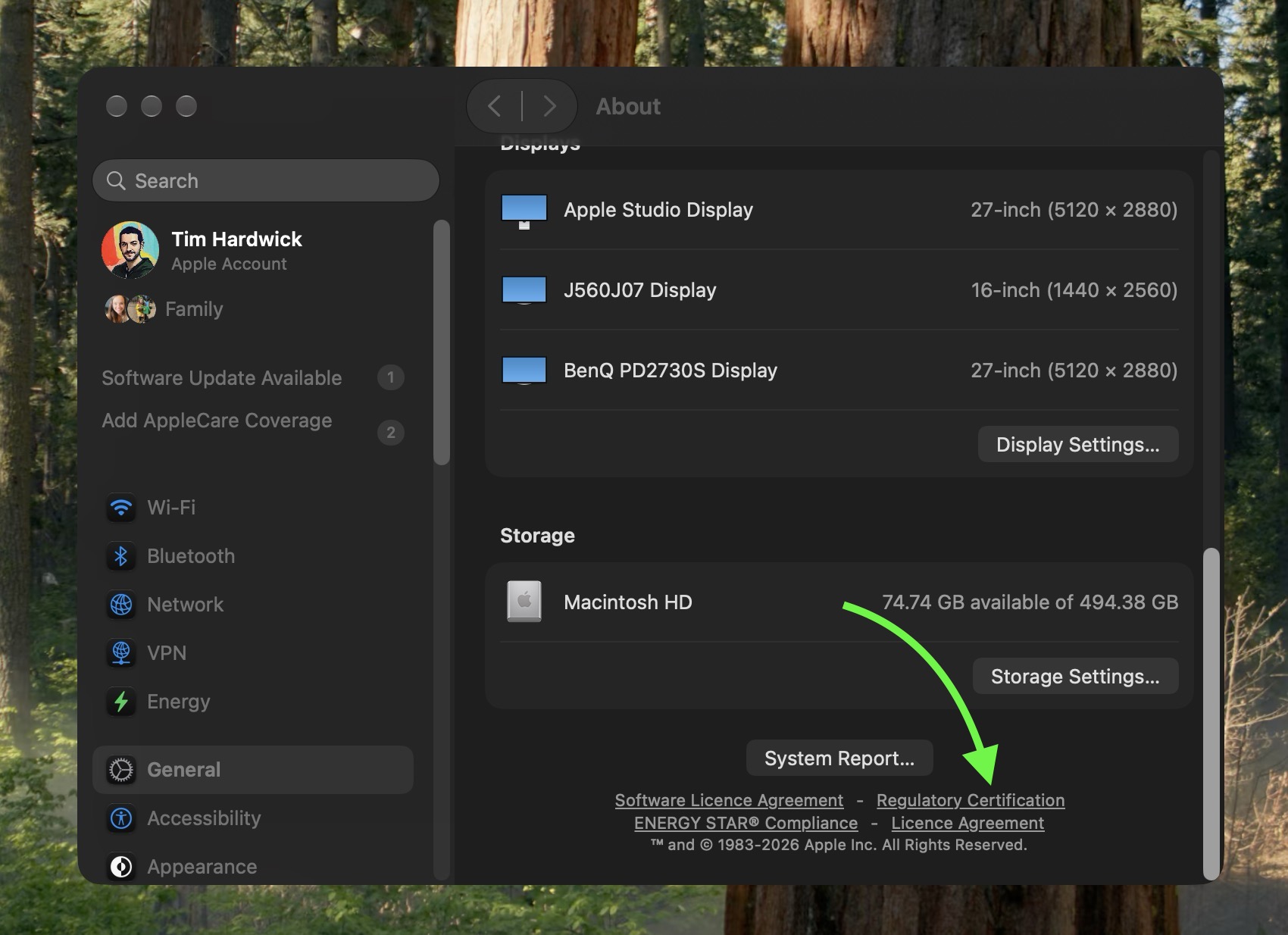
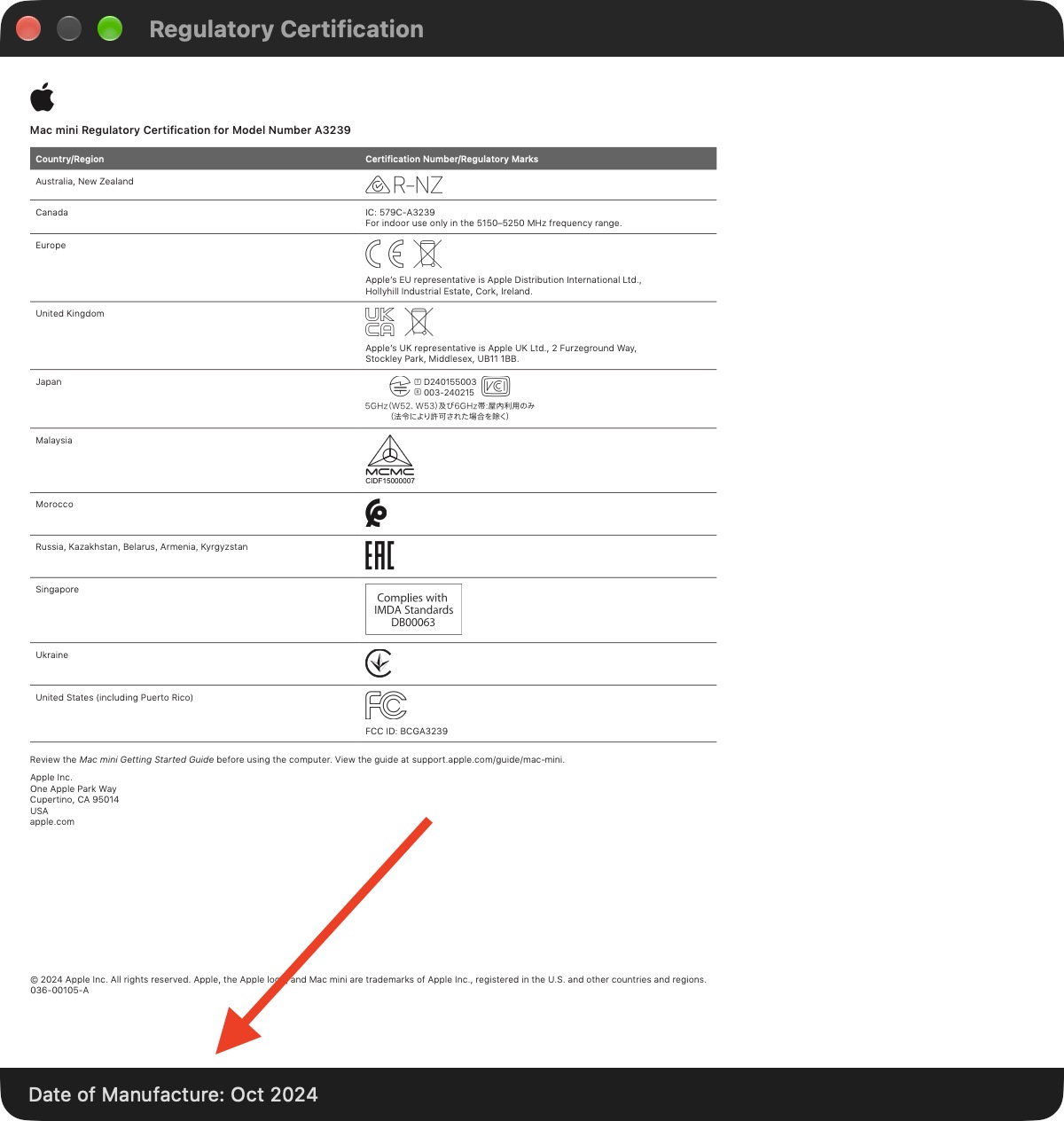
On your Mac, go to System Settings ➝ General ➝ About, then click "Regulatory Certification" under the System Report button. The certificate will show with a new "Date of Manufacture" field at the bottom.

You used to be able to decode the serial number on an Apple device to find out when and where it was made. That changed in 2021, when Apple began adopting randomized serial numbers without encoded manufacturing details.

That left owners of newer Macs with no similarly straightforward way to determine when their machine was made – until macOS 27 arrived.


The spot was made by MacRumors forum member pdfu. Another forum member said that the displayed date they saw on their certificate corresponded to their Mac's logic board rather than the date the complete machine was assembled. That logic board had been replaced though, suggesting that's where the date of manufacture is stored.

The regulatory certification first appeared during the macOS 27 beta cycle and it hasn't, to our knowledge, been highlighted by Apple.
Related Roundup: macOS Golden Gate
Related Forum: macOS Golden Gate

This article, "How to Check Your Mac's Manufacture Date in macOS 27" first appeared on MacRumors.com

Discuss this article in our forums

  •  

Meta Did a 'One More Thing' and It's an AI Tamagotchi

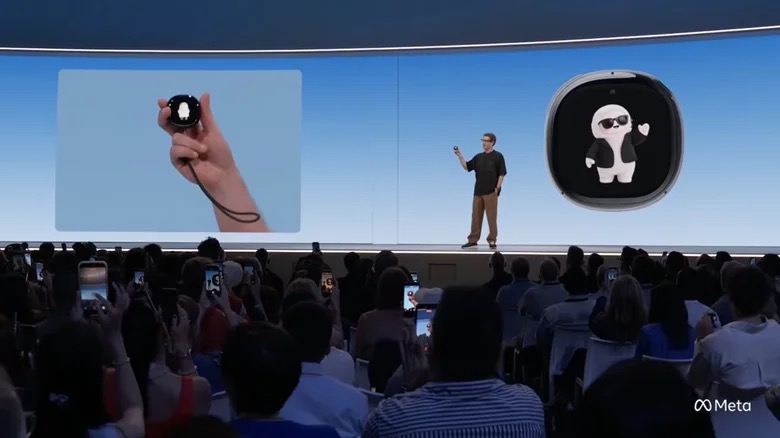
Apple has reportedly shelved plans to launch an AI pendant, while Meta appears to be going all out in the nascent hardware space with a new handheld AI companion. Mark Zuckerberg used his "one more thing" moment at the company's annual Connect event on Wednesday to unveil the Muse Charm, a puck about the size of an Apple Watch featuring a tamagotchi-like, interactive avatar that can be used to chat with the company's Muse AI.

"Muse Charm is a delightful and fun device built for you to talk and interact with your Muse. It brings the power of Muse with a state of the art real-time voice model into a device that fits in your pocket.

"We packed the whole Muse experience, including the whole real-time voice and avatar stack, into something that fits on a keychain and is always available to talk to. You just go ahead and tap here in the fingerprint sensor in the corner, and you can start talking without having to unlock a phone or open an app.

"So if you're not wearing glasses, this is going to be by far the fastest way to talk to your Muse and to show what's going on around you."

We'll have more to share later this year."
That's all we got about the device, which Meta is aiming to have on sale by the holiday season.

Otherwise, Connect was mostly about the company's new Meta VR Glasses. They have a tethered puck for the storage and battery, and the headset is five times lighter than the Meta Quest 3 at 100 grams, with full-color passthrough video support and a 5K display. (For context, M5 Apple Vision Pro weighs 750–800 grams depending on the configuration.)


Meta says the glasses will offer "cinema-grade clarity" with support for Dolby Vision and Dolby Atmos spatial audio, and they can deliver up to three hours of continuous high-resolution media playback on a single charge.

The device runs every game available for Quest headsets, and supports Xbox Cloud Gaming. You can also connect it to a PC or Mac and control things with a virtual keyboard and trackpad on a desk. Meta VR Glasses are set to launch in the spring with a $1,300 starting price.


Meanwhile, in an apparent bid to throw off the "pervert glasses" label, Meta also announced an audio-only version of its Ray-Ban smart glasses. The new model supports media playback and calls, and runs for up to 12 hours on a single charge, while the charging case adds up to 48 hours of battery life. Pre-orders are open and the glasses ship on October 13, starting at $349.

Meta hasn't abandoned its camera-equipped Ray-Ban smart glasses, though. Far from it. The company is refreshing its Ray-Ban Meta with a slimmer design and a button that activates Meta AI. The third-generation model is said to have a longer nine hours of battery life (versus eight on the second-gen model) and a new six-microphone array that the company says can cut out over 90 percent of background noise. The 12MP camera supports 3K video capture, with Dolby Atmos Spatial Audio support coming soon. There are multiple styles to choose from, and prices start at $449.

Meta's AI Glasses are also getting a new FDA-cleared hearing enhancement feature later this year. Users can access it as part of a Meta One subscription, or they can pay a one-time cost of $149. A 30-day free trial will also be available.
Tag: Meta

This article, "Meta Did a 'One More Thing' and It's an AI Tamagotchi" first appeared on MacRumors.com

Discuss this article in our forums

  •  

iPhone Handoff in iOS 27: How It Works, Pricing, and Carrier Support

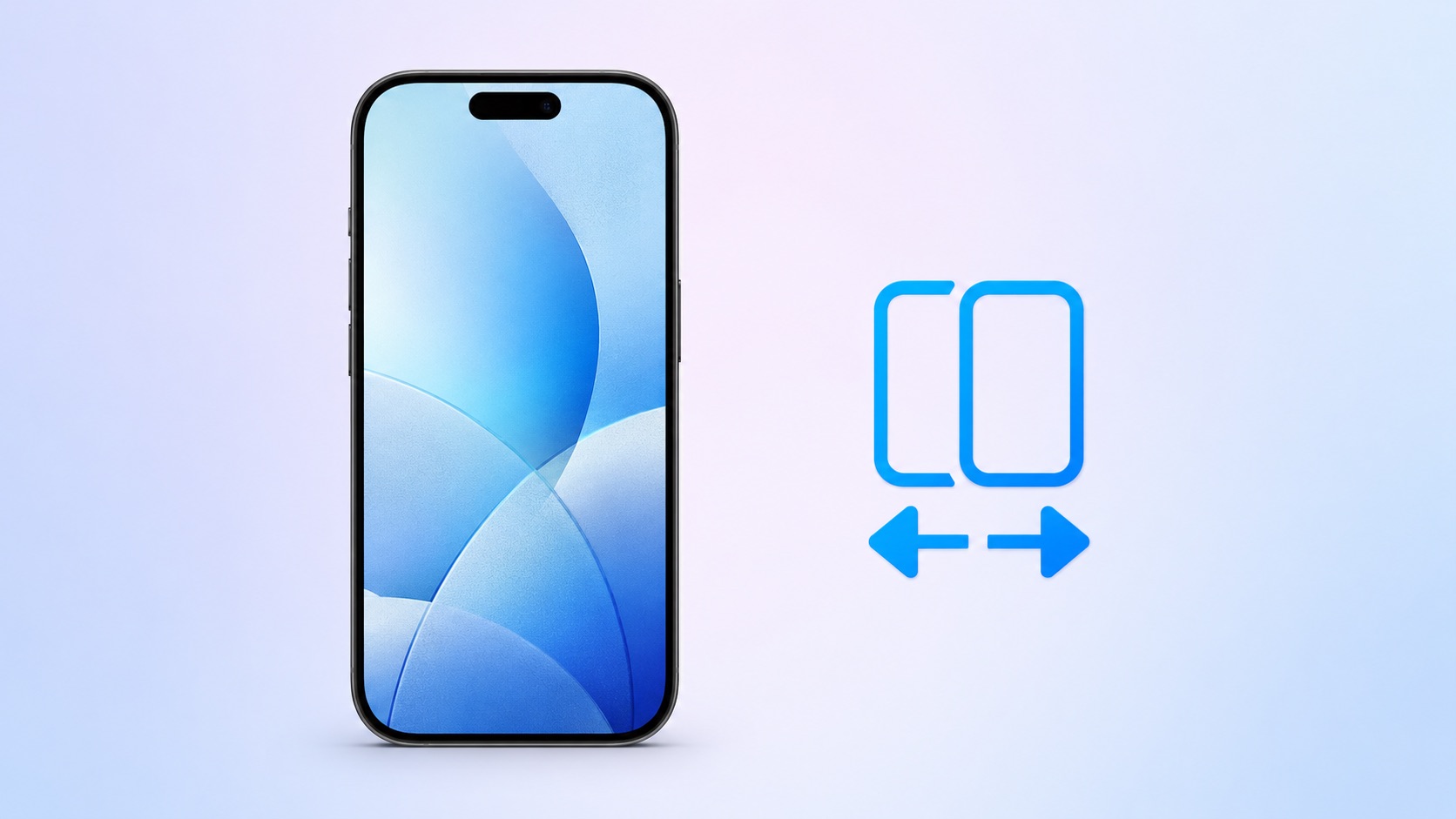
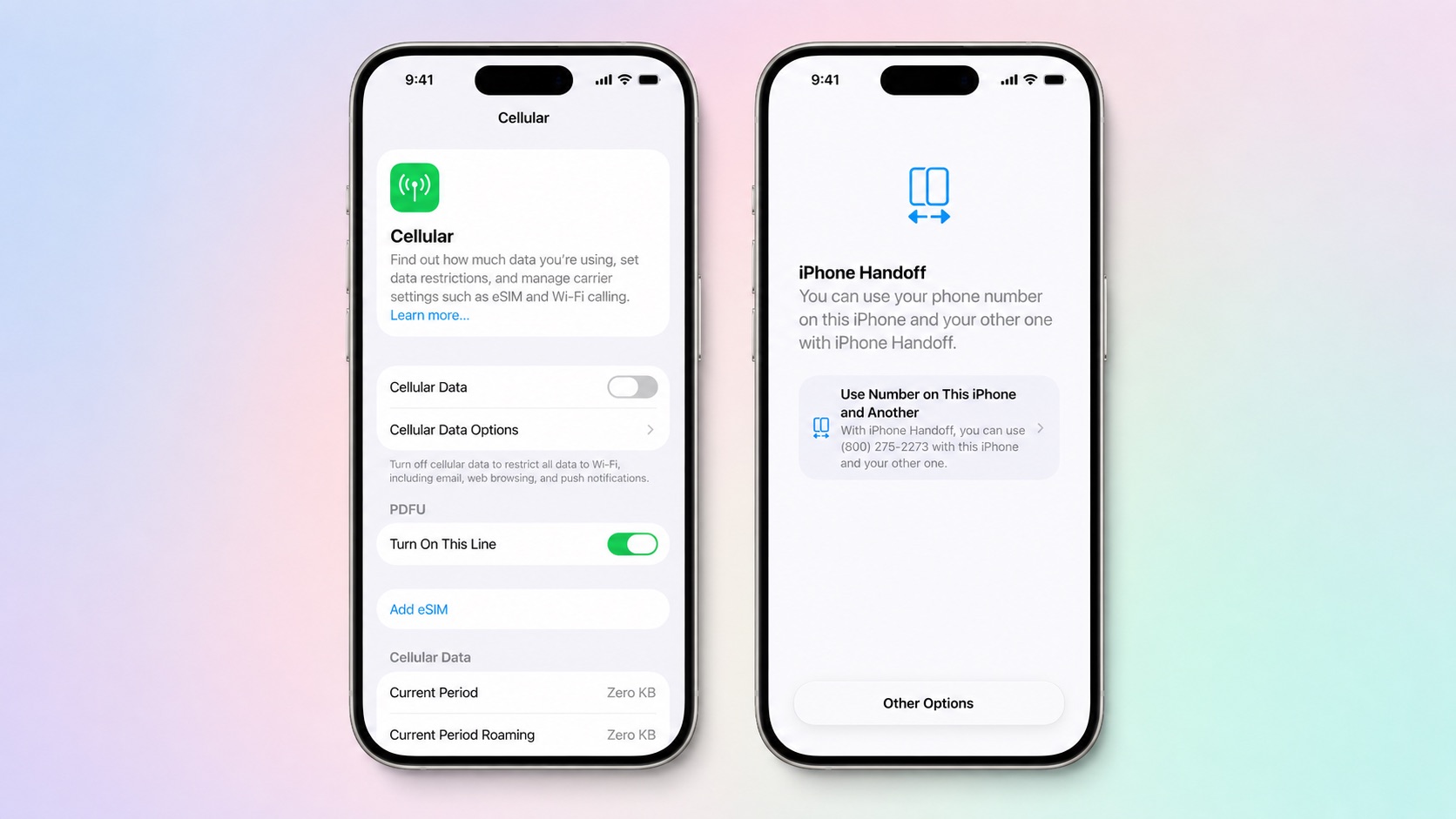
Apple in iOS 27 introduced iPhone Handoff, a new eSIM feature that allows you to use the same number on two iPhones and seamlessly swap between them. The number is only active on one iPhone at a time, so it's not like having two independently active lines.


It's also different from Apple's existing Handoff feature for continuing an app task on another Apple device. Here's what you need to know about the new iPhone Handoff feature.

What Moves Between the Two iPhones?


When you switch phones with iPhone Handoff, your calls, voicemail, messages (including iMessage, RCS, SMS, and MMS) and Find My location move to the active iPhone. You'll see a "Switched to this iPhone" message on the screen to confirm the change.

Other data synced with iCloud will automatically update across your devices, and third-party apps work across both devices, though some third-party apps may require a separate sign-in or take time to sync. Any banking apps you use may also ask you to approve access on the other device.

What Do You Need for iPhone Handoff?


Both iPhones must be running iOS 27 or later. They'll also need to be:
  • Connected to Wi-Fi

  • Sharing the same Apple Account

  • Using Messages in iCloud for messages sync

  • Signed into FaceTime and iMessage with the same Apple Account
iPhone Handoff works with Dual SIM as long as both eSIMs are from carriers that support iPhone Handoff. Both eSIMs must be set up for iPhone Handoff separately, one at a time. Once set up, both eSIMs switch together simultaneously when you unlock your iPhone.

Which Carriers Support iPhone Handoff?


iPhone Handoff is available through T-Mobile in the United States and Telekom in Germany. Verizon (U.S.) and EE (U.K.) will support iPhone Handoff later this year.

AT&T has so far not committed to supporting iPhone Handoff, with a company spokesperson recently pointing to the carrier's existing eSIM activation and transfer options instead.

How Much Does iPhone Handoff Cost?


T-Mobile is charging customers $5 per month to use iPhone Handoff.

In Germany, Deutsche Telekom is charging €6.95 per month for iPhone Handoff, but only on plans that do not already include multi-SIM functionality. An added multi-SIM costs €6.95 per month (one is included with the current MagentaMobil L plan and two with XL).

No other carriers have announced pricing yet.

How Do You Set It Up?


iPhone Handoff can be enabled when setting up a new iPhone. At the "Set Up Cellular" screen, choose "Use Number on This iPhone and Another," then follow the prompts on both phones.

If both iPhones are already set up, open Settings ➝ Cellular on the phone you want to add. Tap Set Up Cellular or Add eSIM, choose Use Number on This iPhone and Another, and follow the prompts. You then get to choose which device is your main iPhone (ideally, the one you use most often) and which is your secondary iPhone.


After setup, unlock either phone to make your number active on it.

What Should You Know Before Switching?


If you have an Apple Watch, it won't switch its pairing to the other device when your phone number moves, so make sure you pair it with the iPhone you expect to use most. Also, some Wallet items, including certain transit passes and IDs, may only work on one device at a time.

Carrier account management and some services like Call Forwarding and Caller ID will remain tied to your main iPhone.

Can I Replace an iPhone That Uses iPhone Handoff?


Yes, but you need to transfer the eSIM from either iPhone to the replacement device. The below steps should be followed while your new iPhone is placed next to your existing devices that use iPhone Handoff.

  1. On your new iPhone (replacement), open the Settings app.

  2. Tap Cellular and then tap Set up Cellular or Add eSIM.

  3. Select an iPhone and tap Continue.

  4. Tap Transfer. (If your carrier doesn't support eSIM transfer from a companion iPhone, you must enroll in iPhone Handoff again: On your iPhone that you are transferring the eSIM from, tap Continue, and follow the onscreen prompts.)

  5. Tap Continue.

  6. Follow the onscreen prompts on both devices.

The eSIM will deactivate on the old iPhone you transferred from.

What If I Want to Stop Using iPhone Handoff?


If you want to stop using iPhone Handoff at any time, you need to contact your carrier. Simply deleting an eSIM from your iPhone may not stop the carrier from charging you for the service.
Related Roundups: iOS 27, iPadOS 27
Related Forum: iOS 27

This article, "iPhone Handoff in iOS 27: How It Works, Pricing, and Carrier Support" first appeared on MacRumors.com

Discuss this article in our forums

  •  

Apple Brought One of the Mac's Best Security Features to iPhone Duo

Apple's new iPhone Duo lacks Face ID. That may irk users who are used to the seamless unlocking experience that a facial biometric system provides, but fortunately Apple has brought over one of the Mac's best authentication features to its first foldable iPhone.

Touch ID is integrated into the Duo's side button for authentication whether iPhone Duo is open or closed, but if you own an Apple Watch, you can opt to have it unlock your iPhone Duo without you having to press a thing. Pre-orders for iPhone Duo begin at 5:00 a.m. Pacific Time on Friday, October 16, with availability beginning Friday, October 23.
Related Roundup: iPhone Duo

This article, "Apple Brought One of the Mac's Best Security Features to iPhone Duo" first appeared on MacRumors.com

Discuss this article in our forums

  •  
❌