In its quest to become an all-in-one app, Spotify is now breaking into the fitness app world by offering "guided workout experiences" and on-demand Peloton classes. Premium subscribers will get access to Peloton's library of more than 1,400 classes in the app, while both Free and Premium can browse curated playlists (they're listed under the genre "fitness.")
Spotify
Spotify said the classes are primarily in English, but there are some options in Spanish and German. Like music and podcasts, Spotify lets you bounce between different devices for its fitness media, so you can start a video workout on your TV and switch to an audio-only version on your phone or smart speaker. Users can even download the classes for offline use.
The fitness category may feel like a sharp turn for Spotify, but the company said that nearly 70 percent of its Premium subscribers work out monthly and that fitness and workout content was one of the top use cases for its Prompted Playlist feature. Spotify has long been expanding its offerings outside of music, with its latest efforts giving users a way to buy physical books or create group chats.
This article originally appeared on Engadget at https://www.engadget.com/apps/spotify-is-now-a-fitness-app-too-144037057.html?src=rss
If you experience discomfort after long hours behind a desk, simply slapping an ergonomic mouse and keyboard on your desk won’t solve the problem. First, you have to address the root issue of sitting still for too long by standing up and walking around each hour or so. But after that, it’s worth considering your workstation ergonomics. An ergonomic keyboard can prevent the hunching, twisting and contorting that leads to discomfort. With split, tilt and angled keys, these boards help keep your shoulders and chest more open and your forearms and wrists more aligned. One ergonomic board won’t work for everyone, so I tested out 15 different models. I found my personal favorite and hope this guide will help you find the best ergonomic keyboard for you, too.
Best ergonomic keyboards for 2026
What to look for in an ergonomic keyboard
You might be looking into ergonomic accessories to help with a specific problem, such as carpal tunnel or tendonitis. Or maybe you’re simply looking for a way to make long hours at your desk more comfortable. It can help to know some of the terminology and reasons behind various features, which we explain below. Just keep in mind that new equipment alone won’t solve the problem. Changing positions, doing regular stretches and taking walk breaks will all go a long way towards making you feel better while you work.
Alice vs split
Most ergonomic keyboard layouts fall into two categories: unibody (or Alice) and split. The former is a single board with the two halves of the keys rotated about 30 degrees apart at the bottom. The separation forms an A-shaped space between the keys — which has nothing to do with why it’s called an Alice layout, it’s just a happy coincidence. This subtle tweak pushes your elbows away from your ribs while keeping a straight line from your forearm to your middle knuckle. Using one, I pretty instantly felt more open along the front side of my body. This layout more closely resembles a traditional keyboard, so it should be easier for most folks to get used to than a fully split option.
Speaking of, split boards break the keys into two separate parts you can position individually. You can put them shoulder distance apart, bring them closer together or angle them as much as feels comfortable. You can also put your mouse between the halves, which may feel like an easier trip for your cursor hand and could potentially help with conditions like repetitive strain injuries (RSI). Personally, I like being able to put my current snack between the two parts. I've also found that pairing a split keyboard with a good ergonomic mouse has helped me even more, particularly a vertical mouse.
Tenkeyless
You can find ergonomic keyboards with and without number pads. Not having those number keys on the right hand side lets you keep your mouse closer in, minimizing overall reach. But if you work with numbers a lot, you’ll likely want that pad included. Some programmable boards allow for the use of layers, which temporarily repurpose keys and can provide you with a ten-key option through clever remapping of letter keys.
Tenting and negative tilt
Tenting raises the middle of the keyboard up, so your hands move closer to a “handshake” position. Alice keyboards usually angle up towards the middle and always to a fixed degree, since the two sides are connected. Split boards often let you adjust the degree of tenting, going from flat to subtle to extreme lift.
You may have encountered keyboards with an optional lift at the back of the board, raising the top keys higher than the space bar. Every set of hands is different, but for most people, pulling the backs of the hands towards the forearms increases strain. Negative tilt has the opposite effect by sloping in the other direction, lowering the top number keys while raising the edge with the spacebar. Many Alice and some split keyboards offer an optional negative tilt. I found it was more comfortable to enable that feature when I’m standing, and I preferred to have the keys flat when sat at my desk.
Staggered vs columnar
This decision seems to be one of the more hotly-contested among ergo enthusiasts. A conventional keyboard has staggered keys, with each row slightly offset to the rows above and below it — so the A key is about halfway between the Q and W above it. This is a holdover from vintage mechanical typewriters, in which each press activated a hammer that smashed ink onto paper in the shape of a letter. To fit the hammers as close together as possible, while still allowing for finger pads, the keys were staggered.
Columnar or ortholinear keyboards stack the keys in orderly columns, often with rows that are not linear. Proponents claim this makes the keys easier to reach. Whether that’s true will be up to your fingers to decide, but I can say for certain that if you learned to type on a staggered keyboard, switching to a columnar layout is tough. It will take days, possibly weeks before you instinctively hit the C key. The N, M and B keys don’t fare much better.
Programmable keys
With a few exceptions, most ergonomic keyboards will work with PCs or Macs as a standard typing input, but the use of function and hot keys may require some remapping. It can be as easy as an onboard switch to toggle between Mac and PC layouts, or as involved as downloading software to change up the keys. Some boards even include (or let you buy) extra keycaps to change, say, the Mac’s Command and Option keys to PC’s Start and Alt buttons. Those are what's called hot-swappable keys, meaning you just pull the old key off (usually with a provided key puller) and stick the new one on, no soldering required.
For some boards, remapping or programming keys using software is a crucial feature. Gaming peripherals have extra keys that you can set to execute a series of keystrokes with the push of a single button, and we cover the best gaming keyboards in a separate guide. Keyboards that work with layers, in which a single button can perform several functions, typically allow you to change what those are. Some ergo keyboards have non-standard layouts, like thumb clusters with multiple keys near the space bar that you operate with your thumb. You’ll also be able to program those.
Other considerations
Ergonomic keyboards come in mechanical, membrane, and scissor switch versions. Which works best for you is, again, up to your preference. I won’t get too deep into the particulars here, as we have an entire guide devoted to the best mechanical boards, but the short of it is that membrane and scissor switches are less customizable than mechanical and typically cheaper. Typing on them tends to be quieter and softer. Mechanical switches are more customizable, offer a more responsive typing experience and are usually pricier.
You’ll also have the option of wired or wireless ergonomic boards. All other things being equal, wired models are less expensive. Competitive gamers who rely on split-second responses may prefer the zero-lag of wired keyboards. Wired models also never run out of battery life and have fewer connectivity issues. But wireless keyboards keep your desk less cluttered.
Some ergonomic keyboards come with permanent or removable wrist or palm rests, which can be cushioned or hard. This is another area where opinions diverge: proponents claim they help you maintain a neutral hand position, while detractors say they put pressure on the tendons and can cause wrist pain or even exacerbate conditions like carpal tunnel. Ideally, your palms should be resting, not your wrists, and you might find you like having that support or you may find the pressure uncomfortable.
Photo by Amy Skorheim / Engadget
How we tested ergonomic keyboards
All our guides begin with extensive research to figure out what’s out there and what’s worth testing. We consider brands with good reputations that we’ve heard good things about from colleagues and look at keyboard reviews in forums and other trusted publications. For this guide, I looked for keyboards with ergonomic features like tenting, split keys, palm support and so on. I also zeroed in on boards that didn’t require a deep amount of familiarity with the vast and exhaustive world of custom keyboards.
Once I settled on ten boards, I acquired them and used each one for anywhere from a few days to a few weeks. I tried out the remapping and macros software and considered the comfort, design, price and durability of each model before arriving at picks I think will work best for the most people out there. For subsequent updates to this guide, I have continued to acquire and test out new keyboards as they come on the market, adding and replacing the top picks as warranted. If and when Microsoft ergonomic keyboards, like the Sculpt, come back on the market, as a collaboration with Incase has promised, I'll try those models, too.
Other ergonomic keyboards we tested
Naya Create
I first tried out the Naya Create during CES 2025 and was immediately smitten with the design. It’s a deliriously well-made fully-split keyboard with built-in modules at each thumb. You can swap in a trackball, dial, trackpad and the Float module — a dial/joystick combo for manipulating 3D imagery.
Each half of the board hinges in two places for minutely customizable center tenting. It has low profile keys with responsive yet quiet mechanical switches. It works wirelessly or corded, has thumb cluster keys and, of course, it’s all fully programmable. It's lovely to type on and the thumb clusters and modules make it easy to keep your fingers in the home position to minimize repetitive travel.
I’m still in the process of testing the board, and working with Naya’s co-founder to get the modules customized to my liking. At $500 to $700, it’s not cheap. It’s also a still very new device from a small company, so I’m waiting to give it a proper assessment until the board is fully set up properly. In the meantime, batches of the Naya Create keep selling out, so it’s apparent I’m not the only one who sees this board’s potential.
Kinesis Advantage 360
If you want something fully split with thumb clusters and a columnar layout but that’s a little less minimal than the Zsa Voyager— and wireless to boot — the Advantage 360 from Kinesis, makers of the popular Advantage 2 is a good one to check out. It looks like it comes from an ‘80s-era IBM office, but is somehow also from the future. The tenting goes from low to intense and the key well curves concavely to meet your fingers where they naturally land. The 360 is per-key programmable, works with layers and has four macros keys.
Periboard 835
For a mechanical Alice keyboard with both wireless and wired capabilities, the Periboard 835 is a good pick. The Mac and Windows-compatible board has a solid build, low profile switches, RGB lighting, comfortable tenting and a few extra programmable keys.
Goldtouch Elite Adjustable
I remember wondering if something like the Goldtouch Elite Adjustable existed when I first started testing ergonomic keyboards. It didn’t at the time, as far as I could tell, but now a connected yet adjustable split board is indeed a product you can buy. It’s a solidly-built board and the ball joint connecting the two halves feels like it will put up with a lot of use. A squeeze of the lever at the top of the keys lets you set the board just how you like, adjusting both the vertical tenting and the angle between the two halves. There’s no programming to speak of, just the ability to swap a few function keys like print screen and home.
Unfortunately, the tenting doesn’t work for me. Because of the extra keys at the outer edges, raising the middle edges upwards lifts the center keys considerably, which brings my wrists and forearms off the desk instead of letting them rest. Holding them like that created extra neck and shoulder strain on my part, which is sort of the opposite of the goal. But if you’re not into tenting anyway and want a flat, Alice-split board with an adjustable splay, this works quite well.
Kinesis Form Split Touchpad Keyboard
The idea behind the Kinesis Form Split Touchpad Keyboard is pretty ergonomic: put the trackpad between the two halves and minimize travel for your mouse hand. The distance between the two puts your elbows at a comfortable distance and keeps your wrist nearly in-line with your forearms. The build is excellent, with low profile mechanical switches that feel smooth and just the right amount of clacky. The trackpad is responsive, but gestures only work with Windows computers. Even dragging and dropping doesn’t work on a Mac here, so I don’t see Apple users getting much use out of the board. I also found myself wishing for the slightest rotation of the keys — though they’re a good distance apart, a slight angle would keep my wrists fully unbent. There’s no tenting or negative tilt either, both of which could help a bit more, ergonomically speaking.
Logitech Wave Keys
While it's a perfectly fine and affordable Bluetooth keyboard, the Logitech Wave has minimal ergonomics. The keys rise up slightly in the middle and there's a comfortable wrist rest attached, but the layout is the same as any other keyboard, with no splitting of the keys to open up your arms or keep your wrists straight.
Ergonomic keyboard FAQs
What kinds of ergonomic keyboard styles are there?
Most ergonomic keyboards fall into two categories: fully split which separates the board into two pieces, and unibody split, also known as an Alice design, which angles the keys outward at the bottom. When the keys are rotated outward or split into two halves, it allows for a wider spread between your elbows for a more relaxed typing position. Other ergonomic features, such as thumb clusters, center tenting and negative tilting are sometimes added to either type of board.
Which keyboard layout is the most ergonomic?
Since every person is different, there’s no one best ergonomic keyboard layout. The standard QWERTY layout is what most people are used to. The Dvorak, Colemak and Workman layouts rearrange the board to put the more commonly used letters closer to the home-key position. All three are intended to minimize your finger movements. That may indeed feel more comfortable and less fatiguing, but people used to the QWERTY layout will likely need to relearn how to type.
When do I need a split keyboard?
You might feel some relief with a fully split keyboard if you find yourself tensing up at the shoulders as you type on a standard board. Putting some distance between your hands may allow your chest to stay more open, which for some is an easier position to maintain. You may also appreciate being able to place your mouse or trackpad between the two halves of the board to minimize the distance your cursor hand needs to travel.
How long does it take to adjust to an ergonomic keyboard?
That depends on the type of keyboard. Since the Alice-split design simply rotates the keys apart, typing on it feels fairly similar to the regular keyboards you’re already used to. A fully split board will take a little more adjustment, particularly if it uses thumb clusters. The enter, shift and control buttons may now be operated by your thumbs instead of your other fingers and that can be tough to get used to. It took me a full month to get completely comfortable with a fully split keyboard with thumb clusters. But now, I prefer it to typing on regular boards.
This article originally appeared on Engadget at https://www.engadget.com/computing/accessories/best-ergonomic-keyboard-130047982.html?src=rss
Meta went to court this week in two major trials over alleged harms facilitated by its platform. In New Mexico, the state's attorney general has accused the company of facilitating child exploitation and harming children through addictive features. In a separate case in Los Angeles, a California woman sued the company over mental health harms she says she suffered as the result of addictive design choices from Meta and others.
In both cases, Meta has disputed the idea that social media should be considered an "addiction." On the stand this week, Instagram chief Adam Mosseri said that social media isn't "clinically addictive," comparing it to being "addicted" to a Netflix show.
In opening statements in the New Mexico trial, Meta's lawyer Kevin Huff went further. He told the jury that "social media addiction is not a thing" because it's not in the Diagnostic and Statistical Manual of Mental Disorders (DSM), the handbook used by mental health professionals in the US.
"According to the American Psychiatric Association, they don't recognize the concept of social media addiction in the same way as addiction to drugs and alcohol," Huff said during opening arguments that were broadcast by Courtroom View Network. "What you see on the screen is what's called the DSM, which is basically the official manual for recognized mental disorders. The American Psychiatric Association studied this and decided that social media addiction is not a thing."
But the American Psychiatric Association (APA) has never said that social media addiction doesn't exist. The organization provides information and resources about social media addiction on its website. "Social media addiction is not currently listed as a diagnosis in the DSM-5-TR—but that does not mean it doesn’t exist," the APA said in a statement to Engadget.
Dr. Tania Moretta, a clinical pyschophysiology researcher who has studied social media addiction, agrees. "The absence of a DSM classification does not mean that a behavior cannot be addictive, maladaptive or clinically significant," she told Engadget. That argument, she said, "reflects a misunderstanding" of how psychiatry professionals define and classify conditions. "Diagnostic manuals formalize scientific consensus; they do not define the boundaries of legitimate scientific inquiry. Many maladaptive behaviors and clinically significant symptom patterns are studied and treated well before receiving official classification."
Meta's critics have long claimed that the company has profited from addictive features that hook children and teens. The trials in Los Angeles and New Mexico are just the start of several court battles over the issue. The social media company is also facing a high-profile trial with school districts in June, and lawsuits from 41 state attorneys general.
Moretta said that social media addiction is a field that requires more study, but that there is already evidence that it can have harmful effects on some people. "At present, from a scientific perspective, there is documented evidence that social media use disorder is associated with both psychophysiological alterations, including changes in reward/motivational and inhibitory/regulatory systems, and clinically significant negative impacts on functioning (e.g., sleep disturbances, psychological distress, impairment in social, academic, or occupational domains)," she said. "The key question is not whether all social media use is addictive, but whether a subset of users exhibits patterns consistent with behavioral addiction models and whether specific platform design features may exacerbate vulnerability in predisposed individuals."
Both trials are ongoing and expected to last the next several weeks. In New Mexico, jurors have already heard from former employee turned whistleblower Arturo Bejar and former exec Brian Boland, both of whom have publicly criticized the company for not prioritizing safety. In Los Angeles, Mosseri's testimony has wrapped up, but Meta CEO Mark Zuckerberg is expected to testify next week. The trials will also feature extensive internal documents from Meta, including details about the company's own research into the mental health impacts of its platform on young people.
This article originally appeared on Engadget at https://www.engadget.com/social-media/meta-really-wants-you-to-believe-social-media-addiction-is-not-a-real-thing-130000257.html?src=rss
Apple has steadily expanded the Apple Watch’s health monitoring features over the years, moving beyond fitness tracking into areas that can offer early insight into potential medical concerns. One of the most recent additions is hypertension alerts, which are designed to notify users when their blood pressure trends are elevated over time. While Apple Watches cannot directly measure blood pressure, this feature can still play a useful role in highlighting patterns that may be worth discussing with your doctor. Here, we’ll explain what hypertension alerts do, how they work and how to enable and manage them on the Apple Watch.
What hypertension alerts do
Hypertension alerts are designed to identify long-term trends that may indicate elevated blood pressure. Instead of relying on a traditional cuff measurement, the Apple Watch analyzes a combination of health data collected over a 30-day period, including heart rate, movement patterns and other contextual information stored in the Health app. Using this data, the system looks for sustained changes that align with patterns commonly associated with hypertension.
If your Apple Watch detects a trend suggesting elevated blood pressure over an extended period, it’ll send you a notification. These alerts are not intended to diagnose hypertension or replace medical testing. Instead, they serve as an early signal that something may have changed and that you may want to seek further monitoring or professional advice.
Apple emphasizes that hypertension alerts are designed for users who have not already been diagnosed with high blood pressure. Instead, they are meant to raise awareness rather than confirm a condition.
Who can use hypertension alerts
Hypertension alerts require a compatible Apple Watch model (Apple Watch Series 9 or later, or Apple Watch Ultra 2 or later) paired with a supported iPhone (iPhone 11 or later). The feature also depends on recent versions of watchOS and iOS, as it relies on updated health algorithms and background data analysis. To use hypertension alerts you must be 22 years of age or older, not be pregnant and not have been diagnosed with hypertension. You also need to ensure that your Apple Watch’s Wrist Detection feature is turned on.
To receive meaningful alerts, your Apple Watch needs sufficient data. This means wearing the watch regularly, including during sleep if sleep tracking is enabled, and keeping health details such as age, sex, height and weight up-to-date in the Health app. The system uses long-term trends, so alerts will not appear immediately after enabling the feature.
How to turn on hypertension alerts
Hypertension alerts are managed through the Health app on the paired iPhone. The feature cannot be enabled directly from the watch itself. During setup, the Health app will ask for confirmation that the user has not been diagnosed with hypertension. It may also prompt a review of health details such as date of birth and biological sex, as this information helps improve the accuracy of trend analysis.
To get started, open the Health app on the iPhone paired with the Apple Watch. From the main Health screen, tap your profile in the top corner. Select Health Checklist from the available Features. Next, you’ll need to tap Hypertension Notifications, confirm your age and whether or not you’ve ever been diagnosed with hypertension.Tap Continue andfollow the on-screen prompts for information on how the notifications work. Once you have done this, tap Done and you’ll be all set.
Once enabled, the feature runs automatically in the background. There is no need to manually start monitoring or interact with the feature daily.
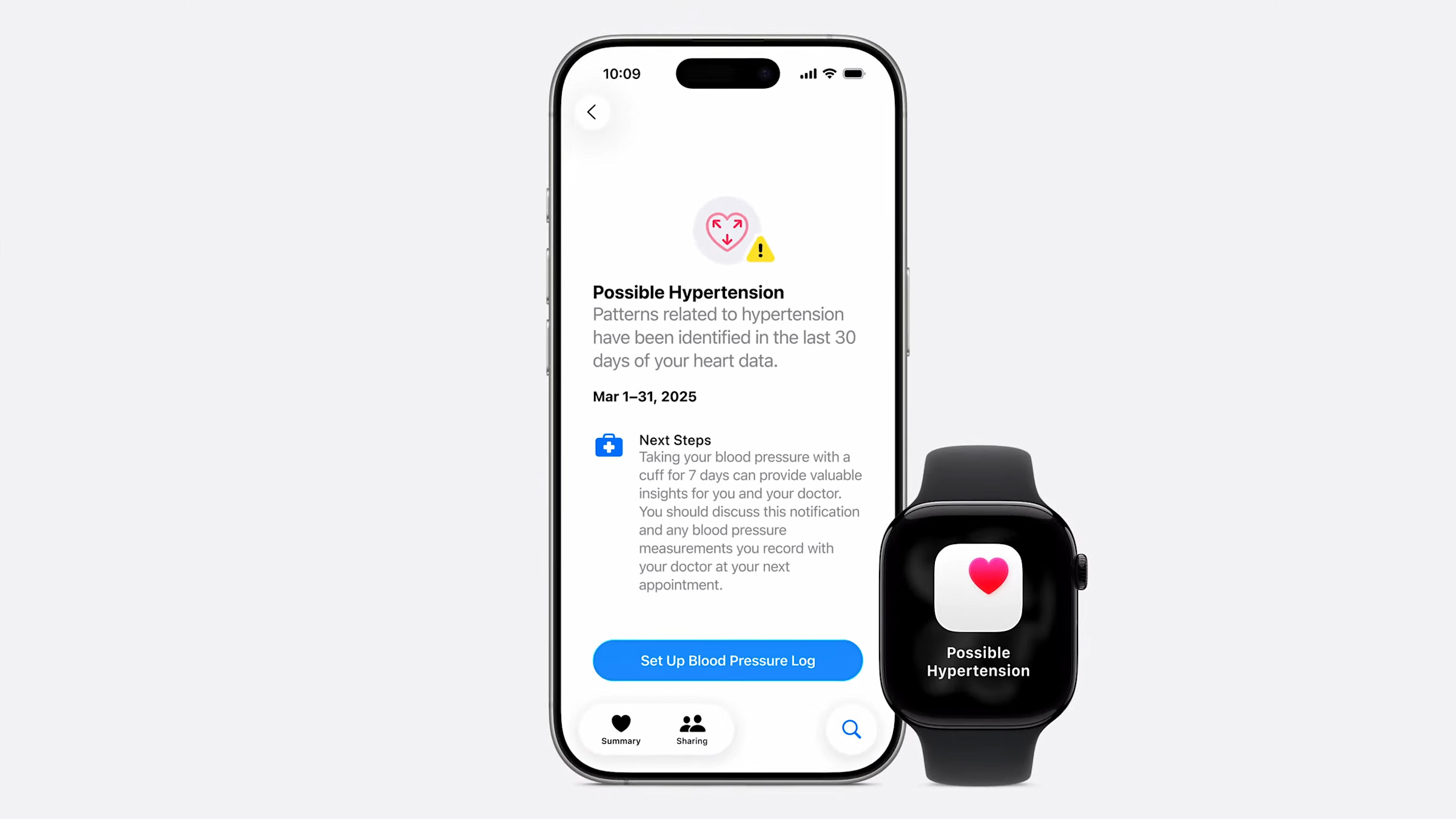
The new apple watch series 11 can help identify hypertension
Apple
Managing notifications and alerts
When hypertension alerts are turned on, notifications appear on both the Apple Watch and the paired iPhone. These alerts typically explain that a long-term trend suggesting elevated blood pressure has been detected, along with guidance on next steps.
Users can manage how and when these notifications appear by adjusting notification settings for the Health app. This includes choosing whether alerts appear on the lock screen, in Notification Center or as time-sensitive notifications on Apple Watch.
Health data related to hypertension alerts can be reviewed at any time in the Health app. While Apple Watch does not display a specific blood pressure number, users can view contextual information and educational material explaining what the alert means and what actions may be appropriate.
How hypertension alerts can help
Hypertension often develops gradually and may not cause noticeable symptoms in its early stages. Because of this, many people are unaware of elevated blood pressure until it is identified during a routine medical check.
Hypertension alerts can let you know of subtle changes that might have otherwise gone unnoticed. For some users, an alert may prompt earlier conversations with a doctor, additional blood pressure monitoring at home or lifestyle changes such as adjustments to diet, activity or sleep habits.
It is important to treat these notifications as informational rather than diagnostic. Apple Watch does not provide specific blood pressure readings and cannot confirm hypertension on its own.
What to do if you receive an alert
Receiving a hypertension alert does not mean that there is an immediate medical emergency. Apple recommends using the alert as a prompt to pay closer attention to your cardiovascular health.
Many users choose to follow up by measuring blood pressure using a traditional cuff at home or by scheduling a check with a healthcare professional. A doctor can provide proper testing, diagnosis and guidance based on clinical measurements and individual risk factors.
It is also worth reviewing lifestyle factors that can influence blood pressure, such as physical activity levels, sleep quality, stress and diet. Apple Watch can already help track many of these areas, which may provide useful context when discussing health concerns with a professional.
Limitations to keep in mind
Hypertension alerts are not available in all regions and may be subject to regulatory approval. The feature also requires consistent Apple Watch use over time to generate reliable trend data.
Most importantly, the Apple Watch does not measure blood pressure directly. The alerts are based on correlations and trends rather than direct readings, which means they should not be used as a substitute for medical equipment or professional care.
This article originally appeared on Engadget at https://www.engadget.com/wearables/how-to-turn-on-hypertension-alerts-on-apple-watch-130000090.html?src=rss
Apple’s iOS 26 and watchOS 26 introduced a new fitness companion called Workout Buddy. This feature uses Apple Intelligence to provide spoken feedback during workouts and give motivation based on your activity history. Workout Buddy analyzes your pace, heart rate, distance and other metrics to deliver real-time encouragement and performance insights directly through connected Bluetooth headphones. It works in conjunction with the Workout app on Apple Watch and is partially controlled through the Fitness app on iPhone. This guide walks you through everything needed to set up and use Workout Buddy effectively during workouts.
What Workout Buddy does
It’s important to note that Workout Buddy is not a full coaching program. Instead, it adds to your workout with spoken cues that reflect how your session is going. Workout Buddy can remind you of your weekly activity totals, alert you to personal bests or performance milestones and provide an overview when you’re finished. It is designed to feel like a supportive training partner rather than a strict coach.
The feature operates in English by default and uses a text-to-speech model trained on voices from Apple Fitness+ trainers. It is available for a subset of workout types, including running, walking, cycling, high-intensity interval training (HIIT) and strength training. It requires on-device Apple Intelligence, which means you’ll need to keep one of the latest iPhones running updated software nearby during workouts.
Supported models include iPhone 15 Pro, iPhone 15 Pro Max and any iPhone 16 model. You’ll also need an Apple Watch running watchOS 26.
Requirements before you begin
Before Workout Buddy appears in your Fitness app or Workout app you must ensure a few things are in place. First, your Apple Watch must be running watchOS 26 or later and paired to an iPhone with iOS 26 installed. Second, your iPhone must be capable of on-device Apple Intelligence, meaning you must own one of the supported iPhone models we mentioned above and have Apple Intelligence enabled in the phone’s settings.
You’ll also need Bluetooth headphones paired with either your iPhone or your Apple Watch. Workout Buddy’s audio feedback cannot play through the watch speaker so headphones are essential. Lastly, your device language must be set to English, at least initially. If any of these things are missing, the option to enable Workout Buddy may not appear.
How to turn on Workout Buddy from iPhone
While much of the interaction with Workout Buddy happens on Apple Watch during workouts, you can enable it and choose voice options from the Fitness app on iPhone.
Open the Fitness app on your iPhone and tap the Workout tab at the bottom. Scroll through the list of workout types until you find one you plan to use with Workout Buddy. Tap the waveform bubble icon associated with that workout. This will bring up settings where you can turn on Workout Buddy. Flip the toggle to enable it and choose a voice from the available options. Once you have selected a voice, close that screen and your choice is saved. When you start this workout type on Apple Watch, Workout Buddy will activate.
Enabling Workout Buddy for a workout type on iPhone means you do not need to toggle it on separately on Apple Watch each time for that specific workout. However, you may still adjust it from the watch interface for more granular control.
How to turn on Workout Buddy on Apple Watch
To use Workout Buddy during a session, open the Workout app on your Apple Watch. Turn the Digital Crown to scroll through and select the workout you want to do, such as Outdoor Run, Outdoor Walk, Outdoor Cycle, HIIT or Strength Training. If you want to see all available workouts, tap the Add button at the bottom.
Once the workout type is selected, look for the Alerts button on screen. Tap Alerts then scroll until you see Workout Buddy. Tap Workout Buddy and flip the switch to on. You will then be asked to choose a voice if one is not already selected on your iPhone. After selecting the voice, return to the previous screen and tap Start. Workout Buddy will begin working as soon as the workout does.
Using Workout Buddy during a workout
Once you start an exercise on your Watch or iPhone, Workout Buddy will speak to you through your connected headphones. The feedback is designed to be encouraging and relevant to your pace, performance or milestones. It may mention your current progress toward activity goals, pace, splits, personal bests or other highlights from your fitness data. At the end of your session Workout Buddy will offer a summary of key metrics like duration distance and calorie burn.
While a workout is active, you can temporarily mute the audio if you need silence. On Apple Watch during the session, swipe right to reveal controls then tap Mute. This pauses Workout Buddy’s spoken commentary without disabling the feature entirely.
Customizing and managing Workout Buddy settings
Workout Buddy is enabled on a per-workout-type basis. If you prefer voice feedback for running but silence for strength training, you can enable it for one and leave it off for the other. The Fitness app on iPhone allows you to set a default voice preference for each workout type. On Apple Watch you can quickly toggle the feature on or off before starting a session.
If Workout Buddy does not appear as an option for a particular workout type, you may need to check compatibility. Apple’s documentation indicates that only certain types* are supported initially and that the option will not appear for unsupported workouts.
*Apple Watch SE (2nd generation), Apple Watch SE 3, Apple Watch Series 6, Apple Watch Series 7, Apple Watch Series 8, Apple Watch Series 9, Apple Watch Series 10, Apple Watch Series 11, Apple Watch Ultra, Apple Watch Ultra 2, Apple Watch Ultra 3
Troubleshooting common issues
If Workout Buddy fails to activate make sure your devices meet the requirements outlined above. Confirm that your iPhone with Apple Intelligence is nearby and that Bluetooth headphones are connected. If audio feedback is missing, ensure headphones are paired correctly and that the language is set to English. Some users have reported that if the headphones are paired only to the Watch rather than the iPhone, it can interfere with feedback. Switching to the iPhone often resolves that issue.
For workout types where Workout Buddy previously worked but suddenly does not appear, you may try toggling the feature off and on again in the Fitness app or rebooting both devices. In rare cases removing and re-adding the workout type on Apple Watch can refresh the settings.
This article originally appeared on Engadget at https://www.engadget.com/wearables/how-to-use-workout-buddy-with-apple-watch-and-ios-26-130000922.html?src=rss
If you're looking to get fit, sleep better or just keep a closer eye on your health, a fitness wearable is a great place to start. Whether you're into intense workouts or just want to hit your step goal each day, the best fitness trackers available today can offer loads of helpful features, from sleep tracking and resting heart rate monitoring to built-in GPS and stress tracking. Some are even subtle enough to wear 24/7, like smart rings, while others double as stylish smartwatches.
There are great options out there for beginners as well as more advanced users, and the variety of features means there’s something for every lifestyle and budget. In this guide, we’ll walk you through the best fitness trackers you can buy right now, and explain who each one is best suited for.
Best fitness trackers for 2026
What do fitness trackers do best?
The answer seems simple: Fitness wearables are best at monitoring exercise, be it a 10-minute walk around the block or that half marathon you’ve been diligently training for. Obviously, smartwatches can help you reach your fitness goals too, but there are some areas where fitness bands and smart rings have proven to be the best buy: focus, design, better battery life, durability and price.
When I say “focus,” I’m alluding to the fact that fitness trackers are made to track activity well; anything else is extra. They often don’t have the bells and whistles that smartwatches do, which could distract from their advanced health tracking abilities — things like all-day resting heart rate monitoring, stress tracking, and even detailed sleep tracker insights. They also tend to have fewer sensors and internal components, which keeps them smaller and lighter. Fitness trackers are also a better option for those who just want a less conspicuous gadget on their wrists all day.
Battery life tends to be better on fitness trackers, too. While most smartwatches last one to two days on a single charge, fitness bands offer between five and seven days of battery life — and that’s with all-day and all-night use even with sleep tracking features enabled. Many fitness trackers also slot nicely into your existing ecosystem, syncing seamlessly with your smartphone, other fitness apps and cloud storage to keep all your data in one place.
When it comes to price point, there’s no competition. Most worthwhile smartwatches start at $175 to $200, but you can get a solid smart band starting at $70. That makes them a great entry point for beginners who want to track their progress without committing to a full smartwatch. Yes, more expensive bands and smart rings exist (and we recommend a few here), but you’ll find more options under $150 in the fitness tracker space than in the smartwatch space.
When to get a smartwatch instead
If you need a bit more from your wearable and don’t want to be limited to a fitness or activity tracker, a smartwatch may be the best buy for you. There are things like on-watch apps, alerts and even more robust fitness features that smartwatches have and the best fitness trackers don’t. You can use one to control smart home appliances, set timers and reminders, check weather reports and more. Some smartwatches let you choose which apps you want to receive alerts from, and the options go beyond just call and text notifications. Just make sure your smartwatch is compatible with your Android or iPhone, however, before purchasing, as not all of them work with both operating systems.
But the extra fitness features are arguably the most important thing to think about when deciding between a fitness tracker and a smartwatch. The latter devices tend to be larger, giving them more space for things like GPS, barometers, onboard music storage and more. While you can find built-in GPS on select fitness trackers, it’s not common.
If you’re someone who’s seriously training — say for a race or an endurance challenge — a dedicated running watch may be worth considering. These often provide more in-depth cardio analytics, recovery insights, and real-time pace data that go beyond what standard trackers can deliver.
Other fitness trackers we've tested
Fitbit Inspire 3
The Fitbit Inspire 3 strips out all the luxury features from the Charge 6 and keeps only the essential tracking features. You won’t get built-in GPS tracking or Fitbit Pay or Spotify control but you do get solid activity tracking, automatic workout detection, smartphone alerts and plenty more. The updated version has a sleeker design and includes a color touch display and connected GPS, the latter of which lets you track pace and distance while you run or bike outside while you have your phone with you. When compared to the Charge 6, the Inspire 3 is more fashionable, too. Its interchangeable bands let you switch up the look and feel of your tracker whenever you want, and it’s slim enough to blend in with other jewelry you might be wearing. We were also impressed by its multi-day battery life: Fitbit promises up to 10 days on a single charge, and that checked out for us. After four days of round-the-clock use, the Inspire 3 still had 66 percent battery left to go.
Fitness tracker FAQs
How long do fitness tracker batteries last?
The battery life of fitness trackers can vary depending on the model and its features. On average, most fitness trackers last between five to seven days on a single charge. Basic models with limited features could stretch up to 10 days or more. However, more advanced trackers with features like continuous heart rate monitoring, GPS, or always-on displays may need recharging after one to three days. If you're using GPS or streaming music through your fitness tracker, you'll find that this drains the battery faster. By using these features less, or turning them off, you'll extend battery life.
This article originally appeared on Engadget at https://www.engadget.com/wearables/best-fitness-trackers-133053484.html?src=rss
Amazon is introducing an AI-powered assistant to One Medical, the tech-forward primary care provider it acquired in 2023. Dubbed 'Health AI,' Amazon says the tool "provides 24/7 personalized health guidance based on your medical records."
The company says Health AI can explain lab results, help manage medications, and book appointments for patients. Amazon also says it can "analyze images" but doesn't specify whether this means medical imaging or user uploaded photos. While the company specifically says the tool "complements, but does not replace," a patient's healthcare provider, it also vaguely says the AI can "answer general and complex health questions" while "considering your unique health history."
"Health AI recognizes when symptoms, situations, or specific queries require or benefit from human clinical judgment," reads the company's announcement, while giving few details on just how much medical advice the AI tool is empowered to give.
Use of AI tools brings up data privacy concerns, and Amazon says it follows HIPAA-compliant privacy and security practices. The company says that a user's conversations with Health AI are "not automatically added to your medical record." This of course implies the option to do just that. It also says the company doesn't sell members' protected health information.
One Medical has a limited number of brick-and-mortar offices in major metros throughout the US, but the focus of the company seems to be telehealth services. These services are offered as part of an annual subscription, which is discounted for Amazon Prime members. This is only the latest investment Amazon has made in the healthcare space. In recent years the tech giant has begun same-day prescription deliveries in certain markets, and built vending machines for prescription drugs.
Health AI follows the trend of AI companies competing to enter healthcare with their AI-powered chatbots. Google added an AI health coach to the Fitbit app last year, and OpenAI announced a dedicated health portal within ChatGPT in January.
This article originally appeared on Engadget at https://www.engadget.com/ai/amazon-is-adding-ai-powered-assistant-to-one-medical-180803368.html?src=rss
At every CES I’ve ever been to, there’s been one or two gadgets promising to boost your mental health. In recent years, the number of companies making forays into this space has grown, and will likely continue to do so in the future. Could it be, much like the number of people wearing heart-monitoring wearables today, everyone will be strapping an EEG to their skulls a decade or so down the line? It’s more likely than you think, so it’s worth asking what these devices are good for, what benefit they could bring, and where does the science end and the hype begin.
An Electroencephalogram (EEG) is a clinical tool to monitor the electrical activity of our brains. Put very simply, our minds are constantly moving ions around, and when they reach the scalp, it’s possible to measure those ions. By placing electrodes on the scalp, you can record the changes in voltages pushed out by our brains more or less in real time. These voltages are commonly grouped into categories, which are often described as brain waves. Each one represents a different state of mind: Gamma (hard thinking), Beta (anxious or active), Alpha (relaxed), Theta (creative, or dreaming) and Delta (asleep).
Professor Karl Friston at University College London is one of the world’s most influential neuroscientists and an expert in brain imaging. He explained that these technologies can be used to diagnose issues both in the structure and function of the brain. And while there are many technologies which can look at how our brains work, “we’re a long way away from understanding the brain like we understand the heart.” Broadly speaking, EEGs are a fairly simple tool for looking at how our minds work, but they have one benefit over more complex methods such as fMRI (functional Magnetic Resonance Imaging), since they work in real time.
Consumer-use EEGs are nothing new — in 2011 I tested the Zeo Mobile, a small device which you stuck to your forehead and wore overnight. It monitored how well you slept and sounded an alarm when you were at the top of a sleep cycle, so you woke up pretty easily. It worked well but with one downside: It’s hard to sleep with a hard plastic puck stuck to your forehead.
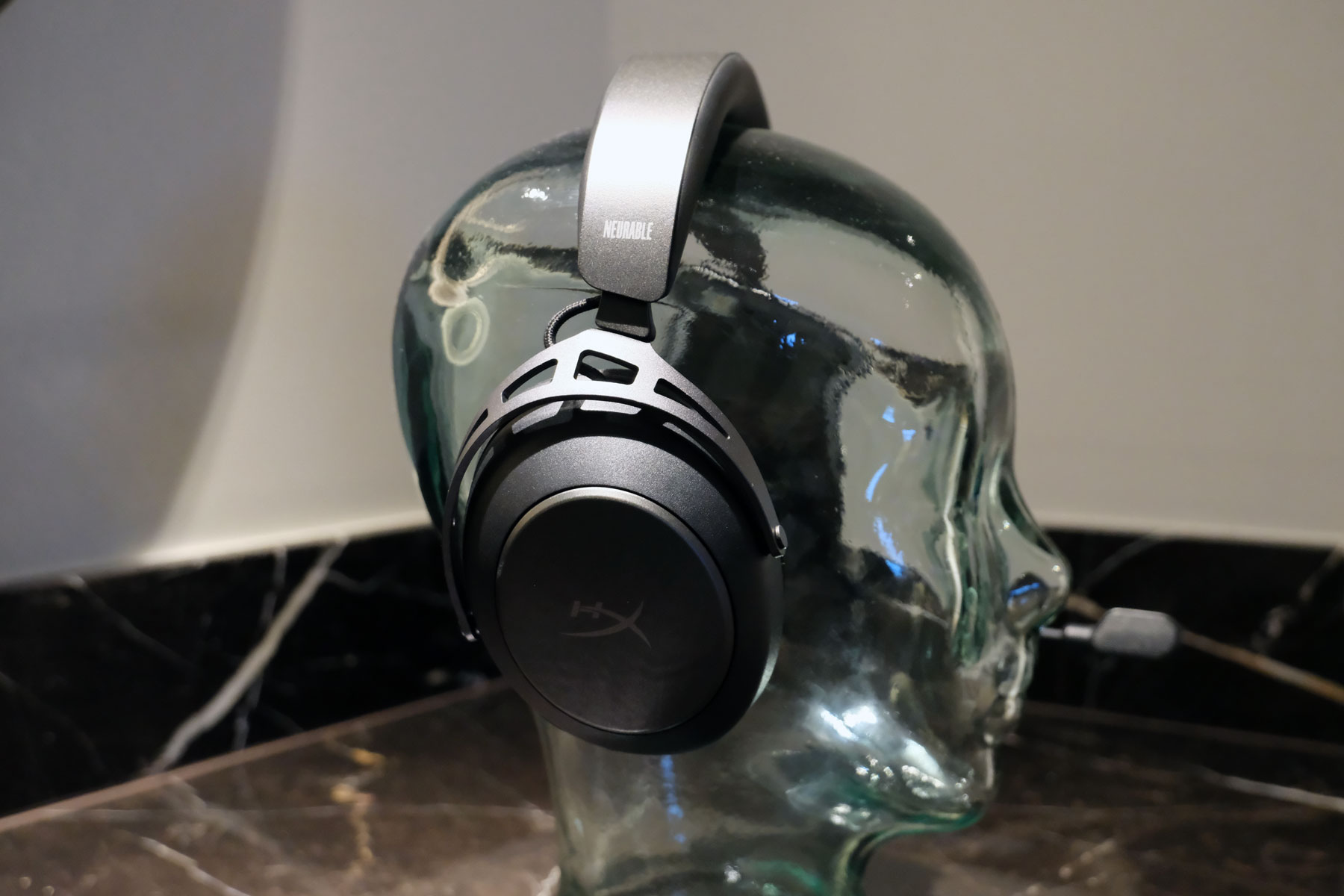
EEGs are more recently used as part of brain computer interfaces, or for neurofeedback tools to help you calibrate the quality of your meditation. InteraXon, for instance, makes the Muse headbands which will monitor your brain waves, telling you when you shift states. Last year, EEG startup Neurable partnered with Master & Dynamic to launch the MW75S Neuro, a pair of high-end headphones designed to track your focus levels. When your attention starts to wane, the system will alert you, advising you to take a rest with the hope of alleviating burnout.
Neurable
Daniel Cooper for Engadget
At CES this year, Neurable announced a partnership with HP’s gaming arm HyperX to produce EEG headsets with specific benefits for gamers. As gamers are looking for any way to improve their performance, the company has developed algorithms and training programs to help. You might already know that being in a place of high stress isn’t great for your concentration and focus. Consequently, Neurable research scientist Dr. Alicia Howell-Munson walked me through a system that encourages you to reach a state of calm focus with demonstrable improvements in reaction time and accuracy. It’s a system that was initially designed in partnership with Singapore’s Air Force to help ensure pilots remain in a state of calm focus.
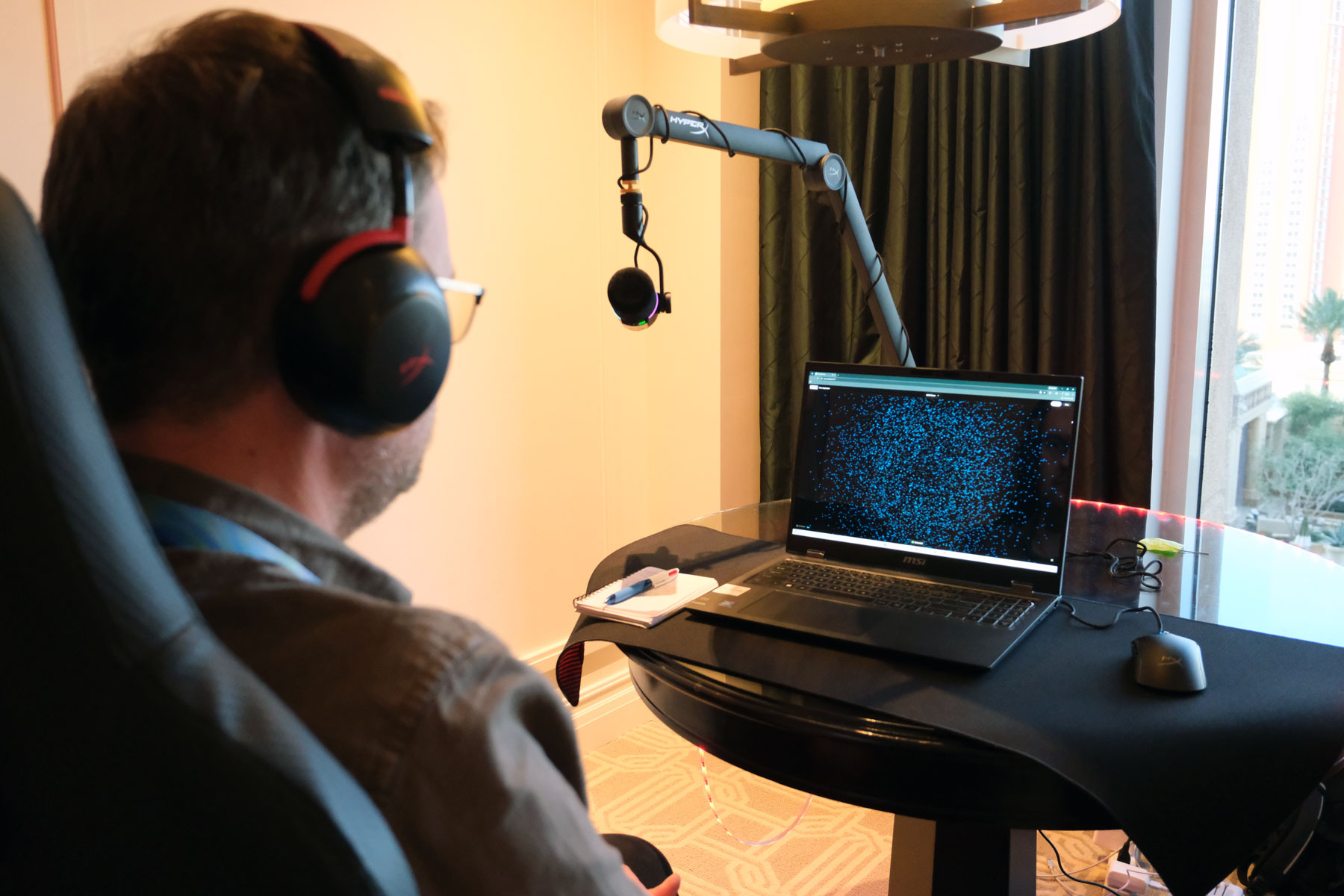
I sat through this demo myself, initially testing my skills in Aimlabs (a tool people use to test their reflexes) where my accuracy and reaction times were measured. Then, while wearing Neurable’s headset, I had to practice focusing my attention on a galaxy of dots, the greater my focus, the slower and closer together the dots got. That wasn’t an easy process, and it took me nearly five minutes to reach the point where I could push all of the dots to coalesce into a single point on the screen. But, when I had, I retook the shooting gallery, and saw dramatic spikes in my performance. My accuracy increased from 91.3 to 99.1 percent, while my reaction time fell from 623ms to 532ms.
Neurable HyperX headset
Daniel Cooper for Engadget
Neurable believes that its systems, which are designed to integrate with any manufacturer’s gear, has the potential to dramatically increase a person’s brain health and productivity. For instance, by taking a break when a person’s focus started to wane, they were able to bounce back and function for far longer than if they’d simply pushed harder. Similarly, the company can advise on your cognitive speed and brain age and guide you toward making healthy choices. The company says that this isn’t just about wellness, either, as being able to identify loss of focus is vital, for instance, to help reduce auto accidents when truck drivers feel fatigued.
Co-founder Adam Molnar explained that the benefits of this technology compound over time, so the more practice a user has in finding that mental state of calm focus, the easier it will be to maintain it for longer. CEO Ramses Alcaide added the company’s aim is to enable people to visualize the often invisible symptoms of cognitive stress to ensure they’re looking after themselves. He added that one thing that separates Neurable from other companies is that it’s looking at far finer-grain detail from its EEG data.
MyWaves
Daniel Cooper for Engadget
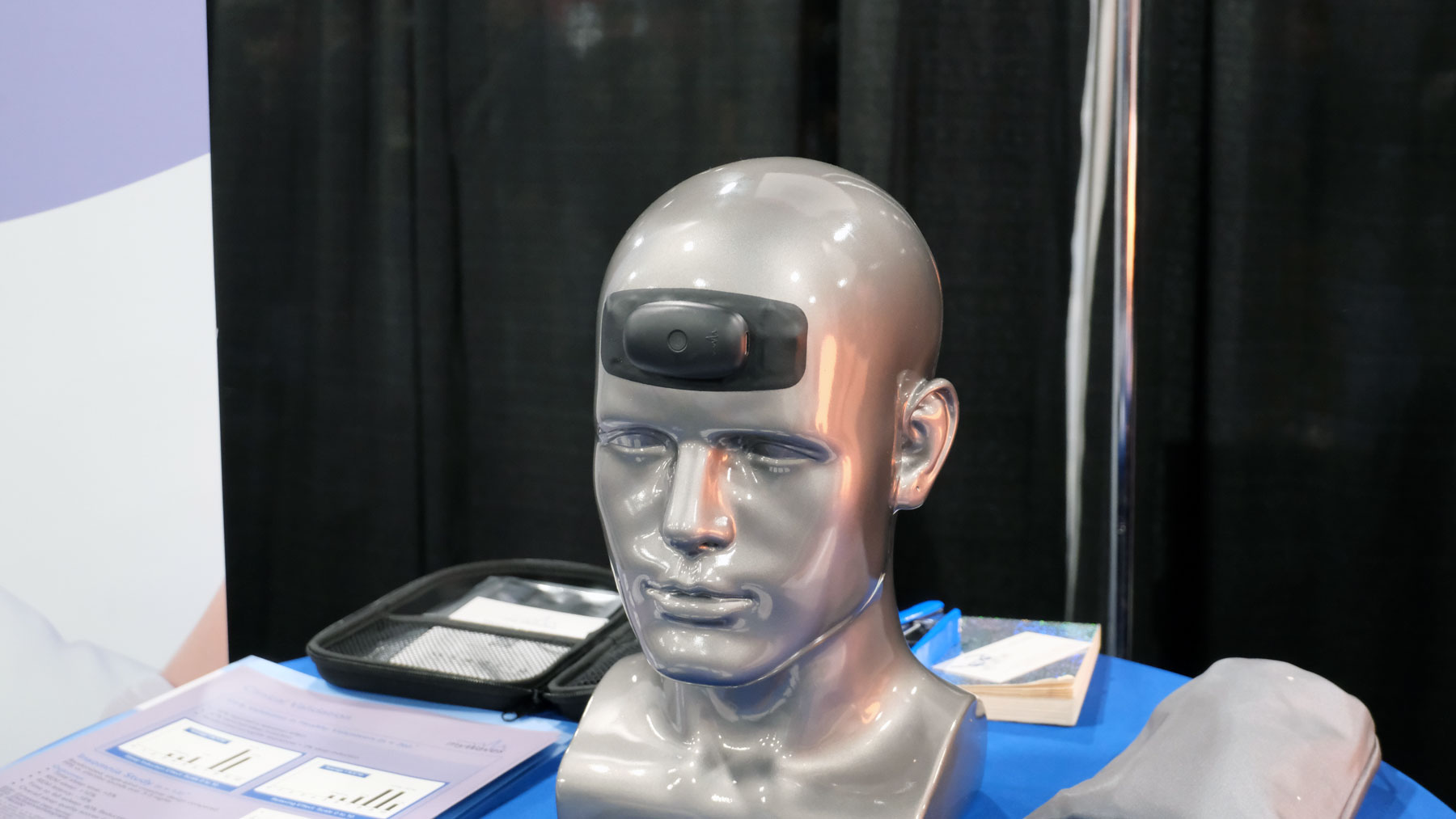
There are plenty of companies at CES that are using EEGs for more specific goals, such as MyWaves. It uses an EEG as part of its broader offering to use sound patterns to make it easier to go to sleep. It sells you a pricey forehead-worn EEG which you wear for a few nights over the course of a year. From there, the system produces a half hour audio file that will mirror the pattern of your delta brainwaves. It claims that, if you listen to the track before you go to bed, the experience of hearing your delta waves will help you fall asleep faster and experience more REM sleep.
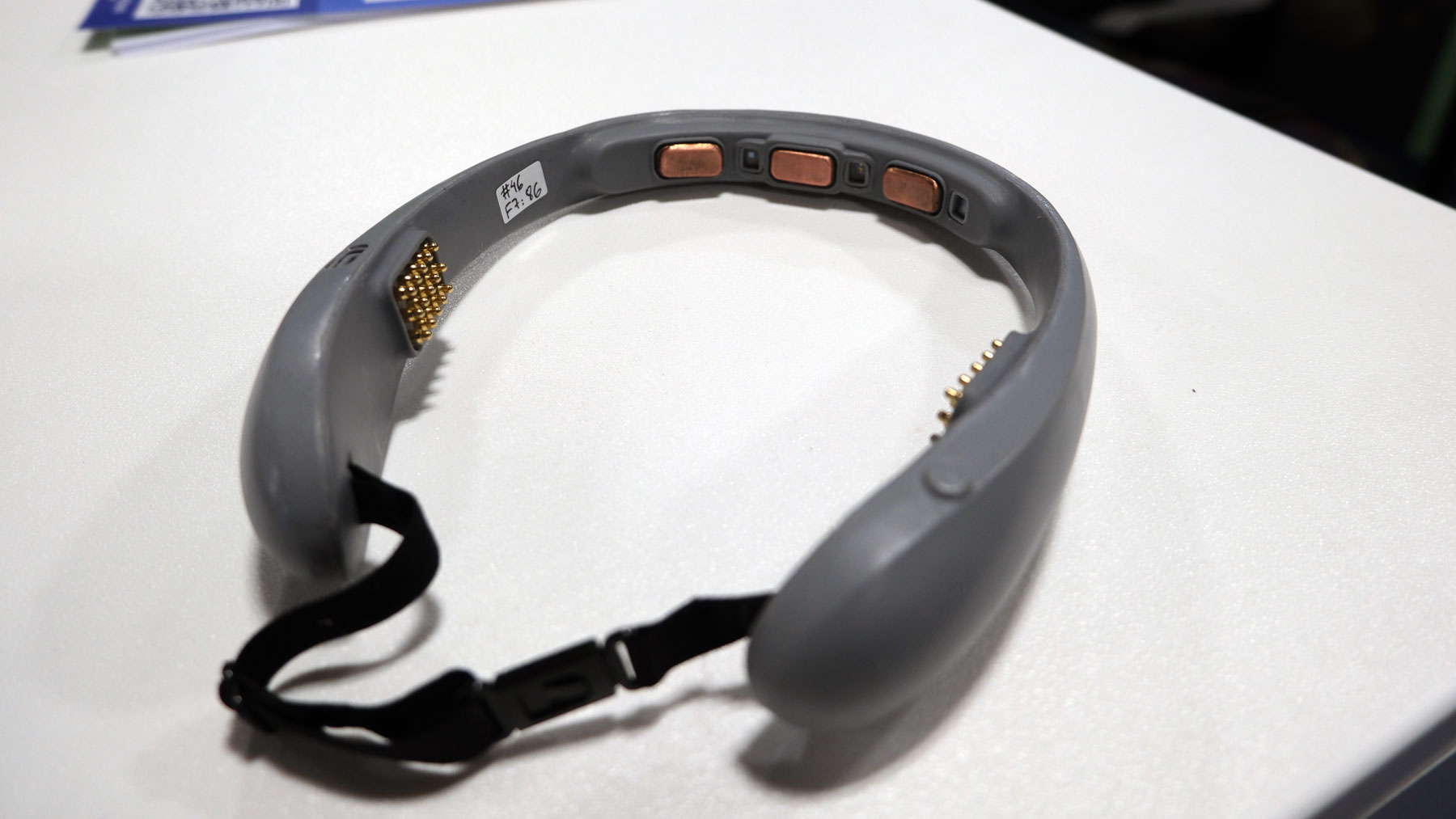
And there are plenty of companies which are building EEGs for you to wear to keep an eye on your mental health. Brain-Life, for instance, showed off an early prototype of Focus+, a headband EEG with a companion app that can offer feedback on your cognitive load. It can also tell you how long you can sustain your attention and how well your mind relaxes and recovers. The company didn’t have details on when the hardware would be available or how much it cost, as it’s still early days.
BrainEULink.
Daniel Cooper for Engadget
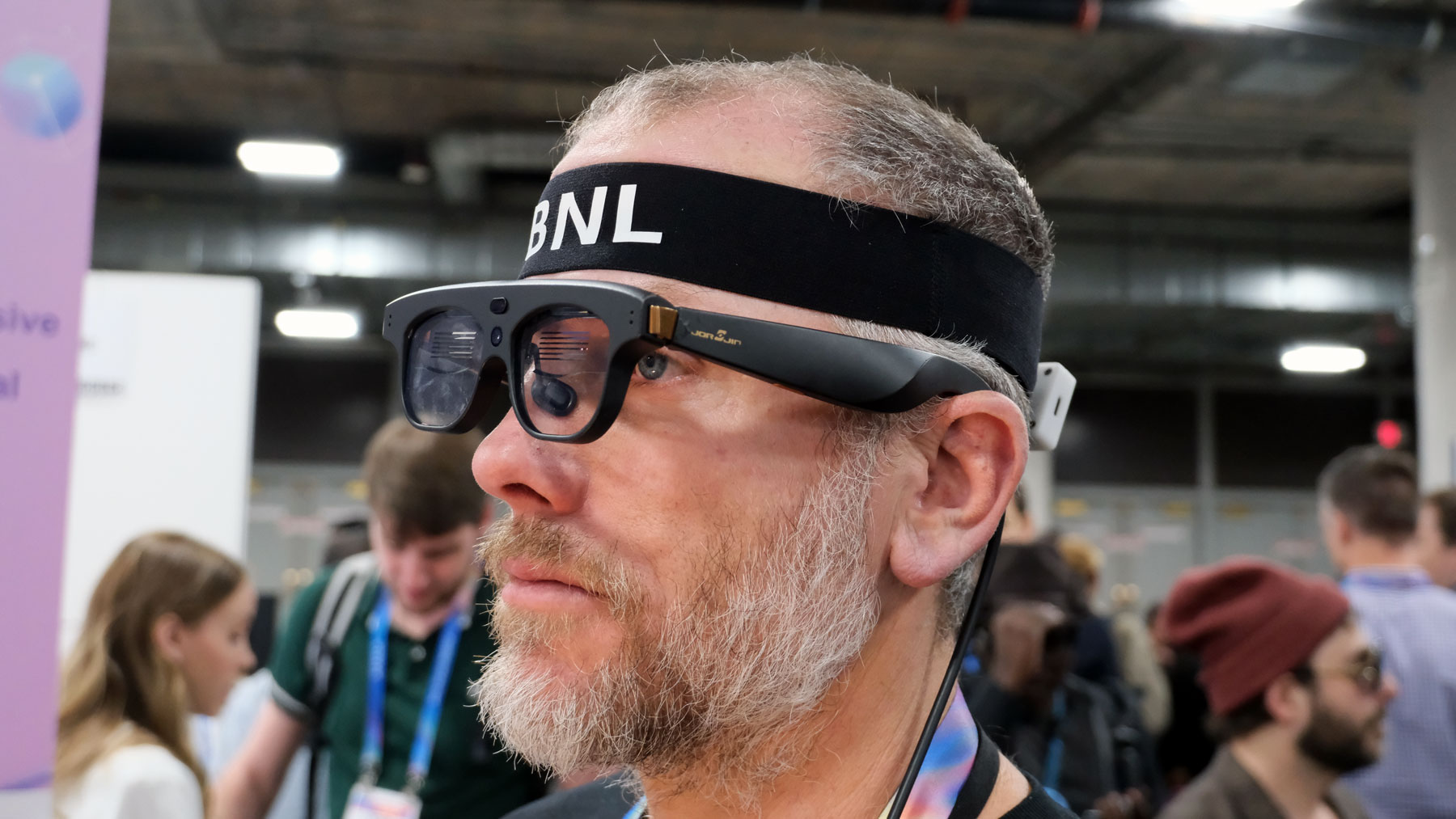
There is broad potential to use an EEG as a brain computer interface, such as the one worked on by Braineulink. That company has combined an EEG with an AR headset to enable people to interact with the world just with their brains. For instance, in a demonstration in the show floor at CES, I was able to turn a light on and off by “focusing” on it, although it’s hard to know how useful that would be in, for instance, creating an assistive device for folks with limited mobility. Like Brain-Life, it’s early days, and so there’s no product that we can point to, but it’s clear we’re going to see more startups looking to enter this world.
Brain-Life
Daniel Cooper for Engadget
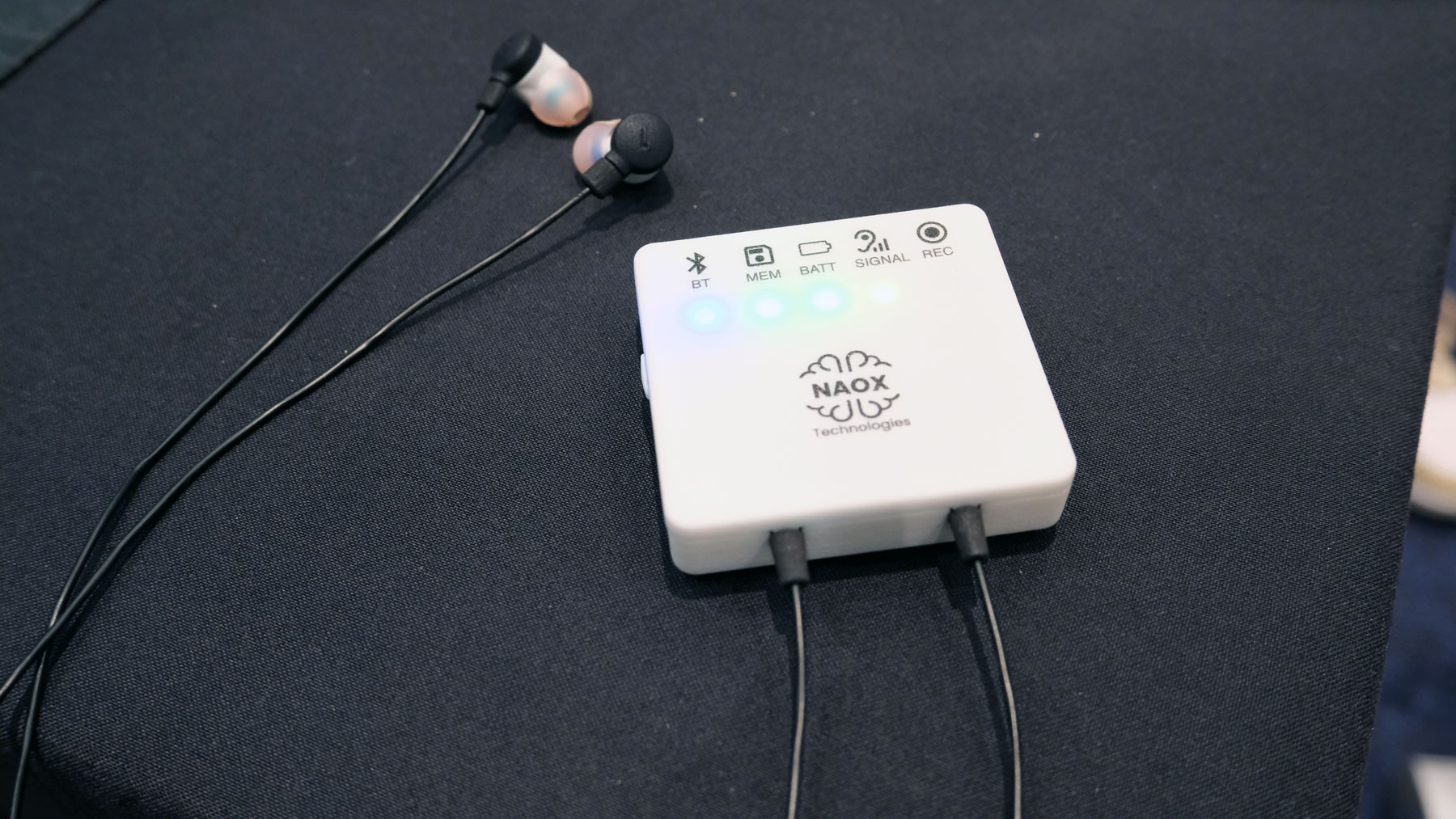
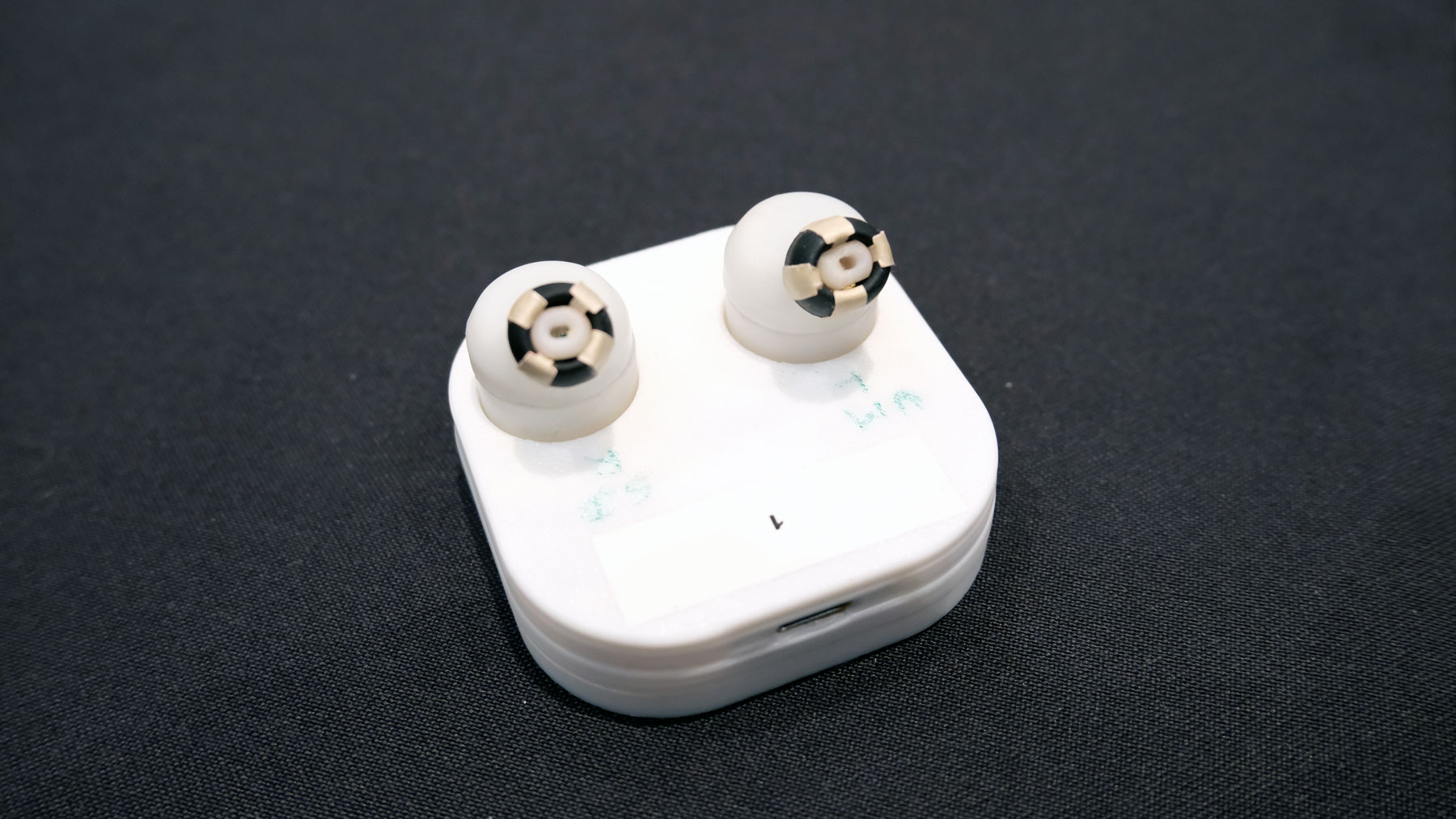
As EEGs become more commonplace, it’s likely they’ll be packaged in smaller devices which fit more seamlessly into our lives. One such example is NAOX, a French startup which has built a wearable, clinical-grade EEG into a pair of earbuds for the sort of longitudinal testing required to diagnose conditions like epilepsy. But the company is also planning on incorporating the technology into a pair of true wireless earbuds.These headphones won’t be arriving until the end of 2026, but Naox says the tech is small enough that it can be integrated with other companies earbuds. Consequently, it’s certainly plausible we could see plenty of earbuds that will keep an eye on our brain health as a side hustle.
Naox
Daniel Cooper for Engadget
NAOX was co-founded by Dr. Michel Le Van Quyen who, at a talk in London in December 2025, talked about the rationale for creating an in-ear ECG. Essentially, he was looking to build a brain equivalent to the Apple Watch’s continuous heart rate monitoring (and ECG). I was curious about the science behind an ear-mounted EEG given they commonly use the scalp. Professor Friston said that an ear-mounted EEG is potentially more useful as “you can get slightly closer to the sources of activity.” And that it makes a lot of sense for a consumer-grade EEG to be added to wireless earbuds given their utility in practices like meditation.
Naox's prototype TWS earbuds sensors.
Daniel Cooper for Engadget
One downside of the proliferation of wearable EEGs is that it could lead users to jump to the wrong conclusions about their mental health. For instance, if someone is to be diagnosed with a condition such as epilepsy, they need to undergo a 24-hour perambulatory EEG. As Professor Friston explained, the recording of that 24 hour EEG would be “carefully scrutinized by experts who are able to run a differential diagnosis ... to specify what further investigations are required.” He, like a lot of clinicians, is concerned about ill-informed consumers using these devices to make medical interventions without consulting a professional.
Friston added that people shouldn’t expect wearable EEGs to be magic bullets for their brain health or cognition. He said the best way for a consumer to approach them is by treating them with the same level of reverence as a household thermometer. “Are thermometers useful in managing the wellness of my children?, Yes,” he explained, “can your thermometer tell you what particular virus you have? Absolutely not.” “In the context of well-being and to augment or validate practices such as mindfulness and meditation, they can be fun and useful quantitative devices.” But, fundamentally, that is all he feels they can be, especially right now.
This article originally appeared on Engadget at https://www.engadget.com/wearables/the-ces-companies-hoping-your-brain-is-the-next-big-thing-in-computing-175048601.html?src=rss
OpenAI is launching a new facet for its AI chatbot called ChatGPT Health. This new feature will allow users to connect medical records and wellness apps to ChatGPT in order to get more tailored responses to queries about their health. The company noted that there will be additional privacy safeguards for this separate space within ChatGPT, and said that it will not use conversations held in Health for training foundational models. ChatGPT Health is currently in a testing stage, and there are some regional restrictions on which health apps can be connected to the AI company's platform.
The announcement from OpenAI acknowledges that this new development "is not intended for diagnosis or treatment," but it's worth repeating. No part of ChatGPT, or any other artificial intelligence chatbot, is qualified to provide any kind of medial advice. Not only are these platforms capable of making dangerously incorrect statements, but feeding such personal and private information into a chatbot is generally not a recommended practice. It seems especially unwise to share with a company that only bothered paying even cursory lip service to the psychological impacts of its product after at least one teenager used the chatbot to plan suicide.
This article originally appeared on Engadget at https://www.engadget.com/ai/chatgpt-is-launching-a-new-dedicated-health-portal-210150083.html?src=rss

 Anmelden