❌

Lese-Ansicht

The best USB-C hub for 2026

Having fewer ports makes laptops and tablets lighter and more affordable — but that also cuts down on your connectivity options. If you’ve got a MacBook Air, a slim Chromebook or a tablet you’d like to get more utility out of, a USB-C hub can help. Using just a single port on your device, these multiport adapters will let you hook up screens, tap into Ethernet cables, connect mice and keyboards, and transfer data to drives and memory cards. Most also give you a way to power your device through the hub to maximize port availability. We tested over a dozen models to come up with picks for every budget. Here are the best USB-C hubs, according to our tests.

Table of contents

Best USB-C hubs for 2026

What to look for in a USB-C hub

Hub vs docking station

The first thing to decide is whether you need a USB-C hub or a USB-C docking station. There’s no set standard for what differentiates the two, but docking stations tend to have more ports, offer a separate DC power adapter and cost more, with some reaching upwards of $400. We have a separate guide to the best docking stations to check out if you’re looking for something bigger than what we’re discussing here. USB-C hubs, in contrast, have between four and 10 ports, can support pass-through charging and typically cost between $30 and $150.

Hubs, sometimes also called dongles or even multiport adapters, make more sense for smaller setups with just a few peripherals, such as a monitor, a wired keyboard and mouse, and the occasional external drive. They’re also more portable, since they’re small and require no dedicated power. That could be useful if you change work locations but want to bring your accessories with you, or if you want to replace your laptop with a more powerful tablet. A docking station or Thunderbolt dock makes more sense for someone who needs a robust setup for their laptop, including multiple external monitors, webcams, stream decks, microphones and so on.

Both docks and hubs make it easy to grab your laptop off your desk for a meeting or other brief relocation and when you get back, you only need to plug in one cable to get all your accessories reconnected. Of course, if you just need to plug in one peripheral, you may not need a hub or a dock, a simple USB-C adapter, like HDMI to USB-C or USB-A to USB-C, may do the trick.

Ports

For a USB-C hub to work, it needs to connect to a port on your laptop or tablet that supports video, data and power — all of which is covered by anything listed as USB 3.0 or better, including USB4 and Thunderbolt 3 and Thunderbolt 4. The port, of course, needs to be Type-C as well. The sea of laptops out there is vast, so it’s hard to make generalizations, but modern laptops, including Windows and Apple models, should have at least one USB-C port that will suffice, and indeed, every one of our top picks for the best laptops do — including our top pick, the M4 MacBook Air.

Next, it’s a matter of finding a good USB-C hub that has the right connections for your needs. Most hubs offer some combo of HDMI, USB, SD card reader, Ethernet and 3.5 mm ports. If you have a 4K monitor and would like at least a 60Hz refresh rate, you’ll need a hub with an HDMI 2.0 port — HDMI 1.4 only goes up to 30Hz. HDMI 2.1 will handle 4K at up to 120Hz, but hubs that have adopted that standard aren’t as common just yet. Keep in mind that a low refresh rate can cause your screen to feel laggy, making your mouse appear glitchy and your webcam movements to look delayed.

Additional USB ports on these accessories are usually USB Type-A or USB Type-C. They can support data with different transfer rates, typically 5Gbps or 10Gbps. Some ports only handle passthrough power and no data, and some can do data, power and video, so it’s best to check the spec list to make sure you’re getting the support you need. Keep in mind that a hub may bill itself as a 7-in-1, but one of those ports may not be usable for anything other than charging.

Standard SD and microSD cards are useful for transferring data from cameras and the like or for offloading files from your hard drive, and many hubs have those slots. Ethernet ports may deliver faster internet speeds than your Wi-Fi and a hub with a 3.5mm jack can bring back the wired headphone connection that some laptops have ditched.

Power delivery

Nearly all of the USB-C hubs I tested support passthrough charging. That means if your laptop or tablet only charges via USB, you don’t have to take up another port on your laptop to keep everything topped up. Unlike a docking station, powering a hub is optional. The one exception is if you want to close the lid on your laptop while you work on an external monitor. Most computers will go into sleep mode if the lid is closed without power, so either the laptop or the hub will need to be plugged into the wall to prevent that from happening.

Many of the newer hubs include a 100W USB-C power delivery (PD) port, with a healthy 80 to 85 watts going to your Mac, PC, iPad or Android tablet (the hubs take a little of the juice for themselves, hence the 15-watt or so difference). In my tests, a powered USB hub ran hotter than when it wasn't passing the charge through, so I prefer to power the computer directly using its own charger. But for tablets or other devices with no extra ports, that PD option is important.

Some PD ports are also data ports — which is both good and bad. On one hand, it feels wasteful to use a perfectly good data port just for boring old electricity. But on the other hand, USB-C connections that only carry a charge are less versatile, and it makes it seem like it has more accessory hookups than it actually does.

Design

There’s surprisingly little design variation among hubs. Most look like a flat slab, a little smaller than a smartphone, and have an attached Type-C host cable. The hues range from a silvery black to a silvery gray. Some are thinner than others, some have all ports on one edge and some have ports on both sides. All of this is just to say that aesthetics probably won’t make or break your buying decision.

One variation that could tip the scales is the length of the cable. A longer one will give you more freedom as you arrange the hub on your desk, potentially even letting you hide it behind your laptop. Or you may prefer a shorter one to keep the hub neatly set beside your laptop.

How we test USB-C hubs

Before we test anything, we take a look at what’s available and how they’ve been received by shoppers, forum-goers and other publications. I became familiar with a few reputable brands when I was testing docking stations, so I looked into hubs from those companies as well. I focused on items that would help with an average day of productivity — not high-end setups or demanding gaming situations. Once I settled on a dozen or so that would make good candidates, I had them shipped to my humble office in the desert and started testing them out over the course of a few weeks.

I used an M1 MacBook Pro running MacOS Sonoma as the host computer and plugged in accessories that include a 4K Dell monitor, a ZSA USB-C ergo keyboard, a Logitech USB-A gaming mouse, an Elgato USB-C 4K webcam, a Logitech streaming light, a USB-A 3.0 Sandisk thumb drive, a USB-C Samsung T7 Shield external drive and a pair of wired headphones I got for free on an airplane (I should probably invest in some wired headphones, but the cord dangling on my chest drives me nutty so all my earbuds are wireless). I used high-end HDMI and USB-C cables to ensure that any data or connectivity issues weren’t related to my equipment.

Then I put each USB-C hub through a gamut of basic tests. I looked at what could be plugged in at once, the resolution on the monitor, data transfer speeds, the overall build quality of the hub and general usability factors, like the placement of the ports and the length of the cords. And, finally, the price-to-value ratio helped determine the best ones for a few different use cases.

Other hubs we tested

HyperDrive Next 10 Port USB-C Hub

There’s a lot to like about HyperDrive’s Next 10 Port USB-C Hub. The tethered cable is a lavish 13 inches long, the HDMI 2.0 port outputs clear and crisp 4K visuals at 60Hz and the high-speed data transfers are great. It has the coveted two USB-C data ports plus a PD port, and there’s even a headphone jack. The only thing that holds back a full-throated endorsement is the way our unit handled a streaming light. Having it on at full brightness made the webcam flicker every time. The issue went away at 75 percent brightness, but the same problem didn’t happen on any other hub I tested.

Anker 341 USB-C Hub (7-in-1)

There’s nothing wrong with the Anker 341 USB-C hub. In fact it’s a current recommendation in our iPad accessories guide and it comes at a great $35 price. It gives you two USB-A ports as well as SD slots. But at this point, a 1.4 HDMI connection, which only supports 4K resolution at 30Hz feels a little retro. There’s also just a single USB-C downstream port and the data transfer tests proved to be a touch slower than the other hubs. But if you’ve got a lower resolution monitor and don’t need more than one USB-C, you won’t be disappointed with it.

Anker 555 8-in-1

It was a tough call between the UGreen Revodoc Pro 109 and the Anker 555 8-in-1 for our top recommendation. Both have a similar port array with an HDMI, Ethernet, two USB Type A, a PD USB-C and a USB-C 3.2 on the 555. And the Anker USB-C hub is $15 cheaper. We went with the UGreen hub for its more premium build, extra USB-A port and longer cord that gives you two extra inches to work with. But if you want to save a few bucks this hub is a worthwhile pick. 

Startech 4-Port USB-C Hub (data only)

I only became aware of Startech when I started researching for this guide. The quality is decent and the yellow accents are a welcome bit of color in the otherwise very gray world of hubs. The performance is solid, with no hiccups that I encountered. The brand’s 4-Port USB-C Hub has a long cord that wraps around the hub itself, which is unique. It doesn’t bother with power delivery, which isn’t an issue if you can power your computer directly. But the four USB ports (three Type-A and one Type-C) max out at 5Gbps and there’s no HDMI connector. It goes for $46, and unfortunately for it, there are cheaper ways to get a few more USB ports for your setup.

Recent updates

January 2026: Added an honorable mention from Satechi. 

This article originally appeared on Engadget at https://www.engadget.com/computing/accessories/best-usb-c-hub-120051833.html?src=rss

©

© Amy Skorheim for Engadget

Best USB-C hubs
  •  

The best laptop power banks for 2026

Laptop power banks come in handy if you often travel or work away from your desk. These larger batteries have enough capacity to refill your computer to around 75 percent, giving you many more productive hours. Of course, they can also charge smaller devices like your phone, camera or tablet a few times over. Nearly all portable laptop chargers fall below the 100-watt-hour mark so you can bring them in your carry-on when you fly. Additional features, like built-in cables and digital displays make these battery banks easier to use, too. We tested over a dozen options and put our thoughts below, so you can find the best laptop power bank for your next trip away from an outlet.

Table of contents

Best laptop power banks for 2026

What to look for in a laptop power bank

Flying with a laptop power bank

Most portable batteries top out at around 27,000mAh so you can fly with them. The TSA currently limits the capacity carry-on batteries to 100Wh, which works out to around 27,500mAh for 3.6 volt lithium-ion batteries. Note that you’re not allowed to pack any batteries in your checked luggage, regardless of capacity. The TSA rules are intended to limit fire danger — and some airlines are implementing further restrictions due to recent on-board incidents.

In March 2025, a Hong Kong flight was grounded after a battery pack caught fire in an overhead bin. A similar situation happened that same year in July on a domestic Delta flight, and again in August on a transatlantic KLM flight. As a result, some airlines, including Emirates, Southwest and others have announced further restrictions on flying with battery packs.

Rules include limiting the number of allowed portable chargers and requiring flyers to keep power banks in clear view when using them to recharge a device. If the battery pack isn’t actively in use, however, most rules allow them to stay in your carry-on bag in the overhead bin. Before flying, it’s wise to check your airline’s policies.

Capacity

If you just need to keep a smartphone from dying before you can make it home, just about any of the best power banks will do. But if you need to revive multiple devices or the substantial battery of a laptop, you’ll want something with a high milliamp-hour​​ (mAh) capacity. A power bank capable of delivering enough power to a laptop will have a capacity between 20,000 and 27,000 mAh.

If you want something even bigger than a laptop power bank, and don’t need to fly with it, you’ll likely want to look into portable power stations. These can be the size of a car battery or larger and can potentially fuel an entire weekend away.

Another thing to keep in mind is that the capacity listed in a power bank's specs is not what will be delivered to your devices. As I mentioned, the capacity of these banks is around 25,000mAh. Even the huge battery on a 16-inch MacBook Pro or a Dell XPS 16 has a mAh rating of around 5,000 - 6,000mAh, so you might think you’d get five full charges but in reality, you only get about a single 70-percent charge. The voltage is different (typically 3.7V for the power bank and 11.4V for a laptop) which makes the watt-hours, or the amount of energy each battery can hold, different (working out to 92Wh for the battery and 72Wh for the built-in laptop batteries). On top of that, in order to feed a charge from a power bank to a laptop, a voltage conversion takes place and that dissipates a decent amount of energy.

Without turning this into a physics lesson, this all means that a power bank with a 25,000mAh (or 92Wh) capacity will typically fill a 5,000mAh (or 72Wh) laptop battery to about 75 percent. In my tests, I averaged about a 60-percent efficiency rate between a power bank’s listed capacity and the actual charge delivered.

Ports

Every large power bank I’ve tested has at least three USB ports, with a mix of USB-C and USB-A, which should cover nearly any portable device you need to recharge — earbuds, phones, tablets, laptops, you name it. In addition to the different plug formats, some ports supply power at different wattages. For example, one built-in USB-C port might be rated for 60 watts, while the one next to it is rated for 100 watts. So if you’ve got a device that’s capable of 70W fast charging, such as the new MacBook Air, you’d want to opt for the 100W port to get the best charging speeds possible. 

Note that devices with a smaller wattage draw won’t be negatively affected by connecting to ports with high ratings. For example, a Galaxy S24 Ultra, capable of 45W super fast charging, is perfectly compatible with the 100W port. A device will only draw what it can take, regardless of what a port can supply. Just remember that the port, device and charging cable need to be at or above the desired wattage rating to achieve maximum charging rates.

Some of these larger batteries also have AC ports. It might seem like a natural fit to plug in your laptop’s power adapter for a recharge. But really, the AC port should only be for devices that can’t use USB — such as a lamp or a printer. Plugging a power adapter into the AC port only wastes energy through conversion. First, the battery converts its DC power to supply the port with AC power, then the power adapter converts that AC power back to DC so your laptop can take it in. And as you’ll remember from physics class, each time energy is converted, some is lost to heat and other dissipations. Better to cut out the middleman and just send that DC power straight from the battery to the device.

Also, you can use more than one port at a time with these devices; just remember that the speed of whatever you’re charging will likely go down, and of course, the battery is going to drain proportionally to what you’re refilling.

Wireless charging

Since I first started testing portable power banks a few years ago, wireless charging capabilities have noticeably improved. The first few I tried were painfully slow and not worth recommending. Now the wireless pads built into power banks are impressively fast — particularly, in my experience, when charging Samsung Galaxy phones (though the lack of a stabilizing magnetic connection like Apple’s MagSafe means they only work when rested flat on a pad). Most wireless charging connections can be used while other ports are also being employed, making them convenient for some mobile battlestation setups.

Of course, wireless charging is always less efficient than wired, and recharging from an external battery is less efficient in general. If you want to waste as little energy as possible, you’re better off sticking to wired connections.

Design

All power banks are designed to be portable, but there’s a big difference between a pocket-friendly 5,000mAh battery and one of these laptop-compatible bruisers. Most of the latter weigh between a pound and a half to two pounds, which is a considerable addition to a backpack. Many of the options listed here have a display to tell you how much charge remains in the battery, which is helpful when you’re trying to judiciously meet out charges to your devices. If a bank has a wireless connection, the pad is usually on the flat top and any available AC connection is usually at one end. Both may require you to engage those charging methods. Don’t be like me and grumble loudly that you got a bum unit without pressing (and sometimes double pressing) all the buttons first.

How we test portable laptop chargers

For the past three years, I’ve been testing and using dozens of portable batteries for our other battery guide. Some of those batteries include the higher-capacity power banks you see here. I also got a hold of a few extra banks just for this guide to make sure we covered what’s available. I went for brands I’m already familiar with, as well as battery packs from well-received manufacturers I hadn’t tried before (like UGREEN and Lion Energy). I only considered banks with at least a 20,000mAh capacity and mostly stuck with those that rated 25,000mAh and higher.

Here’s everything we tested:

I tested each power bank with an Apple phone (iPhone 15 or 16), an Android phone (Galaxy S23 Ultra), a tablet (M1 iPad Air) and a laptop (16-inch MacBook Pro with the M1 Pro chip). Even though these banks can charge multiple devices at once, I refilled one at a time, to make side-by-side comparisons more straightforward. I drained the batteries of the phones and tablets to between zero and five percent and then didn’t use any device as it refilled.

For the MacBook, I let it run down to 10 percent before plugging in the power bank. That's when most laptops give display a “connect to power” warning, as draining any battery to empty will compromise the battery life. I then used it as one might in a mobile office, with a Bluetooth keyboard and mouse, while connected to Wi-Fi and a VPN.

For each test, I noted how long a completely charged battery took to get a device back to full and how much of the battery’s capacity was used up in one charge. I also noted things like portability, apparent durability, helpful features and overall design.

For reference, here are the battery capacities of the devices I used:

  • iPhone 15: 3,349mAh

  • Galaxy S23 Ultra: 4,855mAh

  • iPad Air (5th gen): 7,729mAh

  • 16-inch M1 Pro MacBook Pro: 27,027mAh

Other laptop power banks we tested

HyperJuice 245W

Hyper’s HyperJuice 245W brick looks great and has a hefty 27,000mAh capacity. The four USB-C ports can combine to output 245W of power and it got my MacBook Pro from nearly dead to 75 percent before depleting itself. When testing it with a Samsung Galaxy S23 Ultra, the handset got back up to a full charge in just over an hour. The screen tells you what each port is doing as well as displaying the amount of charge remaining in the pack itself.

But the lack of port variety makes it feel less versatile than other picks on this list — the price is higher than our other options, too.

Laptop power bank FAQs

How do laptop power banks differ from phone power banks?

The main difference is size. Phone power banks tend to have a capacity ranging from 5,000mAh to 20,000mAh and laptop powerbanks are typically rated between 20,000mAh and 27,000mAh. There’s no official definition, however. Laptop batteries are simply larger and need a bigger supply of power to give them a meaningful charge.

How do you fast charge a power bank?

You can charge a power bank exactly as fast as the power bank’s internal mechanisms will allow. Most batteries are limited in how quickly they can accept and deliver a charge to avoid dangerously overheating. But to make sure you’re charging a bank as quickly as possible, make sure the wall adapter and the USB-C cable you are using have a high wattage rating — using a 5W power brick and a 10W cable will take a lot longer to refill your bank than a 65W wall charger and a 100W cord.

What size power bank do I need for a laptop?

Look for a power bank with a rating of at least 20,000mAh. Slightly smaller batteries may work, but they won’t deliver a significant charge laptops.

How many mAh to charge a laptop?

A milliamp hour (mAh) is how much a battery can hold, and most portable batteries list their capacity using mAh. If you get a battery rated at 20,000mAh or above, it should be able to charge your laptop.

Using mAh to discuss laptop batteries can be confusing. Due to differing voltages, you can’t directly compare the mAh ratings of a power bank battery to a laptop battery. Using watt-hours is a better gauge, as that calculation takes voltage into account.

Recent updates

November 2025: Updated our overall top pick to the Anker Laptop Power bank. Added a premium power bank pick.  

This article originally appeared on Engadget at https://www.engadget.com/computing/accessories/best-laptop-power-bank-120040388.html?src=rss

©

© Engadget

Best laptop power banks
  •  

HP's new EliteBoard made me believe in keyboard computers again

A keyboard computer has always been on my wishlist — that is, a computer where the entire machine was stuffed into a keyboard. Perhaps I caught a glimpse of the Commodore 64 at an impressionable age, but regardless, the idea has always been intriguing to me. At CES 2026, HP is bringing that concept back with the new EliteBoard G1a, which is dubbed a “Next Gen AI PC.”

It's an IT administrator's dream: It looks a typical desktop keyboard, but it has the full power of a Copilot+ AI PC inside. You can equip it with Ryzen 5 or 7 CPUs and their embedded Radeon 800 GPUs, up to 64GB of RAM and as much as 2TB of NVMe SSD storage. All you need to do is add a monitor and a mouse, and you've got a full-fledged desktop setup.

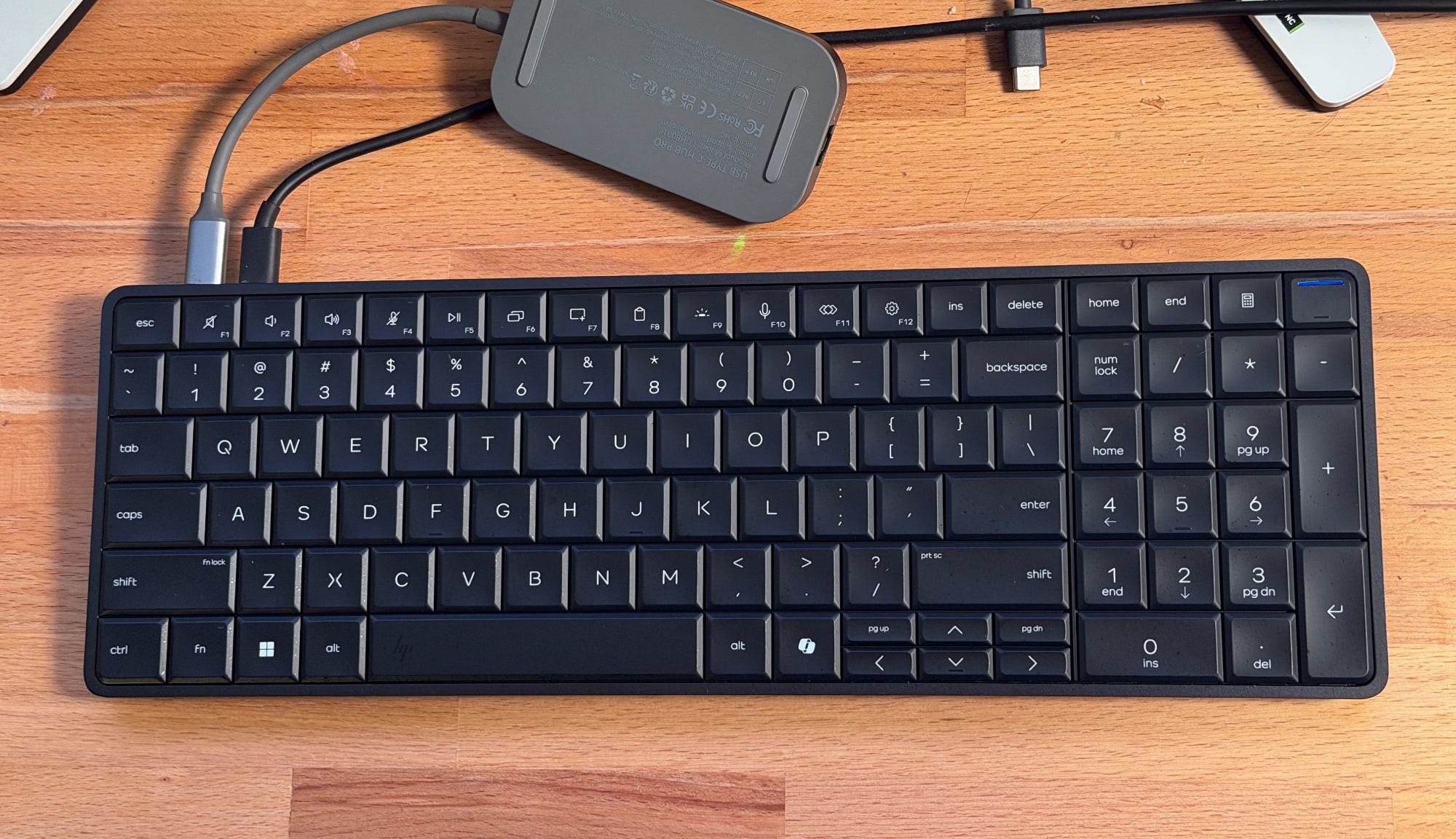
HP EliteBoard keyboard PC.
Devindra Hardawar for Engadget

The more I think about it, the more sad I am that the arc of the computing industry trended towards standardized desktops and laptops. There was a brief spark of interest with the UMPC (ultra mobile PC) trend in the 2000's, which Engadget covered extensively as a young blog, as well as ASUS's Eee keyboard. But they couldn't survive the rise of the smartphone and tablet. It turns out putting an entire computer behind a screen was more compelling than stuffing them into a keyboard.

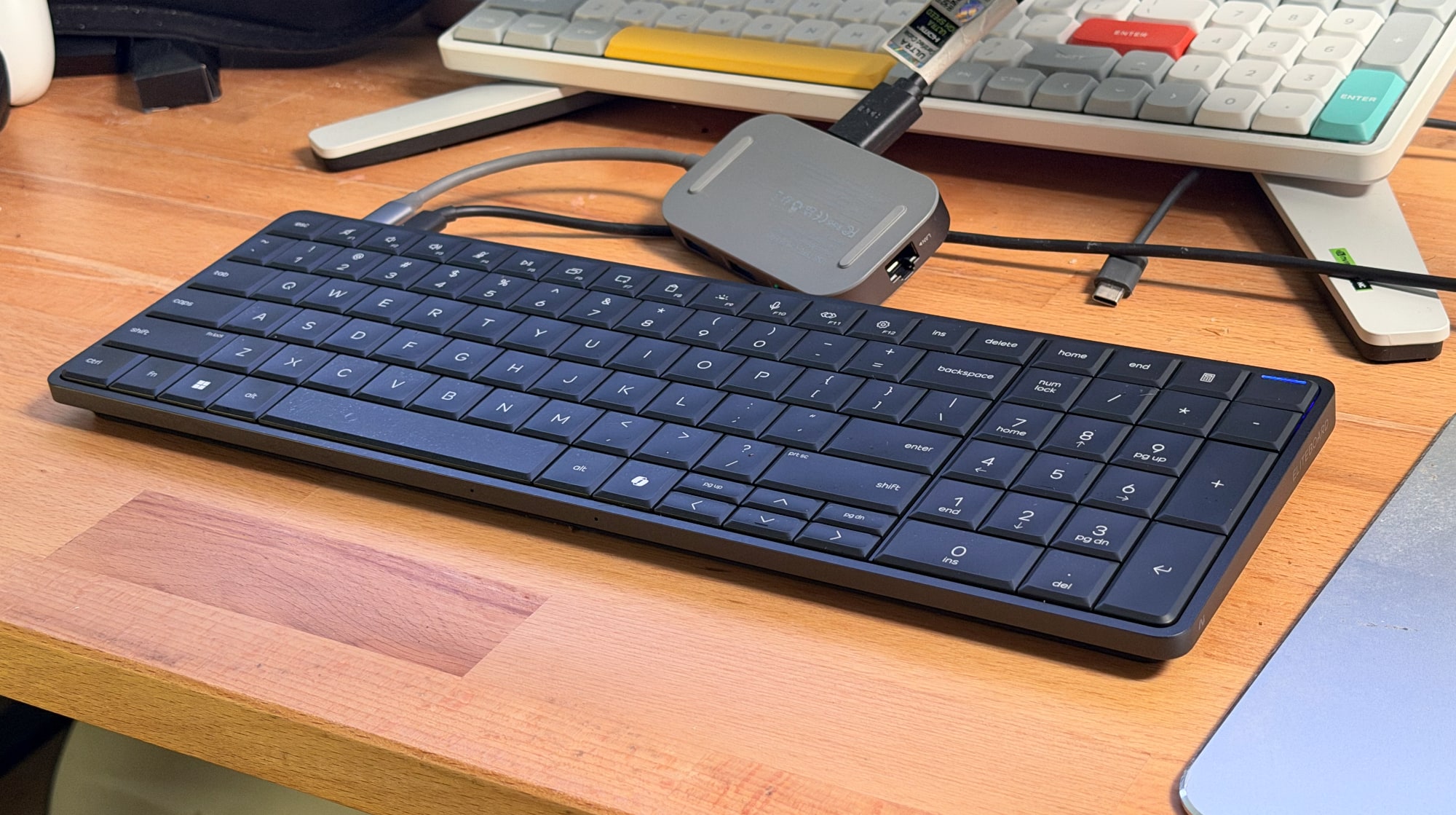
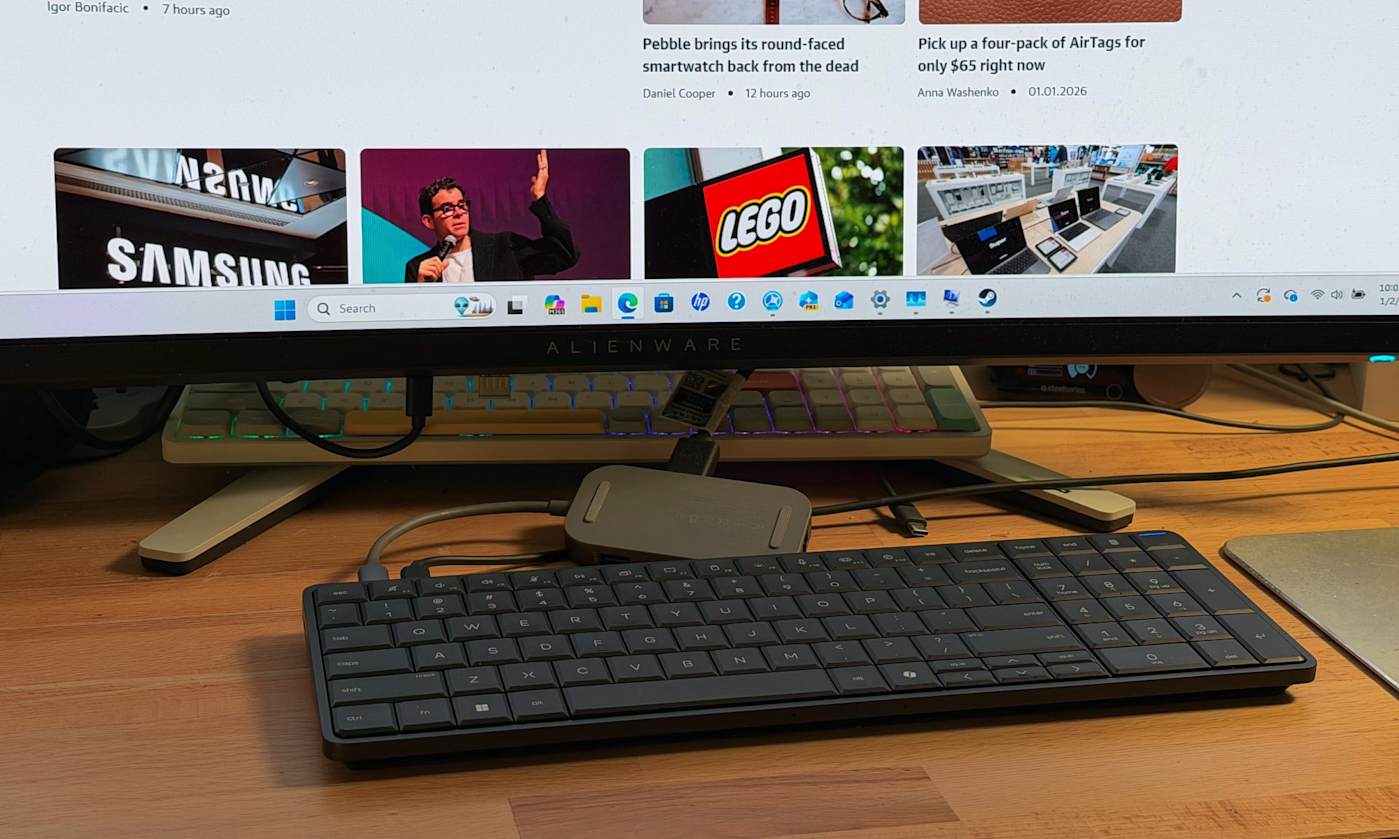
I was able to test out an early EliteBoard prototype, and while the experience wasn't perfect, it's still an intriguing computing option. I had trouble setting it up initially because it only had two USB-C ports on its rear, which meant I had to find a way to power it through one port and pass a video signal through the other. Thankfully, my Anker USB-C charging hub was able to juice it up, and I also had a USB-C hub with an HDMI port, which allowed me to connect to my monitor.

Sadly, the overall setup was a jumble of wires, and not the clean layout I expected from a keyboard PC. Once I was able to start up Windows though, I was less annoyed and more amazed that the keyboard contained an entire computer. I suppose I shouldn't be too surprised, as Intel's Compute Stick placed a functional PC in a much smaller case, but unlike the failed product, the EliteBoard actually felt usable. I was able to load up several browser windows with tabs, edit a few photos and even play a few light games, like Vampire Survivors. And yes, typing on it felt pretty great too.

HP EliteBoard keyboard PC.
Devindra Hardawar for Engadget

Since I was testing out prototype hardware, I agreed not to benchmark the EliteBoard. But from the performance I saw, it felt about the same an entry-level laptop. Basically, it's perfectly suited to its main task: Being a boring office computer. Back in my IT days, I certainly would have preferred deploying a few light keyboards instead of the tank-like Dell desktops we typically ordered.

While the EliteBoard is targeted at commercial users, HP is considering it an experiment to see how people respond to a keyboard PC. There's a chance we could see one that's eventually meant for mainstream consumers. I'm not sure if that's exactly, necessary, though. The whole concept of a desktop PC mainly appeals to tinkerers and IT folks. And for anyone who wants to get their hands on an EliteBoard soon, there's really nothing stopping you.

This article originally appeared on Engadget at https://www.engadget.com/computing/hps-new-eliteboard-made-me-believe-in-keyboard-computers-again-033000022.html?src=rss

©

  •  
❌