❌

Normale Ansicht

The best iPhones for 2026: Which model should you buy?

Apple’s iPhone lineup has grown more complicated over the years, with multiple models targeting different kinds of buyers. Some prioritize camera performance and display quality while others focus on design or price, and not everyone needs the most powerful option on the shelf. If you’re planning an upgrade, the challenge isn’t whether Apple makes a good phone; it’s figuring out which iPhone actually makes sense for you based on how you use it.

We test every new iPhone Apple releases, comparing performance, cameras, battery life and long-term value. In this guide, we break down the current lineup to highlight the best iPhones for different needs, from the best all-around picks to more specialized options that trade raw power for affordability or style.

For consistency, our recommendations are based on Apple’s standard pricing for unlocked models sold directly through Apple. Deals from carriers, third-party retailers or refurbished sellers can shift the value math, but this guide is meant to help you choose the right model first — then decide where to buy it.

Best iPhones for 2026

The rest of Apple's iPhone lineup in 2026

Plain ol' black is an option this time around.
The iPhone 16.
Billy Steele for Engadget

Apple iPhone 16 and iPhone 16 Plus

Apple is still selling the last-gen iPhone 16 and iPhone 16 Plus for $699 and $799, respectively, but the improvements made with the iPhone 17 have forced both devices into something of a no man’s land. The 16 Plus and its 6.7-inch display might be worth it if you want a large-screen iPhone for a much lower price than the iPhone 17 Pro Max, but you’ll miss out on the base model’s 120Hz always-on display and upgraded dual-camera setup. If you just want a usable iPhone for as little as possible, meanwhile, the iPhone 16e is acceptable for $100 less. In general, we think the iPhone 17 is worth the extra $100; its 6.3-inch display helps it split the difference between the 16 and 16 Plus anyway.

iPhone FAQs

The bottom half of both the iPhone 16 Pro and iPhone 16 Pro Max standing on a table.
Brian Oh for Engadget

When is the best time of year to buy an iPhone?

The best time to buy an iPhone, or really any product, is whenever you need one. But if you want to maximize how long your iPhone is considered “current,” plan to upgrade in late September. Apple almost always introduces its new core models around then. SE and “e” iPhones, meanwhile, have arrived between February and April, but those aren’t guaranteed annual releases.

Cash discounts on new unlocked iPhones are rare, so there usually isn’t much reason to wait for a deal before buying (as is often the case with Samsung or Google phones). Carriers will run their own sales, but those typically involve locking you into years-long service plans. The exception would be if you specifically want an older iPhone, since Apple typically cuts the price of its last-gen devices by $100 or more when it introduces a new model. So, for instance, if you know you won’t care about the inevitable iPhone 17’s upgrades, you could wait until that device is announced and get the iPhone 16 for a little cheaper.

How long does an iPhone last?

This depends on the person and how they define “last.” If we had to give a broad estimate, we’d say most iPhone users keep their device between two and four years. If you’re particularly sensitive to performance and camera improvements, you might want to upgrade on the earlier side of that timeline. If you’re not as picky, you could hold out for even longer — though you’ll likely want to get a battery replacement sometime around the three- or four-year mark (or whenever you notice your battery life has severely degraded).

Software support shouldn’t be a problem regardless: Apple is renowned for keeping its devices up-to-date long-term, and the current iOS 26 update is available on iPhones dating back to 2019. Most of those older phones don’t support Apple Intelligence, so there isn’t total parity, but that’s not a big loss in the grand scheme of things.

How do I know how old my iPhone is?

Go to your iPhone’s Settings, then tap General > About. You should see the Model Name right near the top. You can also tap the Model Number below that, then verify the resulting four-digit code on Apple’s identification page to further confirm.

If you don’t want to use software, for whatever reason, you can also find your iPhone’s model number printed within its USB-C or Lightning port, if the device lacks a SIM tray. For older devices, you can alternatively find that number within the SIM slot or — if you’re still hanging onto an iPhone 7 or older — right on the back of the handset.

Recent updates

September 2025: We’ve overhauled this guide to reflect the release of the new iPhone Air and iPhone 17 series. The base iPhone 17 is our new top pick for most people, while the iPhone 17 Pro and Pro Max represent the best iPhones you can buy if money is no object. The iPhone Air is worth considering if you care about style above all else, while the iPhone 16e remains acceptable if you want the most affordable new iPhone possible.

August 2025: We’ve taken another pass to ensure our advice is still up-to-date and noted that we expect to Apple to launch new phones soon in September.

June 2025: We’ve lightly edited this guide for clarity and added a few common FAQs. Our picks remain unchanged.

February 2025: The new iPhone 16e replaces the iPhone 15 and iPhone 15 Plus as our “budget” pick. We’ve also removed our notes on the iPhone 14, iPhone 14 Plus, and iPhone SE (3rd generation), as each has been formally discontinued.

January 2025: We've made a few minor edits for clarity and ensured our recommendations are still up to date.

December 2024: We’ve made a few edits to reflect the release of Apple Intelligence, though our picks remain the same.

This article originally appeared on Engadget at https://www.engadget.com/mobile/smartphones/best-iphone-160012979.html?src=rss

©

© Engadget

Best iPhones
  •  

How to track your sleep and view your sleep data in Apple Health

Apple Health brings sleep tracking, scheduling and long-term analysis into one place, with your iPhone acting as the hub and the Apple Watch doing the overnight monitoring. Once everything is set up, Apple Health can show how long you slept each night, how consistent your sleep schedule is and how much time you spend in different sleep stages. Here is how to get started, track your sleep and review your data.

Sleep tracking in Apple Health relies on two things: You need to set up Sleep in the Health app on your iPhone, and you need a compatible Apple Watch to wear to bed. While you can set sleep schedules without a watch, detailed sleep data — including sleep stages — requires an Apple Watch.

How to set up Sleep in Apple Health

Sleep tracking is available on all watchOS 8 (or later) models and setup starts in the Health app on your iPhone. Open Health, tap Browse and then tap Sleep. If this is your first time setting it up, you will see an option to get started. Apple Health will guide you through choosing a sleep goal, setting a bedtime and wake-up time and deciding whether you want one sleep schedule for every day or different schedules for weekdays and weekends.

During setup, you can also enable sleep reminders and a wind-down period. Wind Down reduces distractions before bedtime by activating features like Focus mode and dimming notifications at a set time before sleep. These settings are optional but they help keep your schedule consistent, which improves the quality of the data Apple Health collects over time.

Once Sleep is configured, Apple Health automatically syncs those settings to your Apple Watch. You can adjust your sleep schedule later by returning to the Sleep section in Health and tapping Full Schedule and Options. Any changes you make here update on both your iPhone and Apple Watch.

How to prepare your Apple Watch for sleep tracking

To track sleep, your Apple Watch needs to be worn overnight and have enough battery to last until morning. If the battery drops below 30 percent before bedtime, your watch will prompt you to charge it first. Sleep tracking also relies on Sleep Focus which activates automatically based on your sleep schedule. Once Sleep Focus has been set, open the Settings app on your Apple Watch, tap Sleep and ensure that Track Sleep with Apple Watch is turned on. With both features enabled your watch can monitor sleep automatically without any manual start or stop each night. 

Comfort matters when wearing a watch to bed, so many people prefer a softer band for sleep. As long as the watch fits securely and stays in contact with your wrist, it can track sleep without issue.

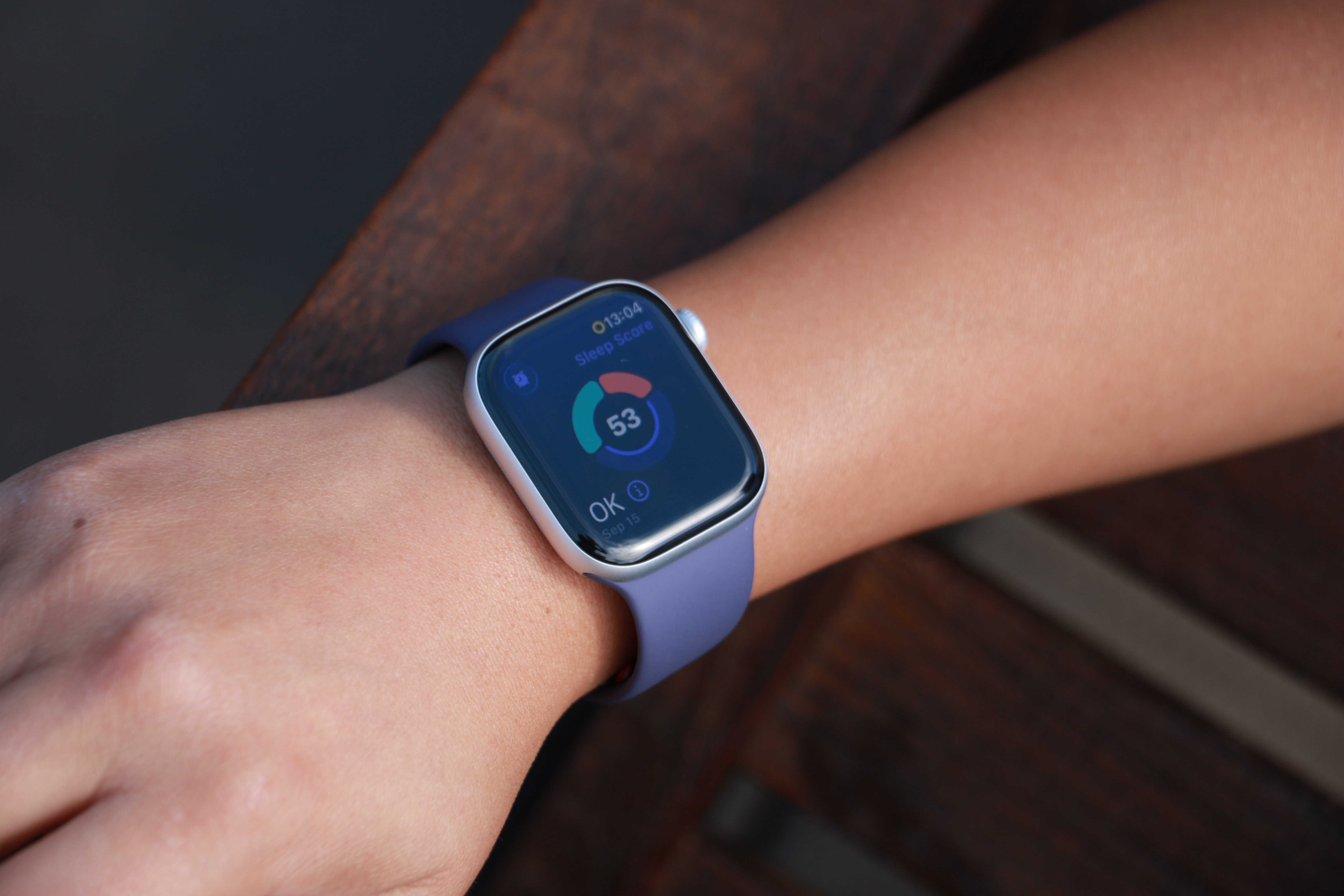
The Apple Watch Series 11 on a person's wrist, showing a ring with three segmented arcs encircling a Sleep Score of 53 and the description "OK" in the bottom left.
Cherlynn Low for Engadget

How Apple Watch tracks your sleep

When Sleep Focus is active, the Apple Watch uses its accelerometer and heart rate sensor to detect when you are asleep and awake. Newer models also track sleep stages, including time spent in REM, core and deep sleep. Apple Health combines this information into a single overnight record that appears in the Sleep section the next morning.

You do not need to start or stop sleep tracking manually. As long as you follow your sleep schedule or enable Sleep Focus before bed, the Apple Watch automatically does everything else. If you wake up early or go to bed later than planned, Apple Health adjusts the data based on actual movement and heart rate rather than just your scheduled times. In addition, some Apple Watch models (SE 3 or higher) support on-device Siri, enabling you to ask questions such as “how much sleep did I have last night?” for a more immediate response.   

How to view your sleep data in Apple Health

To see your sleep data, open the Health app on your iPhone and tap Browse, then Sleep. At the top of the screen, you will see a chart showing how long you slept the previous night. Tapping this chart reveals a detailed breakdown, including time asleep, time in bed and sleep stages (if available).

Scrolling down shows trends over longer periods. You can switch between daily, weekly, monthly and six-month views to see patterns in your sleep duration and consistency. Apple Health also highlights whether you are meeting your sleep goal and how regular your schedule has been.

Under Highlights, Apple Health may surface insights such as changes in average sleep time, variations in sleep stages or your nightly sleep score. Sleep scores provide a simplified summary of how well you slept, and is based on factors such as duration, consistency and restfulness. These summaries update automatically as more data is collected over time.

Understanding sleep stages and trends

If your Apple Watch supports sleep stages, Apple Health displays how much time you spent in REM, core and deep sleep. These stages give context to your overall sleep quality, though Apple emphasizes trends over individual nights. Occasional short nights or unusual stage distributions are normal.

Over time, Apple Health makes it easier to spot patterns. Consistently short sleep durations, irregular bedtimes or frequent awakenings become clearer when viewing weekly or monthly summaries. This makes the Sleep section useful not just for nightly check-ins but for understanding longer-term habits.

Editing and managing sleep data

Apple Health allows you to add or edit sleep data if needed manually. In the Sleep section, tap Add Data to log sleep that was not recorded automatically. This can be useful if you forget to wear your watch or take a nap without it.

You can also manage which devices contribute sleep data by scrolling to the bottom of the Sleep screen and tapping Data Sources and Access. This is helpful if you use third-party sleep apps or multiple devices.

Once set up, sleep tracking in Apple Health runs quietly in the background. With a consistent schedule and a charged Apple Watch, your sleep data builds into a clear picture of your nightly rest, all stored securely within Apple’s health platform.

This article originally appeared on Engadget at https://www.engadget.com/mobile/smartphones/how-to-track-your-sleep-and-view-your-sleep-data-in-apple-health-130000023.html?src=rss

©

  •  

Noble Audio has released a USB-C Bluetooth dongle for high fidelity transmission

Noble Audio has announced the Sceptre, a pocket-sized USB-C Bluetooth transmitter meant to boost wireless audio quality from phones, laptops and tablets. The device is intended to exceed the quality offered by a device's existing hardware.

Sceptre is powered by Qualcomm's QCC5181 Bluetooth chipset and supports LDAC, aptX Adaptive, AAC and SBC codecs. Of course, to take advantage of the high quality codecs you'll need a pair of headphones that support them. The dongle has a reported wireless range of roughly 66 feet.

Listeners use the Noble app for initial pairing and can then move the dongle between compatible USB-C devices. It also supports pass-through charging with USB-C so users can charge their devices while listening. The company says Sceptre is compatible with iOS, Android and Windows, and the company confirmed with Engadget that iPhones 15 and newer are supported.

We've been pleased in the past with Noble Audio products, like the FoKus Apollo headphones, or the FoKus Rex5 earbuds. The Sceptre from Noble Audio is available for $70.

This article originally appeared on Engadget at https://www.engadget.com/audio/noble-audio-has-released-a-usb-c-bluetooth-dongle-for-high-fidelity-transmission-191655786.html?src=rss

©

© Noble Audio

Noble Audio Sceptre
  •  

Google will soon offer AirDrop support on more Android devices

One of the more surprising tech developments in 2025 was Google bringing two-way support for Apple’s AirDrop functionality to its Pixel 10 series of phones. At the time, Google said it intended to expand the feature to other devices at a later date, and that date could be just around the corner.

At a press briefing attended by Android Authority at Google’s Taipei office, Eric Kay, Android’s Vice President of Engineering, confirmed that AirDrop interoperability will expand in 2026. "We spent a lot of time and energy to make sure that we could build something that was compatible not only with iPhone but iPads and MacBooks," he said. "Now that we’ve proven it out, we’re working with our partners to expand it into the rest of the ecosystem, and you should see some exciting announcements coming very soon."

Right now, Pixel 10 users can send and receive files and photos between Apple devices and Android using Quick Share. For an Android device to receive from an iPhone, they have to set their Quick Share visibility settings to "everyone for 10 minutes" and make sure they’re in "receive" mode on the Quick Share page.

It’s a similar story for an Android-to-Apple file share. You have to set your iPhone, iPad or Mac’s Airdrop visibility to "anyone for 10 minutes," which enables someone from outside your contacts to use Quick Share on their Pixel 10.

When this feature launched, it wasn’t clear how much involvement, if any, Apple had had, or if the infamous walled garden would once again banish Android-minded intruders in a subsequent software update. But that hasn’t happened, and back in November, Qualcomm confirmed that devices powered by its Snapdragon chips would also soon be able to transfer files to iPhones using Quick Share, suggesting that Pixel exclusivity wouldn’t last for much longer.

Google’s own willingness to play nice with Apple gear is seemingly a move designed to make the lives easier of anyone thinking about making the jump from an iPhone to an Android device. As reported by Android Authority, Kay also said his company was committed to making it as simple as possible to transfer data when switching.

It wasn’t that long ago that the idea of Apple and Google teaming up to make device-hopping more consumer-friendly was the stuff of fantasy, but in December it emerged that the longstanding rivals were working on a new simplified data transfer system. Each company already offers a method for swapping ecosystems, but a new build of Android Canary hinted at something that would work at the operating system level.

Last month, Apple and Google also released a joint statement confirming previous reports that the new version of Siri will utilise Google Gemini’s models, effectively resulting in a Google-powered voice assistant on your iPhone.

This article originally appeared on Engadget at https://www.engadget.com/mobile/google-will-soon-offer-airdrop-support-on-more-android-devices-141523521.html?src=rss

©

© Google

Quick Share AirDrop
  •  
❌