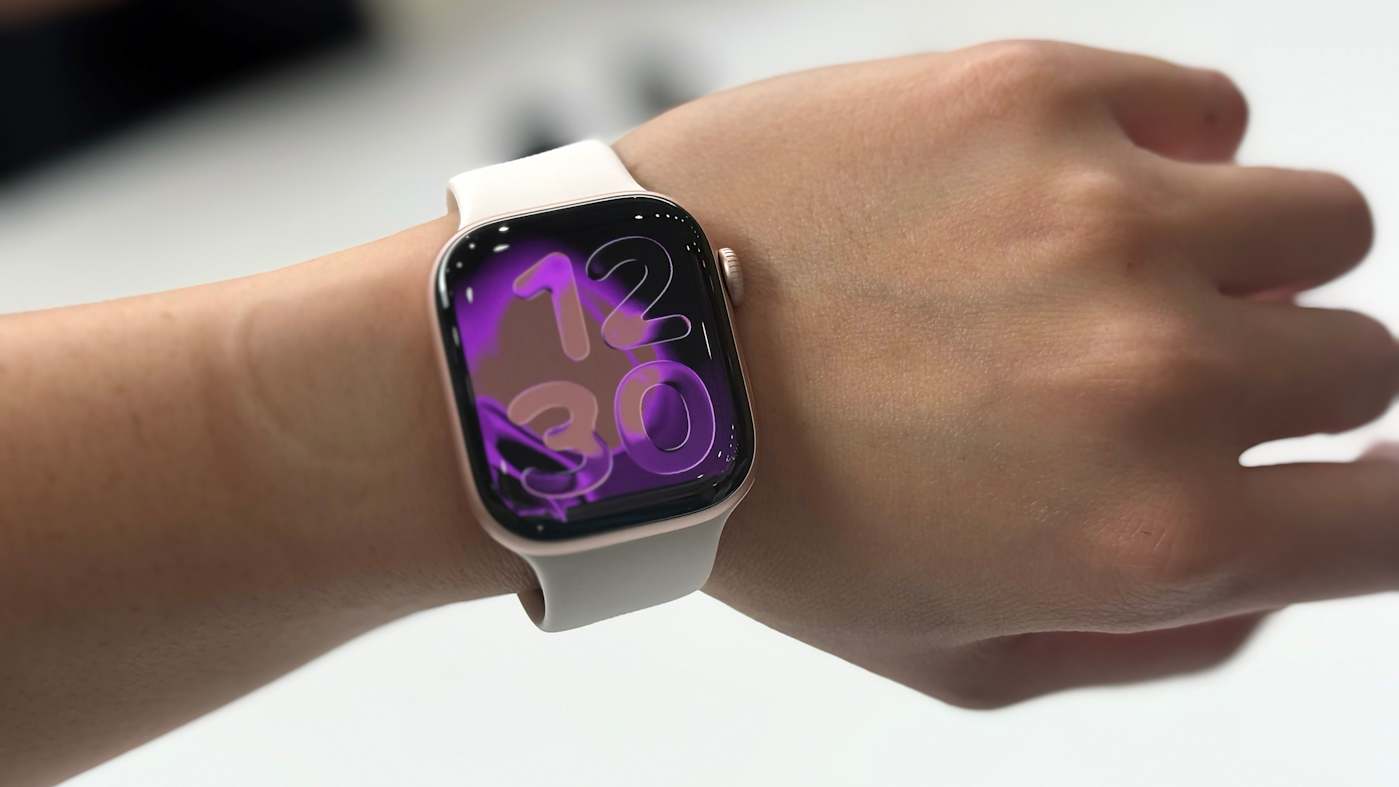
If you need a little help with your New Year's resolution to be more active, you can save on the latest Apple Watch right now. The Apple Watch Series 11 is on sale for $299 for Presidents' Day, which is $100 off and the lowest price we've seen. A number of other Apple devices are on sale for the holiday as well.
We named the Apple Watch Series 11 as our choice for best smartwatch overall. It scored a 90 in our review thanks to its 24 hours-plus of battery life and a thin, light design that's easy to wear. It also offers new health metrics, including Apple's hypertension alerts system and Sleep Score.
The Apple Watch Series 11 deal is available on the 42mm case with a small/medium band. It also only includes GPS and four colorways: the Jet Black and Space Gray aluminum cases with a Black sport band, the Rose Gold aluminum case with a Light Blush sport band and the Silver aluminum case with a Purple Fog sport band.
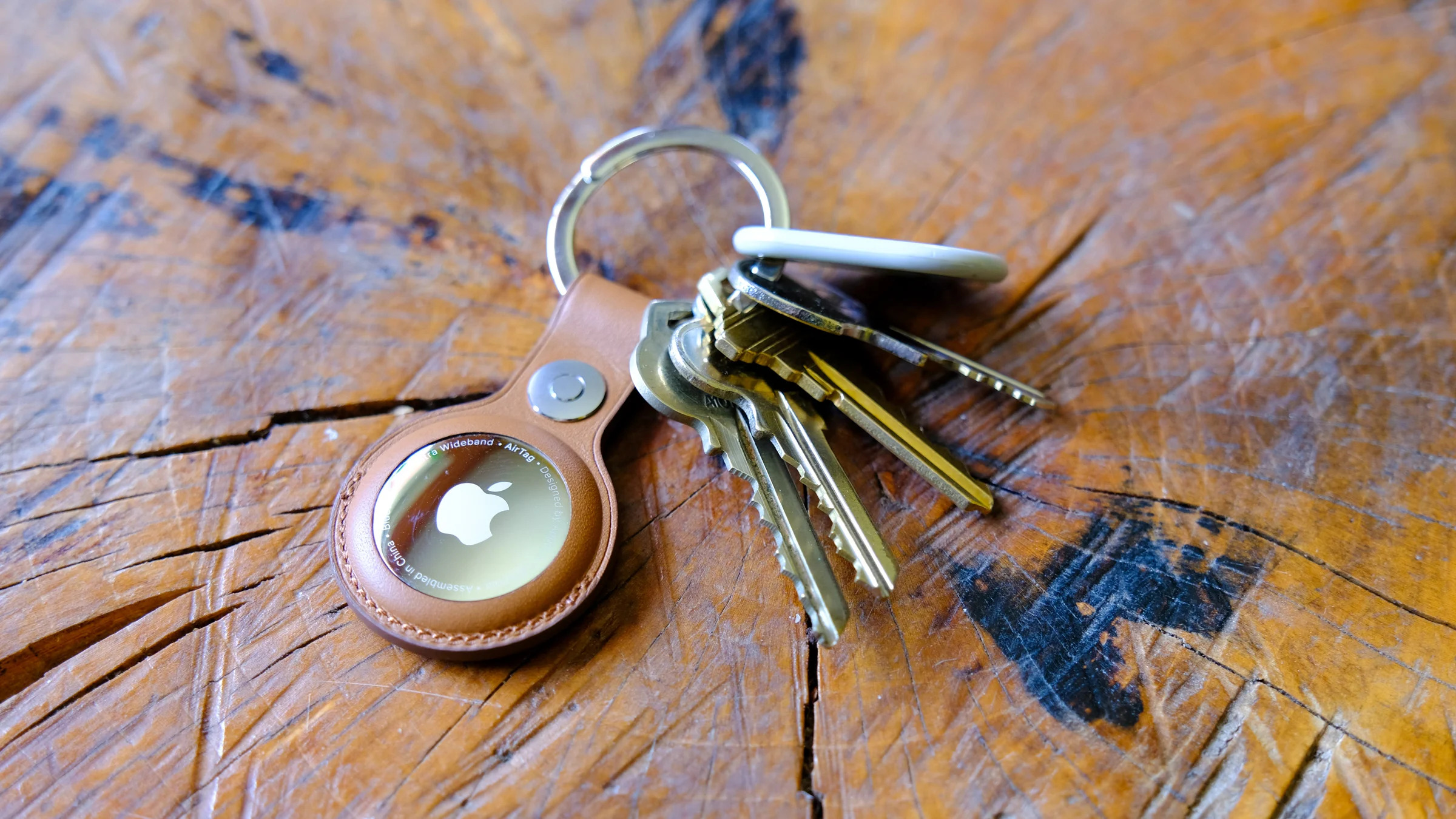
Among the other Presidents' Day Apple deals are mostly accessories: there are solid deals on AirPods, AirTags (the first-gen trackers, not the new, second-gen ones), the iPhone Air battery pack and even Apple's new crossbody straps that attach to the company's iPhone cases so you can essentially "wear" your iPhone like a bag. As with most Apple first-party accessories, you can find plenty of more affordable, third-party versions of them as alternatives. But if you're keen on outfitting your phone with Apple's own gear, it's best to wait for discounts like these. We've collected the best Presidents' Day sales on Apple gear below so you don't have to go searching for them.
This article originally appeared on Engadget at https://www.engadget.com/deals/apple-presidents-day-sales-are-live-get-the-apple-watch-series-11-for-299-plus-more-deals-to-shop-now-151616701.html?src=rss
We found the iPhone Air to have a pretty decent battery life for such a thin-and-light phone, somewhere in the region of 27 hours if you’re continuously streaming video. But it's still a phone, arguably your most used device on a daily basis, so you may need to top it up during the day if you're using it constantly. That’s where Apple’s iPhone Air MagSafe battery pack comes in, and it’s currently on sale for $79.
This accessory only works with the iPhone Air, but much like the phone it attaches to, it’s extremely slim at 7.5mmm, so crucially doesn’t add so much bulk when attached that it defeats the point of having a thin phone in the first place. The MagSafe Battery isn’t enormous at 3,149mAh (enough to add an extra 65 percent of charge to the Air), but it can wirelessly charge the AirPods Pro 3 as well, making it an even more useful travel companion. You can also charge your iPhone while charging the battery pack.
At its regular price of $99, the MagSafe battery pack is an admittedly pricey add-on to what is already an expensive phone, but for $20 off it’s well worth considering what Engadget’s Sam Rutherford called an "essential accessory" for some users in his iPhone Air review.
Many Apple loyalists will always insist on having first-party accessories for their iPhone, but there are plenty of third-party MagSafe chargers out there too, a lot of them considerably cheaper than Apple’s lineup. Be sure to check out our guide for those.
This article originally appeared on Engadget at https://www.engadget.com/deals/apples-iphone-air-magsafe-battery-pack-is-cheaper-than-ever-144516417.html?src=rss
Apple’s AirTag makes it easy to keep tabs on everyday items like keys, bags and luggage using the Find My network. Setup is quick, requires no tools and takes just a minute or two as long as you have a compatible iPhone or iPad. Once paired, your AirTag quietly works in the background to help you locate misplaced belongings. This guide walks through how to set up an AirTag, how to name it so you can easily identify what it’s attached to and what to do if setup doesn’t go as planned.
What you need before setting up an AirTag
Before you begin, make sure you have the following:
An iPhone or iPad signed in to your Apple Account
Bluetooth enabled on that device
Location Services enabled
iOS or iPadOS 14.5 or later (AirTag 2nd generation requires iOS or iPadOS 26.2.1 or later)
A stable Wi-Fi or cellular connection
You’ll also want to ensure iCloud Keychain is enabled and that your Apple Account setup is fully completed in Settings.
How to set up an AirTag using your iPhone or iPad
The easiest way to set up an AirTag is directly through the on-screen setup prompt.
Remove the plastic tab from your AirTag to activate the battery.
Hold the AirTag near your unlocked iPhone or iPad.
When the setup animation appears, tap Connect.
Choose a category for your AirTag, such as Keys, Backpack or Luggage. If you select Custom Name, you can type your own label and choose an emoji.
Tap Continue to link the AirTag to your Apple Account.
Tap Done to finish setup.
Once completed, the AirTag will appear under the Items tab in the Find My app. If you’re setting up multiple AirTags, make sure only one is near your device at a time. If more than one is detected, a notification will appear saying “More than one AirTag detected”. If this happens, move the others farther away and try again.
How to add an AirTag using the Find My app
If the setup animation doesn’t appear automatically, you can add an AirTag manually through Find My.
Open the Find My app on your iPhone or iPad.
Tap the Items tab.
Tap the Add button.
Select Add AirTag or Other Item (if you’re adding a compatible FindMy Network accessory).
Follow the on-screen instructions to complete setup.
You can add up to 32 items in Find My, including AirTags, shared items and compatible accessories. If you’ve reached the limit, you’ll need to remove an item before adding a new one.
What to do if your AirTag won’t connect
If setup fails or the pairing animation disappears, try the following steps:
Lock your iPhone or iPad, unlock it again and wait about 15 seconds for the animation to reappear.
Make sure Bluetooth and Location Services are turned on in Settings.
Check that Find My has permission to use Precise Location.
Ensure you’re signed in to your Apple Account and iCloud Keychain is enabled.
Verify your device is running the latest version of iOS or iPadOS (iOS or iPadOS 26.2.1 or later).
If the AirTag still won’t connect, the battery may need replacing. AirTags use a standard CR2032 coin cell battery, and swapping it only takes a minute. If issues persist after replacing the battery, you may need to reset the AirTag and try setup again.
How to name and label your AirTag
Naming your AirTag makes it much easier to identify when you’re tracking multiple items. During setup, Apple offers preset labels like Keys or Backpack, but you can customize these at any time.
To rename an AirTag after setup:
Open the Find My app.
Tap Items and select your AirTag.
Tap Add Name or Rename Item.
Choose a preset label or select Custom Name.
Optionally add an emoji for quick visual identification.
Clear labels are especially helpful if you use AirTags for travel, work gear or shared household items.
Apple AirTag
Engadget
Attaching your AirTag to everyday items
AirTags don’t have built-in clips or adhesive, so you’ll usually need an accessory to attach one securely. Depending on how you plan to use it, that could mean a key ring, luggage tag, wallet insert or bike mount.
If you’re unsure which style works best, Engadget has rounded up the best Apple AirTag accessories, covering options for keys, bags, wallets and more. Choosing the right accessory helps ensure your AirTag stays attached and works the way you expect.
Wrap-up
After setup, your AirTag will automatically update its location using Apple’s Find My network. You can view its last known location, play a sound to help locate it nearby or use Precision Finding on supported iPhones to guide you directly to it. With just a few minutes of setup and a clear label, an AirTag can become a reliable way to keep track of important belongings, whether you’re at home or on the move.
This article originally appeared on Engadget at https://www.engadget.com/computing/accessories/how-to-set-up-an-airtag-120000789.html?src=rss
If you've been inside all winter gaming then it might be time to upgrade your gear. Right now, the 8Bitdo Pro 3 Bluetooth Controller is available for just over $48, down from $70. The 31 percent discount is the lowest price we've seen yet for the controller. Notably, the sale is only available on the Gray model.
The new 8Bitdo Pro 3 came out in August and offers TMR Joysticks with a 12-bit ADC sampling chip. It also has a Trigger Mode Switch, 2 Pro paddle buttons and swappable magnetic ABXY buttons for moving between the Switch and Xbox layouts. Plus, it has an integrated charging dock.
This 8Bitdo controller is compatible with Apple, SteamOS, Android devices, PC, Switch, and Switch 2 devices.
This article originally appeared on Engadget at https://www.engadget.com/deals/the-8bitdo-pro-3-bluetooth-controller-is-down-to-a-new-all-time-low-143036684.html?src=rss

 Anmelden