Apple’s iPhone lineup has grown more complicated over the years, with multiple models targeting different kinds of buyers. Some prioritize camera performance and display quality while others focus on design or price, and not everyone needs the most powerful option on the shelf. If you’re planning an upgrade, the challenge isn’t whether Apple makes a good phone; it’s figuring out which iPhone actually makes sense for you based on how you use it.
We test every new iPhone Apple releases, comparing performance, cameras, battery life and long-term value. In this guide, we break down the current lineup to highlight the best iPhones for different needs, from the best all-around picks to more specialized options that trade raw power for affordability or style.
For consistency, our recommendations are based on Apple’s standard pricing for unlocked models sold directly through Apple. Deals from carriers, third-party retailers or refurbished sellers can shift the value math, but this guide is meant to help you choose the right model first — then decide where to buy it.
Best iPhones for 2026
The rest of Apple's iPhone lineup in 2026
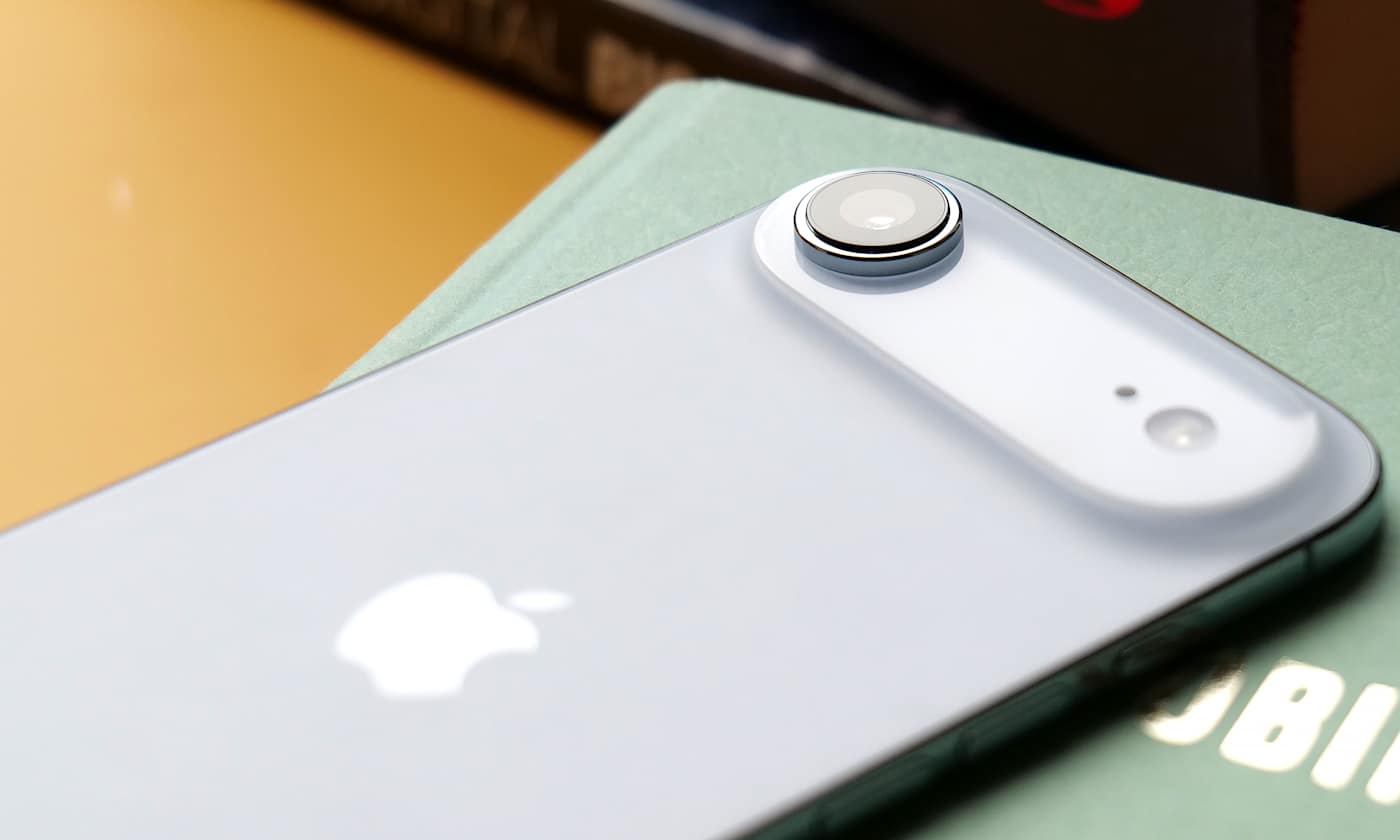
The iPhone 16.
Billy Steele for Engadget
Apple iPhone 16 and iPhone 16 Plus
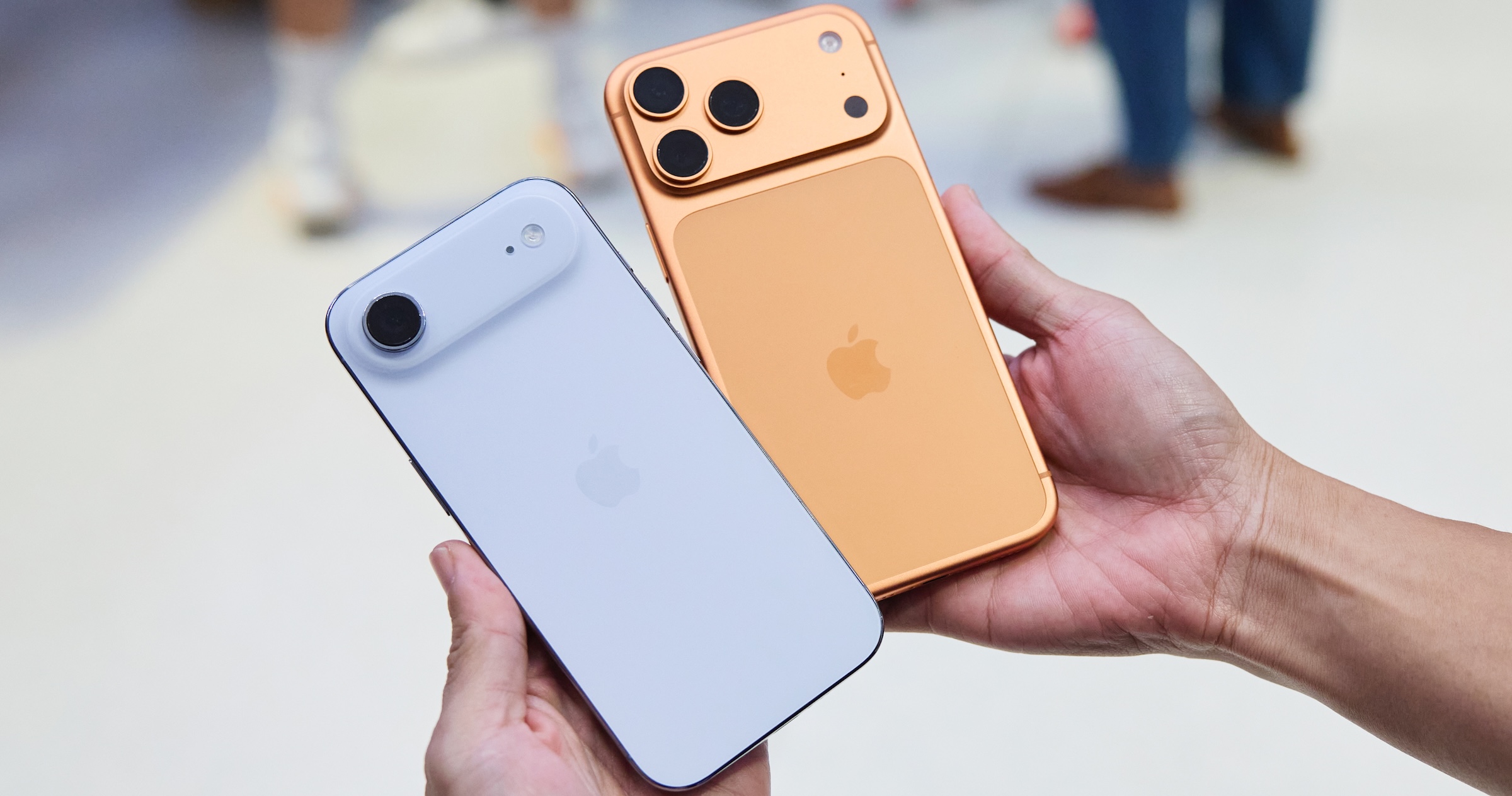
Apple is still selling the last-gen iPhone 16 and iPhone 16 Plus for $699 and $799, respectively, but the improvements made with the iPhone 17 have forced both devices into something of a no man’s land. The 16 Plus and its 6.7-inch display might be worth it if you want a large-screen iPhone for a much lower price than the iPhone 17 Pro Max, but you’ll miss out on the base model’s 120Hz always-on display and upgraded dual-camera setup. If you just want a usable iPhone for as little as possible, meanwhile, the iPhone 16e is acceptable for $100 less. In general, we think the iPhone 17 is worth the extra $100; its 6.3-inch display helps it split the difference between the 16 and 16 Plus anyway.
iPhone FAQs
Brian Oh for Engadget
When is the best time of year to buy an iPhone?
The best time to buy an iPhone, or really any product, is whenever you need one. But if you want to maximize how long your iPhone is considered “current,” plan to upgrade in late September. Apple almost always introduces its new core models around then. SE and “e” iPhones, meanwhile, have arrived between February and April, but those aren’t guaranteed annual releases.
Cash discounts on new unlocked iPhones are rare, so there usually isn’t much reason to wait for a deal before buying (as is often the case with Samsung or Google phones). Carriers will run their own sales, but those typically involve locking you into years-long service plans. The exception would be if you specifically want an older iPhone, since Apple typically cuts the price of its last-gen devices by $100 or more when it introduces a new model. So, for instance, if you know you won’t care about the inevitable iPhone 17’s upgrades, you could wait until that device is announced and get the iPhone 16 for a little cheaper.
How long does an iPhone last?
This depends on the person and how they define “last.” If we had to give a broad estimate, we’d say most iPhone users keep their device between two and four years. If you’re particularly sensitive to performance and camera improvements, you might want to upgrade on the earlier side of that timeline. If you’re not as picky, you could hold out for even longer — though you’ll likely want to get a battery replacement sometime around the three- or four-year mark (or whenever you notice your battery life has severely degraded).
Software support shouldn’t be a problem regardless: Apple is renowned for keeping its devices up-to-date long-term, and the current iOS 26 update is available on iPhones dating back to 2019. Most of those older phones don’t support Apple Intelligence, so there isn’t total parity, but that’s not a big loss in the grand scheme of things.
How do I know how old my iPhone is?
Go to your iPhone’s Settings, then tap General > About. You should see the Model Name right near the top. You can also tap the Model Number below that, then verify the resulting four-digit code on Apple’s identification page to further confirm.
If you don’t want to use software, for whatever reason, you can also find your iPhone’s model number printed within its USB-C or Lightning port, if the device lacks a SIM tray. For older devices, you can alternatively find that number within the SIM slot or — if you’re still hanging onto an iPhone 7 or older — right on the back of the handset.
Recent updates
September 2025: We’ve overhauled this guide to reflect the release of the new iPhone Air and iPhone 17 series. The base iPhone 17 is our new top pick for most people, while the iPhone 17 Pro and Pro Max represent the best iPhones you can buy if money is no object. The iPhone Air is worth considering if you care about style above all else, while the iPhone 16e remains acceptable if you want the most affordable new iPhone possible.
August 2025: We’ve taken another pass to ensure our advice is still up-to-date and noted that we expect to Apple to launch new phones soon in September.
June 2025: We’ve lightly edited this guide for clarity and added a few common FAQs. Our picks remain unchanged.
February 2025: The new iPhone 16e replaces the iPhone 15 and iPhone 15 Plus as our “budget” pick. We’ve also removed our notes on the iPhone 14, iPhone 14 Plus, and iPhone SE (3rd generation), as each has been formally discontinued.
January 2025: We've made a few minor edits for clarity and ensured our recommendations are still up to date.
December 2024: We’ve made a few edits to reflect the release of Apple Intelligence, though our picks remain the same.
This article originally appeared on Engadget at https://www.engadget.com/mobile/smartphones/best-iphone-160012979.html?src=rss
Apple Health brings sleep tracking, scheduling and long-term analysis into one place, with your iPhone acting as the hub and the Apple Watch doing the overnight monitoring. Once everything is set up, Apple Health can show how long you slept each night, how consistent your sleep schedule is and how much time you spend in different sleep stages. Here is how to get started, track your sleep and review your data.
Sleep tracking in Apple Health relies on two things: You need to set up Sleep in the Health app on your iPhone, and you need a compatible Apple Watch to wear to bed. While you can set sleep schedules without a watch, detailed sleep data — including sleep stages — requires an Apple Watch.
How to set up Sleep in Apple Health
Sleep tracking is available on all watchOS 8 (or later) models and setup starts in the Health app on your iPhone. Open Health, tap Browse and then tap Sleep. If this is your first time setting it up, you will see an option to get started. Apple Health will guide you through choosing a sleep goal, setting a bedtime and wake-up time and deciding whether you want one sleep schedule for every day or different schedules for weekdays and weekends.
During setup, you can also enable sleep reminders and a wind-down period. Wind Down reduces distractions before bedtime by activating features like Focus mode and dimming notifications at a set time before sleep. These settings are optional but they help keep your schedule consistent, which improves the quality of the data Apple Health collects over time.
Once Sleep is configured, Apple Health automatically syncs those settings to your Apple Watch. You can adjust your sleep schedule later by returning to the Sleep section in Health and tapping Full Schedule and Options. Any changes you make here update on both your iPhone and Apple Watch.
How to prepare your Apple Watch for sleep tracking
To track sleep, your Apple Watch needs to be worn overnight and have enough battery to last until morning. If the battery drops below 30 percent before bedtime, your watch will prompt you to charge it first. Sleep tracking also relies on Sleep Focus which activates automatically based on your sleep schedule. Once Sleep Focus has been set, open the Settings app on your Apple Watch, tap Sleep and ensure that Track Sleep with Apple Watch is turned on. With both features enabled your watch can monitor sleep automatically without any manual start or stop each night.
Comfort matters when wearing a watch to bed, so many people prefer a softer band for sleep. As long as the watch fits securely and stays in contact with your wrist, it can track sleep without issue.
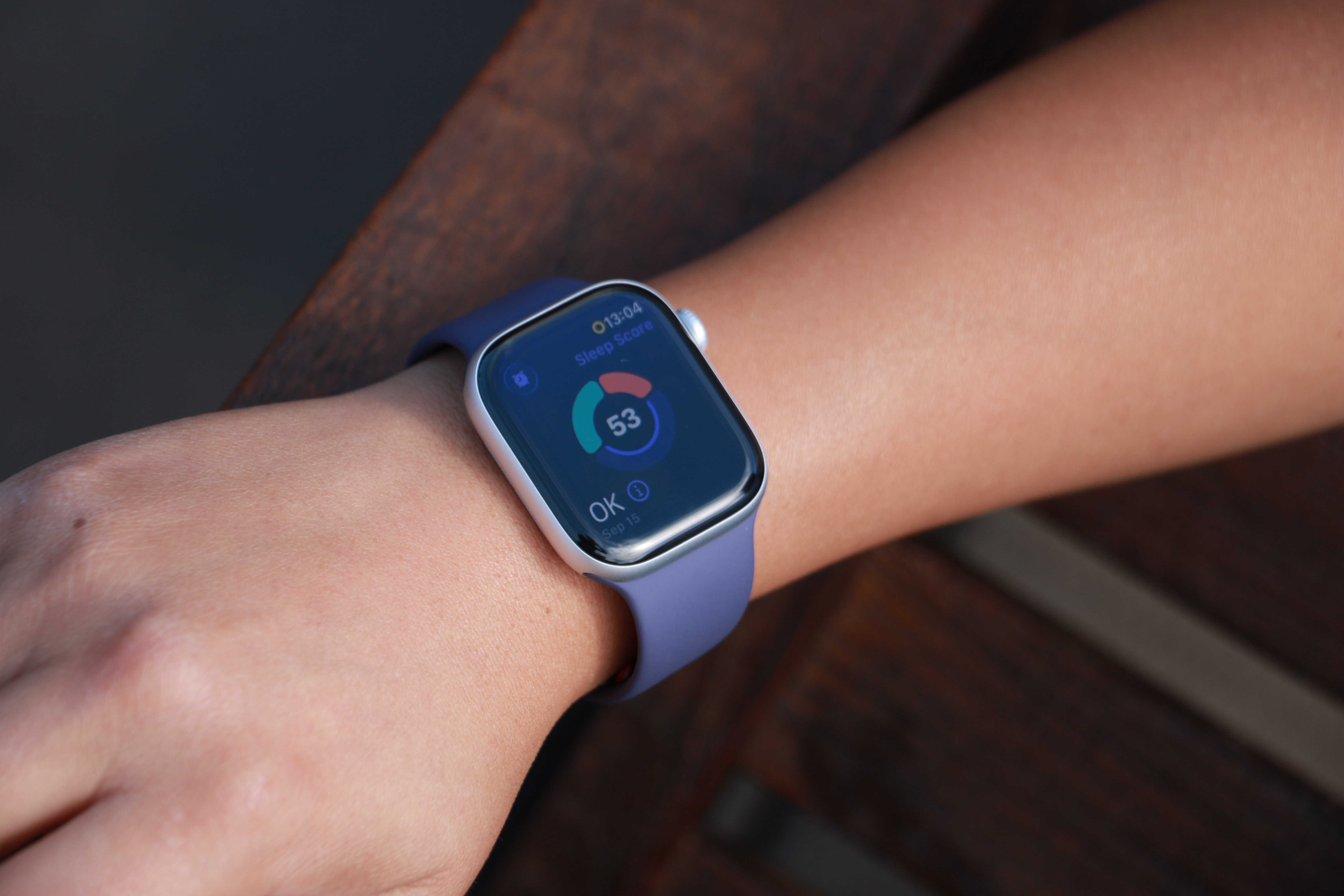
The Apple Watch Series 11 on a person's wrist, showing a ring with three segmented arcs encircling a Sleep Score of 53 and the description "OK" in the bottom left.
Cherlynn Low for Engadget
How Apple Watch tracks your sleep
When Sleep Focus is active, the Apple Watch uses its accelerometer and heart rate sensor to detect when you are asleep and awake. Newer models also track sleep stages, including time spent in REM, core and deep sleep. Apple Health combines this information into a single overnight record that appears in the Sleep section the next morning.
You do not need to start or stop sleep tracking manually. As long as you follow your sleep schedule or enable Sleep Focus before bed, the Apple Watch automatically does everything else. If you wake up early or go to bed later than planned, Apple Health adjusts the data based on actual movement and heart rate rather than just your scheduled times. In addition, some Apple Watch models (SE 3 or higher) support on-device Siri, enabling you to ask questions such as “how much sleep did I have last night?” for a more immediate response.
How to view your sleep data in Apple Health
To see your sleep data, open the Health app on your iPhone and tap Browse, then Sleep. At the top of the screen, you will see a chart showing how long you slept the previous night. Tapping this chart reveals a detailed breakdown, including time asleep, time in bed and sleep stages (if available).
Scrolling down shows trends over longer periods. You can switch between daily, weekly, monthly and six-month views to see patterns in your sleep duration and consistency. Apple Health also highlights whether you are meeting your sleep goal and how regular your schedule has been.
Under Highlights, Apple Health may surface insights such as changes in average sleep time, variations in sleep stages or your nightly sleep score. Sleep scores provide a simplified summary of how well you slept, and is based on factors such as duration, consistency and restfulness. These summaries update automatically as more data is collected over time.
Understanding sleep stages and trends
If your Apple Watch supports sleep stages, Apple Health displays how much time you spent in REM, core and deep sleep. These stages give context to your overall sleep quality, though Apple emphasizes trends over individual nights. Occasional short nights or unusual stage distributions are normal.
Over time, Apple Health makes it easier to spot patterns. Consistently short sleep durations, irregular bedtimes or frequent awakenings become clearer when viewing weekly or monthly summaries. This makes the Sleep section useful not just for nightly check-ins but for understanding longer-term habits.
Editing and managing sleep data
Apple Health allows you to add or edit sleep data if needed manually. In the Sleep section, tap AddData to log sleep that was not recorded automatically. This can be useful if you forget to wear your watch or take a nap without it.
You can also manage which devices contribute sleep data by scrolling to the bottom of the Sleep screen and tapping Data Sources and Access. This is helpful if you use third-party sleep apps or multiple devices.
Once set up, sleep tracking in Apple Health runs quietly in the background. With a consistent schedule and a charged Apple Watch, your sleep data builds into a clear picture of your nightly rest, all stored securely within Apple’s health platform.
This article originally appeared on Engadget at https://www.engadget.com/mobile/smartphones/how-to-track-your-sleep-and-view-your-sleep-data-in-apple-health-130000023.html?src=rss
Noble Audio has announced the Sceptre, a pocket-sized USB-C Bluetooth transmitter meant to boost wireless audio quality from phones, laptops and tablets. The device is intended to exceed the quality offered by a device's existing hardware.
Sceptre is powered by Qualcomm's QCC5181 Bluetooth chipset and supports LDAC, aptX Adaptive, AAC and SBC codecs. Of course, to take advantage of the high quality codecs you'll need a pair of headphones that support them. The dongle has a reported wireless range of roughly 66 feet.
Listeners use the Noble app for initial pairing and can then move the dongle between compatible USB-C devices. It also supports pass-through charging with USB-C so users can charge their devices while listening. The company says Sceptre is compatible with iOS, Android and Windows, and the company confirmed with Engadget that iPhones 15 and newer are supported.
This article originally appeared on Engadget at https://www.engadget.com/audio/noble-audio-has-released-a-usb-c-bluetooth-dongle-for-high-fidelity-transmission-191655786.html?src=rss
One of the more surprising tech developments in 2025 was Google bringing two-way support for Apple’s AirDrop functionality to its Pixel 10 series of phones. At the time, Google said it intended to expand the feature to other devices at a later date, and that date could be just around the corner.
At a press briefing attended by Android Authorityat Google’s Taipei office, Eric Kay, Android’s Vice President of Engineering, confirmed that AirDrop interoperability will expand in 2026. "We spent a lot of time and energy to make sure that we could build something that was compatible not only with iPhone but iPads and MacBooks," he said. "Now that we’ve proven it out, we’re working with our partners to expand it into the rest of the ecosystem, and you should see some exciting announcements coming very soon."
Right now, Pixel 10 users can send and receive files and photos between Apple devices and Android using Quick Share. For an Android device to receive from an iPhone, they have to set their Quick Share visibility settings to "everyone for 10 minutes" and make sure they’re in "receive" mode on the Quick Share page.
It’s a similar story for an Android-to-Apple file share. You have to set your iPhone, iPad or Mac’s Airdrop visibility to "anyone for 10 minutes," which enables someone from outside your contacts to use Quick Share on their Pixel 10.
When this feature launched, it wasn’t clear how much involvement, if any, Apple had had, or if the infamous walled garden would once again banish Android-minded intruders in a subsequent software update. But that hasn’t happened, and back in November, Qualcomm confirmed that devices powered by its Snapdragon chips would also soon be able to transfer files to iPhones using Quick Share, suggesting that Pixel exclusivity wouldn’t last for much longer.
Google’s own willingness to play nice with Apple gear is seemingly a move designed to make the lives easier of anyone thinking about making the jump from an iPhone to an Android device. As reported by Android Authority, Kay also said his company was committed to making it as simple as possible to transfer data when switching.
It wasn’t that long ago that the idea of Apple and Google teaming up to make device-hopping more consumer-friendly was the stuff of fantasy, but in December it emerged that the longstanding rivals were working on a new simplified data transfer system. Each company already offers a method for swapping ecosystems, but a new build of Android Canary hinted at something that would work at the operating system level.
Last month, Apple and Google also released a joint statement confirming previous reports that the new version of Siri will utilise Google Gemini’s models, effectively resulting in a Google-powered voice assistant on your iPhone.
This article originally appeared on Engadget at https://www.engadget.com/mobile/google-will-soon-offer-airdrop-support-on-more-android-devices-141523521.html?src=rss
If you need a little help with your New Year's resolution to be more active, you can save on the latest Apple Watch right now. The Apple Watch Series 11 is on sale for $299 for Presidents' Day, which is $100 off and the lowest price we've seen. A number of other Apple devices are on sale for the holiday as well.
We named the Apple Watch Series 11 as our choice for best smartwatch overall. It scored a 90 in our review thanks to its 24 hours-plus of battery life and a thin, light design that's easy to wear. It also offers new health metrics, including Apple's hypertension alerts system and Sleep Score.
The Apple Watch Series 11 deal is available on the 42mm case with a small/medium band. It also only includes GPS and four colorways: the Jet Black and Space Gray aluminum cases with a Black sport band, the Rose Gold aluminum case with a Light Blush sport band and the Silver aluminum case with a Purple Fog sport band.
Among the other Presidents' Day Apple deals are mostly accessories: there are solid deals on AirPods, AirTags (the first-gen trackers, not the new, second-gen ones), the iPhone Air battery pack and even Apple's new crossbody straps that attach to the company's iPhone cases so you can essentially "wear" your iPhone like a bag. As with most Apple first-party accessories, you can find plenty of more affordable, third-party versions of them as alternatives. But if you're keen on outfitting your phone with Apple's own gear, it's best to wait for discounts like these. We've collected the best Presidents' Day sales on Apple gear below so you don't have to go searching for them.
This article originally appeared on Engadget at https://www.engadget.com/deals/apple-presidents-day-sales-are-live-get-the-apple-watch-series-11-for-299-plus-more-deals-to-shop-now-151616701.html?src=rss
We found the iPhone Air to have a pretty decent battery life for such a thin-and-light phone, somewhere in the region of 27 hours if you’re continuously streaming video. But it's still a phone, arguably your most used device on a daily basis, so you may need to top it up during the day if you're using it constantly. That’s where Apple’s iPhone Air MagSafe battery pack comes in, and it’s currently on sale for $79.
This accessory only works with the iPhone Air, but much like the phone it attaches to, it’s extremely slim at 7.5mmm, so crucially doesn’t add so much bulk when attached that it defeats the point of having a thin phone in the first place. The MagSafe Battery isn’t enormous at 3,149mAh (enough to add an extra 65 percent of charge to the Air), but it can wirelessly charge the AirPods Pro 3 as well, making it an even more useful travel companion. You can also charge your iPhone while charging the battery pack.
At its regular price of $99, the MagSafe battery pack is an admittedly pricey add-on to what is already an expensive phone, but for $20 off it’s well worth considering what Engadget’s Sam Rutherford called an "essential accessory" for some users in his iPhone Air review.
Many Apple loyalists will always insist on having first-party accessories for their iPhone, but there are plenty of third-party MagSafe chargers out there too, a lot of them considerably cheaper than Apple’s lineup. Be sure to check out our guide for those.
This article originally appeared on Engadget at https://www.engadget.com/deals/apples-iphone-air-magsafe-battery-pack-is-cheaper-than-ever-144516417.html?src=rss
Apple’s AirTag makes it easy to keep tabs on everyday items like keys, bags and luggage using the Find My network. Setup is quick, requires no tools and takes just a minute or two as long as you have a compatible iPhone or iPad. Once paired, your AirTag quietly works in the background to help you locate misplaced belongings. This guide walks through how to set up an AirTag, how to name it so you can easily identify what it’s attached to and what to do if setup doesn’t go as planned.
What you need before setting up an AirTag
Before you begin, make sure you have the following:
An iPhone or iPad signed in to your Apple Account
Bluetooth enabled on that device
Location Services enabled
iOS or iPadOS 14.5 or later (AirTag 2nd generation requires iOS or iPadOS 26.2.1 or later)
A stable Wi-Fi or cellular connection
You’ll also want to ensure iCloud Keychain is enabled and that your Apple Account setup is fully completed in Settings.
How to set up an AirTag using your iPhone or iPad
The easiest way to set up an AirTag is directly through the on-screen setup prompt.
Remove the plastic tab from your AirTag to activate the battery.
Hold the AirTag near your unlocked iPhone or iPad.
When the setup animation appears, tap Connect.
Choose a category for your AirTag, such as Keys, Backpack or Luggage. If you select Custom Name, you can type your own label and choose an emoji.
Tap Continue to link the AirTag to your Apple Account.
Tap Done to finish setup.
Once completed, the AirTag will appear under the Items tab in the Find My app. If you’re setting up multiple AirTags, make sure only one is near your device at a time. If more than one is detected, a notification will appear saying “More than one AirTag detected”. If this happens, move the others farther away and try again.
How to add an AirTag using the Find My app
If the setup animation doesn’t appear automatically, you can add an AirTag manually through Find My.
Open the Find My app on your iPhone or iPad.
Tap the Items tab.
Tap the Add button.
Select Add AirTag or Other Item (if you’re adding a compatible FindMy Network accessory).
Follow the on-screen instructions to complete setup.
You can add up to 32 items in Find My, including AirTags, shared items and compatible accessories. If you’ve reached the limit, you’ll need to remove an item before adding a new one.
What to do if your AirTag won’t connect
If setup fails or the pairing animation disappears, try the following steps:
Lock your iPhone or iPad, unlock it again and wait about 15 seconds for the animation to reappear.
Make sure Bluetooth and Location Services are turned on in Settings.
Check that Find My has permission to use Precise Location.
Ensure you’re signed in to your Apple Account and iCloud Keychain is enabled.
Verify your device is running the latest version of iOS or iPadOS (iOS or iPadOS 26.2.1 or later).
If the AirTag still won’t connect, the battery may need replacing. AirTags use a standard CR2032 coin cell battery, and swapping it only takes a minute. If issues persist after replacing the battery, you may need to reset the AirTag and try setup again.
How to name and label your AirTag
Naming your AirTag makes it much easier to identify when you’re tracking multiple items. During setup, Apple offers preset labels like Keys or Backpack, but you can customize these at any time.
To rename an AirTag after setup:
Open the Find My app.
Tap Items and select your AirTag.
Tap Add Name or Rename Item.
Choose a preset label or select Custom Name.
Optionally add an emoji for quick visual identification.
Clear labels are especially helpful if you use AirTags for travel, work gear or shared household items.
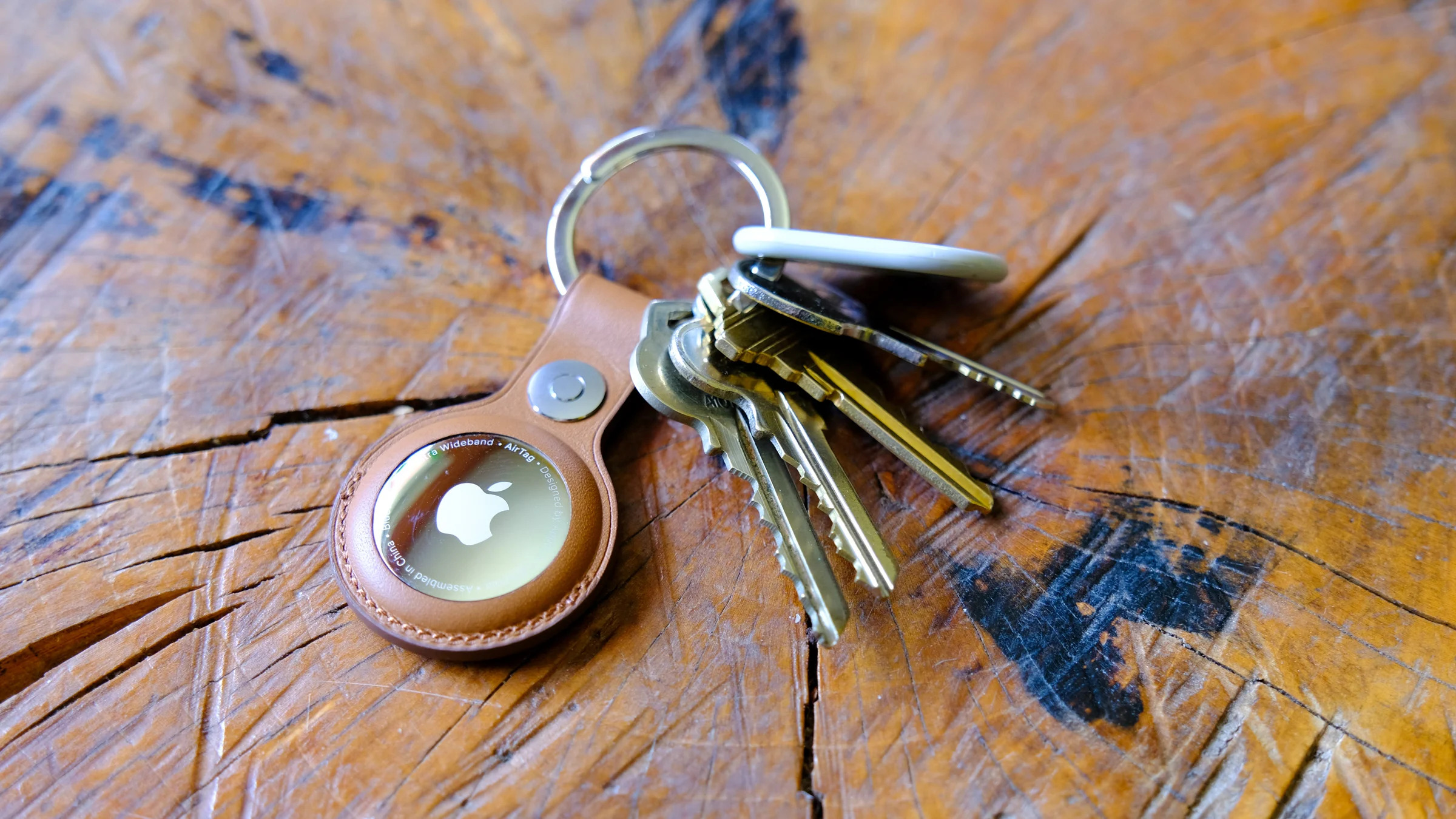
Apple AirTag
Engadget
Attaching your AirTag to everyday items
AirTags don’t have built-in clips or adhesive, so you’ll usually need an accessory to attach one securely. Depending on how you plan to use it, that could mean a key ring, luggage tag, wallet insert or bike mount.
If you’re unsure which style works best, Engadget has rounded up the best Apple AirTag accessories, covering options for keys, bags, wallets and more. Choosing the right accessory helps ensure your AirTag stays attached and works the way you expect.
Wrap-up
After setup, your AirTag will automatically update its location using Apple’s Find My network. You can view its last known location, play a sound to help locate it nearby or use Precision Finding on supported iPhones to guide you directly to it. With just a few minutes of setup and a clear label, an AirTag can become a reliable way to keep track of important belongings, whether you’re at home or on the move.
This article originally appeared on Engadget at https://www.engadget.com/computing/accessories/how-to-set-up-an-airtag-120000789.html?src=rss
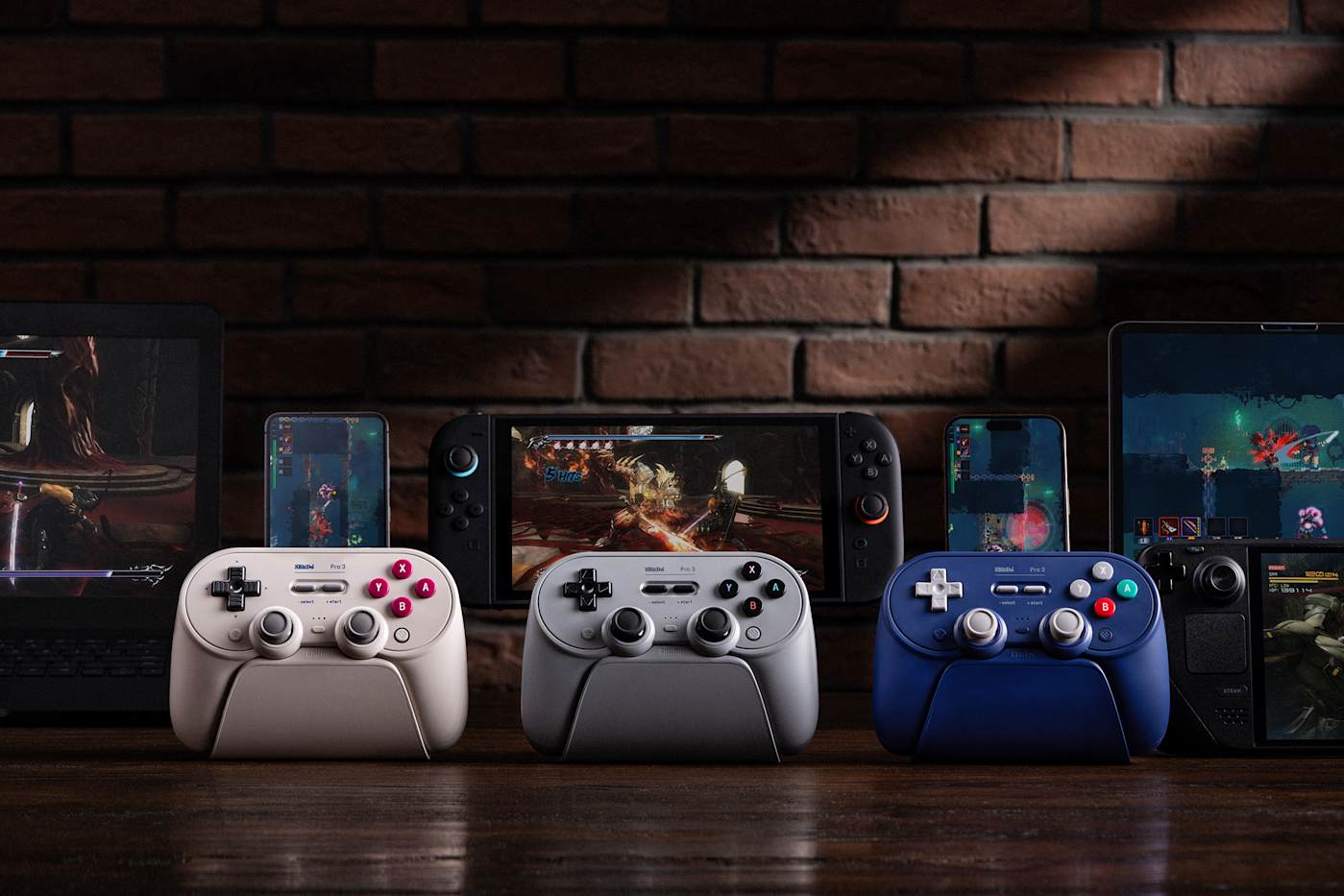
If you've been inside all winter gaming then it might be time to upgrade your gear. Right now, the 8Bitdo Pro 3 Bluetooth Controller is available for just over $48, down from $70. The 31 percent discount is the lowest price we've seen yet for the controller. Notably, the sale is only available on the Gray model.
The new 8Bitdo Pro 3 came out in August and offers TMR Joysticks with a 12-bit ADC sampling chip. It also has a Trigger Mode Switch, 2 Pro paddle buttons and swappable magnetic ABXY buttons for moving between the Switch and Xbox layouts. Plus, it has an integrated charging dock.
This 8Bitdo controller is compatible with Apple, SteamOS, Android devices, PC, Switch, and Switch 2 devices.
This article originally appeared on Engadget at https://www.engadget.com/deals/the-8bitdo-pro-3-bluetooth-controller-is-down-to-a-new-all-time-low-143036684.html?src=rss
Apple still hasn’t revealed a foldable iPhone, but the steady drip of leaks suggests the project is moving closer to reality. Over the past few months, analysts and supply-chain watchers have continued to fill in key details, with most reports still pointing to a launch sometime in the second half of 2026. While Apple hasn’t confirmed anything publicly, the overall picture is starting to look more consistent.
As always, plans for unreleased Apple hardware can change at any time. Features may shift, timelines can slip and some prototypes may never ship. Even so, recent reporting gives us the clearest sense yet of how Apple’s first foldable could take shape and where it might fit in the broader iPhone lineup.
Below, we’ve rounded up the most credible rumors so far, and we’ll keep this guide updated as new details emerge.
When could the iPhone Fold launch?
Rumors of a foldable iPhone date back as far as 2017, but more recent reporting suggests Apple has finally locked onto a realistic window. Most sources now point to fall 2026, likely alongside the iPhone 18 lineup, with some supply-chain hints suggesting mass production could begin in mid-2026 if development stays on track.
Some reports still claim the project could slip into 2027 if Apple runs into manufacturing or durability issues, particularly around the hinge or display. Given Apple’s history of delaying products that it feels aren’t ready, that remains a real possibility.
What will the iPhone Fold look like?
Current consensus suggests Apple has settled on a book-style foldable design, similar to Samsung’s Galaxy Z Fold series, rather than a clamshell flip phone.
When unfolded, the iPhone Fold is expected to resemble a small tablet like the iPad mini (8.3 inches). Based on the rumor mill, though, the iPhone Fold may be a touch smaller, with an internal display measuring around 7.7 to 7.8 inches. When closed, it should function like a conventional smartphone, with an outer display in the 5.5-inch range.
CAD leaks and alleged case-maker molds suggest the device may be shorter and wider than a standard iPhone when folded, creating a squarer footprint that better matches the aspect ratio of the inner display. Several reports have also pointed to the iPhone Air as a potential preview of Apple’s foldable design work, with its unusually thin chassis widely interpreted as a look at what one half of a future foldable iPhone could resemble.
If that theory holds, it could help explain the Fold’s rumored dimensions. Thickness is expected to land around 4.5 to 4.8mm when unfolded, according to analyst Ming-Chi Kuo, putting it in a similar range to the iPhone Air, and roughly 9 to 9.5mm when folded, depending on the final hinge design and internal layering.
iPhone 17 Pro, iPhone Air
Engadget
Display and the crease question
The display is arguably the biggest challenge for any foldable phone, and it’s an area where Apple appears to have invested years of development.
According to these reports, the panel combines a flexible OLED with a laser-drilled metal support plate that disperses stress when folding. The goal is a display with a nearly invisible crease, something Apple reportedly considers essential before entering the foldable market.
If Apple does use this panel, it would mark a notable improvement over current foldables, which still show visible creasing under certain lighting conditions.
Cameras and biometrics
Camera rumors suggest Apple is planning a four-camera setup. That may include:
Two rear cameras (main and ultra-wide, both rumored at 48MP)
One punch-hole camera on the outer display
One under-display camera on the inner screen
Several sources claim Apple will avoid Face ID entirely on the iPhone Fold. Instead, it’s expected to rely on Touch ID built into the power button, similar to recent iPad models. This would allow Apple to keep both displays free of notches or Dynamic Island cutouts.
Under-display camera technology has historically produced lower image quality, but a rumored 24MP sensor would be a significant step up compared to existing foldables, which typically use much lower-resolution sensors.
iPhone Fold’s hinge and materials
The hinge is another area where Apple may diverge from competitors. Multiple reports claim Apple will use Liquidmetal, which is a long-standing trade name for a metallic glass alloy the company has previously used in smaller components. While often referred to as “liquid metal” or “Liquid Metal” in reports, Liquidmetal is the branding Apple has historically associated with the material.
Liquidmetal is said to be stronger and more resistant to deformation than titanium, while remaining relatively lightweight. If accurate, this could help improve long-term durability and reduce wear on the foldable display.
Leaks from Jon Prosser also reference a metal plate beneath the display that works in tandem with the hinge to minimize creasing — a claim that aligns with reporting from Korean and Chinese supply-chain sources.
Battery and other components
Battery life is another potential differentiator. According to Ming-Chi Kuo and multiple Asian supply-chain reports, Apple is testing high-density battery cells in the 5,000 to 5,800mAh range.
That would make it the largest battery ever used in an iPhone, and competitive with (or larger than) batteries in current Android foldables. The device is also expected to use a future A-series chip and Apple’s in-house modem, with some reports pointing specifically to a next-generation C2 modem as part of Apple’s broader push to reduce reliance on Qualcomm.
Estimates currently place the price between $2,000 and $2,500 in the US. Bloomberg has said the price will be “at least $2,000,” while other analysts have narrowed the likely range to around $2,100 and $2,300. That positions the iPhone Fold well above the iPhone Pro Max and closer to Apple’s high-end Macs and iPads.
Despite years of rumors, there’s still plenty that remains unclear. Apple hasn’t confirmed the name “iPhone Fold,” final dimensions, software features or how iOS would adapt to a folding form factor. Durability, repairability and long-term reliability are also open questions. For now, the safest assumption is that Apple is taking its time and that many of these details could still change before launch.
This article originally appeared on Engadget at https://www.engadget.com/mobile/smartphones/iphone-fold-rumors-everything-we-know-right-now-including-the-leaked-design-upgrades-price-and-more-130000733.html?src=rss
Finding yourself far from a wall socket when your phone hits five percent is positively nervewracking. If you stash a portable battery in your bag, you can avoid that feeling altogether. But there are thousands of power banks out there and it can be tough to pick the right one for what you need. I’ve spent a few years testing dozens of batteries and found the best power banks for different scenarios. Whether you need a quick reup for your phone or a huge brick to keep your laptop alive, you’ll find something fitting here.
Best power banks for 2026
What to look for in a portable battery pack
Battery type
Nearly every rechargeable power bank you can buy (and most portable devices) contain a lithium-ion battery. These beat other current battery types in terms of size-to-charge capacity, and have even increased in energy density by eight fold in the past 14 years. They also don’t suffer from a memory effect (where a battery's lifespan deteriorates due to partial charges).
Flying with portable batteries
You may have heard about lithium ion batteries overheating and catching fire — a recent Hong Kong flight was grounded after just such a thing happened in an overhead bin. Current restrictions implemented by the TSA still allow external batteries rated at 100Wh or less (which all of our recommendations are) to fly with you, but only in your carry-on luggage — they can’t be checked.
Recently, Southwest Airlines was the first in the industry to take that rule one step further. Now, flyers on that airline must keep power banks in clear view when using them to recharge a device. If the portable charger isn’t actively in use, however, it can stay in your carry-on bag in the overhead bin.
Capacity
Power bank manufacturers almost always list a battery’s capacity in milliamp hours, or mAh. Smaller batteries with a 5,000mAh capacity make good phone chargers and can fill a smartphone to between 50 and 75 percent. Larger batteries that can recharge laptops and tablets, or give phones multiple charges, can exceed 25,000mAh and we have a separate guide that covers that entire category.
Unsurprisingly, the prices on most batteries goes up as mAh capacity increases, and since batteries are physical storage units, size and weight go up with capacity as well. If you want more power, be prepared to spend more and carry around a heavier brick.
You might think that a 10,000mAh power bank could charge a 5,000mAh phone to 100 percent twice, but that’s not the case. In addition to simple energy loss through heat dissipation, factors like voltage conversion also bring down the amount of juice that makes it into your phone. Most manufacturers list how many charges a battery can give a certain smartphone. In our tests, 10,000mAh of battery pack capacity translated to roughly 5,800mAh of device charge. 20,000mAh chargers delivered around 11,250mAh to a device, and 25,000mAh banks translated to about 16,200mAh of charge. That’s an average efficiency rate of around 60 percent.
Wireless
Wireless charging, whether through a bank or a plugged-in charging pad, is less efficient than wired connections. But it is convenient — and in most cases, you can carry around and use your phone as it refills with a magnetically attached power bank.
Power banks with wireless charging are far better than they once were. Just a couple years ago, the ones I tested were too inefficient to recommend in this guide. When batteries adhering to the Qi2 wireless charging standard started arriving in 2023, performance markedly improved.
To gain Qi2-certification, a device has to support speeds of up to 15 watts and include magnetic attachment points. The MagSafe technology on iPhones were once the only handsets that were Qi2-compatible, but now Google’s Pixelsnap tech brings both the higher speed and magnetic grip to Pixel 10 phones. Samsung may follow up with its own version in future releases.
The latest wireless charging standard, Q12 25W, is supported by the new iPhone 17 phones as well as the Google Pixel 10 Pro XL. Battery packs that are Qi2 25W-enabled are starting to hit the market as well, and the Ugreen MagFlow was the first on the scene.
Ports
USB-C ports can deliver faster charges than USB-A ports, and most of the portable chargers we recommend here have Type-C connections. But Type-A jacks are still handy if you need to use a specialized cable for a certain device (my camera’s USB-A to micro USB cable comes to mind).
There’s also variation among USB-C ports. Larger banks with more than one port will sometimes list different wattages for each. For example, a bank with three ports may have two 65W ports and one 100W port. There will also be at least one in/out port on the bank, which can be used to charge the battery itself or to deliver a charge to your device. Wattages and in/out labels are printed right next to the port — and always in the tiniest font possible (remember, your phone is an excellent magnifying glass if you ever have trouble reading them).
As with standard wall chargers, the port’s wattage will determine what you can charge. A phone will happily charge off a 100W connection, but a 15W plug won’t do much for your laptop. And remember, the cable has to match the maximum wattage. A cable rated for 60W won’t deliver 100W speeds.
Luckily, some of the best power banks include a built-in USB-C cable. That’ll not only ensure you have the right cord, it’s one less thing you have to remember to bring along.
Design
Once, most rechargeable batteries were black with a squared-off, brick-like design, but now they come in different colors and shapes with attractive finishes and detailing. While that doesn’t affect how they perform, it’s a consideration for something you’ll interact with regularly. Some portable power banks include extra features like MagSafe compatibility, a built-in wall plug or even a kickstand. Nearly all have some sort of indicator to let you know how much available charge your power bank has left, usually expressed with lighted pips near the power button. Some of the newer banks take that a step further with an LED display indicating remaining battery percentage.
How we test best power banks
First, I considered brands Engadget reviewers and staff have tried over the years and checked out customer ratings on retail sites like Amazon and Best Buy. Then, I acquired the most promising candidates and tested them in my home office.
Amy Skorheim for Engadget
For testing, I used each battery to charge both an iPhone and an Android phone, as well as an iPad and a MacBook Pro for the larger portable chargers. I let the devices get down to between zero and five percent and charged them until the devices were full or the power bank died.
For reference, here are the battery capacities of the device I've used for testing over the years:
*The iPhone 17 has a slightly larger battery at 3,692mAh
I continuously update this guide as companies release new products.
Other power banks we tested
Here are a few picks that didn't quite make the cut, but are worth mentioning.
Belkin Stage PowerGrip
If you’re into iPhonography, this clever accessory could be worth a look. Belkin’s Stage PowerGrip is a 9,300mAh power bank that has both a wireless charging pad and built-in cable. But it’s also a Bluetooth shutter with a quarter-inch tripod thread. The design resembles a standard digital camera and provides a sturdy grip once you magnetically attach your phone (make sure you’re either using a MagSafe case or no case to ensure a solid connection).
The shutter is conveniently placed and the remote speed was quick enough to capture the cute things my cat was doing. The accessory can even act as a stand while it charges in either landscape or portrait orientation. As a power bank, it’s slow, taking about two hours to get my iPhone 16 from three to 98 percent, but it has enough juice for a full refill plus a little more, which could help if you’re out taking pictures all day.
Anker MagGo for Apple Watch power bank
The Anker MagGo for Apple Watch power bank combines a 10K battery with a built-in USB-C cable and a pop-up Apple Watch charger. I didn’t formally test it as it’s a little too niche, but it deserves a mention for saving my keister on two occasions. Driving to a hike, my watch told me it was down to 10 percent. Thankfully, I had this and could refill the watch before I got to the trailhead. Later, on an interstate trip, I realized the travel charging station I’d brought was a dud. This kept my watch alive for the week I was away. It does a good job simply charging a phone via the handy on-board cable, too. But for those with an Apple Watch, it’s extra useful.
HyperJuice 245W
Hyper’s massive-but-sleek brick is one nice looking power bank. The HyperJuice 245W packs a hefty 27,000mAh capacity, enough to refill my tester phone about four times and get a MacBook Pro from near-dead to 75 percent. It only has USB-C ports, but you at least get four of them. USB-C only is probably fine for most situations, but a USB-A port would be nice for charging the occasional older peripheral. The 245 wattage is pretty high for a power bank and it was indeed speedy. It filled a Samsung Galaxy S24 Ultra in just over an hour. But it’s the same price and capacity as our Mophie Powerstation pick for laptop banks, and that one has a better variety of ports. Hyper’s battery is also comparable to Anker’s laptop battery, which is cheaper, has built-in cables and has nearly the same capacity. Plus, that bank is just as swanky looking.
EcoFlow Rapid magnetic power bank
I was curious to try out the first power bank from EcoFlow, a company that primarily makes larger power stations and whole-home backup batteries. The first offering in the brand’s Rapid series is a Qi2-enabled magnetic charger with a 5,000mAh capacity. It looks quite nice with shiny silver accents and soft-touch grey plastic on the MagSafe-compatible front. There’s a little pull-out leg that sturdily displays your phone as it charges and the attached USB-C cable lets you refill devices directly, then tucks out of the way when it’s not in use. But it didn’t outperform our top pick in the MagSafe category, in terms of both charging speeds and the amount of charge delivered.
Mophie Snap+ Powerstation Mini
The Mophie snap+ Powerstation Mini is terribly well-built. It feels premium with a rubberized contact point for the MagSafe charging pad and a stand that runs the entire width of the bank itself, making it extra sturdy. It’s compact, too, but only carries a 5,000mAh capacity, which gets you a partial charge on most newer or larger phones. Our current MagSafe/iPhone pick has double the capacity, a stand and a digital display — for just $20 more than the Powerstation Mini.
Power bank FAQs
What's the difference between a portable power bank and a portable charger?
A slew of terms are used to describe power banks, including portable batteries, portable chargers, external battery packs and even, somewhat confusingly, USB chargers, which is what wall chargers are often called. They all mean the same thing: a lithium ion battery that stores a charge so you can refill a smartphone, tablet, earbuds, console controller, ereader, laptop, or just about any other device with its own built-in, rechargeable battery.
There’s little difference between the terms, so the specs you’ll want to pay attention to are capacity (expressed in mAh), size and weight so you can find the right balance between recharging what you need and portability.
Power stations, on the other hand, are distinct. These are bigger units (often around the size of a car battery) that can be used to charge multiple devices multiple times, but notably, they can’t be taken on airplanes.
Does fast charging actually ruin your battery?
Not exactly. The real enemy of a battery’s longevity is heat. The faster you charge a battery, the more heat is generated. Modern phones have features that keep the battery cool while charging, like physical heat shields and heat sinks, as well as software features that slow down processes that generate too much heat. Phone manufacturers are keen to promote a phone’s fast-charging abilities, so they had to figure out ways to make faster charging work.
While there aren’t long-term studies on what fast charging does to a phone, a study on EV batteries (which use the same general concept of charged lithium ions flowing from one side of the battery to the other, absorbing or releasing a usable charge) showed a very slight decrease in capacity over time with only fast charging — though what actually made a larger difference was how hot the battery itself was, due to ambient temperatures, when it was charged.
In short, fast charging could be slightly harder on your battery than normal charging. But the safeguards most smartphones have make that difference fairly negligible. To really ensure you’re optimizing charging capabilities, limit your phone's heat exposure overall.
Can you use a power bank for all your devices?
That depends on the size of the bank and the size of your device’s battery. A small 5,000mAh battery isn’t strong enough to charge laptops, but a portable charger with a 20,000mAh capacity will give your computer a partial refill. You also have to consider port compatibility. If your device has a USB port, you’ll be able to easily find a cable to connect it to a battery. If your device has a more unique port, such as a DC port, you won’t be able to use a battery. Devices with an AC cable and plug can be charged, and sometimes powered (such as in the case of a printer or speaker), by larger laptop batteries with AC ports.
This article originally appeared on Engadget at https://www.engadget.com/computing/accessories/best-power-bank-143048526.html?src=rss
Color is the buzziest feature in ereaders right now, but is it necessary? It makes the covers more fun, and readers of comics and graphic novels will appreciate the added hues (though they may be happier with an E Ink tablet for better image detail). Color is just one factor to consider when picking out the best ereader. The lights, screen quality, housing and buttons make a difference too. Then there’s the software: Do you want to stay in the Kindle ecosystem or get a device that can handle lots of apps? We tested more than a dozen ereaders to come up with our recommendations. This guide also points out ways to get the most out of your new e-book companion once you pick your favorite.
Best ebook readers for 2026
What to look for in an ereader
Plenty of apps, including the Kindle app, will let you download and read digital books on an iPhone, Android Phone or tablet. But what makes ebook readers different is the screen: nearly all of them use technology from a company called E Ink. It manufactures electronic paper displays (EPD) composed of three sheets: one containing millions of microcapsules filled with black and white ink particles sandwiched between transparent electrode layers. When a charge is applied, either the black or white particles shift to the top, forming letters and the whitespace around them.
Color ereaders add a color filter array on top of the standard black and white microcapsule layer. The result is two different resolutions on one screen — the color clarity is 150 dpi while black and white images and text are still 300 dpi.
Because these displays are so different from standard backlight LED panels, you can expect most good ereaders to do a number of things well. They’ll be easier to stare at for long periods of time and easier to read in direct sunlight. Also, since E Ink displays only require power to rearrange the ink, these devices have much longer battery lives than even the best tablets: we’re talking weeks on a single charge, not days.
The ereader market is not as saturated as, say, the smartphone market, but there are still plenty of options out there and they do have small but important differences among them. They tend to range from around $100 to more than $400, though usually the higher end options are stylus-enabled read/write E Ink tablets like the Kindle Scribe. Beyond price, you should consider physical properties like buttons, lights, storage and resolution, as well as how the software lets you find and access books.
Reading features
With any ereader, you’ll navigate the OS via taps and swipes, and some add physical page-turn buttons. Most with built-in buttons have an auto-rotating screen so you can press with your right or left hand.
As E Ink technology has advanced, resolution has greatly improved – even the budget Kindle ereader has a 300 ppi display. You can still find models with lower resolution, but we don’t recommend them.
Some ereaders have front LEDs that support light temperature adjustment. That means you can switch to a warmer light after the sun goes down, which will feel easier on the eyes. If you’re concerned about blue light, you should go for a reader with that feature. Finally, dark mode is available on most later model ereaders, allowing you to invert the black and white text and background, which some people find easier to read in low-light settings.
Other features
The capabilities of these pocket libraries have advanced considerably since the early days. In addition to storing books, some let you browse the web, run apps and play music. The screen’s frame rate can’t handle gaming, but it’s good enough to show you the Wikipedia entry for Striver’s Row while you read Crook Manifesto.
If you listen to audiobooks, you may want a Bluetooth-enabled ereader capable of playing them. Most of the models we tested have that ability, with the notable exception of the Nook ereader we tried. Keep in mind that audiobook files can take up more space than print files so you'll probably want a device with a higher storage capacity if you plan on doing a lot of listening.
Above all, you should consider where and how you intend to find books to read. Most ereaders make it easiest to shop through their own digital bookstores, but all of them (even Kindles) will now let you download titles from other sources, like libraries, unaffiliated ebook sellers and free public domain sites.
Photo by Amy Skorheim / Engadget
How to get books for your ereader
Kindle, Nook and Kobo all have their own stores that you access directly from each brand’s devices. Prices are the same among all sellers, too. Publishers set the price of an ebook, not the retailer, so a title will cost the same at Amazon, Barnes & Noble, eBooks.com and the Kobo store.
Amazon offers Kindle Unlimited for $12 per month, and it includes four million titles from which you can pick your next read. It includes audio and ebooks, but you won’t find many big, new releases or older bestsellers. Kobo has a subscription called Kobo Plus with about 1.3 million titles: it goes for $8 per month for ebooks only, $8 for audiobooks only or $10 for both.
Buying a book from a proprietary store instantly delivers it to your device, provided you’re connected to WiFi. It also syncs your reading across devices and apps, so you can pick up where you left off on your phone if you forgot your ereader at home. It truly is the most convenient way to go, but if you don’t want to be locked into one brand’s store, or if you opt for an ereader without its own marketplace, you do have options.
How to upload ePubs onto an ereader
Stores like ebooks.com and Google Play have millions of ebooks for sale as digital rights-managed (DRM) ePub files, which Kobo, Nook and PocketBook readers can read in their native ereader apps. Kindles don’t support DRM ePub files at all and Boox devices require third party reading apps (of which there are many) to read those files. Titles from Apple Books are only readable in iOS devices.
Titles from some publishers like Tor and public domain classics from sites like Project Gutenberg are also sold as ePubs, but without the added DRM. Consequently, Kindles and the Boox Neoreader do support those files. Books you get from third-party sources will look just like ones you bought from a proprietary store, thanks to the flowable, formatted nature of ePub files. While these device-agnostic ebook collections give you extra options for finding your next read, they require a few additional steps to get the files onto your ereader.
To do so, you’ll typically need a computer running a free program called Adobe Digital Editions (ADE). After buying and downloading the ePub file, open ADE and plug your ereader into your computer (all readers here have a USB-C port for charging and data transfers). Your device should pop up in the left panel. Drag and drop the ePub file from your downloads folder into the main panel in ADE. The file will display as an image of the book cover. Drag that image onto your device on the left panel. If the file includes digital rights management (which protects against unauthorized copying) you’ll need to authorize your ereader, which requires using or creating a free Adobe ID. Once you’ve finished adding files to upload, eject the reader from your computer to complete the transfer process.
Kindles use a web-based uploader instead of the ADE method. But since Kindle uses its own proprietary DRM technology instead of Adobe's, the only files it can accept from third parties are non-DRM files, such as from Tor Publishing or Project Gutenberg. After downloading a compatible ePub file, drag and drop it into your browser with the Send to Kindle page open. As long as you’re signed into Amazon, this wirelessly transfers the files to your associated device.
Boox also uses a browser uploader called BooxDrop (along with many other methods) to deliver ePubs to the device. Open it from the Boox App menu and you’ll see a device-specific url. Type that into your browser to access a file delivery portal that uploads to your library. Boox’s built-in ereader app, NeoReader, also doesn’t support files with DRM, so you won’t be able to read current titles from most publishers using that app. Fortunately, Boox devices run nearly every ereader app out there, Kobo and Kindle included, letting you access ePubs any number of ways.
Recently, Bookshop.org, the online seller of physical books that supports indie bookstores, started selling ebooks and up to 100 percent of the profits will go to local booksellers. The company uses a different rights management system than ADE so, right now, you can only read titles you buy from them on the Bookshop.org app, but the company is working with the makers of both Kindle and Kobo to extend compatibility to those ereaders.
How to read library books on an ereader
Your local library card lets you borrow audio and ebooks through a program called Overdrive and its companion app Libby. On a Kobo, you have have built-in access to Overdrive in a separate tab. Once you’ve linked your public library card, the search function will include results for titles available from your local library system; a few taps will upload your selections to your device for the length of the loan. I personally find it easiest to borrow the title I want through the Libby app on my phone. After that, the book pops up on my Kobo’s home screen once the device syncs.
To read library books on a Kindle, you can either go through the Libby app or the Overdrive section of your library’s website. Once you click Borrow, you’ll see the option to “Read now with Kindle,” which takes you to Amazon’s site to sign in. After that, the book will be delivered to your device the next time it connects to WiFi.
For other ereaders, you’ll go through your library’s Overdrive portal and download the ePub after clicking the Borrow button. You can then use the ADE process we described above. Devices that run external apps, like Boox's Page, Go Color 7 or Palma, allow you to read library books via the Libby app, just as you would on a smartphone or iPad.
You can also use the Libby app to borrow audiobooks, but you won’t be able to access them through your ereader. (The exception is an ereader, like a Boox device, that allows external apps). I found it was easier to listen to an audiobook on my phone anyway, regardless of whether I borrowed it through Libby or bought it from Kindle or Kobo.
Photo by Amy Skorheim / Engadget
How we test ereaders
When putting together any guide, the first thing we do is spend hours researching the field. We look at what’s available, what’s new, and what shoppers and professional reviewers have to say. Then we narrow a list to the best candidates for hands-on testing.
Over the course of the past three years, I’ve tested just over a dozen ereaders, representing five different brands: Amazon, Kobo, Barnes & Noble, Boox and PocketBook. I bought, borrowed and uploaded books for each device using the methods above. I used each one for between a few days to a few months. I evaluated each one in the areas of book access, ease of reading, extra features and overall value. Here’s everything we tested so far:
Amazon’s first color Kindle impressed with its quick page-turns and load times, auto-adjusting front light and, of course, a decently striking color E Ink display. But at $280, it’s more expensive than all of the other color ereaders in its size range, including the Kobo Libra Colour and the Boox Go Color 7.
Also, some Colorsoft owners reported seeing a yellow band at the bottom of their ereader’s display. This issue did not affect our first review unit during the original testing period, but it eventually appeared. An Amazon spokesperson told Engadget: "A small number of customers have reported a yellow band along the bottom of the display. We take the quality of our products seriously—customers who notice this can reach out to our customer service team for a replacement or refund, and we’re making the appropriate adjustments to ensure that new devices will not experience this issue moving forward."
Amazon sent us a new Colorsoft ereader at the end of 2024 and it does appear that the fixes the company made resolved the yellow-band issue. The screen on our second review unit appears warmer overall, but not overly so. It’s more akin to the screen on the Kobo Libra Colour, and that’s a good thing.
Boox Go 7 stylus-enabled ereader
Boox recently released two new stylus-enabled generations of their seven-inch reader: The monochrome Go 7 and a color-screen Go Color 7 (Gen II). After trying out the stylus-enabled Go 7, I still like the standard, non-stylus enabled version better. True, I liked the Notebook app with its array of handwriting templates and I appreciated the low-to-no latency with the stylus. It also offers a good assortment of brush, pen and style options. But outside of the Notebook app, I didn’t find much use for the stylus.
I was able to doodle in the margins of DRM-free books in Boox’s native NeoReader, but it doesn’t work in other apps or on any rights-managed books. There's a FreeMark option that allows you to draw or write atop any app, but it saves your doodles as separate images, as opposed to allowing you to mark up the page itself. I also found enabling the stylus to be a little glitchy. If you plan to do a lot of writing, you’ll probably be better served by an E Ink tablet, but if you want an ereader that can mark up your books, I suggest going with the Kobo Libra Color, detailed above.
Ereader FAQs
What's the difference between an ereader and an e-ink reader?
Really, they are the same thing. E Ink is a company that designs and manufactures the paper-like screens found in most ereader devices. Technically, anything you read ebooks on can act as an ereader, so your phone, iPad or Android tablet could all serve that purpose, but they’re not considered dedicated ereaders. While there are some devices marketed as ereaders that have LCD or OLED screens instead of E Ink, they aren’t as common. One of the benefits of ereaders is the E Ink screen’s paper-like quality, which causes less eye strain for many people.
But there is a difference between ereaders and E Ink tablets. These larger e-ink devices also employ E Ink screens, but they have stylus input and are often used for note taking and other tasks in addition to reading ebooks. We have an entire guide devoted to helping you pick out an E Ink tablet.
Are there ads on my ereader?
The base model Kindle and Kindle Paperwhite come with ads by default, but you can opt to pay $20 to remove them, either at the time of purchase or after you start using the device. The ads are limited to the lockscreen and are typically for other books or Kindle services. Kobo and Boox ereaders don’t come with ads.
Which ereader has the longest battery life?
Of the devices we tested, the Boox Go Color 7 has the largest listed battery capacity at 2,300mAh (Amazon doesn’t list the capacity of its Kindle devices). But thanks to the nature of E Ink screens and the relatively limited processing power required to display e-books, nearly all ereaders can go for weeks before they need a recharge. That means battery life probably isn’t as much of a deciding factor in buying an ereader as it would be with a tablet or smartphone.
Which ereaders can read Kindle books?
Amazon’s Kindle ereaders are the obvious answer, but other devices capable of running apps can also read titles from the Kindle store. For example, you can download the Kindle app on a Boox ereader through Google Play (the store comes standard in the Boox app menu). You can then sign into your Kindle account and access all the books in your library — the same way you’d read Kindle books on your phone or tablet.
Can you buy Kindle books without a Kindle?
Yes. You can buy Kindle books through the Kindle app or through Amazon’s website via a browser. You can read those titles on a Kindle or any device that can run the Kindle app, such as a smartphone, tablet or computer. Just be aware that Kindle titles can only be read through one of Amazon’s ereaders or the Kindle app. The company uses proprietary digital rights management on all ebooks it sells that can’t be read by other ereader apps like Kobo or Adobe ADE.
What's the difference between Kindle and Kobo?
Both Kindle and Kobo are brands of dedicated ereaders that support searching, buying, downloading and reading ebooks from their own stores. Both also support borrowing books from your local library via Overdrive and Libby.
The difference is that Kindle is owned by Amazon and uses the Kindle store, whereas Kobo is owned by Rakuten and its books come from the Kobo store. Both stores come pre-loaded as a tab on their respective ereader and both carry most in-print books. Each store also carries their own exclusive ebooks as well, but Amazon’s library of Kindle-only books is much larger than Kobo’s. Amazon also offers Amazon Original stories to read on the Kindle, which are free short fiction and nonfiction reads that are free to Prime members.
Which ereader is best for library books?
Both Kobos and Kindles have simple systems for borrowing library books. Other ereaders, like Boox, let you borrow books after downloading the Libby App. Only Kobo ereaders let you search for and borrow books directly on the ereader, with a dedicated Overdrive tab. Kindles, on the other hand, utilize a convenient “read on Kindle” function from the Libby app or website. You can send a borrowed book to your Kindle just by signing into your account. Both methods are pretty easy, so which is the best for you probably depends on other factors than just the library-book feature.
Recent updates
January 2026: Added the Boox Palma 2 Pro as the best smartphone ereader.
August 2025: Included new frequently asked questions covering battery life, E Ink screens and ads on ereaders. Mentioned Amazon’s release of a cheaper Colorsoft Kindle.
July 2025: Added our impressions of the new stylus-enabled Boox Go 7 series. Updated our Boox Palma recommendation to account for the upgrades to the Boox Palma 2. Included text formats to our specs and the battery life of the Kobo Clara Colour.
March 2025: Added news about Bookshop.org getting into the ebook market. Updated information about price-setting by publishers.
January 2025: Updated the "Others we tested" section to include impressions of the second Kindle Colorsoft review unit we received.
August 2024: Replaced our Android tablet pick with the new Go Color 7 ereader from Boox. Updated book titles to current examples. Added an FAQ section to explain the difference between Kobo and Kindle ereaders and further detail library-book support on different models.
November 2024: Following the release of Amazon's new Kindle ereaders, we tested and reviewed the Kindle Paperwhite Signature Edition, the base-model Kindle and Amazon's new color ereader, the Kindle Colorsoft. Accordingly, we updated our budget pick, added a premium pick and noted our experience with the Colorsoft.
This article originally appeared on Engadget at https://www.engadget.com/mobile/tablets/best-ereader-130013808.html?src=rss
Services have been a huge part of Apple’s business for the past several years — to the tune of tens of billions of dollars in revenue last year alone. Now, with the new Apple Creator Studio bundle, the company is leaning harder into the professional creative software space.
Apple Creator Studio packages a bunch of the company’s pro apps into a single subscription service that you can pay monthly or yearly for. It’s officially available starting January 28, and includes a one-month free trial. The key shift is that some of these apps are now subscription-only on iPad, even as Apple continues to offer one-time purchases on the Mac – albeit with slightly different feature offerings. Here’s everything you need to know about Apple Creator Studio and the programs it includes.
A Creator Studio subscription also unlocks premium content and features inside Apple’s productivity apps. Keynote, Pages and Numbers remain free, but subscribers get access to premium templates and themes, plus a new Content Hub with Apple-curated photos, graphics and illustrations. Similar paid features are coming to Freeform later this year, the company says.
Apple is also using the bundle to introduce new “intelligence” features across several apps. In Final Cut Pro, the new Beat Detection feature can analyze a music track and show a beat grid so you can line edits up to the rhythm. The app is also getting tools like transcript search and visual search designed to make it easier to find moments across footage.
Logic Pro is gaining new AI-assisted Session Players and workflow features on Mac and iPad. Pixelmator Pro continues to rely heavily on machine learning for tasks like background removal, image repair and image upscaling. Note that some of these features require an Apple Intelligence-capable device.
Which devices are supported
Apple Creator Studio works across multiple Apple platforms, though not every app is available everywhere.
On the Mac, subscribers get access to all six apps: Final Cut Pro, Logic Pro, Pixelmator Pro, Motion, Compressor and MainStage.
On the iPad, Final Cut Pro, Logic Pro and Pixelmator Pro are included. Motion, Compressor and MainStage remain Mac-only.
On the iPhone, Creator Studio does not include full versions of Final Cut Pro, Logic Pro or Pixelmator Pro. Instead, it unlocks premium features and content inside Keynote, Pages and Numbers, and eventually Freeform.
Apple says the best experience is on macOS 26, iPadOS 26 and iOS 26 or later, with individual app requirements varying by device and chip.
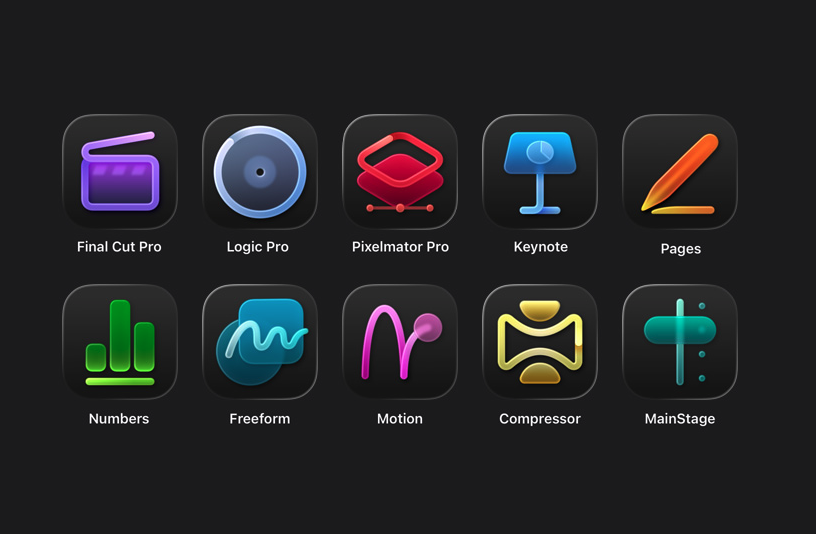
Apple Creator Studio apps
Apple
Pricing and subscription options
Apple Creator Studio costs $12.99 per month or $129 per year, and new subscribers can try the service free for one month. College students and educators get a steep discount: the education plan costs $2.99 per month or $29.99 per year, and it also comes with a one-month free trial.
A standard subscription can be shared with up to five other people using Family Sharing, allowing six users total. Education subscriptions are limited to individual use and cannot be shared. Apple is also offering three free months of Creator Studio to customers who purchase a qualifying new Mac or iPad around launch.
But Creator Studio isn’t the only way you can access most of these apps. Apple says all of the major apps included in Creator Studio will continue to be available as one-time purchases on the Mac App Store.
Final Cut Pro remains priced at $299.99, Logic Pro at $199.99, Pixelmator Pro at $49.99, Motion at $49.99, Compressor at $49.99 and MainStage at $29.99. Users who already own these apps can keep using them and re-download them from the App Store as usual.
On the iPad, however, things are different. Final Cut Pro, Logic Pro and Pixelmator Pro for iPad are only available through the Creator Studio subscription. There is no standalone purchase option for those apps on iPadOS.
Keynote, Pages, Numbers and Freeform remain free for everyone to download and use. Apple says those apps will continue receiving updates, including the upcoming visual design changes tied to iOS 26 and iPadOS 26.
Without a Creator Studio subscription, you can still create, edit and collaborate in those apps. What you will not get are the paid templates, Content Hub assets and certain intelligence features.
What happens to your projects if you cancel
Apple says projects and content you create with an active subscription remain licensed as part of your original work.
Final Cut Pro, Logic Pro and Pixelmator Pro projects remain on your devices and can be copied or shared elsewhere. But you will need an active subscription to open or edit projects in those paid apps.
Keynote, Pages, Numbers and Freeform documents remain editable without a subscription. However, you will not be able to make new edits that rely on paid features once your subscription ends.
Other information about the Apple Creator Studio app bundle
Apple Creator Studio also comes with some immediate trade-offs. Alongside the bundle, Apple confirmed that the older Pixelmator app for iPhone and iPad, now described as Pixelmator Classic, will no longer receive updates. Apple says it will remain functional, but development is shifting to Pixelmator Pro, including the new iPad version included with Creator Studio.
But don't expect the standalone versions of the apps to maintain feature parity with their Creator Studio counterparts. Per Apple's FAQ, "The Apple Creator Studio version of Pixelmator Pro includes access to the Warp Tool feature," which implies that feature isn't present on the standalone version.
More broadly, the bundle puts Apple more directly in competition with Adobe and other subscription-focused creative platforms, especially for people who are looking for a lower monthly entry point. At the same time, Apple is keeping one-time purchases on the table for Mac users, even as iPad access moves behind a subscription.
Apple Creator Studio will be available January 28. Whether it makes sense will likely come down to which device you work on and whether you would otherwise pay upfront for one or more of Apple’s pro apps.
This article originally appeared on Engadget at https://www.engadget.com/apps/apple-creator-studio-is-now-available-for-13-per-month-whats-included-and-what-it-means-for-creators-130000475.html?src=rss
As promised, Samsung is bringing its Galaxy Z Trifold smartphone to shoppers in the US. The unique foldable goes on sale on January 30.
The phone was announced along with its select markets' sale dates at the close of 2025. We didn't have price information for Samsung's domestic market at that time, and even though we were anticipating the Galaxy Z Trifold to cost a bundle, the actual cost is more absurd than we'd guessed. In reality, getting your hands on this slim triple-screen smartphone will run you $2,900.
Putting aside the ludicrous expense, this smartphone is pretty dang cool. After his hands-on experience with the phone at CES 2026, Engadget senior writer Sam Rutherford had overall positive things to say about the device, despite it demanding some tradeoffs in bulk. To borrow his own phrase: "I kind of hate how much I like the Galaxy Z TriFold."
Maybe as this cutting edge design becomes easier to manufacture, prices will eventually drop into the realm of reality for the average consumer. But if you’re a person who would buy a separate smartphone and tablet, combining both into a single device might feel worth the price tag. For now, anyone willing to pay the premium in the US will receive the model that has 512GB of storage and only comes in a black color.
This article originally appeared on Engadget at https://www.engadget.com/mobile/smartphones/the-samsung-galaxy-z-trifold-will-cost-2900-in-the-us-140000013.html?src=rss
The right accessories can transform your Apple Watch into the best workout companion, a stylish timepiece and everything in between. Whether you’re looking to upgrade its style, recharge its battery quickly or make it even more convenient to use on the go, there’s an accessory out there that can help. From a stylish sport loop that keeps things comfortable during workouts to a sturdy charging stand for your bedside, there are plenty of ways to enhance your experience.
Apple has a few Watches at this point: the flagship model, the Ultra 2 and the Watch SE, and you can find accessories for any and all of them — many of which won’t break the bank. If you’re always on the go, a power bank with wireless charging can help keep your watch topped up without needing to hunt for an outlet. No matter which Apple Watch you own, the best accessories can make daily use more seamless and add a little extra style and functionality along the way.
Best Apple Watch accessories for 2026
This article originally appeared on Engadget at https://www.engadget.com/computing/accessories/best-apple-watch-accessories-133025270.html?src=rss
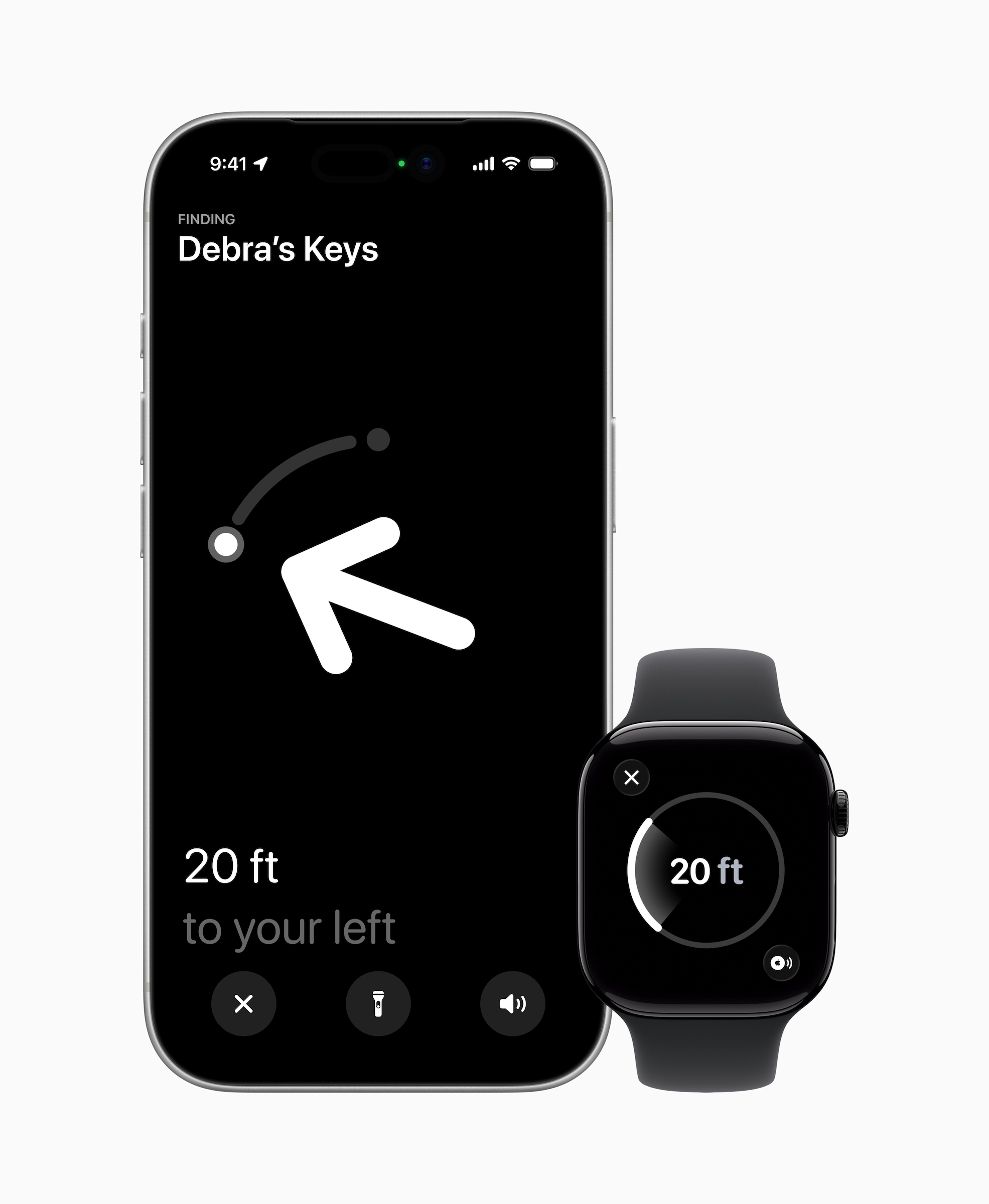
Once you get over that, the new Apple AirTag does offer some nice improvements. For starters, it's now powered by Apple's second-generation Ultra Wideband chip — the same one used in the iPhone 17 lineup and for the Apple Watch Ultra 3. It also uses Precision Finding to reach items up to 50 percent further away than the previous AirTag model. This feature will now work with any Apple Watch Series 9, Ultra 2 or a later iteration of either. That means the directional guidance that shows you down to a few feet where your AirTags are will be available on those compatible watches in addition to your iPhone.
New AirTag.
Apple
The new AirTag is also 50 percent louder than before and has what Apple calls a "distinctive new chime." It still uses the Find My network to bounce off other Bluetooth users and locate the AirTag.
Launched in 2021, Apple's AirTag has long stood as our favorite Bluetooth tracker for iPhones. It's convenience within the Find My app is a big help and almost makes up for the fact that it doesn't have a key ring — almost.
Update, January 28 2026, 11:58AM ET: This story has been updated to add a clarification on the Precision Find update for Apple Watches, as well as a link in the intro.
This article originally appeared on Engadget at https://www.engadget.com/wearables/apples-second-generation-airtag-offers-greater-range-but-still-doesnt-have-a-keyring-hole-150540407.html?src=rss
So it's come to this: Apple is reportedly working on a wearable AI pin. According to The Information, it is going to be a small device with "multiple cameras, a speaker, microphones and wireless charging." It sounds like the perfect gadget to pair with the long-awaited AI-powered Siri update, which will also reportedly work as a chatbot. But while many Apple rumors conjure up an air of excitement, the notion of an Apple AI pin sounds downright baffling. Worse, it just seems desperate.
Apple, the company known for taking its time to jump into new categories with more thoughtful solutions than its competitors, is reportedly chasing the specter of OpenAI's unreleased AI pin. Never mind that OpenAI has never actually produced any hardware, and that it arguably stumbled into its position as a leading AI player. And never mind that Humane's AI pin was a notorious failure that barely worked, and seemed pointless from the start.
If Apple's AI pin serves as a conduit to Siri, is it really that much more convenient than using an iPhone, AirPods or even an Apple Watch to do the same? The company has reportedly nixed plans to put cameras in the Apple Watch, and Bloomberg suggests it’s opting instead to focus on delivering its own smart glasses this year. But it’s not hard to imagine that faster hardware could let the Apple Watch handle more Siri and AI-related tasks on its own. It’s already a fairly self-sufficient device, allowing you to ask basic Siri queries, run apps and listen to music without an iPhone — the cellular models are even more capable since they can take calls and send messages.
At best, an Apple AI pin could just be a simple way for someone to access Siri if they don’t want to wear an Apple Watch, plug in AirPods or have their iPhone within shouting distance. But at least those devices do other things beyond talking to Siri. The same is true for Meta’s Ray-Bans and future smart glasses. Even without accessing AI, they’ll still let you listen to music, take calls and, well, be glasses for those who need prescription frames.
Given the vocal pushback against Meta's Ray-Ban smart glasses, which are also being banned on cruises, clubs and other venues, I'm also not convinced many people would be eager to prominently display a surveillance device throughout the day. Wired’s Julian Chokkattu was questioned about wearing a camera while he was testing the Humane AI Pin, and I’ve also had to explain to curious people why I was wearing Xreal’s smart glasses, which feature a prominent camera accessory.
Sure, we're already living in a panopticon of smartphone cameras, but it's also obvious when someone is using their phone to capture photos and video. An AI pin just dangling off of your clothes is a constant threat, an unblinking eye. Even if Apple implements some sort of capture notification, someone will always try to circumvent it.
While The Information notes Apple's AI pin may never actually see the light of day, I wouldn't be surprised if it does. This is the company that partnered with OpenAI just to make Siri appear slightly smarter with the debut of Apple Intelligence. And instead of building its own home-brewed AI models, it's banking on Google's Gemini to power Siri's big AI upgrade, as well as its future foundation models. When it comes to AI, Apple will do almost anything to avoid being seen as a straggler (and to avoid even more stock declines).
It’s genuinely strange that Apple, the company that let Samsung and Google get a multi-year head start on foldable smartphones and hasn't yet jumped into the world of smart rings, could fast-track an AI pin for 2027. It’s yet another example of how the AI hype cycle has warped priorities throughout the tech industry. But at least Apple’s fortunes don’t depend on standalone AI hardware as much as OpenAI.
This article originally appeared on Engadget at https://www.engadget.com/ai/an-ai-pin-is-beneath-apple-182744647.html?src=rss
Samsung’s 2025 was filled with new foldables, an ultra-thin new form factor and the launch of Google's XR platform. After making some announcements at CES 2026, the company has announced its first Galaxy Unpacked of the year will take place on February 25, where it is expected to introduce the Galaxy S26 lineup. Official invites have been shared, but actual information on what devices are arriving then is still not completely confirmed. But as usual, we know a lot about what’s expected at Unpacked.
Engadget will be covering Galaxy Unpacked live from San Francisco tomorrow, and we'll most likely have hands-on coverage of Samsung's new smartphones soon after they're announced. While we wait for the full details, here's everything we expect Samsung will introduce at the first Galaxy Unpacked event of 2026.
When is Unpacked 2026 taking place?
According to the official invite that Samsung shared on February 10, Unpacked will happen on February 25, 2026 in San Francisco. The keynote will start at 10AM PT (1PM ET) and be livestreamed on Samsung.com, as well as the company’s newsroom and YouTube channel. The announcement on February 10 also said this launch will mark “a new phase in the era of AI as intelligence becomes truly personal and adaptive.” It’s not a lot to go on, since we’ve heard a version of this from various companies over the last few years, but at least we won’t be shocked when we hear more about AI in just about two weeks.
Galaxy S26, S26+ and S26 Ultra
Samsung Galaxy S25 Ultra hands-on photo
Photo by Sam Rutherford/Engadget
Samsung's restrained approach to updating its phones will likely continue with the Galaxy S26. Based on leakedimages of the new lineup, the company is not expected to radically reinvent the look of the Galaxy S26, Galaxy S26+ or Galaxy S26 Ultra, and instead will stick with a similar design to what it used on the Galaxy S25. The phones will have a flat front screen and frame, with rounded corners and cameras housed in a vertical pill-shaped plateau on the back. Unlike Apple's move from the iPhone 16 Pro to the iPhone 17 Pro, the biggest difference here will likely be internal components like the screens, chips and camera sensors Samsung uses.
Qualcomm's new Snapdragon 8 Elite Gen 5 chip is expected to be in all Samsung Galaxy S26 phones, though Korean news site Yonhap News reports Samsung's relatively new Exynos 2600 chip could be used in some phones in the lineup depending on the region, a strategy Samsung has deployed in the past. Either way the new phones should be more performant than the previous generation, and in the case of the models with the Snapdragon 8 Elite Gen 5, particularly good at on-device AI processing.
I have compiled the most accurate comprehensive parameter comparison of Galaxy S25, S25+ and Galaxy S26、 S26+. Which one do you want to buy? pic.twitter.com/aQpoSvYjOz
One notable difference between the Galaxy S26 and the Galaxy S25 could be the phone's screen. The new phone will reportedly feature a 6.3-inch FHD+ display according to specs shared by leaker Ice Universe, which makes it ever so slightly larger than the 6.2-inch display used on the Galaxy S25. The S26 will also allegedly come with 12GB of RAM, either 256GB or 512GB of storage and a slightly larger 4,300mAh battery. Samsung isn't changing the cameras on the entry-level phone, though: leaks suggest it'll feature the same 50-megapixel main camera, 12-megapixel ultrawide, 10-megapixel 3x telephoto and 12-megapixel selfie camera as the previous generation. Changes appear to be even more minor on the Galaxy S26+. Other than the new Snapdragon chip, the phone will reportedly feature the same 6.7-inch FHD+ screen, 4,900mAh battery, 12GB of RAM and the same camera array used on the base Galaxy S26.
The difference between the Galaxy S26 Ultra and Galaxy S25 Ultra is reportedly a bit clearer. According to Android Headlines, the new phone's cameras will be slightly more raised, and stand out thanks to a new metallic finish. Samsung may also switch back to using an aluminum frame on the Galaxy S26 Ultra, after using titanium frames on both the Galaxy S24 and S25 Ultras. Most importantly, to make the phone actually support Qi2 rather than only technically work with the standard when a case is attached, rumors suggest Samsung will remove the S Pen digitizer layer in the phone and adopt a new method for accepting stylus input. It's not clear what that new method will actually be, but it could let the Galaxy S26 Ultra more easily work with Qi2 accessories without losing its stylus.
Android Headlines also recently shared what appear to be full image renders of the S26 series, and they generally line up with what has already been rumored, leaked and reported so far. If these pictures are accurate, they give us a clearer look at the camera bump and two color variants of the S26 Ultra.
Fans of magnets may continue to be disappointed by Samsung if the latest rumors are accurate. Despite the launch of the Qi 2 wireless charging standard adding support for convenient magnetic alignment years ago, Samsung has yet to bring that feature to its phones. Though the S-series have the higher speed charging rates that the spec enables, Nieuwemobiel.nl is reporting that, due to images it received of cases with magnetic rings, the S26 series likely won’t have built-in magnets. Samsung has made these cases to add the magnetic capability to its S-series in the past, and the existence of the images of these accessories lends weight to the idea that the company will continue this approach.
Galaxy Buds 4
Galaxy Buds 3 Pro in case.
Engadget
Samsung released the Galaxy Buds 3 and 3 Pro in 2024, with a major redesign that brought them much more in line with Apple's AirPods. The Galaxy Buds 4 and Buds 4 Pro Samsung is rumored to be announcing soon won't necessarily change that, though they will feature a more compact case and less angular stems, according to leaked images from the Samsung Tips app.
Support for head gestures to accept and decline calls, a feature Apple includes on the AirPods Pro 3 and AirPods 4, is also rumored to work on both versions of the new Galaxy Buds. SamMobile reports the Galaxy Buds 4 and 4 Pro may also ship with a new Ultra Wideband chip that will make them easier to find with Google's Find Hub network.
Galaxy Z Trifold
Yes, the TriFold has a crease, two in fact. But they still don't ruin the experience.
Sam Rutherford for Engadget
Samsung announced the Galaxy Z TriFold in late 2025 without firm details of when the new smartphone-that-folds-into-a-tablet would be available in North America. That info came on January 27, when the company announced the TriFold would be available in the US on January 30, for a whopping $2,900. Considering we’ve already seen the device in person at CES 2026 and people are most likely to have had a chance to look at, if not buy the foldable for themselves by the time Unpacked rolls around, we don’t expect Samsung to spend too much time dwelling on it, if at all.
Galaxy S26 Edge
At just 5.8mm thick, the Samsung Galaxy S25 Edge is one of the thinnest smartphones ever made.
Sam Rutherford for Engadget
When the Galaxy S25 Edge was announced in 2025, it seemed possible that Samsung could replace its "Plus" smartphone with a unique form factor, just like Apple has opted to do with the iPhone Air. There have been conflicting reports on the matter, but it seems like Samsung will not be doing that with the Galaxy S26 Edge.
Instead, the smartphone will reportedly remain another option, much like foldables are for customers not swayed by Samsung's traditional smartphones. The Galaxy S26 Edge is rumored to feature a slightly different design than last year's model, according to Android Headlines, with a large rectangular camera plateau that's reminiscent of Google's Pixel phones, and the raised oval Apple used on the iPhone Air. Beyond that, the phone is also expected to be ever so slightly thinner at 5.5mm than the 5.8mm Galaxy S25 Edge.
Bixby and other AI features
Samsung already acts as a first place Google can show off new AI features for Android, but the company is reportedly exploring other AI partnerships, too. In June 2025, Bloomberg reported that Samsung was nearing a deal with Perplexity to integrate its AI-powered search engine across OneUI and its homegrown mobile browser. Perplexity already has a deal with Motorola on its Razr phones, so the only thing that would make a deal with Samsung unusual is the close relationship the company already has with Google.
The company also accidentally announced a new version of its Bixby AI assistant, which will likely also be integrated with Perplexity and could serve as an alternative to Google Gemini. Both a new Bixby and a deeper integration with Perplexity seem like natural new software features to show off at Galaxy Unpacked.
On February 17, Samsung teased some mobile AI photography features ahead of Unpacked. These expand the S-series’ existing image-editing tools by bringing the ability “to turn a photo from day to night in seconds, restore missing parts of objects in images, capture detailed photos in low light, and seamlessly merge multiple photos into a single, cohesive result.” A lot of these things are already possible in other photo-editing apps or even in the Google Photos app, but we’ll have to wait to see them in action on the S26 phones for more details on whether they’re different or more effective.
The company continued to drip feed more teasers in the week leading up to Unpacked 2026, announcing just a few days later that it’s updated its Bixby assistant to be more conversational. Then, over the weekend, it shared that the S26 series will offer third-party AI agents within Galaxy AI, including Perplexity’s offering. It will allow for the devices to respond to the wake phrase “Hey Plex,” which is sure to be popular and not at all confusing to those who already use a similarly named media server and streaming app.
Until we find out more at Unpacked 2026, it’s tricky to determine if and how effective these updates will be, so we’ll just have to be patient until we get the phones in our hands.
Update, January 27 2026, 11:55AM ET: This story has been updated to reflect the latest news around the Galaxy Z TriFold’s price and availability in the US.
Update, January 30 2026, 12:45PM ET: This story has been updated to include the latest leaks on the possible dates for Unpacked 2026.
Update, February 02 2026, 11:30AM ET: This story has been updated to include the latest leaks with full image renders of the S26 trio of devices.
Update, February 03 2026, 11:00AM ET: This story has been updated to include the latest leaks about the possible lack of magnetic support on the S26 series.
Update, February 10 2026, 7:15PM ET: This story has been updated to include the official date of Galaxy Unpacked as Samsung announced it today. The intro was also edited to reflect that detail.
Update, February 17 2026, 4:55PM ET: This story has been updated to add Samsung’s teaser about its upcoming mobile AI photography tools. The intro was also edited for timeliness.
Update, February 24 2026, 10:45AM ET: This story has been updated to add Samsung’s recent updates about Bixby and Galaxy AI’s integration with Perplexity. The intro was also edited for timeliness.
This article originally appeared on Engadget at https://www.engadget.com/mobile/smartphones/samsung-galaxy-unpacked-2026-the-galaxy-s26-series-ai-and-other-products-we-might-see-on-february-25-130000135.html?src=rss
AirPods work most smoothly with Apple hardware, but they also connect reliably to Android phones, Windows laptops and other Bluetooth devices. The pairing process depends on the platform in use although the basics remain the same. Once the AirPods are placed in pairing mode, most devices detect them quickly and handle the remaining steps in the background. The guide below explains how to pair AirPods with Apple products, how the process differs on newer iPhones that support H2 features and how to connect them to non-Apple devices.
How to pair AirPods with Apple devices
Apple builds AirPods to pair almost instantly with devices in its own ecosystem. Opening the charging case near an unlocked iPhone or iPad usually brings up an on-screen prompt. Tapping Connect links the earbuds to the device and to every other Apple product signed into the same iCloud account. After that, switching between devices is automatic. Audio output follows the active device as long as each product is using updated software and is signed in with the same Apple ID.
If the pairing prompt does not appear, there are a few simple checks that help things move along. Opening the Control Center and selecting the audio output menu confirms whether the AirPods already appear as an available device. If they are listed there, choosing them establishes the connection. If they do not appear, opening the Settings app and checking Bluetooth usually reveals whether the AirPods are in range or already recognized. Opening the case while viewing the Bluetooth menu often triggers the pairing card once more.
The process is similar across Apple Watch and Mac. When the AirPods are already linked to an iPhone, they tend to show up automatically on a paired Apple Watch. On Mac, opening System Settings and viewing the Bluetooth section reveals the same device list seen on an iPhone. Selecting the AirPods from that list completes the connection and also syncs the pairing status back to every other Apple device using the same account.
Enhanced pairing with newer iPhones
Some newer iPhones support features enabled by the H2 chip used in newer AirPods models. With compatible AirPods, models such as iPhone 15 Pro, iPhone 15 Pro Max and the iPhone 16 lineup tend to deliver a faster and more responsive setup experience. When an AirPods case is opened near one of these phones, the device quickly detects the earbuds and displays the pairing card with little delay. This also tends to speed up transitions between devices and improves reliability when switching audio sources.
If the fast pairing prompt does not appear on a newer iPhone, reopening the case while the phone is unlocked is usually enough to reinitiate the process. It also helps to confirm that Bluetooth is turned on. Placing the AirPods back in the case for a few seconds and trying again will often reset the pairing state if the earbuds were connected elsewhere.
AirPods Pro 3
Engadget
How to put AirPods into pairing mode
Every AirPods model supports a manual pairing mode. This is essential when linking the earbuds to devices outside the Apple ecosystem, or when the automatic prompt fails to appear on an iPhone or Mac. On older AirPods models, pairing mode is activated by opening the lid and pressing and holding the setup button on the back of the case until the LED light flashes white. Newer models, including AirPods 4 and AirPods Pro 3, use a touch-based method instead. With the lid open, tapping the area near the LED light places the earbuds into pairing mode. Leaving the lid open keeps the AirPods discoverable for nearby devices. Closing the case ends the process and requires it to be repeated if the device fails to detect them.
Pairing mode does not remove any previous connections. It simply makes the AirPods available to new devices, which is helpful when switching between ecosystems. However, connecting to a new device usually takes priority. If the AirPods are already linked to something else that is nearby, turning off Bluetooth on the previously connected device prevents interference and helps the new device detect them more easily.
How to pair AirPods with Android devices
Although AirPods are designed for Apple hardware, they function like any other Bluetooth earbuds on Android. Opening the case and placing the AirPods in pairing mode allows Android phones to detect them through the standard Bluetooth menu. The earbuds appear in the list of available devices and selecting them initiates the connection. Once paired, AirPods work for calls and media playback. Some features, such as automatic ear detection and battery status indicators, may require a third-party app on Android and are not supported at a system level. Features such as spatial audio and device switching remain exclusive to Apple’s ecosystem but day-to-day performance is consistent on Android.
If the AirPods fail to appear, refreshing the Bluetooth device list on the Android phone usually helps. Making sure the earbuds are still in pairing mode is essential since the white LED indicator stops flashing after a short period. Reopening the case and holding the button again, or tapping on the front for newer models, restores discoverability.
How to pair AirPods with Windows laptops
Windows 11 handles AirPods as a regular audio device. Opening the Bluetooth and Devices menu in System Settings displays a list of nearby accessories. With the AirPods in pairing mode, the laptop should detect them and display them as an audio device. Selecting them completes the process and adds the earbuds to the device’s known accessories. Windows generally reconnects to AirPods automatically on future sessions as long as Bluetooth remains enabled.
If the earbuds do not appear in the list, toggling Bluetooth off and back on helps the system refresh the device scan. Checking whether the AirPods are already linked to a different device is another useful step. Windows sometimes struggles to take over a connection when the earbuds remain in range of a previously paired phone so disabling Bluetooth on the other device often resolves the issue.
Troubleshooting common pairing issues
Most pairing problems come down to the AirPods not being in discoverable mode or being connected to another device nearby. Resetting the earbuds solves many problems. On AirPods models with a setup button, placing the AirPods in the case, leaving the lid open and holding the button until the LED turns amber then white restores the factory pairing state. On newer models without a physical button, place the AirPods in the case, close the lid for about 30 seconds, then open it and quickly tap the front of the case three times. The status light should then flash amber and then white, to indicate that the reset is complete. This clears previous connections and makes the AirPods behave as if they are new out of the box.
Low battery levels can also interrupt pairing. Ensuring both the earbuds and the case have enough charge prevents unexpected disconnections during setup. Interference from other wireless accessories affects pairing on crowded networks. Moving to a quieter spot or turning off surrounding Bluetooth devices helps the AirPods stand out when scanning.
AirPods are built to pair quickly with Apple devices but they also integrate smoothly with other platforms. Keeping the earbuds in pairing mode and confirming that Bluetooth is enabled on the device in use ensures a smooth setup every time. Once connected, the AirPods tend to remember the device and reconnect whenever they are nearby which keeps day-to-day use simple regardless of the platform.
This article originally appeared on Engadget at https://www.engadget.com/audio/headphones/how-to-pair-airpods-with-any-device-140000234.html?src=rss
Verizon is offering a very small mea culpa after Wednesday's massive outage, which drew more than 1.5 million reports on Downdetector and lasted hours. Initially, the carrier posted on X that it will offer a $20 credit, but customers must redeem it in the myVerizon app. The company then said the credit could be claimed though customer service (via phone or chat), but our editors’ attempts to do so via chat were met with a message to wait for a text with further instructions.
Engadget editors began receiving the texts this morning (Jan 16) with a link to redeem. From there, you need to log into your account and visit the Account Overview section. Up top, there should be a Take Action or Mobile Actions button with a red notification circle. Click that and you’ll see a pop-up about the credit and a Redeem Now button. After you click that, you’re done, and Verizon says you should see the credit in one or two billing cycles. Of course, you’ll want to keep an eye out that it actually happens and contact the company if it doesn’t show up.
"This credit isn’t meant to make up for what happened. No credit really can," the company wrote. "But it’s a way of acknowledging your time and showing that this matters to us." Incensed customers have largely replied with incredulity, both at the miniscule amount, and that it isn't being applied automatically. The entire redemption process takes a few clicks and about a minute to complete, which makes it even more frustrating that it can’t be automatically applied to every customer’s bill.
Update, January 15 2026, 11:57 PM ET: Verizon says the credit can be claimed through customer service via phone, chat and online in addition to the myVerizon app.
Update, January 16 2026, 10:29 AM ET: This story has been updated with detailed info about the redemption process which Verizon now says is completed with a link that will be texted to customers.
This article originally appeared on Engadget at https://www.engadget.com/mobile/how-to-claim-verizons-20-credit-for-wednesdays-service-outage-171909695.html?src=rss
Gone are the days in which you needed to spend a fortune to get a good smartphone. In 2026, features once exclusive to high-end smartphones – big batteries, multi-camera arrays, high refresh rate OLED displays and more – have made their way down to more affordable models. Yes, you’ll still need to buy a flagship smartphone to get the best camera or fastest processor, but you don't have to make nearly as many compromises as you once did if you have a strict budget to adhere to when you go shopping for your next smartphone. If you have less than $600 to spend, let us help you figure out what features to prioritize when trying to find the best midrange smartphone.
While the term frequently appears in articles and videos, there isn’t an agreed-upon definition for “midrange” beyond a phone that isn’t a flagship or an entry-level option. Most of our recommendations cost between $400 and $600 — any less and you should expect significant compromises. If you have more to spend, you might as well consider flagships like the Apple iPhone 17 and the Samsung Galaxy S25 if you want the best smartphone experience. Devices like Pixel phones often sit in this price range too, offering some of the best value for Android buyers.
What to consider before buying a midrange smartphone
Buying a new device can be intimidating, but a few questions can help guide you through the process. First: what platform do you want to use? If the answer is iOS, that narrows your options down to exactly one phone. (Thankfully, it’s great.) And if you’re an Android fan, there’s no shortage of compelling options. Both platforms have their strengths, so you shouldn’t rule either out.
Of course, also consider how much you’re comfortable spending. Even increasing your budget by $100 more can get you a dramatically better product. Moreover, manufacturers tend to support their more expensive devices for longer with software updates and security updates, so it’s worth buying something toward the top limit of what you can afford.
Having an idea of your priorities will help inform your budget. Do you want a long battery life or fast charging? Do you value speedy performance above all else? Or would you like the best possible cameras with high megapixel counts? While they continue to improve every year, even the best midrange smartphones still demand some compromises, and knowing what’s important to you will make choosing one easier.
What won’t you get from a midrange smartphone?
Every year, the line between midrange and flagship phones blurs as more upmarket features and functions trickle down to more affordable models. When Engadget first published this guide in 2020, it was tricky to find a $500 phone with waterproofing and 5G. In 2026, the biggest thing you might miss out on is wireless charging – and even then, that’s becoming less true.
One thing your new phone probably won’t come with is a power adapter; many companies have stopped including chargers with all of their smartphones. Performance has improved in recent years, but can still be hit or miss as most midrange phones use slower processors that can struggle with multitasking. Thankfully, their camera systems have improved dramatically, and you can typically expect at least a dual-lens system on most midrange smartphones below $600 with decent camera quality, selfie performance and software support to keep things running smoothly for years to come..
Midrange smartphone FAQs
How long do midrange phones get software updates?
Support varies by brand, but most midrange phones receive around three to five years of software and security updates. Apple tends to support iPhones longer while companies like Google and Samsung now promise several years of Android and security patches for their midrange models. Budget-focused brands might offer less so it’s worth checking the update policy before you buy.
Are midrange phones good for gaming?
Yes, many midrange phones handle gaming well, especially popular titles like Fortnite, Genshin Impact and Call of Duty Mobile. They usually include capable processors, though you won’t always get the smoothest performance in the most demanding mobile games or at max settings. If you play casually or stick to less graphically intensive titles a midrange phone will feel more than adequate.
Georgie Peru contributed to this report.
This article originally appeared on Engadget at https://www.engadget.com/mobile/smartphones/best-midrange-smartphone-183006463.html?src=rss

 Anmelden