❌

Normale Ansicht

The best live TV streaming services to cut cable in 2026

People who are interested in a live TV streaming service are probably looking for one (or all three) of the following: current sports matchups, breaking news and cable-like channels. We tried all the major providers to see what you get for your monthly bill — particularly in light of the fact that every live TV streamer has raised prices over the past year or two. That said, in most markets, a live TV streaming service is still more cost-effective than cable. And you still don’t have to sign a contract. Right now, we think YouTube TV is the most well-rounded option — but the others might have more of what you’re looking for. Here are the best live TV streaming services based on our testing.

Editor’s note: The blackout of NBC channels on Fubo’s service continues, with no end in sight. That means fans hoping to catch the Super Bowl will need to look elsewhere. We’ve detailed your options below. 

Best live TV streaming services for 2026

How to watch the 2026 Super Bowl with a streaming service

This year, the Super Bowl will take place on Sunday, February 8, 2026 at Levi's Stadium in Santa Clara, California. NBC has the rights to air the broadcast, which means you can watch it with a live TV streaming subscription to YouTube TV, Hulu + Live TV or DirecTV. Sling Blue plans include NBC in certain markets only. NBC channels are dark on Fubo as the company and NBC are still in negotiations. The traditional streaming service Peacock, which is owned by NBC, will also air the game. Those plans start at just $8 per month, which is nearly the cheapest way to watch. However, if you have a digital antenna, you can pick up the game’s broadcast signal from your local NBC affiliate for free.

How can I stream NFL games for free?

If you have a digital antenna hooked up to your TV, you can grab games that are broadcast over the airways for your region by tuning into your local CBS, Fox, NBC and ABC stations. You can buy a digital antenna for between $20 and $60. 

Alternatively, you can check out your local sports bar and watch the game for the price of a soda and maybe some nachos. As it turns out, bars and restaurants that provide those games to customers have to pay a ton of cash to do so, so you may as well take advantage of the opportunity.

Will Peacock stream the Super Bowl?

Yes. Peacock is owned by NBC Universal, which holds the rights to stream the big game this year. The Super Bowl will stream on both Peacock (all tiers) and local NBC stations (Premium Plus tier). The cheapest tier of Peacock's service starts at $8 per month. 

Can you stream live football on YouTube?

September 5, 2025 marked the first time YouTube was an official live NFL broadcaster when it aired the Friday night, week-one game of the 2025 NFL season from São Paulo, Brazil. It pit the Los Angeles Chargers against the Kansas City Chiefs (LA won 21-27) and aired worldwide on YouTube for free as well as for subscribers to YouTube TV.

There are no other plans for YouTube to air live NFL games for the 2025-6 season for free.

Best free live TV streaming services for 2026

There are loads of ways to get free TV these days. To start, many standard streaming apps have added live components to their lineups — even Netflix. Peacock Premium Plus subscriptions include regional NBC stations. Paramount+ Premium subscribers can watch on-air CBS programming. The new Fox One service includes multiple live Fox stations. True, if you’re already paying for a service it’s not technically “free” but at least the live content isn’t extra.

The smart TV operating system (OS) you use likely provides free live content too: Amazon’s Fire TV, Google/Android TV, Roku’s built-in Roku Channel and Samsung’s TV Plus all have hundreds of live channels and original programming. Some of the paid services we recommend above have a free version — namely Sling Freestream, Fubo Free (available after you cancel) and DirecTV’s MyFree. But if you’re looking for more, here are the best free ad-supported TV (FAST) apps with live TV that we tried:

What to look for in a live TV streaming service

How to stream live TV

Streaming live TV is a lot like using Netflix. You get access through apps on your phone, tablet, smart TV or streaming device and the signal arrives over the internet. A faster and more stable connection tends to give you a better experience. Most live TV apps require you to sign up and pay via a web browser. After that, you can activate the app on all of your devices.

Monthly Price

When I started testing these cord-cutting alternatives, I was struck by the price difference between live TV and a standard video streaming app. Where the latter cost between $5 and $20 per month, most live TV services hit the $80 mark and can go higher than $200 with additional perks, channel packages and premium extras. The higher starting price is mostly due to the cost of providing multiple networks — particularly sports and local stations. And, in the past year or so, every service has raised base plan prices.

Local channels

Only two of the services I tried don’t include full local channel coverage for subscribers and one of those makes no effort to carry sports at all. That would be Philo and, as you might guess, it’s the cheapest. The next most affordable option, Sling, only carries three local stations — and only in larger markets — but it still manages to include some of the top sports channels.

When you sign up with any provider that handles local TV, you’ll enter your zip code, ensuring you get your area’s broadcast affiliates for ABC, CBS, FOX and NBC. Of course, you can also get those stations for free. Nearly all modern television sets support a radio frequency (RF) connection, also known as the coaxial port, which means if you buy an HD antenna, you’ll receive locally broadcast stations like ABC, CBS, PBS, FOX and NBC. And since the signal is digital, reception is much improved over the staticky rabbit-ears era.

But local channel access is another area where traditional streaming services, like Netflix, are bleeding into broadcast territory. For example, you can watch your local NBC station with a Peacock subscription and you can tune into your area’s CBS station through your Paramount+ subscription. Netflix is even getting into the mix with a recently announced deal with one of France’s broadcast companies, TF1. The streaming service will now air TF1's live TV channels and on-demand content inside the Netflix app. No word if the concept will expand to other regions, but it’s an interesting move to anyone interested in the future of streaming.

Live sports coverage

One reality that spun my head was the sheer number and iterations of sports networks in existence. Trying to figure out which network will carry the match-up you want to see can be tricky. I found that Google makes it a little easier for sports fans by listing out upcoming games (just swap in NBA, NFL, MLB, NHL and so on in the search bar). When you click an event, the “TV & streaming” button will tell you which network is covering it.

That just leaves figuring out if your chosen service carries the RSNs (regional sports networks) you want. Unfortunately, even with add-ons and extra packages, some providers simply don’t have certain channels in their lineups. It would take a lawyer to understand the ins and outs of streaming rights negotiations, and networks leave and return to live TV carriers all the time. That said, most major sporting events in the US are covered by ESPN, Fox Sports, TNT, USA and local affiliates.

I should also point out that traditional streaming services have started adding live sports to their lineups. Peacock carries live Premier League matches, Sunday Night Football games and aired the 2024 Olympic Games from Paris. Thursday Night Football as well as NBA and WNBA games are on Amazon Prime and Christmas Day Football airs on Netflix. HBO Max (formerly, er, HBO Max) now airs select, regular season games from the NHL, MLB, NCAA and NBA with a $10-per-month add-on. 

You can watch MLS games with an add-on through the Apple TV app, and Apple TV+ (now just called Apple TV) includes some MLB games. Roku users can watch the just-added free sports channel and those who subscribe to Paramount Plus can see many of the matches aired on CBS Sports, including live NFL games. In 2025, January's Super Bowl was live-streamed for free on Tubi. While all of these alternatives may not cover as much ground as live TV streamers, they could end up being cheaper avenues to the sports you want.

And if sports is all you’re after, there are sports-only plans that are a touch cheaper, too. The promised sports streaming service from ESPN, Fox and Warner Bros. called Venu was cancelled early this year. But on August 21, ESPN launched its own streaming service that includes all ESPN channels and costs $30 per month. Fubo Sports is $56 monthly and includes local broadcast stations from ABC, CBS and FOX plus a slew of sports networks (CBS Sport and FS1 among them) as well as all networks included with ESPN Unlimited.  

Fox launched its own standalone service in August as well and it includes Fox Sports and all other Fox properties (News, Business, Weather) for $20 monthly. DirecTV also has a $70-per-month, sports-only streaming package called MySports and Comcast has a sports and news bundle for that same price (as long as you're an Xfinity customer with auto-pay, otherwise it's more expensive).

Traditional cable networks

Dozens of linear programming networks were once only available with cable TV, like Bravo, BET, Food Network, HGTV, CNN, Lifetime, SYFY and MTV. If you only subscribe to, say, Netflix or Apple TV+, you won’t have access to those. But as with sports, standard streamers are starting to incorporate this content into their offerings. After the Warner Bros. merger, Max incorporated some content from HGTV, Discovery and TLC. Peacock has Bravo and Hallmark shows, and Paramount+ has material from Nickelodeon, MTV and Comedy Central.

Other entertainment channels like AMC+ have stand-alone apps. The Discovery+ app gives you 15 channels ad-free for $10 per month (or with ads for $6 monthly). And a service called Frndly TV starts at a mere $7 per month and streams A&E, Lifetime, Game Show Network, Outdoor Channel and about 35 others. Of course, most live TV streaming options will deliver more sizable lists of cable networks, but just note that you may already be paying for some of them — and if all you need is a certain channel, you could get it cheaper by subscribing directly.

On-demand streaming

Most live TV subscriptions include access to a selection of video-on-demand (VOD) content, like you would get with a traditional streaming service. Much of this content is made up of the movies and TV series that have recently aired on your subscribed networks. This typically doesn’t cover live events and news programming, but I was able to watch specific episodes of ongoing shows like Top Chef or BET’s Diarra from Detroit. Just search the on-demand library for the program, pick an episode and hit play.

Partnerships, like Hulu’s relationship with Disney, and add-ons, such as bundling Max with your YouTube TV subscription or Starz with your Sling plan, will let you watch even larger libraries of on-demand content. But again, if VOD is all you’re after, paying for those networks directly instead of through a live TV plan will be far cheaper.

Digital video recordings (DVR) limits

Every option I tried offers some cloud DVR storage without needing a separate physical device. You’ll either get unlimited storage for recordings that expires after nine months or a year, or you’ll get a set number of hours (between 50 and 1,000) that you can keep indefinitely. Typically, all you need to do is designate what ongoing TV series you want to record and the DVR component will do all the hard work of saving subsequent episodes for you to watch later. You can do the same thing with sports events.

Aside from being able to watch whenever it’s most convenient, you can also fast-forward through commercials in recorded content. In contrast, you can’t skip them on live TV or VOD.

Simultaneous streams and profiles per account

Each plan gives you a certain number of simultaneous streams, aka how many screens can play content at the same time. And while most providers will let you travel with your subscription, there are usually location restrictions that require you to sign in from your home IP address periodically. Stream allowances range from one at a time to unlimited screens (or as many as your ISP’s bandwidth can handle). Some plans require add-ons to get more screens.

Most services also let you set up a few profiles so I was able to give different people in my family the ability to build their own watch histories and libraries, set their favorite channels and get individual recommendations.

Picture-in-picture mode and multiview

Picture-in-picture (PiP) usually refers to shrinking a video window on a mobile device or computer browser so you can watch it while using other apps. Sling, YouTube TV, FuboTV, Philo, DirecTV Stream and Hulu + Live TV all have PiP modes on computers and mobile devices. 

Another feature, multiview, lets you view multiple (usually four) sports matches or other live content at once on your TV screen. YouTube TV, FuboTV and now DirecTV all let you do this. With YouTube TV, you can select up to four views from a few preset selection of streams. FuboTV offers the same feature, but only if you're using an Apple TV or Roku streaming device. DirecTV lets you do so through “mixes” which include sports, news, business and kids variants with a set four channels in each mix.

4K live streams

Right now, just FuboTV, YouTube TV and DirecTV Stream offer 4K live streams — but with caveats. YouTube TV requires a $20-per-month add-on, after which you’ll only be able to watch certain live content in 4K. DirecTV Stream has three channels that show live 4K content — one with shows and original series, and two with occasional sporting events. You don’t have to pay extra for these but you do need to have either DirecTV’s Gemini receiver, or a device from Fire TV, Apple TV or Roku. You’ll need those same streaming devices to watch the select 4K programming on Sling as well. FuboTV shows certain live events in 4K but access is limited to the Elite and Premier packages, not the base-level Pro plan.

Of course, watching any 4K content also requires equipment that can handle it: a 4K smart TV or 4K streaming device paired with a cord and screen that can handle 4K resolution.

Tiers, packages and add-ons

Comparing price-to-offering ratios is a task for a spreadsheet. I… made three. The base plans range from $28 to $85 per month. From there, you can add packages, which are usually groups of live TV channels bundled by themes like news, sports, entertainment or international content. Premium VOD extras like Max, AMC+ and Starz are also available. Add-ons cost an extra $5 to $20 each per month and simply show up in the guide where you find the rest of your live TV. This is where streaming can quickly get expensive, pushing an $80 subscription to $200 monthly, depending on what you choose.

How to stream live TV for free

I also downloaded and tried out a few apps that offer free ad-supported TV (FAST) including Freevee, Tubi, PlutoTV and Sling Freestream. These let you drop in and watch a more limited selection of live networks at zero cost. Most don’t even require an email address, let alone a credit card. And if you have a Roku device, an Amazon Fire TV or Stick, a Samsung TV, a Chromecast device or a Google TV, you already have access to hundreds of live channels via the Roku Channel, the live tab in Fire TV, through the Samsung TV Plus app or through Google TV.

How we tested live TV streaming services

When I begin testing for a guide, I research the most popular and well-reviewed players in the category and narrow down which are worth trying. For the paid plans, just six services dominate so I tried them all. There are considerably more free live TV contenders so I tested the four most popular. After getting accounts set up using my laptop, I downloaded the apps on a Samsung smart TV running the latest version of Tizen OS. I counted the local stations and regional sports coverage, and noted how many of the top cable networks were available. I then weighed the prices, base packages and available add-ons.

I then looked at how the programming was organized in each app’s UI and judged how easy everything was to navigate, from the top navigation to the settings. To test the search function, I searched for the same few TV shows on BET, Food Network, HGTV and Comedy Central, since all six providers carry those channels. I noted how helpful the searches were and how quickly they got me to season 6, episode 13 of Home Town.

I used DVR to record entire series and single movies and watched VOD shows, making sure to test the pause and scan functions. On each service with sports, I searched for the same four upcoming NHL, NBA, MLS and NCAA basketball matches and used the record option to save the games and play them back a day or two later. Finally, I noted any extra perks or irritating quirks.

All live TV streaming services we’ve tested:

Live TV Streaming FAQs

What is live streaming?

Streaming simply refers to video content that is delivered to your screen over the internet. Live streaming can be split into two categories: linear programming and simultaneous transmission. That first one is similar to what you get with cable or broadcast TV, with channels that play a constant flow of movies and shows (sort of what TV looked like before Netflix). Simultaneous streaming lets you watch live events (like a basketball game) or a program (like the evening news) as they happen.

What is the difference between streaming and live streaming?

Standard streaming, the most popular example being Netflix, lets you pick what you want to watch from a menu of choices. It’s also referred to as “video on demand.” Live streaming refers to sports and news events that you can stream as they happen in real time. It also refers to channels that show a continuous, linear flow of programming.

What streaming service is best for live TV?

FuboTV does the best job of letting you organize live channels to help you find just what you want to watch. The interface is uncluttered and when you search for something, the UI clearly tells you whether something is live now or on-demand. YouTube TV also does a good job making that info clear. Both have just over 100 live channels on offer.

What is the most cost effective TV streaming service?

Free TV streaming services like PlutoTV, Plex, Tubi and FreeVee show plenty of ad-supported TV shows and movies without charging you anything. Of course, they won’t have the same channels or content that more premium subscriptions have. Ultimately it depends on what you want to watch and finding the service that can supply that to you in the most streamlined form so you’re not paying for stuff you don’t need.

Is it cheaper to have cable or streaming?

A basic cable package used to be more expensive than the base-level live TV streaming service. But now that nearly all major providers have raised their prices to over $75 per month, that’s no longer the case. And with add-ons and other premiums, you can easily pay over $200 a month for either cable or a live TV streaming service. But those who want to cut the cord will appreciate that streaming services don't have contracts. 

What streaming service has all the TV channels?

No service that we tested had every available channel. Hulu + Live TV and DirecTV Stream carry the the highest number of the top rated channels, according to Neilsen. Hulu’s service also gets you Disney+ fare, which you can’t get elsewhere. FuboTV has the most sports channels and YouTube TV gives you the widest selection of add-ons.

What is the most popular live TV streaming platform?

YouTube TV has the most paying customers. According to 2024's letter from the CEO, the service has over eight million subscribers. Disney’s 2024 third quarter earnings put the Hulu + Live TV viewer count at 4.6 million. Sling’s customer count dipped from two million to about 1.9 million in 2024 and FuboTV grew its subscriber list to 1.6 million.

How safe are free streaming services and websites?

You may have heard certain sites that provide free content can be dangerous, leading to stolen info and/or exposing you to malware. That’s likely in reference to certain peer-to-peer (P2P) networks and file-sharing sites that let people download free movies and series — which can come bundled with malicious code.

But if you’re talking about the free ad-supported streaming television (FAST) services listed here, from providers like PlutoTV, Tubi and Plex, they are just as safe as any other streaming service. Since you sometimes don’t even have to provide your email address or credit card info, they can even be more anonymous for cord cutters than apps that require login credentials.

Recent updates

December 2025: Included Fubo's channel and price adjustments. Confirmed pricing for all services

This article originally appeared on Engadget at https://www.engadget.com/entertainment/streaming/best-live-tv-streaming-service-133000410.html?src=rss

©

© Engadget
Best live TV streaming services
  •  

The best USB-C hub for 2026

Having fewer ports makes laptops and tablets lighter and more affordable — but that also cuts down on your connectivity options. If you’ve got a MacBook Air, a slim Chromebook or a tablet you’d like to get more utility out of, a USB-C hub can help. Using just a single port on your device, these multiport adapters will let you hook up screens, tap into Ethernet cables, connect mice and keyboards, and transfer data to drives and memory cards. Most also give you a way to power your device through the hub to maximize port availability. We tested over a dozen models to come up with picks for every budget. Here are the best USB-C hubs, according to our tests.

Table of contents

Best USB-C hubs for 2026

What to look for in a USB-C hub

Hub vs docking station

The first thing to decide is whether you need a USB-C hub or a USB-C docking station. There’s no set standard for what differentiates the two, but docking stations tend to have more ports, offer a separate DC power adapter and cost more, with some reaching upwards of $400. We have a separate guide to the best docking stations to check out if you’re looking for something bigger than what we’re discussing here. USB-C hubs, in contrast, have between four and 10 ports, can support pass-through charging and typically cost between $30 and $150.

Hubs, sometimes also called dongles or even multiport adapters, make more sense for smaller setups with just a few peripherals, such as a monitor, a wired keyboard and mouse, and the occasional external drive. They’re also more portable, since they’re small and require no dedicated power. That could be useful if you change work locations but want to bring your accessories with you, or if you want to replace your laptop with a more powerful tablet. A docking station or Thunderbolt dock makes more sense for someone who needs a robust setup for their laptop, including multiple external monitors, webcams, stream decks, microphones and so on.

Both docks and hubs make it easy to grab your laptop off your desk for a meeting or other brief relocation and when you get back, you only need to plug in one cable to get all your accessories reconnected. Of course, if you just need to plug in one peripheral, you may not need a hub or a dock, a simple USB-C adapter, like HDMI to USB-C or USB-A to USB-C, may do the trick.

Ports

For a USB-C hub to work, it needs to connect to a port on your laptop or tablet that supports video, data and power — all of which is covered by anything listed as USB 3.0 or better, including USB4 and Thunderbolt 3 and Thunderbolt 4. The port, of course, needs to be Type-C as well. The sea of laptops out there is vast, so it’s hard to make generalizations, but modern laptops, including Windows and Apple models, should have at least one USB-C port that will suffice, and indeed, every one of our top picks for the best laptops do — including our top pick, the M4 MacBook Air.

Next, it’s a matter of finding a good USB-C hub that has the right connections for your needs. Most hubs offer some combo of HDMI, USB, SD card reader, Ethernet and 3.5 mm ports. If you have a 4K monitor and would like at least a 60Hz refresh rate, you’ll need a hub with an HDMI 2.0 port — HDMI 1.4 only goes up to 30Hz. HDMI 2.1 will handle 4K at up to 120Hz, but hubs that have adopted that standard aren’t as common just yet. Keep in mind that a low refresh rate can cause your screen to feel laggy, making your mouse appear glitchy and your webcam movements to look delayed.

Additional USB ports on these accessories are usually USB Type-A or USB Type-C. They can support data with different transfer rates, typically 5Gbps or 10Gbps. Some ports only handle passthrough power and no data, and some can do data, power and video, so it’s best to check the spec list to make sure you’re getting the support you need. Keep in mind that a hub may bill itself as a 7-in-1, but one of those ports may not be usable for anything other than charging.

Standard SD and microSD cards are useful for transferring data from cameras and the like or for offloading files from your hard drive, and many hubs have those slots. Ethernet ports may deliver faster internet speeds than your Wi-Fi and a hub with a 3.5mm jack can bring back the wired headphone connection that some laptops have ditched.

Power delivery

Nearly all of the USB-C hubs I tested support passthrough charging. That means if your laptop or tablet only charges via USB, you don’t have to take up another port on your laptop to keep everything topped up. Unlike a docking station, powering a hub is optional. The one exception is if you want to close the lid on your laptop while you work on an external monitor. Most computers will go into sleep mode if the lid is closed without power, so either the laptop or the hub will need to be plugged into the wall to prevent that from happening.

Many of the newer hubs include a 100W USB-C power delivery (PD) port, with a healthy 80 to 85 watts going to your Mac, PC, iPad or Android tablet (the hubs take a little of the juice for themselves, hence the 15-watt or so difference). In my tests, a powered USB hub ran hotter than when it wasn't passing the charge through, so I prefer to power the computer directly using its own charger. But for tablets or other devices with no extra ports, that PD option is important.

Some PD ports are also data ports — which is both good and bad. On one hand, it feels wasteful to use a perfectly good data port just for boring old electricity. But on the other hand, USB-C connections that only carry a charge are less versatile, and it makes it seem like it has more accessory hookups than it actually does.

Design

There’s surprisingly little design variation among hubs. Most look like a flat slab, a little smaller than a smartphone, and have an attached Type-C host cable. The hues range from a silvery black to a silvery gray. Some are thinner than others, some have all ports on one edge and some have ports on both sides. All of this is just to say that aesthetics probably won’t make or break your buying decision.

One variation that could tip the scales is the length of the cable. A longer one will give you more freedom as you arrange the hub on your desk, potentially even letting you hide it behind your laptop. Or you may prefer a shorter one to keep the hub neatly set beside your laptop.

How we test USB-C hubs

Before we test anything, we take a look at what’s available and how they’ve been received by shoppers, forum-goers and other publications. I became familiar with a few reputable brands when I was testing docking stations, so I looked into hubs from those companies as well. I focused on items that would help with an average day of productivity — not high-end setups or demanding gaming situations. Once I settled on a dozen or so that would make good candidates, I had them shipped to my humble office in the desert and started testing them out over the course of a few weeks.

I used an M1 MacBook Pro running MacOS Sonoma as the host computer and plugged in accessories that include a 4K Dell monitor, a ZSA USB-C ergo keyboard, a Logitech USB-A gaming mouse, an Elgato USB-C 4K webcam, a Logitech streaming light, a USB-A 3.0 Sandisk thumb drive, a USB-C Samsung T7 Shield external drive and a pair of wired headphones I got for free on an airplane (I should probably invest in some wired headphones, but the cord dangling on my chest drives me nutty so all my earbuds are wireless). I used high-end HDMI and USB-C cables to ensure that any data or connectivity issues weren’t related to my equipment.

Then I put each USB-C hub through a gamut of basic tests. I looked at what could be plugged in at once, the resolution on the monitor, data transfer speeds, the overall build quality of the hub and general usability factors, like the placement of the ports and the length of the cords. And, finally, the price-to-value ratio helped determine the best ones for a few different use cases.

Other hubs we tested

HyperDrive Next 10 Port USB-C Hub

There’s a lot to like about HyperDrive’s Next 10 Port USB-C Hub. The tethered cable is a lavish 13 inches long, the HDMI 2.0 port outputs clear and crisp 4K visuals at 60Hz and the high-speed data transfers are great. It has the coveted two USB-C data ports plus a PD port, and there’s even a headphone jack. The only thing that holds back a full-throated endorsement is the way our unit handled a streaming light. Having it on at full brightness made the webcam flicker every time. The issue went away at 75 percent brightness, but the same problem didn’t happen on any other hub I tested.

Anker 341 USB-C Hub (7-in-1)

There’s nothing wrong with the Anker 341 USB-C hub. In fact it’s a current recommendation in our iPad accessories guide and it comes at a great $35 price. It gives you two USB-A ports as well as SD slots. But at this point, a 1.4 HDMI connection, which only supports 4K resolution at 30Hz feels a little retro. There’s also just a single USB-C downstream port and the data transfer tests proved to be a touch slower than the other hubs. But if you’ve got a lower resolution monitor and don’t need more than one USB-C, you won’t be disappointed with it.

Anker 555 8-in-1

It was a tough call between the UGreen Revodoc Pro 109 and the Anker 555 8-in-1 for our top recommendation. Both have a similar port array with an HDMI, Ethernet, two USB Type A, a PD USB-C and a USB-C 3.2 on the 555. And the Anker USB-C hub is $15 cheaper. We went with the UGreen hub for its more premium build, extra USB-A port and longer cord that gives you two extra inches to work with. But if you want to save a few bucks this hub is a worthwhile pick. 

Startech 4-Port USB-C Hub (data only)

I only became aware of Startech when I started researching for this guide. The quality is decent and the yellow accents are a welcome bit of color in the otherwise very gray world of hubs. The performance is solid, with no hiccups that I encountered. The brand’s 4-Port USB-C Hub has a long cord that wraps around the hub itself, which is unique. It doesn’t bother with power delivery, which isn’t an issue if you can power your computer directly. But the four USB ports (three Type-A and one Type-C) max out at 5Gbps and there’s no HDMI connector. It goes for $46, and unfortunately for it, there are cheaper ways to get a few more USB ports for your setup.

Recent updates

January 2026: Added an honorable mention from Satechi. 

This article originally appeared on Engadget at https://www.engadget.com/computing/accessories/best-usb-c-hub-120051833.html?src=rss

©

© Amy Skorheim for Engadget

Best USB-C hubs
  •  

The best streaming devices for 2026

With the dominance of smart TVs, streaming sticks and boxes may seem redundant — but if your smart set is slow or has a frustrating user interface, a streaming device will let you bypass your TV’s built-in OS and use Google TV, Fire TV, Apple TV or something else instead. There are a lot of streaming gadgets out there, all with different operating systems, memory capacities, video resolutions and bonus features, such as headphone connections and ambient modes that fill your screen with stills when you’re not watching. We tested options from the major brands and broke down exactly what each device gives you so you can pick the best streaming device for your TV.

Table of contents

Best streaming devices for 2026

What to look for in a TV streaming device

Operating system and interface

Google’s TV Streamer, the Apple TV 4K, Amazon’s Fire TV Sticks and Roku devices are the most popular players in the space. Three of those brands also come built into TVs, such as Fire, Google and Roku TVs, but the Apple TV 4K doesn't come pre-loaded on any set. Each one has a unique operating system and interface. This may be the biggest deciding factor for many people, as it determines how the home entertainment you want to watch is arranged and presented. We go into detail for each platform below, but all of them come with home screens that, to varying degrees, gather your apps in one place, present the movies and TV shows you’re currently watching and give you suggestions of other media streaming options.

Nearly all streaming devices come with a remote that lets you search and do other operations using your voice, eliminating the need to hunt and peck at on-screen keyboards. They all offer “universal search,” in which searching for a title takes you to whichever app has it available. If you want to watch Wicked but don’t know where it’s playing, just push the voice button on the remote and say "Wicked.” (We found simply saying the title or the genre you want sometimes works better than saying “Show me…” or “Search for…”) From the search results, hit the play button and the correct app will open and start playing — assuming you’ve previously logged into that app and, in most cases, have an active subscription.

Connectivity

Most streaming sticks connect to the internet via Wi-Fi, with the majority of them supporting Wi-Fi 5 or 6 protocols. Set-top boxes can also have Ethernet ports, so you can hardwire your internet connection to the device, which is typically faster than wireless. Streaming media players connect to your TV through an HDMI port, and most sticks hide behind the screen, while set-top boxes sit on a surface nearby. Nearly all units also plug into an AC outlet for power. Some sticks used to work by pulling power from a USB port on the TV, but increasingly, these devices are designed to plug into the wall.

Video and audio features

If your home theater setup has a screen that can display 4K content with Dolby Vision and HDR10, you’ll want a streaming device that supports those high-end formats. Of course, even the most top-shelf streamer can’t make a 1080p TV stream 4K. The series or movie also has to be transmitted in 4K and, increasingly, companies restrict higher-quality streaming to more expensive subscription plans. In short, every element needs to support the video or audio feature, otherwise the highest quality you’ll get will be the lowest of any component in the chain.

Remotes

Most remotes that come with streaming devices will allow you to control the power and volume of your TV. Some of the less expensive devices, however, don't have that feature, so you'll need to use your TV's remote control to turn it on, then use the streaming remote to navigate the streamer's interface. If your streamer's remote does offer power and volume controls, the setup process will usually calibrate your remote to your TV. If you want to use a soundbar, such as from Sonos or other brands, for audio you may also have to take the additional step of pairing your remote to the speaker.

Voice control

In addition to helping you find stuff to watch, streaming devices from Apple, Google and Amazon can answer questions about the weather, sports scores and general facts using built-in voice assistants. They can also act as smart home controllers to turn off connected smart bulbs or plugs and show feeds from smart cameras. Just remember, as with all smart home devices, compatibility is key. Fire TV devices work with Alexa-enabled smart home equipment; the Google TV Streamer lets you control Google Home devices; and Apple TV 4Ks play nice with HomeKit and other Apple devices. Rokus grant power over Roku’s smart home products, but also work with the other ecosystems.

How we tested and picked the best streaming devices

Like every gadget we test, we start by researching what’s worthy of reviewing. Then we get a hold of the devices ourselves and see how well they work. We don’t have a central Engadget lab; we test things in our own living rooms, on our own TV sets. We also figure that’s a better approximation of your own TV experience anyway.

We began testing streaming devices as far back as 2007 with the first Apple TV device. Since then, we’ve tried out most of the major new releases to come along — from the Roku Stick back in 2014 to the 2024 Google TV Streamer 4K. A few years ago, we decided to compile the streaming devices we reviewed into this guide. Since then, we’ve updated our top picks using verdicts from our reviews, as well the testing we perform just for this guide. As new devices come out, we try them and, if something is worthy, we add it to our top picks on this list.

This article originally appeared on Engadget at https://www.engadget.com/entertainment/streaming/best-streaming-devices-media-players-123021395.html?src=rss

©

© Engadget

Best streaming devices
  •  

The best laptop power banks for 2026

Laptop power banks come in handy if you often travel or work away from your desk. These larger batteries have enough capacity to refill your computer to around 75 percent, giving you many more productive hours. Of course, they can also charge smaller devices like your phone, camera or tablet a few times over. Nearly all portable laptop chargers fall below the 100-watt-hour mark so you can bring them in your carry-on when you fly. Additional features, like built-in cables and digital displays make these battery banks easier to use, too. We tested over a dozen options and put our thoughts below, so you can find the best laptop power bank for your next trip away from an outlet.

Table of contents

Best laptop power banks for 2026

What to look for in a laptop power bank

Flying with a laptop power bank

Most portable batteries top out at around 27,000mAh so you can fly with them. The TSA currently limits the capacity carry-on batteries to 100Wh, which works out to around 27,500mAh for 3.6 volt lithium-ion batteries. Note that you’re not allowed to pack any batteries in your checked luggage, regardless of capacity. The TSA rules are intended to limit fire danger — and some airlines are implementing further restrictions due to recent on-board incidents.

In March 2025, a Hong Kong flight was grounded after a battery pack caught fire in an overhead bin. A similar situation happened that same year in July on a domestic Delta flight, and again in August on a transatlantic KLM flight. As a result, some airlines, including Emirates, Southwest and others have announced further restrictions on flying with battery packs.

Rules include limiting the number of allowed portable chargers and requiring flyers to keep power banks in clear view when using them to recharge a device. If the battery pack isn’t actively in use, however, most rules allow them to stay in your carry-on bag in the overhead bin. Before flying, it’s wise to check your airline’s policies.

Capacity

If you just need to keep a smartphone from dying before you can make it home, just about any of the best power banks will do. But if you need to revive multiple devices or the substantial battery of a laptop, you’ll want something with a high milliamp-hour​​ (mAh) capacity. A power bank capable of delivering enough power to a laptop will have a capacity between 20,000 and 27,000 mAh.

If you want something even bigger than a laptop power bank, and don’t need to fly with it, you’ll likely want to look into portable power stations. These can be the size of a car battery or larger and can potentially fuel an entire weekend away.

Another thing to keep in mind is that the capacity listed in a power bank's specs is not what will be delivered to your devices. As I mentioned, the capacity of these banks is around 25,000mAh. Even the huge battery on a 16-inch MacBook Pro or a Dell XPS 16 has a mAh rating of around 5,000 - 6,000mAh, so you might think you’d get five full charges but in reality, you only get about a single 70-percent charge. The voltage is different (typically 3.7V for the power bank and 11.4V for a laptop) which makes the watt-hours, or the amount of energy each battery can hold, different (working out to 92Wh for the battery and 72Wh for the built-in laptop batteries). On top of that, in order to feed a charge from a power bank to a laptop, a voltage conversion takes place and that dissipates a decent amount of energy.

Without turning this into a physics lesson, this all means that a power bank with a 25,000mAh (or 92Wh) capacity will typically fill a 5,000mAh (or 72Wh) laptop battery to about 75 percent. In my tests, I averaged about a 60-percent efficiency rate between a power bank’s listed capacity and the actual charge delivered.

Ports

Every large power bank I’ve tested has at least three USB ports, with a mix of USB-C and USB-A, which should cover nearly any portable device you need to recharge — earbuds, phones, tablets, laptops, you name it. In addition to the different plug formats, some ports supply power at different wattages. For example, one built-in USB-C port might be rated for 60 watts, while the one next to it is rated for 100 watts. So if you’ve got a device that’s capable of 70W fast charging, such as the new MacBook Air, you’d want to opt for the 100W port to get the best charging speeds possible. 

Note that devices with a smaller wattage draw won’t be negatively affected by connecting to ports with high ratings. For example, a Galaxy S24 Ultra, capable of 45W super fast charging, is perfectly compatible with the 100W port. A device will only draw what it can take, regardless of what a port can supply. Just remember that the port, device and charging cable need to be at or above the desired wattage rating to achieve maximum charging rates.

Some of these larger batteries also have AC ports. It might seem like a natural fit to plug in your laptop’s power adapter for a recharge. But really, the AC port should only be for devices that can’t use USB — such as a lamp or a printer. Plugging a power adapter into the AC port only wastes energy through conversion. First, the battery converts its DC power to supply the port with AC power, then the power adapter converts that AC power back to DC so your laptop can take it in. And as you’ll remember from physics class, each time energy is converted, some is lost to heat and other dissipations. Better to cut out the middleman and just send that DC power straight from the battery to the device.

Also, you can use more than one port at a time with these devices; just remember that the speed of whatever you’re charging will likely go down, and of course, the battery is going to drain proportionally to what you’re refilling.

Wireless charging

Since I first started testing portable power banks a few years ago, wireless charging capabilities have noticeably improved. The first few I tried were painfully slow and not worth recommending. Now the wireless pads built into power banks are impressively fast — particularly, in my experience, when charging Samsung Galaxy phones (though the lack of a stabilizing magnetic connection like Apple’s MagSafe means they only work when rested flat on a pad). Most wireless charging connections can be used while other ports are also being employed, making them convenient for some mobile battlestation setups.

Of course, wireless charging is always less efficient than wired, and recharging from an external battery is less efficient in general. If you want to waste as little energy as possible, you’re better off sticking to wired connections.

Design

All power banks are designed to be portable, but there’s a big difference between a pocket-friendly 5,000mAh battery and one of these laptop-compatible bruisers. Most of the latter weigh between a pound and a half to two pounds, which is a considerable addition to a backpack. Many of the options listed here have a display to tell you how much charge remains in the battery, which is helpful when you’re trying to judiciously meet out charges to your devices. If a bank has a wireless connection, the pad is usually on the flat top and any available AC connection is usually at one end. Both may require you to engage those charging methods. Don’t be like me and grumble loudly that you got a bum unit without pressing (and sometimes double pressing) all the buttons first.

How we test portable laptop chargers

For the past three years, I’ve been testing and using dozens of portable batteries for our other battery guide. Some of those batteries include the higher-capacity power banks you see here. I also got a hold of a few extra banks just for this guide to make sure we covered what’s available. I went for brands I’m already familiar with, as well as battery packs from well-received manufacturers I hadn’t tried before (like UGREEN and Lion Energy). I only considered banks with at least a 20,000mAh capacity and mostly stuck with those that rated 25,000mAh and higher.

Here’s everything we tested:

I tested each power bank with an Apple phone (iPhone 15 or 16), an Android phone (Galaxy S23 Ultra), a tablet (M1 iPad Air) and a laptop (16-inch MacBook Pro with the M1 Pro chip). Even though these banks can charge multiple devices at once, I refilled one at a time, to make side-by-side comparisons more straightforward. I drained the batteries of the phones and tablets to between zero and five percent and then didn’t use any device as it refilled.

For the MacBook, I let it run down to 10 percent before plugging in the power bank. That's when most laptops give display a “connect to power” warning, as draining any battery to empty will compromise the battery life. I then used it as one might in a mobile office, with a Bluetooth keyboard and mouse, while connected to Wi-Fi and a VPN.

For each test, I noted how long a completely charged battery took to get a device back to full and how much of the battery’s capacity was used up in one charge. I also noted things like portability, apparent durability, helpful features and overall design.

For reference, here are the battery capacities of the devices I used:

  • iPhone 15: 3,349mAh

  • Galaxy S23 Ultra: 4,855mAh

  • iPad Air (5th gen): 7,729mAh

  • 16-inch M1 Pro MacBook Pro: 27,027mAh

Other laptop power banks we tested

HyperJuice 245W

Hyper’s HyperJuice 245W brick looks great and has a hefty 27,000mAh capacity. The four USB-C ports can combine to output 245W of power and it got my MacBook Pro from nearly dead to 75 percent before depleting itself. When testing it with a Samsung Galaxy S23 Ultra, the handset got back up to a full charge in just over an hour. The screen tells you what each port is doing as well as displaying the amount of charge remaining in the pack itself.

But the lack of port variety makes it feel less versatile than other picks on this list — the price is higher than our other options, too.

Laptop power bank FAQs

How do laptop power banks differ from phone power banks?

The main difference is size. Phone power banks tend to have a capacity ranging from 5,000mAh to 20,000mAh and laptop powerbanks are typically rated between 20,000mAh and 27,000mAh. There’s no official definition, however. Laptop batteries are simply larger and need a bigger supply of power to give them a meaningful charge.

How do you fast charge a power bank?

You can charge a power bank exactly as fast as the power bank’s internal mechanisms will allow. Most batteries are limited in how quickly they can accept and deliver a charge to avoid dangerously overheating. But to make sure you’re charging a bank as quickly as possible, make sure the wall adapter and the USB-C cable you are using have a high wattage rating — using a 5W power brick and a 10W cable will take a lot longer to refill your bank than a 65W wall charger and a 100W cord.

What size power bank do I need for a laptop?

Look for a power bank with a rating of at least 20,000mAh. Slightly smaller batteries may work, but they won’t deliver a significant charge laptops.

How many mAh to charge a laptop?

A milliamp hour (mAh) is how much a battery can hold, and most portable batteries list their capacity using mAh. If you get a battery rated at 20,000mAh or above, it should be able to charge your laptop.

Using mAh to discuss laptop batteries can be confusing. Due to differing voltages, you can’t directly compare the mAh ratings of a power bank battery to a laptop battery. Using watt-hours is a better gauge, as that calculation takes voltage into account.

Recent updates

November 2025: Updated our overall top pick to the Anker Laptop Power bank. Added a premium power bank pick.  

This article originally appeared on Engadget at https://www.engadget.com/computing/accessories/best-laptop-power-bank-120040388.html?src=rss

©

© Engadget

Best laptop power banks
  •  

CES: So very big, so little sustainability tech

Every third booth at CES showed off some new AI product or other. If you wanted to find a robotic lawn mower, throw a rock. Humanoid robots, smart locks and super thin TVs were everywhere. But if you went looking for sustainability products, you’re going to have to hunt a bit.

Last year, the Sustainability section at the Las Vegas Convention Center had 20 booths. This year, there were 38, but that’s in part due to the combination of the energy and sustainability categories. So exhibitors like South Korea’s largest electric utility company, a nuclear power company from the same country and lots of battery manufacturers. There was also an AI data platform booth in the section that had nothing to do with sustainability as far as I can tell. Guess the organizers just ran out of room for all the AI.

Within the sustainability section, and at other CES venues, I found a few encouraging displays of sustainable products — organizations and devices that were trying to address the multitude of problems the world is facing when it comes to energy production, climate and pollution.

But none of it quite achieved Engadget’s best of CES status this year. Some of what we saw was utility-scale, some wasn’t quite ready for consumer consumption and other stuff was too niche or had too many caveats to make the list. I won’t go so far as to say sustainability is dead at CES, because that sends me into dark downward spirals, but it’s getting sparse out there, friends.

Here are the companies I saw that had promise and innovative ideas. And gosh darn it, at least these guys are trying.

Shine Turbine 2.0

Spinning the Shine Turbine 2.0
Spinning the Shine 2.0 wind turbine
Amy Skorheim for Engadget

This little guy could be a precursor to some serious personal wind power generation. That’s where the company is heading. For now, the Shine 2.0 can use as little as a light breeze to start generating power to charge your smartphones, laptops or even a power station. The whole unit weighs three pounds and sets up in around two minutes. The second generation model can output up to 75 watts and the company is working on a third version that goes up to 100 watts for even more substantial energy production.

Learn more at Shine.

Flint battery tech

Flint batteries break down by 70 percent in four weeks in a compost pile.
Amy Skorheim for Engadget

When I approached Flint’s booth, the rep told me the company made cellulose batteries. And I thought, like paper-wrapped batteries? Nope. The chemicals inside the batteries are made from cellulose. They have a solvent-free, lithium-free, PFAS-free chemistry and break down by 70 percent in four weeks in a composting environment. They use the same basic architecture as a lithium-ion cell, with an anode, cathode and separator with ion transfers between the two. As of now, Flint is focused on partnering with manufacturers, and consumer products are on the horizon.

Learn more at Flint.

Clear Drop soft plastics compactor

The Clear Drop soft plastics compactor next to a pile of the bricks it produces.
Amy Skorheim for Engadget

The Clear Drop is a soft plastics compactor that creates eight by twelve by four-inch bricks out of hundreds of grocery bags, bubble wrap, ziplocks and plastic packaging. One brick is equivalent to a 30-pound trash bag-worth of bags. Once the brick is created, it can be shipped to one of Clear Drop’s partner facilities in a pre-paid USPS shipping envelope. They currently work with a few US-based recycling facilities and hope to one day create an infrastructure to include municipal recycling.

Learn more at Clear Drop.

Alpha Power by CPTI

Alpha power by CPTI
Alpha power by CPTI
Amy Skorheim for Engadget

From what I’ve learned at the show, perovskite is the hottest thing in solar right now. It’s a mineral compound that’s been used to create more efficient solar panels. Some so sensitive to light that just indoor illumination is enough to create usable energy. Alpha Power by CPTI creates lightweight, flexible perovskite solar panels that can conform to multiple surfaces. Again, this is a company that’s partnering with manufacturers, so look for panels built into your laptop to charge it under the glare of your too-harsh office lights.

Learn more at CPTI.

Green Vigor

3D models of buildings using Green Vigor technology.
Amy Skorheim for Engadget

Down in the lower levels of the Venetian Expo at CES I found Green Vigor in the Hong Kong pavilion. This small company has two solutions to create energy for buildings by harnessing the potential energy from existing systems. HydroVigor generates power from water systems. So every time someone washes their hands or flushes a toilet in a building, the roof-top system generates a bit of power. CoolVigor uses the same principles to harness energy from HVAC systems. HydroVigor is currently in use in many buildings in Singapore and Hong Kong and they’re working to expand to more buildings globally.

Learn more at GreenVigor.

Jackery Solar Gazebo

Jackery's Solar Gazebo.
Amy Skorheim for Engadget

This outdoor hangout spot can produce up to 10kWh of power on a given day. It’s a modular design that lets you choose louvered walls, sunshades, lights and fans when you order it and the solar panels are so strong that a full-sized human Jackery rep was able to stand on a sample panel in front of me and nothing cracked (though the company officially rates it at 20 pounds of snow per square foot). You can use the power directly, tie it into your home system, feed it into the grid or hook it up to one of Jackery’s many power stations to save the power for later. The gazebo costs $12,000 and will ship in mid-2026.

Learn more at Jackery.

Bluetti RV Solar System

Bluetti's DIY RV Solar power system
Amy Skorheim for Engadget

Bluetti, like Jackery, is known for its vast lineup of portable and fixed power stations and batteries. This year, it brought a new power station made with bio-based plastic as well as a DIY system for adding solar power to your existing RV.

Learn more at Bluetti.

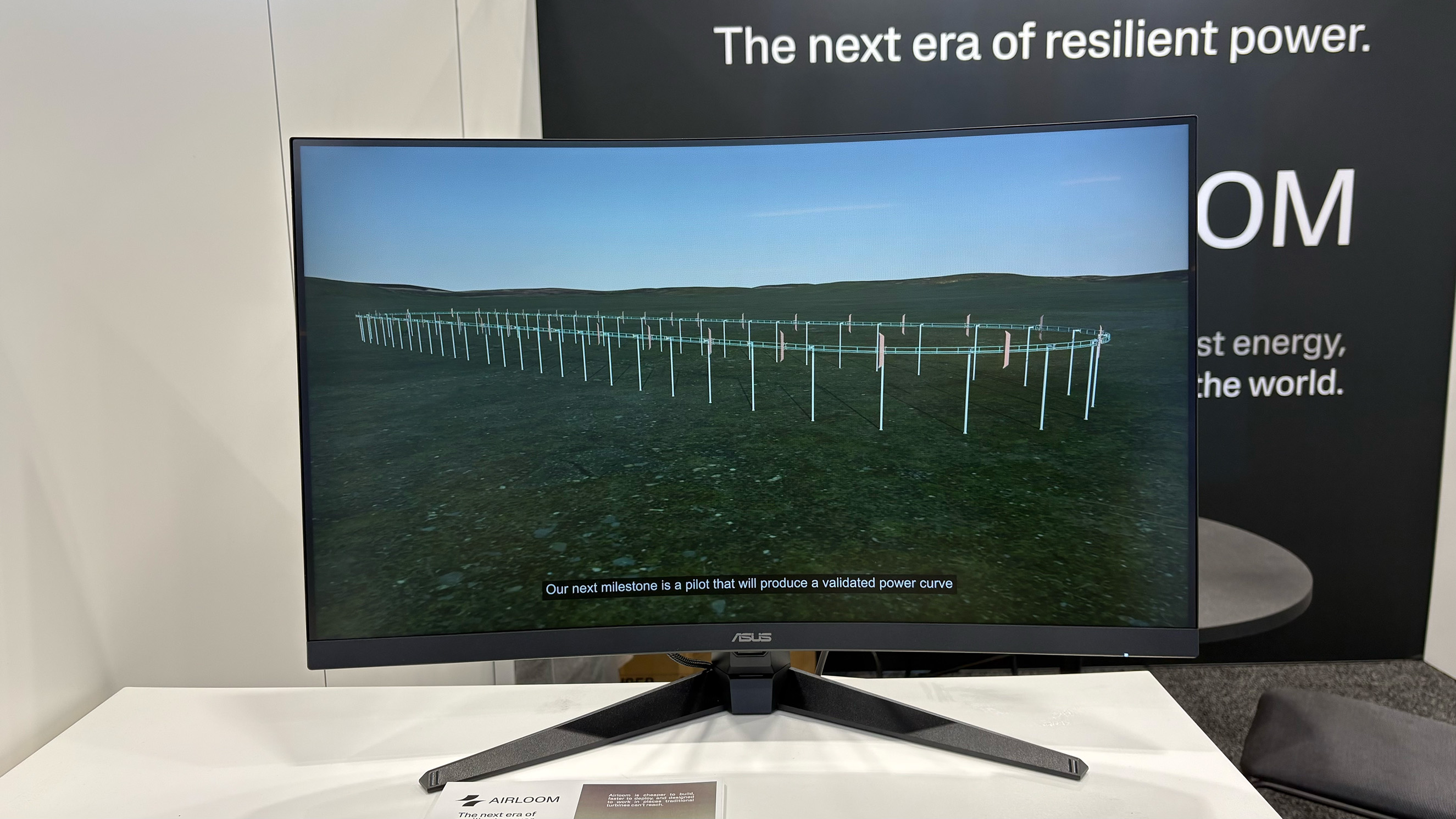
Airloom wind power generation

Airloom's roller coaster-like wind power generator for data centers.
Amy Skorheim for Engadget

Engadget’s Anna Washenko does a great job of explaining the tech behind Airloom. In short it’s a roller coaster for wind that’s comprised of 40 percent less mass than a standard wind turbine and uses 42 percent fewer parts and 96 percent fewer unique parts. That makes it faster to deploy and cheaper to instal. I can also be sited in more places. Again, this is a utility-scale solution, geared towards data centers and their insatiable need for energy to power Very Important AI Things.

Learn more at Airloom.

Gaotu Innovation Energy Group

Gaotu had a range of solar products in various formats.
Amy Skorheim for Engadget

If you are looking for a solar-powered anything, hit up Gaotu. At the company’s booth, I saw hats, a fishing chair, a backpack, a sunbrella and a car roof-top enclosure that unfurls to charge up your Tesla. The Shenzhen-based company has been in business for 18 years and plans to just keep sticking solar panels on anything it can.

Learn more at Gaotu.

Segway Muxi cargo e-bike

Segway's latest cargo e-bike
Amy Skorheim for Engadget

The single largest booth in the CES sustainability section was Segway. This year, the company showed off two new e-bikes, which our own Dan Cooper covered. This one here is the Muxi, a cargo bike with an easily swappable battery, an optional passenger seat with foot pegs and an optional middle basket. Plus a beverage cup holder.

Learn more at Segway.

If we don’t all fall into the ocean before then, perhaps CES 2027 will have a stronger showing of sustainability tech. In the meantime, I’ll take a modicum of comfort in these few brave organizations still dedicated to keeping us afloat.

This article originally appeared on Engadget at https://www.engadget.com/science/ces-so-very-big-so-little-sustainability-tech-180000648.html?src=rss

©

  •  

Emerson Smart brings offline voice control to lamps and fans

Perhaps you like the idea of controlling your home appliances with your voice, but aren’t super keen on a data center processing recordings of you. Fair enough. The trade-off for most smart home conveniences is relinquishing at least some of your privacy. Today at CES, I saw a line of voice-controlled home appliances from Emerson Smart that adjust power and setting via voice commands. But commands are recognized on the devices themselves, not carried through Wi-Fi and processed elsewhere.

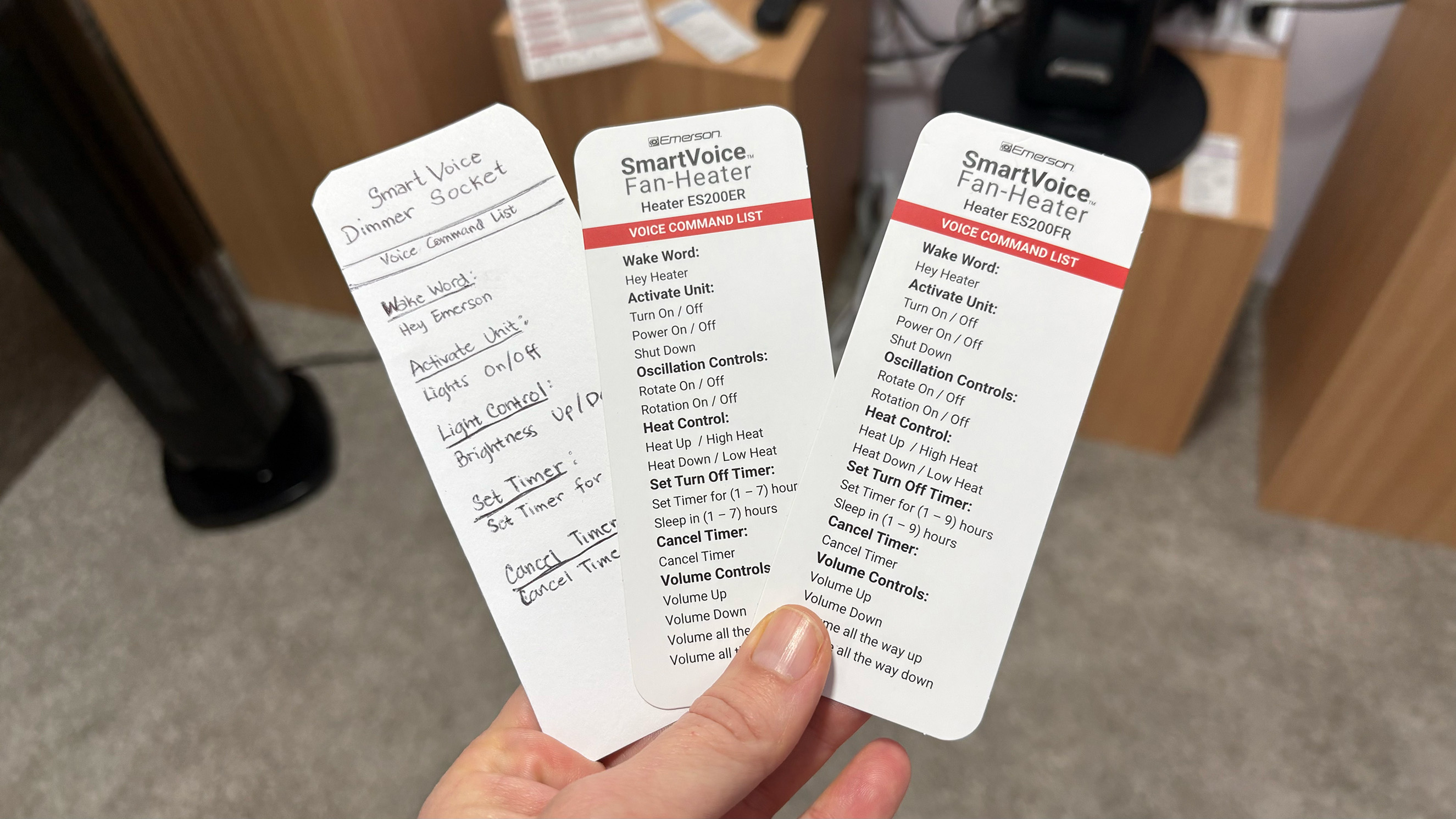
The huge array of smart plugs, fans, heaters and even air fryers require no app for setup and don’t need access to Wi-Fi. Instead, I said, “hey Emerson, lights on” or “hey fan, turn on low” and the devices in the demo space acted accordingly. A few of the devices combine the mic with a speaker and can respond when a command is received.

A bit of built-in programing on the air fryers allow them to understand commands for 100 cooking presets, so saying things like, “reheat this pizza” or “cook these frozen french fries” will set the correct mode, time and temp. Of course you can also just say, “cook at 350 degrees for 10 minutes” and it’ll comply. Most of the commands for the other items are pretty simple but allow you to do things like set a timer, turn on oscillation and set intensity speeds.

Selection of available commands for Emerson Smart devices.
Amy Skorheim for Engadget

Some of the devices allow for a small amount of programmability. Pressing and holding the button on the smart plug, for example, changes the wake word to “plug two,” doing it again swaps it to “plug three,” and so on. That way, if you have more than one plug in a room, you can operate them individually.

The small demo space in which I talked to the devices (that did its best to shut out the thrumming noise of the CES show floor) had at least six models active and listening for my words. When I said “Hey Emerson,” both an air fryer and one of the heaters responded. That was one of the limitations that I could see with the devices: If you outfit your entire home in Emerson Smart gear, it might take some time to name and position everything so it works in a coherent way. The lack of an app means that programmability is limited, too. That’s the trade-off the privacy-conscious or app-averse user will have to make if they want to turn their lamp on and fan up when they walk into a room just by talking.

As the only offline, non-DIY voice-controlled lineup of appliances out there, you’re stuck with whatever design Emerson Smart thinks look good. Thankfully, the overall design is clean and modern, if a little basic. The upcoming models of air purifiers and fans were decidedly more attractive.

A new Emerson Smart air purifier and fan combo.
Amy Skorheim for Engadget

A handful of devices are available for sale now, but new Emerson Smart products will go into production later this year.

This article originally appeared on Engadget at https://www.engadget.com/home/smart-home/emerson-smart-brings-offline-voice-control-to-lamps-and-fans-201500078.html?src=rss

©

  •  

The GE Profile Smart Fridge stops you from buying too much kale

If you’ve ever bought a bag of spinach only to come home and realize you already had a bag of spinach, you may appreciate this fridge. I had a chance to check out the GE Profile Smart Fridge with Kitchen Assistant at CES and was surprised to find I kinda wanted one. To be perfectly honest, most attempts I’ve seen at the show to “stick some AI in it” are at best amusing but usually completely unnecessary.

Here, though, the AI has a purpose. After seeing how the autofill water dispenser worked, I asked the GE Appliance reps how easy it was to change the fridge’s water filter. Jason May, a GE Appliances product management executive, walked up to the fridge’s (appropriately sized) touchscreen and said “Hey HQ, where’s my water filter?” (HQ is short for SmartHQ, GE Profile’s assistant). Then, relying on information it had gathered from this model’s user manual, the AI assistant explained exactly where to find it (in the left hand door below the ice maker). It took another rep about two seconds to pop out the filter and, justlikethat, the task was on its way to done.

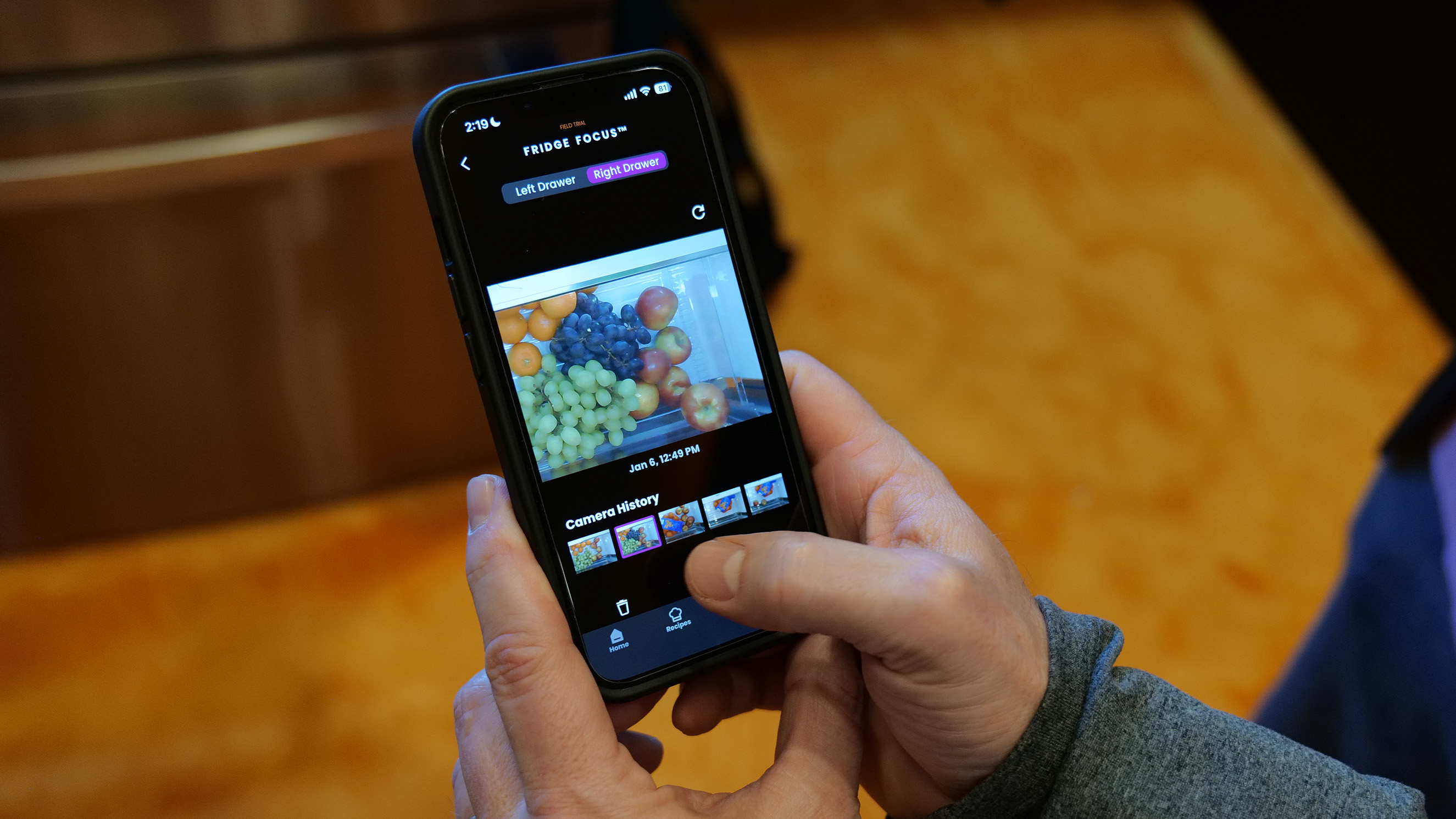
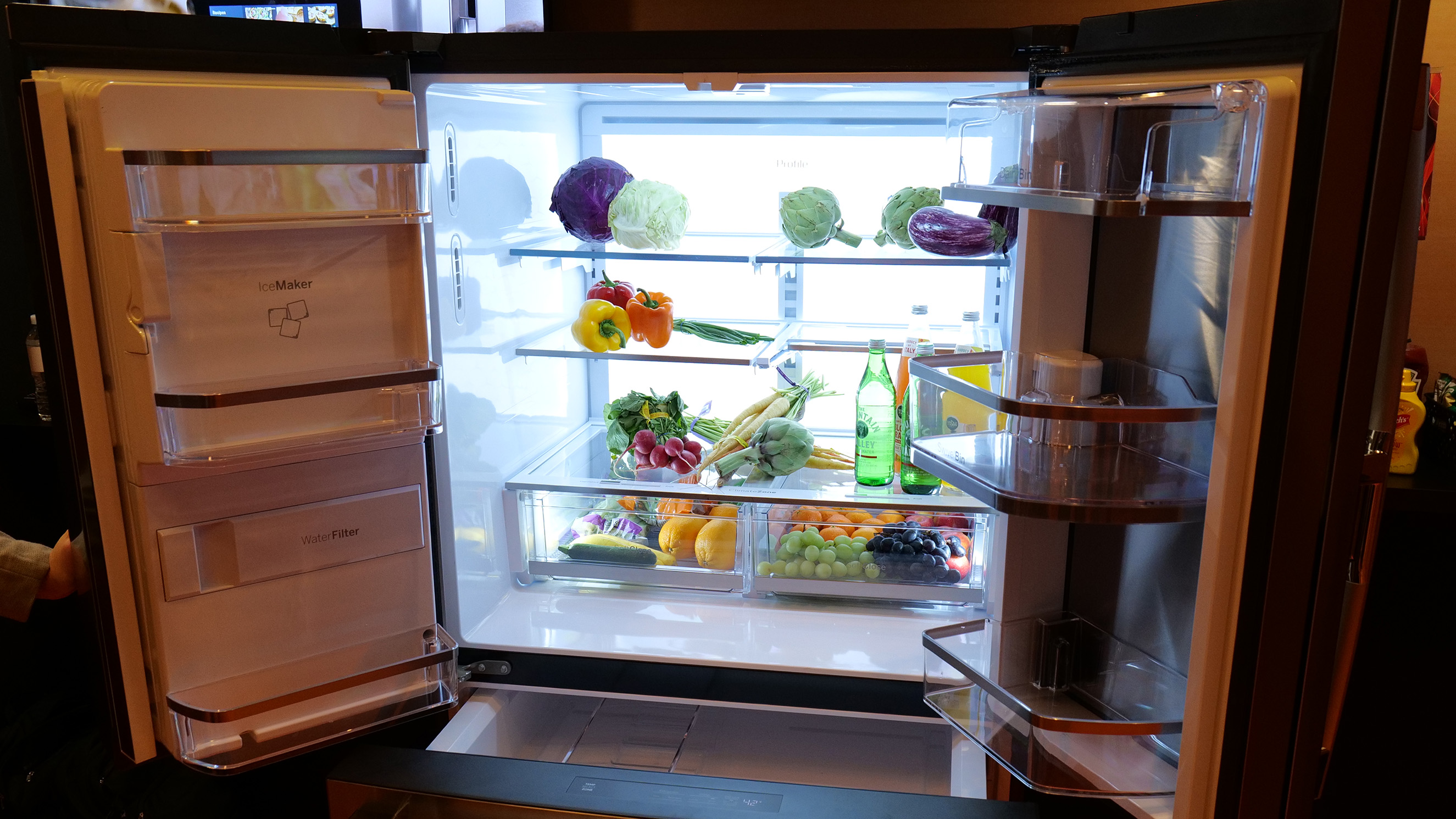
As for the spinach conundrum, that’s handled by a crisper drawer camera, called Fridge Focus. Each time you open the drawers, a built-in camera (that you can physically shutter or turn off in the app) takes a video snapshot of what’s left when you’re done. So if you’re at the store and wondering how much kale you already have, you can take a peek and see.

Checking out what's in the crisper drawer using the Fridge Focus feature.
Sam Rutherford for Engadget

Wendy Treinen, GE Appliances’ senior director of product communications, told me the camera can see what’s in the crisper drawer, but can’t see who accessed it. So if you’re hoping your fridge will rat out whoever at the last of the grapes, you’re out of luck. It can however, help that grape-eater easily add more fruit to the family shopping list.

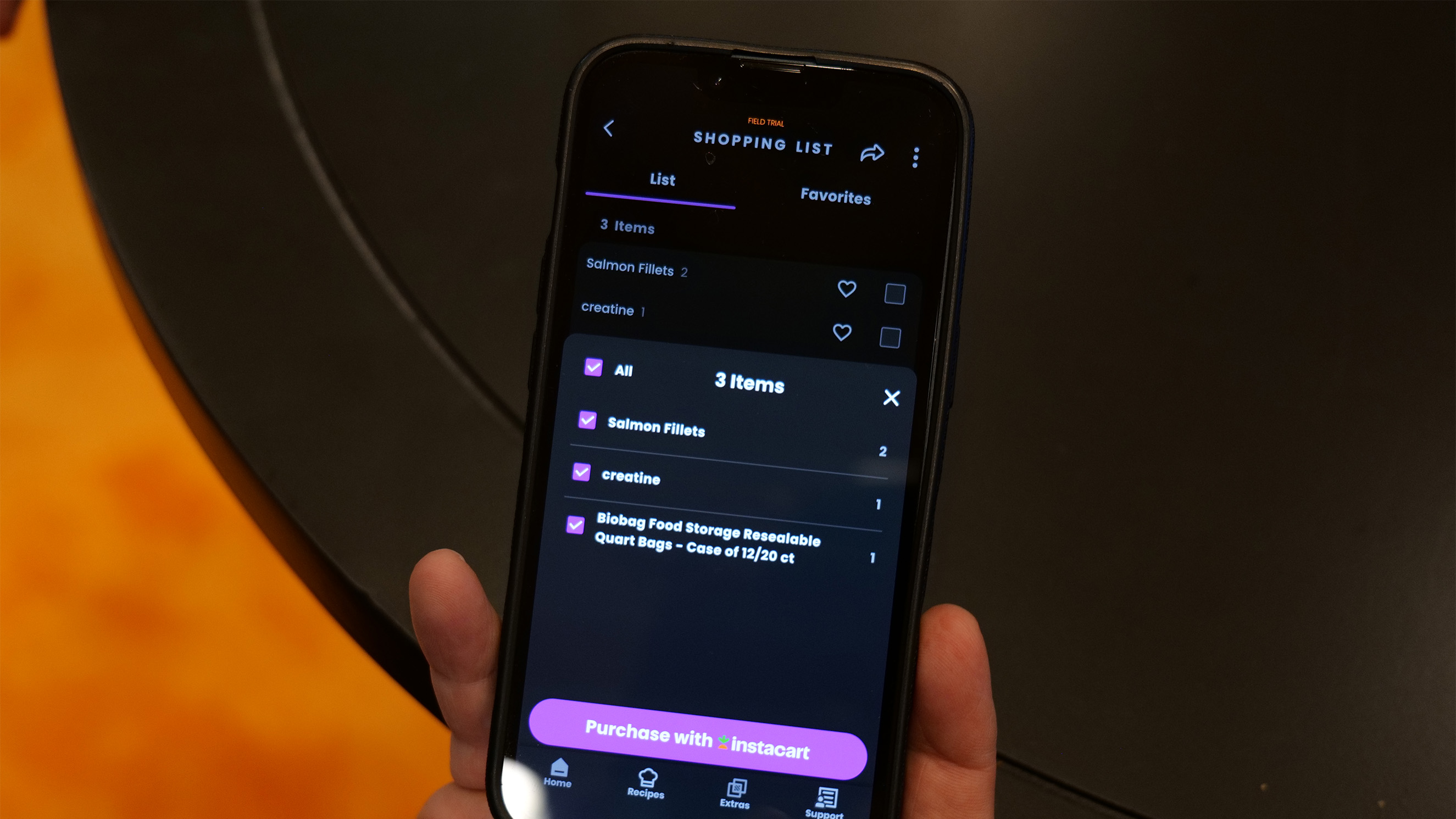
That’s the most unique feature the fridge offers: a patented, built-in barcode scanner. It lives in the water dispenser and when you walk up, a little green light activates and scans the barcode of whatever you hold up to it. So if you’re drinking the last of the almond milk, you scan the container and it’ll automatically add it to your list.

That list can be accessed through the SmartHQ app which you can either check off at the grocery store or, if you really want to get deluxe about it, use the Instacart integration and have it delivered to your door. I scanned a few products — a box of vitamin C mix and a package of cinnamon raisin bagels — both of which quickly popped up on the screen and joined the running list.

Adding grocery items to Instacart with one button.
Sam Rutherford for Engadget

The scanner can recognize four million products, including household items like paper towels and trash bags, but you can add things a other ways too. The easiest is probably just asking your fridge to do so, saying “Hey HQ, add paper towels to my shopping list.” The app allows manual additions and you can add items using the recipe function as well.

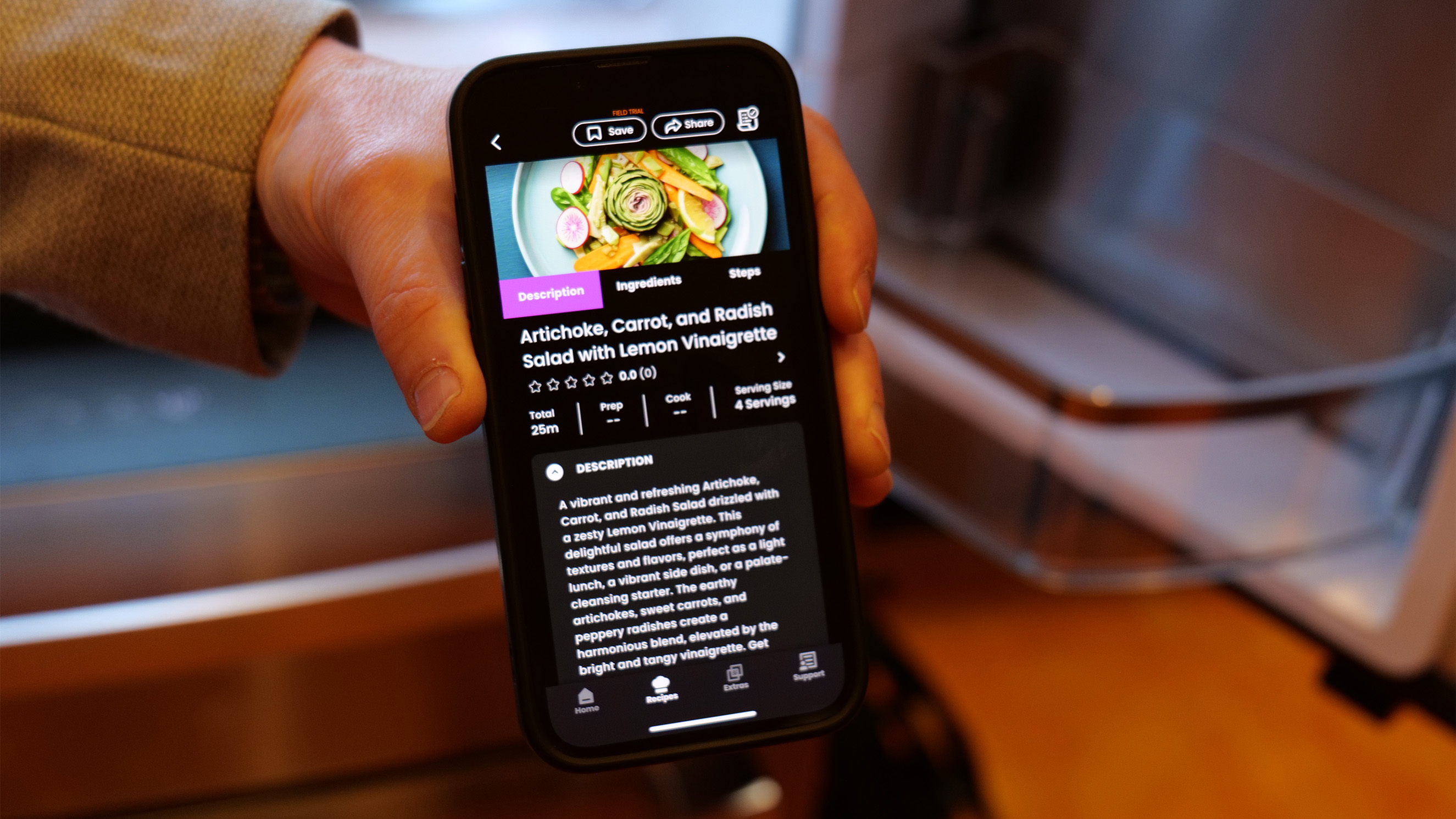
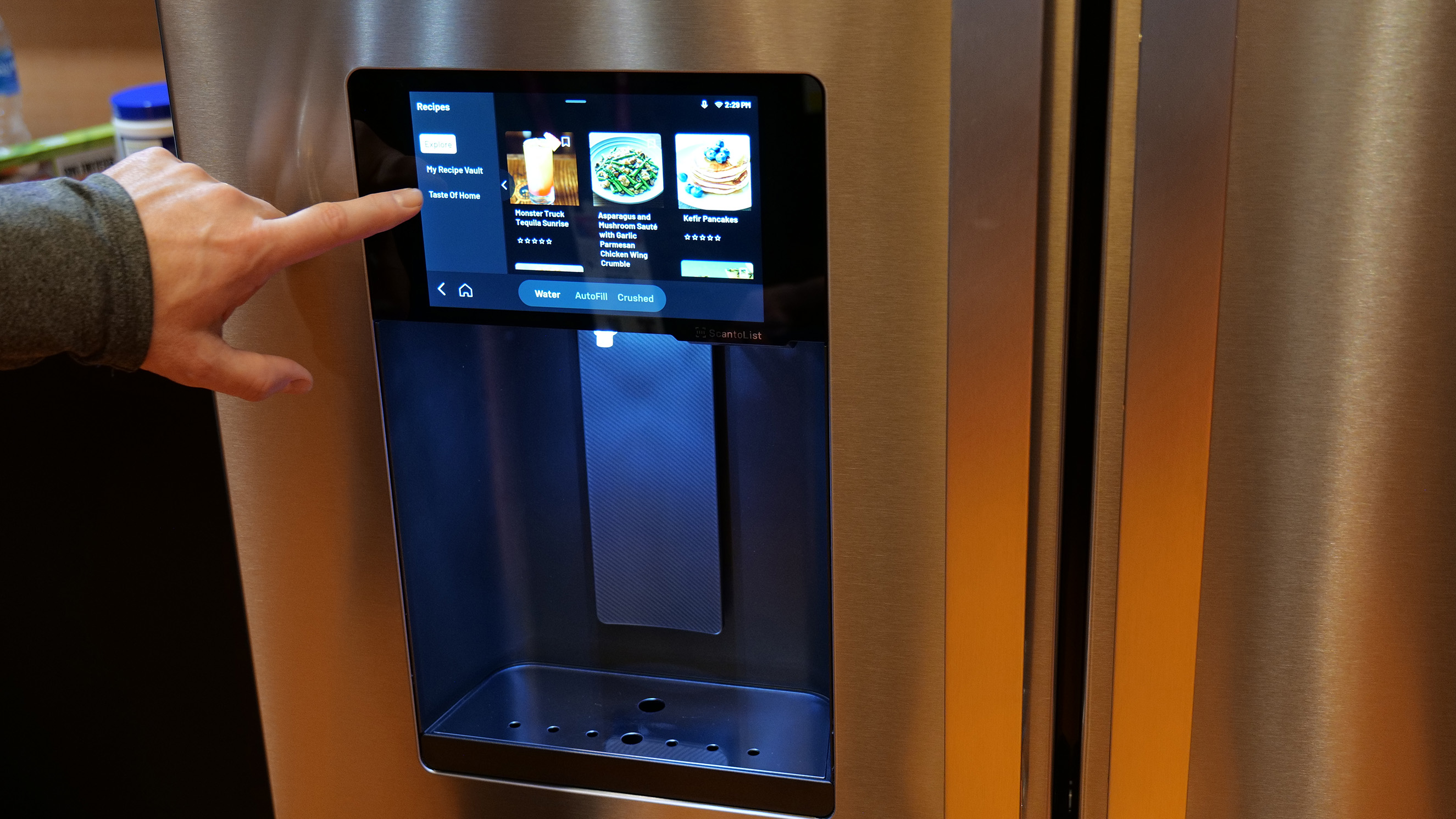
For the launch of the fridge, GE Profile has partnered with Taste of Home and will send 50 recipes each month to the fridge for users to try. Once you see the ingredients list, you can add anything you’re missing to your shopping. Those 50 recipes will cycle out at the end of the month to make way for a new 50, so if you cook something and like it, you’ll need to to add it to your personal recipe vault.

The AI assistant can also create recipes for you. The GE rep snapped a picture of an array of produce and asked SmartHQ what he could make with it. A list of recipe suggestions popped up and they all looked quite tasty (to be fair, I hadn’t eaten yet and it was already 2PM).

The recipe created from a picture of produce. Sam Rutherford for Engadget

I mentioned the water dispenser’s hands-free auto-fill feature earlier. That’s been available on GE Profile fridges for a while and lets you select your glass capacity and walk away while it fills. You can also ask for, say, a half cup of water for a recipe. A new “precise fill” feature will dispense larger amounts in sequence. Say you need ten cups of water for soup. Since you can’t fit a huge vat in the water dispenser tray, you can instead use a smaller jug and the auto-filler will fill it the correct amount of times.

Another of my favorite bits is the screen. Fridges with giant, interactive screens make my eyes roll. Yes, it’s novel and eye-catching and perhaps amusing, but what possible problem is it trying to solve? The screen here is eight inches, which is enough to display scanned items, show recipes, and display the weather atop a pretty image when you’re not actively using the interface.

Finally! A reasonably sized fridge screen.
Sam Rutherford for Engadget

The GE Appliances reps were eager to point out that this is just the beginning of what they want to do with the fridge. My college Sam Rutherford asked whether the fridge would be able to alert you before your lettuce went bad, and we were told something that addresses that problem is on the horizon. It would likely work by recognizing when you purchased a perishable, and how long that perishable typically lasts. The company is also working with a chef on a feature that can reimagine your leftovers to create something new.

During the demo, May told me that the whole idea around the fridge’s design was to do something other than just “put a big screen on it with a bunch of apps that don’t have ay relevance to anything.” Instead the engineers started with problems people actually have — knowing what to buy at the store, knowing what’s already in the fridge, answering the eternal, unrelenting “What’s for dinner?” question — and designed the fridge around that.

I’d have to live with it a while to know whether those problems were solved, but so far, I can say this is the most intrigued I’ve felt about a smart fridge yet. The GE Profile Smart Fridge with Kitchen Assistant will be available in March from geappliances.com for $4,899.

A good amount of organization.
Sam Rutherford for Engadget

This article originally appeared on Engadget at https://www.engadget.com/home/kitchen-tech/the-ge-profile-smart-fridge-stops-you-from-buying-too-much-kale-172433059.html?src=rss

©

  •  

The Shine 2.0 is a compact wind turbine for your next camping trip

As power gets more dicey, personal energy generation only gets more appealing. Shine’s compact turbine isn’t going to power your house any time soon (though Rachel Carr, the company’s co-founder told me they have plans in that direction) but it can suck up the energy required to refill a smartphone in as little as 17 minutes. Of course, what it can generate depends on wind speed. That same charge could take as long as 11 hours if there’s only a slight breeze.

That power curve, and its ability to operate at night, sets the turbine apart from solar panels. Of course, on a completely still day, the Shine as inert as a becalmed sailing ship but if the wind picks up even as little as a breeze, it gets to work making power. The turbine even automatically pivots on the included stand to face into the wind.

Shine turbine 2.0
Shine turbine 2.0
Shine

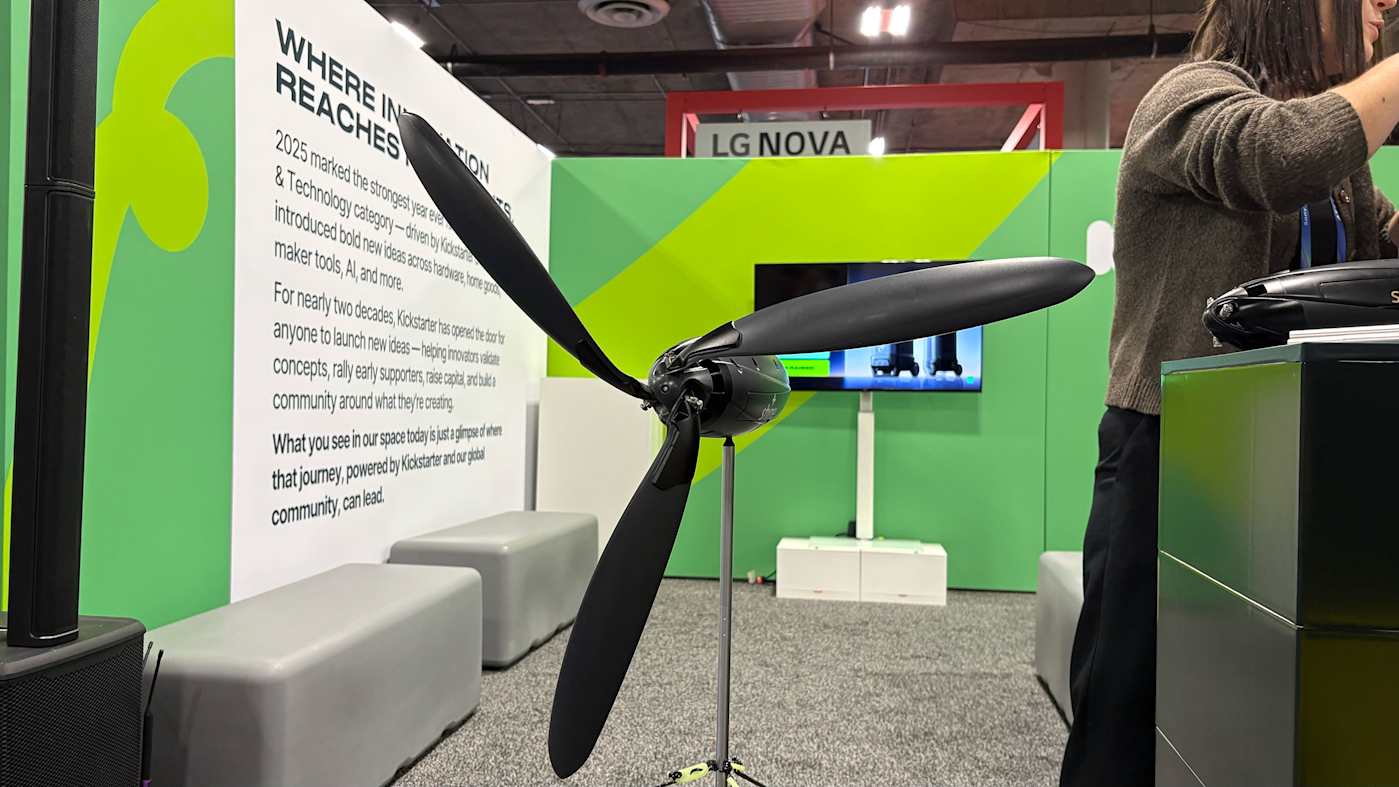
The Shine 2.0 looks like a thin space football and has a screw-off cap that reveals a hollow compartment for the stand and tie downs. The cap then doubles as a key to unlock the blades. It all weighs just three pounds, which is impressively light considering it also houses a 12,000mAh battery that can output up to 75 watts. This is the second version of the turbine and updates include a USB-C port instead of USB-A, as well as app connectivity.

The company claims you can set the entire thing up in around two minutes. I watched the Carr take the turbine from fully closed to unfurled and ready for the stand in about that long. Unfortunately, there was no wind rushing through the CES show floor so I couldn’t see it spin, but Carr was kind enough to spin it for me.

Spinning the Shine Turbine 2.0
Amy Skorheim for Engadget

Possibly the most exciting part is Shine’s plan for more expansive power generation. Shine 3.0, which the company is working on now, will be a 100 to 300 watt system and grid-tied turbines are on the wish list.

Pre orders are now open for the Shine 2.0 through Indiegogo for $399 and units should begin shipping this spring.

Update, January 7 2026, 4:00PM ET: This story has been updated to correct the wattage output and include the co-founder’s name.

This article originally appeared on Engadget at https://www.engadget.com/home/smart-home/the-shine-20-is-a-compact-wind-turbine-for-your-next-camping-trip-191000940.html?src=rss

©

  •  
❌