So it's come to this: Apple is reportedly working on a wearable AI pin. According to The Information, it is going to be a small device with "multiple cameras, a speaker, microphones and wireless charging." It sounds like the perfect gadget to pair with the long-awaited AI-powered Siri update, which will also reportedly work as a chatbot. But while many Apple rumors conjure up an air of excitement, the notion of an Apple AI pin sounds downright baffling. Worse, it just seems desperate.
Apple, the company known for taking its time to jump into new categories with more thoughtful solutions than its competitors, is reportedly chasing the specter of OpenAI's unreleased AI pin. Never mind that OpenAI has never actually produced any hardware, and that it arguably stumbled into its position as a leading AI player. And never mind that Humane's AI pin was a notorious failure that barely worked, and seemed pointless from the start.
If Apple's AI pin serves as a conduit to Siri, is it really that much more convenient than using an iPhone, AirPods or even an Apple Watch to do the same? The company has reportedly nixed plans to put cameras in the Apple Watch, and Bloomberg suggests it’s opting instead to focus on delivering its own smart glasses this year. But it’s not hard to imagine that faster hardware could let the Apple Watch handle more Siri and AI-related tasks on its own. It’s already a fairly self-sufficient device, allowing you to ask basic Siri queries, run apps and listen to music without an iPhone — the cellular models are even more capable since they can take calls and send messages.
At best, an Apple AI pin could just be a simple way for someone to access Siri if they don’t want to wear an Apple Watch, plug in AirPods or have their iPhone within shouting distance. But at least those devices do other things beyond talking to Siri. The same is true for Meta’s Ray-Bans and future smart glasses. Even without accessing AI, they’ll still let you listen to music, take calls and, well, be glasses for those who need prescription frames.
Given the vocal pushback against Meta's Ray-Ban smart glasses, which are also being banned on cruises, clubs and other venues, I'm also not convinced many people would be eager to prominently display a surveillance device throughout the day. Wired’s Julian Chokkattu was questioned about wearing a camera while he was testing the Humane AI Pin, and I’ve also had to explain to curious people why I was wearing Xreal’s smart glasses, which feature a prominent camera accessory.
Sure, we're already living in a panopticon of smartphone cameras, but it's also obvious when someone is using their phone to capture photos and video. An AI pin just dangling off of your clothes is a constant threat, an unblinking eye. Even if Apple implements some sort of capture notification, someone will always try to circumvent it.
While The Information notes Apple's AI pin may never actually see the light of day, I wouldn't be surprised if it does. This is the company that partnered with OpenAI just to make Siri appear slightly smarter with the debut of Apple Intelligence. And instead of building its own home-brewed AI models, it's banking on Google's Gemini to power Siri's big AI upgrade, as well as its future foundation models. When it comes to AI, Apple will do almost anything to avoid being seen as a straggler (and to avoid even more stock declines).
It’s genuinely strange that Apple, the company that let Samsung and Google get a multi-year head start on foldable smartphones and hasn't yet jumped into the world of smart rings, could fast-track an AI pin for 2027. It’s yet another example of how the AI hype cycle has warped priorities throughout the tech industry. But at least Apple’s fortunes don’t depend on standalone AI hardware as much as OpenAI.
This article originally appeared on Engadget at https://www.engadget.com/ai/an-ai-pin-is-beneath-apple-182744647.html?src=rss
Samsung’s 2025 was filled with new foldables, an ultra-thin new form factor and the launch of Google's XR platform. After making some announcements at CES 2026, the company has announced its first Galaxy Unpacked of the year will take place on February 25, where it is expected to introduce the Galaxy S26 lineup. Official invites have been shared, but actual information on what devices are arriving then is still not completely confirmed. But as usual, we know a lot about what’s expected at Unpacked.
Engadget will be covering Galaxy Unpacked live from San Francisco tomorrow, and we'll most likely have hands-on coverage of Samsung's new smartphones soon after they're announced. While we wait for the full details, here's everything we expect Samsung will introduce at the first Galaxy Unpacked event of 2026.
When is Unpacked 2026 taking place?
According to the official invite that Samsung shared on February 10, Unpacked will happen on February 25, 2026 in San Francisco. The keynote will start at 10AM PT (1PM ET) and be livestreamed on Samsung.com, as well as the company’s newsroom and YouTube channel. The announcement on February 10 also said this launch will mark “a new phase in the era of AI as intelligence becomes truly personal and adaptive.” It’s not a lot to go on, since we’ve heard a version of this from various companies over the last few years, but at least we won’t be shocked when we hear more about AI in just about two weeks.
Galaxy S26, S26+ and S26 Ultra
Samsung Galaxy S25 Ultra hands-on photo
Photo by Sam Rutherford/Engadget
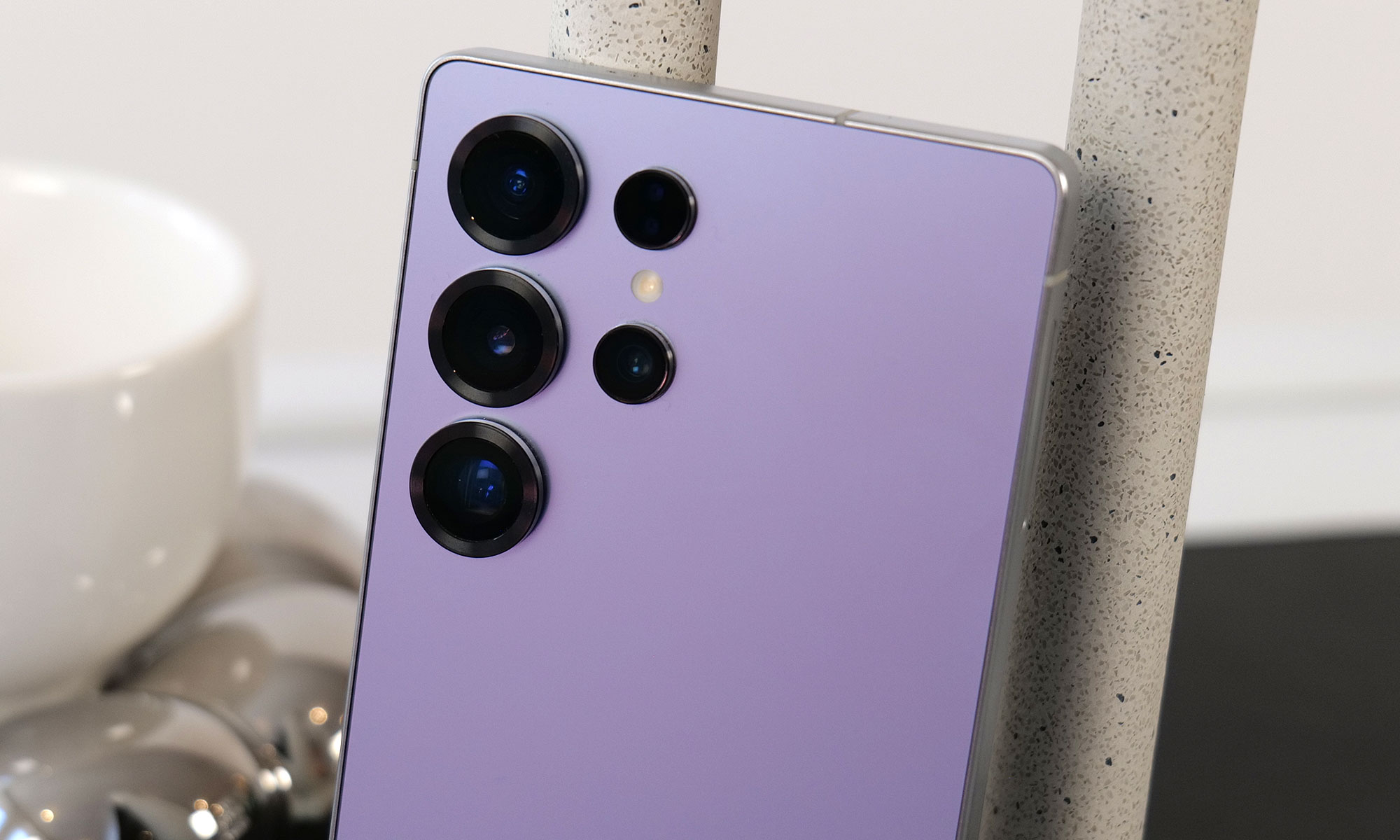
Samsung's restrained approach to updating its phones will likely continue with the Galaxy S26. Based on leakedimages of the new lineup, the company is not expected to radically reinvent the look of the Galaxy S26, Galaxy S26+ or Galaxy S26 Ultra, and instead will stick with a similar design to what it used on the Galaxy S25. The phones will have a flat front screen and frame, with rounded corners and cameras housed in a vertical pill-shaped plateau on the back. Unlike Apple's move from the iPhone 16 Pro to the iPhone 17 Pro, the biggest difference here will likely be internal components like the screens, chips and camera sensors Samsung uses.
Qualcomm's new Snapdragon 8 Elite Gen 5 chip is expected to be in all Samsung Galaxy S26 phones, though Korean news site Yonhap News reports Samsung's relatively new Exynos 2600 chip could be used in some phones in the lineup depending on the region, a strategy Samsung has deployed in the past. Either way the new phones should be more performant than the previous generation, and in the case of the models with the Snapdragon 8 Elite Gen 5, particularly good at on-device AI processing.
I have compiled the most accurate comprehensive parameter comparison of Galaxy S25, S25+ and Galaxy S26、 S26+. Which one do you want to buy? pic.twitter.com/aQpoSvYjOz
One notable difference between the Galaxy S26 and the Galaxy S25 could be the phone's screen. The new phone will reportedly feature a 6.3-inch FHD+ display according to specs shared by leaker Ice Universe, which makes it ever so slightly larger than the 6.2-inch display used on the Galaxy S25. The S26 will also allegedly come with 12GB of RAM, either 256GB or 512GB of storage and a slightly larger 4,300mAh battery. Samsung isn't changing the cameras on the entry-level phone, though: leaks suggest it'll feature the same 50-megapixel main camera, 12-megapixel ultrawide, 10-megapixel 3x telephoto and 12-megapixel selfie camera as the previous generation. Changes appear to be even more minor on the Galaxy S26+. Other than the new Snapdragon chip, the phone will reportedly feature the same 6.7-inch FHD+ screen, 4,900mAh battery, 12GB of RAM and the same camera array used on the base Galaxy S26.
The difference between the Galaxy S26 Ultra and Galaxy S25 Ultra is reportedly a bit clearer. According to Android Headlines, the new phone's cameras will be slightly more raised, and stand out thanks to a new metallic finish. Samsung may also switch back to using an aluminum frame on the Galaxy S26 Ultra, after using titanium frames on both the Galaxy S24 and S25 Ultras. Most importantly, to make the phone actually support Qi2 rather than only technically work with the standard when a case is attached, rumors suggest Samsung will remove the S Pen digitizer layer in the phone and adopt a new method for accepting stylus input. It's not clear what that new method will actually be, but it could let the Galaxy S26 Ultra more easily work with Qi2 accessories without losing its stylus.
Android Headlines also recently shared what appear to be full image renders of the S26 series, and they generally line up with what has already been rumored, leaked and reported so far. If these pictures are accurate, they give us a clearer look at the camera bump and two color variants of the S26 Ultra.
Fans of magnets may continue to be disappointed by Samsung if the latest rumors are accurate. Despite the launch of the Qi 2 wireless charging standard adding support for convenient magnetic alignment years ago, Samsung has yet to bring that feature to its phones. Though the S-series have the higher speed charging rates that the spec enables, Nieuwemobiel.nl is reporting that, due to images it received of cases with magnetic rings, the S26 series likely won’t have built-in magnets. Samsung has made these cases to add the magnetic capability to its S-series in the past, and the existence of the images of these accessories lends weight to the idea that the company will continue this approach.
Galaxy Buds 4
Galaxy Buds 3 Pro in case.
Engadget
Samsung released the Galaxy Buds 3 and 3 Pro in 2024, with a major redesign that brought them much more in line with Apple's AirPods. The Galaxy Buds 4 and Buds 4 Pro Samsung is rumored to be announcing soon won't necessarily change that, though they will feature a more compact case and less angular stems, according to leaked images from the Samsung Tips app.
Support for head gestures to accept and decline calls, a feature Apple includes on the AirPods Pro 3 and AirPods 4, is also rumored to work on both versions of the new Galaxy Buds. SamMobile reports the Galaxy Buds 4 and 4 Pro may also ship with a new Ultra Wideband chip that will make them easier to find with Google's Find Hub network.
Galaxy Z Trifold
Yes, the TriFold has a crease, two in fact. But they still don't ruin the experience.
Sam Rutherford for Engadget
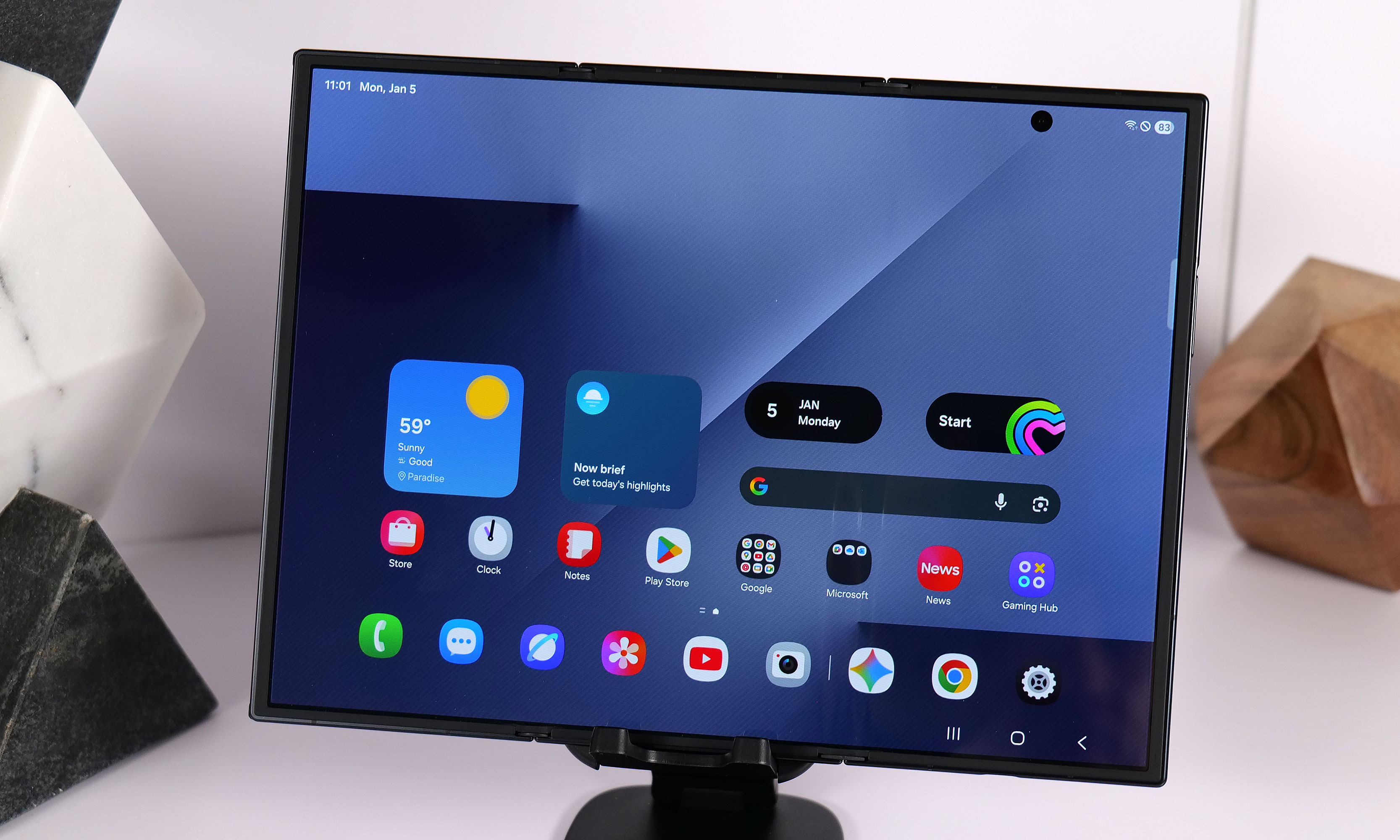
Samsung announced the Galaxy Z TriFold in late 2025 without firm details of when the new smartphone-that-folds-into-a-tablet would be available in North America. That info came on January 27, when the company announced the TriFold would be available in the US on January 30, for a whopping $2,900. Considering we’ve already seen the device in person at CES 2026 and people are most likely to have had a chance to look at, if not buy the foldable for themselves by the time Unpacked rolls around, we don’t expect Samsung to spend too much time dwelling on it, if at all.
Galaxy S26 Edge
At just 5.8mm thick, the Samsung Galaxy S25 Edge is one of the thinnest smartphones ever made.
Sam Rutherford for Engadget
When the Galaxy S25 Edge was announced in 2025, it seemed possible that Samsung could replace its "Plus" smartphone with a unique form factor, just like Apple has opted to do with the iPhone Air. There have been conflicting reports on the matter, but it seems like Samsung will not be doing that with the Galaxy S26 Edge.
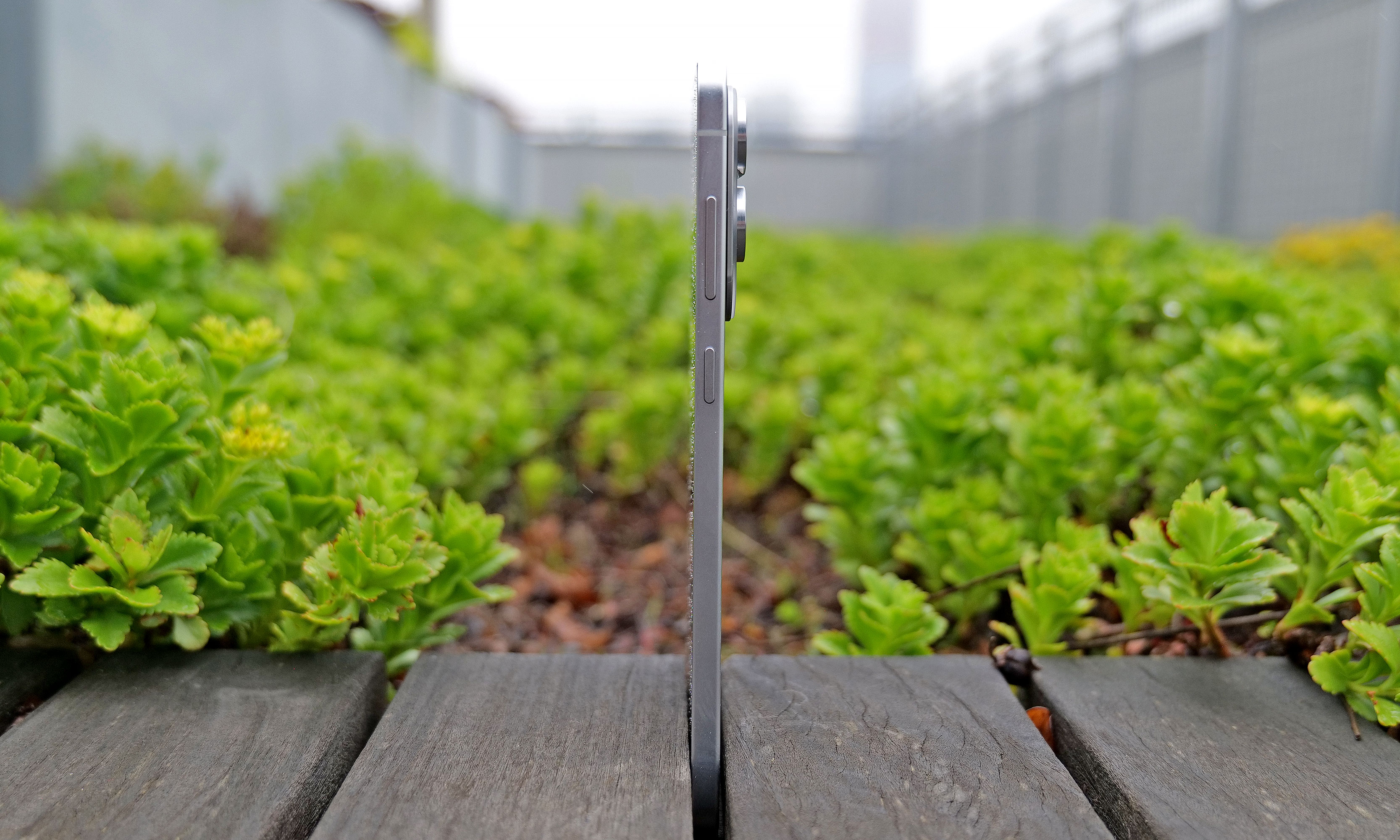
Instead, the smartphone will reportedly remain another option, much like foldables are for customers not swayed by Samsung's traditional smartphones. The Galaxy S26 Edge is rumored to feature a slightly different design than last year's model, according to Android Headlines, with a large rectangular camera plateau that's reminiscent of Google's Pixel phones, and the raised oval Apple used on the iPhone Air. Beyond that, the phone is also expected to be ever so slightly thinner at 5.5mm than the 5.8mm Galaxy S25 Edge.
Bixby and other AI features
Samsung already acts as a first place Google can show off new AI features for Android, but the company is reportedly exploring other AI partnerships, too. In June 2025, Bloomberg reported that Samsung was nearing a deal with Perplexity to integrate its AI-powered search engine across OneUI and its homegrown mobile browser. Perplexity already has a deal with Motorola on its Razr phones, so the only thing that would make a deal with Samsung unusual is the close relationship the company already has with Google.
The company also accidentally announced a new version of its Bixby AI assistant, which will likely also be integrated with Perplexity and could serve as an alternative to Google Gemini. Both a new Bixby and a deeper integration with Perplexity seem like natural new software features to show off at Galaxy Unpacked.
On February 17, Samsung teased some mobile AI photography features ahead of Unpacked. These expand the S-series’ existing image-editing tools by bringing the ability “to turn a photo from day to night in seconds, restore missing parts of objects in images, capture detailed photos in low light, and seamlessly merge multiple photos into a single, cohesive result.” A lot of these things are already possible in other photo-editing apps or even in the Google Photos app, but we’ll have to wait to see them in action on the S26 phones for more details on whether they’re different or more effective.
The company continued to drip feed more teasers in the week leading up to Unpacked 2026, announcing just a few days later that it’s updated its Bixby assistant to be more conversational. Then, over the weekend, it shared that the S26 series will offer third-party AI agents within Galaxy AI, including Perplexity’s offering. It will allow for the devices to respond to the wake phrase “Hey Plex,” which is sure to be popular and not at all confusing to those who already use a similarly named media server and streaming app.
Until we find out more at Unpacked 2026, it’s tricky to determine if and how effective these updates will be, so we’ll just have to be patient until we get the phones in our hands.
Update, January 27 2026, 11:55AM ET: This story has been updated to reflect the latest news around the Galaxy Z TriFold’s price and availability in the US.
Update, January 30 2026, 12:45PM ET: This story has been updated to include the latest leaks on the possible dates for Unpacked 2026.
Update, February 02 2026, 11:30AM ET: This story has been updated to include the latest leaks with full image renders of the S26 trio of devices.
Update, February 03 2026, 11:00AM ET: This story has been updated to include the latest leaks about the possible lack of magnetic support on the S26 series.
Update, February 10 2026, 7:15PM ET: This story has been updated to include the official date of Galaxy Unpacked as Samsung announced it today. The intro was also edited to reflect that detail.
Update, February 17 2026, 4:55PM ET: This story has been updated to add Samsung’s teaser about its upcoming mobile AI photography tools. The intro was also edited for timeliness.
Update, February 24 2026, 10:45AM ET: This story has been updated to add Samsung’s recent updates about Bixby and Galaxy AI’s integration with Perplexity. The intro was also edited for timeliness.
This article originally appeared on Engadget at https://www.engadget.com/mobile/smartphones/samsung-galaxy-unpacked-2026-the-galaxy-s26-series-ai-and-other-products-we-might-see-on-february-25-130000135.html?src=rss
AirPods work most smoothly with Apple hardware, but they also connect reliably to Android phones, Windows laptops and other Bluetooth devices. The pairing process depends on the platform in use although the basics remain the same. Once the AirPods are placed in pairing mode, most devices detect them quickly and handle the remaining steps in the background. The guide below explains how to pair AirPods with Apple products, how the process differs on newer iPhones that support H2 features and how to connect them to non-Apple devices.
How to pair AirPods with Apple devices
Apple builds AirPods to pair almost instantly with devices in its own ecosystem. Opening the charging case near an unlocked iPhone or iPad usually brings up an on-screen prompt. Tapping Connect links the earbuds to the device and to every other Apple product signed into the same iCloud account. After that, switching between devices is automatic. Audio output follows the active device as long as each product is using updated software and is signed in with the same Apple ID.
If the pairing prompt does not appear, there are a few simple checks that help things move along. Opening the Control Center and selecting the audio output menu confirms whether the AirPods already appear as an available device. If they are listed there, choosing them establishes the connection. If they do not appear, opening the Settings app and checking Bluetooth usually reveals whether the AirPods are in range or already recognized. Opening the case while viewing the Bluetooth menu often triggers the pairing card once more.
The process is similar across Apple Watch and Mac. When the AirPods are already linked to an iPhone, they tend to show up automatically on a paired Apple Watch. On Mac, opening System Settings and viewing the Bluetooth section reveals the same device list seen on an iPhone. Selecting the AirPods from that list completes the connection and also syncs the pairing status back to every other Apple device using the same account.
Enhanced pairing with newer iPhones
Some newer iPhones support features enabled by the H2 chip used in newer AirPods models. With compatible AirPods, models such as iPhone 15 Pro, iPhone 15 Pro Max and the iPhone 16 lineup tend to deliver a faster and more responsive setup experience. When an AirPods case is opened near one of these phones, the device quickly detects the earbuds and displays the pairing card with little delay. This also tends to speed up transitions between devices and improves reliability when switching audio sources.
If the fast pairing prompt does not appear on a newer iPhone, reopening the case while the phone is unlocked is usually enough to reinitiate the process. It also helps to confirm that Bluetooth is turned on. Placing the AirPods back in the case for a few seconds and trying again will often reset the pairing state if the earbuds were connected elsewhere.
AirPods Pro 3
Engadget
How to put AirPods into pairing mode
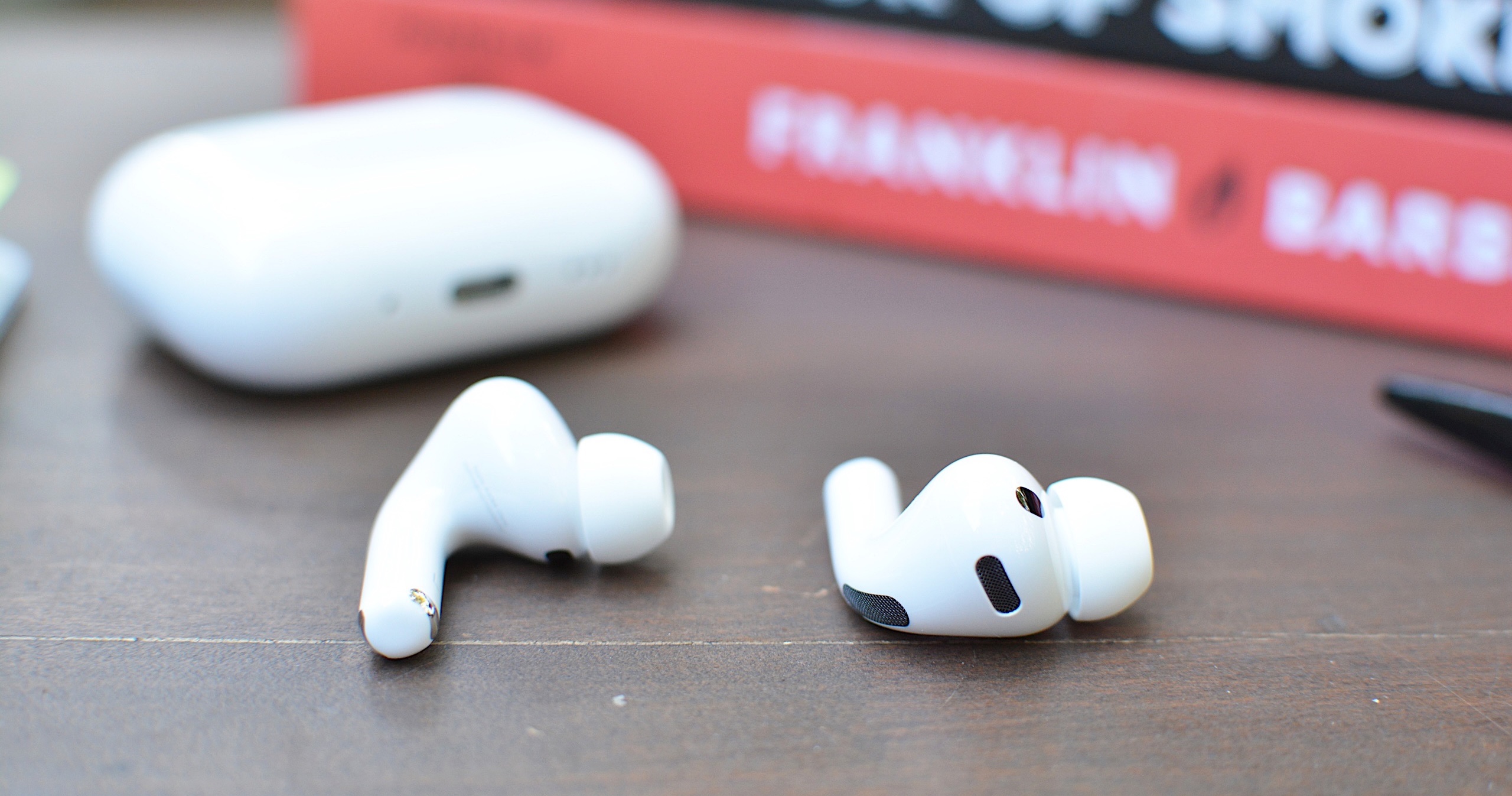
Every AirPods model supports a manual pairing mode. This is essential when linking the earbuds to devices outside the Apple ecosystem, or when the automatic prompt fails to appear on an iPhone or Mac. On older AirPods models, pairing mode is activated by opening the lid and pressing and holding the setup button on the back of the case until the LED light flashes white. Newer models, including AirPods 4 and AirPods Pro 3, use a touch-based method instead. With the lid open, tapping the area near the LED light places the earbuds into pairing mode. Leaving the lid open keeps the AirPods discoverable for nearby devices. Closing the case ends the process and requires it to be repeated if the device fails to detect them.
Pairing mode does not remove any previous connections. It simply makes the AirPods available to new devices, which is helpful when switching between ecosystems. However, connecting to a new device usually takes priority. If the AirPods are already linked to something else that is nearby, turning off Bluetooth on the previously connected device prevents interference and helps the new device detect them more easily.
How to pair AirPods with Android devices
Although AirPods are designed for Apple hardware, they function like any other Bluetooth earbuds on Android. Opening the case and placing the AirPods in pairing mode allows Android phones to detect them through the standard Bluetooth menu. The earbuds appear in the list of available devices and selecting them initiates the connection. Once paired, AirPods work for calls and media playback. Some features, such as automatic ear detection and battery status indicators, may require a third-party app on Android and are not supported at a system level. Features such as spatial audio and device switching remain exclusive to Apple’s ecosystem but day-to-day performance is consistent on Android.
If the AirPods fail to appear, refreshing the Bluetooth device list on the Android phone usually helps. Making sure the earbuds are still in pairing mode is essential since the white LED indicator stops flashing after a short period. Reopening the case and holding the button again, or tapping on the front for newer models, restores discoverability.
How to pair AirPods with Windows laptops
Windows 11 handles AirPods as a regular audio device. Opening the Bluetooth and Devices menu in System Settings displays a list of nearby accessories. With the AirPods in pairing mode, the laptop should detect them and display them as an audio device. Selecting them completes the process and adds the earbuds to the device’s known accessories. Windows generally reconnects to AirPods automatically on future sessions as long as Bluetooth remains enabled.
If the earbuds do not appear in the list, toggling Bluetooth off and back on helps the system refresh the device scan. Checking whether the AirPods are already linked to a different device is another useful step. Windows sometimes struggles to take over a connection when the earbuds remain in range of a previously paired phone so disabling Bluetooth on the other device often resolves the issue.
Troubleshooting common pairing issues
Most pairing problems come down to the AirPods not being in discoverable mode or being connected to another device nearby. Resetting the earbuds solves many problems. On AirPods models with a setup button, placing the AirPods in the case, leaving the lid open and holding the button until the LED turns amber then white restores the factory pairing state. On newer models without a physical button, place the AirPods in the case, close the lid for about 30 seconds, then open it and quickly tap the front of the case three times. The status light should then flash amber and then white, to indicate that the reset is complete. This clears previous connections and makes the AirPods behave as if they are new out of the box.
Low battery levels can also interrupt pairing. Ensuring both the earbuds and the case have enough charge prevents unexpected disconnections during setup. Interference from other wireless accessories affects pairing on crowded networks. Moving to a quieter spot or turning off surrounding Bluetooth devices helps the AirPods stand out when scanning.
AirPods are built to pair quickly with Apple devices but they also integrate smoothly with other platforms. Keeping the earbuds in pairing mode and confirming that Bluetooth is enabled on the device in use ensures a smooth setup every time. Once connected, the AirPods tend to remember the device and reconnect whenever they are nearby which keeps day-to-day use simple regardless of the platform.
This article originally appeared on Engadget at https://www.engadget.com/audio/headphones/how-to-pair-airpods-with-any-device-140000234.html?src=rss
Verizon is offering a very small mea culpa after Wednesday's massive outage, which drew more than 1.5 million reports on Downdetector and lasted hours. Initially, the carrier posted on X that it will offer a $20 credit, but customers must redeem it in the myVerizon app. The company then said the credit could be claimed though customer service (via phone or chat), but our editors’ attempts to do so via chat were met with a message to wait for a text with further instructions.
Engadget editors began receiving the texts this morning (Jan 16) with a link to redeem. From there, you need to log into your account and visit the Account Overview section. Up top, there should be a Take Action or Mobile Actions button with a red notification circle. Click that and you’ll see a pop-up about the credit and a Redeem Now button. After you click that, you’re done, and Verizon says you should see the credit in one or two billing cycles. Of course, you’ll want to keep an eye out that it actually happens and contact the company if it doesn’t show up.
"This credit isn’t meant to make up for what happened. No credit really can," the company wrote. "But it’s a way of acknowledging your time and showing that this matters to us." Incensed customers have largely replied with incredulity, both at the miniscule amount, and that it isn't being applied automatically. The entire redemption process takes a few clicks and about a minute to complete, which makes it even more frustrating that it can’t be automatically applied to every customer’s bill.
Update, January 15 2026, 11:57 PM ET: Verizon says the credit can be claimed through customer service via phone, chat and online in addition to the myVerizon app.
Update, January 16 2026, 10:29 AM ET: This story has been updated with detailed info about the redemption process which Verizon now says is completed with a link that will be texted to customers.
This article originally appeared on Engadget at https://www.engadget.com/mobile/how-to-claim-verizons-20-credit-for-wednesdays-service-outage-171909695.html?src=rss
Gone are the days in which you needed to spend a fortune to get a good smartphone. In 2026, features once exclusive to high-end smartphones – big batteries, multi-camera arrays, high refresh rate OLED displays and more – have made their way down to more affordable models. Yes, you’ll still need to buy a flagship smartphone to get the best camera or fastest processor, but you don't have to make nearly as many compromises as you once did if you have a strict budget to adhere to when you go shopping for your next smartphone. If you have less than $600 to spend, let us help you figure out what features to prioritize when trying to find the best midrange smartphone.
While the term frequently appears in articles and videos, there isn’t an agreed-upon definition for “midrange” beyond a phone that isn’t a flagship or an entry-level option. Most of our recommendations cost between $400 and $600 — any less and you should expect significant compromises. If you have more to spend, you might as well consider flagships like the Apple iPhone 17 and the Samsung Galaxy S25 if you want the best smartphone experience. Devices like Pixel phones often sit in this price range too, offering some of the best value for Android buyers.
What to consider before buying a midrange smartphone
Buying a new device can be intimidating, but a few questions can help guide you through the process. First: what platform do you want to use? If the answer is iOS, that narrows your options down to exactly one phone. (Thankfully, it’s great.) And if you’re an Android fan, there’s no shortage of compelling options. Both platforms have their strengths, so you shouldn’t rule either out.
Of course, also consider how much you’re comfortable spending. Even increasing your budget by $100 more can get you a dramatically better product. Moreover, manufacturers tend to support their more expensive devices for longer with software updates and security updates, so it’s worth buying something toward the top limit of what you can afford.
Having an idea of your priorities will help inform your budget. Do you want a long battery life or fast charging? Do you value speedy performance above all else? Or would you like the best possible cameras with high megapixel counts? While they continue to improve every year, even the best midrange smartphones still demand some compromises, and knowing what’s important to you will make choosing one easier.
What won’t you get from a midrange smartphone?
Every year, the line between midrange and flagship phones blurs as more upmarket features and functions trickle down to more affordable models. When Engadget first published this guide in 2020, it was tricky to find a $500 phone with waterproofing and 5G. In 2026, the biggest thing you might miss out on is wireless charging – and even then, that’s becoming less true.
One thing your new phone probably won’t come with is a power adapter; many companies have stopped including chargers with all of their smartphones. Performance has improved in recent years, but can still be hit or miss as most midrange phones use slower processors that can struggle with multitasking. Thankfully, their camera systems have improved dramatically, and you can typically expect at least a dual-lens system on most midrange smartphones below $600 with decent camera quality, selfie performance and software support to keep things running smoothly for years to come..
Midrange smartphone FAQs
How long do midrange phones get software updates?
Support varies by brand, but most midrange phones receive around three to five years of software and security updates. Apple tends to support iPhones longer while companies like Google and Samsung now promise several years of Android and security patches for their midrange models. Budget-focused brands might offer less so it’s worth checking the update policy before you buy.
Are midrange phones good for gaming?
Yes, many midrange phones handle gaming well, especially popular titles like Fortnite, Genshin Impact and Call of Duty Mobile. They usually include capable processors, though you won’t always get the smoothest performance in the most demanding mobile games or at max settings. If you play casually or stick to less graphically intensive titles a midrange phone will feel more than adequate.
Georgie Peru contributed to this report.
This article originally appeared on Engadget at https://www.engadget.com/mobile/smartphones/best-midrange-smartphone-183006463.html?src=rss
During CES 2026, Samsung unveiled plenty of new TVs, monitors and other hardware. However, the company is also looking to expand further into video games and has announced a significant refresh to its Gaming Hub on smartphones.
Engadget spoke with Samsung’s Jong Woo, VP of Game Services, who explained that the update will offer more personalized, faster ways to play and place greater emphasis on up-and-coming titles. Now available on Galaxy devices, with further updates planned, the new hub wants to be a more active space for the latest mobile games.
"We believe that gamers want to find new content that is personalized to them," said the VP of Samsung Games Services. He continued: "We want to bring content to users and make it immediately available for them to play. We have instant plays where, through our cloud streaming technology, we can take Android-native games and put them in the cloud, so that when users want to try them, they don't have to go through the friction of downloading them first.”
According to Samsung, the mobile Gaming Hub attracts over 160 million users across smartphones and other devices. However, the VP of Game Services at Samsung believes that, despite the vast library of games across many genres available to mobile users, "mobile game discovery is broken."
Samsung
Initially, the mobile Gaming Hub was a supplemental app for all purchased games, allowing users to track their collection. With this update, all games purchased from both Google Play and the Galaxy Store are stored in the Gaming Hub. It's designed to be a single place for players to view their owned games, find recommendations, access cloud streaming for select games and even watch highlights from content creators.
According to Woo, the larger goal of the new Samsung mobile Gaming Hub is to personalize and guide the mobile gaming experience for players, which has remained nebulous compared with gaming discovery experiences on PC and consoles.
“We're getting a lot of feedback from the users, a lot of it from focus testing and beta testing, and what we're finding is that we believe we are solving pain points for mobile gamers," said Woo about rebuilding the Gaming Hub. "We're getting an idea of gamer preferences at the individual, personalized level. Based on all of that, we're able to provide different types of recommendations."
Another reason for the new changes to the Samsung Gaming Hub was to help foster a community for mobile gamers, including players and developers. In addition to sharing YouTube videos and content from gaming creators and streamers, the company plans to add more social elements to the Gaming Hub to make mobile gaming feel more active and less isolating.
"Mobile is a very personal experience, right? It's your personal device, and oftentimes when you play games on mobile, it feels like a solitary experience,” said Woo. Currently, the revamped Mobile Gaming Hub is only available for Galaxy smartphones and tablets. Users on non-Galaxy devices will still use the previous version of the Gaming Hub, for now.
Compared with PC and console online hubs like Steam and PlayStation Network, it's clear that mobile platforms are still figuring out how to create an equally compelling space for engagement. Even with the vast user base, mobile game hubs tend to be a go-between for users to get to the products. There's more work to do, but the new Gaming Hub could be the first step in the right direction.
This article originally appeared on Engadget at https://www.engadget.com/gaming/samsung-refreshed-mobile-gaming-hub-150010632.html?src=rss
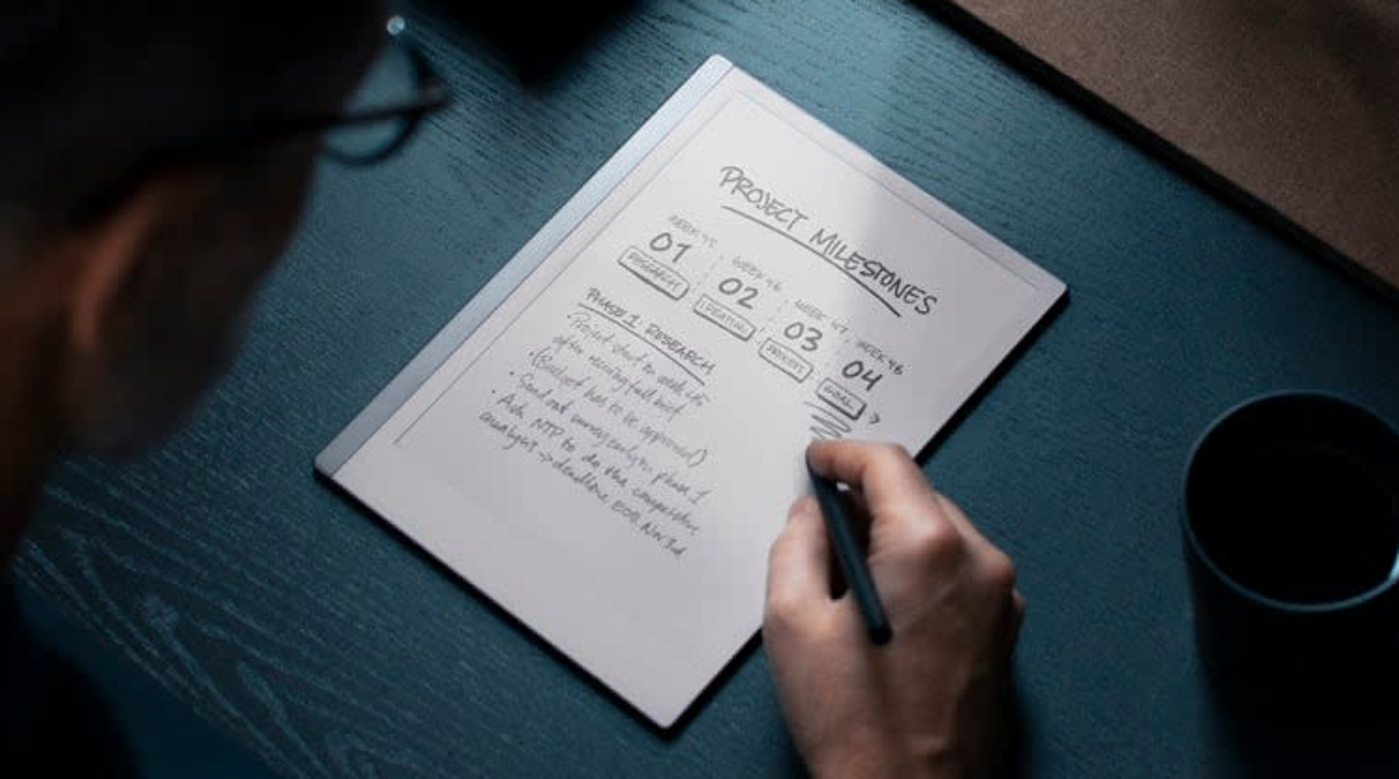
E Ink tablet maker reMarkable is running a bundle deal right now that can save you between $80 and $90 when buying a reMarkable 2 along with a Marker stylus and a folio case. The savings vary depending on the bundle you configure, but this can bring your out-the-door cost down to $449 from $529 for the tablet, Marker stylus and polymer weave book folio. The offer runs through January 17.
The company also sells a newer stylus called Marker Plus that lets you erase by flipping it around just like a real pencil, but that will cost you an extra $50. If you’ve been eyeing a dedicated writing tablet for work, school or just jotting down notes without the distraction of endless apps, this bundle deal is an ideal opportunity to pick one up.
The reMarkable 2 earned our top pick for best e-ink tablet. In our review, we said the tablet was prettier than ever with a 10.3-inch display and a handsome aluminum frame. The tablet is only 4.7mm thick and weighs less than a pound, helping it feel lean and portable.
The display can detect over 4,000 different levels of pressure with the Marker stylus, allowing for precise shading when sketching and the latency between the stylus and the screen is just 21ms. reMarkable fitted the display with a resin layer on top of the glass to make writing on it feel more realistic. We didn't think this passed muster, but we found writing on it was a joy nonetheless.
The tablet supports PDFs and ePUBs, which can be added via the companion mobile app or a desktop computer. You can also pair the reMarkable 2 with Google Drive, Microsoft OneDrive or Dropbox to access files. The battery is rated for an impressive two weeks between charges.
The reMarkable Paper Pro, a higher-end model with a richer feature set like a full color display and a built-in reading light, is our pick for best premium e-ink tablet. The pricier tablet also has bundle deals right now with savings up to $80 depending on configuration.
This article originally appeared on Engadget at https://www.engadget.com/mobile/tablets/its-the-last-day-to-get-up-to-90-off-remarkable-e-ink-tablet-bundles-150242090.html?src=rss
Laptop power banks come in handy if you often travel or work away from your desk. These larger batteries have enough capacity to refill your computer to around 75 percent, giving you many more productive hours. Of course, they can also charge smaller devices like your phone, camera or tablet a few times over. Nearly all portable laptop chargers fall below the 100-watt-hour mark so you can bring them in your carry-on when you fly. Additional features, like built-in cables and digital displays make these battery banks easier to use, too. We tested over a dozen options and put our thoughts below, so you can find the best laptop power bank for your next trip away from an outlet.
Most portable batteries top out at around 27,000mAh so you can fly with them. The TSA currently limits the capacity carry-on batteries to 100Wh, which works out to around 27,500mAh for 3.6 volt lithium-ion batteries. Note that you’re not allowed to pack any batteries in your checked luggage, regardless of capacity. The TSA rules are intended to limit fire danger — and some airlines are implementing further restrictions due to recent on-board incidents.
In March 2025, a Hong Kong flight was grounded after a battery pack caught fire in an overhead bin. A similar situation happened that same year in July on a domestic Delta flight, and again in August on a transatlantic KLM flight. As a result, some airlines, including Emirates, Southwest and others have announced further restrictions on flying with battery packs.
Rules include limiting the number of allowed portable chargers and requiring flyers to keep power banks in clear view when using them to recharge a device. If the battery pack isn’t actively in use, however, most rules allow them to stay in your carry-on bag in the overhead bin. Before flying, it’s wise to check your airline’s policies.
Capacity
If you just need to keep a smartphone from dying before you can make it home, just about any of the best power banks will do. But if you need to revive multiple devices or the substantial battery of a laptop, you’ll want something with a high milliamp-hour (mAh) capacity. A power bank capable of delivering enough power to a laptop will have a capacity between 20,000 and 27,000 mAh.
If you want something even bigger than a laptop power bank, and don’t need to fly with it, you’ll likely want to look into portable power stations. These can be the size of a car battery or larger and can potentially fuel an entire weekend away.
Another thing to keep in mind is that the capacity listed in a power bank's specs is not what will be delivered to your devices. As I mentioned, the capacity of these banks is around 25,000mAh. Even the huge battery on a 16-inch MacBook Pro or a Dell XPS 16 has a mAh rating of around 5,000 - 6,000mAh, so you might think you’d get five full charges but in reality, you only get about a single 70-percent charge. The voltage is different (typically 3.7V for the power bank and 11.4V for a laptop) which makes the watt-hours, or the amount of energy each battery can hold, different (working out to 92Wh for the battery and 72Wh for the built-in laptop batteries). On top of that, in order to feed a charge from a power bank to a laptop, a voltage conversion takes place and that dissipates a decent amount of energy.
Without turning this into a physics lesson, this all means that a power bank with a 25,000mAh (or 92Wh) capacity will typically fill a 5,000mAh (or 72Wh) laptop battery to about 75 percent. In my tests, I averaged about a 60-percent efficiency rate between a power bank’s listed capacity and the actual charge delivered.
Ports
Every large power bank I’ve tested has at least three USB ports, with a mix of USB-C and USB-A, which should cover nearly any portable device you need to recharge — earbuds, phones, tablets, laptops, you name it. In addition to the different plug formats, some ports supply power at different wattages. For example, one built-in USB-C port might be rated for 60 watts, while the one next to it is rated for 100 watts. So if you’ve got a device that’s capable of 70W fast charging, such as the new MacBook Air, you’d want to opt for the 100W port to get the best charging speeds possible.
Note that devices with a smaller wattage draw won’t be negatively affected by connecting to ports with high ratings. For example, a Galaxy S24 Ultra, capable of 45W super fast charging, is perfectly compatible with the 100W port. A device will only draw what it can take, regardless of what a port can supply. Just remember that the port, device and charging cable need to be at or above the desired wattage rating to achieve maximum charging rates.
Some of these larger batteries also have AC ports. It might seem like a natural fit to plug in your laptop’s power adapter for a recharge. But really, the AC port should only be for devices that can’t use USB — such as a lamp or a printer. Plugging a power adapter into the AC port only wastes energy through conversion. First, the battery converts its DC power to supply the port with AC power, then the power adapter converts that AC power back to DC so your laptop can take it in. And as you’ll remember from physics class, each time energy is converted, some is lost to heat and other dissipations. Better to cut out the middleman and just send that DC power straight from the battery to the device.
Also, you can use more than one port at a time with these devices; just remember that the speed of whatever you’re charging will likely go down, and of course, the battery is going to drain proportionally to what you’re refilling.
Wireless charging
Since I first started testing portable power banks a few years ago, wireless charging capabilities have noticeably improved. The first few I tried were painfully slow and not worth recommending. Now the wireless pads built into power banks are impressively fast — particularly, in my experience, when charging Samsung Galaxy phones (though the lack of a stabilizing magnetic connection like Apple’s MagSafe means they only work when rested flat on a pad). Most wireless charging connections can be used while other ports are also being employed, making them convenient for some mobile battlestation setups.
Of course, wireless charging is always less efficient than wired, and recharging from an external battery is less efficient in general. If you want to waste as little energy as possible, you’re better off sticking to wired connections.
Design
All power banks are designed to be portable, but there’s a big difference between a pocket-friendly 5,000mAh battery and one of these laptop-compatible bruisers. Most of the latter weigh between a pound and a half to two pounds, which is a considerable addition to a backpack. Many of the options listed here have a display to tell you how much charge remains in the battery, which is helpful when you’re trying to judiciously meet out charges to your devices. If a bank has a wireless connection, the pad is usually on the flat top and any available AC connection is usually at one end. Both may require you to engage those charging methods. Don’t be like me and grumble loudly that you got a bum unit without pressing (and sometimes double pressing) all the buttons first.
How we test portable laptop chargers
For the past three years, I’ve been testing and using dozens of portable batteries for our other battery guide. Some of those batteries include the higher-capacity power banks you see here. I also got a hold of a few extra banks just for this guide to make sure we covered what’s available. I went for brands I’m already familiar with, as well as battery packs from well-received manufacturers I hadn’t tried before (like UGREEN and Lion Energy). I only considered banks with at least a 20,000mAh capacity and mostly stuck with those that rated 25,000mAh and higher.
I tested each power bank with an Apple phone (iPhone 15 or 16), an Android phone (Galaxy S23 Ultra), a tablet (M1 iPad Air) and a laptop (16-inch MacBook Pro with the M1 Pro chip). Even though these banks can charge multiple devices at once, I refilled one at a time, to make side-by-side comparisons more straightforward. I drained the batteries of the phones and tablets to between zero and five percent and then didn’t use any device as it refilled.
For the MacBook, I let it run down to 10 percent before plugging in the power bank. That's when most laptops give display a “connect to power” warning, as draining any battery to empty will compromise the battery life. I then used it as one might in a mobile office, with a Bluetooth keyboard and mouse, while connected to Wi-Fi and a VPN.
For each test, I noted how long a completely charged battery took to get a device back to full and how much of the battery’s capacity was used up in one charge. I also noted things like portability, apparent durability, helpful features and overall design.
For reference, here are the battery capacities of the devices I used:
iPhone 15: 3,349mAh
Galaxy S23 Ultra: 4,855mAh
iPad Air (5th gen): 7,729mAh
16-inch M1 Pro MacBook Pro: 27,027mAh
Other laptop power banks we tested
HyperJuice 245W
Hyper’s HyperJuice 245W brick looks great and has a hefty 27,000mAh capacity. The four USB-C ports can combine to output 245W of power and it got my MacBook Pro from nearly dead to 75 percent before depleting itself. When testing it with a Samsung Galaxy S23 Ultra, the handset got back up to a full charge in just over an hour. The screen tells you what each port is doing as well as displaying the amount of charge remaining in the pack itself.
But the lack of port variety makes it feel less versatile than other picks on this list — the price is higher than our other options, too.
Laptop power bank FAQs
How do laptop power banks differ from phone power banks?
The main difference is size. Phone power banks tend to have a capacity ranging from 5,000mAh to 20,000mAh and laptop powerbanks are typically rated between 20,000mAh and 27,000mAh. There’s no official definition, however. Laptop batteries are simply larger and need a bigger supply of power to give them a meaningful charge.
How do you fast charge a power bank?
You can charge a power bank exactly as fast as the power bank’s internal mechanisms will allow. Most batteries are limited in how quickly they can accept and deliver a charge to avoid dangerously overheating. But to make sure you’re charging a bank as quickly as possible, make sure the wall adapter and the USB-C cable you are using have a high wattage rating — using a 5W power brick and a 10W cable will take a lot longer to refill your bank than a 65W wall charger and a 100W cord.
What size power bank do I need for a laptop?
Look for a power bank with a rating of at least 20,000mAh. Slightly smaller batteries may work, but they won’t deliver a significant charge laptops.
How many mAh to charge a laptop?
A milliamp hour (mAh) is how much a battery can hold, and most portable batteries list their capacity using mAh. If you get a battery rated at 20,000mAh or above, it should be able to charge your laptop.
Using mAh to discuss laptop batteries can be confusing. Due to differing voltages, you can’t directly compare the mAh ratings of a power bank battery to a laptop battery. Using watt-hours is a better gauge, as that calculation takes voltage into account.
Recent updates
November 2025: Updated our overall top pick to the Anker Laptop Power bank. Added a premium power bank pick.
This article originally appeared on Engadget at https://www.engadget.com/computing/accessories/best-laptop-power-bank-120040388.html?src=rss
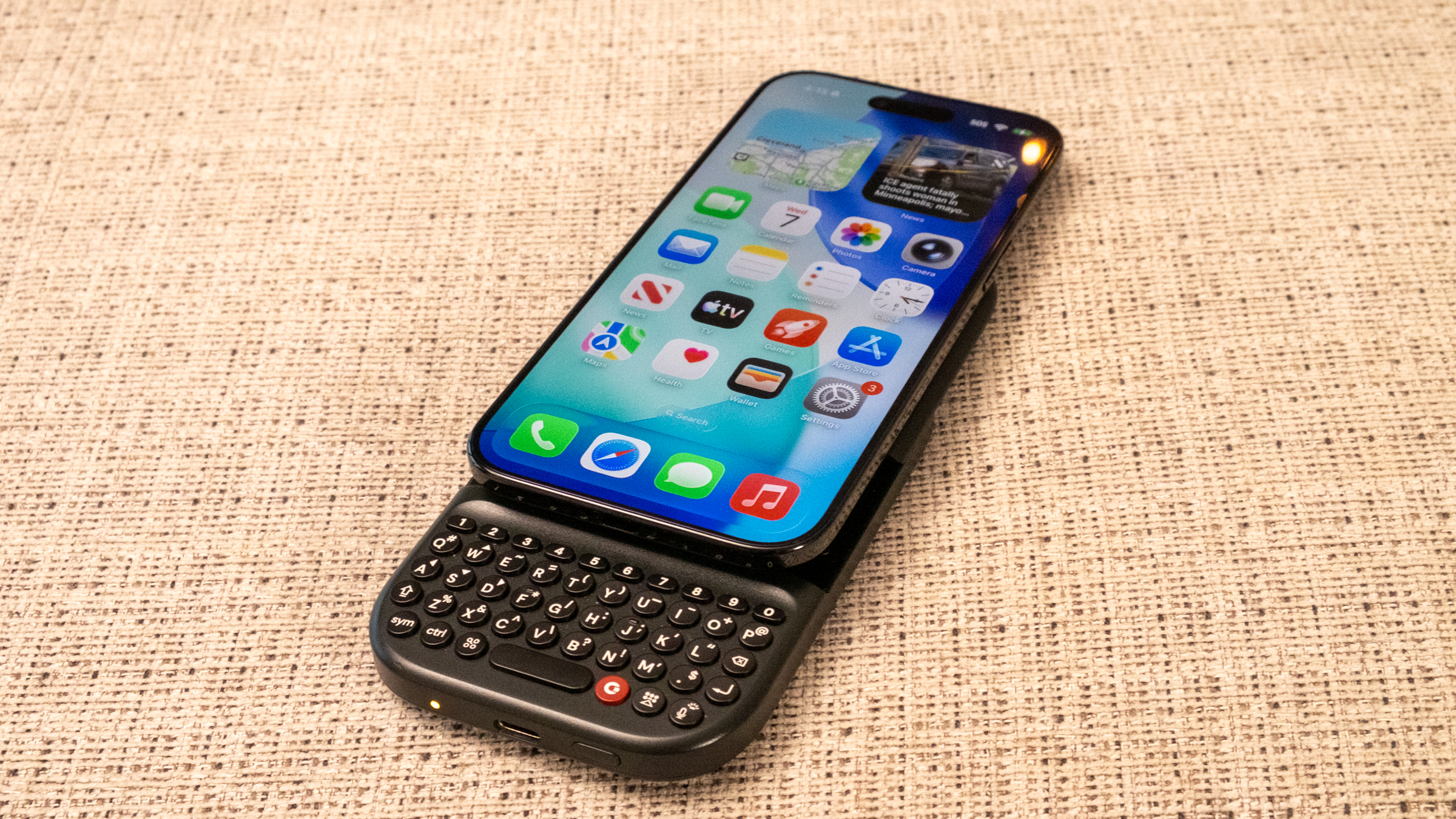
Clicks is an apologetically gadgety company, making gear that feels charmingly out-of-place in a world where almost every smartphone out there is an all-screen slab. That was obviously two years ago when the company first revealed its keyboard case that brought tactile typing to the iPhone and eventually other Android devices. Rather than that being a one-off curiosity, the company had two new announcements at CES 2026: a magnetic keyboard accessory that also doubles as a battery bank and small, squat mobile phone with a keyboard. And while there isn’t a working prototype of the Clicks Communicator available for the press to see, I got to check out the new Power Keyboard talk with Clicks co-founder and former BlackBerry marketing director Jeff Gadway about where he thinks his products fit into the smartphone world.
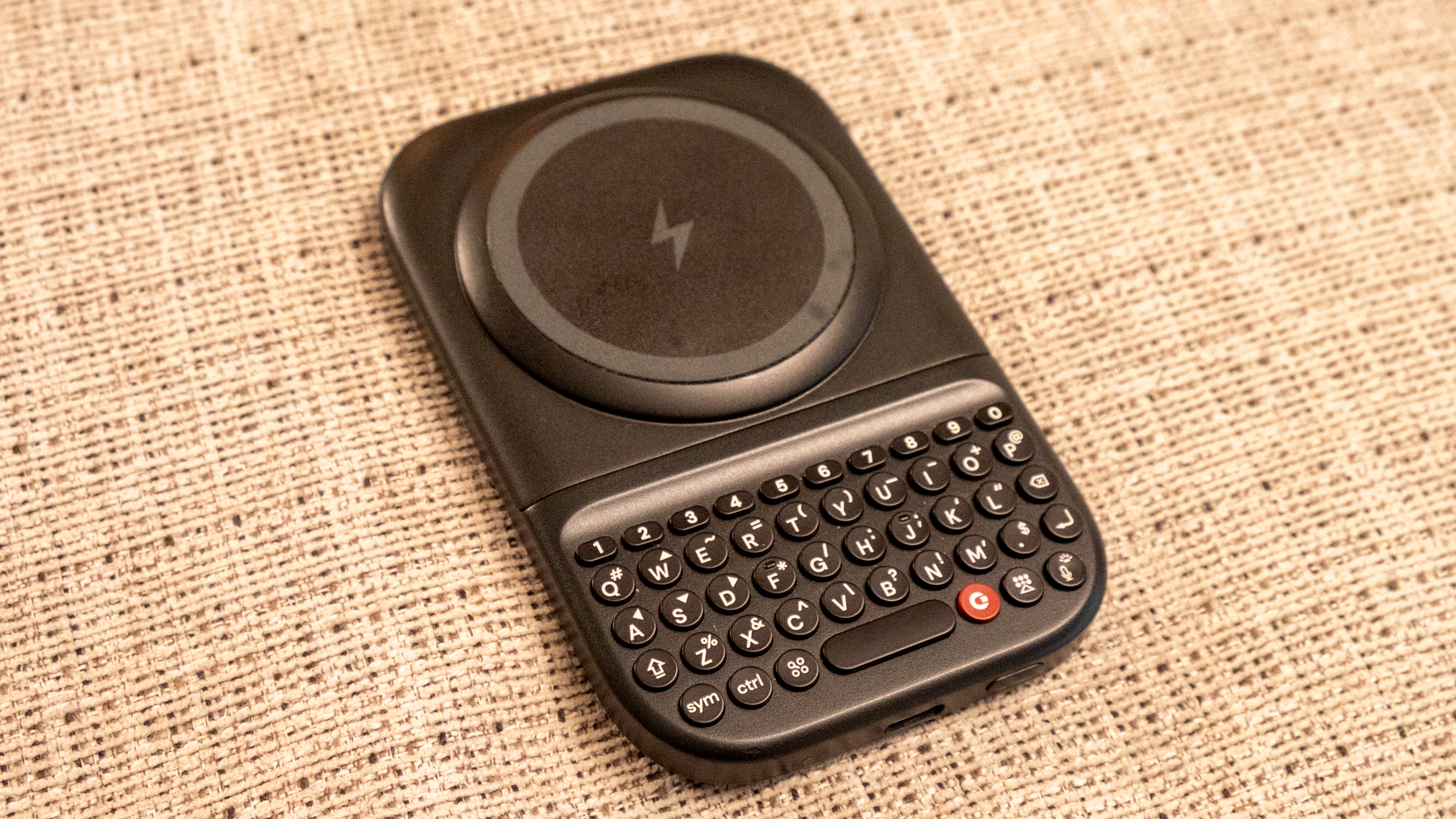
At first glance, the $79 Power Keyboard feels like a big improvement over the original Clicks Keyboard case. It magnetically attaches to any phone with Qi2 and connects over Bluetooth. The keyboard itself is similar to the original Clicks keyboard, but there’s a dedicated number row which is a nice improvement. But the thing that really caught my eye was its old-school slider form factor. When closed, the Power Keyboard sits on the back of your phone like a thick wireless battery pack — but it satisfyingly slides up to reveal the keyboard like the Palm Pre or BlackBerry Torch smartphones of old.
The magnetic, sliding Clicks Power Keyboard.
Nathan Ingraham for Engadget
The Power Keyboard’s last trick is that it can charge your phone up when attached. The battery itself isn’t huge, so you’re not going to fully recharge a modern smartphone. But it’s still a nice addition for if you need some power in a pinch. You can also set it up so it doesn’t charge your phone and instead uses all the battery to power the keyboard; in that situation, the keyboard will last weeks without a charge. Or you can designate a percentage that can only be used by the keyboard — for example, if the battery pack’s charge drops below 20 percent, it’ll stop charging your phone and instead save that power for the keyboard.
The Clicks Power Keyboard, without a phone attached.
Nathan Ingraham for Engadget
As someone who has never owned a smartphone with a keyboard, I can’t say how good the Clicks keyboard actually is — there would be a definite learning curve before I got comfortable with it. It certainly feels tiny to me, but if you just type on and trust autocorrect you should get the hang of it before too long. Whether the benefits of using a physical keyboard matter are up to you to decide. It’s nice seeing a bigger screen unobstructed by the virtual keyboard, but I feel far too set in my touchscreen ways to consider switching it up. But some people just loved their keyboards, and for them this gadget might hit the spot.
The Clicks Communicator is the more unexpected of the two new devices the comapny is working on, but without a working demo model I can’t render any judgement about how it will actually work. When it was announced, Clicks specifically said they were targeting people who used multiple devices, a demographic that I wasn’t fully convinced was large enough to justify the Communicator’s existence. But Gadway assured me the company had done plenty of research before moving into the hardware production phase.
“You've got people who are mandated to carry a second device for corporate deploy. Then you've got people who are small business owners and want to have a separate phone for their small business,” he said. “In markets like Europe, there's a requirement for employers to give people the option to have a separate device and create more separation. You've got travelers who want a second SIM, and then you've got this growing cohort of digital detox, digital minimalism, digital well-being people.” None of those segments might be huge on its own, but add it all up and the Clicks team felt like they had a decent opportunity.
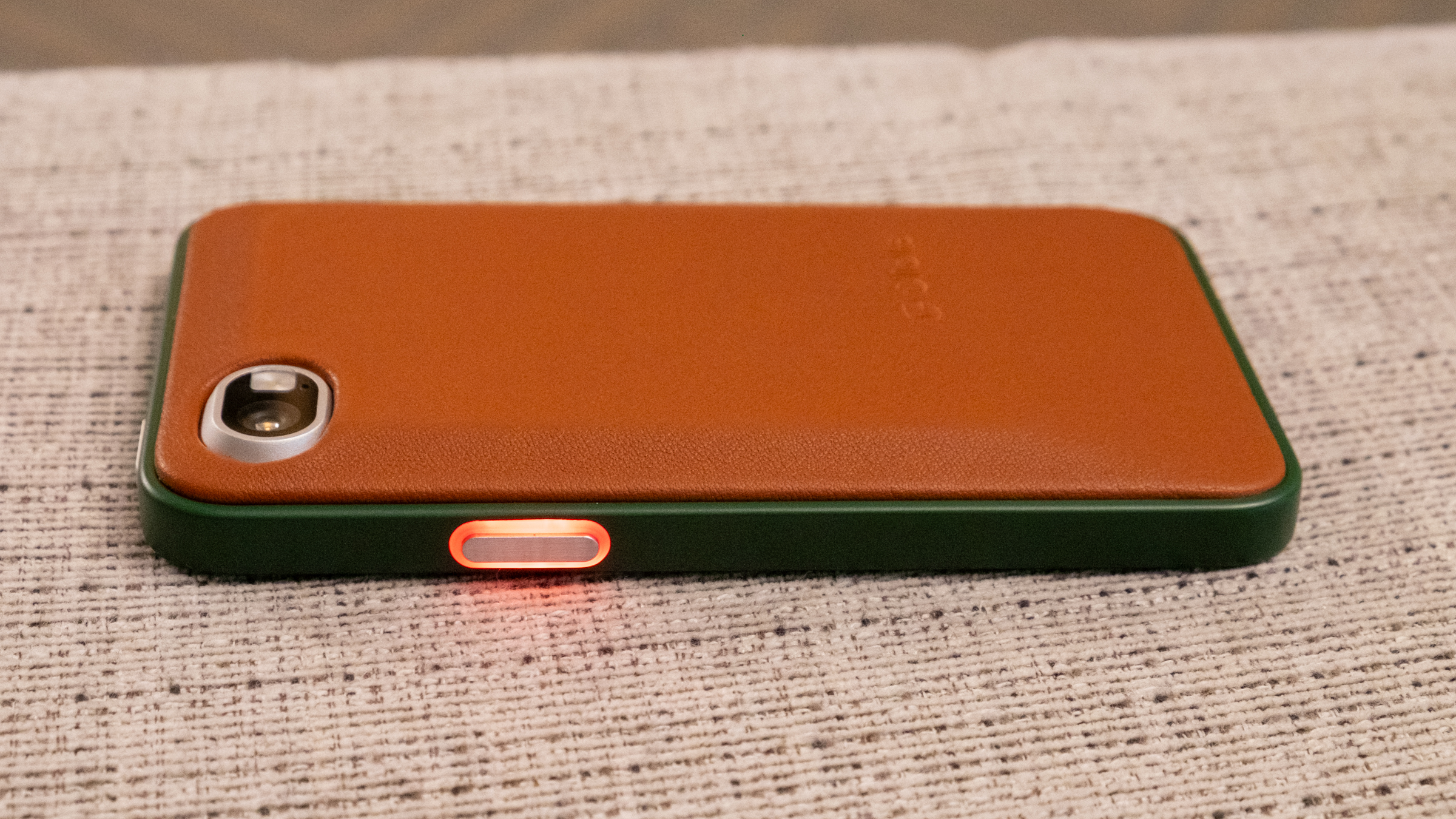
The Clicks Communicator has an LED Light on its side button that you can customize for different notifications.
Nathan Ingraham for Engadget
The other half of the thought process was making the Communicator different from an iPhone or Pixel — instead of having two essentially identical devices, Clicks wanted to make the Communicator with a distinct focus. “Our thought process was that complementary devices in tech are on the rise,’ Gadway said. “You wear an Oura Ring and you wear a smart watch; you carry an e-reader for reading and a tablet for content consumption. So why shouldn't your second phone be better at certain things than your first phone instead of just being a straight duplicate?”
That’s where the squarish, 4-inch touchscreen, keyboard and custom implementation of the Niagara Android launcher, which is a list-based UI rather than a grid of apps. The custom Clicks implementation of it focuses on your messaging apps and quickly triaging through new items (hence the Communicator name). The keyboard itself is touch sensitive and can be swiped across to navigate and take actions on what you see. But the Communicator is just an Android phone at heart which means you can install any apps that you find essential — though its form factor changes what it is best used for. “You can download whatever apps you want, but we've optimized it to be better at specific things,” Gadway said. “So, you know, do you want to watch letterboxed TikTok videos on this? Probably not. You could, but it's not the thing you're going to reach for to do that. But we're not going to give you a product that restricts what you can do.”
The good thing about being a smaller hardware maker is that Clicks doesn’t need to sell millions of these — they’re just interested in offering an alternative for people who might enjoy it, just as they’ve done with their keyboard accessories. Of course, the Communicator is a bigger investment; it’s up for pre-order now for $399 (that’s Pixel 9a territory, for comparison). Once it launches in the second half of the year, we’ll find out if it can find its audience.
This article originally appeared on Engadget at https://www.engadget.com/mobile/the-clicks-co-founder-explains-who-its-tiny-communicator-phone-is-for-170000501.html?src=rss
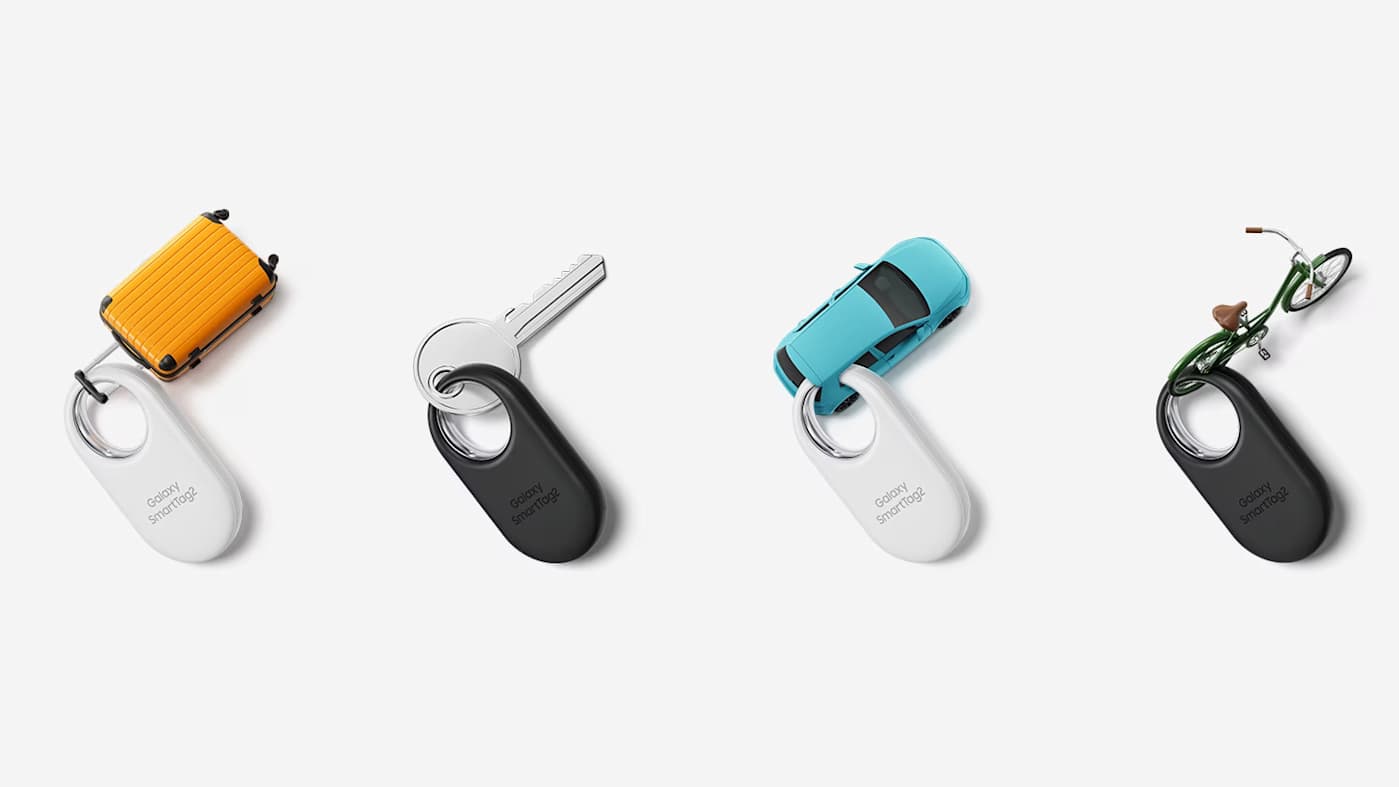
Samsung SmartTag 2 trackers are back on sale if you're willing to pick up a bundle. Woot has a four-pack down to just $45, which undercuts the previous all-time low we’ve seen on Amazon ($55) by $10. That's a discount of 55 percent from the retail price of $100. It's a compelling opportunity to stock up if you're already in Samsung's ecosystem.
We named the SmartTag 2 the best Bluetooth tracker for Samsung devices. The companion SmartThings Find app is easy to use, showing locations on a Google Maps-based interface. Much like Apple's Find My network, the location of a SmartTag is pinpointed using nearby Samsung phones. While nothing can beat the sheer size of Apple's tracking infrastructure given the number of iPhones in the US, it still worked well in our tests.
The SmartTag 2's design is more practical than some competitors since the oblong fob has a built-in hole that lets you easily attach your keys without buying an extra accessory. It’s IP67 rated for water and dust resistance, and uses a replaceable battery that Samsung says offers about 16 months of juice. The volume on the tag is pretty loud and users can select from multiple ringtones. Additionally, a double-squeeze of the SmartTag 2 will ping your handset, something you can't do with an AirTag.
The tracking is not quite as precise as Apple's AirTag, but it's a solid option for Samsung users looking to keep track of their things and can be scooped up at a bargain price.
This article originally appeared on Engadget at https://www.engadget.com/deals/you-can-get-a-four-pack-of-samsung-smarttag-2-trackers-for-just-45-173936230.html?src=rss
E Ink tablets have always been intriguing to me because I’m a longtime lover of pen and paper. I’ve had probably hundreds of notebooks over the years, serving as repositories for my story ideas, to-do lists, meeting notes and everything in between. However, I turned away from physical notebooks at a certain point because it was just easier to store everything digitally so I always had my most important information at my fingertips.
E Ink tablets seem to provide the best of both worlds: the tactile satisfaction of regular notebooks with many of the conveniences found in digital tools, plus easy-on-the-eyes E Ink screens. These devices have come a long way in the past few years, and we’re just starting to see more color E Ink tablets become more widely available. I tested out a number of different E Ink tablets to see how well they work, how convenient they really are and which are the best tablets using E Ink screens available today.
Best E Ink tablets for 2026
Are E Ink tablets worth it?
An E Ink tablet will be a worthwhile purchase to a very select group of people. If you prefer the look and feel of an e paper display to LCD panels found on traditional tablets, it makes a lot of sense. They’re also good options for those who want a more paper-like writing experience (although you can get that kind of functionality on a regular tablet with the right screen protector) or a more distraction-free device overall.
The final note is key here. Many E Ink tablets don’t run on the same operating systems as regular tablets, so you’re automatically going to be limited in what you can do. And even with those that do allow you to download traditional apps like Chrome, Instagram and Facebook, E Ink tablets are not designed to give you the best casual-browsing experience. This is mostly due to the nature of E Ink displays, which have noticeable refreshes, a lack of vibrant colors and lower picture quality than the panels you’ll find on even the cheapest iPad.
Arguably the biggest reason why you wouldn’t want to go with an iPad (all models of which support stylus input, a plethora of reading apps, etc) is because it’s much easier to get distracted by email, social media and other Internet-related temptations.
What to look for in an E Ink tablet
Writing and latency
Arguably the most important thing to consider when looking for an E Ink tablet is the writing experience. How good it is will depend a lot on the display’s refresh rate (does it refresh after every time you put pen to “paper,” or at a different regular interval) and the stylus’ latency. Most of the tablets I’ve tested have little to no latency, but some are certainly better than others. Finally, you should double check before buying that your preferred E Ink tablet comes with a stylus, or if you need to purchase one separately.
Reading
How much will you be reading books, documents and other things on this tablet? E Ink tablets come in many sizes, but most of them tend to be larger than your standard e-reader because it makes writing much easier. Having a larger display isn’t a bad thing, but it might make holding it for long periods slightly more uncomfortable. (Most e-readers are roughly the size of a paperback book, giving you a similar feeling to analog reading).
The supported file types for e-books can also make a big difference. It’s hard to make a blanket statement here because this varies so much among E Ink tablets. The TL;DR is that you’ll have a much better reading experience if you go with one made by a company that already has a history in e-book sales (i.e. Amazon or Kobo). All of the titles you bought via the Kindle or Kobo store should automatically be available to you on your Kindle or Kobo E Ink tablet.
Also with Kindle titles, specifically, since they are protected by DRM, it’s not necessarily the best idea to try to bring those titles over to a third-party device. Unless the tablet runs an operating system like Android that supports downloads for apps like Kindle and Kobo, you’ll be limited to supported file types, like ePUB, PDF, MOBI, JPEG, PNG and others.
Search functionality
Most E Ink tablets have some on-device search features, but they can vary widely between models. You’ll want to consider how important it is to you to be able to search through all your handwritten notes and markups. I noticed in my testing that Amazon’s and Kobo’s E Ink tablets made it easy to refer back to notes made in books and files because they automatically save to the specific pages on which you took notes, made highlights and more.
Searching is less standardized on E Ink tablets that have different supported file types, but their features can be quite powerful in their own right. For example, a few devices I tested supported text search in handwritten notes along with handwriting recognition, the latter of which allows you to translate your scribbles into typed text.
Sharing and connectivity
While we established that E Ink tablets can be great distraction-free devices, most manufacturers understand that your notes and doodles aren’t created in a vacuum. You may want to access them elsewhere, and that requires some form of connectivity. All of the E Ink tablets I tried have Wi-Fi support, and some support cloud syncing, companion mobile apps and the ability to export notes via email so you can access them elsewhere.
None of them, however, integrate directly with a digital note taking system like Evernote or OneNote, so these devices will always be somewhat supplementary if you use apps like that, too. I’d argue that, if you already lean heavily on apps like OneNote, a standard tablet with a stylus and screen protector might be the best way to go. Ultimately, you should think about what you will want to do with the documents you’ll interact with on your E Ink tablet after the tablet portion is done.
Price
E Ink tablets aren’t known for being cheap. They generally fall into the $300-$800 price range, which is what you can expect to pay for a solid regular tablet, too. A key factor in price is size: cheaper devices with E Ink displays are likely to have smaller screens, and stylus support isn’t as much of a given. Also, those types of devices are generally considered e-readers because of their size and may not be the best for note-taking, doodling and the like.
E Ink tablets have gone up in price recently. Supernote and Onyx Boox increased prices, as did reMarkable. The former said it was due to "increased costs,” and a reMarkable representative confirmed this to Engadget and provided the following statement: "We regularly review our pricing based on market conditions and operational costs. We've communicated an upcoming adjustment for the US market effective in May to provide transparency to our customers. Multiple factors influence our pricing decisions, including supply chain dynamics and overall operational costs in specific markets.”
As a result, the reMarkable Paper Pro jumped from $579 to $629 (that's for the bundle with the standard Marker and no Folio). This isn't great, considering the Paper Pro was already on the expensive side of the spectrum for E Ink tablets. It's also worth noting that Supernote and Onyx Boox have raised prices in the past few months as well.
Other E Ink tablets we've tested
Onyx Boox Tab X C
The Boox Tab X C is a color-screened version of the Tab X, the company’s all-purpose e-paper Android tablet. The Tab X C has a lovely 13.3-inch Kaleido 3 E Ink color display, an octa-core processor, 6GB of RAM and it runs on Android 13, making it one of the most powerful tablets in Boox’s lineup. I’ve used the Tab X in the past and this color version runs similarly, if not better, and at 5.3mm thick, it’s impressively svelte even when you pair it with its folio keyboard case. As someone who loves legal-pad sized things to write on, I also like how the Tab X C is most akin to A4-size paper. But at $820 for the bundle with the standard case (or a whopping $970 for the tablet and its keyboard case), it’s really only best for those who are ready to go all-in on a premium E Ink tablet.
Lenovo Smart Paper
Lenovo made a solid E Ink tablet in the Smart Paper, but it's too pricey and too married to the company's companion cloud service to warrant a spot on our top picks list. The hardware is great, but the software isn't as flexible as those of competitors like the reMarkable 2. It has good Google Drive integration, but you must pair it with Lenovo's cloud service to really get the most use out of it — and in the UK, the service costs £9 per month for three months, which is quite expensive.
Onyx Boox Tab Ultra
The Boox Tab Ultra has a lot of the same features we like in the Note Air 2 Plus, but it’s designed to be a true, all-purpose tablet with an E Ink screen. Running Android 11 and compatible with a magnetic keyboard case, you can use it like a standard 2-in-1 laptop, albeit a low-powered one. You can browse the web, check email and even watch YouTube videos on this thing — but that doesn’t mean you should. A standard 2-in-1 laptop with a more responsive screen and better overall performance would be a better fit for most people who even have the slightest desire to have an all-in-one device. Like the rest of Onyx’s devices, the Tab Ultra is specifically for those who put reading and eye comfort above all else.
This article originally appeared on Engadget at https://www.engadget.com/mobile/tablets/best-e-ink-tablet-130037939.html?src=rss
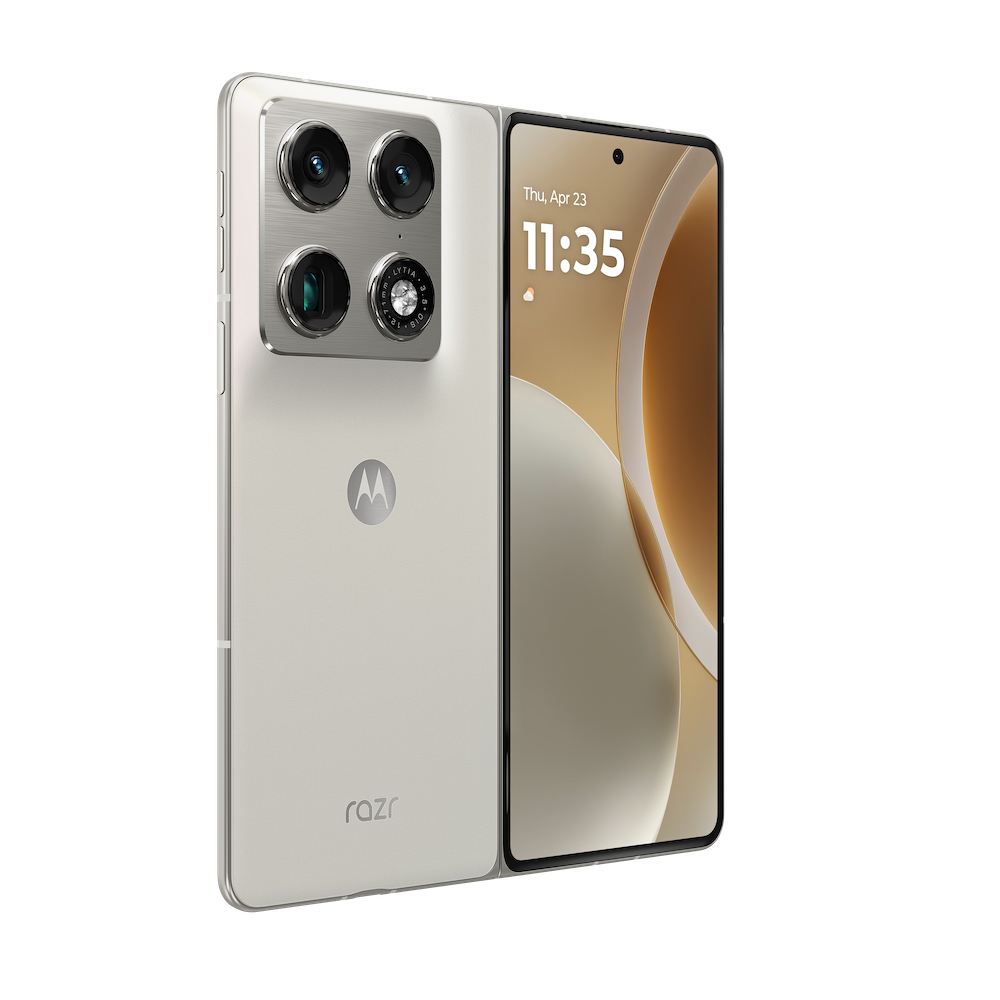
Samsung and Google have new competition in the foldable space. At CES 2026, Motorola unveiled its first side-foldable smartphone: the Razr Fold. The handheld sports an impressive 6.6-inch external screen and an 8.1-inch flexible main display. Motorola hasn’t provided dimensions yet, so we don’t know how thick it is yet or how it compares to other foldables in that respect.
We do know, however, that it'll include support for the Moto Pen Ultra stylus. This is actually a fairly big deal, as Samsung dropped the feature for the Z Fold 7. Modern foldables basically double as tablets, so a stylus is always appreciated.
A phone.
Motorola
There's a robust camera system here, with a 50MP Sony sensor, a 50MP ultra-wide/macro, a 50MP telephoto, a 32MP external selfie lens and a 20MP internal camera. It also offers the ability to record in Dolby Vision.
The Razr Fold will be available in blue and white. We don't have any information regarding internal specs, pricing or availability. Motorola says that "more specifications will be shared in the coming months."
It's worth noting that while this is the company's first side-folding camera, Motorola has always made top-folding phones. After all, that's what a flip phone is. The company continues to refine this basic idea with its standard Razr line of midrange top-folding smartphones.
This article originally appeared on Engadget at https://www.engadget.com/mobile/smartphones/motorola-just-announced-a-foldable-phone-to-rival-samsung-and-google-at-ces-010015323.html?src=rss
Anker rolled out a bunch of new chargers and other gear at CES 2026, including a cute one that's already on sale. The new Nano charger with smart display, which is an upgrade to the existing Nano charger in Anker's lineup, is on sale for $30 right now for Prime members. That's $10 off the regular price.
The 45W charger includes a smart display that shows real-time data like power flow, temperature and charging status. It also features "fun animations to keep things cheerful." Anker says it can recognize what's being charged and automatically adjust certain metrics to ensure a longer battery lifespan.
To that end, it works with just about everything. The company advertises that this charger is a good fit for the iPhone, Apple Watch, AirPods and Samsung devices, among others. The new Nano Charger is on the smaller side, with dual folding prongs that rotate to fit most outlets.
This article originally appeared on Engadget at https://www.engadget.com/deals/the-latest-45w-anker-nano-charger-with-smart-display-is-10-off-right-now-160707685.html?src=rss
Anker dove into CES 2026 with a slew of announcements that bring new chargers and accessories under its umbrella. The new accessories include improved visual interfaces, faster Qi2 wireless charging and “upgraded ecosystems” that support the latest iPhones. Some of the latest devices are even available to buy right now.
First up is the Anker Nano Charger with smart display, which features a tiny screen, 180-degree foldable prongs and provides up to 45W of power. The plug can identify the exact iPhone model connected and then deliver the right amount of power for your phone. Anker says the Nano uses three-stage power delivery and a "Care Mode" that the company claims keeps batteries cooler than some competing 45W chargers. It arrives in late January 2026 and will retail for $40.
For fans of wireless charging stations, the Anker Prime Wireless Charging Station offers a 3-in-1 solution for iPhone, Apple Watch and AirPods. It uses a "AirCool" system for "faster, safer performance" and offers up to 25W of Qi2 wireless power. The design is also foldable for compact travel. It's set for release in Q1 2026 and will retail for $150.
The company debuted a clamp-on 10-in-1 Nano Power Strip with 70W of output and built-in surge protection. It sports two USB-C ports, two USB-A ports and six AC outlets. The Nano Power Strip is getting a late January release, and it will sell for $70.
Anker also unveiled a 13-in-1 Nano Docking Station. This serves as an all-in-one hub with support for up to three displays (with 4K resolution supported on a single display), up to 100W of upstream charging and 10 Gbps of data transfer between connected devices. It also features a removable 6-in-1 hub with SD and microSD card readers, a USB-A port and a 5 Gbps USB-C port. The Nano Docking Station is available now and retails for $150.
This article originally appeared on Engadget at https://www.engadget.com/computing/accessories/anker-unveils-a-new-lineup-of-chargers-docks-and-accessories-at-ces-2026-160021025.html?src=rss
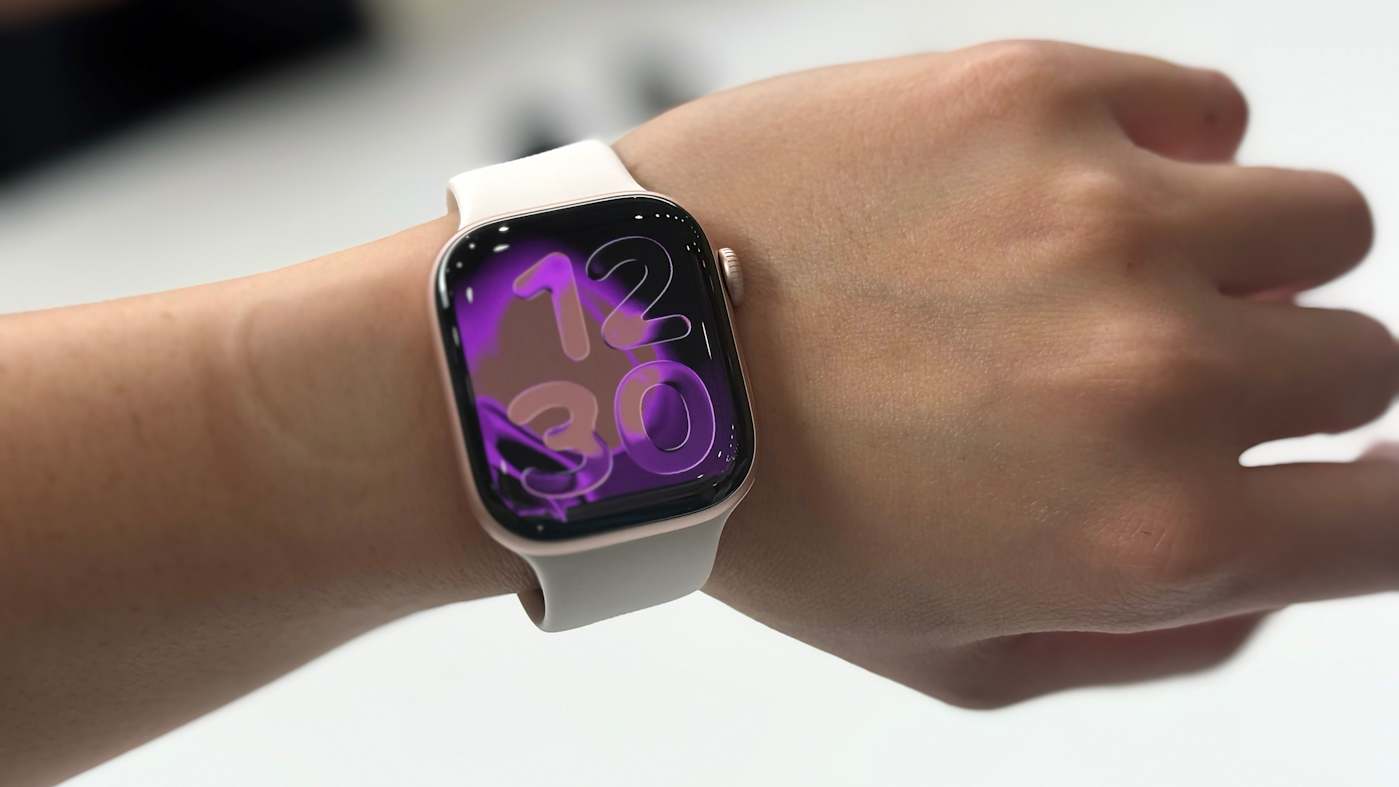
The Apple Watch Series 11 is on sale for the lowest price we've ever seen. You can pick up the smartwatch for $299, which is 25 percent off its regular price, a discount of $100. Discounts tend to increase as we get closer to September, when the next generation of Apple Watch is typically announced.
The Series 11 is our best overall smartwatch pick, and we gave it a score of 90 out of 100 in our hands-on review. We were impressed with the battery life, which lasted longer than the 24 hours it's rated for in our testing. We also liked how lightweight and thin the watch is. The 9.7mm thick case on the Series 11 ties the Series 10 for the thinnest Apple Watch so far.
Fitness and health tracking are the main appeals of an Apple Watch, and the Series 11 introduces sleep tracking and hypertension notifications. The sleep tracking was comfortable thanks to the watch's small form factor. The watch also added a new wrist flick gesture that lets you dismiss notifications, end calls and silence alarms or timers.
The GPS + cellular model of the Series 11 is also $100 off, and it's the first Apple Watch to support 5G networks. It's not too often you see an Apple product for 25 percent off its retail price, so if you were in the market for a smart watch, and especially if you are an iPhone user, it's worth checking out.
This article originally appeared on Engadget at https://www.engadget.com/deals/the-apple-watch-series-11-is-on-sale-for-a-record-low-price-154609244.html?src=rss
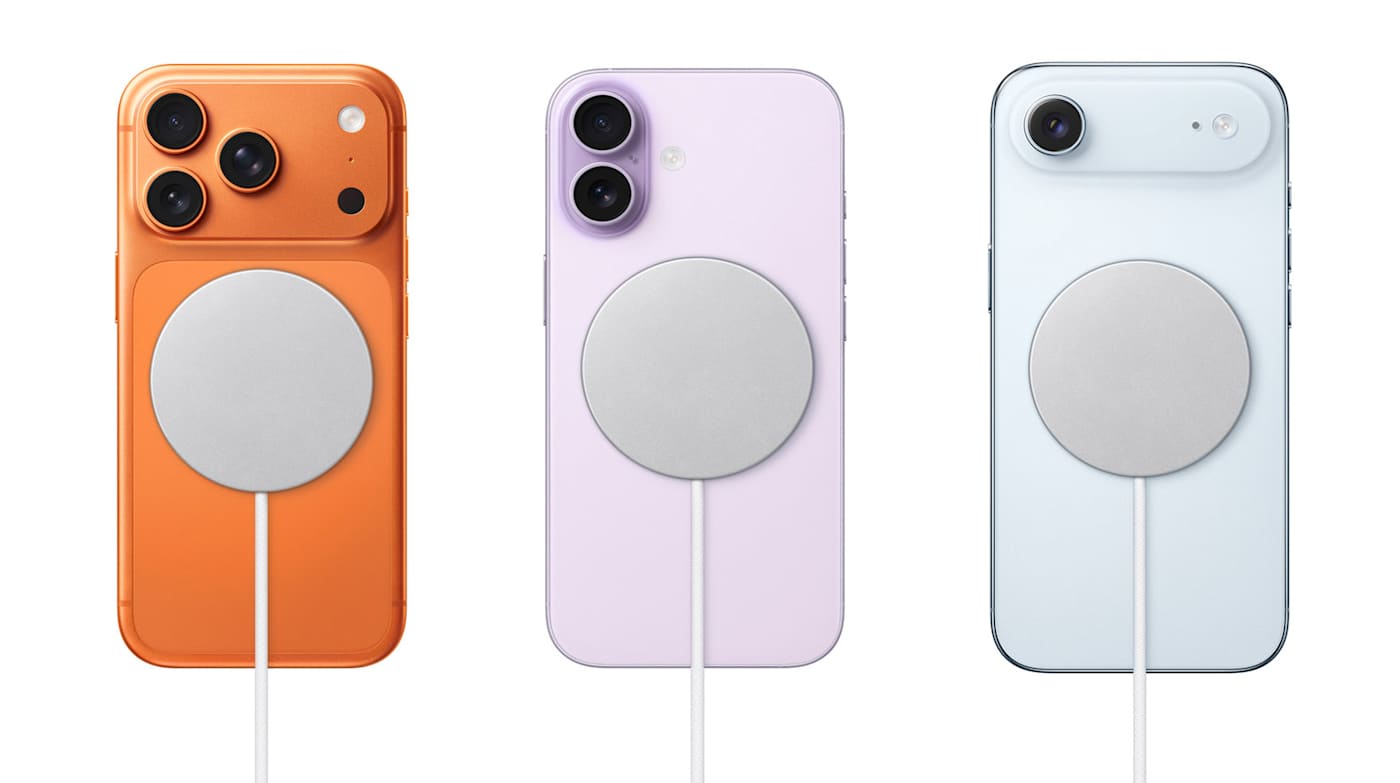
If you want a wireless charger for your iPhone and prefer to stick with Apple, Amazon has a sale that may pique your interest. The retailer is selling the one meter Apple Magsafe charger for $30, saving you $10 off the regular price, while also selling the two meter model for $40 ($10 off).
If you have an iPhone 16, iPhone 17 or iPhone Air, this cable can charge your device at 25W as long as it's connected to a 30W power adapter on the other end. While you'll need a more recent iPhone to get the fastest MagSafe charging speeds, the charger can wirelessly top up the battery of any iPhone from the last eight years (iPhone 8 and later). With older iPhones, the charging speed tops out at 15W. The cable works with AirPods wireless charging cases too — it's certified for Qi2.2 and Qi charging.
The MagSafe charger is one of our favorite iPhone accessories, and would pair quite nicely with your new iPhone if you're picking up one of the latest models. If you're on the fence about that, be sure to check out our reviews of the iPhone 17, iPhone Pro/Pro Max and iPhone Air.
This article originally appeared on Engadget at https://www.engadget.com/deals/apples-latest-25w-magsafe-charger-is-on-sale-for-30-141707297.html?src=rss
If you’ve upgraded your phone recently, there’s a good chance it supports wireless charging. Battery life can be one of the first things to deteriorate as your phone ages, so you’ll need quick and easy ways to power up wherever you are. You may not always be able to have a cable on your person, but investing in a wireless phone charger (or a few) can make it more convenient to plop your phone down and know it’ll have more juice when you pick it back up again.
While you’re not going to get the same charging speed with a wireless charger that you would with a power cable, the convenience of a power source like this is undeniable. Stick a wireless charger on your bedside, on your desk at work, in your kitchen or wherever you spend a good chunk of your time and you’ll have a reliable way to power up your phone, sans bulky, messy cables. Needless to say, there are a ton of options out there with different charging capabilities and price ranges. Below, we’ve collected the best wireless chargers we’ve tested to make your search a little easier.
While it’s tempting to buy a wireless charging pad optimized for the specific phone you have now, resist that urge. Instead, think about the types of devices (phones included) that you could see yourself using in the near future. If you’re sure you’ll use iPhones for a long time, an Apple MagSafe-compatible magnetic wireless charger will be faster and more convenient. If you use Android phones or think you might switch sides, however, you’ll want a more universal design. If you have other accessories like wireless earbuds or a smartwatch that supports wireless charging, maybe you’d be better off with a 3-in-1 wireless charger or full wireless charging station.
Where and how will you use your charger?
Odds are that you have a specific use case in mind for your charger. You may want it by your bedside on your nightstand for a quick charge in the morning, or on your desk for at-a-glance notifications. You might even keep it in your bag for convenient travel charging instead of bulky portable chargers or power banks. Think about where you want to use this accessory and what you want to do with the device(s) it charges while it’s powering up. For example, a wireless charging pad might be better for bedside use if you just want to be able to drop your phone down at the end of a long day and know it’ll be powered up in the morning. However, a stand will be better if you have an iPhone and want to make use of the Standby feature during the nighttime hours.
For a desk wireless charger, a stand lets you more easily glance at phone notifications throughout the day. For traveling, undoubtedly, a puck-style charging pad is best since it will take up much less space in your bag than a stand would. Many power banks also include wireless charging pads built in, so one of those might make even more sense for those who are always on the go. Some foldable chargers are also designed for travel, collapsing flat to take up less space.
Wireless charging performance
Although wireless charging is usually slower than its wired equivalent, speed and wattage are still important considerations. A fast charger can supply enough power for a long night out in the time it takes to change outfits. Look for options that promise faster charging and support standards like Qi2 certified charging for the best balance of efficiency and compatibility.
In general, a 15W charger is more than quick enough for most situations, and you’ll need a MagSafe-compatible charger to extract that level of performance from an iPhone. With that said, even the slower 7.5W and 10W chargers are fast enough for an overnight power-up. If anything, you’ll want to worry more about support for cases. While many models can deliver power through a reasonably thick case (typically 3mm to 5mm), you’ll occasionally run into examples that only work with naked phones.
There are some proprietary chargers that smash the 15W barrier if you have the right phone. Apple’s latest MagSafe charging pad can provide up to 25W of wireless power to compatible iPhones when paired with a 30W or 35W adapter — the latter being another component you’ll have to get right to make sure the whole equation works as fast as it possibly can.
Quality and box contents
Pay attention to what’s included in the box. Some wireless chargers don’t include power adapters, and others may even ask you to reuse your phone’s USB-C charging cable. What may seem to be a bargain may prove expensive if you have to buy extras just to use it properly. As mentioned above, you’ll want to make sure all of the components needed to use the wireless charger can provide the level of power you need — you’re only as strong (or in this case, fast) as your weakest link.
Fit and finish is also worth considering. You’re likely going to use your wireless charger every day, so even small differences in build quality could make the difference between joy and frustration. If your charger doesn’t use MagSafe-compatible tech, textured surfaces like fabric or rubberized plastic are more likely to keep your phone in place. The base should be grippy or weighty enough that the charger won’t slide around. Also double check that the wireless charger you’re considering can support phones outfitted with cases — the specifications are usually listed in the charger’s description or specs.
You’ll also want to think about the minor conveniences. Status lights are useful for indicating correct phone placement, but an overly bright light can be distracting. Ideally, the light dims or shuts off after a certain period of time. And while we caution against lips and trays that limit compatibility, you may still want some barriers to prevent your device falling off its perch on the charging station.
Wireless chargers FAQs
Do wireless chargers work if you have a phone case?
Many wireless chargers do work if you leave the case on your phone. Generally, a case up to 3mm thick should be compatible with most wireless chargers. However, you should check the manufacturer’s guide to ensure a case is supported.
How do I know if my phone supports wireless charging?
Checking the phone’s specification should tell you if your phone is compatible with wireless charging. You might see words like “Qi wireless charging” or “wireless charging compatible.”
Do cords charge your phone faster?
Most often, wired charging will be faster than wireless charging. However, wired charging also depends on what the charging cable’s speed is and how much power it’s designed to carry. A quick-charging cable that can transmit up to 120W of power is going to be faster than a wireless charger.
This article originally appeared on Engadget at https://www.engadget.com/computing/accessories/best-wireless-charger-140036359.html?src=rss

 Anmelden