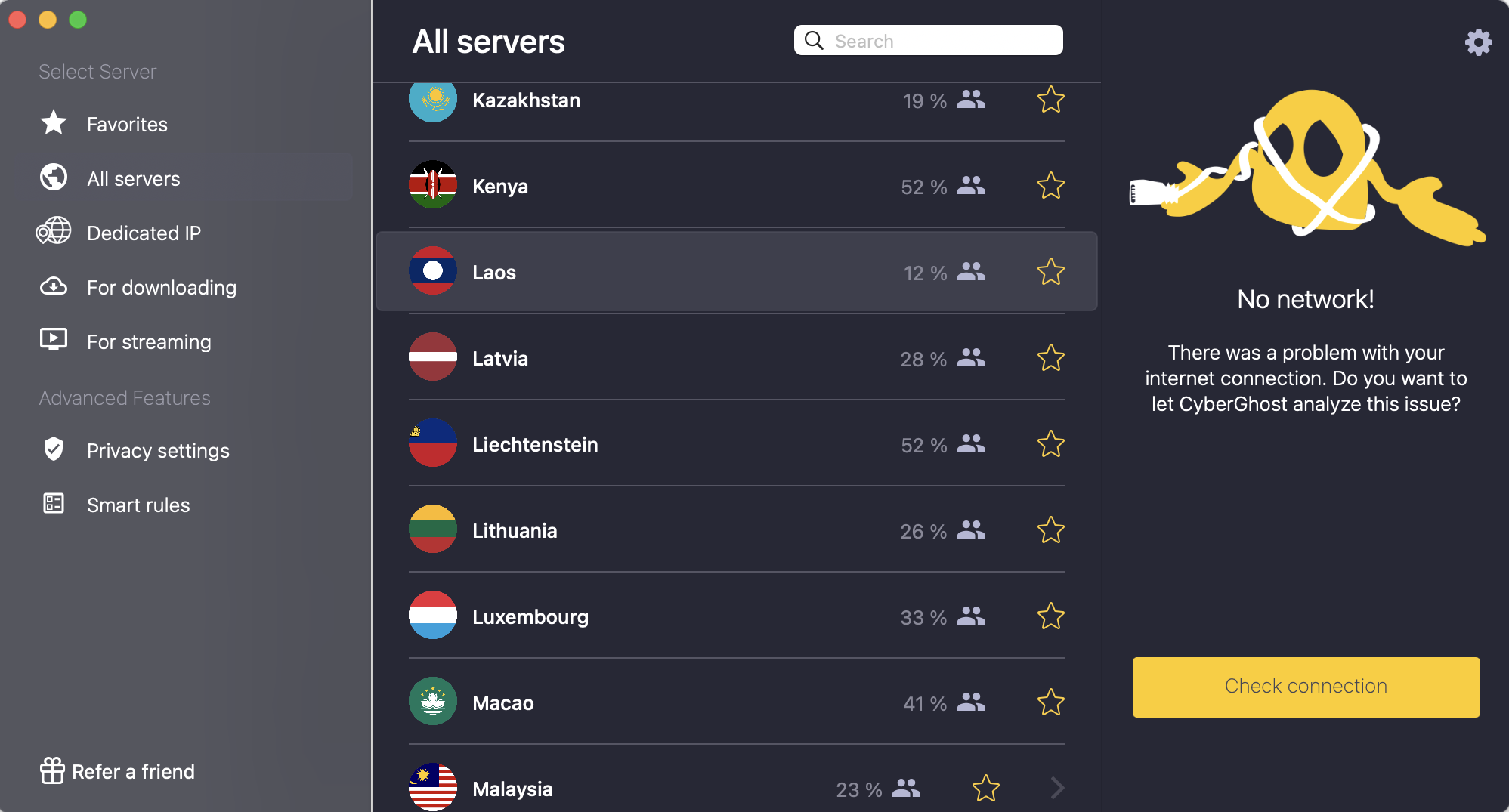
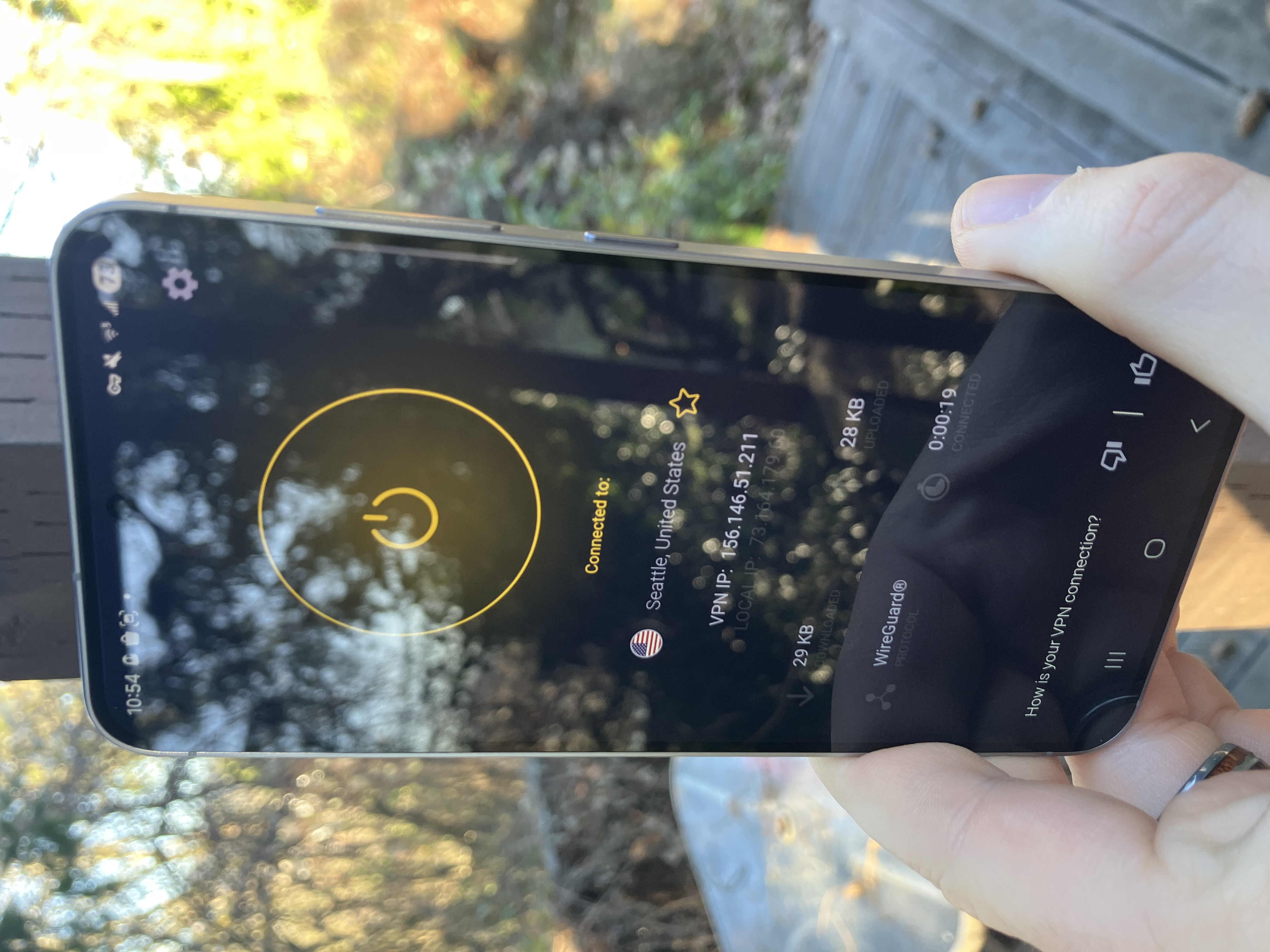
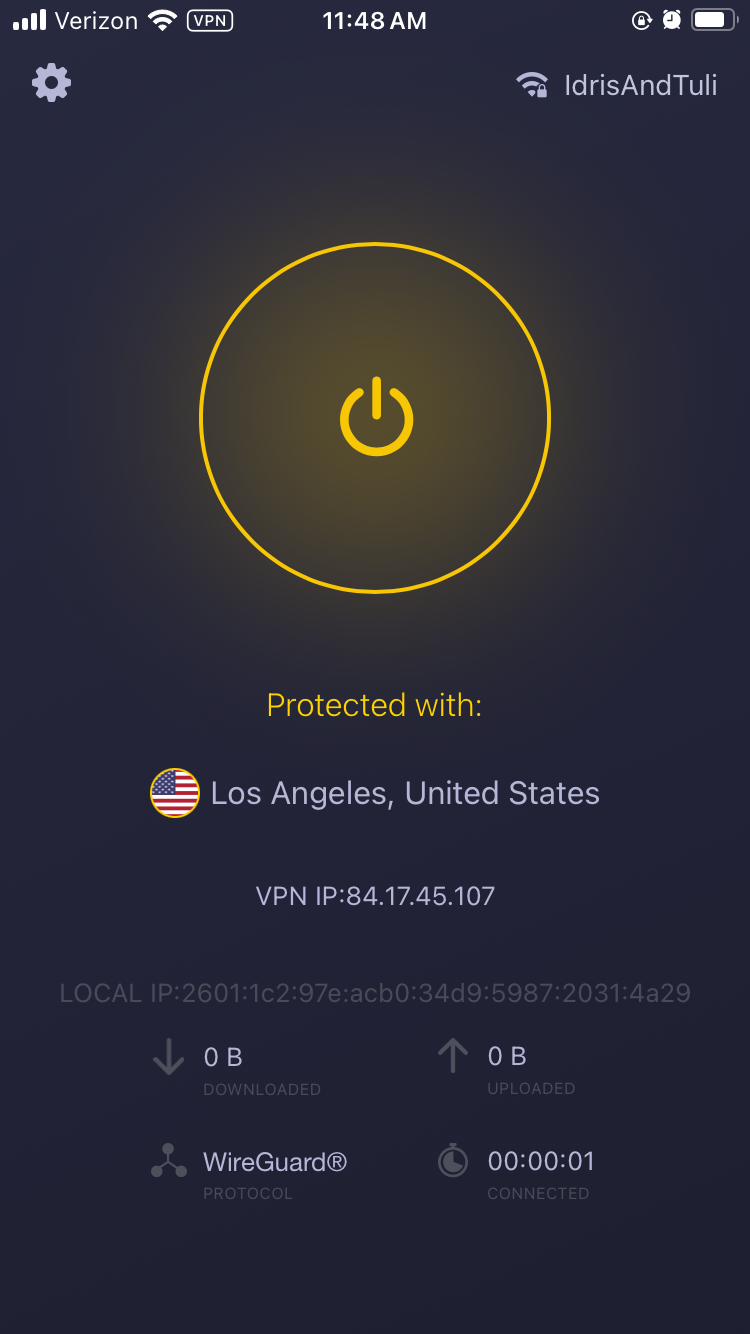
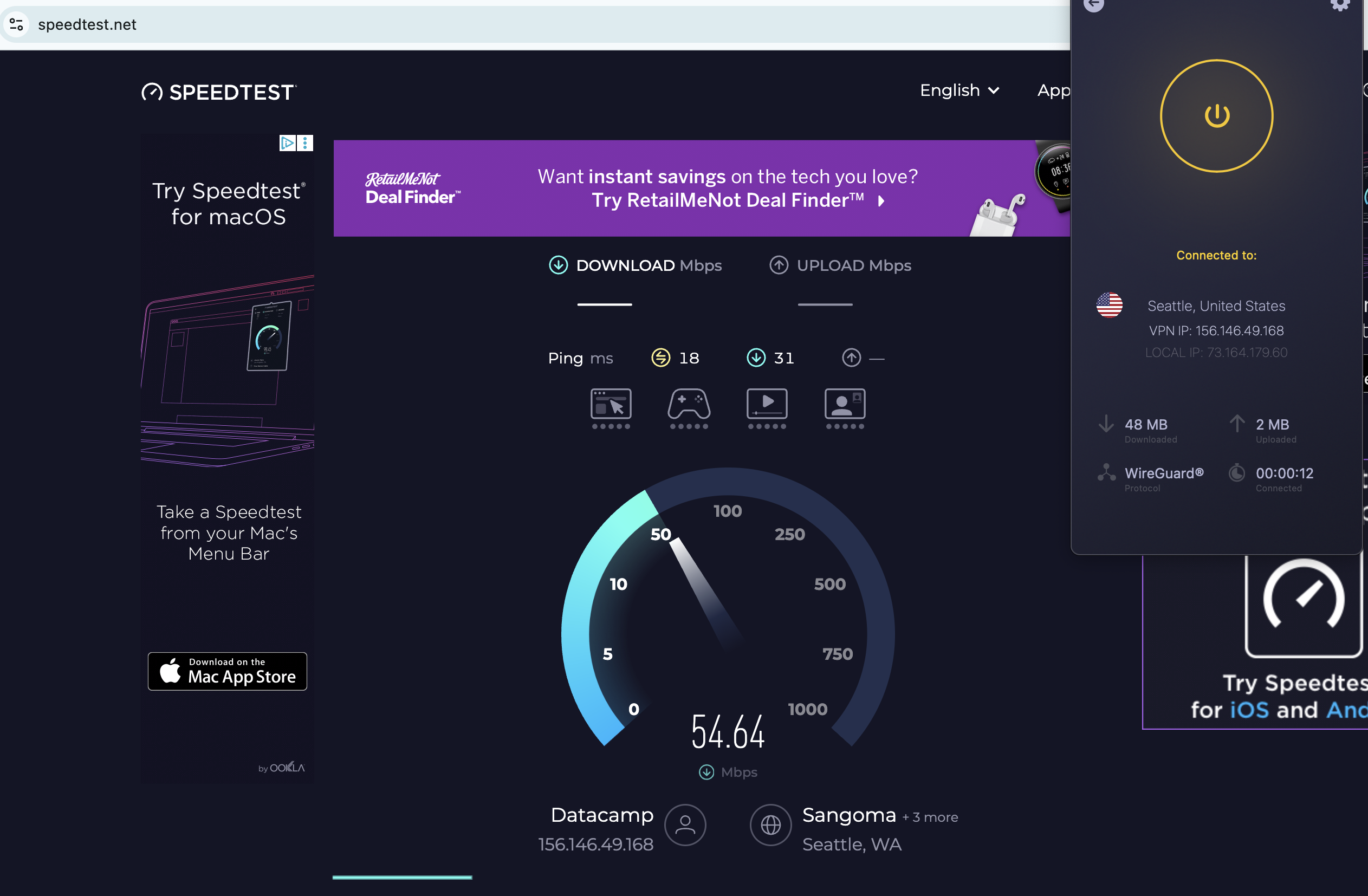
One good thing about virtual private networks (VPNs) is that when they don't work, the problem is almost always solvable without technical training. Although it's aggravating when your VPN randomly drops your connection, the chances are good that you can handle the issue yourself without getting tech support involved.
If your VPN is repeatedly disconnecting from the server, I recommend dealing with the problem immediately. When you have your kill switch on as good cybersecurity habits dictate, VPN drops will kick you off the internet. Without that feature enabled, it'll expose your real identity and location online. That’s not a big deal if you’re just aiming to, say, stream an international sporting event, but it could be an existential issue if you’re using the VPN as a workaround against government censorship. Either way, you can address the issue by working through the eight troubleshooting steps below and checking whether they've solved your problem.
8 reasons your VPN keeps disconnecting
I've organized these root causes in ascending order of how much effort the solution takes. Try the easier fixes before moving on to the more complex or expensive ones.
1. You're using the VPN on too many devices at once
Most VPNs limit the number of devices you can connect at the same time on a single subscription. Some services, like Surfshark, claim to offer unlimited simultaneous connections, but they'll still cut you off if they see signs of abuse. Generally, you can install the VPN on as many devices as you like; it just can't be actively running on more than the limit.
If you're trying to connect to the VPN on a new device and it repeatedly disconnects, check how many other phones, computers or smart TVs it's already running on. Pay attention to devices where you have the VPN set to auto-connect on startup, as you may have missed that it's running. Disconnect from the VPN on one of those devices and try again on the new one.
2. Your VPN server is slow or overloaded
The problem often rests with the VPN server you're trying to connect to. Providers regularly shut down servers for routine maintenance. Sometimes, a server is technically online, but it's under such a heavy user load that it can't maintain a connection. It's also possible that the server is so physically far away from you that the connection keeps timing out.
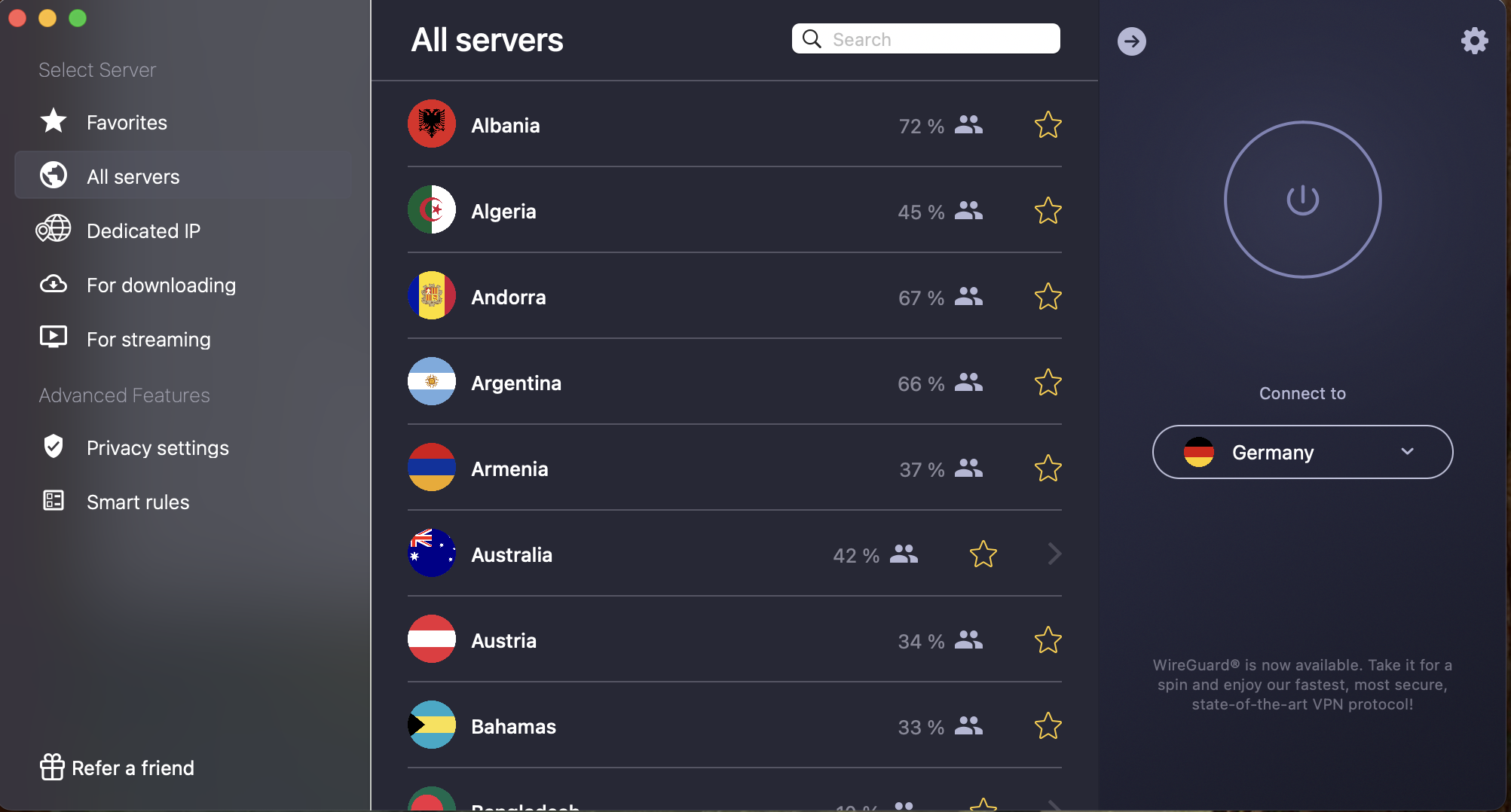
In cases like these, the answer is simple: use another server. Pick a different server by disconnecting the VPN and reconnecting to the same location. If the new server has the same problems, try another location, assuming you don't need an IP address in a specific country.
3. You're using an unstable VPN protocol
As I explained in my article on how a VPN works, a VPN protocol is the set of instructions at the heart of everything a VPN does. Not all protocols are the same. For example, OpenVPN over TCP prioritizes speed over connection stability, causing more frequent disconnections. It's also possible for certain networks to block some VPN protocols but not others (see #8).
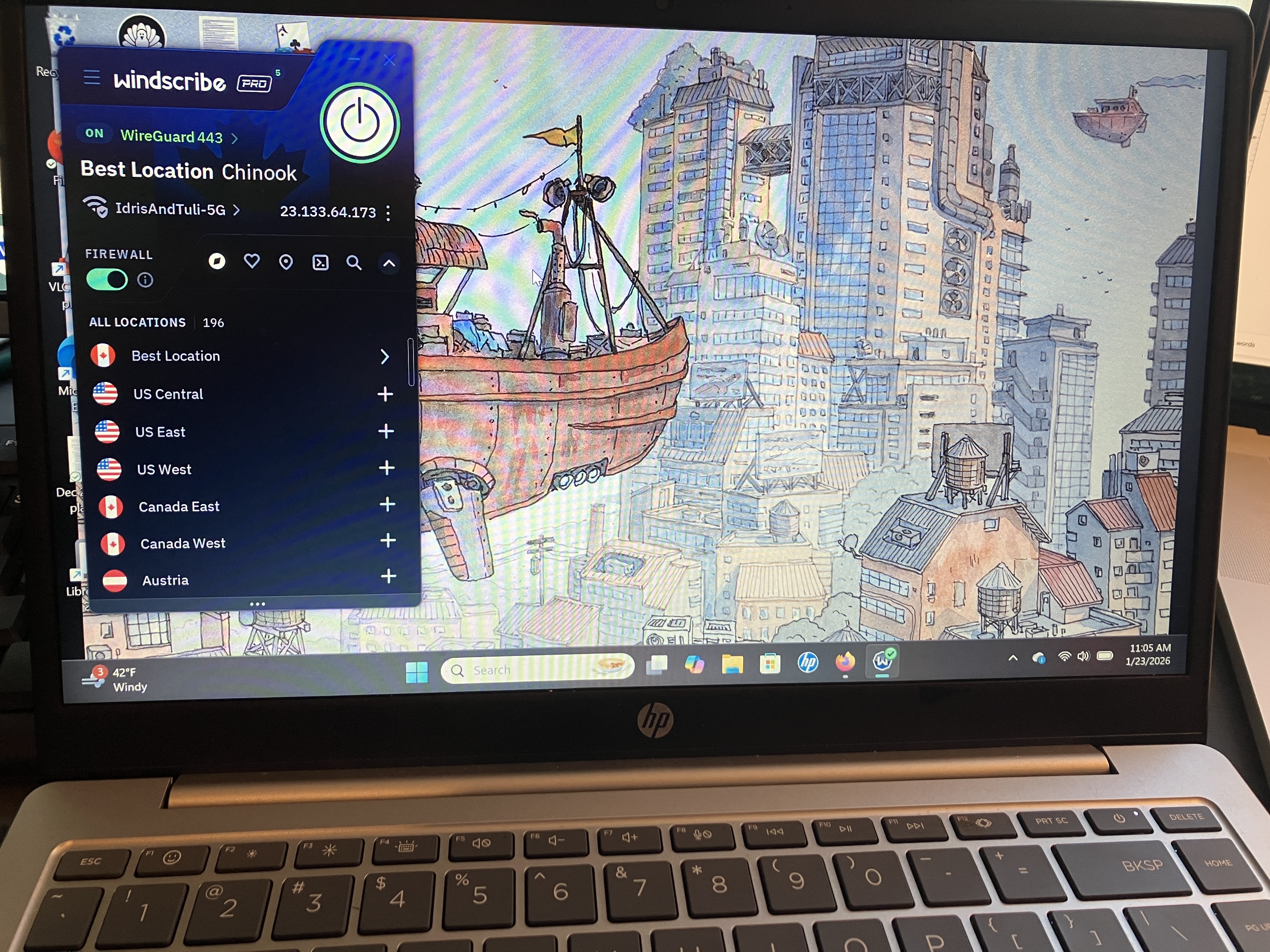
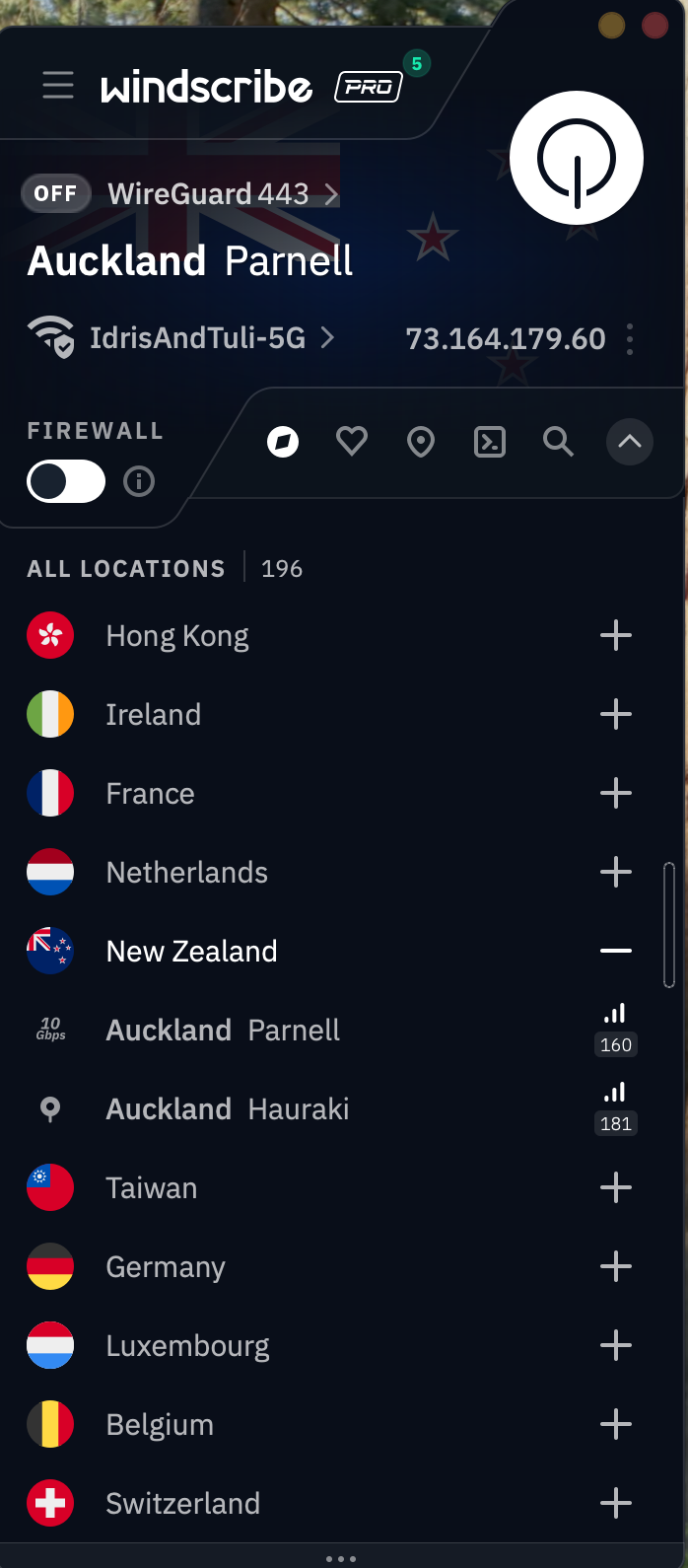
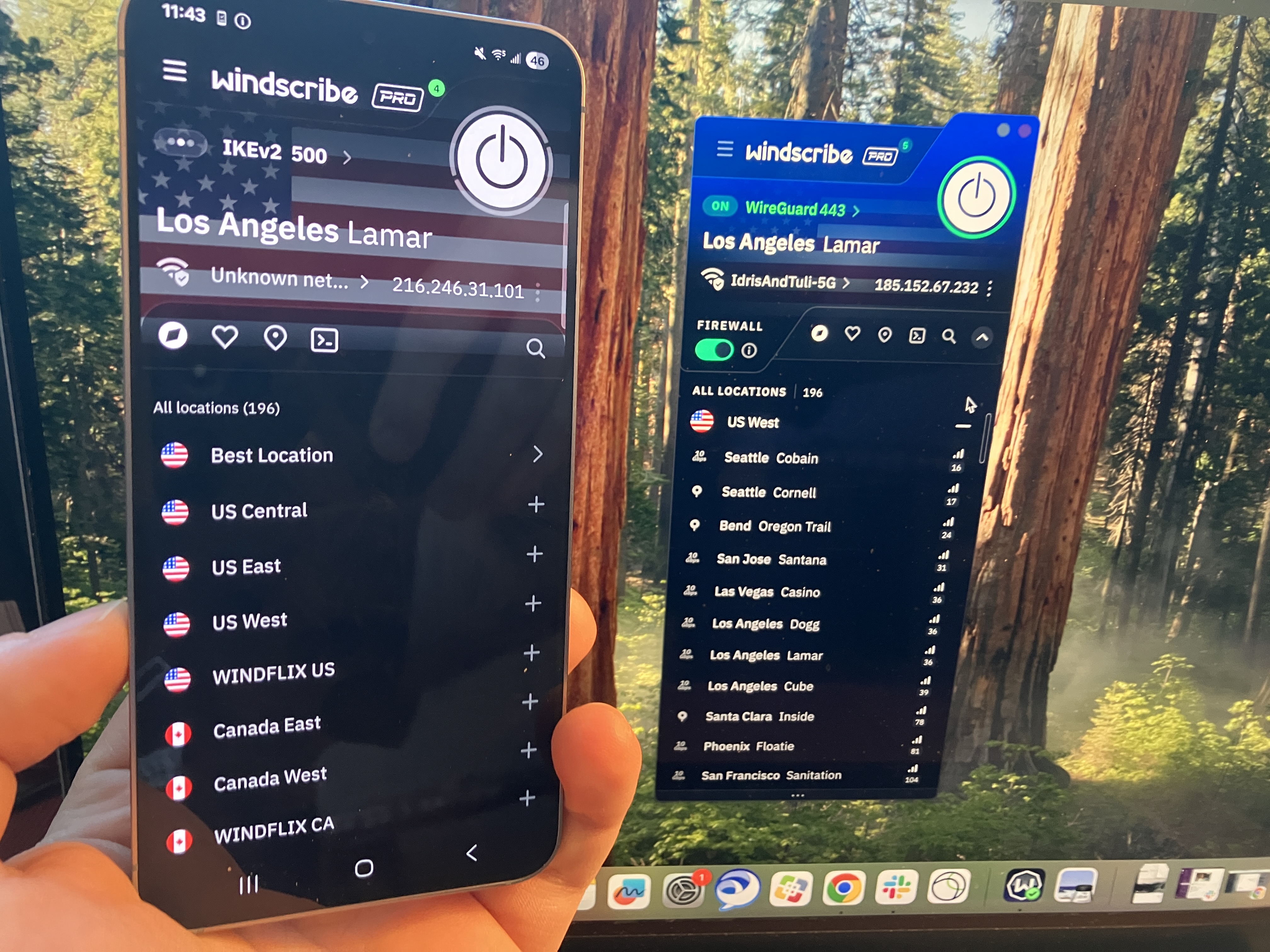
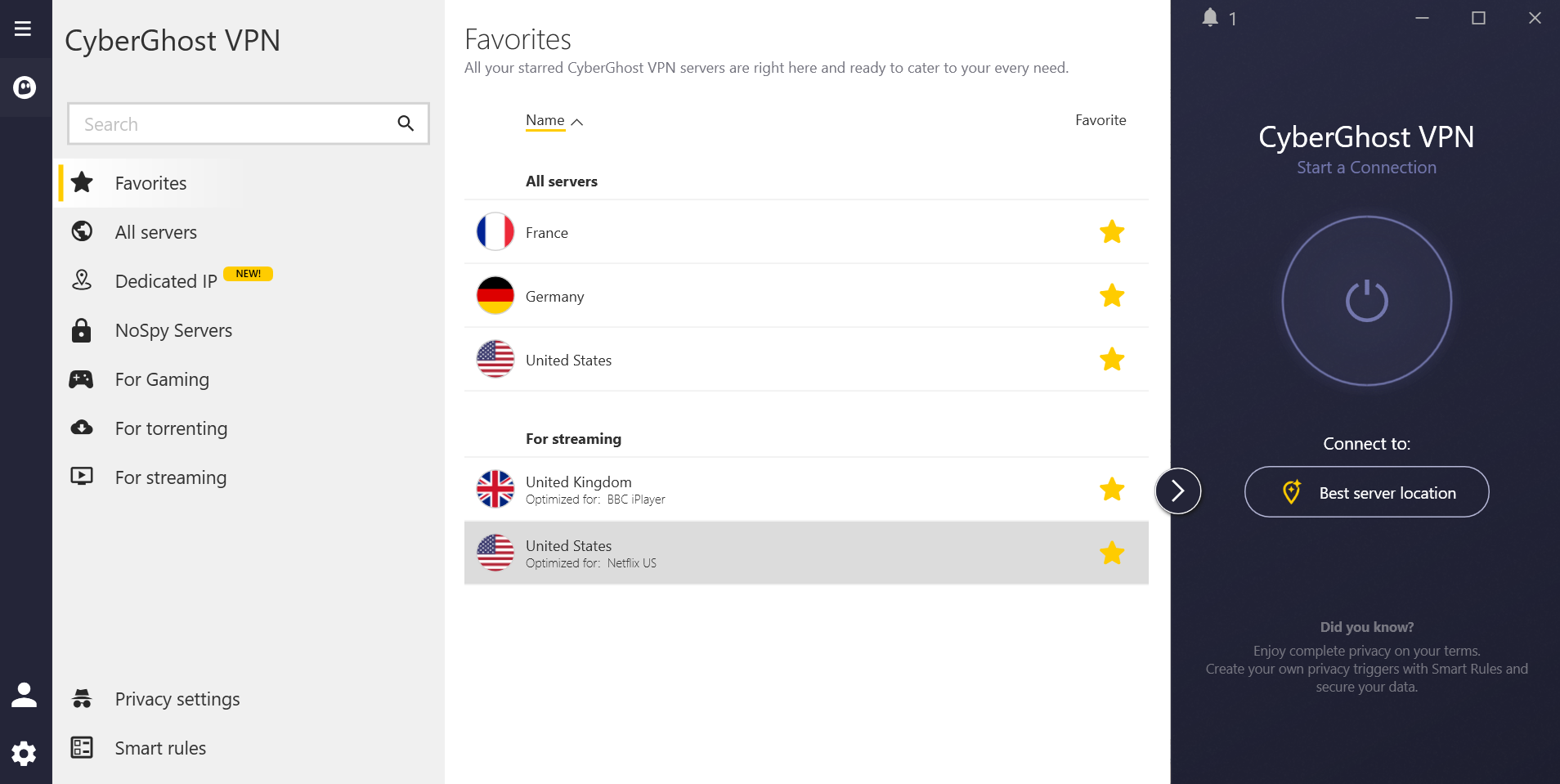
If changing servers didn't help your unstable connection, try switching protocols. WireGuard, OpenVPN over UDP and IKEv2 are best for stability. You can almost always find the protocol options in the Settings page of your VPN app.
4. Power-save settings are interfering
A VPN almost always runs in the background. In some cases, a device's battery saver settings might shut down the VPN to stop the battery from draining. See if turning off power-save mode stops your VPN from disconnecting randomly (and maybe plug in your device while you're at it).
5. Your internet connection isn't stable
Your VPN needs to pass traffic through an ISP like any other online app — it just encrypts that traffic first. If you don't have a good internet connection, you won't have a good VPN connection. When you notice your VPN randomly disconnecting, check whether you have problems with your home internet connection. Resetting your modem by turning it off for at least 10 seconds may solve the problem, but you can also just wait for your internet to improve with time.
6. Another program is interfering with the VPN
Other security programs are a frequent cause of VPN disruptions. If you connect to an office VPN, for example, you likely won't be able to have a personal VPN running at the same time. Likewise, if you use an antivirus program or have a firewall on your device, it may be blocking your VPN from connecting. See if you can configure the firewall to allow traffic through a port used by a VPN protocol.
7. Your software is out of date
If none of the fixes have worked so far, you can often solve your connection problems by updating all the software involved. For optimal security, you should be installing updates the moment they're available anyway, so this will protect you even if it doesn't directly solve your VPN problem.
Update your VPN client and your operating system, then try connecting again. If you're still having problems, try updating your router. You can reach its control panel by entering its default IP address into the URL bar of your browser. Update it as well, then try once more.
8. Your network or ISP is blocking VPN traffic
There's a chance that your problem originates with your network or ISP, not on the VPN or any device you own. Some networks, especially at offices and schools, automatically block any VPN traffic they detect. These restrictions can even be imposed by entire countries, most infamously in China.
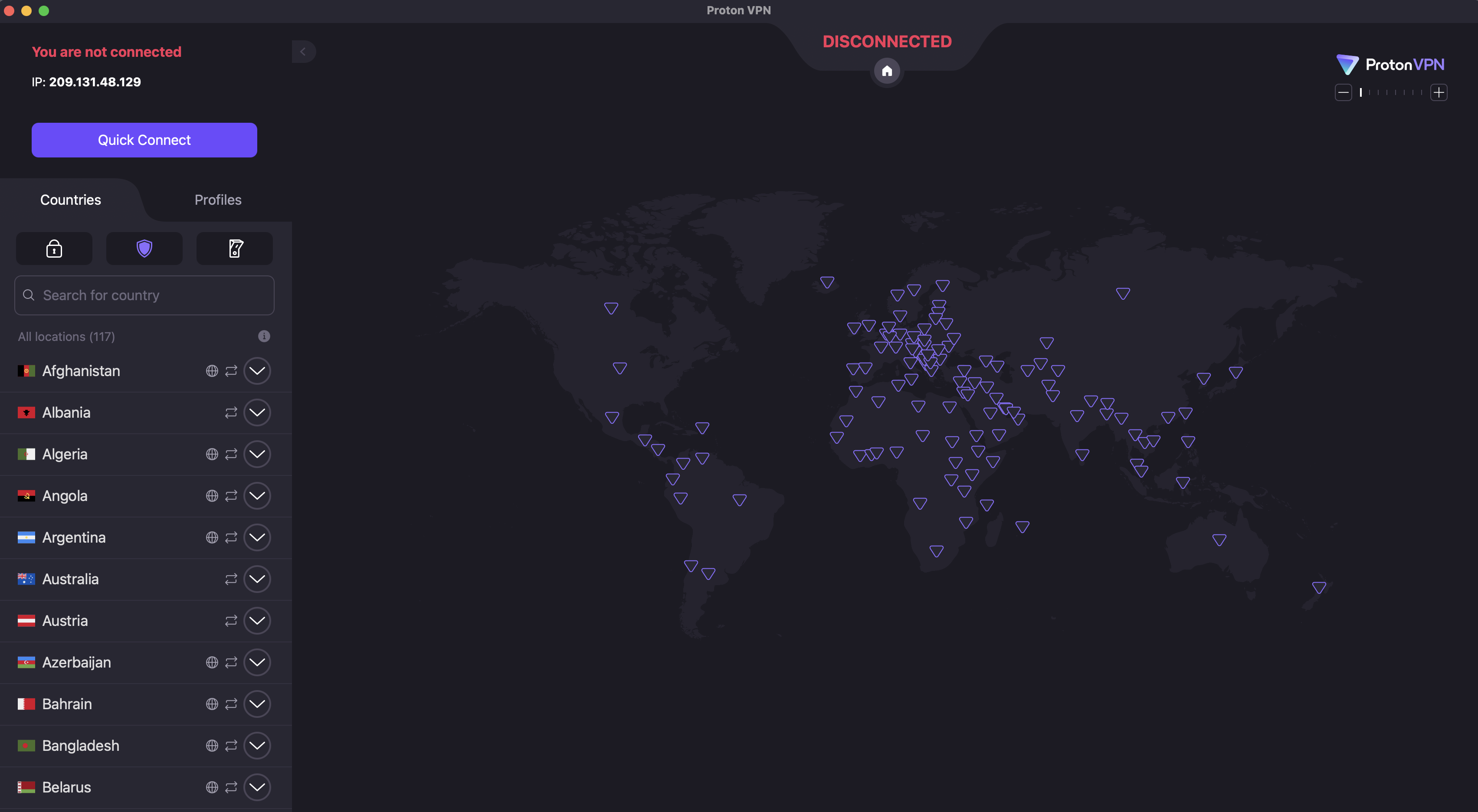
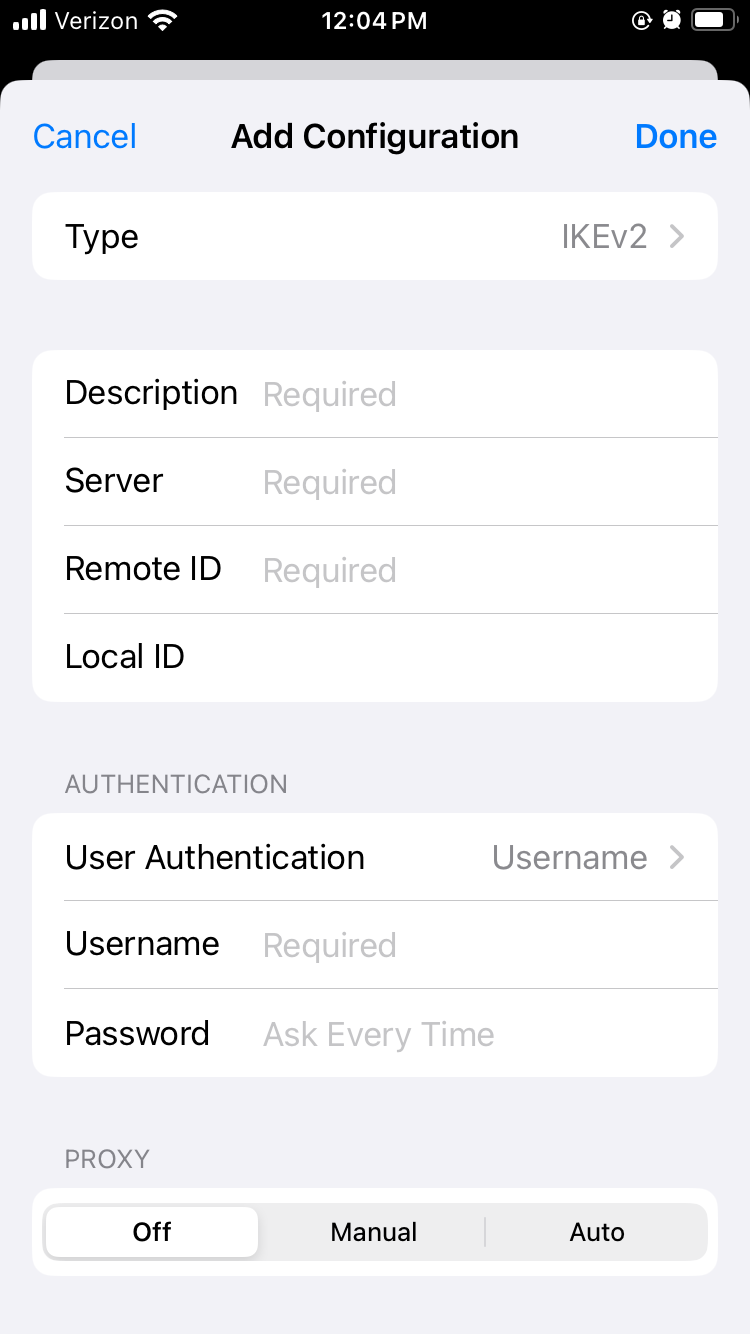
Should this turn out to be your problem, turn on any obfuscation features that may be built into your VPN. Using an obfuscated protocol, connect to a server outside the location being censored, then use the internet as normal. This will be much more difficult if you're in a country where VPNs are illegal or restricted, but there's still hope — if you can safely send an email, contact a VPN provider and ask if they'll send you a configuration directly. Proton VPN is one company that's officially willing to do that.
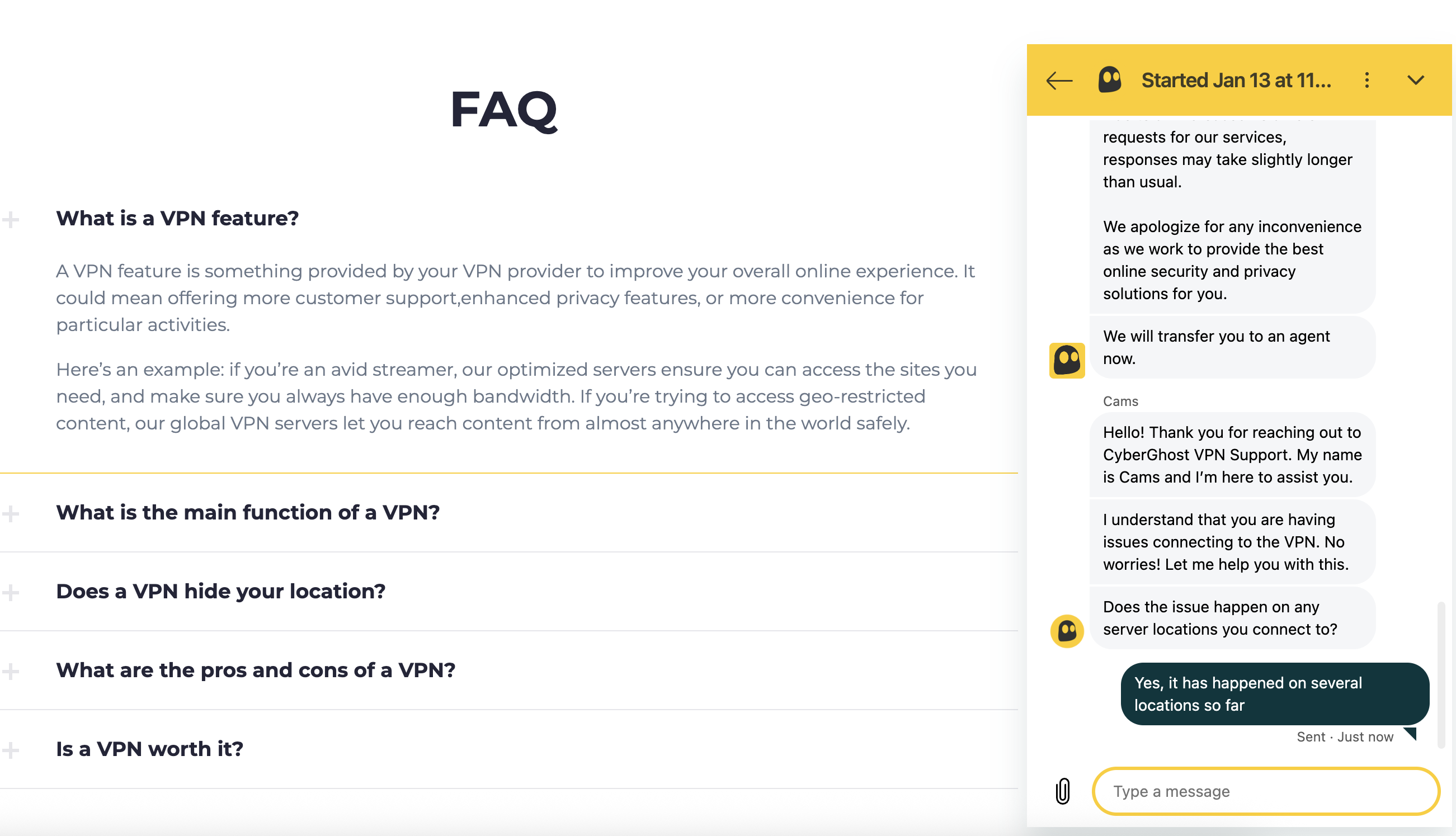
If you still find your VPN disconnecting mid-session, you may have a rare problem that doesn't show up on this list. Contact your VPN's support staff and do what they recommend. If possible, chat with a live support technician so you can tell them what you've already tried.
This article originally appeared on Engadget at https://www.engadget.com/cybersecurity/vpn/why-does-my-vpn-keep-disconnecting-130000620.html?src=rss
This is going to be one of the shortest articles in my series on how to cancel your subscriptions to the best VPNs. Unlike most providers, Mullvad VPN does not automatically renew an expired subscription unless you tell it to. Thanks to its unique pricing approach, cancelling Mullvad is the default option.
When you sign up for Mullvad, you pay for as many months upfront as you want at the constant rate of 5 Euro per month (varying with exchange rates). Each month, Mullvad takes 5 Euro out of your account until there's nothing left. If you're no longer satisfied with Mullvad, all you have to do is stop putting money in.
The Mullvad account dashboard.
Sam Chapman for Engadget
If you happen to have originally signed up for Mullvad earlier than the middle of 2022, you may have an auto-renewal account grandfathered in. Mid-2022 is when Mullvad stopped auto-renewing subscriptions and got rid of PayPal integration altogether, but people who had signed up before then had the option to leave auto-renewal on.
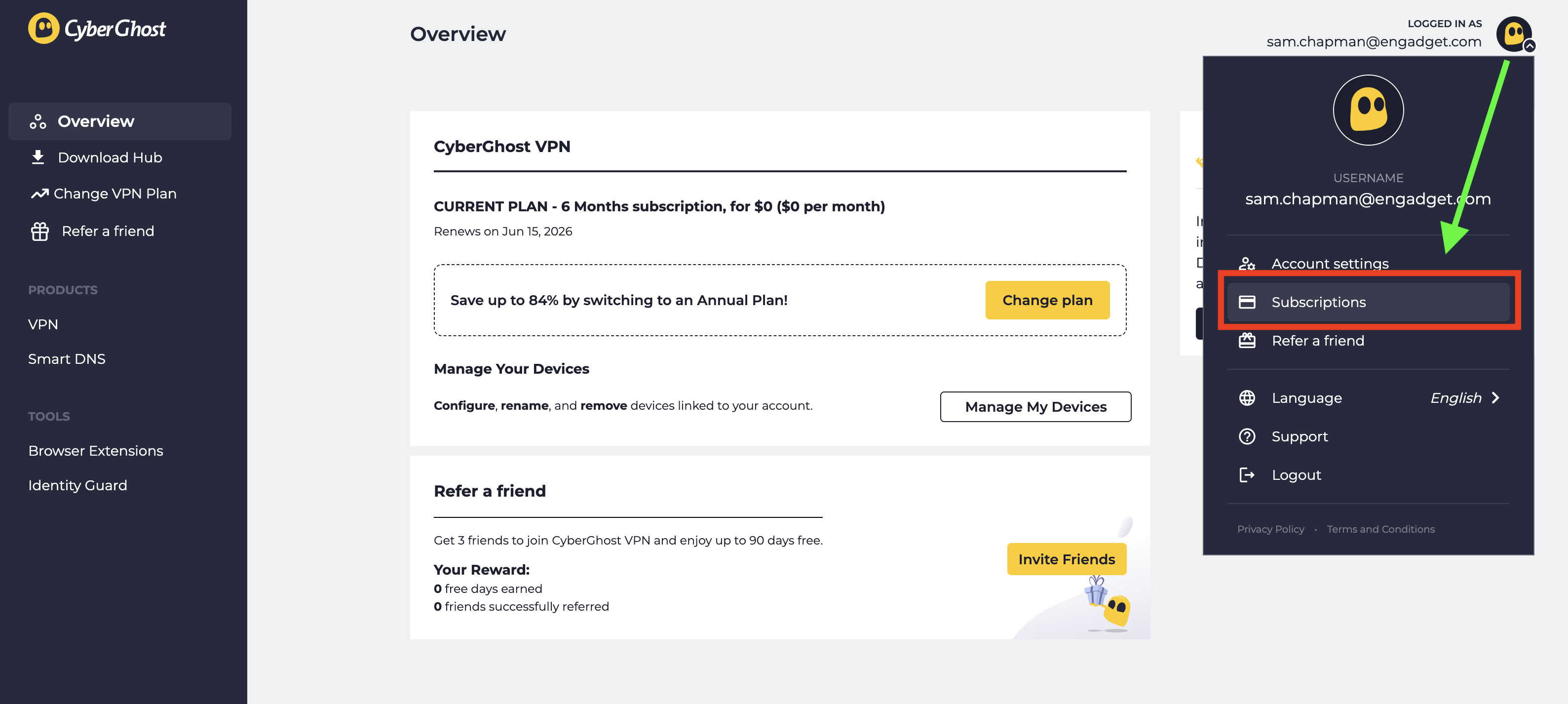
If you're in this group, cancelling is simple. Just sign into your account page, click on the word Subscriptions, then click Unsubscribe.
How to cancel Mullvad if you subscribed through an app store
There's one more exception to the usual method of cancelling Mullvad. If you got your subscription through an app store instead of Mullvad's website or app, the app store is the one processing your money. You'll need to cancel through them instead.
On an iPhone or iPad, open the Settings app, whose icon shows gray gears. Tap your name at the top of the screen to reach your Apple ID page, then tab Subscriptions. Scroll down until you find your Mullvad subscription, tap it, then hit Cancel Subscription.
On an Android phone, open the Google Play Store, whose icon is a triangle in the Google colors. At the top-right, tap the circle with the first letter of your username in it. Hit Payments & Subscriptions, scroll down to find Mullvad, then tap it and hit Cancel Subscription.
How to delete your Mullvad account
You can go the extra mile and delete your account if you're sure you'll never want to use Mullvad again. Send an email to support@mullvadvpn.net, provide your account number and request that the account be terminated. You'll get a reply confirming deletion.
How to get a refund from Mullvad
Mullvad offers refunds on any purchase within 14 days. To start a refund request, send an email to support@mullvadvpn.net, including your Mullvad account number and your payment token. If you aren't sure what your payment token is, find the charge for Mullvad on your bank statement and look for something in the format VPN*(10-digit number).
Payments made in cash can't be refunded, apparently because that's considered a form of money laundering in Sweden. If you got Mullvad through a voucher, request your refund through the store the voucher came from.
Best Mullvad alternatives
Mullvad is one of the best VPNs, especially in terms of privacy. However, I've found it to be a bit slow at times, with a somewhat limited server network. Luckily, Proton VPN is almost as private as Mullvad — the only thing it's missing is the ability to sign up without an email. It's also got a larger server network and better overall download speeds.
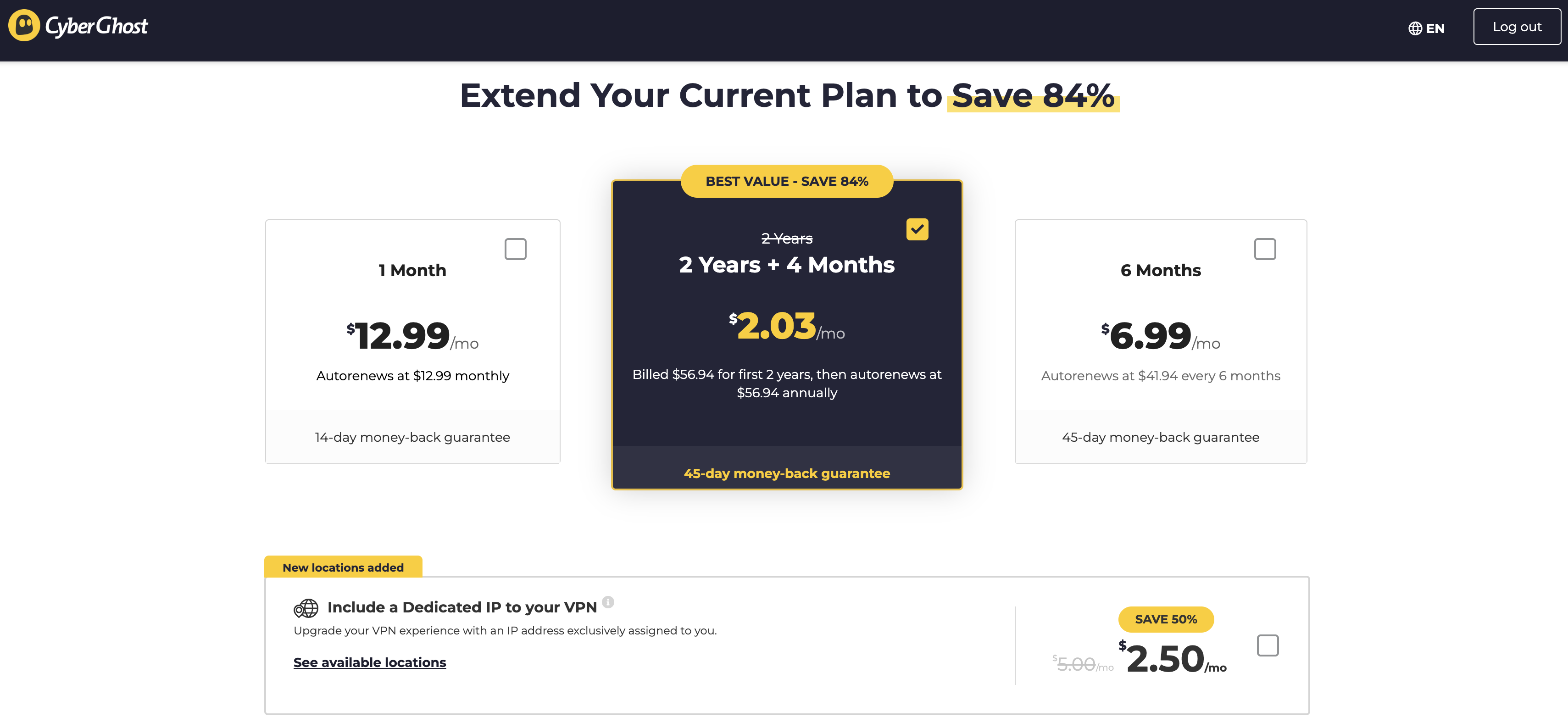
Windscribe is another privacy-optimized VPN with a better record than Mullvad in my unblocking tests. Surfshark is the fastest VPN of them all, while ExpressVPN is ideal for beginners. If you liked Mullvad's cheap pricing, CyberGhost is a highly affordable alternative.
This article originally appeared on Engadget at https://www.engadget.com/cybersecurity/vpn/how-to-cancel-mullvad-vpn-200000516.html?src=rss
Mullvad, a virtual private network (VPN) named after the Swedish word for "mole," is often recognized as one of the best VPNs for privacy. I put it on my best VPN list for exactly that reason. I've got huge respect for the extra lengths Mullvad goes to in order to ensure its user's privacy.
To give you a preview, Mullvad is one of the few VPNs — other than my normal privacy recommendation, Proton VPN — that lets users pay entirely in cash. But even Proton VPN asks for an email address to make an account and uses a few marketing cookies on its own website. Mullvad represents every account as a randomly generated 16-digit code and uses no marketing cookies whatsoever.
That's just one example of how Mullvad goes beyond the call of duty to keep users private. But while privacy is the most important aspect of a VPN alongside security, it's not the only thing that matters. For this review, I set out to investigate whether Mullvad pairs its rights-protecting bonafides with versatile, convenient and enjoyable VPN apps. Using our rigorous VPN testing procedure, I'll rate Mullvad in 11 areas. You can find a summary of my results in the table below, skip to the sections that matter most to you or just read my final advice in the conclusion.
Editor's note (2/11/26): We've overhauled our VPN coverage to provide more detailed, actionable buying advice. Going forward, we'll continue to update both our best VPN list and individual reviews (like this one) as circumstances change. Most recently, we added official scores to all of our VPN reviews.Check out how we test VPNs to learn more about the new standards we're using.
Findings at a glance
Category
Notes
Installation and UI
All apps share roughly the same user interface
Apps are responsive and easy to navigate, with no design choices that would threaten beginners
Lack of "fastest server" button is an issue
Browser extension is only available on Firefox and still in beta
Speed
Reasonably good average latency
Reduces download speeds by 26 percent and upload speeds by 17 percent
Speed declines are consistent and chartable
All speed metrics are quite good on nearby servers
Security
Only uses WireGuard protocol
No IP address leaks, even when switching servers
Packet test showed successful encryption
Pricing
Always costs 5 Euro per month, though prices outside Europe depend on exchange rates
No auto-renewal — membership lasts until money runs out
Can pay using cash or by purchasing scratch-off vouchers on Amazon
14 day money-back guarantee, except on cash payments
Bundles
Only app besides the VPN is the free Mullvad Browser, which removes the tracking habits of typical web browsers
Allows several smaller VPNs to use its servers in their networks
Privacypolicy
No vague lines or loopholes in privacy policy
Only saves account numbers and expiration dates for each user
Uses an extremely limited range of cookies with no marketing trackers
Has undergone a total of 17 audits of different aspects of its service
Swedish police demanded customer information in 2023; Mullvad couldn't comply because the data wasn't logged
Virtual location change
Unblocked Netflix 13 out of 15 times
When it failed, virtual location was still changed
Server network
90 locations in 50 countries, majority in North America and Europe
No virtual servers whatsoever
Features
DAITA conceals traffic patterns that might let an AI identify what sites you visit
Uses quantum-resistant encryption on WireGuard
Can choose your own multihop entry and exit points
Several options for getting around nation-level firewalls
Can block ads, trackers, malware and other unwanted content using predetermined DNS block lists
Supports IPv6 traffic
Kill switch and stronger lockdown mode
Split tunneling by app
Customer support
Help center includes useful filters to find the topic
Well-written articles with good internal linking
No live chat support, but staff answers emails quickly
Can view app logs at any time
Background check
Founded in 2009 in Sweden; still owned and operated by initial founders
User account numbers were exposed in a 2023 incident, but Mullvad quickly closed the leak
Installing, configuring and using Mullvad
Let's start by examining how Mullvad feels as a piece of software. In this section, I'll be testing its desktop apps for Windows and Mac, its mobile apps for Android and iOS and its browser extension for Firefox. To start with the installation process, Mullvad downloads and installs in a snap on mobile. On desktop, installation requires a few more steps than is typical, but the app guides you quickly through everything.
Across the board, my only serious complaint is that there's no option for automatically choosing the fastest server. You can usually assume that the nearest one to you will be the fastest, but there's always the chance of an unusual server overload. It's a bizarre oversight for an app that otherwise goes out of its way to be usable.
Windows
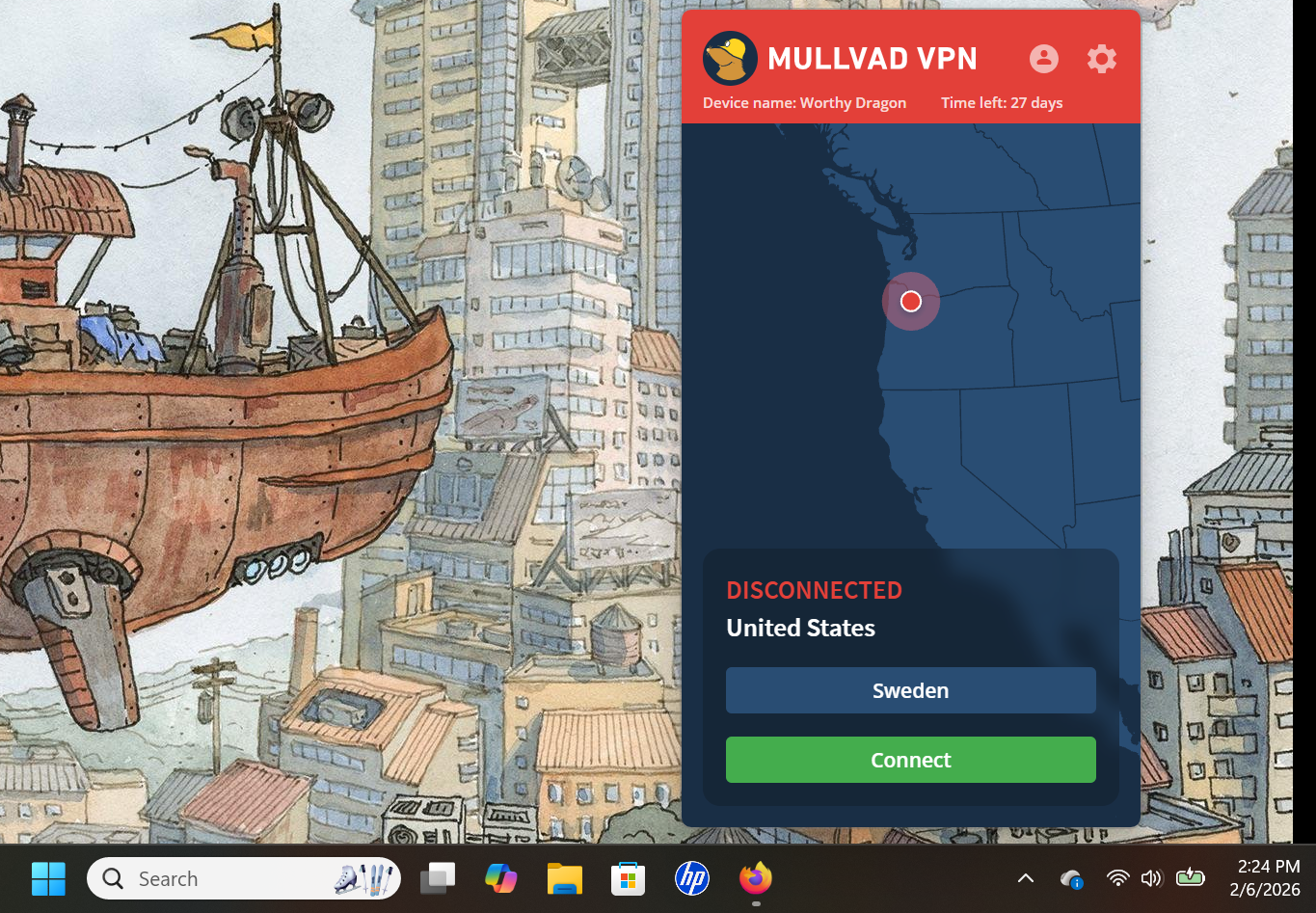
Mullvad's Windows app has a slim UI that uses space efficiently without being too cramped. It doesn't give you a lot of information, such as live speed tests or data in transit, but I've mostly found that to be needless filler on VPN apps.
Mullvad on Windows.
Sam Chapman for Engadget
Speaking of needless filler, the map may be a little bigger than it needs to be, but maps on VPN clients aren't just about teaching you geography — they do a lot to make the apps more welcoming to casual users who might not otherwise fire up security software. In fact, Mullvad's UI is admirably beginner-friendly, befitting its focus on privacy for everybody rather than just the tech-savvy.
All the settings are accessed by clicking the gear in the top-right. Here, you can turn on DAITA (Mullvad's defense against AI traffic scanning), activate multihop and control Mullvad's other features. There are also some quality-of-life features for the UI itself, such as whether it remains pinned to the taskbar or operates as a standalone window. Some options, especially under the VPN settings tab, are a bit technical, but don't need to be touched for a good experience.
Mac
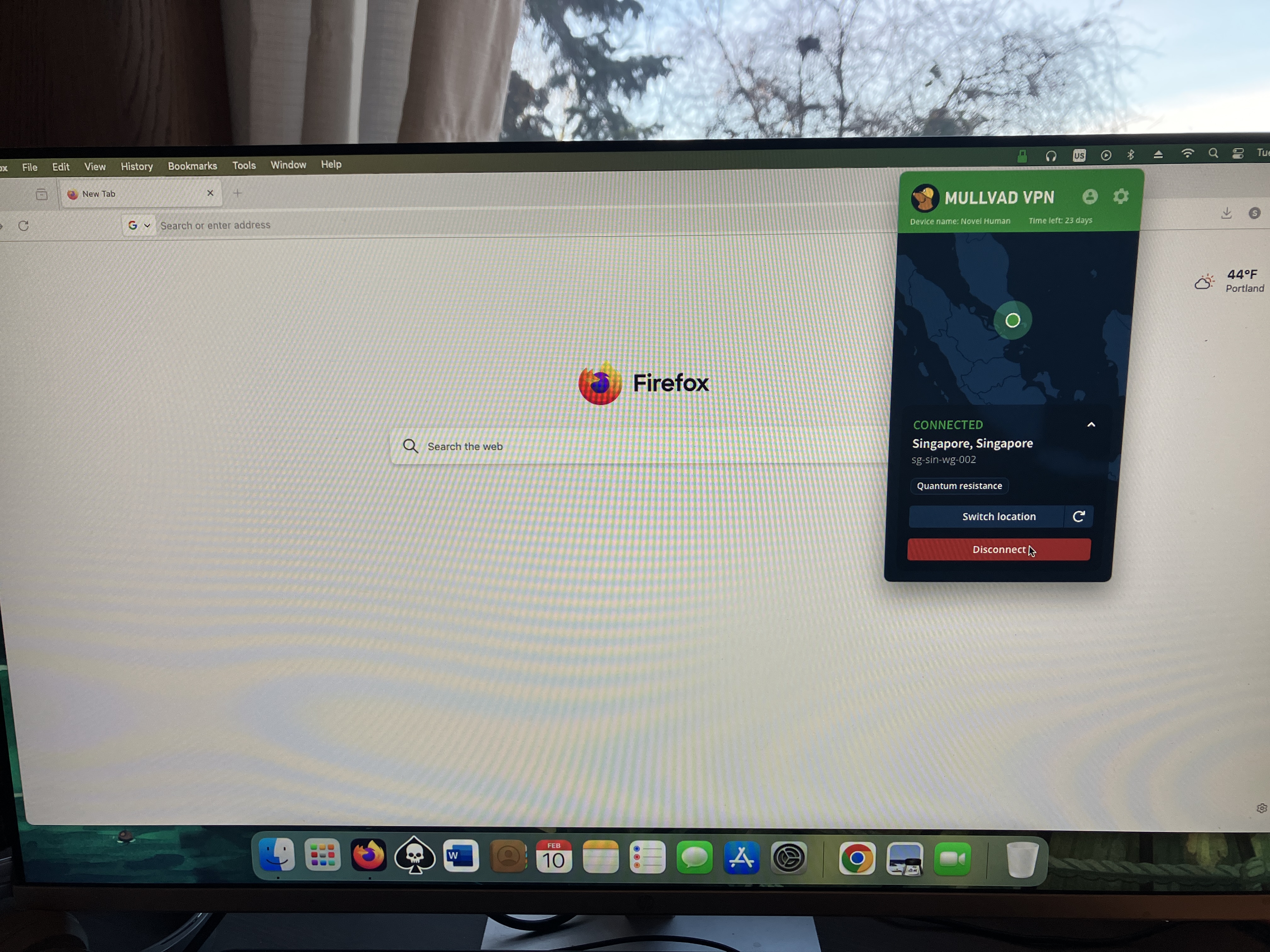
Mullvad's macOS app is quite similar to its Windows app, both in terms of the interface and the features offered. The big difference used to be that macOS lacked split tunneling, but that's been added in a recent update. The only serious distinction now is that the Mac client can't be unpinned from the taskbar, which is just a little bothersome.
Mullvad on Mac.
Sam Chapman for Engadget
Other than that, you'll find every setting you need under the gear, just like on Windows. Similarly, connections to VPN servers happen quickly, and selecting locations from the menu is very straightforward. While connected on either app, you can click the circular arrow by your location to swap to another server in the same location — highly convenient if you're trying to unblock Netflix.
Android
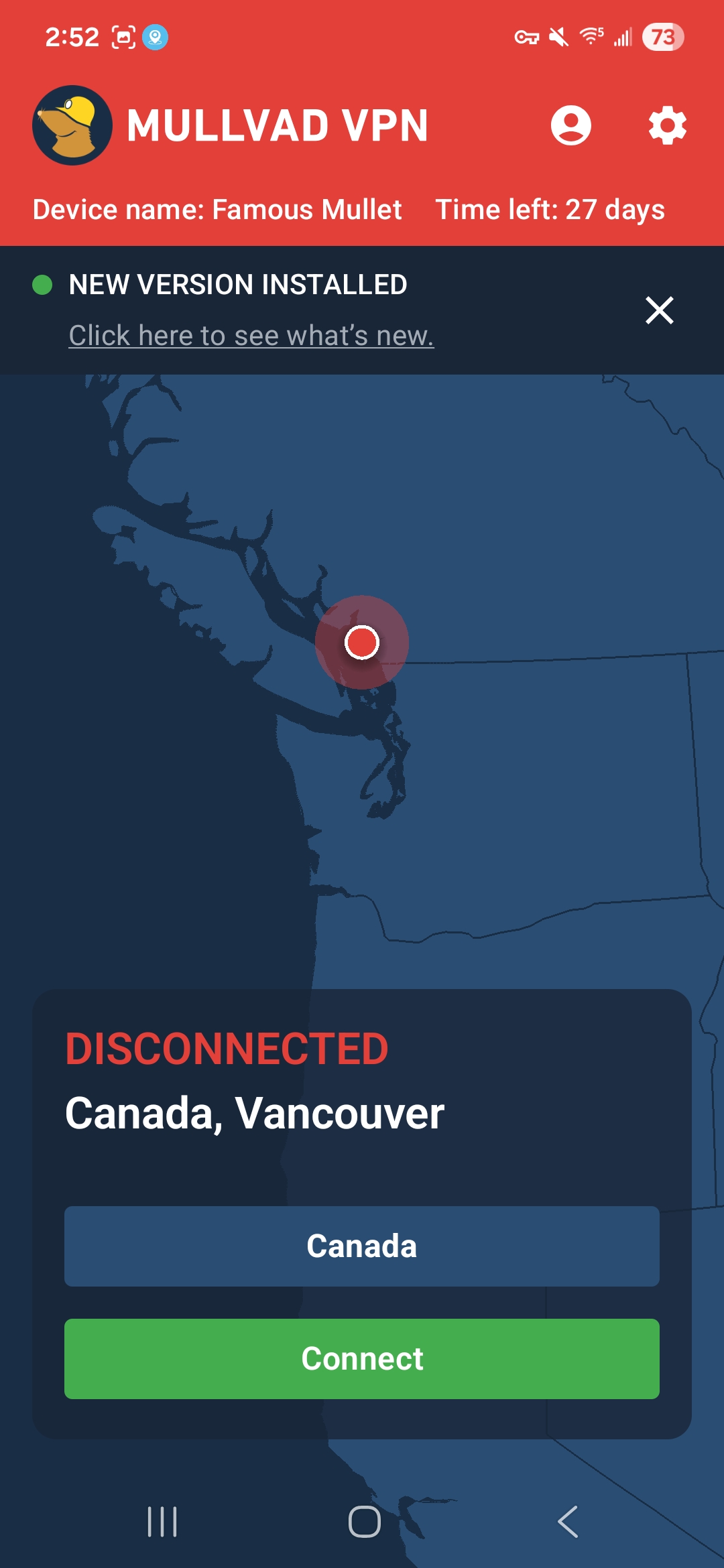
Mullvad's Android app has the same nearly-perfect design approach as all its other apps. The main page has nothing on it but the connect/disconnect button, the choice of server locations, a map and the buttons for your account information and preferences. Those preferences are a manageable set of options that are almost all managed with simple on-off switches. It's all highly responsive and annoyance-free.
Mullvad on Android.
Sam Chapman for Engadget
iOS
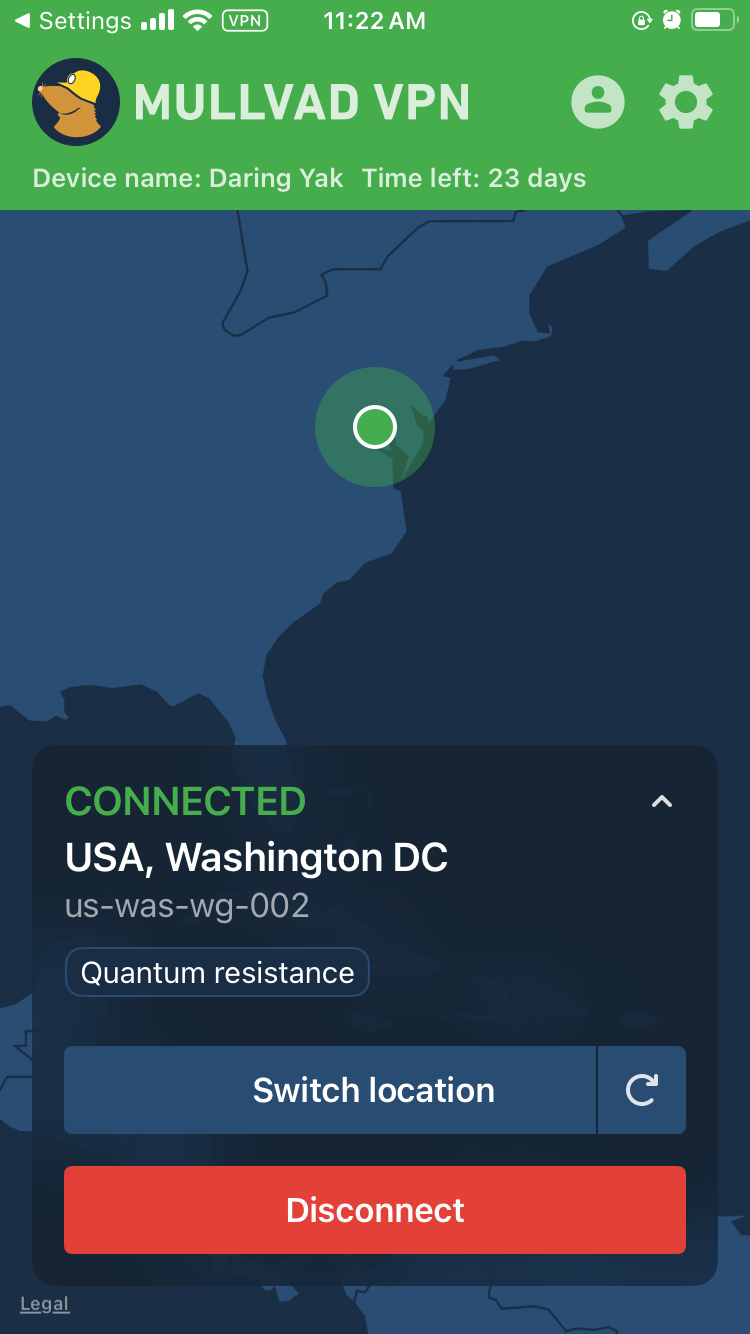
Mullvad's iOS app looks very similar to its apps on every other platform. The front page is kept simple, with large controls in the foreground and a map taking up most of the space. Everything else is located in the menu accessed through the gear icon at top right. Neither mobile app has the options for toggling the UI itself that the desktop apps have, but it's mostly free of quality-of-life problems to start with.
Mullvad on iPhone.
Sam Chapman for Engadget
Browser extensions
Mullvad's browser extension is only compatible with Firefox. You can't actually connect to the VPN through this extension. Its main functions are to tell you whether you're connected to a Mullvad server and to connect to a SOCKS5 proxy in a Mullvad location. If you do this while connected to Mullvad through the desktop app, you'll get a second layer of protection, similar to the multi-hop feature.
The Firefox extension is a rare misfire for Mullvad — perhaps fair, since it's still in beta. Its only real feature is something that the desktop app already does perfectly well, and it looks like a software malfunction to boot. However, given Mullvad's track record, I'm confident they'll figure out what to do with it in time.
Mullvad speed test
A VPN almost always slows browsing speeds and increases latencies. It's unavoidable, given the extra steps a VPN protocol adds to the process of getting online. The trick is to find VPNs that keep the slowdown to a minimum, using a combination of regular maintenance, good planning and smart load balancing.
For this test, I used speedtest.net to check how six of Mullvad's server locations influenced three key speed metrics. Ping measures latency, the time in milliseconds (ms) that one data packet needs to travel between a client device and an ISP. Download speed measures the amount of data in Megabits that a web browser can download in one second. Upload speed tracks how much data can be uploaded in a second. We're looking for low latencies and high download and upload speeds.
Server location
Ping (ms)
Increase factor
Download speed (Mbps)
Percentage drop
Upload speed (Mbps)
Percentage drop
Portland, USA (unprotected)
15
—
58.96
—
5.85
—
Seattle, USA (fastest location)
23
1.5x
55.07
6.6
5.51
5.8
Montreal, Canada
165
11.0x
44.28
24.9
4.62
21.0
Fortaleza, Brazil
307
20.5x
40.96
30.5
4.65
20.5
Prague, Czechia
368
24.5x
43.17
26.8
5.47
6.5
Lagos, Nigeria
528
35.2x
37.41
36.6
4.61
21.2
Bangkok, Thailand
473
31.5x
39.76
32.6
4.13
29.4
Average
311
20.7x
43.44
26.3
4.83
17.4
I'll start with the bad news: the tests didn't exactly make Mullvad look like a speed demon. Its speeds have gone up and down in the years I've been using it, and right now they appear to be on the downswing. If you use locations all around Mullvad's server network, you can expect your download speeds to decrease by about 26 percent and your upload speeds to decline by 17 percent.
However, it's important to put those numbers in perspective. First, Mullvad's numbers aren't markedly worse than the ones I got when testing CyberGhost. Its speeds are average, but by definition, most things are average. Its average worldwide latency is actually better than Surfshark, the current champion of download and upload speeds.
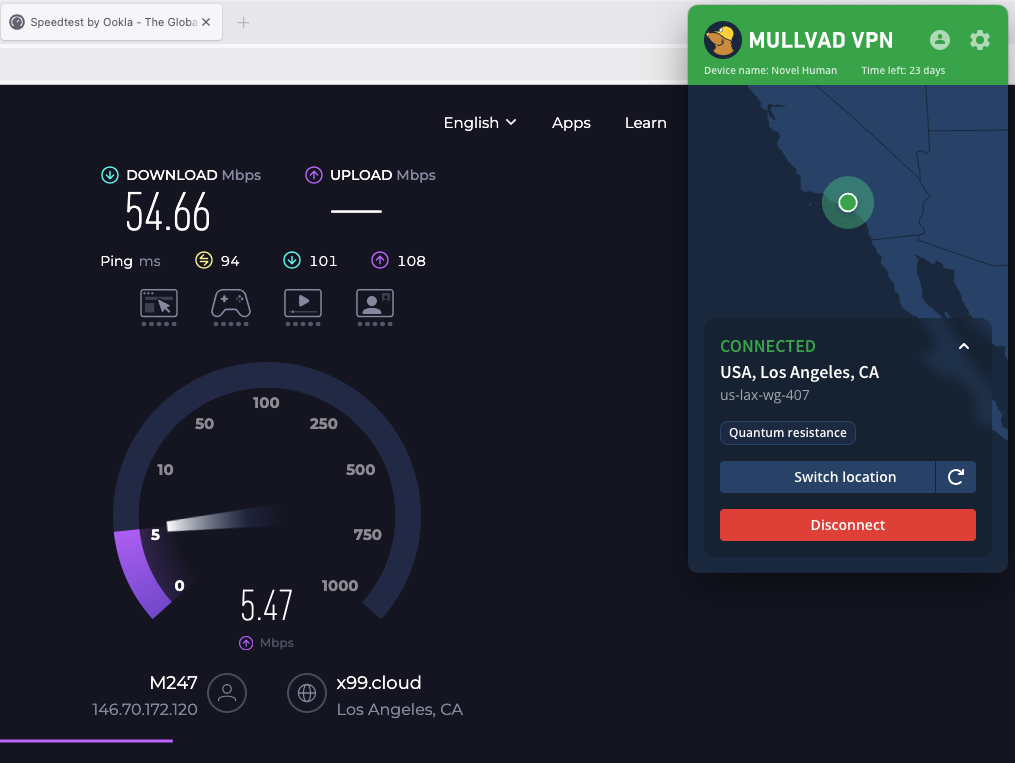
Speed-testing a Mullvad server in Los Angeles.
Sam Chapman for Engadget
It's also nice that Mullvad's speed drops follow a predictable curve. Lots of VPNs have unexpectedly sharp declines in certain locations, frequently in Africa. By contrast, Mullvad's speed decreases pretty much as a direct function of how far from the server you are. This not only makes speed drops easier to plan around, but also means you can expect very good speeds on nearby servers.
This property of being fastest on servers near the user is another sign of Mullvad's focus on its core privacy mission. If anonymity is your main reason for using a VPN, it doesn't matter what your IP address is, so long as it's not your real one. Using a nearby Mullvad server should guarantee you an internet connection that's both fast and private.
Mullvad security test
To be secure, a VPN has to check two critical boxes. It must provide you with a secondary IP address without leaking your real one, and it must encrypt your communications with its servers so your activity can't be traced. In the sections below, I'll see whether Mullvad meets those requirements.
VPN protocols
VPNs use protocols to mediate between end devices, ISPs and their own servers. The first step is to ensure that the service you're considering uses protocols that have expert confidence. Mullvad has kindly made this step easy for me by using only WireGuard on all its apps, with no OpenVPN, IKEv2 or in-house unique protocols.
There's no question that WireGuard is a solid protocol. It uses the ChaCha20 stream cipher for symmetric encryption and Poly1305 for authentication, both uncrackable with current technology. Mullvad has even added its own fix for WireGuard's one flaw, its need to save static IP addresses — the Mullvad implementation is set up to delete the IP address if it goes 10 minutes without being used.
Even so, it's unfortunate to lose the ability to change protocols, which is one of the most common steps for troubleshooting a VPN connection. I understand Mullvad's reasoning for cutting out OpenVPN (it claims the cryptography isn't strong enough) but don't agree. It's one of this provider's few unforced errors.
Leak test
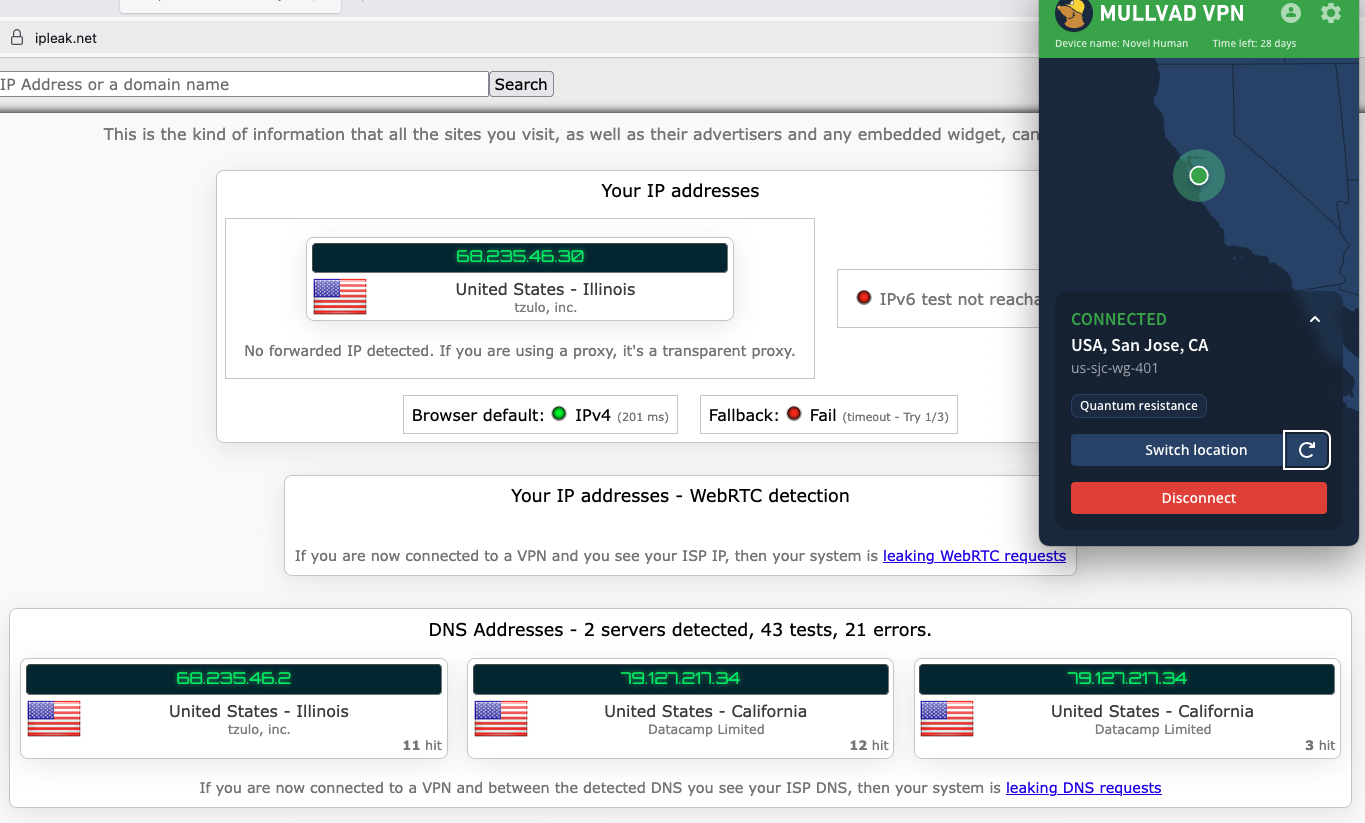
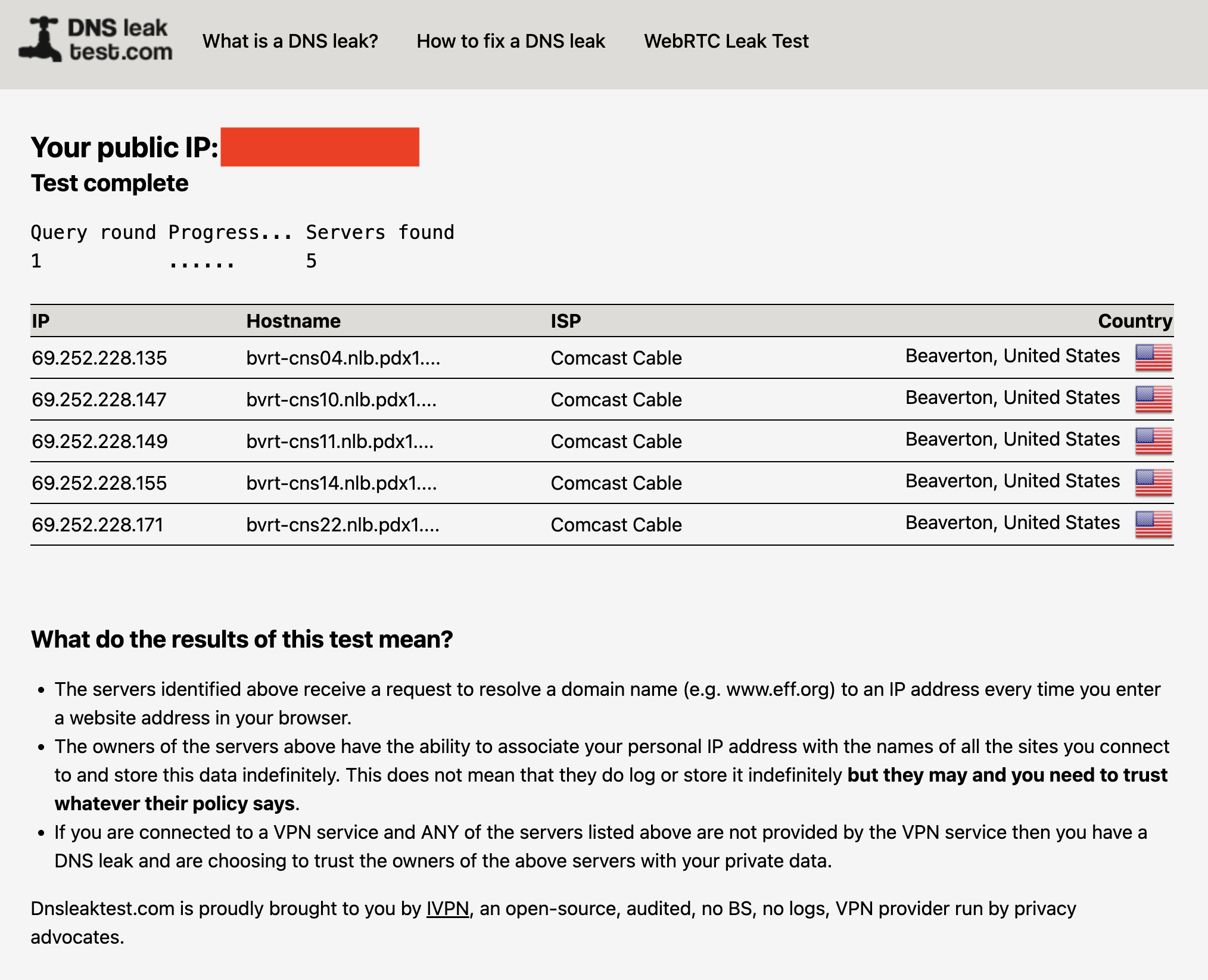
There's a straightforward test to determine if your VPN is leaking. Load up any website that shows your IP address — I personally use ipleak.net — and see what IP and location it reveals without your VPN active. Then activate the VPN and refresh the page. If you see your real IP address anywhere, your VPN is leaking.
Testing Mullvad for IP leaks.
Sam Chapman for Engadget
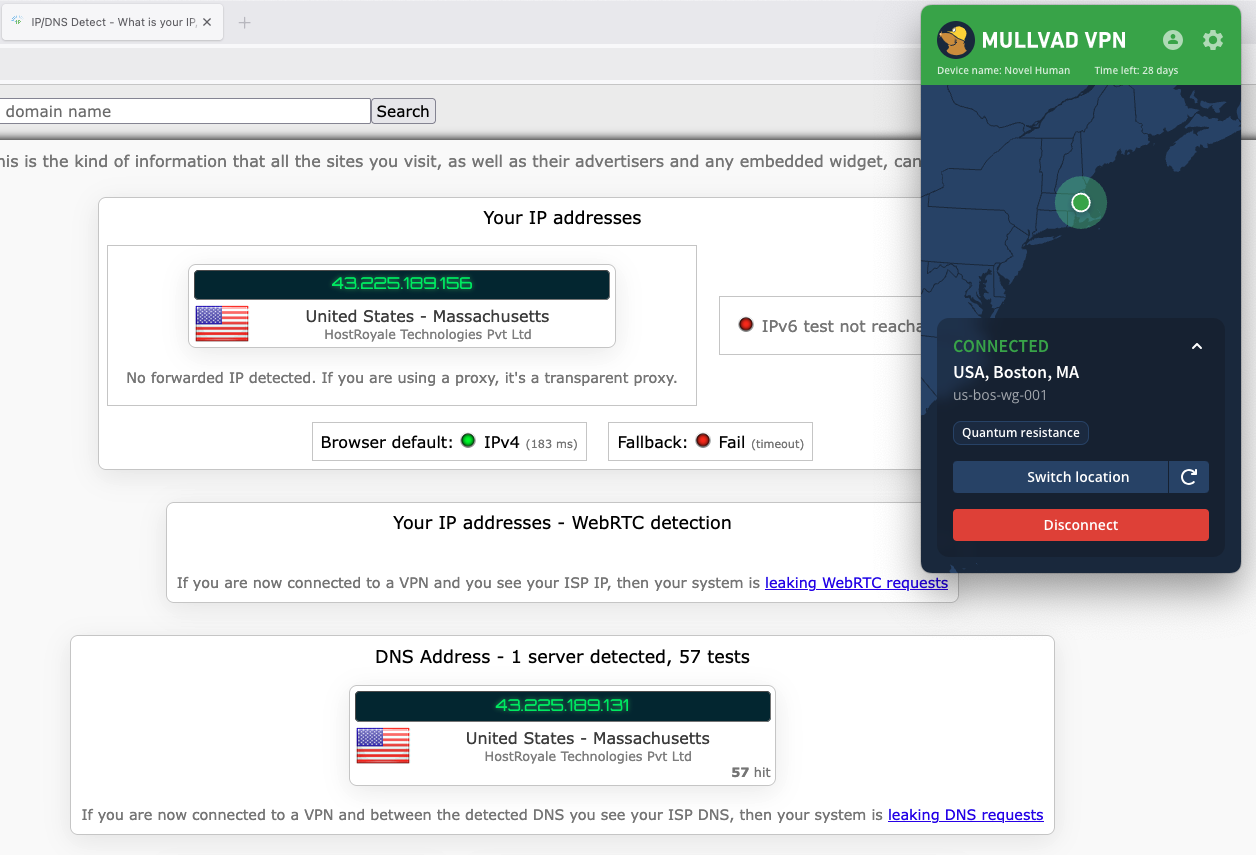
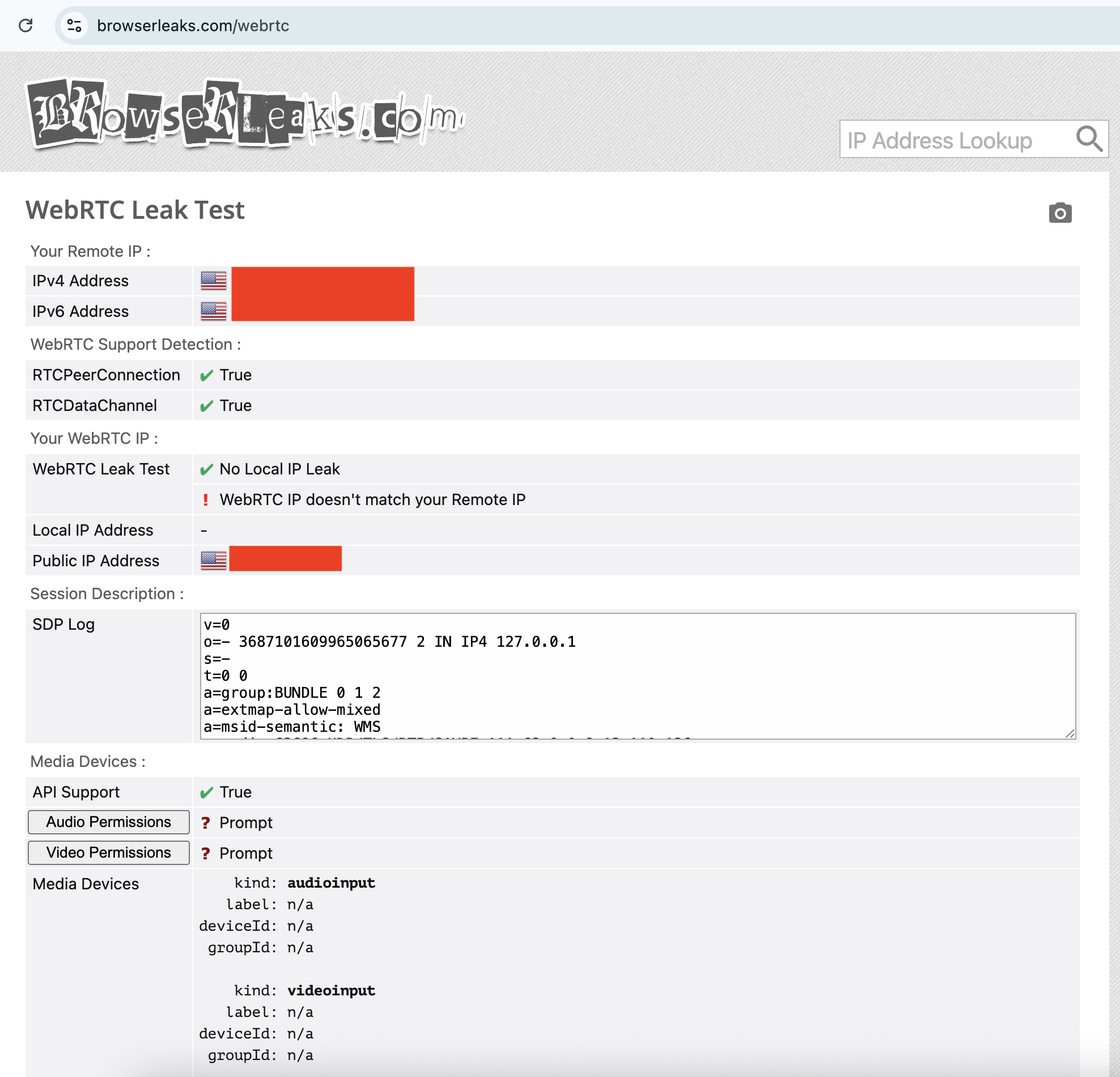
I ran that test on five Mullvad servers. Each time, the website showed me the IP address of the VPN server, concealing my real one. To keep things simple, I ran the initial tests with IPv6 blocked via the Mullvad client. When I turned it on and tried again, the IPv6 traffic didn't leak any more than the IPv4 did. I also saw no signs of WebRTC leaks. Unless you set up a custom DNS server, Mullvad also uses its own DNS, which remains entirely within the VPN tunnel.
I had one more leak test to try. Frequently, VPNs are leak-proof when maintaining a connection to one server but drop encryption when switching between servers. That problem is why I ultimately couldn't recommend Norton VPN. Luckily for me, Mullvad has a button that lets you shuffle to another server in the same location, so I used that to see if it stayed leak-proof.
Mullvad doesn't leak your IP even while changing servers.
Sam Chapman for Engadget
As you can see in the screenshot, Mullvad jumped seamlessly from one server to another without showing my real location in-between. On a practical level, that's enough for me to declare Mullvad leak-proof.
Encryption test
For one final experiment, I used the WireShark packet sniffer to see whether the data Mullvad sent from my computer to my ISP was encrypted. After capturing a few packets, I was gratified to see that they were totally unreadable to interlopers. Most established VPNs pass this test, but it's still important for due diligence.
How much does Mullvad cost?
Mullvad's pricing structure is one of the most unusual things about it. This is normally the section where I untangle 47 different Pro+ and Business- accounts that are all sold at three different durations. Mullvad couldn't be further from that. It costs 5 Euro a month — that’s it. Each 5-Euro subscription can be used on five devices at once.
It manages payments through a system inspired by parking meters. When you sign up for Mullvad, you'll buy as much time as you want. That time will count down until it expires, unless you top it up with more 5-Euro payments. If you run out of money, Mullvad won't charge you a new subscription fee because you didn't tell it not to. It'll just stop working until you pay again. Every payment also comes with a 14-day money-back guarantee, except for payments made in cash.
The Mullvad account dashboard.
Sam Chapman for Engadget
The only real complexity in the process is that Mullvad always figures out its prices in Euro, so outside the EU, the cost per month is affected by exchange rates. If you happen to live in a country where the government's economic policy shuttles between capricious and arbitrary, you might want to grab a few months in advance.
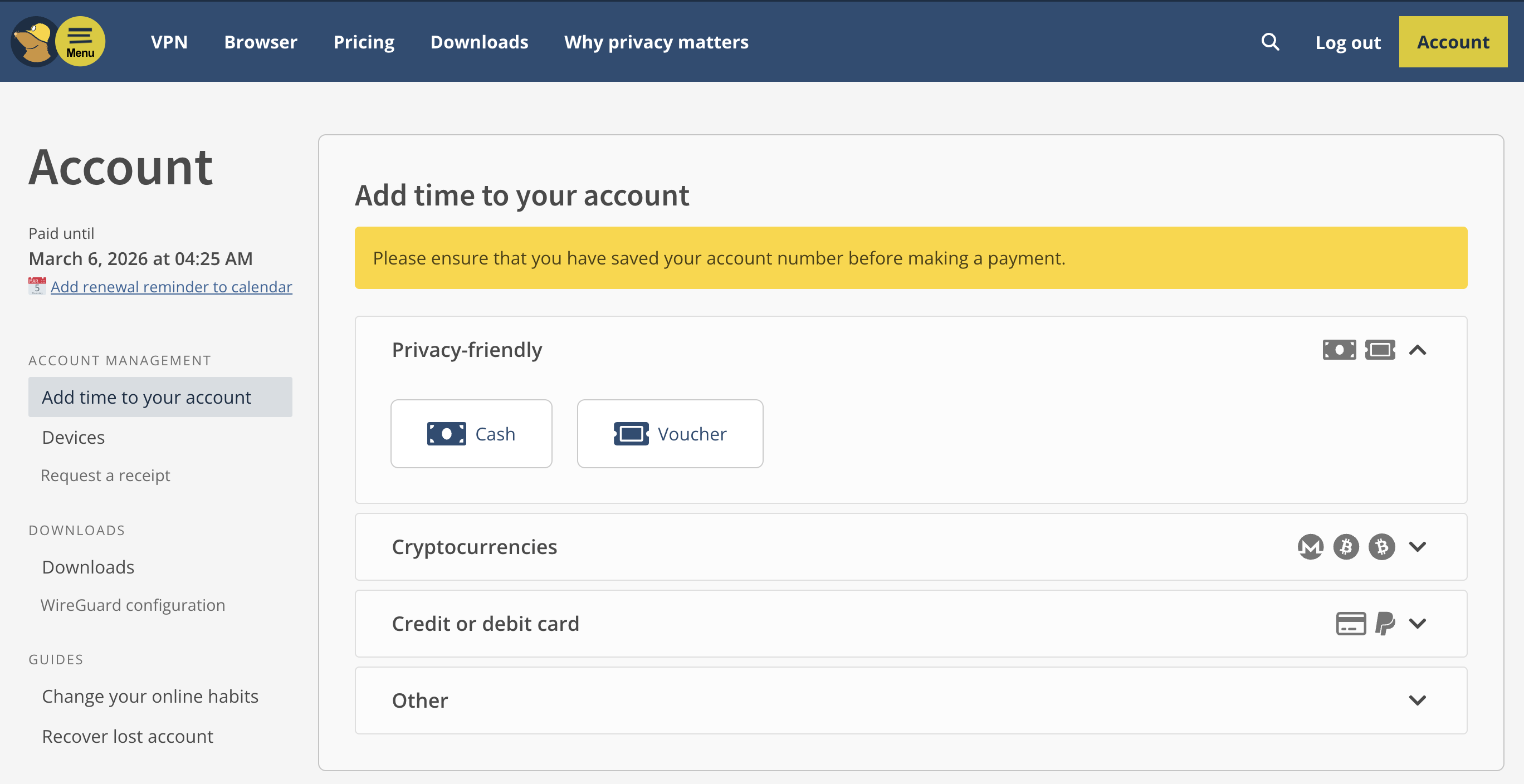
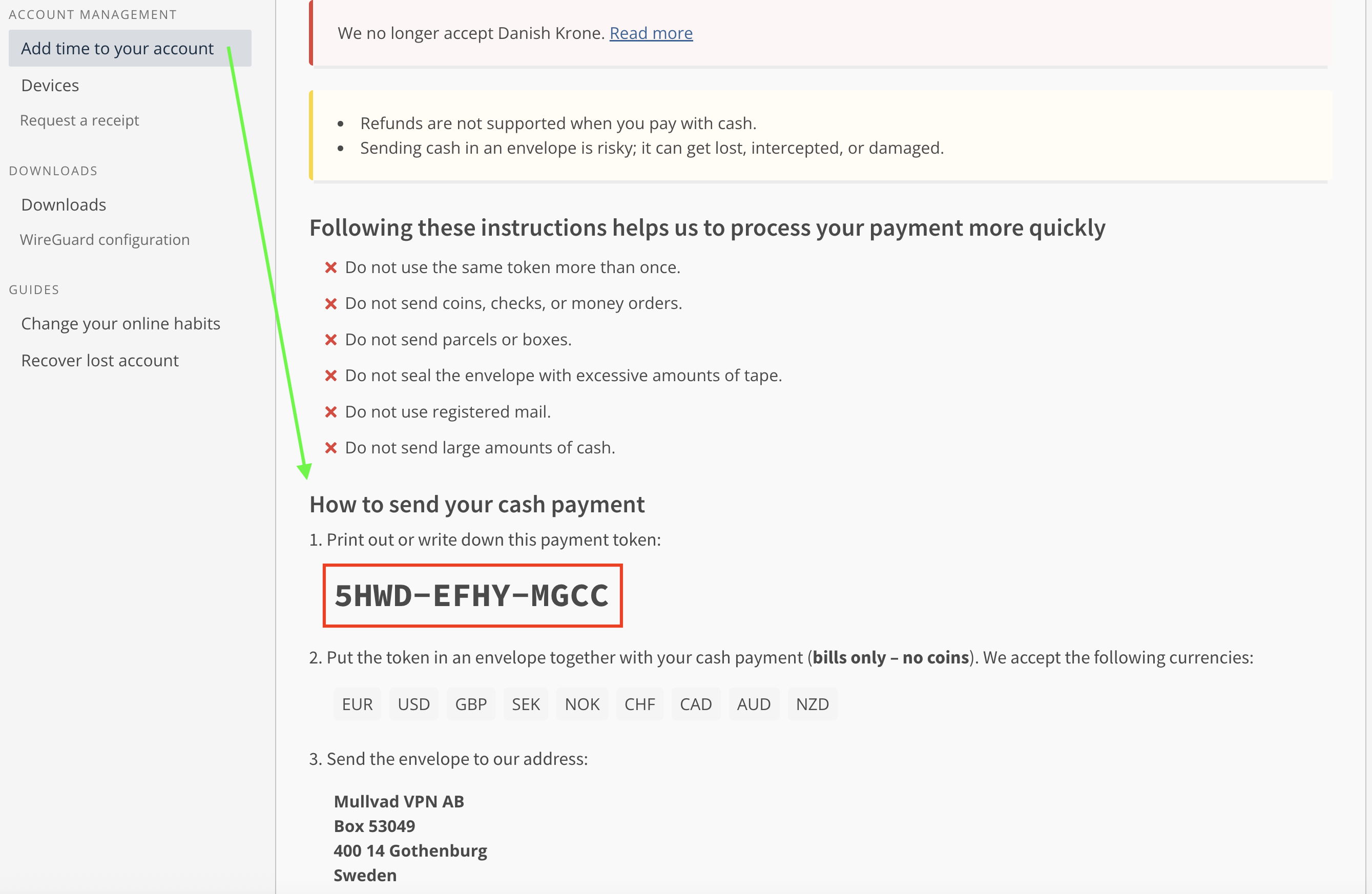
The other most interesting thing about Mullvad's pricing is the options you can use to pay. For maximum privacy, you can pay with cash using the payment token you'll find on your account page. Note that this is not the same as your account number. To find it, log into your dashboard on Mullvad.net, click Add time to your account in the left-hand bar, then click the button labeled Cash and scroll down. Make your cash payment by writing the token on an envelope and mailing it to Sweden (full instructions here).
Unredacted, in case any hackers out there want to buy me some more time.
Sam Chapman for Engadget
You can also get untraceable Mullvad vouchers by paying cash at participating retail locations. Most of them are in Europe, but you can order them from Amazon. While your payment to Amazon won't be private, the voucher can't be linked directly to your VPN account, since the actual number is hidden behind a scratch-off panel. It's actually pretty ingenious.
Of course, you can also pay using any of the normal methods, including credit cards, cryptocurrency and bank wires (though not PayPal). But the more private methods are always there for people who need them.
Mullvad side apps and bundles
Mullvad is that rare VPN that's still content to be a VPN and not an all-inclusive security suite. No shade to NordVPN or Surfshark, whose extra features are generally quite good, but it's nice to see at least one of the top providers staying focused.
Although Mullvad doesn't have any partners that sell their products alongside its VPN, it does have several partnerships with other VPNs who use its network as the basis for their own products. MalwareBytes Privacy VPN, Mozilla VPN, Tailscale and Obscura can all be considered Mullvad side apps if you squint.
Mullvad Browser
Mullvad's only product other than the VPN is Mullvad Browser, which is free to download and works on Windows, macOS and Linux. Mullvad Browser works in the background, blocking common methods of browser fingerprinting that can be used to deduce your identity even when you have a VPN running.
For example, it automatically reports your time zone as UTC, disguises personal preferences like font and window size, scrambles information sent by APIs and conceals your browser version and computer operating system. It's also in private mode by default, which doesn't hide what your ISP sees but is useful for concealing your activity from other people that might use your computer.
Close-reading Mullvad's privacy policy
Since privacy is Mullvad's main selling point, this section is even more important than usual. Loopholes in the privacy policy of the privacy VPN would be deeply ironic. Fortunately, Mullvad's privacy policy backs up its high-flying rhetoric. It's a short, pointed and readable document with no problems I could discern. Mullvad has no parent company or subsidiary it might use as a loophole, and no clauses in its policy are left open to interpretation. It's a masterpiece of the privacy-policy genre.
The document is actually three policies: a privacy policy, a no-logging policy and a cookie policy. The privacy policy lists all the times Mullvad might collect data about a user. That's exactly two situations — using financial information to process payments (which will be entirely anonymous if you use cash or a voucher) and using your email address to track support tickets you open. That's it.
The no-logging policy is a bit longer, but mostly because it's explaining exactly how Mullvad manages to run a VPN service with so little information on individual users. For each account, it stores a number and an expiration date, plus public keys and tunnel addresses if you're using WireGuard (deleted at most 10 minutes after your session ends). Everything else is completely anonymized. Mullvad even claims that its 500,000 or so user accounts could have been created by the same user 500,000 times, which I suppose is one way to spend 2.5 million Euro.
The cookie policy is the shortest because Mullvad uses exactly five cookies. One saves your login status in your browser, one saves your language preferences, one protects its site from being used in a specific kind of forgery hack and the other two are for handling Stripe payments.
Independent privacy audits
Mullvad corroborates its privacy policy with regular audits of various aspects of its service. Currently, there are 17 audits listed on its website, including four infrastructure audits by Cure53. All of its apps have been separately audited and found to be solid. It has been a couple of years since the last full infrastructure audit in 2024, but given how many other targeted reviews Mullvad has gone through since then, it's hard to be too upset about the pause.
In 2023, Mullvad achieved the holy grail of VPN privacy: being ordered by subpoena to turn over customer information and not being able to comply because that information didn't exist. Nothing compares to a VPN's privacy being tested in the wild like this.
Can Mullvad change your virtual location?
Sometimes, a VPN appears to be working, but still reveals your real location to websites. Netflix is a useful proxy for this. To unblock a streaming site like Netflix, a VPN needs to change your virtual location while not appearing to do so — if Netflix sees any hint of VPN traffic, you'll get blocked with the hated proxy error. I used five different locations to check whether Mullvad is up to the streaming task.
Server location
Unblocked Netflix?
Changed content?
Vancouver, Canada
3/3
3/3
Gothenberg, Sweden
2/3
2/3
Istanbul, Turkey
3/3
3/3
Johannesburg, South Africa
3/3
3/3
Singapore, Singapore
2/3
2/3
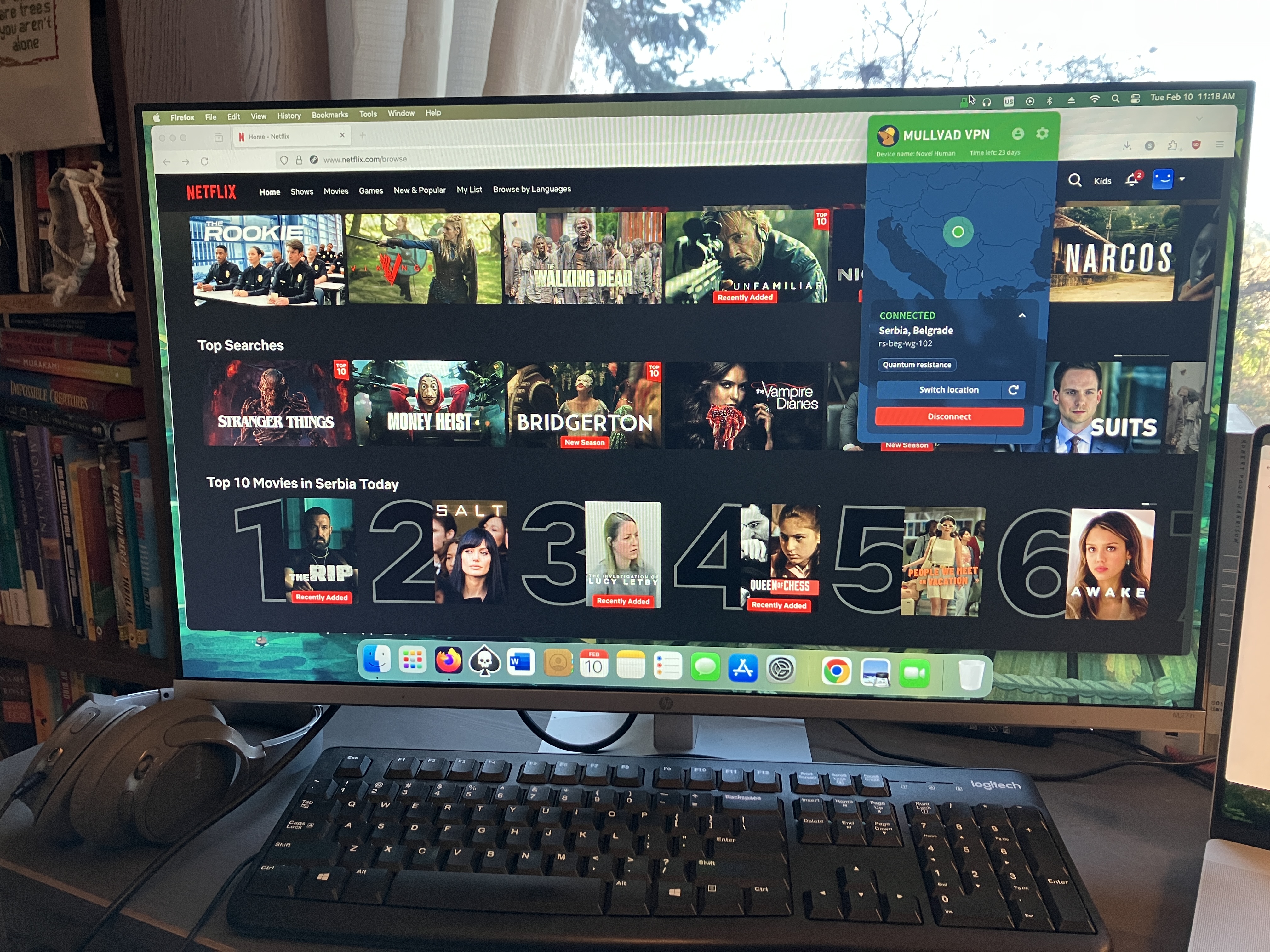
Mullvad did well for streaming, but it didn't manage a perfect score like its fellow anti-establishment VPN Windscribe did. Two of the 15 servers I tested failed to unblock Netflix, one in Singapore and one in Mullvad's hometown of Gothenburg. I also had trouble logging into Netflix while connected to a Vancouver server, though that server did unblock the site consistently once I got inside.
Mullvad's servers all tricked Netflix into believing my new location.
Sam Chapman for Engadget
In Mullvad's defense, no location failed more than once. It's completely possible to get good streaming performance out of this VPN; you just have to be willing to click the server refresh button a few times. Privacy is still the main use case for Mullvad, but it's fine for streaming too.
Investigating Mullvad's server network
Mullvad has 90 server locations in 50 countries and territories. Unusually for a VPN, users can choose between all 590 of its total servers, including several in each location. There's even a list on its website that shows you the status of every server.
Mullvad does not use virtual server locations, so every server is physically located in the place where it claims to be. Here's how they're distributed.
Region
Countries with servers
Total server locations
North America
3
25
South America
5
6
Europe
29
41
Africa
2
2
Middle East
2
2
Asia
7
8
Oceania
2
6
Total
50
90
Over half the countries with servers are in Europe and over two-thirds of the cities with servers are in either Europe or North America. That lopsided network is a limitation of Mullvad's refusal to use virtual server locations, since its real servers have to be concentrated in nations developed enough to host data centers. With an all-real network, it's easier to tell which servers will give you the fastest performance, but you can't simulate as much of the world as you can with larger services like ExpressVPN.
The good news is that there's at least two real server locations on every continent. Mullvad has a surprisingly robust presence in South America and two bare-metal servers in Africa, which is more than some other VPNs have. In the end, though, the best application of Mullvad is to protect the online privacy of users in North America, Europe and eastern Asia.
Extra features of Mullvad
Most of Mullvad's features are augmentations to the VPN itself, rather than side options that do other things. Some of them are bread-and-butter, like the kill switch and split tunneling, but a few you won't find anywhere else. Note beforehand that Mullvad does not support port forwarding, so if you depend on that for your torrenting, try another VPN.
DAITA AI defenses
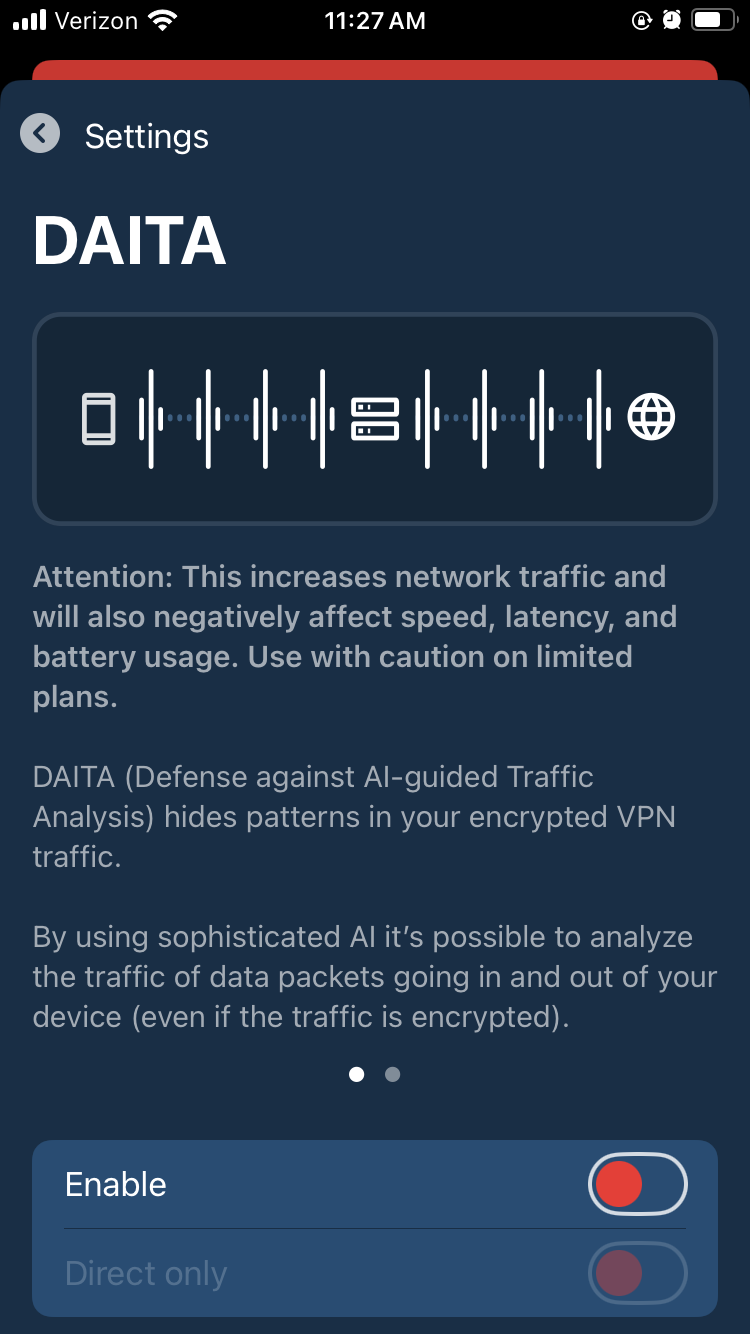
Mullvad's most novel feature is a recent one. DAITA, which stands for Defense against AI-guided Traffic Analysis, can be toggled on and off in the Mullvad app. According to Mullvad, certain patterns in how browsers communicate with websites can be analyzed by AI to reveal the truth behind encrypted internet history. DAITA hides those packets by filling communications with background noise so the AI won't know what's real.
Mullvad's anti-AI settings.
Sam Chapman for Engadget
DAITA is a laudably forward-looking feature, but as Mullvad itself admits, it will make your browsing speeds slower and drain your battery. I recommend only using it for activities you really want to hide.
Quantum resistance
Mullvad's desktop apps establish quantum-proof WireGuard tunnels by default. Quantum computing isn't yet a threat to WireGuard, but it may become dangerous in the future, so Mullvad is getting ahead of the problem (along with a few other services like NordVPN). When quantum resistance is active, Mullvad encapsulates its keys using the current standard mechanism, ML-KEM.
Anti-censorship
If you find yourself in a country where government censorship makes it hard to access the internet, Mullvad has options that might help. These anti-censorship features can be used to get around firewalls that block visible VPN traffic. You have several options, including changing your WireGuard port, randomizing your port number, disguising your VPN traffic as an ordinary HTTPS connection or using an obfuscated Shadowsocks proxy.
Mullvad's anti-censorship involves more features than most VPNs have in this area. This makes it a bit less user-friendly, but a lot more likely to work. If you're new to getting around censorship, Mullvad's help center has a helpful page about using its anti-censor settings.
Multihop
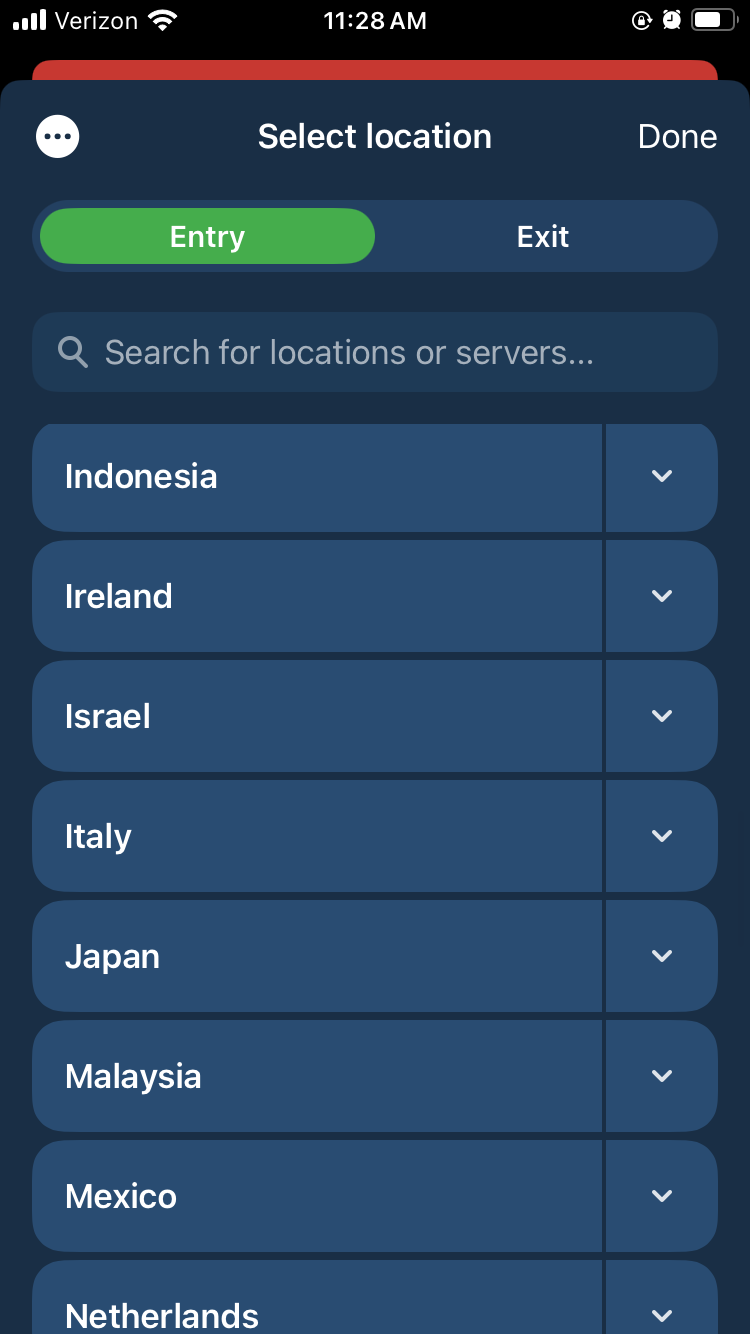
Many VPNs offer a double-hop connection that routes your traffic through two servers instead of one, adding a redundant layer of encryption in case one server malfunctions. Mullvad pulls ahead of the competition (except Surfshark, which also does this) by allowing you to choose your entry and exit servers. When you activate the multihop option and open the server list, you'll be prompted to pick two locations instead of one.
Mullvad's server list with multihop enabled.
Sam Chapman for Engadget
This means you can select an entry server that's close to you and an exit server in any country whose location you want to spoof, letting you fine-tune your own performance. It's way nicer than being railroaded into certain paths.
DNS content blockers
Mullvad includes six blocklists that can keep you or your family members from looking at unwanted content: ads, trackers, malware, gambling, adult content and social media. These lists can't be customized like Windscribe's R.O.B.E.R.T. blocks can, so you're limited to just turning them on and off.
IPv6 support
The internet is gradually transitioning from the old IPv4 standard over to IPv6, which will allow many more addresses to be shared out. Mullvad is one of a few VPNs looking ahead to the IPv6 era. You can leave it to block all IPv6 traffic, but if you do need IPv6 for any reason, you can enable it while still being connected to a Mullvad server.
Kill switch and lockdown mode
Mullvad comes with two features that protect against unexpectedly losing your VPN defenses. The first is a kill switch, a common VPN option that cuts off internet access if the VPN tunnel ever fails. This simple measure helps guard against accidental leaks.
Lockdown mode is the stronger option. While it's active, you will be unable to get on the internet unless you connect to a Mullvad server first. This will remain true if you turn the connection off yourself and even if you quit the app.
Split tunneling
Split tunneling is available on Mullvad's apps for every system except iOS. It lets you send some apps outside the VPN tunnel so they get online with your normal IP address. It's helpful if you have some apps that don't work with the VPN active — this is common with online banking, as an example. Another common application is to protect a torrenting client in the background while using your browser unprotected for better speeds.
Mullvad customer support options
Mullvad makes two forms of support available in the app. You can report a problem by going to Settings -> Support -> Report a problem, typing your question (requested to be in either English or Swedish, though they'd probably be able to read a question run through Google Translate) and optionally providing your email. You can also view the app's logs at any time, which can be useful to help a technician diagnose your problem.
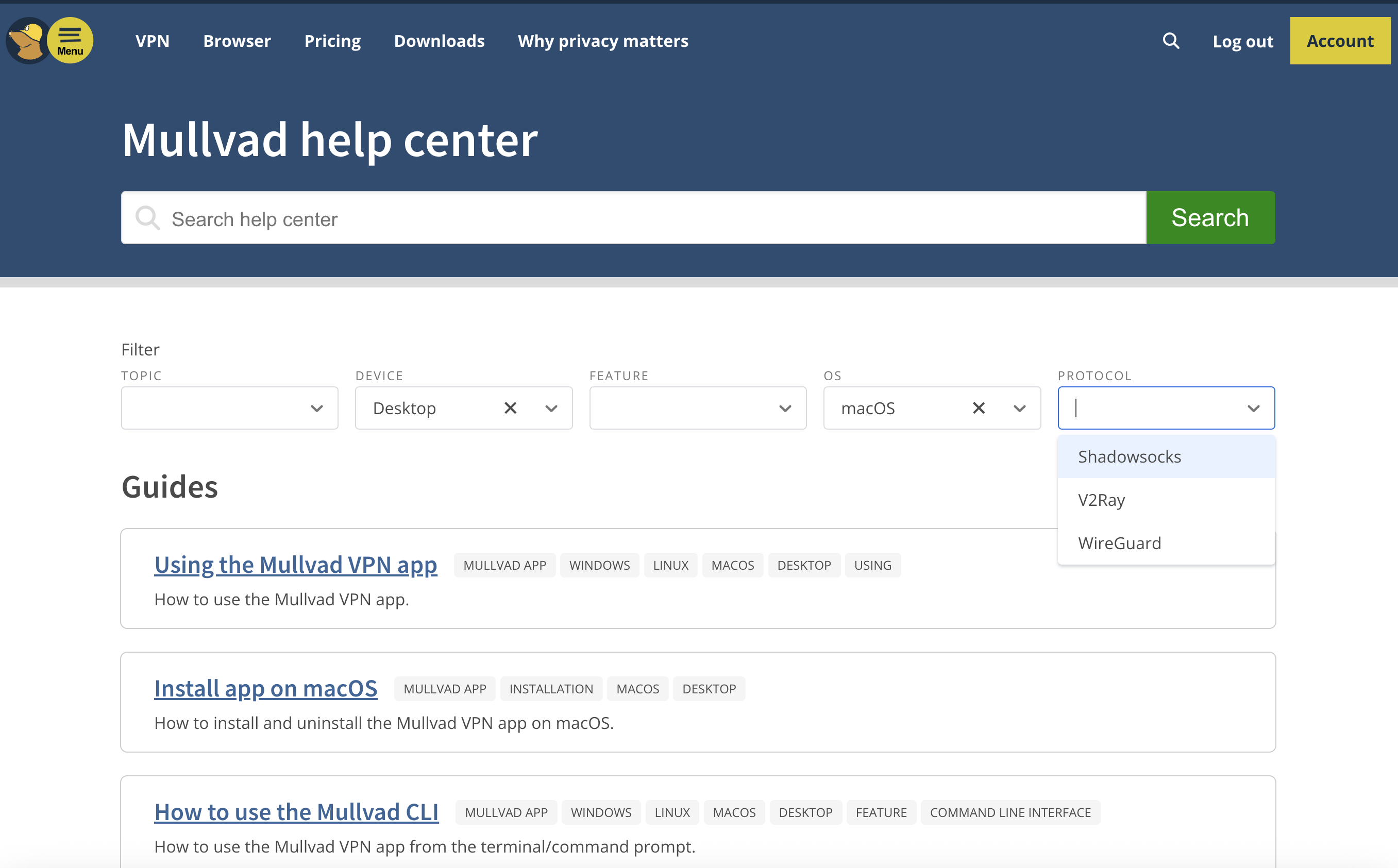
If you'd rather search for a solution at your own pace, you can go to that same page and click FAQs and Guides instead. This opens the help center in a browser.
Mullvad's help center, including the dropdown filter menus.
Sam Chapman for Engadget
I love Mullvad's approach to laying out its FAQs. Instead of crowding topics into five or six categories and making you guess whether your problem falls under setup, usage or troubleshooting, Mullvad gives you a set of dropdown filters to narrow down the articles which might relate to your problem.
By the time you've named which device, OS and protocol you're dealing with, you won’t have many articles left to sift through. There is an annoying tendency for certain sets of filters to reduce the number of surfaced links to zero, but for those cases, there's a search bar that also works well.
The articles themselves are good enough that I referred to them several times while writing this review. Some of them are a bit overlong, but they're diligent about including both internal and external links to get you where you're going fast.
Live support experience
This is normally where I cover how it feels to get live chat support from the VPN I'm reviewing. However, Mullvad doesn't have live chat support. That's unfortunate, although it's still better than Windscribe's approach of forcing you to banter with a sarcastic robot. Instead, I sent a question via email to Mullvad's support team, and got a response within 24 hours.
Mullvad background check
Mullvad was founded in 2009 in Sweden. It's still owned and operated by its original founders. According to a detailed timeline on its website, its 16-year history has been as uneventful as any user could ask for, with not much changing except updates to stay on the technological leading edge. The only controversy mentioned in Mullvad's own materials is the 2023 police raid of its headquarters, which (as I covered in the privacy section) only makes them look better.
So as not to take Mullvad at its word, I scoured the last 16 years of news items and user reports to search for any other blemishes on its record. Based on that research, I found no reason to doubt Mullvad's honesty about its location, owners or team.
I found just one leak that wasn't noted on Mullvad's own site. In 2023, a security research group called ZATAZ alleged that it found anonymized information on Mullvad users saved on an Internet Archive page, including account numbers (linked article is in French). According to ZATAZ, Mullvad contacted the Archive and got the page deleted.
To my mind, the only mistake Mullvad made in response to the ZATAZ allegations was not making a public statement about the incident. I can see why they didn't think it was a big deal, since even logging into someone else's Mullvad account wouldn't show you their browsing history, but it's always better to communicate about these things.
Final verdict
Mullvad is a VPN that knows what it wants to be and achieves that goal with flying colors. It's not trying to be an everything app — it does privacy and does it well. That's not to say it has nothing going on outside the VPN itself, as its DNS blockers, AI defenses and split tunneling all work smoothly. But if you want a VPN that's not ashamed to be a VPN, Mullvad is the right choice.
Of course, it has its own compromises. It's solidly in the middle of the speed pack and occasionally trips up when unblocking streaming sites. The lack of any protocols other than WireGuard grates on me a bit, since it reduces the user's options for troubleshooting. With all that said, those are minor hiccups on a VPN that does such a thorough job keeping you anonymous online.
This article originally appeared on Engadget at https://www.engadget.com/cybersecurity/vpn/mullvad-vpn-review-near-total-privacy-with-a-few-sacrifices-130000056.html?src=rss
A free trial to a virtual private network (VPN) can mean a few different things. Several of the best VPNs let you try them out without paying. A rare few, and only one on this list, let you try them without submitting payment information at all. Some VPNs have forever free plans that let you use them indefinitely without paying, as long as you're OK with some limits.
For the most part, though, your best chance to test a VPN for free is to pay for a subscription. Then, if you don't like the service, you can get your money back before the refund guarantee expires. This takes a bit more work, and some services have very tight turnarounds. However, it'll get you the most time with the most complete version of the VPN.
With that out of the way, let's talk about the best VPN free trials for each definition of "free trial." I'll start with VPNs that actually have free trials, most of which require a payment method and only work on mobile devices. The next section lists the best forever free plans. Finally, I'll share instructions for how to use a VPN money-back guarantee as a free trial.
Best VPNs with free trials
Best VPN forever free plans
Using VPN money-back guarantees as free trials
Although VPN free trials are great when you can get them, you'll enjoy a lot more flexibility by taking advantage of refund guarantees. Almost every provider has a money-back guarantee that doesn't require you to prove a specific problem. You'll probably have to deflect some upselling attempts before you actually get the refund, but most policies do promise you all your money back, with no pro-rating.
I like to download VPNs on their one-month plans so I can put the full service through my usual battery of tests. A 30-day money-back guarantee grants you enough time to learn whether you can use the VPN long-term. If you don't like the service, the standard method for getting a refund is to get in touch with customer support on the VPN provider's help page.
This article originally appeared on Engadget at https://www.engadget.com/cybersecurity/vpn/best-vpns-with-free-trials-130000435.html?src=rss
When we say that NordVPN is a good VPN that's not quite great, it's important to put that in perspective. Building a good VPN is hard, as evidenced by all the shovelware VPNs flooding the market. NordVPN may not be perfect, but it's easily top-five caliber and excels in certain use cases.
First, the bad: NordVPN's apps could all stand to undergo a little more quality control, with elements distracting from other elements and inconsistent designs from platform to platform. At least one of its FAQ pages directly contradicts itself. And while all the server locations could unblock Netflix, the one in Nigeria still showed U.S. content, indicating that our real location might have leaked.
However, there's a lot of good to balance that out. Speeds are fantastic and we saw no other hint of any kind of leak. Its server network is expansive and not overly reliant on virtual locations. The vast majority of servers are ideal for unblocking foreign websites. The real draw, though, is the extra features, including the innovative and flexible Meshnet, plus a malware blocker that acts more like a full antivirus and forward-looking quantum resistant encryption.
Editor's note (9/24/25): We've overhauled our VPN coverage to provide more detailed, actionable buying advice. Going forward, we'll continue to update both our best VPN list and individual reviews (like this one) as circumstances change. Most recently, we added official scores to all of our VPN reviews.Check out how we test VPNs to learn more about the new standards we're using.
Check out a summary of our NordVPN review in the table below.
Category
Notes
Installation and UI
Connections happen quickly and features are easy to use on all platforms
UI sometimes gets in the way; map screens can be clunky and apps come with unnecessary notifications
Surprisingly, the best UI may be in the browser extension
Speed
Extremely fast download speeds with only a 6.4-percent average drop
Good latencies on nearby servers, but farther ones have some lag
Fast upload speeds, but losses spiked in a few locations
Security
Uses acceptable protocols with uncracked encryption
NordWhisper obfuscated protocol recently implemented on Windows, Android and Linux
No DNS, WebRTC or IPv6 leaks on five test servers
Pricing
Best plan is the 2-year Basic for $81.36, or $3.39 per month
Basic gives you the complete VPN
If you get a multi-year plan, be sure to manually renew in order to keep the promotional rates
Bundles
Plus tier adds advanced malware protection and NordPass password manager
Complete plan adds NordLocker cloud storage
Prime tier adds ID theft protection and insurance features
Privacy policy
NordVPN does not log user activity on the VPN, a policy backed up by several third-party audits
However, it does log potentially identifiable device information unless you opt out in settings
Some concerning liberties taken in the overall Nord policy, but no documented malfeasance
Virtual location change
Four out of five test servers unblocked Netflix three times running, including virtual India location
Location in Nigeria got into Netflix, but didn't change available titles
Server network
153 server locations in 117 countries and territories
Server network is about 40 percent virtual, including all locations in Africa
Features
Extra servers grant additional privacy (double VPN, Onion over VPN, obfuscation) or specific optimizations (P2P, dedicated IP)
Threat Protection blocks dangerous domains and the Pro upgrade has some antivirus capability
Dark Web Monitor reports to you when any sensitive information has appeared on clandestine leak sites
Presets let you activate several settings with one click
Post-quantum encryption is nice, but not necessary yet
Kill switch is a useful safety feature on all apps
Split tunneling by app on Windows and Android, and by URL on browser extensions
Customer support
Written FAQs, live chat and email support
Live chat connected to an expert human within a minute
FAQs are poorly organized and contain some conflicts, but well-written on average
Background check
NordVPN is headquartered in Panama, while its parent company Nord Security is based in the Netherlands
2018 theft of public keys was a mistake, but NordVPN did almost everything right in response
Claims of law enforcement collaboration are overblown — NordVPN will comply with requests, but that doesn't mean they'll have information to provide
Installing, configuring and using NordVPN
NordVPN's biggest strengths are its speeds and the range of options it puts at your fingertips. User experience is important, but it's not quite as front-and-center as it is with ExpressVPN and Proton VPN. Here's how the apps run on all the major platforms.
Windows
The Windows app is the first instance of NordVPN's UI being not bad enough to complain about, but not good enough to be considered excellent. The initial connection process is a little slow, and it's far easier to connect than it is to disconnect (click the power button while connected to shut the VPN off). The map takes up space that would have been better allocated to the server list.
Sam Chapman for Engadget
The minor problems continue in the settings list, which makes the mistake of not keeping all its tabs visible in the window — if you open one, you have to click back to the main menu to reach another page. The pages themselves are easy to use; it's just a bit clunkier than it could have been.
Mac
Setup is swift and easy on Mac, but the full NordVPN interface is a little awkward. The vast majority of the main window is taken up by a large map, which is mostly useless. There's no way to zoom out to see the whole world, and you can't choose between servers in each country unless you zoom way in. The server list on the left-hand side is almost always more useful.
Sam Chapman for Engadget
The preferences panel is better. All the tabs come with clear explanations of their function, and are laid out so the menu is always visible, unlike the Windows app. The gear icon at the bottom includes its own set of tabs that encompass most of the common functions, including changing your VPN protocol, activating the kill switch and setting the VPN to automatically connect on untrusted networks.
Android
NordVPN on mobile can be described in much the same way as its desktop apps: generally great, occasionally getting in its own way. On Android, the map screen is much more helpful. It's expandable to the entire world and allows you to choose between servers within a country. On the other hand, the important settings are buried in the Profile tab, and the app notifies you about your "security score" to pressure you into activating certain settings.
Sam Chapman for Engadget
To find the general settings page on Android, tap the bottom-right Profile tab and scroll down. Except for Threat Protection, which has its own tab on the main window, every feature is located here. It's probably necessary to keep the main app from getting cluttered, but still mildly frustrating.
iOS
The NordVPN iOS app resembles a compressed version of the macOS client, for better or worse. As with Android, most of its features are in the bottom-right Profile tab. It works well most of the time, but often feels slightly cumbersome. There's a bit too much on the screen, and a bit too much of the stuff has nothing to do with the VPN's core function.
Sam Chapman for Engadget
As an example, you can't log into your account within the app — you have to load your Nord account page in a web browser. Forced app switching is a design choice that truly needs to die. That said, VPN connections happen quickly. If you tend to simply leave your VPN active, you probably won't notice any of this stuff.
Browser extensions
Most VPN browser extensions consist of the same features on a smaller scale, and NordVPN's — on Chrome, Firefox and Edge — are no exception. They are important for one reason, though: they're the only way to split tunnels by URL and the only split tunneling at all on macOS and iOS. Despite being more compact, they're also easy to use, making for an excellent quick-start VPN solution.
Sam Chapman for Engadget
NordVPN speed test
All VPNs slow down your average browsing speeds by adding extra steps into the connection process. When we test speed, we're looking for the VPN to drag as little as possible on your unprotected speeds. Download speed will be the most important stat for most users, since that determines how fast web pages load and how quickly videos can buffer.
Latency is important for live connections like video chats, games and live streaming. Latency increases with distance — in the test below, data packets were sent to the remote server, then back to our home network. Upload speeds likewise influence your live two-way communications and are also vital for torrenting. Let's see how NordVPN performs on all three metrics.
Server location
Latency (ms)
Increase factor
Download speed (Mbps)
Percentage drop
Upload speed (Mbps)
Percentage drop
Unprotected (Portland, OR, USA)
22
--
59.20
--
5.86
--
Seattle, WA, USA (Fastest)
44
2x
57.21
3.4
5.62
4.1
New York, NY, USA
177
8x
56.90
3.9
5.60
4.4
Stockholm, Sweden
371
16.9x
55.94
5.5
5.63
3.9
Istanbul, Turkey
411
18.7x
53.02
10.4
5.78
5.9
Hong Kong
350
15.9x
56.18
5.1
5.72
2.4
Johannesburg, South Africa
602
27.4x
53.26
10.0
5.67
3.3
Average
326
14.8x
55.42
6.4
5.54
4.0
To summarize: NordVPN's download speeds are the fastest we've seen and its upload speeds and latency tie with the best. Downloads only dropped by an average of 6.4 percent across the globe and readings were mostly consistent — the servers in question performed much the same in each test. We even threw in Turkey and South Africa, two locations that commonly cause problems, but NordVPN still kept the drop to 10 percent.
Sam Chapman for Engadget
Latency is more a product of physical distance than VPN infrastructure, but you can still see differences between services. When tested on a similar range of locations, ExpressVPN and Proton VPN both kept average latencies under 300 ms. NordVPN's average came out to 326 milliseconds, though we should note that its latency increased less than Proton's on the closest server.
Upload speeds declined an average of four percent, but there were a few anomalously high readings in Istanbul that skewed those numbers up. Without that location, NordVPN's upload rates would also have been the industry's current best.
NordVPN security test
No matter how well-built a VPN looks from the outside, there are several ways its security can fail. The most common problems are outdated protocols with weak encryption, failing to block IPv6 traffic or inadvertent leaks from sending DNS requests outside the encrypted tunnel. We'll start by looking for those common leak sources, then check whether NordVPN's encryption might be failing in less traceable ways.
VPN protocols
A VPN protocol is a set of rules used to get data quickly and safely from your device to a VPN server and back, even while that data is encrypted. Different protocols are connected with different encryption algorithms and can impact the speed, security and stability of your connection.
When testing VPN security, the first step is to see if it's using any protocols like PPTP that are outdated and crackable, or homebrewed protocols with unclear security. NordVPN users have four options for protocols: OpenVPN, IKEv2 (not available on Mac or iOS), NordLynx and NordWhisper (available on Windows, Android and Linux only).
Sam Chapman for Engadget
OpenVPN and IKEv2 are both standard protocols you'll find on most VPN providers. Both use various strengths of the Advanced Encryption Standard (AES), with OpenVPN defaulting to AES-256 and IKEv2 to AES-128. OpenVPN can be set to UDP (faster but less stable) or TCP (more reliable but slower). So far, so secure.
NordLynx is unique to NordVPN, but it's not that far off the beaten track — it's just WireGuard with extra security. WireGuard normally works by saving a stable IP address for each connection, which raises the very slight risk of exposing a user. NordLynx adds a second layer of abstraction that means those stable addresses are never revealed. Since NordVPN strongly recommends it for most situations, we used it for all our tests in this review.
Finally, there's NordWhisper, a new protocol introduced in early 2025 that disguises your VPN traffic as normal web traffic to evade blanket web blocks. It's likely to be slower than the other protocols, so don't use it unless everything else has been blocked. We also don't recommend counting on it too much in general — large-scale censorship technology, like the Great Firewall of China, tends to rely on blocklists of known VPN servers, whose identity NordWhisper can't disguise.
Leak test
Our first order of business was to check five test servers to see if they leaked our real IP address — staying away from the ones in the speed test in order to get as comprehensive a picture of NordVPN's security as possible. With help from ipleak.net, we found all five to be free of the three major types of leaks.
DNS leaks occur when a VPN sends DNS requests (in short, how your browser knows which websites to show you) outside its encrypted tunnel. By default, NordVPN uses its own private DNS servers, which our tests showed to effectively prevent leaks.
WebRTC leaks are caused by real-time communication protocols sending information outside the VPN, which may reveal your real IP address. NordVPN is consistently successful at keeping WebRTC inside the tunnel, but you can have your browser block it if you're still worried.
IPv6 leaks happen when a VPN only blocks IPv4 traffic and lets v6 through. NordVPN automatically blocks IPv6 traffic while it's active, so an IPv6 leak is all but impossible.
Sam Chapman for Engadget
Although that's all great news, it is still possible for leaks to occur without a clear explanation, so we ran one final test on NordVPN.
Encryption test
Wireshark is a program that captures detailed images of information sent over a device's internet connection. Even though our tests showed NordVPN to be free of leaks, we wanted to inspect it at the most granular level. Using WireShark, we recorded the traffic sent to an unencrypted HTTP site, before and after connecting to each NordVPN test server.
Every server showed the same pattern: readable plaintext before, encrypted ciphertext after. If there is a security flaw remaining in NordVPN, it's unlikely to be relevant to the overwhelming majority of users.
How much does NordVPN cost?
NordVPN's pricing structure looks convoluted at first, but it's much simpler than it appears. A Basic subscription gets you full VPN functionality, and all the other tiers just add more features. If all you need is a VPN, you only need to concern yourself with the left side of the table below.
The best deal for a Basic NordVPN subscription, which lets you connect to NordVPN with up to 10 devices at once, costs $81.36 for two years when you pay upfront ($3.39 per month). One year of the same plan costs $59.88 in advance ($4.99 per month) or $12.99 for one month at a time. The table below shows the complete cost; for more information on plans above Basic, see "side apps and bundles" in the next section.
Plan
1-month cost
1-year cost
2-year cost
Basic
$12.99
$59.88 ($4.99/month)
$81.36 ($3.39/month)
Plus
$13.99
$71.88 ($5.99/month)
$105.36 ($4.39/month)
Complete
$14.99
$83.88 ($6.99/month)
$129.36 ($5.39/month)
Prime
$17.99
$107.88 ($8.99/month)
$177.36 ($7.39/month)
The longer plans save money, but be careful: if you let them expire, you'll automatically renew at the more expensive one-year plan. Enough customers claim to have been auto-renewed at the higher rate that they've launched a class-action lawsuit against NordVPN, accusing the company of deceptive pricing practices and making renewals too difficult to cancel. A NordVPN PR rep said they could not comment on ongoing legal action, "other than to state that we are and always have been very clear about the recurring nature of our services." No court date has been set so far.
That said, there's a fairly straightforward workaround in the meantime: To prevent the auto renewal, log out of your NordVPN account, then sign up for a discounted plan again using the same email. As long as you do this before your subscription expires, your new account should link to your old one, keeping you subscribed at the introductory rate.
Free trials and refunds
Every NordVPN plan comes with a 30-day money-back guarantee. If you cancel and request a refund before 30 days are up, you'll get the full cost back. The only way to try it for free without paying is to get the app on Android, where there's a seven-day trial through the Google Play Store.
NordVPN side apps and bundles
NordVPN is part of a larger family of Nord Security products, which you can save money on if you need more than one. We won't review all of them here, but for reference, here's everything you'll get from the higher subscription tiers.
Basic: VPN on 10 devices, specialty servers, DNS ad-blocking, Meshnet
Plus: All Basic features, plus malware scanning, extra scam blocking, tracker blocking, NordPass password manager, data breach scanner
Complete: All Plus features, along with 1TB of NordLocker encrypted cloud storage
Prime: All Complete features, plus NordProtect features like dark web monitoring, credit monitoring, ID theft insurance and extortion insurance
Another tier called Ultra includes a subscription to Incogni, a data removal service run by Nord's partner Surfshark. The Ultra bundle is only available in certain countries, since NordVPN is still testing it; users outside the test countries can still add Incogni service at checkout. There also used to be a NordVPN family plan, but it seems to have been eliminated after Nord expanded the devices per subscription to 10.
You can get a dedicated IP address on NordVPN to ensure you have the same IP every time you connect. This lets you configure remote firewalls to let you through while you're connected to the VPN. A dedicated IP costs $8.99 per month, $70.68 for a year ($5.89 per month) or $100.56 for two years ($4.19 per month).
The NordVPN pricing page lists access to a Saily eSIM plan as a perk, though mysteriously, none of the existing plans seem to include it yet. A lot of VPNs are expanding into the eSIM space, so this may change soon.
Close-reading NordVPN's privacy policy
A VPN privacy policy isn't just empty words — it's a contract between the provider and its users. If a service openly defied its own policy, it could be sued for false advertising. VPNs tend to sneak loopholes into their privacy policies instead of flouting them outright; these loopholes can shed light on how the provider actually views your privacy.
This policy applies to all Nord Security apps. It's impossible to create an account without a valid email address, but you can use a separate email masking service to make that anonymous. The policy also explicitly says that your email address will be added to a marketing mailing list, though you can opt out. Irritating, but not a privacy risk in itself.
We're more concerned about the later statement that it may process data without the user's consent "under the legal basis of our or third parties' legitimate interest." This clause covers some cases we'd agree are legitimate, such as identifying people who launch cyberattacks from NordVPN servers. But Nord also considers it "legitimate interest" to process your personal data "to improve or maintain our services and provide new products and features."
Reached for comment, a NordVPN representative said that using personal data in this way "generally involves aggregated, depersonalized or technical information." That's somewhat reassuring, but the "generally" leaves a bit too much wiggle room. Ideally, we'd prefer that personal data exist wholly in the "consent only" section.
The section on sharing your data with third parties only lists "some of" the service providers who may receive your information. Among these are Google Analytics, which is known to store personal data on U.S. servers — all of which are potential security risks in the age of DOGE. Other unnamed "third parties" are involved in targeting ads at users of Nord websites.
The NordVPN representative said that "since some partners, such as payment processors, can vary by region or specific service and may change over time depending on our operational needs, we do not publish a fixed list." They added that all third parties are "contractually required to handle personal data in accordance with applicable laws and industry standards."
We aren't using this to condemn Nord; many of these practices are fairly standard in the VPN industry. But it's important to know about all the potential leakage points before trusting your deepest secrets to any company.
NordVPN specific policies
The NordVPN privacy policy doesn't add much atop the general Nord notice. It does track session activity connected to your username to make sure you're staying within the 10-device limit, but it automatically deletes these logs 15 minutes after you disconnect. The logs also don't include your IP address or the addresses of VPN servers you used.
Sam Chapman for Engadget
The only real problem we found is that NordVPN apps collect information about your activity on the app by default. This doesn't include information about your browsing habits, but it does include unique traits that could conceivably be used for "device fingerprinting" — in which a third party can deduce a user's identity through clues about their device. You can turn this off in the General settings.
A NordVPN spokesperson told us that the data collected is "not personally identifiable," and that the company takes "deliberate steps to strip out anything that could be linked back to a specific person." This presumably means the data is aggregated so it only shows general trends, not any one device's activity. That's a lot less risky, but we still recommend switching the setting off.
Third-party privacy audits
NordVPN has passed five independent audits of its privacy policy so far, most recently from Deloitte in late 2024. Annoyingly, you can only read the entire report by logging into a Nord account, but it at least doesn't have to be a paid account.
The audit found that NordVPN was following its own no-logs policy. Specifically, the Deloitte Lithuania investigators concluded that "the configuration of IT systems and management of the supporting IT operations is properly prepared, in all material respects in accordance with the NordVPN's description set out in the Appendix I." (Appendix I of the report is identical to NordVPN's privacy policy.)
Can NordVPN change your virtual location?
You'll be most interested in this section if you mainly use a VPN to change their location for streaming. To see if NordVPN could unlock new streaming libraries, we picked a new batch of five test servers, then logged onto Netflix. Since Netflix tries to block all VPN servers to prevent copyright issues, our first question was whether we'd get through at all.
Our second question: would connecting to a NordVPN server actually change what Netflix library we saw? It should, given that NordVPN seems leak-proof, but thoroughness demands we check anyway. Here's what we found.
Server location
Netflix unblocked?
Content changed?
Canada
Yes
Yes
Argentina
Yes
Yes
Germany
Yes
Yes
India
Yes
Yes
Nigeria
Yes
No
Four out of five locations worked perfectly. On a Canadian server, we were able to stream Star Trek: The Next Generation, which left American Netflix years ago. The Argentine server gave us access to something called Pasion de Gavilanes, which we'd never heard of but sounds great.
Sam Chapman for Engadget
The only problem was Nigeria. We tested it several times, connected to multiple different Nigerian locations, but saw our American Netflix library every time. We then ran a leak test on Nigeria, which wasn't one of our security test locations, and found it to be working normally. It's hard to say what happened, especially since the Nigeria server doesn't appear to be virtual, but we can confirm that it wasn't working.
Investigating NordVPN's server network
NordVPN has servers in 153 cities in 117 countries. Out of all total options, 62 are virtual locations (about 40 percent), where the server is really located somewhere else. This makes it possible to get servers into more places, but depending on your actual location relative to the server, it may perform differently than you expect.
Sam Chapman for Engadget
Virtual locations have allowed NordVPN's server network to grow quite extensive, with lots more locations in South America, Africa and Asia than the industry standard. Check out the distribution in the table.
Region
Countries and territories with servers
Total server locations
Total virtual server locations
North America
15
36
12
South America
10
10
6
Europe
48
57
11
Africa
10
10
10
Middle East
7
7
4
Asia
24
26
18
Oceania
3
7
1
Total
117
153
62 (40.5 percent)
The relatively low proportion of virtual locations (nearly identical to that of ExpressVPN) is a good sign, as it means NordVPN has been growing its server network thoughtfully. Some VPNs — looking at you, HMA — inflate their server lists as a marketing point without seriously considering what it takes to maintain such a large network. That thankfully doesn't seem to be the case here.
Extra features of NordVPN
Here's everything you get with a NordVPN app other than the VPN itself. There's a lot going on here, so we'll limit ourselves to a sketch of each feature.
Specialty servers
As soon as you load NordVPN, you'll see a list of special servers near the top of the right-hand column. We'll go over each of them in order.
Dedicated IP: As discussed in the bundles section, a dedicated IP address costs extra. With this, you'll always connect with the same IP, which is private to you alone. It may be worth the price if you find yourself getting asked for CAPTCHAs a lot more while connected to NordVPN — though for what it's worth, that didn't happen to us.
Double VPN: This sends your connection through a second VPN server before it reaches your ISP. The second server is your apparent location. There are 10 endpoints to choose from. As you might imagine, your internet will run slower with two VPN servers in the mix, so only use this if you seriously need security.
Obfuscated servers: These are only available on OpenVPN. Obfuscation can help you get around firewalls that seek out and block VPN traffic. If you can't get online with NordVPN when you're on a certain network, obfuscated servers might work.
Onion Over VPN: After encrypting your data as normal, these servers send it through several nodes of the Tor network, granting you the total anonymity of onion routing while keeping you safe from malicious relays. It's available in two locations, Netherlands and Switzerland, and — like double VPN — is best used only when you need the utmost privacy.
P2P: NordVPN only allows torrenting on its peer-to-peer servers, but fortunately, it's got P2P servers in 114 countries — only three fewer than it has in total. NordVPN keeps your download and upload speeds very fast on average, so you shouldn't have trouble torrenting from any location.
Meshnet
Meshnet is NordVPN's most unique and exciting feature by a long shot. By logging into the same NordVPN account on multiple devices, you can connect those devices directly through a NordLynx tunnel without needing a NordVPN server in between.
Sam Chapman for Engadget
Essentially, you're using your own devices as VPN servers — obviously not great for privacy, but amazing for accessing web services in other countries. While two devices are connected, you can transfer files between them through the NordLynx tunnel. You can even invite friends and use their devices.
Threat Protection
NordVPN has two levels of antivirus: Threat Protection and Threat Protection Pro. The former is a simple DNS filter that stops your browsing from loading unsafe web pages while NordVPN is active. It's the highest level available on Android, iOS and Linux, or on any Basic subscription.
Sam Chapman for Engadget
Threat Protection Pro, which Plus subscribers or higher can set up on Windows and Mac, can work even when you aren't connected to a NordVPN server. It acts more like a standalone antivirus by scanning downloaded files for malware, and can even block trackers. Basic Threat Protection (without Pro) can block some trackers by filtering out domains known to use them, but doesn't block the trackers directly.
Dark Web Monitor
While active, Dark Web Monitor continually searches known data breach dump sites on the dark web and notifies you if it ever finds your account email address. If you get that notification, change any passwords associated with the address. With a Prime subscription, you can also have it search for your phone number, social security number or other financial information.
Presets
Presets let you set up one-click VPN connections with a desired group of settings, a lot like Proton VPN's Profiles. NordVPN comes pre-loaded with presets that optimize for "Downloads," "Speed" and "Browsing," which sounds to us like the same thing three times.
More usefully, you can create presets for particular countries, then add website shortcuts that will appear once you've connected. You could, for example, set one that connects to a specific location, then add a shortcut to a streaming site available in that location.
Post-Quantum encryption
Experts widely believe that quantum computers will eventually make our current encryption algorithms obsolete, but there's almost no consensus on when that will actually happen — except that it hasn't happened yet. Knowing that, NordVPN's "post-quantum encryption" feature comes across as a bit premature, but it's reassuring that someone is thinking about it.
Having said that, we don't recommend using post-quantum encryption yet. It works by layering one of the known quantum-proof encryption standards on top of a standard NordLynx session, which makes your VPN connection slower and more erratic. Until we can verify a real quantum cyberattack, post-quantum encryption is a needless precaution.
Kill switch
A kill switch cuts off your internet the instant you lose your connection to a NordVPN server. This protects you in case a server unexpectedly fails, and as a side benefit, prevents you from connecting to any fake VPN servers. You should keep the kill switch on at all times.
Split tunneling
Split tunneling is available on NordVPN's Windows and Android apps (and Android TV by extension), along with its browser extensions. On Windows and Android, it splits by app: you can determine which apps get online through the VPN and which go unprotected. The browser extensions let you split by URL, so the VPN only protects certain sites.
NordVPN customer support options
NordVPN's apps link directly to its online help center. As always, we went in with a specific question in mind: whether the basic level of Threat Protection could block trackers, and if so, what kind. We found the categories on the written support page difficult to parse, especially the troubleshooting section — would the average user appreciate the difference between "app issues," "connection issues" and "errors"?
We correctly guessed that our question would be under "Using NordVPN -> Features," but the introductory article on Threat Protection and Threat Protection Pro was buried at the bottom of the list. Unfortunately, that made things more confusing, as this article says that Threat Protection (not Pro) both does and doesn't block trackers. In NordVPN's favor, however, using the search bar brought us instantly back to that article without any confusion.
The live support experience
Using NordVPN's live chat was a smooth and reassuring experience. From the time we decided to ask directly, it took us less than a minute to connect with a real person, who quickly cleared up the confusion and promised to update the confusing support page (we'll check back to see if they actually do).
Sam Chapman for Engadget
One other option is an email support form, which can be found both on the website and in the help sections of NordVPN apps. This is best for complex problems that require screenshots to explain, and promises a response within 24 hours.
NordVPN background check
NordVPN was founded in 2012. Launching with its desktop apps, it moved to iOS and Android in 2016, then added apps for browser extensions and smart TVs. Its developer, Nord Security, has no parent company, and its history is relatively uncontroversial. We've documented two notable incidents below, plus more about Nord Security's operations.
Headquarters and ownership
Nord Security was founded in Lithuania, and maintains offices there. Although Nord Security is registered in Amsterdam, NordVPN operates under a separate license in Panama, which makes any data requests subject to Panama's courts.
Finland server breach
The first serious incident in NordVPN's history began in March 2018, when unidentified hackers managed to steal three private keys from one of Nord's data centers in Finland. Researchers didn't notice the leak until October 2019, well after the stolen keys had expired, but NordVPN's encryption was still technically vulnerable for several months.
We say "technically," because it was really only the outer layer of encryption — and even if they'd broken through it all, the hackers would only have seen browsing activity, not usernames, passwords or anything else sensitive. If anything, NordVPN's response actually makes us trust it more. It ended its relationship with the contractor who ran the Finnish data center and revamped its policies to eliminate the kind of negligence that led to the breach.
Arguably, its only real error was not immediately disclosing the breach. NordVPN learned about the leak and started addressing it in May 2018, but the news didn't break until more than a year later. That timing probably made it look more suspicious than any actual mishandling did.
Law enforcement compliance
Another minor controversy erupted in 2022, when PCMag and other outlets reported that NordVPN had edited its website to say that it would comply with data requests from law enforcement. NordVPN responded with a new post that said nothing had changed: their policy was always to comply with lawful requests, which — provided the requests were lawfully submitted through a Panamanian court — is literally their only option.
We're inclined to agree. VPNs are legal companies. They wouldn't last long if they openly declared their intent to break the law. The key is that when law enforcement comes calling, there shouldn't be anything to show them, as with the Turkish seizure of ExpressVPN. That's why verifiable no-logging policies are so important.
Final verdict
NordVPN is a great service on its own merits. It only suffers from having to be compared with the likes of ExpressVPN and Proton VPN. For example, its P2P servers are good for torrenting, but not as useful without Proton's port forwarding. It's fast, but speed tests fluctuated just a little more than Express.
NordVPN's extra features are the best reason to pick it over its rivals. With Meshnet, you can theoretically set up a VPN connection anywhere in the world, and no other VPN has anything close to Meshnet's file transfer powers. Threat Protection Pro is also great if you can get it, adding file scanning to bolster the typical approach of just blocking suspicious DNS addresses. Specialty servers round out the offering, with double VPN maintaining good speeds with extra safety and Onion over VPN being among the safest ways to use Tor.
This article originally appeared on Engadget at https://www.engadget.com/cybersecurity/vpn/nordvpn-review-2025-innovative-features-a-few-missteps-163000578.html?src=rss
So you've decided you need a virtual private network to hide your browsing activity from your ISP, change your virtual location, stay safe on public Wi-Fi and enjoy all the other benefits. The inevitable next question is: "Should I pay for one? If so, how much?"
All the best VPNs cost money, but it can be hard to tell an overpriced service apart from one that's priced according to its value. On this page, I'll share the costs for top VPN services, calculate the industry average and explain what makes VPNs cost as much as they do. At the end, I'll share a few tips for making a VPN fit your budget.
How much is a VPN?
I'd like to start by introducing the complexity of the problem. If you just want the numbers, you’ll find those in the sections below.
The main thing that makes VPNs so hard to budget for is that providers aren't always honest about how much they're charging. They rarely lie outright, but they often overcomplicate their pricing structures and hide increases in the fine print.
Let's take CyberGhost as an example, since I just reviewed it. A one-month subscription to CyberGhost costs $12.99 — simple enough. However, you can also get a six-month subscription by paying $41.94 upfront, though the website more prominently calls this "$6.99 per month." Finally, you can pay $56.94 for a 28-month subscription, but only once; after that, it'll be $56.94 for a year.
These prices are subject to change.
Sam Chapman for Engadget
As you can see in the image, the website heavily emphasizes the average monthly price, in text that dwarfs the actual price you'll pay at checkout. This gets even worse with services like NordVPN that have multiple tiers of subscription as well as multiple durations. It's not uncommon to see 10 or more prices quoted for the exact same VPN.
The best way to cut through the confusion and shop on your own terms is to compare different VPNs at the same duration and subscription tier. For example, you could find the cost of one year of the most basic available plan, since most basic subscriptions still include full VPN service. In the next two sections, I'll compare and average the basic tiers of my top seven VPNs at the monthly and yearly levels.
Average monthly cost of a VPN
Here's what the best VPNs cost per month. The numbers below are for subscribing to one month at a time, excluding any discounts and special deals.
Proton VPN: $9.99
ExpressVPN: $12.99
Surfshark: $15.45
NordVPN: $12.99
CyberGhost: $12.99
Mullvad: $5.98 (depends on dollar/euro exchange rate)
As you can see, $12.99 is a normal price for one month of a VPN — but the average price is somewhat lower, as several providers sell monthly plans for less. In general, expect to pay in the range between $10 and $13. Companies like Surfshark sometimes inflate their monthly prices in a bid to drive more traffic toward the longer plans.
Mullvad is also an outlier, since you can only ever subscribe to it month-by-month. There are other outliers, such as Astrill, which costs a whopping $30 per month. But the above holds true for all the best-regarded providers.
Average yearly cost of a VPN
If you choose to sign up for a year at a time, you'll probably save money but you'll have to pay more upfront. VPNs offer long-term deals to pump their cash flow and active user numbers. One-year costs for the top seven VPNs are written below as a lump sum, since several of them add extra months to the first subscription period so they can quote a lower monthly price. Since CyberGhost doesn't have a one-year plan, I've replaced it with Windscribe.
Proton VPN: $47.88
ExpressVPN: $52.39 for the first subscription, $99.95 afterwards
Surfshark: $47.85
NordVPN: $59.88 for the first subscription, $139.08 afterwards
Windscribe: $69.00
Mullvad: $71.82 (depends on dollar/euro exchange rate)
hide.me: $54.99
Average: $57.69
For one year of a VPN service, you can expect to pay somewhere between $45 and $70. Note that at least two services, ExpressVPN and NordVPN, raise prices after the first year, so account for that in your budget if you really like them.
Why do VPNs cost so much?
The length of the subscription is the biggest factor in determining how much you'll pay. Beyond that, it's all a bit fuzzy. Commercial VPNs are still a relatively new industry, so there's not a lot of standardization in the pricing.
Most of the variation in cost comes from competition: VPNs value themselves lower to offer a better deal than their rivals, or higher if they think they've got a unique differentiator. Astrill gets away with charging $30 a month because of a widespread belief that it's the best VPN for China (in truth, no VPN can be sure of working in China 100 percent of the time).
Another factor that might influence a VPN's price is the cost of maintaining its infrastructure. For each new server location, the provider has to either rent space in an existing data center, build its own physical server farm or set up a virtual server with an IP address from a particular location.
On Proton VPN, for example, you can switch locations by clicking the name of any country in the list on the left.
Sam Chapman for Engadget
Once the locations exist, they have to be maintained, including regular changes to their IP address so firewalls don't identify and block them. Loads at locations need to be balanced between servers and technology has to be upgraded as faster solutions become available.
Since VPNs can have hundreds of server locations, all that upkeep doesn't come cheap, and customers often eat the cost. Factor in the price of extra features outside core VPN functionality and you'll understand why these companies are so desperate for liquidity that they'll offer discounts over 80 percent — as long as you hand over a lump sum right now.
What about free VPNs?
VPNs can get pricey, especially if you want high quality. But some VPNs charge nothing at all. Is there any reason not to go with free VPNs every time?
The answer is a pretty clear yes; paying for a VPN is almost always a better idea. When we rounded up the best free VPNs, only three got our unqualified recommendation. All three were paid services with free plans, and all come with strict limitations on server locations, data usage and other privileges.
The unfortunate reality is that free VPNs come with downsides no matter which one you use. Plenty of them are hacked-together apps with little value, thrown together to make a quick buck. Others turn you into the product by selling your data to advertisers or renting out your home IP address. Some drop any pretense and plant malware directly on your device.
These risks, which are often invisible to the end user, are the reason I almost always advise going with a free VPN funded by a paid plan, like Proton VPN, hide.me or Windscribe. Those plans may be restricted, but at least the provider's motives are out in the open: they make money off the paid plan and they want you to switch to it.
How to save money on a VPN
If you've decided to pay for a VPN but want to stretch your budget as much as possible, the tips below can push your cybersecurity dollar a bit farther. To begin with, the general advice on choosing a VPN always applies: read expert opinions, check the reviews and use the free trial to test its speed and security.
Get a long-term plan. If you're confident that you'll actually use the VPN for the whole duration, there's no reason not to go with a 12-month or 24-month subscription. These are win-win deals that genuinely do save you a lot of money overall.
Cancel auto-renewal. VPN accounts are set to automatically renew by default. In some cases, this can inadvertently lock you into a higher-priced long-term plan. I recommend cancelling auto-renew right after subscribing even if you're sure you want to continue. From there, you can create a new account to get the introductory rate again — or go with a different VPN to get a better deal.
Look for resubscription deals. Another perk of cancelling immediately is that the VPN will often try to woo you back with exclusive discounts. Stay strong until your subscription is a month or two from expiring, then look for emails offering better rates.
Wait for seasonal discounts. If you can hold off until November, most VPNs offer steep discounts from Black Friday season all the way through New Year's. Check around other holidays too, as VPNs will take any excuse for marketing; CyberGhost is offering a Valentine's Day deal as I type this. We also keep track of the best VPN deals you can get at any time of the year.
Use the VPN to save money on streaming. Most streaming services are more expensive than VPNs. If you use a VPN to access more content without adding a new streaming subscription, you'll come out ahead. For example, if you only have Netflix but want to watch Schitt’s Creek, you can pay $16.99 per month for Peacock without ads — or $9.99 per month for Proton VPN to unblock Netflix Canada, which features that show.
Shop for regional discounts. Like the previous point, this won't save you money on the VPN itself, but might save you enough money on other expenses that you turn a profit. Changing your virtual location can get you discounts on purchases where prices vary by region, especially travel costs.
This article originally appeared on Engadget at https://www.engadget.com/cybersecurity/vpn/how-much-do-vpns-cost-170000567.html?src=rss
When talking about the best VPNs, I frequently warn about the dangers of trusting free VPNs without verifying them. Although there are a few free VPNs worth recommending, many other free providers are ineffective, malicious or looking to profit off their users (or sometimes all three). Even the best free VPNs work a lot better once you subscribe and access their full service.
This can be frustrating if you want to enjoy the benefits of a VPN but don't have the budget for yet another subscription. To help you out, I put together a list of the best paid VPN services you can get cheaply. Every name on the list comes with my full recommendation — I'll never recommend a VPN that doesn't protect you, no matter how affordable.
Before I get started, I want to define "cheap," since VPNs often bamboozle the customer with muddled pricing schemes. Most providers have long-term subscription plans with big discounts, and many of them compensate by making their monthly plans more expensive. On this list, I'll recommend services with cheap subscriptions for both the short and long term, plus one favorite that balances both.
Best cheap VPNs for 2026
Other VPNs we tested with good deals
A couple of VPNs have decent pricing options attached to worthy services but weren't quite strong enough to make the list. Both these services get my hearty recommendation; they're just hard to justify as "cheap."
ExpressVPN
ExpressVPN recently switched to a multi-tier pricing model. The Basic pricing tier gets you complete VPN service but doesn't include the full set of features. The best price on that is $78.18 for 28 months, which works out to $2.79 per month. Although that sounds great, it's more expensive than both Surfshark and CyberGhost at the same duration and renews at the even higher price of $99.95 per year ($8.33 per month).
Still, as I wrote in my full ExpressVPN review, it's an outstanding service overall. Thanks to its sensible app layouts and focus on doing simple tasks well, I find it especially good for introducing beginners to what a VPN can do.
NordVPN
NordVPN is another provider that I gave a relatively positive review. I really like its boundary-pushing features, especially the various types of highly specialized servers. Its pricing isn't bad, exactly, but even the Basic level is more expensive than just about everyone else at every duration. NordVPN's fast download speeds and wide server network make it worthwhile for lots of users, but it's hard to recommend to people on a budget.
What to look for in a good cheap VPN
Looking for an affordable VPN is the same as looking for any kind of VPN; it just requires more care. The worst VPNs usually present themselves as free, but there's also a fair number of mediocre options that think low prices have to mean a mediocre service. If you want to use a VPN but don't have much extra cash, take some additional care in a few areas of your search.
First, don't subscribe to a VPN — or even download any of its apps — if you haven't verified its security. To do that, start by checking what experts have to say about it. If a VPN is truly unsafe, chances are high that somebody has already sounded the alarm. You can also check the list of protocols the VPN offers. If it's anything other than OpenVPN, WireGuard or IKEv2, do a deep dive to make sure it's using worthwhile encryption.
If you've verified that the VPN isn't a virus, check to see if it has a free trial or a guaranteed money-back period. This will give you some risk-free time to do hands-on tests. Our article on how we test VPNs includes several tests you can run on your own computer, phone or tablet. Check the VPN's speed, make sure it has the server locations you need and look for anything that might be leaking your real IP address.
Read the VPN's privacy policy and make sure you're comfortable with how much information it saves. Some VPNs emphasize privacy more than others. Finally, before your free trial or refund period expires, make sure to double-check on the pricing structure of the VPN you're choosing — it's possible that it will only be cheap for the first subscription period.
This article originally appeared on Engadget at https://www.engadget.com/cybersecurity/vpn/best-cheap-vpn-170000957.html?src=rss
Virtual private networks (VPNs) have been household technology for a while now, but there's still a lot of uncertainty around them. This is partly due to the fact that they can conceal online activity that local or national governments deem illegal — up to and including, say, circumventing ID checks for age verification. Consumers aren't helped by the sheer amount of duds sold in app stores right next to the best VPNs, especially when they're purposefully exploiting moments that have people rushing to shore up their online anonymity. If you've almost decided to start using a VPN, you may be wondering if the services you're looking at are actually safe.
Unfortunately, the answer is a hard "it depends." VPNs are technology that can work well or poorly, just like they can be used for good or evil. There's nothing intrinsically dangerous about using a VPN — whether or not one is safe comes down to who built it and how they're running it. The good news is that there are easy ways to tell whether you’re using one of the good ones.
The question "Are VPNs really safe?" can also mean something else — "Is using a VPN enough to keep me safe online?" I'll get into that too, but to spoil the ending: VPNs are important security tools, but they aren't enough to protect against all digital threats by themselves. Also, to be clear, I'm talking here about commercial VPNs like Proton VPN and ExpressVPN, not commercial VPNs like NordLayer or Cisco AnyConnect.
What makes a VPN unsafe?
There are two main things that can make me call a VPN unsafe: negligence and malice. A negligent VPN doesn't protect against the dangers it's supposed to ward off, leaving you more exposed than if you weren't using a VPN at all. A malicious VPN is designed to make you less safe so the people behind it can profit.
Some ways a negligent VPN might endanger its users:
Using outdated protocols with cracked encryption, like PPTP, or homebrewed protocols with insufficient security. A weakly secured protocol might expose your search activity.
Allowing leaks by using public DNS servers rather than setting up their own system to resolve requests. This risks revealing what websites the VPN's users are visiting.
Leaking the user's real location by failing to block or properly manage IPv6.
Leaving its servers in the hands of unvetted third parties, who might let them get hacked.
Failing to include a kill switch, which puts users at risk of connecting to false servers.
Some ways a VPN can be malicious:
Making its money from in-app ads, especially if those ads contain trackers.
Harvesting the user's residential IP address and selling it as a proxy.
Tracking the user's activity and selling it to advertisers.
Planting malware on the user's device.
I want to stress again that none of these risks are inherent to how a VPN works. VPNs aren't required to be dangerous in any way. There are plenty of good ones, which makes it all the more important to pick the bad ones out of the lineup. In the next section, I'll discuss how to do that.
How to tell if a VPN is safe
The process of checking up on a VPN starts before you buy it. Before you consider downloading any VPN app, do your research and learn as much as you can. Read review sites like Engadget, but also try to get reports from regular users on social media and app stores. Be suspicious of five-star reviews that are light on specifics — the more positive reviews from actual users, the better.
While researching, look for any cases in which the VPN failed in its mission to protect customers. Did it ever turn information over to police, despite having a no-logs policy? Were any of its servers ever breached by hackers in ways that put other users in danger? Is it cagey about key information, like where it's based or who its parent company is?
You can also close-read the VPN's privacy policy, like I do in my VPN reviews. A privacy policy is a legal document that can invite lawsuits if the provider ignores it outright, so most companies prefer to plant vague loopholes instead. Read the policy and decide for yourself if it makes any unacceptable exceptions to "no logs ever."
If the answer to all those questions is no, your next step is to download the VPN and test it. Every worthwhile VPN has a guaranteed refund within a certain period, so you can use that time to test the factors below. If you like the results, you can subscribe for longer; if not, you can cancel and get your money back. Here's what to look for during the refund period:
Check which VPN protocols are available. The best expert-verified protocols are OpenVPN, IKEv2 and WireGuard. If the VPN uses a protocol other than these three, make sure it's using an unbreakable encryption cipher like AES-256 or ChaCha20.
Test for leaks. You can run a simple leak test using a website like ipleak.net or whatismyipaddress.com. Just check your normal IP address, connect to a VPN server, then check again. If the IP address you see is the same as before, the VPN is leaking.
Find the kill switch. A kill switch prevents you from accessing the internet while you're not connected to its associated VPN. This is critical to prevent certain types of hack that rely on fake servers to work. Most top VPNs have a kill switch or a similar feature with a different name (such as Windscribe's Firewall).
See if the apps are open-source. A VPN making its services available for viewing on Github states powerfully that it has nothing to hide. Anonymity is an inalienable right for individuals, but VPN apps aren't people — the more transparent the code, the better.
Test its other security features. If the VPN has a blocker for ads, malware or trackers, see if it prevents banner ads from loading. Try connecting to a test malware site like www.ianfette.org or httpforever.com and check if the VPN blocks it.
There's one more factor that generally denotes a safe VPN: paid subscriptions. I'm not going to claim that all free VPNs are dangerous, but if a service claims to be always free with no need whatsoever to pay, you have to ask how it makes money. VPNs that don't charge for subscriptions usually turn their users into the product, selling their data to advertisers or for use as residential proxies.
Is a VPN enough to keep you safe online?
Another way in which VPNs aren't totally safe is that they aren't, by themselves, a total solution for cybersecurity. A VPN does one specific task: it replaces your IP address with an anonymous server and encrypts communication with that server so your real device can't be seen. This means you won't reveal your identity or location in the normal course of using the internet.
However, if you reveal information another way, then all bets are off. If you click a sketchy link that downloads malware onto your computer, that malware doesn't care that your IP address is concealed — it's already where it needs to be. Similarly, if you leak critical information in a social post, or privately give it up to a phishing scammer, a VPN won't help.
I put together a list of 12 cybersecurity habits that'll keep you safe from nearly all threats online. Getting a VPN is one of them, but there are 11 others, including strengthening your passwords, immediately installing updates and conditioning yourself to spot social engineering hacks. Don't fall into the trap of thinking you're untouchable just because you use a VPN.
The safest VPNs
It can be a lot of work to figure out whether a VPN is safe and trustworthy. If you just want to pick one you can use without having to open a federal case, check out my best VPN roundup or best free VPN list — or just use one of the suggestions in this section.
Proton VPN, my favorite VPN, is majority-owned by the nonprofit Proton foundation, has open-sourced its entire product family and has never suffered a serious hack or breach. Despite some controversy around its parent company, ExpressVPN remains secure; its servers have been confiscated at least once and found to hold no information.
NordVPN suffered a hack in 2018 and learned the right lessons from it, doubling down on security at its server locations. Similarly, Surfshark was criticized for using a weak authentication method and deprecated it entirely in 2022. Often, a VPN responding correctly to a security breach looks better than one which has never been attacked at all — sometimes strength can only be known in adversity.
This article originally appeared on Engadget at https://www.engadget.com/cybersecurity/vpn/are-vpns-really-safe-the-security-factors-to-consider-before-using-one-130000539.html?src=rss
Windscribe isn't a VPN for everybody, and it's not trying to be. Despite its high-achieving free plan, it didn't quite make my list of the best VPNs, largely due to alienating interface choices and swingy download speeds. Its iconoclastic approach to everything from design to pricing to its online knowledge base will likely win some customers for life and turn others off.
For those in the latter camp, I've written up this guide for cancelling Windscribe. Follow the instructions below to stop Windscribe from auto-renewing, cancel third-party subscriptions, delete your account altogether and get a refund.
The most important thing to know before we start is that Windscribe's money-back guarantee only lasts seven days — if you paid for a subscription, you have to cancel before then to get a refund. It's a tighter period than most VPNs, so be ready to decide fast.
How to stop your Windscribe Pro subscription renewing
To cancel Windscribe Pro, simply stop your payment method from automatically renewing for the next subscription period. Once you've done this, you can continue using Windscribe Pro until the end of the current period, then you'll be downgraded to the free version. Here are the steps to follow.
In your browser, navigate to windscribe.com. Click the words My Account at the top of the home page.
Scroll down to the billing section. On the subscriptionline, click the button marked Cancel Subscription.
You'll be taken to a new page. Enter your password in the Your Password field. Below, enter a reason for cancellation (this can be "none" or possibly "suck it," which Windscribe should approve of).
Click the Cancel Subscriptions button at the bottom of the page to end automatic renewal on your account.
You can reach this page by logging into your account on Windscribe.com.
Sam Chapman for Engadget
If your account also included a static IP subscription, there's no way to cancel that through the usual dashboard. You'll have to submit a support request by asking the Garry chatbot, which can be accessed by clicking the icon at the bottom-right corner of any page on windscribe.com.
When you subscribe to an app through a third party like the Apple App Store or Google Play Store, that same third party also handles cancellations and refunds. Windscribe itself won't be able to do anything for you here.
If you subscribed through Google Play on an Android phone, you can cancel by opening the Google Play Store app and tapping your profile icon at the top-right (a circle with the first letter of your username inside). Tap Payments & Subscriptions in the menu that appears, then subscriptions on the next page. Find your Windscribe subscription, tap it and click Cancel Subscription to end payments.
If you went through the App Store on an Apple device, open the Settings app, then tap on your name at the top of the screen. Tap Subscriptions and scroll down to your Windscribe subscription. Tap it, then tap Cancel Subscription.
How to delete your Windscribe account
If you're certain you want to stop using Windscribe and never start up again, you can scrub your presence from its servers by deleting your account. To do this, go to windscribe.com and click the My Account button in the header bar. Scroll all the way to the bottom and click on the obnoxiously titled Give Up On Privacy button. This will show you the following image.
I realize I'm harping on this, but Windscribe gets exceptionally punchable when you try to delete your account.
Sam Chapman for Engadget
You'll have to fight through several attempts at comedy to finish deleting your account. Click Yes or No when asked if you ever question your life choices. Enter your password, write whatever you want as a cancellation reason and check both of the boxes below the text field. The Delete Account button should finally be clickable; do it. Once you've pulled the trigger, you won't be able to use the same email address to sign up for another account.
How to get a refund from Windscribe
As I warned above, you can only get a refund from Windscribe for seven days after paying for a subscription. You also cannot get your money back if you've used more than 10GB of data since the start of the payment period. Finally, you can only get refunded on the first payment of each subscription — renewals are not eligible.
If you're within those limits, you can request your money back by starting a conversation with the Garry chatbot. Click the chatbot icon at the bottom-right of the Windscribe website to start a chat. Be warned that you might have to stand firm through several attempts to fix your complaints before you can actually initiate the refund process.
Best Windscribe alternatives
Windscribe is a VPN with a lot of good points. That said, by the time you've waded through a swamp of dick jokes to complete the process, I wouldn't blame you for feeling validated in your decision to get rid of it.
There are plenty of good VPNs that can replace Windscribe. My favorite is Proton VPN, which also has a free plan, though without the ability to select your own server. ExpressVPN is simple and powerful, if a little overpriced, while Surfshark is the fastest VPN overall. If you liked Windscribe for its non-VPN features, NordVPN has the best range of extra perks.
This article originally appeared on Engadget at https://www.engadget.com/cybersecurity/vpn/how-to-cancel-windscribe-and-get-your-money-back-173000785.html?src=rss
Windscribe is a virtual private network (VPN) with intense "How do you do, fellow kids?" energy. It has servers in 69 countries and an annual plan that costs $69, an obsession with the sex number that rivals Elon Musk's. I'm shocked that it doesn't have a subscription costing $4.20 per month.
But there's another side to Windscribe's cringe: an obsession with independence and a Bernie Sanders-like anger on behalf of an exploited public. In a market where the best VPNs aim for professionalism, Windscribe aspires to be punk. Its iconoclasm may have led it to develop an app that looks like ExpressVPN in a trash compactor, but it also spurred Windscribe to offer a strong free plan and forgo financial relationships with VPN reviewers. That attitude earned it a spot on my list of the best free VPNs.
Although Windscribe's heart is in the right place, my job is to figure out whether that translates into a good product. I used our rigorous VPN testing procedure to rate Windscribe in 11 categories. You can find my results in the table below and a final verdict at the end of the review.
Editor's note (1/27/26): We've overhauled our VPN coverage to provide more detailed, actionable buying advice. Going forward, we'll continue to update both our best VPN list and individual reviews (like this one) as circumstances change. Most recently, we added official scores to all of our VPN reviews.Check out how we test VPNs to learn more about the new standards we're using.
Findings at a glance
Category
Notes
Installation and UI
Installation and setup are always straightforward
Apps look very similar on Windows, macOS, iOS and Android
App design is overly compact and often impenetrable, but hides a solid program
Browser extensions allow one-click bypassing of security features on the current page, much like common ad blockers
Speed
Average latency below 300 worldwide
Some slowdown in download and upload speeds, but not severe
Speeds were highly consistent everywhere except some African servers
Security
Six solid protocols — WireGuard, IKEv2, and four based on OpenVPN
Most protocols available on all platforms, except IKEv2 on Android
No leaks detected, even while switching servers
Packets are encrypted as expected
Pricing
$9 per month, $69 for one year ($5.75 per month)
Custom plans cost $1 per country plus $1 for unlimited data; must spend at least $3
Static IPs available for $2 per month or $8 per month for a residential address
Free plan gives you 10 locations and 10GB per month with a confirmed email
Bundles
Shares coupon codes for various discounts on five "partners in privacy"
Privacy policy
Retains very little information, none of it personally identifiable
Can make an account without an email address
All apps have been audited by independent overseers
Fought Greek court case in 2025 because it had no logs to turn over
Virtual location change
15 different servers in five locations unblocked Netflix
Content changed each time, suggesting the destination site was completely fooled
Server network
193 server locations in 122 cities across 71 countries
Only two virtual server locations in the entire network
Real servers in Russia and India risk abrupt shutdowns
Features
Standout extras include the customizable R.O.B.E.R.T blocker and split tunneling on Windows, Mac and Android
Network Options offers lots of automation choices, but terminology makes it needlessly confusing
Includes obfuscation to get online in restrictive regions
Firewall is a stronger version of a kill switch, preventing any access unless the VPN is connected
Customer support
Knowledgebase search bar is good at finding articles, and articles themselves are useful
Garry AI chatbot is helpful, but pushed way too hard at the expense of access to human agents
Active Reddit and Discord communities for peer-to-peer help
Background check
Founded in Canada in 2016
No significant controversies in 10 years
Canada is a Five Eyes nation, but this shouldn't matter if Windscribe is keeping to its no logs policy
Installing, configuring and using Windscribe
The first step is always to figure out how easy or hard the VPN is to use. Windscribe and other VPNs are important tools, but you'll never use them if the UI gets in the way. I tested Windscribe's desktop apps on Windows and Mac, its mobile apps on iOS and Android and its Chrome and Firefox browser extensions.
To start with, let me say that installing Windscribe is a breeze no matter where you do it. The downloaders and installers handle their own business, only requiring you to grant a few permissions. The apps arrive on your system ready to use out of the box.
Windows
The first thing you'll notice about Windscribe is that it's not even slightly interested in looking like any other VPN. It crams everything into an extremely compact window, which has some advantages — mainly that it's easy to operate it while looking at another app. On the downside, well, it looks like this.
Windscribe's UI on a Windows laptop.
Sam Chapman for Engadget
The Windscribe team will probably just say that I'm brainwashed by the establishment, but there's a good reason that most VPNs choose designs with a little more space. This fiddly console, most of which is taken up by information you can't interact with, is likely to confirm all a newcomer's worst fears about using a VPN. Private Internet Access had a similar problem of tightening its app design to the point of being incomprehensible.
The problems persist when you get to the settings page. It's easy to make sense of a VPN without technical knowledge, but Windscribe's preferences menu does everything it can to obscure that truth. Highly technical features are mixed in with options for casual users, and the explanatory blurbs usually cloud the issue even further.
Even the "Look & Feel" settings somehow manage to be confusing. What is the difference between the Stretch, Fill and Tile modes for aspect ratio? What the heck is a Bundled background, and what does it matter whether it's Square, Palm, Ripple, Drip or Snow? The answers to all these can be found by playing around or looking in the knowledgebase, but a VPN really shouldn't require that for its most basic toggles.
Once you get used to Windscribe and learn where to find the features that actually matter, it runs quite smoothly. Connections are never delayed and there are none of the random error messages that have dogged me on other VPNs. In a world of VPNs that look great but run clunkily, Windscribe has built one that looks terrible but runs great. I can't complain about how well it works, but is it too much to ask for a provider that does both? (Oh, wait, that's Proton VPN.)
Mac
Windscribe's macOS app is almost identical to its Windows app. That deserves praise in itself — you'll get much the same experience no matter which type of computer you use. But it also means the Mac app shares the same problems.
Windscribe's app for Mac desktops and laptops.
Sam Chapman for Engadget
There's the same overly compact design cluttered with too much information. The same technobabble-filled options menu. And the same fundamental solidity underlying it all: a VPN that does the job beautifully but has no interest in being accessible. It would be a mistake to write Windscribe off because of its app design, but it's important to know what you'll have to work through.
Android
One thing I can't fault Windscribe for is a lack of consistency. The Android app looks a lot like the Windows and Mac apps, only lightly adapted for the mobile format. On these devices, the design decisions make more sense — the UI writing is still impenetrable for casual users, but the compact pages look a lot more normal on a phone screen.
A comparison of Windscribe's extremely similar apps on Android and Mac.
Sam Chapman for Engadget
iOS
There's not a lot to say about Windscribe on iOS that I haven't already said about the other three main platforms. Looking over all my screenshots, it seems fairly clear that Windscribe's problems — much like PIA's — come from starting on mobile and trying to make that same design work on desktop. It's still not great to look at, but I can at least see where they're coming from.
Windscribe's iOS app.
Sam Chapman for Engadget
Browser extensions
Windscribe's extensions for Chrome and Firefox look a little like its desktop and mobile VPN apps, but they act a little differently. They serve the same basic purpose as the standalone apps — changing your IP address and location — but they're also customizable ad blockers for the web page you're currently on.
Windscribe's Google Chrome extension.
Sam Chapman for Engadget
For example, in the image above, I can control what location Google perceives me to be in. But I can also control what gets blocked by choosing to let Google bypass certain features. Clicking the leftmost button makes the current website skip the VPN tunnel. The central button shuts off the ad blocker and the right-hand button shuts off the features on the Privacy section of the preferences menu. Like everything else about Windscribe, it's unintuitive but works great once you figure it out.
Windscribe speed test
I used speedtest.net to test Windscribe's speeds. In case you aren't familiar with the jargon, Ping measures a server's latency, which is how long it takes a single packet of data to reach it from your device. Download speed measures how much data can be downloaded at a time, while upload speed shows how quickly you can send data to the network. Think of ping as your car's speed in miles per hour and download and upload speed as the amount of traffic on the road.
As usual, I used the WireGuard protocol to run these tests, since it's almost always the fastest. Starting with my unprotected speeds at home in Portland, I moved gradually farther away until I was connecting to the other side of the world. Ideally, ping should increase linearly (not exponentially), while download and upload speeds don't dip much at all. I've recorded Windscribe's performance in the table below.
Server location
Ping (ms)
Increase factor
Download speed (Mbps)
Percentage drop
Upload speed (Mbps)
Percentage drop
Portland, USA (unprotected)
22
—
59.35
—
5.92
—
Vancouver, Canada (fastest location)
27
1.2x
55.89
5.83
5.56
6.08
Boston, USA
161
7.3x
48.49
18.30
5.66
4.39
Quito, Ecuador
283
12.9x
46.46
21.72
4.68
20.95
London, UK
287
13.0x
43.70
26.37
4.51
23.82
Nairobi, Kenya
595
27.0x
32.63
45.02
3.57
39.70
Seoul, South Korea
258
11.7x
43.27
27.09
4.48
24.32
Average
269
12.2x
45.07
24.06
4.74
19.93
Windscribe gave me some of the shortest latencies I've ever seen — comparable to CyberGhost, whose ping lengths I was also very impressed by. Its download and upload speeds also look a lot like CyberGhost's, with both firmly in good-but-not-amazing territory.
However, Windscribe's speeds were a lot more consistent. Throughout the tests, I hardly ever saw major fluctuations in the same location, on any metric. The Nairobi server seemed to be under some strain, but that's not unusual for a VPN in Africa. Every location except for that one followed a smooth downward curve. I'm happy with that; speed is one of the areas where you want your VPN to be reliably boring, not flashy.
Practically, a speed test like this suggests that Windscribe is best for gaming, livestreaming and video chatting, and that it's perfectly serviceable for any other task you could do online. You may not get the best speeds you've ever seen, but unless your internet is bad to begin with, Windscribe should not slow it down enough to be noticeable.
Windscribe security test
I can say up top that Windscribe doesn't seem to have any dangerous security flaws, but I'll take this section to explain why I think that. To start with, it uses only the three VPN protocols currently known to be secure: WireGuard, OpenVPN and IKEv2, plus a few other options all based on OpenVPN. With those options, you can be sure you're getting encryption that's currently uncrackable.
It also passed two batteries of tests I ran on its security. The first set of tests looks for DNS leaks, WebRTC leaks and other slip-ups that might reveal your real IP address. The second checks whether data packets sent through the VPN tunnel are actually getting encrypted. Check each section below for details on how Windscribe did.
VPN protocols
A VPN protocol determines how exactly a VPN makes contact between its own servers, your device and your ISP. Certain protocols can make your VPN run faster, stabilize a shaky connection or get into websites other protocols fail to unlock. If you're having a problem with your VPN, changing the protocol is one of the first troubleshooting steps.
Windscribe makes a total of six protocols available, though it's really just three, since four of the six are variations on OpenVPN. WireGuard works on every platform, and is currently the fastest and most stable — its drawback used to be that it was new, but with the passage of time, it's no longer new enough to make it suspect.
IKEv2 is a connection protocol that uses the separate IPSec protocol for its security. This double team's main strength is reconnecting to the VPN when a device switches networks; it's also good at not draining phone batteries. Windscribe supports IKEv2 on Mac, iOS and Windows.
OpenVPN is the oldest open-source VPN protocol, refined by over a decade of repeated probing by volunteers. It's not only relatively fast and highly secure, but comes in two flavors: TCP, which makes connections more stable, and UDP, which is usually faster and should be your first resort with OpenVPN. Windscribe supports OpenVPN on all platforms.
Windscribe rounds out the selection with two unique protocols, both focused on hiding your VPN traffic from firewalls and censors. Stealth uses the same connection ports as HTTPS, so it can't be blocked by shutting certain ports down entirely. WStunnel obfuscates connections even further by using the extremely common WebSocket technology to establish VPN connections. Both these proprietary protocols are much slower than the other options, but can save you if you find yourself repeatedly blocked while using Windscribe.
Leak test
I started my leak tests by using ipleak.net to check several Windscribe servers for IP leaks of all sorts. Each time I connected and checked my location, I only saw the VPN server's IP address, never my real one. I tried to trip Windscribe up by switching servers while remaining connected, even changing continents, but my true location never once slipped out. This puts its security solidly above CyberGhost, Norton VPN and many others.
I couldn't find any holes in Windscribe's armor.
Sam Chapman for Engadget
Windscribe automatically blocks IPv6 traffic while connected, so IPv6 leaks weren't going to be a thing. I finished the test by checking five servers using browserleaks.com/webrtc, finding no issues each time.
Encryption test
The final step is to make sure Windscribe is applying encryption properly through its VPN protocols. For this test, I used a free packet sniffer app called Wireshark to look directly at what my computer was sending out.
Windscribe's encryption looks solid.
Sam Chapman for Engadget
It's a bit hard to tell what's going on, but to summarize, I've loaded a website without HTTPS protection and checked whether Windscribe managed to apply that protection. The lack of readable information in the data stream proves that its encryption is indeed working as expected.
How much does Windscribe cost?
Windscribe has three subscription options (not counting its free plan, which I'll discuss in a moment). One month of Pro service costs $9.00 — after Mullvad, the second-cheapest monthly subscription to a top-tier VPN. You can also pay $69 for a 12-month Pro subscription, working out to $5.75 per month. Both of these tiers give you the exact same set of Pro features and can be used on unlimited simultaneous devices.
The cost of Windscribe Pro at publication time.
Sam Chapman for Engadget
The third option is to build your own plan. Build-A-Plan is an interesting beast that's unique to Windscribe. When you choose a custom plan, you must spend at least $3 per month. Gaining access to all the Pro servers in a country costs $1. For each country you add, you get an additional 10GB of data per month on top of the 10GB already included for free.
If you'd rather not budget your data at all, you can pay another $1 for unlimited data, plus 10 custom rules for the R.O.B.E.R.T. content blocker (I'll untangle the tortured acronym soon). It's a little convoluted, but wonderfully flexible. You can even change your Build-A-Plan in the middle of the subscription period.
Windscribe also offers shared static IPs for an extra fee. You can add a datacenter IP to any plan for $2 per month or a residential IP (usually better at getting around restrictions) for $8 per month. Team billing is also available through ScribeForce at $3 per seat per month, including a centralized management panel.
The Windscribe free plan
Windscribe isn't the overall best free VPN — hide.me wins that honor with its more flexible data limit — but it's close. Free users get access to servers in 10 countries: the US, Canada, the UK, the Netherlands, Norway, France, Germany, Switzerland, Romania and Hong Kong. If you plot that on a map, you'll see that the Windscribe free plan is most useful in North America and Europe.
Free users start with a data allotment of 2GB per month. The monthly limit rises to 10GB if you sign up with a confirmed email address and 15GB if you post about Windscribe on Twitter/X. That's enough for casual browsing, but streaming in standard definition takes about 1GB per hour, so you won't be doing much binge-watching.
On the upside, a free plan gives you access to all Windscribe's features except for dynamic port forwarding. You can set three R.O.B.E.R.T. rules and use your free account on an infinite number of devices (subject to the usual restrictions about exploiting that for commercial purposes — as Windscribe itself states, no one person has 30 devices that need a VPN).
Windscribe side apps and bundles
Windscribe doesn't have any add-ons of its own except for static IP addresses. However, it does offer discount codes for a group of "partners in privacy" that share its business ethics. The coupon codes are available here and don't require a Windscribe subscription to use.
The five members of Windscribe's gang.
Sam Chapman for Engadget
There are currently five allies in the gang. Control D offers DNS filtering for organizations to block unwanted websites; the Windscribe coupon gives you 50 percent off. You can get 25 percent off a one-year subscription to addy.io, an open-source email anonymizer, and Ente, an encrypted storage space for photos and videos.
Rounding out the team are Kagi,a private search engine which you can use for three months free with the Windscribe coupon, and Notesnook, an encrypted notes app. Windscribe's coupon gives you a 10% discount on Notesnook's yearly plans in perpetuity.
Close-reading Windscribe's privacy policy
Windscribe's marketing positions it as serious about user independence, so I came into this section hoping for a privacy policy that backs those words up. An early green flag is that the policy is short, succinct and obviously written to be read by the users themselves. It's also fantastic that you can sign up without an email address (though you will need one to get the full data allotment on the free plan).
Windscribe gathers information on its website using Piwik, an open-source analytics tool that it manages itself; no third parties are involved. The Windscribe app itself collects no information except for the amount of data used in a month, the time of your last connection and the number of devices you have online at once. When actively connected, it also gives you an anonymized username necessary for the OpenVPN and IKEv2 protocols.
My only quibble is that Windscribe is oddly reluctant to identify which third-party payment processors it uses. The information does exist elsewhere — an article in the knowledgebase states that payments are handled by "trusted third party processors such as PayPal and Stripe," and another page says that CoinPayments handles cryptocurrency transactions. It's a small thing, but the rest of the policy is so airtight that it stands out.
Independent privacy audits
Windscribe's apps are fully open-source (you can find them on Github here). In addition to this general exposure, it's also undergone three intensive audits from security firms. Leviathan Security looked into its desktop apps in 2021 and its mobile apps in 2022. The auditors made a total of five high-severity recommendations, all of which Windscribe claims to have addressed.
More recently, Windscribe had its entire codebase audited by PacketLabs. The auditors' June 2024 report found that some of Windscribe's code was storing more user information than it strictly needed to. Windscribe also claims to have handled this risk. More importantly, PacketLabs found no intentional subversions of Windscribe's no-logs policy, so its privacy statements can likely be trusted.
Further corroboration of the latter came from a 2025 court case in which Windscribe founder and CEO Yegor Sak was indicted in Greece and charged with a crime committed by a Windscribe user through an IP address in Finland. This case is obviously absurd — like charging the head of GM with a single instance of vehicular manslaughter committed by someone driving a Buick — but Sak was obliged to appear in court anyway.
As Sak writes in the linked post, he could have turned over the logs and shown who actually committed the crime, but he couldn't since Windscribe doesn't keep that information. Had there been an alternative to waging an expensive and inconvenient legal campaign in another country, Sak would surely have taken it. The fact that he didn't is strong proof of Windscribe's no-logging policy.
Can Windscribe change your virtual location?
Changing your IP address with a VPN can do more than just anonymize your internet activity. A service like Windscribe can give you an IP address associated with a certain country or region, letting you use the internet like you were there. This has applications ranging from the serious (break out of a nationwide firewall to document human rights issues) to the fun (get new titles on streaming platforms without paying for a new subscription).
Netflix is a great tool for testing whether a VPN can change your virtual location. Like most streamers, it tries to block all VPN access to protect the copyrights it holds. Consequently, if a VPN can crack Netflix, it must be serious about keeping its server network fresh to foil any potential blockers.
A successful location change on Netflix using Windscribe.
Sam Chapman for Engadget
For this test, I tried to access Netflix three times each through five different Windscribe server locations, refreshing the connection to use different servers each time. I looked for successful Netflix access, plus different content to prove my location had actually changed.
Server location
Unblocked Netflix?
Changed content?
Vancouver, Canada
3/3
3/3
Queretaro, Mexico
3/3
3/3
Tokyo, Japan
3/3
3/3
London, UK
3/3
3/3
Auckland, NZ
3/3
3/3
Windscribe got a perfect score. Netflix loaded easily every time, and the content was always localized to the country I chose. With this performance combined with its fairly consistent speeds over long distances, Windscribe makes a nearly perfect streaming VPN. The only downside is that the data limits on the free plan mean you'll probably have to pay for serious streaming time.
Investigating Windscribe's server network
Windscribe has 193 server locations in 71 countries, which it insists on listing as "69+" (again, hilarious). Although 193 sounds like a lot, many of them are duplicate locations in the same city. This isn't necessarily a problem, but for accuracy's sake, the total number of cities with Windscribe servers is 122.
Region
Countries with servers
Cities with servers
Total server locations
Virtual server locations
North America
6
40
61
0
South America
7
7
9
0
Europe
38
47
75
0
Africa
3
3
5
0
Middle East
2
2
2
0
Asia
12
16
28
1
Oceania
2
6
12
0
Antarctica
1
1
1
1
Total
71
122
193
2 (1 percent)
The bigger story here is Windscribe's spurning of virtual servers. A virtual server location is physically located in a different region than the one it outwardly displays. For example, a server with an Indian IP address might really be in Singapore. Throughout the entire Windscribe network, only two servers are virtual: one in India and one in Antarctica.
This is both good and bad. On the positive side, the near-total lack of virtual servers means you can be sure of how any server will perform. If it says it's in Buenos Aires, it'll run like it's in Buenos Aires — you won't be surprised with lagging speeds because it's really in Miami. This also makes it clear that Windscribe isn't interested in pumping up its network size for marketing purposes.
Windscribe's server selection list on the Mac app.
Sam Chapman for Engadget
On the other hand, virtual locations aren't an inherently bad thing. Windscribe acts as though advertising hype is the only reason any VPN would employ them, but there are real use cases. Virtual servers can be used to place locations inside countries where real servers would risk confiscation by the government, like Russia, India and China. Windscribe chooses instead to place real servers in Russia and India, both of which have data retention laws that directly conflict with its own privacy policy.
Does this mean that using Windscribe's Russian servers will earn you a midnight visit from the FSB? Probably not. Assuming Windscribe is following its no-logs policy (which appears to be the case), there won't be any user data on those servers if the government seizes them. But it does mean they're effectively running illegal data centers which could be raided and shut down at any time. Be aware of this if you depend on Windscribe's locations in Russia or India.
Extra features of Windscribe
As covered in the UI section, Windscribe has a lot going on in its apps. The Connection tab alone has 13 different features, including two submenus with several options of their own. With this many options, and so many of them highly situational, I won't be able to cover every nook and cranny without this review getting seriously bloated. I've instead chosen some of the most important and illustrative features to give you a clear sense of the whole picture.
Network Options
You'll find this feature at the top of the Connection tab. When you click Network Options, you should see the name of your current Wi-Fi network and all the others your Windscribe account has discovered. This feature lets you control how the VPN reacts to each network it encounters, not unlike CyberGhost's Smart Rules.
Just switching around a few terms would make this a lot less confusing.
Sam Chapman for Engadget
The app does a remarkably poor job of explaining how this works, so I'll break it down for you here. When the Auto-Secure Networks switch is turned on, Windscribe will automatically mark each new network as Secured — a word which here means "Windscribe turns on when it encounters the network."
So far, so good. But if you turn Auto-Secure Networks off, things get weird. Without it, Windscribe tags every network you encounter as Unsecured. Whenever you connect to an Unsecured network, Windscribe immediately disconnects itself. This means it secures all Secured networks and does not secure any Unsecured networks.
It feels backwards until you realize that Windscribe is referring entirely to itself here. "Secured" doesn't mean that the Wi-Fi network is password-protected or otherwise considered safe, and "Unsecured" doesn't mean that it's open to the public without a password. All that matters is whether or not you want Windscribe to activate or deactivate on that network. It's a useful feature that even lets you choose a VPN protocol for each network, but it would help to bring it more in line with mainstream terminology.
R.O.B.E.R.T.
This mouthful of a feature name allegedly stands for Remote Omnidirectional Badware Eliminating Robotic Tool. This is perhaps the apex of the VPN industry's unfortunate habit of saddling perfectly good features with word-salad names (yes, I'm aware it's supposed to be funny).
R.O.B.E.R.T. is perhaps the most customizable content blocker on any VPN right now. To start with, it includes eight lists of sites it blocks at the DNS level: Malware, Ad + Trackers, Social Networks, Porn, Gambling, Clickbait, Other VPNs and Crypto. These vary in usefulness, and you can't determine the contents of each list, but it's nice to have such a range of choices.
It eliminates all the badware, remotely AND omnidirectionally!
Sam Chapman for Engadget
Where R.O.B.E.R.T really shines, though, is in its browser-based customization dashboard. Each Free user can make three custom rules, and Pro upgrades that to 10. Each custom rule can be used to block a specific website or network or allowlist it from one of the other general blocklists. You can also set it to spoof a domain, though there's no practical reason to do this (Windscribe's idea of a "useful" application is making your friends think your post made the front page of Reddit).
Split tunneling
Split tunneling sends some of your internet requests through the VPN tunnel while others go unencrypted as normal. This can be useful if you get worse-than-usual speeds and want to minimize the amount of traffic going through the VPN, or for certain websites that refuse to work with any VPN server.
You can split tunnel on Windscribe's apps for Windows, Mac and Android. Windows and Android users can split by app or website, while Mac users can only split by website. Windscribe lets you choose whether your split tunnel will be inclusive (only apps and IPs on the list will go through the VPN) or exclusive (the apps and IPs on the list will not go through the VPN). Note that R.O.B.E.R.T. rules apply to the entire system, even excluded apps and domains.
Firewall and Always On VPN
Instead of a kill switch, which it derides as an incomplete solution, Windscribe includes a Firewall feature on desktop and an Always On VPN feature on mobile. The Firewall can be considered a strong kill switch that prevents any internet traffic from going outside the VPN tunnel — something doesn't have to go wrong for the blocks to activate. Always On VPN on iOS and Android is functionally the same.
A more proactive defense has its advantages, but it would be nice if Windscribe included the weak kill switch option. Kill switches and firewalls can be overactive, and sometimes, you don't want the strongest level of security.
Circumvent Censorship
This feature is designed to let you access Windscribe on networks that don't want you to use a VPN, from school and work systems to entire censorious countries like China. Windscribe isn't forthcoming about how it works, but it's probably a deep-packet obfuscation that makes VPN traffic look like regular traffic. I didn't have time to pop over to China and test Circumvent Censorship, but I'm glad it exists.
Windscribe customer support options
Clicking the question mark tab on the Windscribe app shows you the full list of support options. You can peruse the knowledgebase, ask their chatbot Garry, talk directly to a human or check out their user communities on Reddit and Discord.
Most of these lead back to Garry.
Sam Chapman for Engadget
I started with the written FAQs. At the top of the knowledgebase, there's a row of buttons you can click to see only articles relating to a particular operating system. This is a good idea in theory, but it's not implemented very well — there's no visible tagging system, so we can't see how it's deciding which articles to filter.
The search bar is much more likely to get you where you need to go. It works instantaneously and always turns up relevant articles, though it's weirdly insistent on showing exactly 10 results. I have few complaints about articles themselves, which are written in a way any user should find useful (give or take yet more attempted humor).
I tested the chatbot, Garry, by asking it about the mysterious Advanced Parameters tab of the Windscribe app. It explained each feature on that tab (none of which should be touched except by users with technical knowledge) in a spiel that was clearly pre-written but nonetheless useful. Garry was launched in 2018, when IBM Watson was the biggest thing in AI, and recently revamped into "Garry 2.0" — whether this is based on OpenAI or another platform is anyone's guess at the moment.
Live support
Windscribe appears to handle all of its own support, without outsourcing to Zendesk or a similar third party. If you decide not to go through Garry, Windscribe does have the option of connecting directly to a human. However, the Contact Humans option on the app sends you directly back to Garry. It's eventually possible to get Garry to connect you to a real person, but that doesn't excuse Windscribe building an outright lie into its app.
The Contact Support button on the knowledgebase, which I expected to lead to a ticket submission, also sends you straight to Garry. Windscribe really, really wants you to use Garry, in case that wasn't clear. You might have a better time going straight to the Windscribe Discord server or the r/Windscribe subreddit, both of which are linked to in the app.
Windscribe background check
Windscribe eschews a lot of the things we've come to expect from a VPN provider. It doesn't pay for ads anywhere. It has no affiliate relationships with news sites. The only thing resembling a Windscribe ad campaign is the free-plan data reward for Xeeting about it. It doesn't even have any venture capital investors — it's completely self-funded and self-hosted.
As a jaded and cynical reviewer who was already annoyed by Windscribe's memelord attitude, I was prepared to sniff out any hypocrisy in its background, which makes it all the more impressive that I didn't find any. Since its founding in Canada in 2016, Windscribe has never once been involved in any public doings that contradict its statements of ethics. It's even given free unlimited VPN access to every journalist working in Ukraine.
The only thing I could find resembling a controversy was an incident in July 2021 when Ukrainian police confiscated two servers that weren't fully encrypted. Although this would only have posed a risk to users running a customized connection profile under very specific conditions, it was still a lapse. Windscribe responded appropriately in my view, ending the legacy OpenVPN implementation that caused the problem.
Canadian headquarters
Windscribe is based in Canada, which is one of the Five Eyes nations (along with the U.S., the U.K., Australia and New Zealand). This sounds scary, but it's not actually an issue, as Yegor Sak himself points out in a blog post I reference frequently.
Five Eyes is not an organization, but an agreement between five allied countries to share necessary intelligence with each other. This can absolutely be misused. If the U.S. government wants to spy on someone without running into the 4th Amendment, it can ask the Brits to spy on that person instead and tell them what they find, knowing the Constitution can't determine what other countries do to our citizens.
As bad as that is for our civil liberties, it doesn't actually change anything where VPNs are concerned. If a VPN isn't logging user data, there shouldn't be anything for any of the Five Eyes (or Nine Eyes or Fourteen Eyes) nations to find. And if it is keeping logs, you shouldn't be using it no matter where its headquarters are.
Final verdict
You might wonder, at this point, why my distaste for Windscribe's tryhard sense of humor has featured so prominently in this review. One reason is that I had to read a lot of it this week, and you must suffer as I have suffered. But it also makes Windscribe look very good by implication. Having no patience for the discount-4chan act that pervades Windscribe's brand, I was primed to dislike the VPN itself — and I simply couldn't.
This is not to say I had no problems at all with Windscribe. Its physical servers in Russia are difficult to trust. Its help options lean way too heavily on Garry the chatbot. Its app design and UI writing are significant faults. The free plan doesn't give you enough data for streaming.
Having said all that, though, Windscribe does everything else right. It changes virtual locations and unblocks Netflix without breaking a sweat. Its servers keep latencies low, and download speeds remain solid across the world. The apps may look bad, but they never break down. Some features, like R.O.B.E.R.T. and Auto-Secure, are both useful to everybody and deeply customizable for power users.
Windscribe may be best for privacy nerds who know how all its doohickeys work, but it's a VPN I recommend for everybody. In a world of predatory software, it's a relief to use an app that's unabashedly on the customer's side.
This article originally appeared on Engadget at https://www.engadget.com/cybersecurity/vpn/windscribe-review-despite-the-annoyances-it-has-the-right-idea-120000837.html?src=rss
One of the disconcerting things about using a virtual private network (VPN) is that it can be hard to tell when it's doing its job. The best VPNs all work in the background to keep your IP address hidden and your communications with their servers encrypted. The better the VPN, the less you notice it, which can make a top-performing VPN feel (uncomfortably) like one that isn't working at all.
Luckily, you've got options for checking whether your VPN is working — other than just taking the app at its word. In this article, I'll cover the basics, then go through five different tests you can run to make sure you're actually using an encrypted VPN server. For each test, I'll explain what kind of problem it's looking for, how to run it and what to do in case it fails.
Make sure your VPN is turned on
Before you do anything else, though, it's not a bad idea to check your VPN app and make sure you remembered to connect. It's all too easy to open up the client app, choose a server, tweak some preferences and feel like your work is done. On top of that, we don't always remember to tell VPN beginners that simply opening the client isn't enough.
To check that your VPN is turned on, open the app on your desktop or mobile home screen. Each VPN designs its apps differently, but common signs include the color green, the word Connected and information on what server location you're connected to.
The main UI for Proton VPN, with the connection button visible at top-left and the server location menu below it.
Sam Chapman for Engadget
If you don't see anything like that, click the On button, which should be on the first page that appears when you log into the app. Most VPNs also connect whenever you click the name of a server location.
For those of you on iPhone or iPad, I've just written an explainer on how to turn a VPN off and on. For all the tests I'll discuss across the rest of this article, make sure you're connected to a VPN server before you run them. Also, make sure your internet connection is active — a VPN can only work when there's internet.
5 tests to check if your VPN works
Each of these tests investigates a different reason your VPN might not be working. We'll start by looking for connection problems that might not be obvious, check for DNS leaks, WebRTC leaks and IPv6 leaks, then finally make sure an apparently active VPN is managing to change your virtual location.
1. Has your IP address changed?
Websites and internet service providers (ISPs) use IP addresses to identify devices and their owners online. A VPN's most important job is to change your IP address to one matching its own server, which disassociates your identity from your online activities. Not doing this indicates a failure on a fundamental level: either the VPN says it's connected when it isn't, or its technology is active but somehow not sending you through the proper encrypted tunnel.
To check whether your VPN has changed your IP address, start by going to an IP address checker like whatismyipaddress.com or ipleak.net. This will show you the public IP address that everyone sees when you get online without a VPN, including the ISP that holds it and the geographic location it's associated with. Write that down or take a screenshot.
A censored report from WhatIsMyIPAddress.com.
Sam Chapman for Engadget
Next, connect to your VPN. Remember the location you connect to, and note down the new server IP address if the VPN tells you what it is. Go back to your IP tester tool and refresh the page. You should now see an IP address and location that match the one you connected to through the VPN, including a different ISP.
If your IP address is the same as before, your VPN isn't working. To fix this, try disconnecting from the server, waiting about 10 seconds, then connecting to the same location and trying the test again. This will show you whether the problem was with one individual server or an entire location.
If the problem persists, try a different server location, then a different VPN protocol. If it's still leaking, try restarting your VPN client, your device and your modem (in that order). This should fix the problem, but if it doesn't, move on to the remaining tests or get in touch with the VPN's tech support.
2. Are you leaking DNS requests?
A domain name system (DNS) server is an important step in getting a website to appear on your browser. DNS holds the information that connects URLs to the IP addresses of destination servers. If a VPN client lets your device contact a DNS server owned by your internet service provider without routing it through an encrypted tunnel first, the DNS request might reveal your real IP address to the ISP.
You can check for DNS leaks by connecting to your VPN, then going to dnsleaktest.com or another tool of your choice. The tester sends several innocuous DNS requests, then scans to see which servers resolve them. If you see your real ISP at all, you've got DNS leaks.
A DNS leak test run without a VPN. With one active, my real ISP (Comcast) should not appear on the list.
Sam Chapman for Engadget
The fix for DNS leaks is more intensive than the fixes in step #1. Check your VPN's control panel to activate any DNS leak protections and try again. IPv6 leaks can also appear as DNS leaks, so try disabling IPv6 in your browser (see #4 below for instructions). If you keep seeing leaks, you can also try clearing your computer's DNS cache.
Here's how to do that. On Windows, go to the Command Prompt (on Windows 10) or the WindowsTerminal (on Windows 11). Enter the phrase ipconfig/flushdns. On Mac, open Terminal from the Utilities folder, then paste in the phrase sudo dscacheutil -flushcache; sudo killall -HUP mDNSResponder and hit Enter. Test the VPN once more to see if it's still leaking.
3. Are you leaking information through WebRTC?
WebRTC, which stands for Web Real-Time Communication, is a technology that lets browsers exchange information directly with each other. This is useful for text and video chats, streaming and more, but it's also a potential security risk. WebRTC can serve as a backchannel that inadvertently sends your real IP address outside the VPN tunnel.
It's pretty easy to test for WebRTC leaks. I recommend the tool ipleak.net, which checks for them as a matter of course. You can also use browserleaks.com/webrtc to run a test that's particular to this kind of leak. These tools establish dummy connections through WebRTC, then test to see if the VPN still works when they're active. As usual, if you see your real IP address, there's a problem.
Your WebRTC IP not matching your Remote IP is a potential red flag.
Sam Chapman for Engadget
The fixes for a WebRTC leak are the usual ones: try different servers, locations and protocols, reset your VPN, device and modem, then try another VPN provider. However, if nothing is working, you can also disable WebRTC on your browser altogether. This means you won't be able to do any real-time chatting (that's Zoom, Google Meet, Teams and so on), so it's a last-resort solution.
To disable WebRTC on Firefox, type about:config in the URL bar, click the message to accept the risk, type media.peerconnection.enabled in the search bar, then double-click the word True to change it to False. To turn WebRTC back on, just double-click False again.
On Edge, you can disable WebRTC by entering edge://flags in the URL bar, scrolling down to the option "Anonymize local IPs exposed by WebRTC" and making sure the dropdown next to it is set to Enable. There's no built-in way to turn off WebRTC on Chrome, but you can install the WebRTC Control extension to switch it off and on yourself.
4. Is your IPv6 address leaking?
Next up, it's possible that your real location is leaking through your IPv6 address, not IPv4. To make a long explanation short, IPv6 is a new way of formatting IP addresses that leaves more options available for the future. Since we haven't yet hit the crisis point of IPv4 shortage, very few websites are restricted to IPv6 alone.
The problem is that most VPN apps were designed in the IPv4 era and aren't built to protect IPv6 traffic. There are some exceptions, including NordVPN, but most VPNs block IPv6 traffic completely rather than retrofit themselves to work with it. However, if a VPN of that sort isn't blocking IPv6 entirely, your IPv6 address and associated location can leak.
Any IP address checker can reveal an IPv6 leak, but you can find a specific test at test-ipv6.com. This site runs several exams that look for IPv6 readiness, but the most important line is the one that shows your current IPv6 address. This will probably say you don't have one, since most ISPs don't work through IPv6 yet — but if you do have one, it should match your active VPN's location, not your real one.
If your IPv4 address matches the VPN server but your IPv6 address does not, IPv6 is the likely cause of your leak.
Sam Chapman for Engadget
Should it turn out that you're leaking IPv6 requests, the easiest solution is to disable IPv6 on your computer. On Windows, you can do this through the network adapter options page of your control panel. Here's how to get there:
Windows 10: Start -> Settings -> Network & internet -> Status -> Change -> Advanced network settings -> Change adapter options.
Windows 11: Settings app -> Network & internet -> Advanced network settings -> Related settings -> More network adapter options.
On both OSes, finish the job by right-clicking the name of your internet connection, selecting Properties from the dropdown and unchecking the box next to Internet Protocol Version 6. Of course, you can always switch to another VPN that blocks IPv6 altogether, but you might find that to be a bigger hassle.
If you're on Mac, open System Settings, click the Network tab and then click the Details... button next to your network name. In the new window, click the TCP/IP tab on the left, find the entry labeled Configure IPv6 and set the dropdown to Link-Local Only.
5. Do streaming sites show different content?
A VPN can be working perfectly and still fail to unblock streaming sites. Netflix, HBO Max and the others block VPN traffic because VPNs can make them show material in regions where they don't hold the copyright. To avoid legal trouble, they set up their firewalls to block IP addresses known to belong to VPN servers.
If your VPN can't get into a streaming platform, it'll usually be obvious; the site will either display a proxy error message or simply refuse to load. However, in rare cases, the streaming site will load fine but show you the same shows you normally see. This indicates that you might be dealing with a VPN leak.
If that happens, follow the usual steps. Disconnect and reconnect to the same location to get a different server, then try different server locations. It's also possible that the streaming site is getting your real location from your browser cache, so if the problem persists, clear your cache and cookies and try again.
How to test a VPN kill switch
There's one more important step to make sure your VPN is working: test the kill switch. This common feature cuts off your internet connection if you lose touch with your VPN server. With your kill switch active, you shouldn't be at any risk of accidentally broadcasting your real IP address, location or online activity.
To test your kill switch, you'll need to simulate an abrupt loss of VPN connectivity. Open your VPN, make sure the kill switch is turned on, then connect to a server. Next, quit the VPN app without disconnecting. At this point, the kill switch should make it impossible for you to get online — if you can still browse the internet as normal, the switch might be faulty.
This article originally appeared on Engadget at https://www.engadget.com/cybersecurity/vpn/how-to-check-if-your-vpn-is-working-130000817.html?src=rss
I came out of my CyberGhost review with a positive opinion, feeling it had earned its spot in my best VPN roundup. However, even an expert review is subjective, and there's a chance CyberGhost will not work for you. If that’s the case, here's how to cancel your subscription.
How to stop your CyberGhost subscription renewing
Cancelling your CyberGhost subscription won't end it right away, unless you delete your account or get the refund (I'll explain how to do both of those later). Instead, the way to cancel CyberGhost is to stop your subscription from renewing at the end of each billing period. Once you've done that, you can keep using CyberGhost until your current period ends.
The following steps will cancel auto-renewal if you got CyberGhost through its website. If you bought it through an app store instead, see the next section.
At the top-right of the screen, click the box labeled My Account. Enter your username and password if you aren't logged in already.
Look at the top-right corner of the new screen and click the CyberGhost logo next to your email address. From the drop-down menu, select Subscriptions.
Find the subscription you want to cancel and select Cancel Subscription.
When prompted, click Continue to Cancel.
Click the logo at top-right, then click Subscriptions to manage auto-renewal.
Sam Chapman for Engadget
This will turn off automatic billing for your account. The next time you would have been billed, your subscription will expire. You can resubscribe by purchasing another term. If you're within the refund period — 14 days for a monthly subscription and 45 days for all others — you can now request your money back.
How to cancel CyberGhost if you subscribed through an app store
When you subscribe to an app through the Apple App Store or Google Play Store, the store handles the billing; the app provider doesn't process the money itself. If you bought CyberGhost through an app store and want to cancel, you'll have to ask the app store in question, not CyberGhost. Here's how to do it.
If you subscribed through the Apple App Store, you'll need to cancel through your Apple ID. Here are the steps.
Open the Settings app on your home screen.
At the top of the Settings menu, you'll see your name. Tap it.
In your Apple Account menu, tap Subscriptions.
Scroll until you find your CyberGhost subscription, then tap on it.
Tap the words Cancel Subscription, then follow the prompts.
Here's what to do if you subscribed through the Google Play store. Similar to the Apple process, you'll go through the list of subscriptions on your profile.
Open the Google Play Store app.
Tap the circle in the top-right corner with the first letter of your name.
Find the Payments & Subscriptions menu and tap on it. On the next menu that appears, tap Subscriptions.
Scroll down until you find your CyberGhost subscription. Tap on it, then click Cancel Subscription.
Follow the prompts to complete cancellation.
How to delete your CyberGhost account
Before you set out to delete your CyberGhost account altogether, make sure you've cancelled auto-renew first by following the steps in the previous section. If you don't, you might still be charged for the subscription you're not using, and it's a huge hassle to end that without an account.
Once you've done that, log into your account on cyberghostvpn.com and click on your account profile at the top-right, just like when you canceled auto-renewal. Below the username/password window and the message about an activation key, you'll see the words Delete My Account in tiny letters.
How to find the button that deletes your CyberGhost account.
Sam Chapman for Engadget
Click on them. On the page that appears, select Delete My Account again. Follow any more prompts you're given to annihilate your username for good (note that you can't use it again afterwards).
How to get a refund from CyberGhost
To get a refund on your CyberGhost subscription, you have to be inside the window for the plan you chose. With a monthly plan, the refund period is 14 days. For all other plans, it's 45 days. If this time has elapsed, there's unfortunately no way to get your money back.
If you are within the refund period, you can get your money by sending a request through customer support. You can email support@cyberghost.ro, submit a ticket through this link or open a live chat conversation by clicking the Live Chat button at the bottom-right of any page on cyberghostvpn.com. No matter what method you choose, the conversation will go faster if you have your order number on-hand — check your inbox if you don't know it.
Start a live chat conversation by clicking the live chat button at the bottom-right of any screen on CyberGhost's website.
Sam Chapman for Engadget
If you went through an app store, you'll need to request your money back from that platform instead. Apple and Google Play handle their own monetary transactions, which means they also process refunds.
Best CyberGhost alternatives
After you've cancelled and/or deleted CyberGhost out of your life, you still need a VPN; the benefits of masking your IP address and changing your virtual location don't go anywhere. You can check out my best list (linked at the top) or best free VPN roundup for ideas, or check out the review for my favorite service, Proton VPN.
Proton VPN is my top choice because of its focus on user freedoms and attention to quality in everything it does. If you're willing to pay a bit more for extreme simplicity and total reliability, ExpressVPN is ideal for beginners. If you're a speed demon and just want to keep your downloads fast, go with Surfshark.
This article originally appeared on Engadget at https://www.engadget.com/cybersecurity/vpn/how-to-cancel-cyberghost-and-get-a-refund-130000311.html?src=rss
As frustrating as it is that governments and businesses are running roughshod over our online freedoms, at least we have plenty of good VPNs to keep us protected online. There are so many fast, intelligently designed, full-featured and affordable services on the market that the biggest problem is picking one. For any use case, you can bet at least two providers will be neck-and-neck for first place.
On the other hand, the VPN world is still the Wild West in some ways. It's easy enough to slap a cheap VPN together that the market is flooded with low-quality apps that put more money into advertising than infrastructure. They may look good, but it's all styrofoam under the hood.
I built this list of the best VPNs after intensive testing to help you reorient your focus on the providers that actually deserve your time and money. Which one truly fits your needs is dependent on who you are and what you do online, but if you pick any of my seven recommendations, you can't go too far wrong. If you're interested in a service you can use without paying, head over to my list of the best free VPNs — and if you're willing to pay but want to save money, I keep a list of the best VPN deals updated weekly.
For each VPN on this list, I've shared which platforms it works on, how much it cuts into your download speed, where it offers servers, what other features are included and how much the best available deal costs. At the end, I'll list some honorable and dishonorable mentions, then answer some of the most common questions I hear about VPNs.
Editor's note: This list is up-to-date as of February 2026. We intend to revisit this list every three months at a minimum, at which time our picks may be adjusted based on changes in pricing, features, testing results and other factors.
The VPNs in this section didn't crack our top list above, but we're summarizing them here so you can see their positives and negatives as of the time of our evaluation.
Windscribe is another well-known free VPN supported by paid subscriptions. In many ways, it takes the best from both Mullvad and Proton VPN, with the former's no-nonsense privacy and the latter's healthy free plan. Without paying, you can connect to 10 of Windscribe's server locations on an unlimited number of devices at once. We've just published a full Windscribe review that can tell you more.
Unfortunately, Windscribe didn't copy the most important part of Proton VPN's free plan — the unlimited data. You're only allowed to use 10GB per month, which isn't enough for regular streaming. It's also committed to a cramped and headache-inducing user interface that stands out from the crowd in all the worst ways.
Private Internet Access (PIA VPN) has a deeply annoying name — I assume whoever invented it also likes to hop in their Toyota Forward Motion to grab a gallon of Sustaining Cow Extract from the grocery store — but it's a worthwhile VPN whose pricing provides incredible value. Its monthly and yearly plans are good enough, but its three-year plan is the clincher. Not only is it longer than average, but you can continue to renew at the three-year level, so you won't see an unpleasant price jump the first time you re-up.
PIA's apps have a dark UI reminiscent of Proton VPN, which is always a good thing. It also supports port forwarding, custom DNS and the use of a SOCKS5 or Shadowsocks proxy as a second step in the VPN connection. You can even set the maximum data packet size to help out a struggling connection, as I cover in my full PIA VPN review.
The downside is that your connection will struggle a lot. While well-designed, PIA's apps have a tendency to lag. In my most recent battery of tests, it dragged oddly on my internet in ways that weren't directly reflected in the speed tests. It's also not always capable of unblocking streaming services in other countries, and while its server network offers 152 IP address options in 84 countries, it's heavily bulked out by virtual locations.
TunnelBear has a decent interface, which its target audience of VPN beginners will find very easy to use. Its speeds are perfectly good too, and I appreciate the depth and breadth of its transparency reports. But it's far too limited overall, with few extra features, less than 50 server locations and a free plan that caps data at 2GB per month.
VyprVPN often flies under the radar, but it has some of the best apps in the business and a very good security record (there was a breach in 2023, but it didn't crack the VPN encryption itself). It's also got a verified privacy policy, a solid jurisdiction and runs every connection through an in-house DNS to prevent leaks.
Despite all that, it didn't make the top seven because its connection speeds aren't up to scratch — you'll likely notice a bigger slowdown than average. It also has a troubling history of wild, seemingly experimental swings in its pricing and simultaneous connection limits.
Norton VPN is part of the Norton 360 package that includes the well-known antivirus software and other security apps. It's a nice bonus if you use Norton already, but as a standalone VPN, it falls short. My tests repeatedly showed it dropping encryption and revealing my IP address whenever I switched servers, and not all of its locations managed to unblock Netflix.
This isn't to say Norton VPN is terrible. It has a fairly large server network, user-friendly apps and some cool features like an IP rotator. It also recently revamped its OpenVPN infrastructure to improve speeds on Windows. But you probably won't find those things sufficient to balance out significant speed drops on other platforms or poorly written FAQs. I especially advise against Norton VPN for Apple users, as its Mac and iPhone apps are much more limited than their Windows and Android counterparts.
What to look for in a VPN
Choosing a VPN can quickly get you mired in analysis paralysis. We're here to help, but since only you know your particular needs, you should know the major red and green flags so you can make the final call yourself. Every reputable VPN provider offers a free trial or refund guarantee you can use to run the tests below. For more advice and dangers to look for, check out my article on how to tell if your VPN is working.
Compatibility: First, make sure your VPN works on all the platforms you plan to use it on. Most VPNs have apps for Windows, Mac, Android and iOS, but those apps aren't always created equal — check that the app for your chosen OS is user-friendly and has all the features you need.
Speed: Use a speed testing app to see how fast your internet is before and after connecting to the VPN (I use Ookla's speedtest.net). To check security, look up your IP address while connected to a VPN server and see if it's actually changed your virtual location. Be sure it's using expert-vetted protocols like OpenVPN, WireGuard and IKEv2. Try connecting to streaming services and seeing whether the VPN changes the available content.
Background: Do some outside research into the VPN's origins, especially its parent company, privacy policy and any past incidents. It's a dealbreaker if you can't figure out where the VPN is headquartered (which indicates a lax approach to transparency) or if it seems to have never passed a real third-party audit.
Server network: Look at the server network to make sure the VPN has locations near you and in any countries where you'll want an IP address — e.g. if you need a VPN to unblock Canadian Netflix, look for multiple server locations in Canada.
Customer Service: I also advise testing the customer support options by looking for the answer to a straightforward question. If phone support (versus email and chat) is important to you, make sure to prioritize that — and make sure it's available at convenient times in your timezone.
Pricing: Finally, check prices. See if the VPN is affordable and decide whether you're comfortable taking a long-term subscription for better savings. If you do get a multi-year plan, check what price it will renew at, since many of the cheapest subscriptions are only introductory deals.
VPN FAQs
To wrap up, let's answer some of the most common questions we get about VPNs. Feel free to get in touch if you have a query I don't cover here.
What is a VPN?
VPN stands for virtual private network. There are a few different types of VPNs, including corporate VPNs like Cisco AnyConnect, Perimeter81 and NordLayer, which are used to access a single network securely. For this list, though, we're talking about commercial services that let individual users access the internet with an assumed identity.
Whenever you get online, you're assigned an IP address — a digital nametag that tells websites where to send the information you request. For an IP address to work, it needs to be unique, which means it's possible to create a record of what an individual does online.
When you use a VPN, all the data you send to the internet goes through one of the VPN's servers before heading to its final destination. The VPN encrypts the connection between your computer and its server so the data won't trace back to you. Any website, ISP or third party that cares to look will only see the VPN's IP address, not yours. If you're interested in more detail, I've written a whole article on how a VPN works.
What are some things VPNs are used for?
The three main use cases for a commercial VPN are security, privacy and entertainment. Using a VPN conceals your real IP address from anyone who might want to use it for nefarious purposes like cyberstalking, DDoS attacks or deducing your real location. It also keeps your ISP from profiling you for ads based on where you live or what you do online.
One side effect of borrowing a VPN's IP address is that you can make it appear as though your connection is coming from another country. You can use this to access streaming content and platforms that are only available in certain regions due to copyright. Changing your location can even get you better prices when shopping online.
Location spoofing can also be used to get online in countries that censor internet access, like China and Russia, as well as certain US states or countries — like the UK — that are adding barriers like age-gating to previously unfettered online access. All you have to do is connect to a neighboring country (or locality) where the internet isn't blocked. If you plan to do this while traveling, make sure you have the VPN downloaded before you go, as some nations prevent you from even loading a VPN's homepage. Make sure you check with local laws regarding the legality of VPN use as well — just because your VPN traffic is encrypted doesn't mean that authorities can't detect that it's being used in a given location.
Are VPNs worth it?
Whether a VPN is worth the price depends on how much you value those three use cases above. It's no secret that your personal information is profitable for a lot of people, from illicit hackers to corporations to law enforcement. A VPN will not make you completely anonymous, nor is it a license to commit crimes (see the next question) but it will give you a lot more control over what you transmit to the world.
With entertainment, the value is even clearer. You can use a VPN to fight back against streaming balkanization by getting more shows and movies out of a single platform — for example, a lot of shows that have been kicked off American Netflix are still on Netflix in other countries.
What information does a VPN hide?
A VPN does not make it impossible for you to be unmasked or taken advantage of online. It prevents you from passively leaking information, keeps your IP address undiscoverable on public wi-fi networks and gets you around online censorship.
However, if you share personal information of your own volition, there's nothing the VPN can do. If you reveal your password in a social media post or click a link in a phishing email, that information bypasses the VPN. Likewise, if you do anything sensitive while logged into an account, the account holder will have that information even if you're using a VPN.
A VPN is a critical part of your online security, but it can't do the whole job by itself. Healthy passwords, malware scanners, private search engines and common sense all have roles to play. Never forget, too, that using a VPN means trusting the VPN provider with access to information that's concealed from everyone else — make sure you trust the privacy policy before signing up.
Are VPNs safe?
As far as we can determine, all the VPNs recommended in this story are safe to use. As with anything you subscribe to online, due diligence is important, but there's very little inherent risk; generally, the worst thing a bad VPN will do is fail to work, leaving you no worse off than before.
All that said, there are some VPNs (usually offered for free) that transmit malware, and others that pretend to be independent services while all secretly working off the same backend. Always make sure to look up any complaints or warnings about a service before you download it.
Can you get a VPN on your phone?
Absolutely — almost every VPN has apps for both desktop and mobile devices. A good VPN will redesign its app to be mobile-friendly without dropping too many features. Both iOS and Android natively support VPN connections, so you're free to choose whichever provider you like.
What about Google's One VPN?
Google One VPN was, as you might expect, a VPN provided by Google. It was launched in 2020 for Google One subscribers and discontinued in 2024 due to lack of use. If you really want a Google VPN, you can still get one if you have certain Pixel models or if you're a Google Fi subscriber.
That said, I don't recommend using a VPN from Google even if you do still have access to one. Google is one of the worst big tech companies at protecting user privacy. While its VPN might not leak, I wouldn't trust it to guard your sensitive information.
This article originally appeared on Engadget at https://www.engadget.com/cybersecurity/vpn/best-vpn-130004396.html?src=rss
CyberGhost is the middle child of the Kape Technologies VPN portfolio, but in quality, it's much closer to ExpressVPN than Private Internet Access. I mainly put it on my best VPN list because it's so cheap, but I wouldn't have done that if it didn't earn its place in other ways — affordable crap is still crap, after all.
My universal impression of CyberGhost is a VPN that's not perfect but is always genuinely working to make itself better. It makes decisions based on what will help its users, not to set itself apart in a crowded market. This makes it similar to a lot of other VPNs, but that's not a bad thing — especially at such a low price.
Other than its price, the best things about CyberGhost are its intuitive app design, its frictionless user experience and the super-low latencies that make it an ideal pick for gamers. Download speeds are great up close but middling far away. While I love how many servers it's got in Africa and South America, a few too many of them are virtual locations. I'll get into all this and more in the review; feel free to read straight through or use the contents table to find the area that interests you most.
Editor's note (1/16/26): We've overhauled our VPN coverage to provide more detailed, actionable buying advice. Going forward, we'll continue to update both our best VPN list and individual reviews (like this one) as circumstances change. Most recently, we added official scores to all of our VPN reviews.Check out how we test VPNs to learn more about the new standards we're using.
Findings at a glance
Category
Notes
Installation and UI
Windows app has more options and the most sensible organization
macOS app is very easy to use, but a bit lacking compared to Windows
Android and iOS both have simple main pages and slightly confusing preferences
No browser extensions (free proxy doesn't count)
Speed
Excellent latency tests, with ping times short enough to lead the VPN field
Great download and upload speeds on close-in servers
Distant servers lag somewhat on both upload and download, bringing down the worldwide average
Security
Uses WireGuard, IKEv2 and OpenVPN protocols, but they aren't all supported on all platforms
Blocks IPv6 and prevents WebRTC and DNS leaks
Disconnects when switching servers
Pricing
$12.99 per month
$41.94 for 6 months ($6.99 per month)
$56.94 for 28 months ($2.03 per month), renewing at the same price for 12 months ($4.79 per month)
Seven simultaneous connections
Bundles
Dedicated IP address for $2.50 per month
Privacy policy
Anonymizes all personal data
Can share data with other Kape subsidiaries, but only if they're based in areas with good privacy laws
RAM-only servers and full-disk encryption confirmed by audit
Has never given information to police
Virtual location change
Unblocked Netflix perfectly in five different regions using streaming-optimized servers and WireGuard
Server network
125 server locations in 100 countries
Good global distribution, with nine locations in South America and six in Africa
However, most servers in the southern hemisphere are virtual locations that may not give the best speeds
Features
Kill switch cannot be turned off except on Windows
Split tunneling by app on Android and by URL on Windows
Content blocker can only be turned on or off, no customization
Large network of torrent-optimized servers and streaming servers
Smart Rules automation is both user-friendly and deep
Customer support
Online help pages are well-written but poorly organized
Live chat responds quickly; there is a bot but it's easy to get past
Can also submit email tickets through an online portal
Background check
Founded in 2011 and based in Romania
Acquired by Kape Technologies in 2017
Installing, configuring and using CyberGhost
CyberGhost gets installation and UI largely right. There are no needless hurdles in the setup process. All its app designs put the important controls front and center and don't overload you with needless information. I've broken up my thoughts by platform, as CyberGhost is pretty different depending on where you use it.
Windows
CyberGhost downloads and installs amazingly fast on Windows 11. I didn't even have to grant any permissions. I just opened the .exe, clicked through a licensing agreement and logged into the desktop client. It took about two minutes end-to-end, including time I spent digging around in my password vault.
The CyberGhost VPN client for Windows 11.
Sam Chapman for Engadget
Once inside, you're greeted with a UI that looks an awful lot like Surfshark — and if it's not broken, don't fix it. Options for special servers are on the left, the server list is in the middle and the connection interface is on the right. The arrangement prioritizes the most important controls and keeps clutter to a minimum. The only thing I can find to complain about is that clicking on a country with multiple locations doesn't open the menu to choose between them; instead, you have to click on a hard-to-see arrow to the right of the name.
To access any of the special servers, click the appropriate tab in the left window, then choose from the list. Everything connects quickly. A gear icon at the bottom-left leads to all the special features and options, organized into three tabs: General (to do with the VPN app itself), CyberGhost VPN (to do with the VPN connection) and Account (to do with your subscription). The names could be better, but I can't argue with the clear and useful descriptions on each feature.
Mac
The download process on macOS Sequoia is as easy as it is on Windows 11. CyberGhost walks you through every step, installs its helper tools with minimal fuss and is ready to go out of the box. It's best to download directly from cyberghostvpn.com, since the App Store version is designed for iPads, not desktop computers.
Right after launching, the Mac app is pinned to the taskbar. To open it as a separate window, click the arrow button at the top-left. While it's in the taskbar, the only things you can do are connect, disconnect and switch to one of your favorite locations. You can do all that from the standalone window, too, so there's not much reason to ever leave it pinned.
CyberGhost's VPN client for macOS Sequoia.
Sam Chapman for Engadget
The interface on Mac differs from the Windows client in other noticeable ways. For one thing, it's permanently in dark mode, whereas Windows users get to choose between light and dark. There are fewer categories of servers in the left-hand column, with only torrenting (called For Downloading) and streaming options available — you can still connect to NoSpy, but only by going to the Romania location on the main list.
Also, the control panel gear is in the exact opposite location, sitting at the top-right of the connection window. The organization of options is also completely different and generally not as useful, with all the actual controls crammed into a single General tab.
This happened to me once or twice when my internet connection had no problems.
Sam Chapman for Engadget
Compounding the sense that CyberGhost didn't give its Mac app as much attention as its Windows app, I kept getting the odd error pictured in the screenshot above. The client would tell me I had no internet connection (my internet was fine) and direct me to run a connection test. This would always turn up all green lights and let me connect without any incident. It rarely tripped me up for more than a moment, but it was still bizarre.
Android
CyberGhost on Android is streamlined to the extreme, focusing on ease of use above all else. Connections happen quickly, and the server selection is narrowed down, with only the streaming locations getting their own tab. It's nice, but it does sometimes remind me of when I'd clean my room by shoving all the clutter under the bed.
CyberGhost connected on an Android phone.
Sam Chapman for Engadget
That's mainly because tapping the gear at the top-right opens up a preferences menu with a lot more going on than the main screen. Most of the options here aren't too complicated, but the shift is still jarring, especially since Android doesn't do as well as Windows at explaining what everything does. "Anonymous statistics" and "Share network data for troubleshooting" sound like the same thing to me, and we get nothing on the esoteric concept of Domain Fronting.
Still, I'm nitpicking a bit. CyberGhost's Android client does 95 percent of its job very well. Most of the settings aren't necessary anyway, so you can pick your favorite server and be on your way.
iOS
Much like its Android app, CyberGhost's iOS offering is sleek on the front end, a little cluttered in the back, but overall quite easy to use. Connections happen within seconds. The main page includes a useful option to tap on your current Wi-Fi network and immediately set Smart Rules for it. As with Android, only streaming-optimized servers and favorites are separated from the rest.
The main page of CyberGhost's iPhone app.
Sam Chapman for Engadget
The control panel also looks very similar to what you get on mobile. The apparent clutter comes from simple on-off toggles and more complex submenus being all jumbled up together, but you can use the VPN just fine without engaging with any of it. For the most part, CyberGhost on iOS does a lot to help you and nothing to get in your way.
Browser extensions
CyberGhost doesn't have a full-service browser extension. If you look for an extension link on the download hub, you won't find anything. What it does have is free proxy add-ons for Chrome and Firefox, which can be used to change your IP address to a new location.
However, proxies do not encrypt your traffic, leaving out one of the critical aspects of how a VPN works. The extension library pages for the CyberGhost proxies are vague about this, but they're no substitute for a full VPN. They're free and may be convenient for occasional streaming if they don't get caught, but they aren't secure.
CyberGhost speed test
I conducted all these tests on a wireless connection using the WireGuard protocol. For each, I selected either a physical server or a virtual location close to its physical source. Here's what each metric means in the table below:
Ping, measured in milliseconds (ms), is a measure of latency — how long it takes to send a signal from your device to its destination via the VPN server. Lower pings are better. Since signals can only move so quickly, latency tends to increase with distance.
Download speed, measured in megabits per second (Mbps), is what you probably think of as "internet speed" — how fast websites load and how much video you can stream without any pause to load.
Upload speed, also measured in Mbps, determines the rate at which data travels from your device to its destination. It's useful for posting content, saving files to the cloud, torrenting and two-way video calls.
Server location
Ping (ms)
Increase factor
Download speed (Mbps)
Percentage drop
Upload speed (Mbps)
Percentage drop
Portland, USA (unprotected)
16
—
58.70
—
5.80
—
Seattle, USA (fastest location)
22
1.4x
55.88
4.8
5.60
3.4
New York, USA
155
9.7x
45.43
22.6
5.43
6.4
Montevideo, Uruguay
111
6.9x
46.25
21.2
5.55
4.3
Lisbon, Portugal
328
20.5x
45.60
22.3
4.36
24.8
Johannesburg, South Africa
632
39.5x
34.12
41.9
3.68
36.6
Vientiane, Laos
350
21.9x
38.04
35.2
4.78
17.6
Average
266
16.6x
44.22
24.7
4.90
15.5
CyberGhost's speed test gave me mixed results — mostly good, but with some reasons for caution. To start on the positive side, latency results were excellent. No matter where I went in the world, the numbers only jumped above 400 milliseconds in one place, and that was the Johannesburg server that had problems across the board. CyberGhost's 266 average is significantly better than I got when testing Surfshark, currently the fastest VPN overall.
A speed test using the fastest location chosen by the CyberGhost app.
Sam Chapman for Engadget
Download and upload speeds looked good in my fastest location, Seattle. Using CyberGhost only slowed my browsing by 4.8 percent and dropped my upload rates by 3.4 percent, comparable to most of its leading competitors. At a distance, though, speeds started to falter. Things in New York remained reasonably fast, but with a lot of fluctuation between tests; unlike Seattle, numbers swung between the 30s and 50s.
As I virtually traveled the world, I saw more and more swings, plus sharp declines in South Africa (which is always the problem child of VPN servers, for some reason). To put this in perspective, CyberGhost never dragged that much on my browsing speed, and the internet remained usable no matter where I went. It's just slightly more sluggish than my favorite VPNs in every area — except latency, where it soars ahead.
CyberGhost security test
VPNs need to secure your internet activity against two things: intentional attacks and leaks due to negligence. A VPN should be watertight enough that it never lets your information slip by accident, while also defending your data against outside interference.
It's not hard to test whether a provider is meeting these two criteria. First, make sure it's using safe VPN protocols with modern encryption. Second, use an IP address checker to test for DNS, WebRTC and IPv6 leaks. Third, test encryption itself to ensure it's being applied equally to all data packets. Let's get started.
VPN protocols
CyberGhost supports three different VPN protocols, all of them up-to-date and secure. OpenVPN, available on Windows, Android, Linux and Fire TV, is my typical recommendation, balanced and secured through a multi-decade history of refinement. WireGuard, supported on every platform, is the new hotshot on the block, fast and stable but not quite as rigorously tested as OpenVPN. IKEv2, which works on macOS, iOS and Windows, connects more quickly than the others but isn't open-source.
I have some quibbles about how available these protocols are. OpenVPN should always be an option for everybody; leaving it off Apple devices doesn't make sense. I’ve asked CyberGhost about this and will update here when I get a reply. In the meantime, I can't complain about the protocols themselves, which use uncracked encryption ciphers and present no obvious weak points.
Leak test
I used ipleak.net to check CyberGhost for leaks. There are three likely causes for a VPN to accidentally reveal your real IP address: it failed to account for different IP types (IPv6 leak), a real-time connection went outside the encrypted tunnel (WebRTC leak) or it used a domain name server that an ISP could read (DNS leak).
CyberGhost never leaked my real IP address.
Sam Chapman for Engadget
CyberGhost blocks all IPv6 traffic, so there's no chance of an IPv6 leak. I checked for WebRTC leaks and didn't find any. Likewise, every time I connected to a VPN server and refreshed the page, I saw that server's IP address, proving that CyberGhost isn't leaking.
There is one important exception here: whenever you select a different server on your CyberGhost client, it disconnects from that server before connecting to the next one. This means that your data is exposed during the transition. It's annoying, but as long as you remember not to do anything risky while changing locations, you'll be fine.
Encryption test
For my final test, I used WireShark to capture images of the data packets CyberGhost was routing from my device to its servers. Sure enough, the outer layer of each data stream was encrypted no matter which VPN protocol I used. Ultimately, all my probing showed that CyberGhost is secure against both negligence and interference.
How much does CyberGhost cost?
CyberGhost sells three different subscriptions, all of them with the same features. The only difference is how long the plan lasts. You can save money overall by signing up for six months or two years at a time, but it costs more upfront. Each plan can be used on seven devices simultaneously.
These prices are subject to change.
Sam Chapman for Engadget
One month of CyberGhost costs $12.99, and it renews automatically at the same price at the end of each billing month. Each monthly renewal comes with a 14-day, money-back guarantee. You can get six months for $41.94 total, which works out to $6.99 per month. At the end of six months, it auto-renews at the same price. The six-month plan comes with a 45-day refund guarantee.
Finally, there's the two-year plan, which comes with a lot of fine print. The first time you sign up, it costs $56.94, which gets you a total of 28 months (working out to $2.03 per month). However, after your 28 months are up, all subsequent renewals instead get you a 12-month plan — still for $56.94, but now working out to $4.79 per month. That's still relatively cheap, but not nearly as affordable as some VPNs with perpetual two-year plans.
CyberGhost side apps and bundles
CyberGhost doesn't have much in the way of additional subscription offers, but that's honestly refreshing. In an age when even the best providers also need to be antiviruses, insurance agents and probably vacuum cleaners, it's nice to see a VPN that's content with just being a VPN.
CyberGhost does have a broader "security suite," but it comes at no extra cost and is currently available on Windows only. More info on that in the "Extra features" section below.
Dedicated IP
You can pay an extra $2.50 per month to add a dedicated IP address to your CyberGhost plan. With a dedicated IP, you'll have a stable address whenever you get online through the VPN, which makes it a lot easier to connect to firewall-protected web services. It's also exclusive, so nobody else can get you in trouble by misusing the IP address.
Close-reading CyberGhost's privacy policy
CyberGhost is located in Romania, which makes it subject to the strict privacy laws of the European Union. It's not legally required to keep tabs on its users or install government backdoors. That's a great start, but to be certain about a company's approach to privacy, it's best to look at its own words.
A VPN makes your online activity anonymous to anyone else who tries to look at it, but the VPN itself still has the power to violate your privacy if it chooses. This leads some people to advise against using commercial VPN services at all, though I don't go that far. The best VPNs build in features that make it impossible for them to abuse their access to your web traffic, such as RAM-only servers and full-disk encryption.
When trying to determine if you can trust a VPN with your privacy, the first place to look is its official privacy policy. This document lays out everything the VPN does to handle your personally identifiable information (PII). If the provider violates its policy, they can be sued, so it's not in their interest to lie outright in the document.
I went over CyberGhost's privacy policy with a fine-toothed comb — it can be found here if you'd like to follow along. It starts with the usual promise of "uncompromising protection": CyberGhost swears that "we are NOT storing connection logs, meaning that we DON'T have any logs tied to your IP address, connection timestamp or session duration" (all emphasis theirs).
That's the standard I'll be checking against: a total lack of any way for CyberGhost to read or share information on its own users. Let's see how it holds up.
These may just be words, but they have legal force, at least in civil court.
Sam Chapman for Engadget
The privacy policy wins early points by clarifying all the data it collects. You can see the whole quote in the screenshot above, but to summarize, any PII (like your email or IP address) will never be connected with anything you do online. Since absolute anonymity is impossible, this is the best we can hope for from a VPN.
Later on, the policy clarifies everything CyberGhost might do with personal data, none of which involves turning it over to authorities or selling it to advertisers. The most suspicious reasons given are "fraud detection/prevention" and "To enforce the terms of service," but these both relate to kicking users off CyberGhost itself, not tattling on them to the government.
The only potential problem comes in the section titled "Sharing Your Personal Data." Here, CyberGhost states that "we may communicate your personal data to a member of our group of companies," meaning all subsidiaries of Kape Technologies. I won't rehash the case against Kape in full — my ExpressVPN review covers it in detail.
Suffice to say the only real risk here is that CyberGhost might share PII with another Kape company located in a region with worse privacy laws than Romania or the EU. To me, this isn't a serious concern. First of all, Kape doesn't own any companies based in truly anti-privacy nations like China, India or Russia.
Moreover, the privacy policy states that CyberGhost won't share information with any entity not "located in the EU or another jurisdiction offering equivalent data protection standards." Every bit of data gets the same protections. This may mean PII enters a country in the Five/Nine/14 Eyes alliance, but the Eyes only matter if a VPN is already logging data it shouldn't have. It's not that abuse of intelligence-sharing agreements isn't a problem; it's just that the risk it poses starts with the VPN itself, not where it's located.
To sum up, I didn't see any red flags or loopholes in the CyberGhost privacy policy. Some clauses could be tightened up, and it always pays to be suspicious, but I'm confident that using this VPN doesn't risk your personal privacy.
Independent corroboration
CyberGhost has been audited twice by Deloitte Romania, once in 2022 and again in 2024. Following that pattern, I'll be looking out for another one this year. You need an account to read the full audit report, but it's only 10 pages and easy to summarize: the auditors found nothing in CyberGhost's systems that conflicted with its privacy policy.
The audit notes CyberGhost's server infrastructure as evidence. All servers are run on RAM with full-disk encryption, making any information they store completely ephemeral. Even if CyberGhost staff wanted to spy on you, they wouldn't see anything. The same goes for third-party hackers.
CyberGhost also posts a regular transparency report that lists how often law enforcement has asked it for information. As far as I could find, after hundreds of requests, there's never been a case where CyberGhost provided any information to cops.
Can CyberGhost change your virtual location?
For this section, I used Netflix to test whether CyberGhost's virtual location changes are detectable by other websites. Ideally, every time I change location with CyberGhost, Netflix would accept it as real and show me the content library from that country. If either of those things doesn't happen within three tests, the VPN has a problem.
Since CyberGhost has servers built for streaming, I used those for each of the five locations. You can see my results below.
Server location
Unblocked Netflix?
Changed content?
United Kingdom
3/3
3/3
Japan
3/3
3/3
Germany
3/3
3/3
Australia
3/3
3/3
Brazil
3/3
3/3
This test was a smashing success for CyberGhost. Every time, it showed me the proper video library for the location I chose and never once got caught by Netflix's firewalls. It's the best result I've seen in this section since I tested Proton VPN, and that's high praise if you know me.
CyberGhost has 125 server locations in 100 countries. Of those locations, 75 are real and 50 are virtual, which makes the math easy: CyberGhost's VPN server network is 60 percent bare-metal and 40 percent virtual. That's good, since physical servers let you calculate how much performance will deteriorate over distance — virtual servers are just as safe, but speeds might fluctuate depending on where they really are.
Region
Countries with servers
Total server locations
Virtual server locations
North America
9
21
5
South America
9
9
9
Europe
45
56
13
Africa
6
6
3
Middle East
6
6
4
Asia
23
23
16
Oceania
2
4
0
Total
100
125
50
Looking at the distribution of servers, we get good news and bad news. The good news is that there really are 100 different countries and territories to choose from, encompassing nearly all the virtual globetrotting you're likely to need. There are also lots of servers in the southern hemisphere, which is often the last place VPNs grow into. There's a wealth of choices in South America, plus several options in Africa and Central Asia.
CyberGhost's selection of VPN servers.
Sam Chapman for Engadget
The bad news is that the distribution of real servers is skewed toward Europe and the United States. None of the nine South American servers are actually located in South America; worse, a large number of them are physically located in Miami. If you're using CyberGhost in Argentina, don't expect top speeds from the Buenos Aires server, since it's actually over 4,000 miles away. CyberGhost's support center does include a list of where the virtual servers are relayed through, but it's not up to date.
Extra features of CyberGhost
CyberGhost has a few features beyond the VPN itself, though not as many as you might think. Compared to a provider like NordVPN, which goes all in on extra features, CyberGhost's offerings look pretty lean. But that doesn't matter as much if the features work well. Let's see how they do.
Kill switch
CyberGhost takes an unusual approach to its kill switch. In case you aren't familiar with the term, a kill switch cuts off your internet connection if your link to the VPN ever drops, protecting your anonymity in case of unexpected incidents. Most VPNs let you toggle the kill switch on and off, but on CyberGhost, it's fully engaged 100 percent of the time — except on Windows, where you can turn it on and off as desired.
Turning on the kill switch is almost always a good idea, but it's still annoying that Cyberghost gives many of its users no way to turn it off. In rare cases, kill switches can get overzealous, preventing you from getting online even when conditions are safe. It's an odd choice to remove a potential troubleshooting step from the user's control.
Split tunneling
Split tunneling lets you name some apps or websites that will run unprotected even while the VPN is active. This can help with certain services that refuse to work if they detect a VPN, or alternatively, can protect only one sensitive app or site while the others enjoy faster unprotected speeds.
CyberGhost only has full split tunneling on Android. It also offers a slightly different feature called Exceptions on Windows. Android split tunneling works by app, while Exceptions works by URL. In both cases, you choose individual apps or websites to leave out of the VPN. It's limited, but works as advertised.
Optimized servers
As I mentioned in the Netflix testing section, CyberGhost includes specialized servers designed for specific tasks. Other than the add-on dedicated IP servers, these come in four forms: "For gaming," "For torrenting," "For streaming" and "NoSpy." Gaming servers are apparently built to keep latency low, but I couldn't see much difference between them and the normal servers.
"For torrenting" is called "For downloading" on Mac, but it's all the same torrent-optimized servers. These are built to meet the download and upload speed requirements for effectively using P2P filesharing clients. CyberGhost has P2P servers in 86 countries, which makes it a good VPN for torrenting; only the lack of port forwarding keeps it from being truly great.
A few of CyberGhost's specialty servers on a MacBook.
Sam Chapman for Engadget
Each streaming server is built to unblock a specific streaming site in a particular country, occasionally for a single type of device. For example, United States streaming servers are aimed at Netflix, Hulu, Peacock, Disney Plus, Amazon Prime Video and more, many in their Android or Smart TV forms. UK servers work for Netflix UK, BBC iPlayer, ITV and more. In total, there are 106 streaming servers in 22 countries — not quite as extensive as the overall list, but it's important to remember that non-optimized servers still work fine for streaming.
Finally, the NoSpy options connect to a set of servers in Romania that CyberGhost claims to manage entirely in-house, with nobody able to access them except CyberGhost's own team. This is good, but it leaves me suspicious about who's running the rest of the servers. Are they all run by third parties except the NoSpy locations? That's relatively common, but it creates vulnerabilities if the VPN provider doesn't insist on high standards from collaborators.
Content blocker
CyberGhost's content blocker is underwhelming. All you can do is turn it on and off. There's no customization like you get with Windscribe's R.O.B.E.R.T. and no clear statement of where it's getting its list of domains to block. In practice, it does block in-page ads, but without specifics I couldn't test it in more detail.
There's no customization on CyberGhost's blocker -- just turn it on or off.
Sam Chapman for Engadget
Smart Rules
The Smart Rules automation suite is the crown jewel of CyberGhost's features and the most common reason I recommend it. Using Smart Rules, you can automate CyberGhost's behavior to a degree inconceivable on most other VPNs.
You can program CyberGhost to take different actions on each of your usual networks.
Sam Chapman for Engadget
Smart Rules come in two forms: actions performed automatically when CyberGhost launches or connects and actions that respond to new Wi-Fi networks. In the former category, you can set CyberGhost to connect when you open the app, determine which location it connects to and even set an app to automatically open after it connects.
Wi-Fi rules depend on whether the network CyberGhost detects is secured or not. For each type of network, you can set the VPN to connect, disconnect, ask you what to do or ignore it entirely. Once it recognizes a Wi-Fi network, you can set specific rules for that network. It's at once very easy to use and capable of surprising depth.
CyberGhost customer support options
CyberGhost primarily offers customer assistance through its online portal, which can be reached at support.cyberghostvpn.com or by going through the app. If you choose the options "CyberGhost VPN help" or "FAQ" in the app settings, you'll be taken to the support pages in a browser. I recommend going through the URL, since that takes you to the highest-level page.
The support center feels distressingly like an afterthought. Written guides are divided into four sections: Guides, Troubleshooting, FAQs and Announcements. The latter has only one article and the former three are roughly interchangeable — if I'm having trouble connecting to a server, is that an FAQ, a Guide or Troubleshooting? Looking for any particular subject here is a needle-in-a-haystack search.
Fortunately, there is a search bar, but this presents its own problems. A simple search for "connection issues macos" turned up 72 results, including one called "Troubleshooting connectivity on macOS" and another titled "Troubleshooting VPN connection on mac." These two articles are in different sections, but mostly contain the same information, except that the former has an extra walkthrough on renewing your DHCP lease.
It's a shame, because the articles themselves are mostly clear and helpful, with lots of well-chosen screenshots. Someone clearly worked hard on the content, but the overall organization left me thinking the knowledgebase was thrown together years ago and hasn't been checked since.
Live support experience
If you have trouble finding what you need in the written guides, you can get personal support in two ways. One option is to submit an email request through a Zendesk portal. This gives you all the time you need to frame your question and add supporting materials, at the cost of waiting longer for a reply.
Your other option is to access live chat, which you can do from anywhere on cyberghost.com by clicking the chat button in the bottom-left corner of the screen. Live chat starts with a "CyberGhost AI Assistant" (what we used to call a chatbot in the good old days) which runs you through several diagnostic questions. To its great credit, the bot does not try to link you to articles in the knowledgebase, understanding — as too many providers don't — that nobody tries live chat unless the FAQ isn't working for them.
It didn't take me too long to get in touch with what was apparently a live expert.
Sam Chapman for Engadget
I decided to bother CyberGhost about the connection issue I wrote about in the Mac UI section. Within seconds, the chatbot offered me a button that would transfer me directly to a live agent. I only had to wait about 4 minutes before the agent got in touch. After that, each response took about a minute and explained everything carefully and efficiently. It was as helpful as the written knowledgebase wasn't.
CyberGhost background check
CyberGhost was founded in 2011 in Bucharest, Romania, where it's still headquartered today. It claims to have around 38 million subscribers and a staff of 70. It appears to be most popular in France and Germany.
The only thing that makes me at all uncertain about CyberGhost is that I can't find much information about its history — it doesn't even have a Wikipedia page in English. By far the most likely explanation is that CyberGhost is exactly what it seems to be: a reliable, drama-free VPN provider that doesn't court controversy. Still, I'm naturally paranoid, so I'd understand if this lacuna sends you running back to a better-documented VPN.
There is precisely one date in CyberGhost's history that everyone lists: 2017, when it was purchased by Kape Technologies. As a VPN reviewer, I have to think about Kape a lot. My opinion is that the fear around it doesn't measure up to reality. For example, back when it was known as Crossrider, Kape was not a "malware distributor"; it sold an ad-injection plugin that turned out to be a useful malware vector.
Perhaps Crossrider could have worked harder to stop its platform from being misused, but that doesn't make it a security threat today. Similarly, being owned by a businessman from Israel does not mean that Kape or CyberGhost are secretly controlled by Mossad.
I'm not here to defend Kape — I'm just pointing out that a lot of the fear isn't backed up by evidence. To my mind, Kape's consolidation of the VPN industry (it also owns ExpressVPN and Private Internet Access, plus two websites that review VPNs) is bad enough without having to look for additional conspiracies. It's up to you to decide whether or not CyberGhost's parent company presents a hard line you won't cross.
Final verdict
At the end of my journey with CyberGhost, I may not be blown away, but I'm definitely pleased. After my poor experience with PIA, I was afraid the only budget VPN I could wholeheartedly recommend was a two-year subscription to Surfshark. CyberGhost is a meat-and-potatoes VPN — it's not pushing any envelopes, but it's cheap and it does the job.
All that said, I recommend it more to casual users than to people who really need secrecy. There are just enough reddish flags that I wouldn't necessarily trust it with life-and-death information: the (possible) use of third-party managers for all servers outside Romania, the freedom to share information with any Kape subsidiary, the loss of encryption when switching servers. It'll keep you anonymous and let you stream foreign TV for cheap, but you should still choose Proton VPN if you need serious privacy.
This article originally appeared on Engadget at https://www.engadget.com/cybersecurity/vpn/cyberghost-vpn-review-despite-its-flaws-the-value-is-hard-to-beat-200000250.html?src=rss
Chances are that you're here because you've heard a virtual private network (VPN) can change your virtual location, and want to know what that means. If you know already, head over to my best VPN list to learn which services I recommend for changing your location. But if you're clueless, read on.
Whenever any device connects to the internet — whether it's a laptop, a phone or a smart Lego brick — it's assigned a unique IP address that other devices can use to identify it. Think of the name you give the barista at a coffee shop, except instead of a hot beverage, you’re being served websites and digital audio and video.
That's the upside. The downside is that a device's IP address can be used to find its location in the real world. That means service providers can show you local weather reports — as well as targeted local ads. More ominously, however, it means service providers can restrict what you see online based on where you are physically. That impacts everything from the fun (what Netflix has available to stream) to the serious (what information gets censored on the government's behalf).
A VPN gets around that downside by running all your online activity through a middleman server before sending it to its destination. Instead of your real IP address, everyone sees the address of the VPN server, along with its geolocation. That means you can subvert any local restrictions getting in your way: You’re actually in Houston, but so far as the website you’re viewing is concerned, you seem to be coming from Amsterdam. Here's how to do it.
How to change your virtual location with a VPN
With so many excellent commercial VPNs on the market, changing your virtual location is a lot easier than it sounds. You don't need to be a hacker — just find a good VPN app and connect to a server in your desired location. On almost any VPN, this is a simple matter of opening the app or desktop client and choosing the server location from a list.
On Proton VPN, for example, you can switch locations by clicking the name of any country in the list on the left.
Sam Chapman for Engadget
However, as with any technology, there are some potential pitfalls. For reference, I've laid out the steps below for both desktop and mobile devices.
How to change location on Windows or Mac
Use these steps to change the virtual location of any desktop or laptop device running macOS or Windows. There may be slight variations, but in general, this process works for any top VPN.
Select a VPN provider. You can rely on Engadget's best VPN list or, if you're unable to pay for a new subscription right now, our list of the best free VPNs. My personal choice is Proton VPN, but there are other good options. Look for a service with fast speeds, modern encryption and a long, non-controversial record in the industry.
Create an account with the VPN and save your username and password. Unless it's a forever-free service, this is when you'll be asked to pay for a subscription. If you're sure about your provider, you can save a lot by going with a long-term deal. See our list of the best VPN deals for ideas.
Download the VPN app. It's best to go through the VPN's website, even if you're on Mac — in rare cases, the App Store versions can be outdated or short on features. Look for a download center on the site, and make sure you enter it while logged in.
Install the VPN app. Most VPNs have an installation flow built in, so all you have to do is follow the steps. If the VPN asks you to change your settings or grant it permissions, do it; this installs the tools it needs to do its job.
Open the VPN app and find your way around the user interface. At a minimum, make sure you know how to connect, disconnect and open the location selection menu.
Connect to a server in the location where you want your internet connection to appear to originate. If you're trying to get around local restrictions, you can just pick any nearby country without that censorship — for example, if you're in China, then Japan, South Korea or Singapore will work. If you're after content from a specific country, choose a server in that country.
Get online through a browser or connected app as you normally would. To make sure your location has actually changed, use a site like WhatIsMyIPAddress to check where you're coming from.
When you want to use your real location again, disconnect from the VPN or choose a server in the county you're in.
It's not necessary, but I also recommend activating your VPN's kill switch if there is one. VPN servers aren't perfect, and they do drop connections from time to time. If this happens, an active kill switch also cuts off your internet connection so your real location isn't visible for a millisecond.
How to change location on iPhone or Android
The process for using a VPN to change your virtual location on mobile is pretty similar to how it's done on desktop. Again, while individual installation flows have their own quirks, the following steps are broadly applicable to any iOS or Android VPN.
Pick a VPN provider you like. The best VPNs also tend to be the best for mobile, including Proton VPN, ExpressVPN and Surfshark. On mobile, you can use app store reviews and comments to research. Make sure you're getting the real version of your chosen VPN and not a similarly named one trying to piggyback.
Download the VPN from the Apple App Store or Google Play Store. At this point, if you haven't paid yet, you may be able to take advantage of a free trial by opening the app and proceeding through the setup flow. This is a good time to test if the VPN is changing your location in ways that can't be seen through.
Follow the VPN's instructions to create an account, including paying for a subscription if necessary.
Take some time to learn to use the VPN app. Mobile interfaces have to pack more features into a smaller space, usually relying on tabs. Try and find the tabs for picking server locations and toggling VPN settings.
Connect to a server in your desired location. Make sure the VPN is actually active before you proceed (most of them make it pretty clear, but it's still easy to forget).
Get online through a browser or another internet-capable app.
When you're finished, disconnect from the VPN to return to using your real location.
One more note: on both mobile and desktop, I recommend using either a paid VPN or a free VPN supported by a paid subscription. Entirely free VPNs come with risks, and some popular apps secretly share problematic connections.
Why change your virtual location?
Changing your virtual location isn't hard, but it's still an extra step between you and the internet. However, the benefits of location masking far outweigh the small amount of extra work. Hiding your IP address — and your location along with it — is one of the most impactful steps you can take to stay safe online.
Concealing your IP address has massive benefits on its own, even if you use one close to your real location (which gets you shorter loading times). Lots of web services track you without your consent, frequently for advertising purposes. Some of this is done through third-party cookies, but a lot of it starts with building profiles about your IP address.
Illicit actors can also take advantage of your IP address and its geolocation. A hacker can track you down to within your ZIP code — though an IP address can't pinpoint your location to the square foot, it makes it much easier to narrow down where you live. Even with just your IP address, hackers can launch DDoS attacks against you, use the IP to make fake social media accounts in your name or even call in SWAT teams to your location.
By changing my location to the UK using ExpressVPN, I can see shows on Netflix that aren't listed in the US.
Sam Chapman for Engadget
Although masking your virtual location can be vital to staying safe online, there are other practical and even fun reasons to do it. For one thing, when traveling abroad, you might want to use a site only available in your home country. Simply connect to a server located near home and you can use your bank account and local streaming libraries as normal.
If you're home, there are lots of benefits to being virtually in another region. You can see a foreign country's streaming libraries and shop for deals that may only be available in its currency. You can also get around any nationwide online censorship and potentially download banned apps. Just be sure to be aware of your local laws to know if doing so is merely frowned upon, or if it’s truly against the law.
Can a VPN change your GPS location?
There's one more critical point to remember when changing location with a VPN. The VPN server only changes your IP address and the physical location associated with it. It does not change the GPS location your device might be broadcasting.
GPS data can leak out in a few ways. Tablets and phones have location services turned on by default, and as anyone who's heard a true crime podcast knows, they can also give away your location by contacting cell towers. Web browsers often have similar features. Websites can also use HTML5 geolocation to access your GPS — provided you give permission, but that's easy to do without thinking.
Some VPNs, including Surfshark and Windscribe, do have features designed to fool GPS, but they're not standard. When you're changing your location with a VPN, make sure to turn off location services and avoid granting any permissions that might reveal where you really are. You can also run a separate GPS spoofing app alongside your VPN.
How to troubleshoot a VPN that's not changing your location
If you've found that browsers are still seeing your old IP address while you have a VPN active, or that websites show you the same content when you're supposed to be virtually abroad, there's a chance your VPN isn't actually changing your location. To test if your real position is leaking, start by checking your IP address (with a search engine or WhatIsMyIPAddress). If it matches your home location, something has gone wrong.
Note that it's not necessarily a problem if it doesn't match your home location or the stated location of your VPN server. VPNs use virtual server locations to reach a lot of locations where brick-and-mortar servers aren't practical — Windscribe, for example, does not have a physical data center in Antarctica.
If you find that your VPN is leaking your real IP address, try these troubleshooting steps in order. I've arranged them roughly from least to most time-intensive.
Disconnect from your VPN and reconnect to the same location. This should hook you up with a different server in that same place. Test your IP again — there's a good chance the problem was isolated to the first server you tried.
Try a new location (skip this step if you need a server in a particular country).
Try a different VPN protocol. If you're using WireGuard, switch to OpenVPN or IKEv2.
Make sure location services are turned off.
Clear your browser cache and cookies to get rid of any saved information.
Test for DNS leaks. Your VPN might accidentally be sending your IP address to a public server to resolve DNS requests. IPleak.org is a good tool for catching this.
Try a different VPN. Use a free service like Proton or Windscribe and test for leaks. If the problem reoccurs, it might be coming from inside your network.
Contact the helpdesk for your original VPN and inform them about the problem. Get screenshots of the VPN connected to the leaky location next to IP address data confirming the leak.
I've already mentioned several VPNs that do a good job of changing your location, but in case you're here for product advice, here are all my recommendations in one place. My favorite VPN is Proton VPN, which is so far the only service to receive full marks on my location-change test. I used 15 of its servers in five different countries to access Netflix. Each time, I saw the destination country's full content library like I was really there.
Surfshark is a close runner-up in this category. It passed 14 out of 15 tests, only slipping up once in Japan — and a quick disconnect and reconnect was enough to fix that. I got equally great results from ExpressVPN, only having to retry one server in the UK. NordVPN performed perfectly in every location except Nigeria, and that still didn't leak my real IP address. The problem only seemed to exist on Netflix.
This article originally appeared on Engadget at https://www.engadget.com/cybersecurity/vpn/how-to-change-location-with-a-vpn-140000339.html?src=rss
Installing a virtual private network (VPN) on an iPhone or iPad is easy. The days are gone when Apple users had to be content with the leavings from the Windows ecosystem — in 2026, all the best VPN services have secure, user-friendly iOS apps on par with every other platform. If you've decided to add a VPN to your iPhone to stay anonymous online and change your virtual location, you've got plenty of great choices.
Since you're here, chances are you're familiar with the benefits of using a VPN, including security on public Wi-Fi and the ability to explore streaming libraries in other countries. But you may still be daunted by the process of actually choosing, installing and configuring a VPN on your iPhone.
In this article, I'll walk you through the steps, including how to configure a VPN manually without going through a service. Check out my how to use a VPN piece for more general information.
How to choose an iPhone VPN
One of the trickiest parts of installing an iPhone VPN is picking the right service. That brings us to our first pro tip: Don’t just go to the App Store and search on “VPN.” That will simply front-load whichever vendor(s) are paying for top placement (note the little “Ad” icon) as well as a laundry list of free services that come with big caveats. There are dozens of mobile VPNs out there, and many of them don't put the user first (for example, I reported last year on popular VPNs that failed to disclose shared security flaws). Choosing hastily can leave you stuck with an iOS VPN that's either mediocre or actively harmful.
Before downloading an iPhone VPN, do some research into the provider's background. A dependable VPN should have a well-written customer support page, a clear timeline of its history and a way to tell at a glance who actually owns and operates it. Check the reviews on the app store — it should have at least several hundred, almost all 4s and 5s.
iPhone users have a particular advantage here: several VPNs let you download their iOS app and start using it without paying. You can use this free trial period to put the VPN through its paces. Start by testing its speed using Ookla speedtest or a similar app. You should also use an IP address checker to make sure it isn't leaking; to confirm this, just check your phone's IP address before and after connecting to the VPN and make sure it's different the second time.
To keep things simple, my top recommendation for all platforms is Proton VPN. Out of all VPNs, it strikes the best balance of solid security, fast performance, useful features and a commitment to user privacy. Other iPhone VPNs I love include ExpressVPN, Surfshark and NordVPN.
How to install a VPN on your iPhone
Installing an iPhone VPN is like installing any other app. Just go to the App Store, find the VPN you've chosen and download it onto your phone. When it finishes downloading, open the app to grant permissions and finish setup. However, since there are a couple of potential sticking points, I'll run through the steps in more detail.
Proton VPN on the iOS app store.
Sam Chapman for Engadget
Open the App Store.
Tap the search bar and type in the name of your chosen VPN. Hit Search and look through the list of results. Be careful to pick the right one — there are some "mockbuster" VPNs that try to snare people looking for well-known names. As a rule, the one with the most reviews is the service worth using.
On the page for the VPN app, tap Get. Enter your Apple ID and password to begin the installation.
Once installation is complete, either tap Open in the App Store or find the new VPN icon on your home screen.
Create a VPN account with a username and password. Most services let you do this within the app, but you may have to shift temporarily to a browser, so make sure you've got internet access.
Choose a subscription. If there's a free trial, grab it and use it to test the VPN. If not, or if it's already expired, choose a plan that fits your budget and needs. Longer-term plans tend to save you money on average, but cost more at the start.
On the VPN app, log in with your new credentials. You're now ready to get started.
If you aren't interested in paying for software right now, you can still get an iOS VPN. Check out my list of the best free VPNs, which all have iPhone apps. We also constantly update a curated list of the best VPN deals for bargain hunters.
How to configure and use a VPN on your iPhone
An iOS VPN is generally usable with the default settings. Even so, it's a good idea to look through the options — you may not end up using all of them, but many of them are vital security checks or important quality-of-life boosters.
Proton VPN's NetShield content blocker on iOS.
Sam Chapman for Engadget
Here are some quick steps to make sure you're getting the best performance. These settings are in different places on each VPN, but most can be found by clicking a button with a gear icon, or any page labeled "settings" or "preferences."
Turn on the kill switch. This will protect you from broadcasting any data the VPN hasn't encrypted. In the event the VPN suddenly disconnects, the kill switch also cuts off your internet connection.
Set the VPN to always reconnect automatically if it disconnects. The method for doing this varies between services, so check the VPN's help page. Some (like Proton VPN) have an always-on VPN setting in the app itself, while others (like ExpressVPN) handle it through iOS settings.
Configure split tunneling. Not many iPhone VPNs have this option, but if yours does, you can use it to let certain apps or websites skip the VPN tunnel. Make sure to only bypass the VPN on sites and apps that share no sensitive information, or that refuse to work with a VPN active (some banks are like this).
If your VPN has a feature for blocking ads and malware domains, I recommend using it — the worst it can do is not work. Some also include parental controls, in case you're setting up the VPN on your child's phone.
Create shortcuts. Sometimes called Profiles, this relatively common feature lets you connect to the VPN and open a certain website with one tap.
Decide when and how you want the VPN to send you notifications.
Check available protocols. It's almost always best to let the VPN pick for you, but if you want to choose for yourself, IKEv2 is generally the fastest.
Look over the server list to see what choices are available.
When choosing a VPN server, think about what you need the VPN for. If you're just using it for privacy, pick the fastest server (or let the VPN app choose it for you). On the other hand, if you want to watch a movie or TV show that's only on streaming in another country, choose the fastest server in that country. If you're on a good VPN, it still shouldn't slow you down too much.
If you have the address of a VPN server and the necessary credentials, iOS lets you set up your own VPN and connect directly. This is less convenient than using a provider app, since you need to know the details about every server you connect to, but it's nice if you're worried about trusting your privacy to a third party. It can also be convenient for quickly accessing a work or school VPN from your phone. Here's how to do it.
Manually setting up a VPN connection on iOS.
Sam Chapman for Engadget
Open the Settings app. Scroll down and tap General.
Scroll down again and tap VPN & Device Management. Tap the word VPN on the new page, then tap Add VPN Configuration. You should reach the screen shown above.
Make sure Type is set to IKEv2, then enter the Description, Server and Remote ID for the server you're connecting to (plus the Local ID if there is one).
Your source for the server information should also have told you if it authenticates access with a username/password or certificate. Pick the correct option, then enter the credentials required.
Tap the Done button or the blue checkmark at the top-right of the screen.
You'll arrive back on the previous menu with your new VPN option available. Toggle it on to connect. To turn it off, return to the same menu and deactivate the switch.
Do you need an iPhone VPN?
Whenever you get online, your internet service provider (ISP) assigns an IP address to your device — a unique fingerprint that follows you throughout the session. Your ISP may sell this knowledge to marketers to target ads at you, or in worse cases, collaborate with governments willing to violate their citizens' rights to privacy.
When you use a VPN, though, your real IP address is hidden behind that of the VPN server, so nothing you do on the internet connects back to you. That's why I always advise using a VPN on any device, including iPhones, that connects to the internet. It's even more important on the unprotected public networks you sometimes find in cafes and hotels. On the fun side, you can also use a VPN to change your virtual location to show you different content libraries on Netflix and other streaming platforms.
One more thing: I often hear iPhone users ask whether they need a VPN, since iCloud Private Relay comes standard on iOS devices. Just to clear this up, iCloud Private Relay is not a VPN. As you can see from this support page, your ISP can still see your real IP address when it’s active.
This article originally appeared on Engadget at https://www.engadget.com/cybersecurity/vpn/how-to-use-a-vpn-on-iphone-201743118.html?src=rss

 Anmelden